phone MINI COOPER 2011 User Guide
[x] Cancel search | Manufacturer: MINI, Model Year: 2011, Model line: COOPER, Model: MINI COOPER 2011Pages: 210, PDF Size: 3.19 MB
Page 115 of 210
Radio MINI Boost CDENTERTAINMENT
113
Do not use combined CD/DVDs, e.g., DVDPlus;
otherwise, the CD/DVD may jam and it may not
be possible to eject it.<
General malfunctions
The CD players are optimized for operation in
vehicles. They may be more sensitive to
defective CDs than play ers for stationary use.
If a CD can not be played, first check if the CD is
properly inserted.
Humidity
If there is high humidity, the CD or the focusing
lens for the laser beam may get fogged up and
playing the CD may temporarily not be possible.
Malfunctions with individual CDs
If there are malfunctions with individual CDs,
then they may be due to the following causes.
CDs that you burned yourself
Potential problems with home-burned CDs are,
for example, inconsistent data generation and
burning processes, as we ll as low quality or
excessive aging of the blanks that are used.
Only write on the upper surface of CDs with a
writing instrume nt that is suitable for the
purpose.
Damaged CDs
Avoid finger prints as well as dust, scratches and
moisture.
Store CDs in sleeves.
Do not expose CDs to a temperature greater
than 122 7/50 6, elevated humidity or direct
sunlight.
CDs with copy protection
CDs are often provided with copy protection
from the manufacturer. This can result in CDs not
playing or playing back in only a limited fashion.
Care
If necessary, clean the reflecting side of the CD
with a commercially availab le cleaning cloth by
wiping in a straight line from the center
outwards.
USB audio interface*
> iPods/iPhones or USB devices such as MP3
players and USB memory sticks: connect via
the USB audio interface.
> iPhone/mobile phone music players: con-
nection using a snap-in adapter
*, refer to
page 129.
> Only one iPod/iPhone can be connected to
the vehicle. Output fr om an iPod/iPhone to
the USB audio interface is only possible if
there is no iPhone in the snap-in adapter.
> Popular audio files, such as MP3, AAC and
M3U playlists, can be played. Depending on
the audio file, proper playback can not be
ensured in every case,
such as for bit rates greater than 256 kbit/s.
> Music tracks with inte grated Digital Rights
Management (DRM) cannot be played.
Because of the large number of audio devices on
the market, it can not be ensured that every
device will properly operate in the vehicle.
Additional information may be found at
www.mini.com/connectivity or at a dealer.
Page 116 of 210

ENTERTAINMENTRadio MINI Boost CD
114
Connecting
MINI, MINI Convertible, MINI Clubman:
1Connection for audio playback:
TRS connector 1/8"/3.5 mm
2 USB interface
*
MINI Countryman:
1USB interface
*
2Connection for audio playback:
TRS connector 1/8"/3.5 mm
Apple iPod/iPhone
Use the special cable adapter for Apple iPods/
iPhones to produce the connection. The cable
adapter is required for a proper connection.
For additional information, contact your MINI
dealer or visit the Internet at www.mini.com/
connectivity.
To play audio tracks over the car's speaker
system, connect the iPod to ports 1 and 2.
The iPod/iPhone's menu structure is supported
by the USB audio interface.
USB device
To play audio tracks over the car's speaker
system, connect the USB device to port2.
After first connecting, the track information is
transferred to the vehicle. The time required is
dependent on the USB device and on the
number of tracks.
Information from up to four USB devices or
approx. 20,000/ tracks can be stored in the
vehicle.
Starting audio playback
iPod
1. MODE Press the button.
2. Press the button.
USB device
1.MODE Press the button.
2. Press the button.
Changing music tracks
Jumping tracks
… Press the button as often as necessary
until the desired track is reached.
Using the button on the right:
Turn the button on the right until the desired
track has been reached.
Fast forward/reverse
1. … Press and hold the button.
The track can be heard in but only in a
distorted fashion.
2. To cancel the forward/reverse, release the
button.
Page 120 of 210
COMMUNICATIONSTelephone
118
Telephone
Overview
The concept
Mobile phones or other external devices, e.g.
audio players, can be connected to the vehicle
via Bluetooth.
Bluetooth® is a registered trademark of
Bluetooth® SIG, Inc.
Your MINI is equipped with a complete mobile
phone preparation. After a suitable mobile
phone is paired with the vehicle once, the
mobile phone can be controlled via the radio,
the buttons
* on the steering wheel, and by
voice
*.
It may be necessary for some functions to be
activated by the mobile phone provider. Only make entries when traffic conditions
permit. Do not hold the mobile phone in
your hand while you are driving; use the hands-
free system instead. If you do not observe this
precaution, your being distracted can endanger
vehicle occupants and other road users. <
Snap-in adapter*
The snap-in adapter, refer to page129, makes it
possible to:
> Accommodate the mobile phone.
> Recharge its battery.
> Connect it to an exte rnal antenna of the
vehicle.
This assures a better network connection
and constant sound quality.
A mobile phone that is connected to the vehicle
should not be operated via the mobile phone
keypad; otherwise, ma lfunctions may occur.
Suitable mobile phones
For precise information as to which mobile
phones and external devices with Bluetooth
interfaces are supported by the mobile phone
preparation, go to ww w.mini.com/connectivity.
*
Page 121 of 210

TelephoneCOMMUNICATIONS
119
Operating the mobile phone via the radio
To open the menu show above, refer to
page124.
1 Making and receiving phone calls 124
> "#": dial phone number
> "A-Z": phone book
> "TOP8": most frequently dialed phone
numbers
> "LAST8": last phone numbers dialed
> "CALLS": accepted calls
> "MISSED": missed calls
2 Marking to select a function
3 Reception of the mobile phone network:
Flashes when a call is being made 4
Pairing a new mobile phone, delete pairing
data of a mobile ph one, or switching
Bluetooth on/off 120
5 Time
6 Backspace
7 Function buttons for confirming the
functions displayed above them
8 Redialing, answering a ca ll, starting to dial,
ending a call, and switching to the phone
menu
9 Selecting and confirming function
>Turn: to select a function or number
> Press: to activate a function or number
Page 122 of 210

COMMUNICATIONSTelephone
120
10Switching displays 124
> "PHONE": telephone
> "COMP": computer
> "CONFIG": adjusting
11 Radio on/off, volume
>Press: to switch radio on/off
> Turn: adjusting volume 124
12 Ejecting CD
This symbol appears on the radio display
when a phone call is being made with the
hands-free system.
Pairing/unpairing mobile
phone
Overview
The pairing data of four mobile phones can be
stored simultaneously in the vehicle. When the
engine is running or the ignition is switched on,
each paired mobile phone is automatically
detected as soon as it is present in the passenger
compartment.
Requirements
> Suitable mobile ph one, refer to page118.
> Mobile phone operational.
> Bluetooth activated in vehicle, refer to
page 120, and in the mobile phone.
> Bluetooth presets in the mobile phone are
required, e.g. connection not confirmed or
visible, refer to Owner's Manual for the
mobile phone.
> A number with at least 4 and at most
16 digits has been established as the Blue-
tooth passkey. Only required once for
pairing.
> Ignition switched on.
Activating/deactivating Bluetooth link
Bluetooth is not permitted everywhere. Comply
with all safety guidelines and regulations.
To deactivate the Bluetooth connection:
1.MENU Press the button.
2. Press the button.
3. Press the button.
4. Press the button.
5. Press the button.
To reactivate the Bluetooth connection:
1. Press the button.
2. Press the button.
Pairing and connecting
Only pair the mobile phone when the
vehicle is stopped; otherwise, inattention
may lead to endangerment of passengers or
other road users. <
Switching on ignition
1.Insert the remote control as far as possible
into the ignition lock.
2. Switch on the ignition; to do so, press the
Start/Stop button without stepping on the
brake or clutch pedal.
Page 123 of 210

TelephoneCOMMUNICATIONS
121
Preparation on the radio display
3.MENU Press the button.
4.
Press the button.
5. Press the button.
6. Press the button.
Turn the right rotary knob to display the Blue-
tooth name of your vehicle on the display.
Preparation with mobile phone
7. Other operations must be performed on the
mobile phone and differ depending on the
type of mobile phone, refer to Owner's
Manual for the mobile phone, e.g. under
Connecting or pairing Bluetooth device.
The Bluetooth name of the vehicle appears
on the mobile phone display.
8. Select the Bluetooth name of the vehicle on
the mobile phone display.
Pairing
The mobile phone or the radio display will
prompt you to enter the same Bluetooth
passkey.
Depending on the mobile phone, you have
approx. 30 seconds to enter the Bluetooth
passkey using the mobile phone and the radio
display. If the Bluetooth passkey can be entered using
the radio, then the following appears on the
display:
:
9.
Enter the Bluetooth passkey using the
number buttons of the mobile phone.
10. Press the button to enter the
Bluetooth passkey using the radio.
11. Using the function buttons 0-9, enter the
same Bluetooth passke y that was entered
into the mobile phone.
To delete the last digit:
Press the button.
12. Press the button to confirm the
Bluetooth passkey.
The following display will appear after a few
seconds:
13. Press the button if necessary.
The following display will appear after the
mobile phone is paired:
If the pairing was successful, the mobile phone
appears at the top of the list of mobile phones.
If the pairing was not successful: What to do if…,
refer to page 123.
Page 124 of 210
COMMUNICATIONSTelephone
122
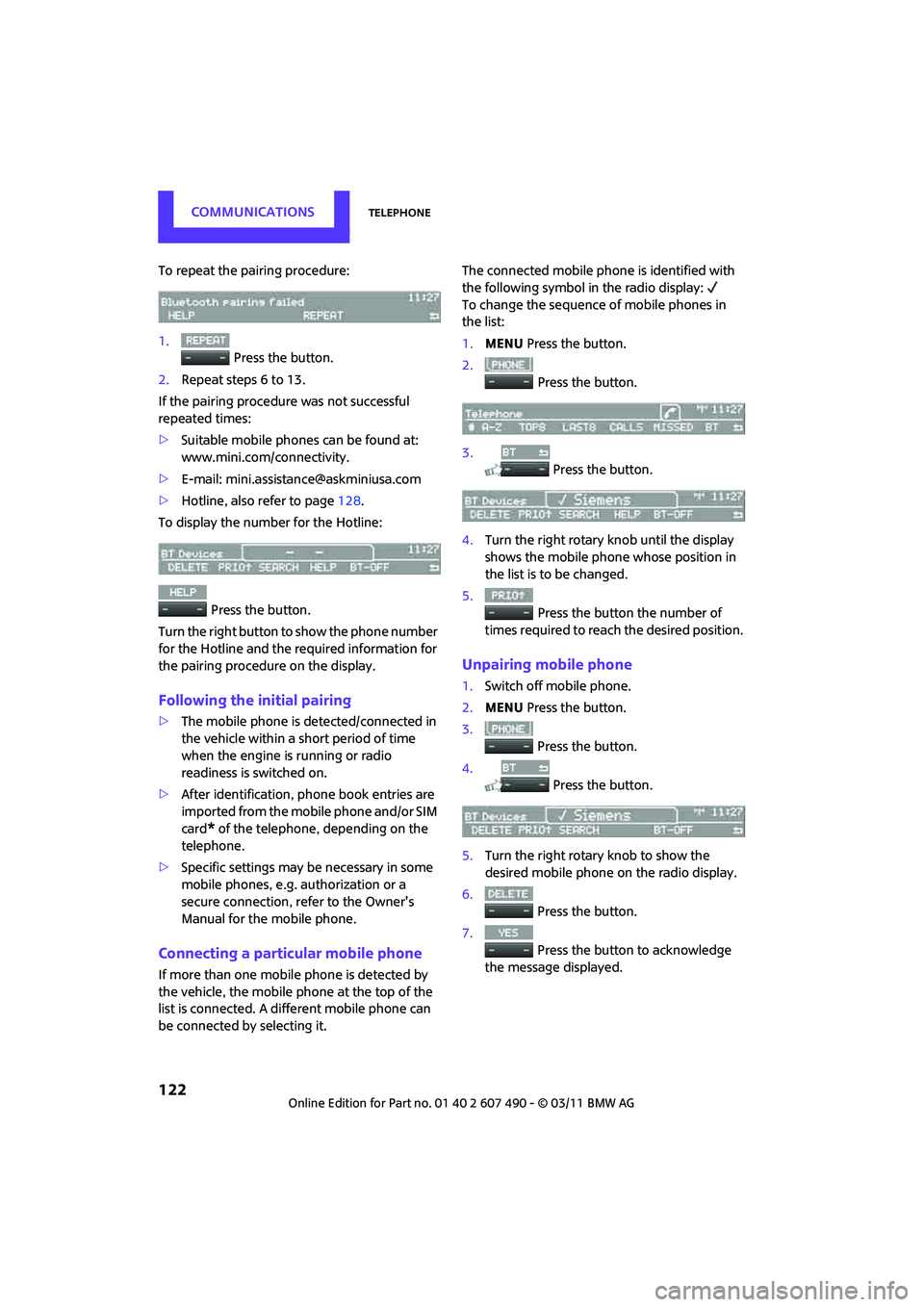
To repeat the pairing procedure:
1. Press the button.
2. Repeat steps 6 to 13.
If the pairing procedure was not successful
repeated times:
> Suitable mobile phones can be found at:
www.mini.com/connectivity.
> E-mail: mini.assistan [email protected]
> Hotline, also refer to page 128.
To display the number for the Hotline:
Press the button.
Turn the right button to show the phone number
for the Hotline and the re quired information for
the pairing procedure on the display.
Following the initial pairing
> The mobile phone is detected/connected in
the vehicle within a short period of time
when the engine is running or radio
readiness is switched on.
> After identification, phone book entries are
imported from the mobile phone and/or SIM
card
* of the telephone, depending on the
telephone.
> Specific settings may be necessary in some
mobile phones, e.g. authorization or a
secure connection, re fer to the Owner's
Manual for the mobile phone.
Connecting a particular mobile phone
If more than one mobile phone is detected by
the vehicle, the mobile phone at the top of the
list is connected. A different mobile phone can
be connected by selecting it. The connected mobile phone is identified with
the following symbol in the radio display:
To change the sequence of mobile phones in
the list:
1.
MENU Press the button.
2. Press the button.
3. Press the button.
4. Turn the right rotary knob until the display
shows the mobile phone whose position in
the list is to be changed.
5. Press the button the number of
times required to reach the desired position.
Unpairing mobile phone
1. Switch off mobile phone.
2. MENU Press the button.
3. Press the button.
4. Press the button.
5. Turn the right rotary knob to show the
desired mobile phone on the radio display.
6. Press the button.
7. Press the button to acknowledge
the message displayed.
Page 125 of 210

TelephoneCOMMUNICATIONS
123
What to do if…
For information on suitable mobile phones, refer
to page118.
The mobile phone could not be paired or
connected.
> Is Bluetooth activated in the vehicle and in
the mobile phone? Activate Bluetooth in the
vehicle and in the mobile phone.
> Do the Bluetooth passkeys on the mobile
phone and the vehicle match? Enter the
same passkey on the mobile phone and via
the radio.
> Is the passkey input taking longer than
30 seconds? Repeat the pairing procedure.
> Are too many Bluetooth devices connected
to the mobile phone? If so, delete the con-
nections with other devices on the mobile
phone.
> Is the mobile phone in power economy
m o d e o r d o e s i t o n l y h av e a s m al l am o u n t o f
battery charge remaining? Charge the
mobile phone in the snap-in adapter
* or via
a charging cable.
> Depending on the mobile phone, it may only
be possible to connect one device to the
vehicle. Unpair the connected device from
the vehicle and only pair and connect one
device.
> Is the mobile phone no longer responding?
Switch the mobile ph one off and back on
again. Repeat the pairing procedure.
> Delete connection to the mobile phone and,
if necessary, to the radio and try again.
Phone book entries are not displayed, not all of
them are displayed, or they are displayed
incompletely.
> The transfer of phone book entries has not
yet completed.
> It is possible that only the phone book
entries of the mobile phone or the SIM card
*
are transferred.
> It may not be possible to display phone book
entries with special characters. >
The number of phone book entries to be
stored is too high.
> The data volume of the phone book entry is
too great, e.g. due to additionally stored
information such as notes? Reduce the data
volume.
The telephone connection quality is low.
> Depending on the mobile phone, it is possi-
ble to adjust the strength of the Bluetooth
signal.
> Insert the mobile phone into the snap-in
adapter
* or place it in the vicinity of the
center console.
> Adjust the volume of the microphone and
speaker separately.
If you have gone through all items in the list and
still cannot activate the desired function please
contact the Hotline or your MINI dealer.
Operation
Overview
The following functions can be operated using
the radio:
> Accepting/refusing a call
> Dialing phone numbers
> Dialing a phone number from the phone
book
> Dialing a stored phone number, e.g. from
the list of accepted calls
> Ending a call
When the ignition is switched off and radio
readiness switched on, e. g. after removal of the
infrared remote control, an ongoing conversa-
tion can be continued for a maximum of
25 minutes using the hands-free system.
Page 126 of 210
COMMUNICATIONSTelephone
124
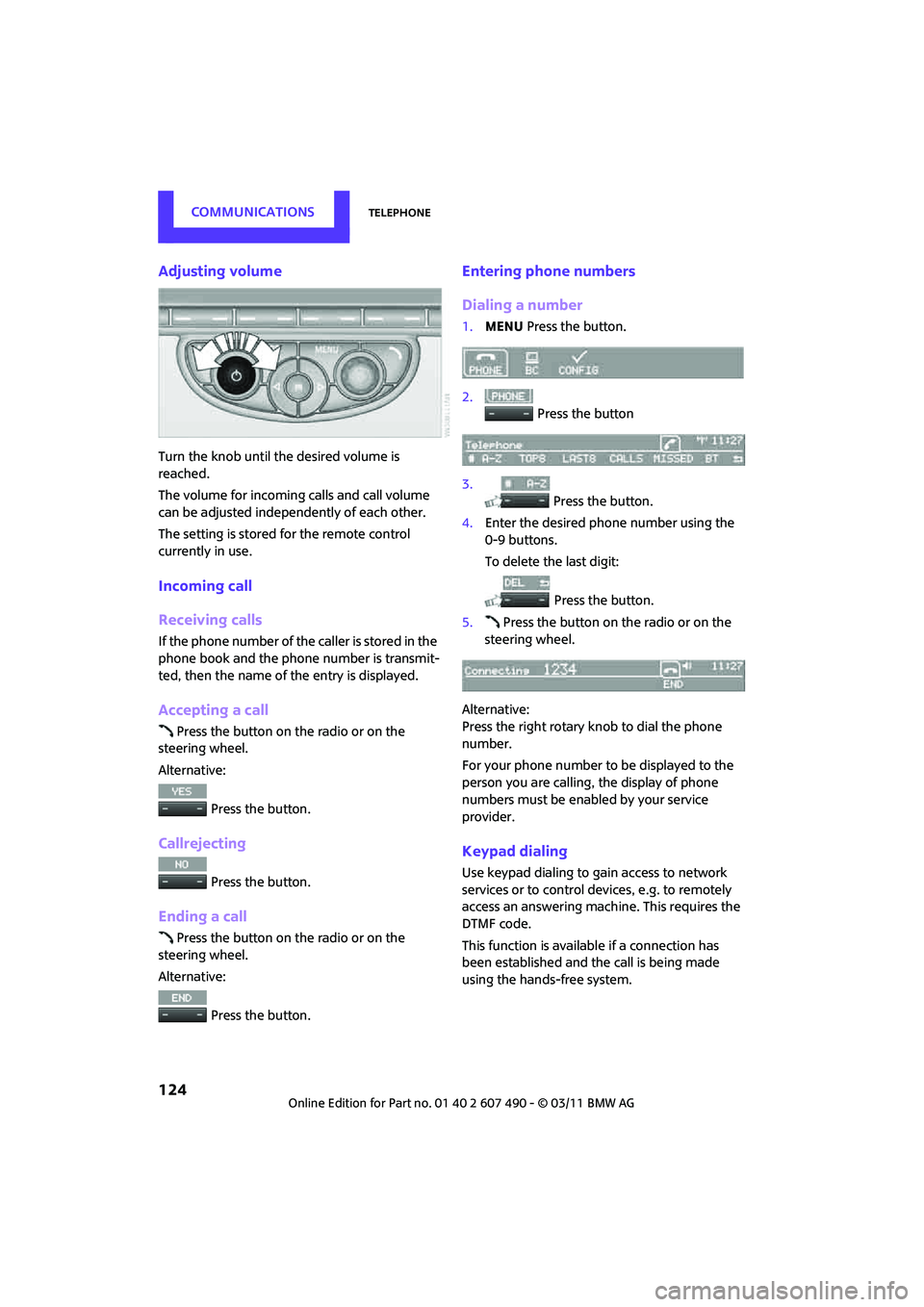
Adjusting volume
Turn the knob until the desired volume is
reached.
The volume for incoming calls and call volume
can be adjusted independently of each other.
The setting is stored for the remote control
currently in use.
Incoming call
Receiving calls
If the phone number of the caller is stored in the
phone book and the phone number is transmit-
ted, then the name of the entry is displayed.
Accepting a call
Press the button on the radio or on the
steering wheel.
Alternative:
Press the button.
Callrejecting
Press the button.
Ending a call
Press the button on the radio or on the
steering wheel.
Alternative:
Press the button.
Entering phone numbers
Dialing a number
1.MENU Press the button.
2. Press the button
3. Press the button.
4. Enter the desired phone number using the
0-9 buttons.
To delete the last digit:
Press the button.
5. Press the button on the radio or on the
steering wheel.
Alternative:
Press the right rotary knob to dial the phone
number.
For your phone number to be displayed to the
person you are calling, the display of phone
numbers must be enabled by your service
provider.
Keypad dialing
Use keypad dialing to gain access to network
services or to control de vices, e.g. to remotely
access an answering machine. This requires the
DTMF code.
This function is available if a connection has
been established and the call is being made
using the hands-free system.
Page 127 of 210

TelephoneCOMMUNICATIONS
125
1. Press the button.
2. Enter the desired code using the 0-9
buttons.
3.
If needed, press and hold the but-
ton on the right or left side to enter special
characters.
Dialing a phone number from the phone
book or from phone numbers stored in a
list
Phone numbers dialed, incoming calls, and
phone book entries are stored in lists when the
mobile phone is connected to the vehicle via
Bluetooth. If the caller is entered in the phone
book, then the name of the entry is displayed
instead of the phone number.
Select the desired name from the list and estab-
lish the connection.
There are five available lists:
> "A-Z"
The entries of the phone book, the SIM
card
*, or the mobile phone, composed of a
name and phone number, are sorted alpha-
betically.
> "TOP8"
The Top 8 list automatically stores the eight
phone numbers of the phone book that are
dialed the most frequently.
> "LAST8"
The last eight phone numbers you have
dialed are stored automatically. The phone
number dialed last appears at the top of the
list.
> "CALLS"
The phone numbers of the last eight
accepted calls are stored. This requires the
phone number of the caller to have been
transmitted. >
"MISSED"
The phone numbers of the last eight calls
that were not accepted are stored. This
requires the phone number of the caller to
have been transmitted.
Dialing a phone number from the phone
book
The A-Z list is available fo r phone book entries. If
entries with different names, but the same
phone number are transferred from the mobile
phone to the vehicle, only one entry is displayed.
The displays of the phone book entries on the
radio display can differ fr om the displays on the
mobile phone display, e.g. sequence of the first
and last names.
1. MENU Press the button.
2. Press the button.
3. Press the button.
The arrows indicate that
additional letters can be displayed.
Turn the right rotary knob to display
additional letters.
4. Turn the right rotary knob to select the first
letters of the desired entry.
5. Press the button if so desired.
The phone number is dialed.
To display all entries:
1. Turn the right rotary knob to select the first
letters of the desired entry and press the
right rotary knob.
2. Turn the right rotary knob to select the
desired entry and pre ss the right rotary
knob.