buttons MINI COOPER 2014 Owners Manual
[x] Cancel search | Manufacturer: MINI, Model Year: 2014, Model line: COOPER, Model: MINI COOPER 2014Pages: 230, PDF Size: 11.58 MB
Page 14 of 230
CockpitVehicle equipment
All standard, country-specific and optional
equipment that is offered in the model series is
described in this chapter. Therefore, equipmentis also described that is not available in a vehi‐
cle, e. g., because of the selected optional
equipment or country variant. This also applies
for safety-related functions and systems.
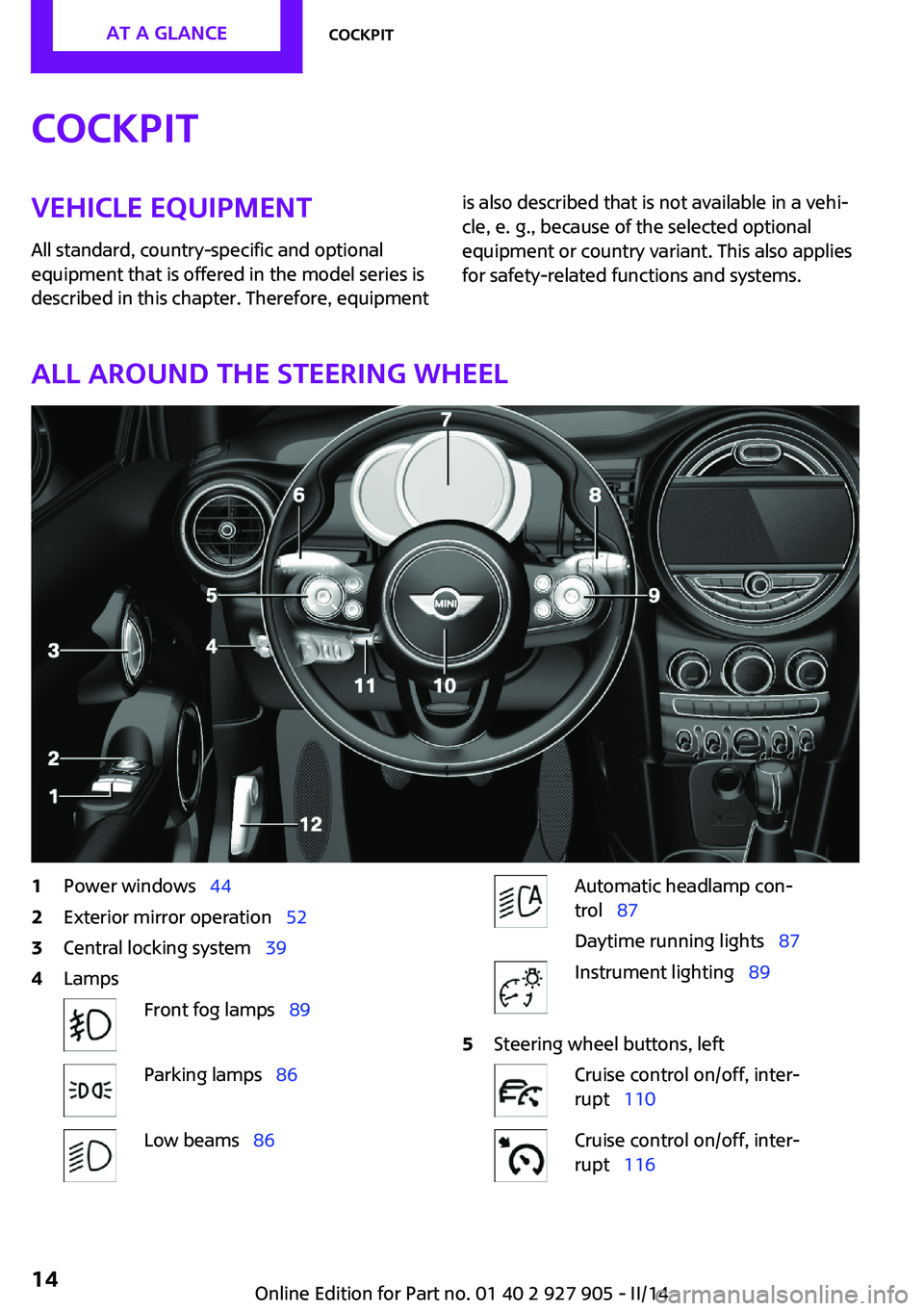
All around the steering wheel
1Power windows 442Exterior mirror operation 523Central locking system 394LampsFront fog lamps 89Parking lamps 86Low beams 86Automatic headlamp con‐
trol 87
Daytime running lights 87Instrument lighting 895Steering wheel buttons, leftCruise control on/off, inter‐
rupt 110Cruise control on/off, inter‐
rupt 116Seite 14AT A GLANCECockpit14
Online Edition for Part no. 01 40 2 927 905 - II/14
Page 15 of 230

Store speed Resume speed 112, 117Set speed 112, 116Reduce distance 116Increase distance 1106Steering column stalk, leftTurn signal 64High beams, head‐
lamp flasher 64Roadside parking lamps 86Computer 797Instrument cluster 718Steering column stalk, rightWindshield wipers 64Rain sensor 65Cleaning windows 66Rear window wiper 66Cleaning rear window 669Steering wheel buttons, rightVoice activation 26TelephoneConfirm the selection 78Move selection up 78Move selection down 78Increase volumeReduce volume10Horn11Adjust the steering wheel 5412Unlock hood 180Seite 15CockpitAT A GLANCE15
Online Edition for Part no. 01 40 2 927 905 - II/14
Page 16 of 230
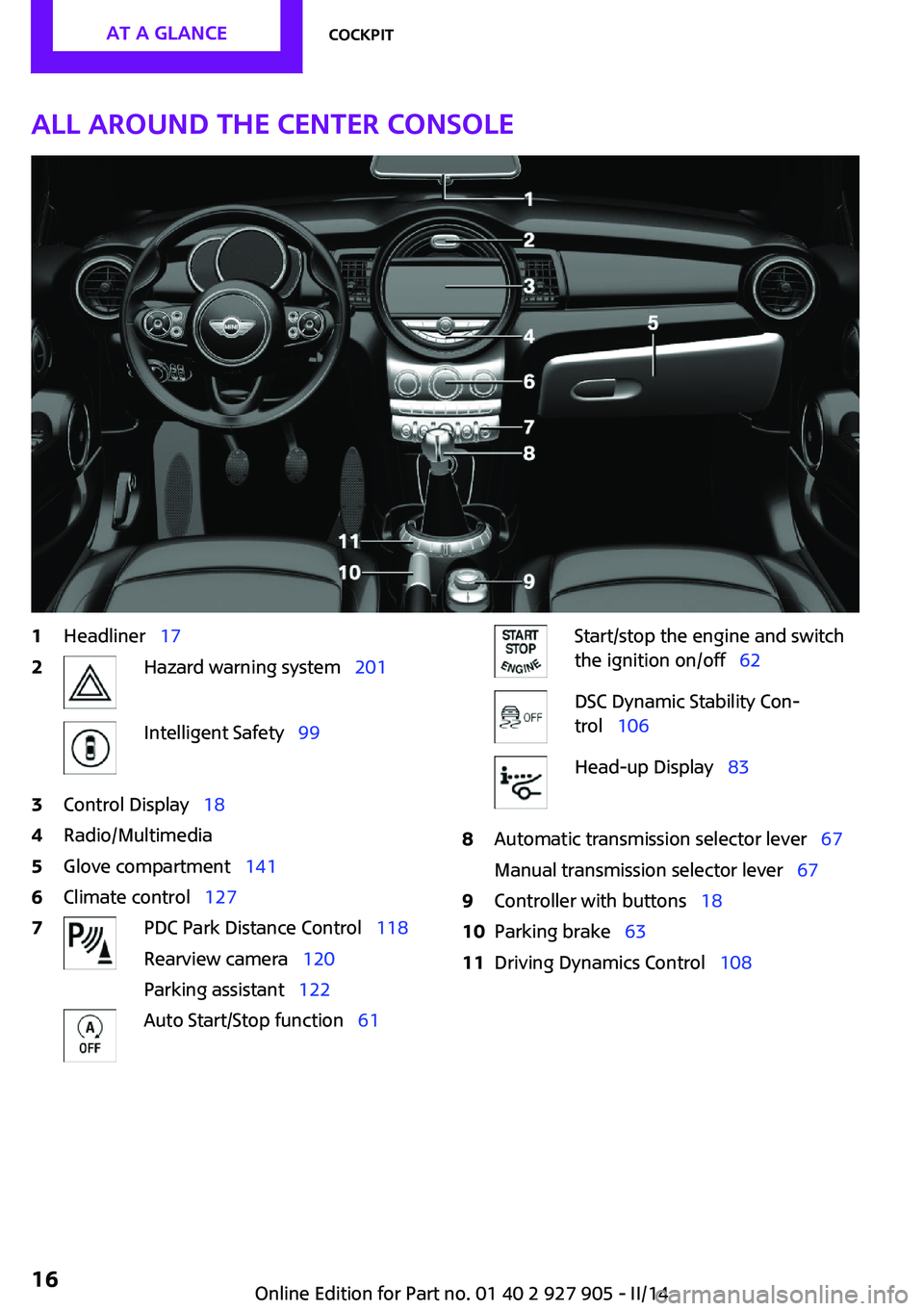
All around the center console1Headliner 172Hazard warning system 201Intelligent Safety 993Control Display 184Radio/Multimedia5Glove compartment 1416Climate control 1277PDC Park Distance Control 118
Rearview camera 120
Parking assistant 122Auto Start/Stop function 61Start/stop the engine and switch
the ignition on/off 62DSC Dynamic Stability Con‐
trol 106Head-up Display 838Automatic transmission selector lever 67
Manual transmission selector lever 679Controller with buttons 1810Parking brake 6311Driving Dynamics Control 108Seite 16AT A GLANCECockpit16
Online Edition for Part no. 01 40 2 927 905 - II/14
Page 18 of 230

Onboard monitorVehicle equipmentAll standard, country-specific and optional
equipment that is offered in the model series is
described in this chapter. Therefore, equipment
is also described that is not available in a vehi‐
cle, e. g., because of the selected optional
equipment or country variant. This also applies
for safety-related functions and systems.
The concept The onboard monitor combines the functions
of a multitude of switches. Thus, these func‐
tions can be operated from a central location.
Using the onboard monitor during a trip
To avoid becoming distracted and posing
an unnecessary hazard to your vehicle's occu‐
pants and to other road users, never attempt to
use the controls or enter information unless
traffic and road conditions allow this. ◀
Controls at a glance
Control elements1Control Display2Controller with buttons and, depending on
the equipment version, with touchpadControl Display
Hints▷To clean the Control Display, follow the care
instructions.▷Do not place objects close to the Control
Display; otherwise, the Control Display can
be damaged.
Switching off
1. Press the button.2."Switch off control display"
Switching on
Press the controller again to switch the screen
back on.
Controller with navigation system
The buttons can be used to open the menus di‐
rectly. The controller can be used to select
menu items and create the settings.
Some functions of the onboard monitor can be
operated using the touchpad on the controller:
Seite 18AT A GLANCEOnboard monitor18
Online Edition for Part no. 01 40 2 927 905 - II/14
Page 19 of 230

1.Turn.2.Press.3.Move in four directions.
Buttons on controller
Press the buttonFunctionMENUOpen the main menu.RADIOOpens the Radio menu.MEDIAOpens the Multimedia menu.NAVOpens the Navigation menu.TELOpens the Telephone menu.Press the buttonFunctionBACKDisplays the previous panel.OPTIONOpens the Options menu.
Controller without navigation system
The buttons can be used to open the menus di‐
rectly. The controller can be used to select
menu items and create the settings.
1.Turn.2.Press.3.Move in two directions.Seite 19Onboard monitorAT A GLANCE19
Online Edition for Part no. 01 40 2 927 905 - II/14
Page 20 of 230
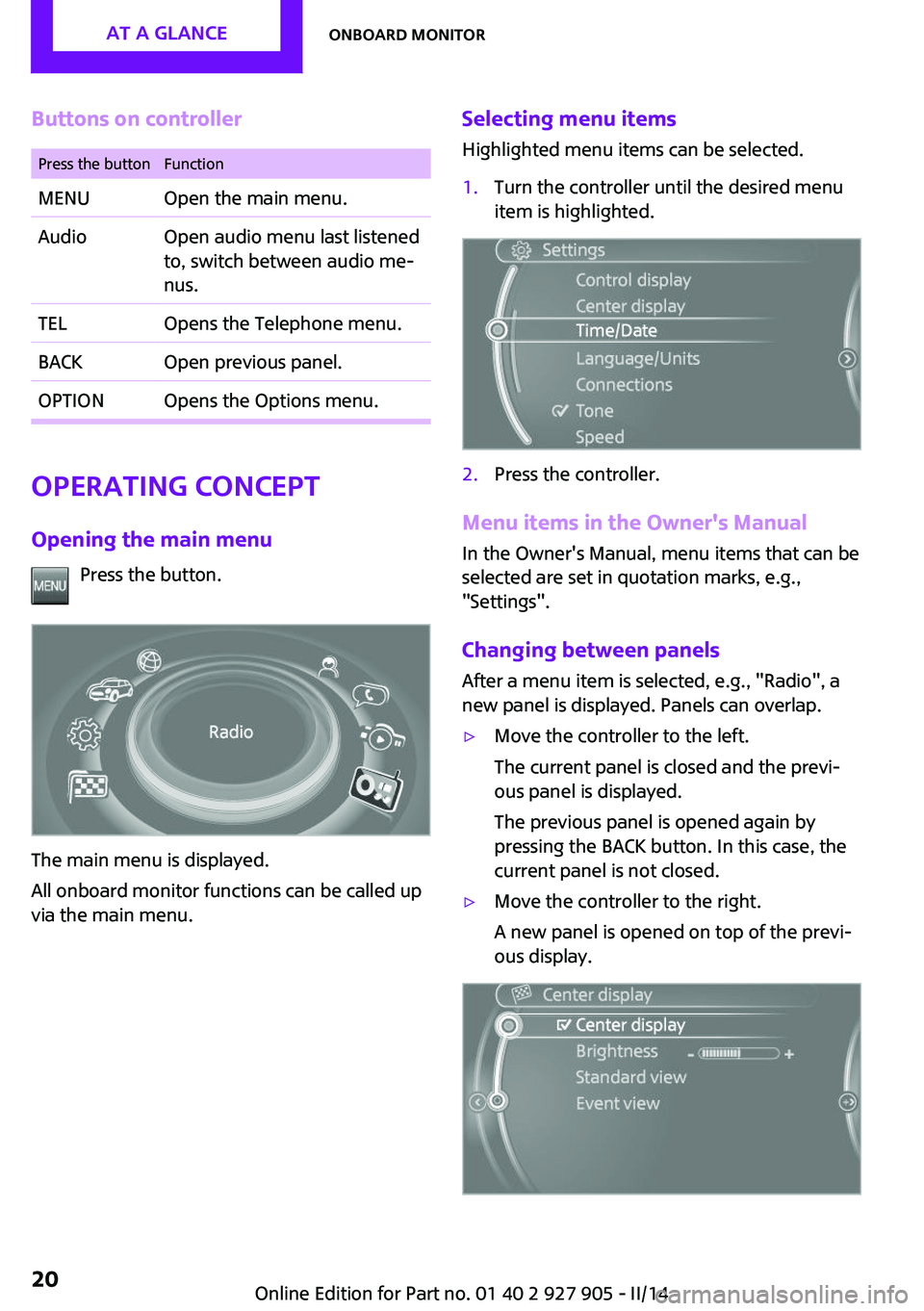
Buttons on controllerPress the buttonFunctionMENUOpen the main menu.AudioOpen audio menu last listened
to, switch between audio me‐
nus.TELOpens the Telephone menu.BACKOpen previous panel.OPTIONOpens the Options menu.
Operating concept
Opening the main menu Press the button.
The main menu is displayed.
All onboard monitor functions can be called up
via the main menu.
Selecting menu items
Highlighted menu items can be selected.1.Turn the controller until the desired menu
item is highlighted.2.Press the controller.
Menu items in the Owner's Manual
In the Owner's Manual, menu items that can be
selected are set in quotation marks, e.g.,
"Settings".
Changing between panels
After a menu item is selected, e.g., "Radio", a
new panel is displayed. Panels can overlap.
▷Move the controller to the left.
The current panel is closed and the previ‐
ous panel is displayed.
The previous panel is opened again by
pressing the BACK button. In this case, the
current panel is not closed.▷Move the controller to the right.
A new panel is opened on top of the previ‐
ous display.Seite 20AT A GLANCEOnboard monitor20
Online Edition for Part no. 01 40 2 927 905 - II/14
Page 24 of 230

4.Press the controller or select "Split screen
content".5.Select the desired menu item.
Programmable memory
buttons
General information
The onboard monitor functions can be stored
on the programmable memory buttons and
called up directly, e.g., radio stations, naviga‐
tion destinations, phone numbers and entry
points into the menu.
The settings are stored for the remote control
currently in use.
Saving a function
1.Highlight function via the onboard monitor.2. Press the desired button for more
than 2 seconds.
Running a function
Press the button.
The function will run immediately. This
means, for example, that the number is dialed
when a phone number is selected.
Displaying the button assignment Use a finger to touch the buttons. Do not wear
gloves or use objects.
The key assignment is displayed at the top
edge of the screen.▷To display short information: touch the but‐
ton.▷To display detailed information: touch the
button for an extended period.
Deleting the button assignments
1.Press buttons 1 and 6 simultaneously for
approx. five seconds.2."OK"
Entering letters and
numbers
General information
1.Turn the controller: select letters or num‐
bers.2.Select additional letters or numbers if
needed.3."OK": confirm the entry.SymbolFunction Press the controller: delete the letter
or number. Press the controller for an extended
period: delete all letters or numbers.Seite 24AT A GLANCEOnboard monitor24
Online Edition for Part no. 01 40 2 927 905 - II/14
Page 30 of 230
Leaf forward.
Context help - Owner's Manual to the
temporarily selected function
The relevant information can be opened di‐
rectly.
Opening via the onboard monitor To move directly from the application on the
Control Display to the options menu:1. Press the button or move the control‐
ler to the right repeatedly until the
"Options" menu is displayed.2."Display Owner's Manual"
Opening when a Check Control
message is displayed
Directly from the Check Control message on the
Control Display:
"Display Owner's Manual"
Changing between a function and the
Owner's Manual
To change from a function, e.g., radio, to the
Owner's Manual on the Control Display and to
switch between the two displays:
1. Press the button or move the control‐
ler to the right repeatedly until the
"Options" menu is displayed.2."Display Owner's Manual"3.Select the desired page in the Owner's
Manual.4. Press the button again to return to
the function displayed last.5. Press the button to return to the page
of the Owner's Manual displayed last.To switch back and forth repeatedly between
the function displayed last and the page of the
Owner's Manual displayed last, repeat steps 4
and 5. This opens a new panel every time.
Programmable memory buttons
General information
The Owner's Manual can be stored on the pro‐
grammable memory buttons and called up di‐
rectly.
Storing1."Owner's Manual" Select via the iDrive.2. Press the desired button for more
than 2 seconds.
Executing
Press the button.
The Owner's Manual is displayed im‐
mediately.
Seite 30AT A GLANCEIntegrated Owner's Manual in the vehicle30
Online Edition for Part no. 01 40 2 927 905 - II/14
Page 36 of 230

Adjusting
The following settings are stored in a profile.▷Radio: stored stations, station listened to
last.▷Assignment of the programmable memory
buttons.▷Tone settings.▷Audio source listened to last.▷Unlocking the vehicle: driver door or entire
vehicle.▷Locking the vehicle: if no door is open or af‐
ter starting off.▷Welcome lamps: on/off.▷Triple turn signal activation: on/off.▷Headlamp courtesy delay feature: time set‐
ting.▷Language on the Control Display.▷Daytime running lights: on/off.▷Air conditioner/Automatic climate control:
settings.▷Navigation: map views, route criteria, voice
output on/off.▷Park Distance Control PDC: signal tone vol‐
ume.▷Rearview camera: selection of functions
and type of display.▷Head-up Display: selection, brightness, po‐
sition and rotation of the display.▷Driving Dynamics Control: configuration.
Profile management
Opening the profiles A different profile can be called up than the one
associated with the remote control currently in
use.
1. "Settings"2."Profiles"3.Select a profile.Called up profile is assigned to the remote con‐
trol being used at the time.
Renaming profiles1. "Settings"2."Profiles"
The current profile is selected.3.Open "Options".4."Rename current profile"
Resetting profiles The settings of the active profile are reset to
their default values.
1. "Settings"2."Profiles"
The current profile is selected.3.Open "Options".4."Reset current profile"
Importing profiles
Profiles stored on a USB device can be im‐
ported via the USB interface.
Existing settings and contacts are overwritten
with the imported profile.
1. "Settings"2."Profiles"3."Import profile"4."USB device"
Exporting profiles
Most settings of the active profile and the
saved contacts can be exported.
This can be helpful for securing and retrieving
personal settings, before delivering the vehicle
to a workshop for example. The saved profiles
can be taken with you to another vehicle
equipped with the Personal Profile function.
1. "Settings"2."Profiles"Seite 36CONTROLSOpening and closing36
Online Edition for Part no. 01 40 2 927 905 - II/14
Page 39 of 230
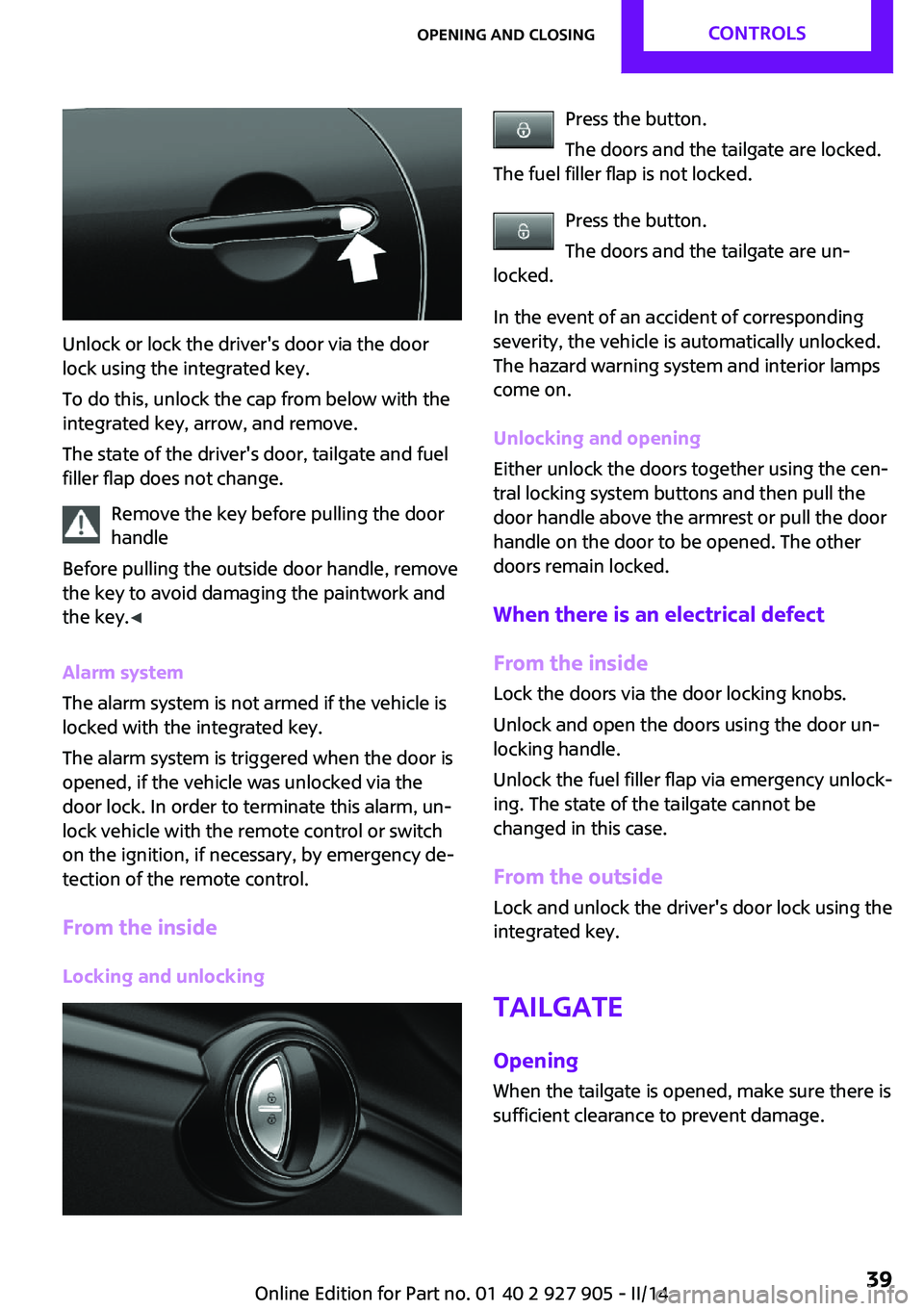
Unlock or lock the driver's door via the door
lock using the integrated key.
To do this, unlock the cap from below with the
integrated key, arrow, and remove.
The state of the driver's door, tailgate and fuel
filler flap does not change.
Remove the key before pulling the door
handle
Before pulling the outside door handle, remove
the key to avoid damaging the paintwork and
the key. ◀
Alarm system
The alarm system is not armed if the vehicle is
locked with the integrated key.
The alarm system is triggered when the door is
opened, if the vehicle was unlocked via the
door lock. In order to terminate this alarm, un‐
lock vehicle with the remote control or switch
on the ignition, if necessary, by emergency de‐
tection of the remote control.
From the inside Locking and unlocking
Press the button.
The doors and the tailgate are locked.
The fuel filler flap is not locked.
Press the button.
The doors and the tailgate are un‐
locked.
In the event of an accident of corresponding
severity, the vehicle is automatically unlocked.
The hazard warning system and interior lamps
come on.
Unlocking and opening
Either unlock the doors together using the cen‐
tral locking system buttons and then pull the
door handle above the armrest or pull the door
handle on the door to be opened. The other
doors remain locked.
When there is an electrical defect From the inside Lock the doors via the door locking knobs.
Unlock and open the doors using the door un‐
locking handle.
Unlock the fuel filler flap via emergency unlock‐
ing. The state of the tailgate cannot be
changed in this case.
From the outside
Lock and unlock the driver's door lock using the
integrated key.
Tailgate
Opening When the tailgate is opened, make sure there is
sufficient clearance to prevent damage.Seite 39Opening and closingCONTROLS39
Online Edition for Part no. 01 40 2 927 905 - II/14