Back MINI COOPER CONVERTIBLE 2012 Owner's Guide
[x] Cancel search | Manufacturer: MINI, Model Year: 2012, Model line: COOPER CONVERTIBLE, Model: MINI COOPER CONVERTIBLE 2012Pages: 218, PDF Size: 4.5 MB
Page 111 of 218
DRIVING TIPSThings to remember when driving
110
Split-folding rear seats
To be able to transport larger objects, the rear
backrest can be folded down.
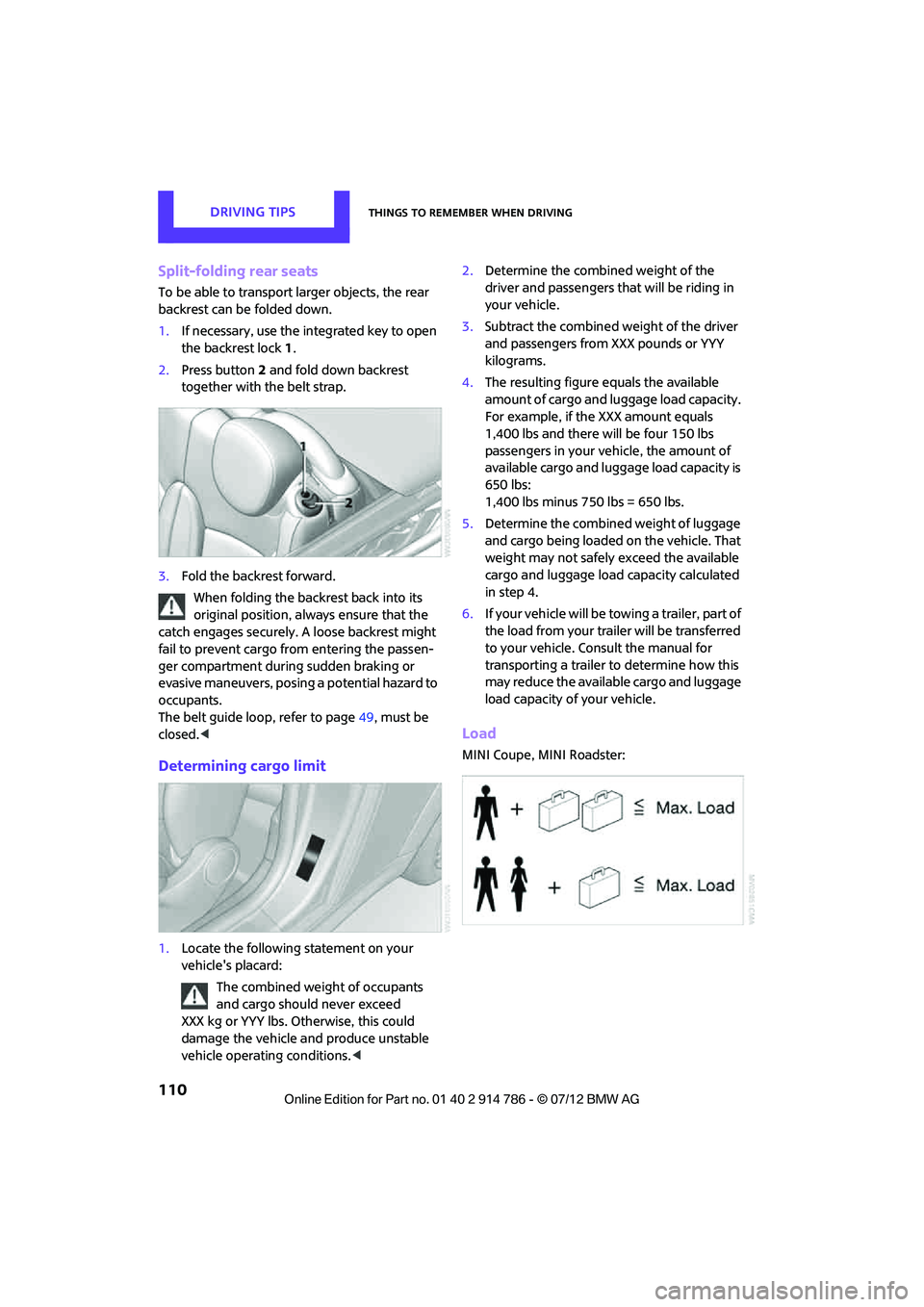
1.If necessary, use the integrated key to open
the backrest lock 1.
2. Press button 2 and fold down backrest
together with the belt strap.
3. Fold the backrest forward.
When folding the backrest back into its
original position, alwa ys ensure that the
catch engages securely. A loose backrest might
fail to prevent cargo from entering the passen-
ger compartment during sudden braking or
evasive maneuvers, posing a potential hazard to
occupants.
The belt guide loop, refer to page 49, must be
closed. <
Determining cargo limit
1.Locate the following statement on your
vehicle's placard:
The combined weight of occupants
and cargo should never exceed
XXX kg or YYY lbs. Otherwise, this could
damage the vehicle and produce unstable
vehicle operating conditions. <2.
Determine the combined weight of the
driver and passengers that will be riding in
your vehicle.
3. Subtract the combined weight of the driver
and passengers from XXX pounds or YYY
kilograms.
4. The resulting figure equals the available
amount of cargo and luggage load capacity.
For example, if the XXX amount equals
1,400 lbs and there will be four 150 lbs
passengers in your vehicle, the amount of
available cargo and luggage load capacity is
650 lbs:
1,400 lbs minus 750 lbs = 650 lbs.
5. Determine the combined weight of luggage
and cargo being loaded on the vehicle. That
weight may not safely exceed the available
cargo and luggage load capacity calculated
in step 4.
6. If your vehicle will be towing a trailer, part of
the load from your trailer will be transferred
to your vehicle. Consult the manual for
transporting a trailer to determine how this
may reduce the available cargo and luggage
load capacity of your vehicle.
Load
MINI Coupe, MINI Roadster:
Online Edition for Part no. 01 40 2 914 786 - \251 07/12 BMW AG
Page 112 of 218
Things to remember when drivingDRIVING TIPS
111
MINI Convertible:
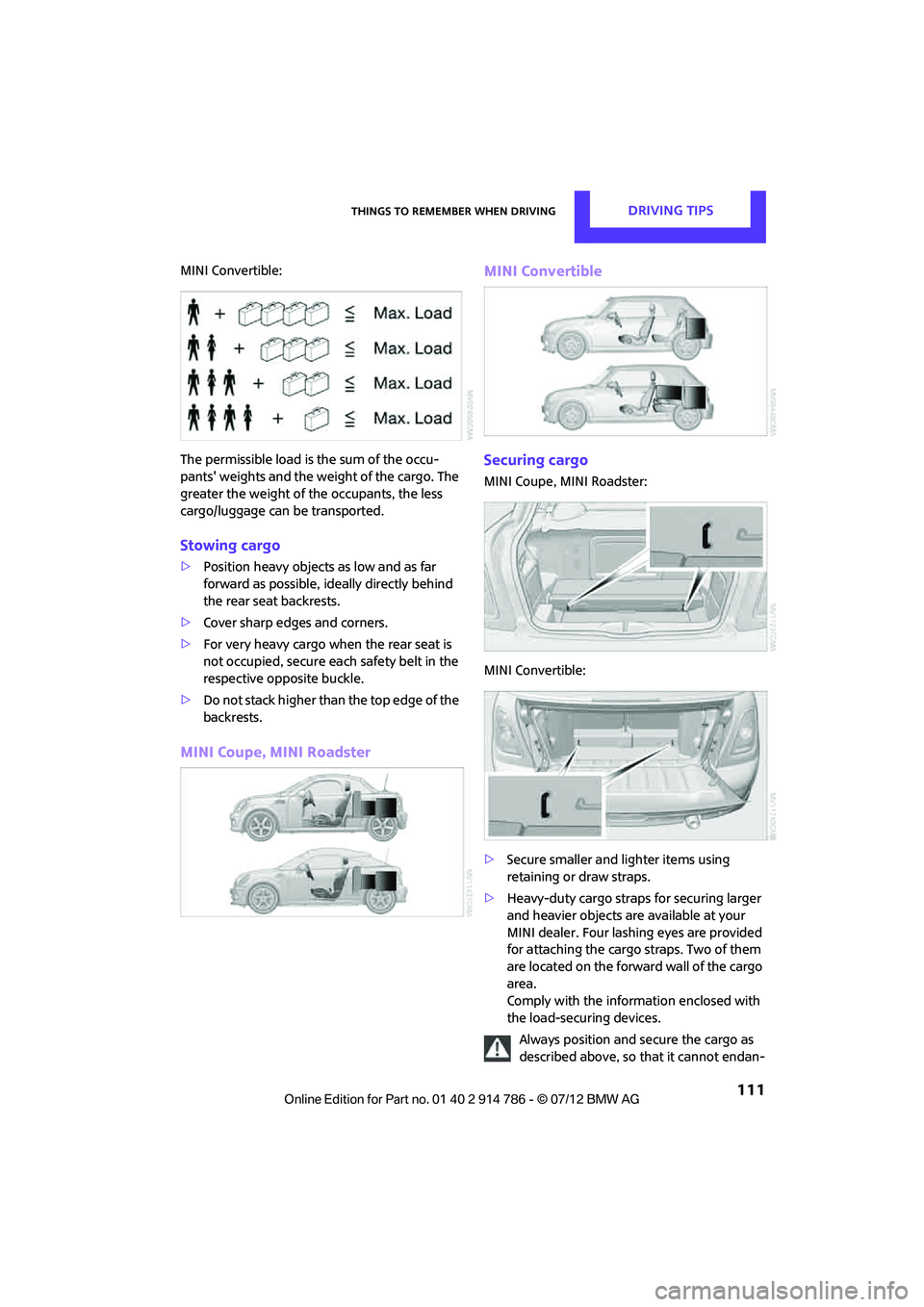
The permissible load is the sum of the occu-
pants' weights and the weight of the cargo. The
greater the weight of the occupants, the less
cargo/luggage can be transported.
Stowing cargo
>Position heavy objects as low and as far
forward as possible, id eally directly behind
the rear seat backrests.
> Cover sharp edges and corners.
> For very heavy cargo when the rear seat is
not occupied, secure each safety belt in the
respective opposite buckle.
> Do not stack higher than the top edge of the
backrests.
MINI Coupe, MINI Roadster MINI Convertible
Securing cargo
MINI Coupe, MINI Roadster:
MINI Convertible:
>
Secure smaller and lighter items using
retaining or draw straps.
> Heavy-duty cargo straps for securing larger
and heavier objects ar e available at your
MINI dealer. Four lashing eyes are provided
for attaching the cargo straps. Two of them
are located on the forward wall of the cargo
area.
Comply with the information enclosed with
the load-securing devices.
Always position and secure the cargo as
described above, so that it cannot endan-
Online Edition for Part no. 01 40 2 914 786 - \251 07/12 BMW AG
Page 118 of 218
Radio MINI Boost CDENTERTAINMENT
117
Connecting an external device, refer to
page123.
To adjust the volume of an external audio device
to the radio:
1. Press the MODEbutton.
2. Press the button.
3. Press the button.
4. Select the desired volume and press the
knob on the right.
Setting tone controls
You can select between the following settings:
>Bass: bass adjustment.
> Treble: treble adjustment.
> Balance: volume distribution left/right.
> Fader: volume distri bution front/back.
The tone settings are set for all audio sources at
once.
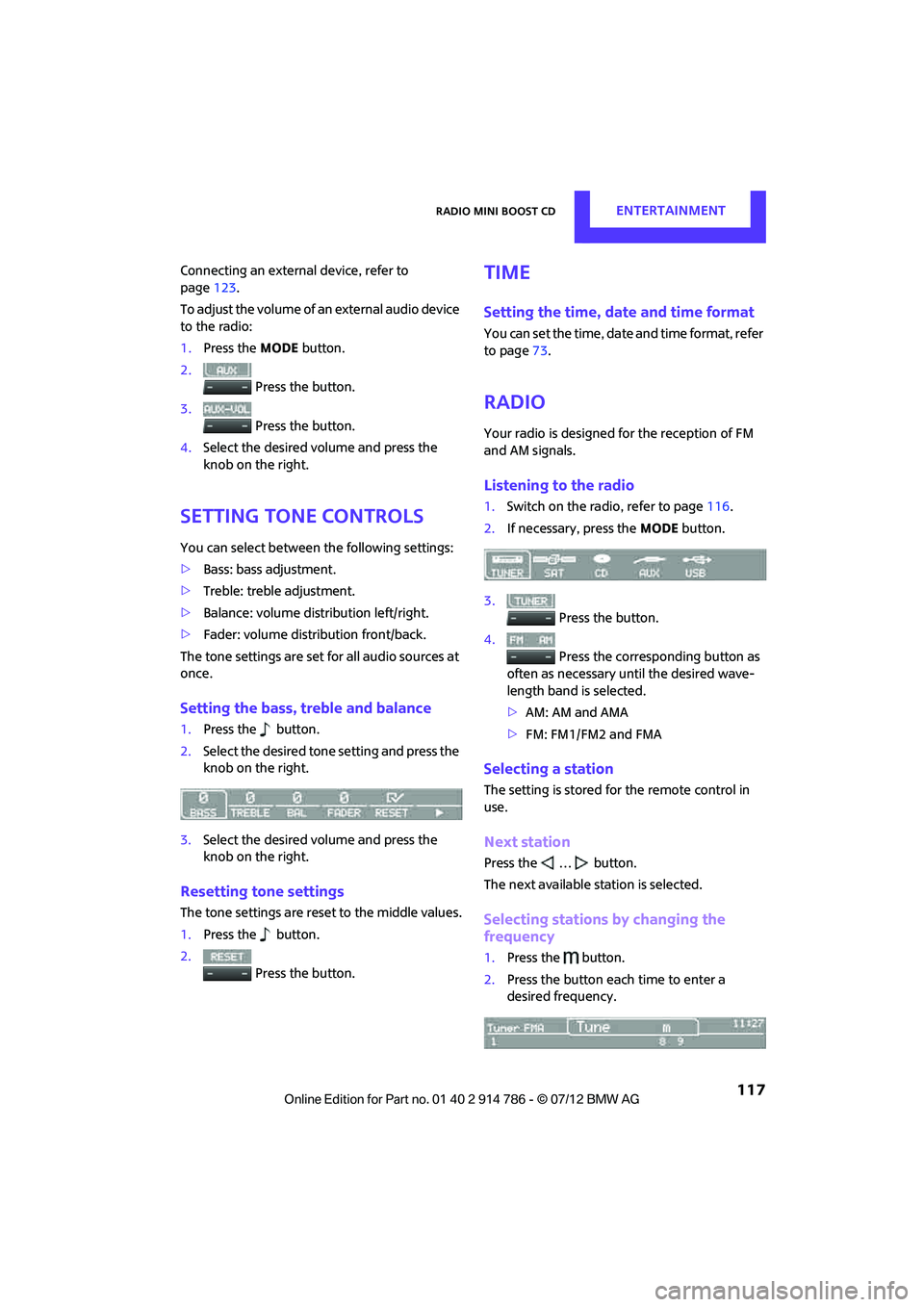
Setting the bass, treble and balance
1. Press the button.
2. Select the desired tone setting and press the
knob on the right.
3. Select the desired volume and press the
knob on the right.
Resetting tone settings
The tone settings are reset to the middle values.
1.Press the button.
2. Press the button.
Time
Setting the time, date and time format
You can set the time, date and time format, refer
to page73.
Radio
Your radio is designed for the reception of FM
and AM signals.
Listening to the radio
1.Switch on the radio, refer to page 116.
2. If necessary, press the MODEbutton.
3. Press the button.
4. Press the corresponding button as
often as necessary until the desired wave-
length band is selected.
> AM: AM and AMA
> FM: FM1/FM2 and FMA
Selecting a station
The setting is stored for the remote control in
use.
Next station
Press the … button.
The next available st ation is selected.
Selecting stations by changing the
frequency
1. Press the button.
2. Press the button each time to enter a
desired frequency.
Online Edition for Part no. 01 40 2 914 786 - \251 07/12 BMW AG
Page 120 of 218
Radio MINI Boost CDENTERTAINMENT
119
Displaying the program type
1. Press the button.
2. Press the button.
HD Radio™ reception
Many radio stations transmit analog and digital
signals. If a digital radio network is available,
these stations can be received digitally and thus
with improved sound quality.
License conditions
HD Radio™ technology is manufactured under
U.S. and Foreign Patents licensed from iBiquity
Digital Corp. HD Radio™ and the HD and HD
Radio logos are proprietary trademarks of
iBiquity Digital Corp.
Activating/deactivating digital radio
reception
1.Press the MODEbutton.
2. Press the button.
3. Press the button.
4. Press the button.
"HD": a station is received digitally.
"(HD)": a station is broadcasting digital signals;
digital radio reception is , however, switched off.
For some stations, the digital signals are not
broadcast simultaneously with the analog sig-
nals. If you are in an area where the selected sta-
tion can not be continuously received digitally,
then the playback switches between analog and
digital reception. As a result, the reception can
be interrupted and then resume from time to
time. In this type of situation, it is suggested that
digital radio reception be turned off.
Selecting programs from a digital
station
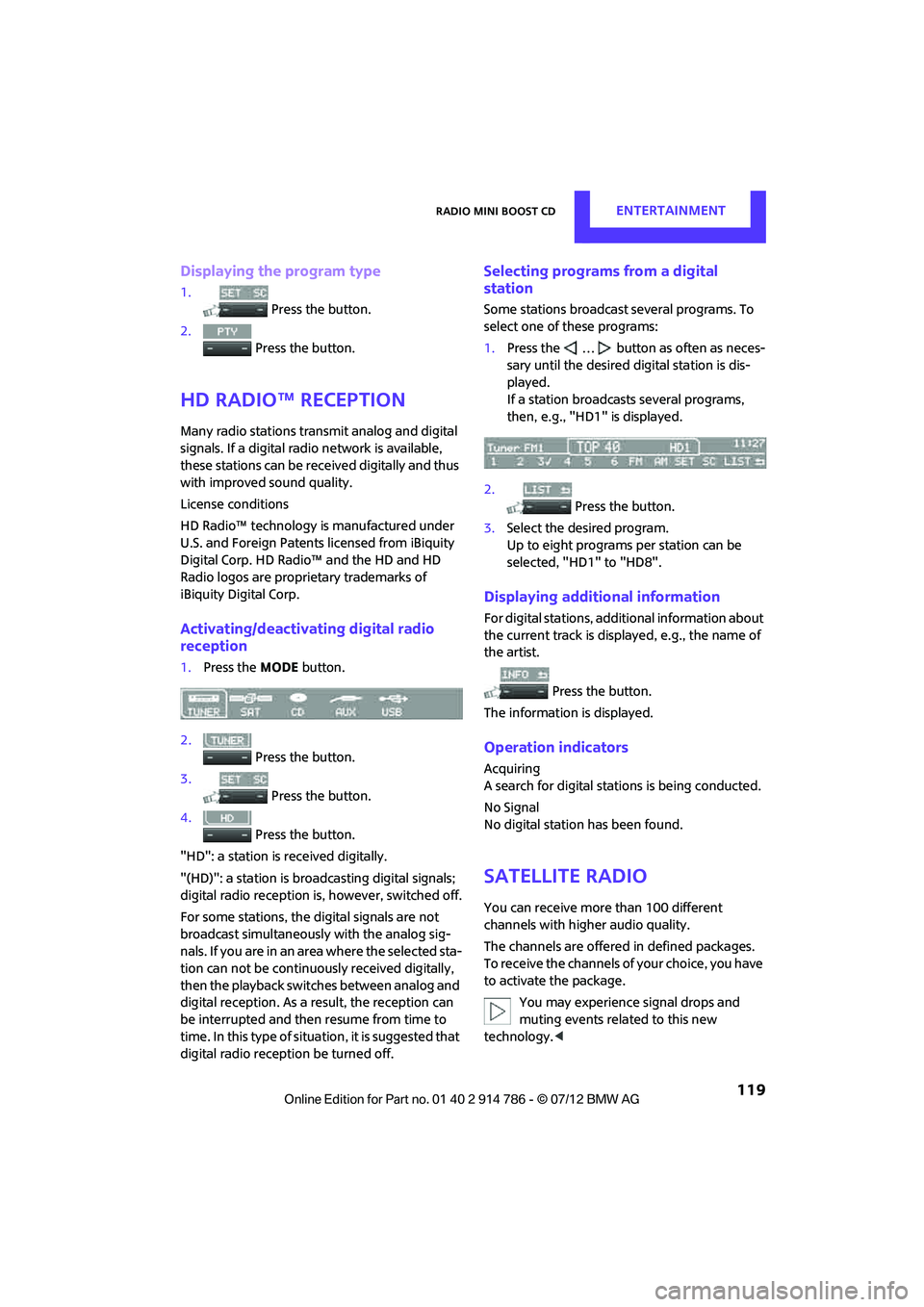
Some stations broadcast several programs. To
select one of these programs:
1. Press the … button as often as neces-
sary until the desired digital station is dis-
played.
If a station broadcasts several programs,
then, e.g., "HD1" is displayed.
2. Press the button.
3. Select the desired program.
Up to eight programs per station can be
selected, "HD1" to "HD8".
Displaying additional information
For digital stations, addi tional information about
the current track is displayed, e.g., the name of
the artist.
Press the button.
The information is displayed.
Operation indicators
Acquiring
A search for digital stat ions is being conducted.
No Signal
No digital station has been found.
Satellite radio
You can receive more than 100 different
channels with higher audio quality.
The channels are offere d in defined packages.
To receive the channels of your choice, you have
to activate the package.
You may experience signal drops and
muting events related to this new
technology. <
Online Edition for Part no. 01 40 2 914 786 - \251 07/12 BMW AG
Page 123 of 218

ENTERTAINMENTRadio MINI Boost CD
122
Playing a track and selecting, scan
Press the button.
To cancel the scan and select a track:
Press the button.
Selecting MP3 music tracks
The CD player can also play CDs with com-
pressed audio data, such as MP3 and WMA.
Selecting a track
1.
Press button.
2. Use the knob on the right to select the
desired folder.
> : press the knob on the right to open
afolder
> : press the knob on the right to close
afolder
3. Select additional folders if you wish.
4. Select the desired track and press the knob
on the right.
You can browse through the folders during play-
back.
To change to the current track:
Press the button.
Track display
You can call up any input information about the
current music track:
1. Press button.
2. Press button.
Ejecting the CD out of the CD player
Press the button.
The CD is partially ejected from the CD slot.
Operation indicators
>"Insert CD"
The CD slot is empty.
> "Error CD"
The CD can not be read or is defective.
> "Temp. CD"
The operating temperature is too high.
Notes
CD players are laser products of Class 1. Do
not operate if the cover is damaged;
otherwise, serious injury to eyes may result.
Do not use CDs with after-market labels; other-
wise, the labels can loosen as a result of the heat
generated during playback and possibly cause
irreparable damage to the system.
Only use round CDs with a standard diameter of
4.7 in/12 cm and do not pl ay CDs with adapters,
e.g., single CDs; otherwise, the CDs or the adapt-
ers may jam and it may not be possible to eject
them.
Do not use combined CD/DVDs, e.g., DVD
Plus;
otherwise, the CD/DVD may jam and it may not
be possible to eject it. <
General malfunctions
The CD players are optimized for operation in
vehicles. They may be more sensitive to defec-
tive CDs than players for stationary use.
If a CD can not be played, first check if the CD is
properly inserted.
Humidity
If there is high humidity, the CD or the focusing
lens for the laser beam may get fogged up and
playing the CD may temporarily not be possible.
Malfunctions with individual CDs
If there are malfunctions with individual CDs,
then the malfunctions may be due to the
following causes:
Online Edition for Part no. 01 40 2 914 786 - \251 07/12 BMW AG
Page 124 of 218

Radio MINI Boost CDENTERTAINMENT
123
CDs that you burned yourself
Potential problems with home-burned CDs are,
for example, inconsistent data generation and
burning processes, as we ll as low quality or
excessive aging of the blanks that are used.
Only write on the upper surface of CDs with a
writing instrument that is suitable for the pur-
pose.
Damaged CDs
Avoid finger prints as well as dust, scratches and
moisture.
Store CDs in sleeves.
Do not expose CDs to a temperature greater
than 122 7/50 6, high humidity or direct
sunlight.
CDs with copy protection
CDs are often provided with copy protection
from the manufacturer. This can result in CDs not
playing or playing back in only a limited fashion.
Care
If necessary, clean the reflecting side of the CD
with a commercially avail able cleaning cloth by
wiping in a straight line from the center out-
wards.
USB audio interface
> iPods/iPhones or USB devices such as MP3
players and USB memory sticks: connection
via the USB audio interface
> iPhone/mobile phone music players: con-
nection using a snap-in adapter, refer to
page 136.
> Only one iPod/iPhone can be connected to
the vehicle. Output fr om an iPod/iPhone to
the USB audio interface is only possible if
there is no iPhone in the snap-in adapter.
> Popular audio files, such as MP3, AAC and
M3U playlists, PLS and WPL, can be played.
Depending on the audio file, proper play- back can not be ensured in every case, such
as for bit rates greater than 256 kbit/s.
> Music tracks with inte grated Digital Rights
Management (DRM) cannot be played.
Because of the large number of audio devices on
the market, it can not be ensured that every
device will properly operate in the vehicle.
Additional information may be found at
www.mini.com/connectivity or at a MINI dealer.
File systems
Popular FAT file system s for USB devices are
supported. The manufacturer of your MINI
recommends the FAT 32 format.
Connecting
1 USB interface
2 Connection for audio playback:
TRS connector 1/8''/3.5 mm
Apple iPod/iPhone
Use the special cable adapter for Apple iPods/
iPhones to produce the connection. The cable
adapter is required for a proper connection.
For further information, contact your MINI
dealer or check on the Internet at
www.mini.com/connectivity
To have audio playback over the vehicle
speakers, connect the iPod with the USB inter-
face and the connection for the audio playback.
The iPod/iPhone's menu structure is supported
by the USB audio interface.
Online Edition for Part no. 01 40 2 914 786 - \251 07/12 BMW AG
Page 125 of 218
ENTERTAINMENTRadio MINI Boost CD
124
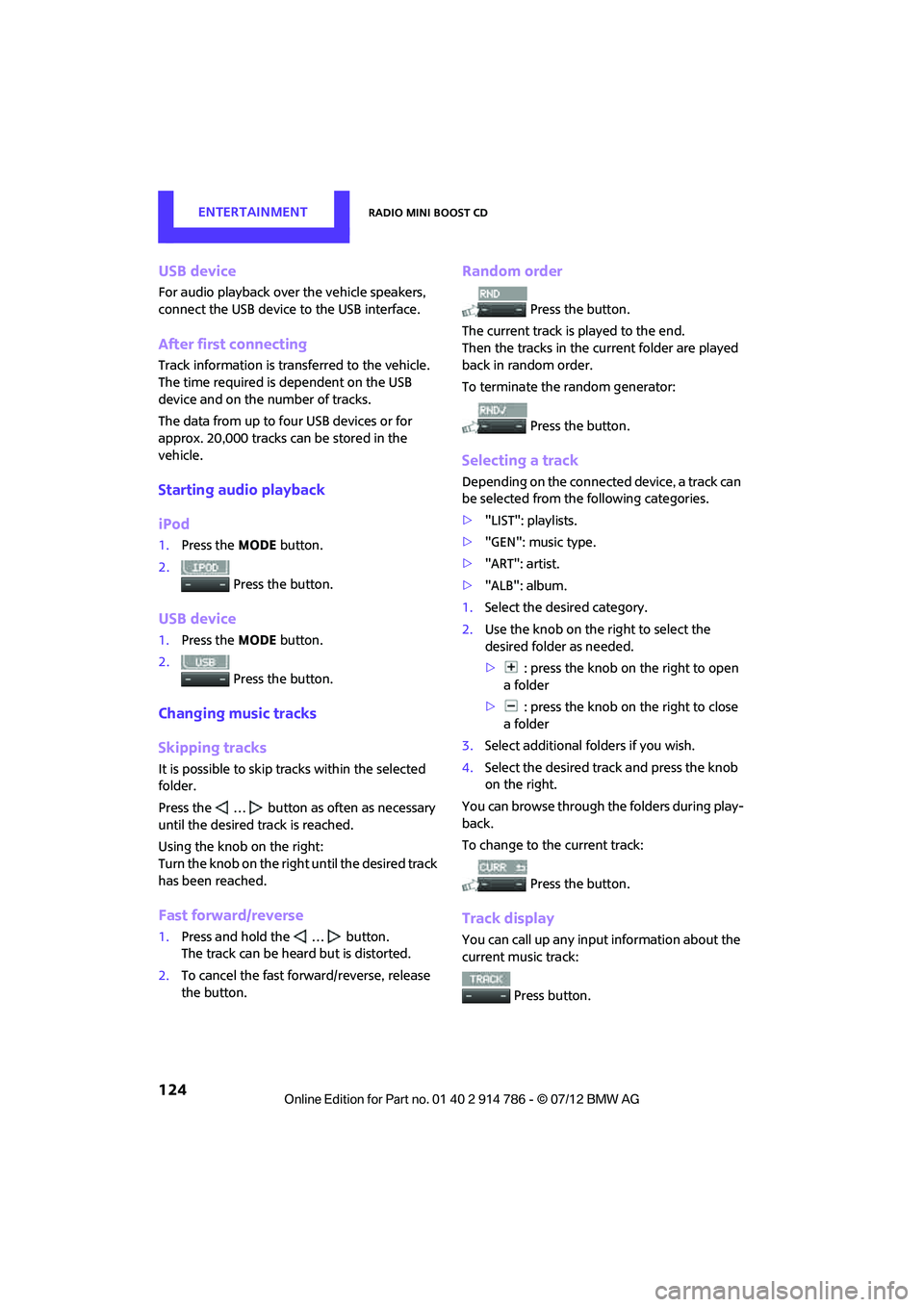
USB device
For audio playback over the vehicle speakers,
connect the USB device to the USB interface.
After first connecting
Track information is transferred to the vehicle.
The time required is dependent on the USB
device and on the number of tracks.
The data from up to four USB devices or for
approx. 20,000 tracks can be stored in the
vehicle.
Starting audio playback
iPod
1. Press the MODEbutton.
2. Press the button.
USB device
1.Press the MODEbutton.
2. Press the button.
Changing music tracks
Skipping tracks
It is possible to skip tr acks within the selected
folder.
Press the … button as often as necessary
until the desired track is reached.
Using the knob on the right:
Turn the knob on the right until the desired track
has been reached.
Fast forward/reverse
1. Press and hold the … button.
The track can be heard but is distorted.
2. To cancel the fast forward/reverse, release
the button.
Random order
Press the button.
The current track is played to the end.
Then the tracks in the current folder are played
back in random order.
To terminate the random generator:
Press the button.
Selecting a track
Depending on the connected device, a track can
be selected from the following categories.
>"LIST": playlists.
> "GEN": music type.
> "ART": artist.
> "ALB": album.
1. Select the desired category.
2. Use the knob on the right to select the
desired folder as needed.
> : press the knob on the right to open
afolder
> : press the knob on the right to close
afolder
3. Select additional folders if you wish.
4. Select the desired track and press the knob
on the right.
You can browse through the folders during play-
back.
To change to the current track:
Press the button.
Track display
You can call up any input information about the
current music track: Press button.
Online Edition for Part no. 01 40 2 914 786 - \251 07/12 BMW AG
Page 130 of 218
TelephoneCOMMUNICATIONS
129
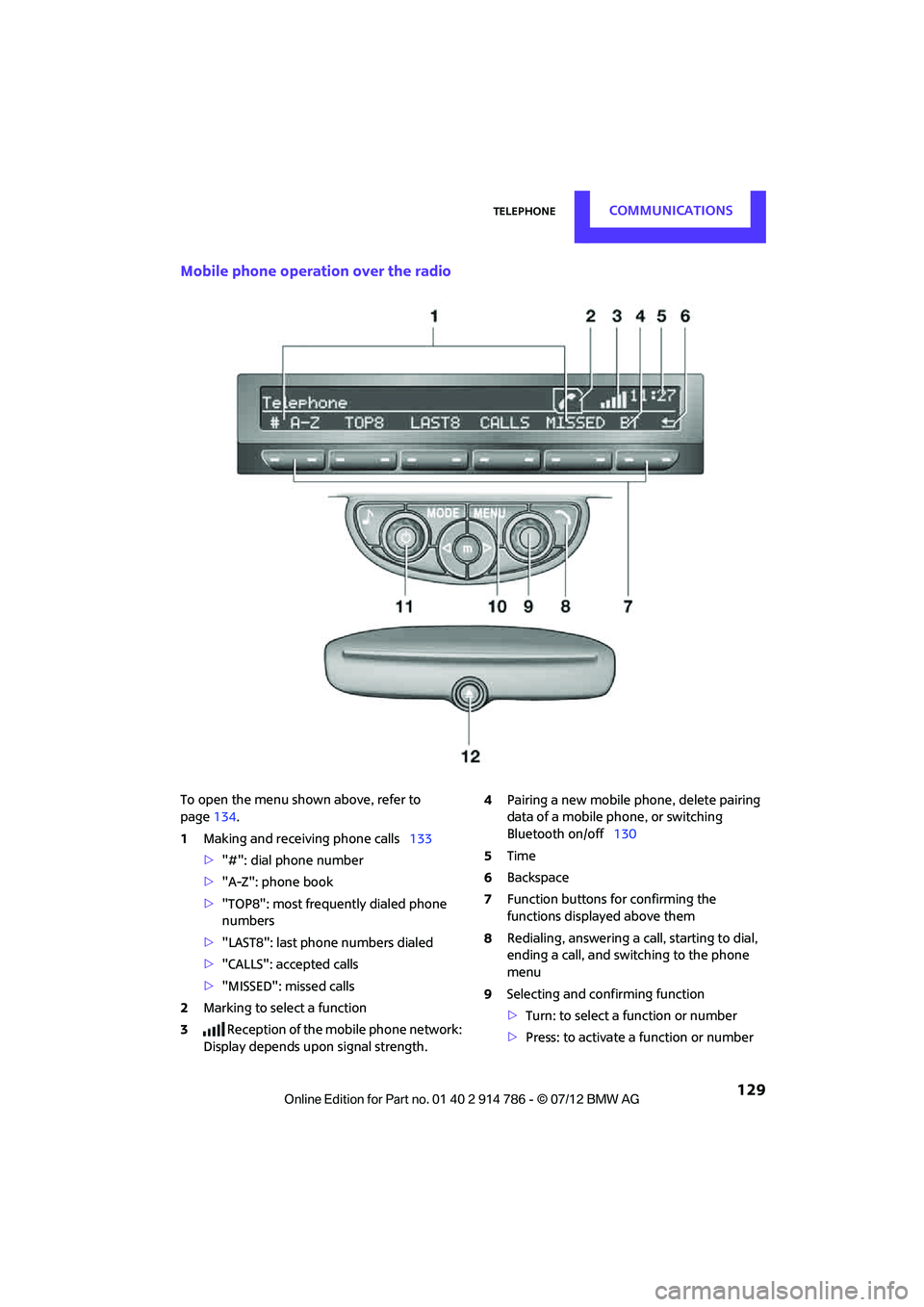
Mobile phone operation over the radio
To open the menu shown above, refer to
page134.
1 Making and receiving phone calls 133
> "#": dial phone number
> "A-Z": phone book
> "TOP8": most frequently dialed phone
numbers
> "LAST8": last phone numbers dialed
> "CALLS": accepted calls
> "MISSED": missed calls
2 Marking to select a function
3 Reception of the mobile phone network:
Display depends upon signal strength. 4
Pairing a new mobile phone, delete pairing
data of a mobile ph one, or switching
Bluetooth on/off 130
5 Time
6 Backspace
7 Function buttons for confirming the
functions displayed above them
8 Redialing, answering a ca ll, starting to dial,
ending a call, and switching to the phone
menu
9 Selecting and confirming function
>Turn: to select a function or number
> Press: to activate a function or number
Online Edition for Part no. 01 40 2 914 786 - \251 07/12 BMW AG
Page 134 of 218
TelephoneCOMMUNICATIONS
133
vehicle. Unpair the connected device from
the vehicle and only pair and connect one
device.
> Is the mobile phone no longer responding?
Switch the mobile ph one off and back on
again. Repeat the pairing procedure.
> Delete connection to the mobile phone and,
if necessary, to the radio and try again.
Is the mobile phone no longer responding?
> Switch the mobile ph one off and back on
again. Repeat the pairing procedure.
> Is the ambient temperature too high or too
low? Do not subject your mobile phone to
extreme ambient temperatures.
Phone book entries are not displayed, not all of
them are displayed, or they are displayed
incompletely.
> The transfer of phone book entries has not
yet completed.
> It is possible that only the phone book
entries of the mobile phone or the SIM card
are transferred.
> It may not be possible to display phone book
entries with special characters.
> The number of phone book entries to be
stored is too high.
> The data volume of the phone book entry is
too great, e.g. due to additionally stored
information such as notes? Reduce the data
volume.
The telephone connection quality is low.
> Depending on the mobile phone, it is possi-
ble to adjust the strength of the Bluetooth
signal.
> Insert the mobile phone into the snap-in
adapter or place it in the vicinity of the
center console.
> Adjust the volume of the microphone and
speaker separately.
If you have gone through all items in the list and
still cannot activate the desired function please
contact the Hotline or your MINI dealer.Operation
Overview
The following functions can be operated using
the radio:
> Accepting/refusing a call
> Dialing phone numbers
> Dialing a phone number from the phone
book
> Dialing a stored number, e.g., from a list of
accepted calls
> Ending a call
When the ignition is switched off and radio
readiness switched on, e. g. after removal of the
infrared remote control, an ongoing conversa-
tion can be continued for a maximum of
25 minutes using the hands-free system.
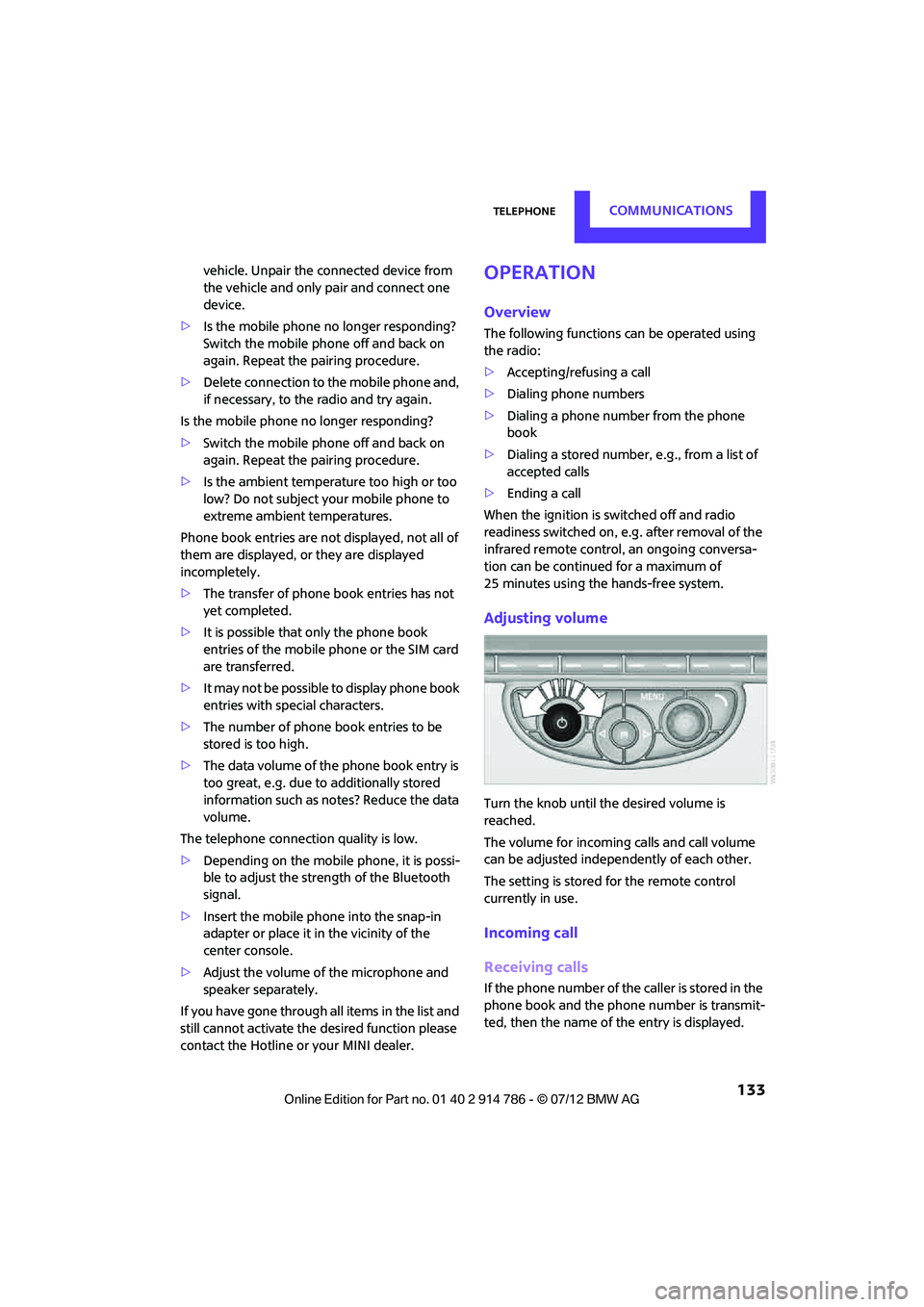
Adjusting volume
Turn the knob until the desired volume is
reached.
The volume for incoming calls and call volume
can be adjusted indepe ndently of each other.
The setting is stored for the remote control
currently in use.
Incoming call
Receiving calls
If the phone number of the caller is stored in the
phone book and the phone number is transmit-
ted, then the name of the entry is displayed.
Online Edition for Part no. 01 40 2 914 786 - \251 07/12 BMW AG
Page 165 of 218
MOBILITYCare
164
Leather/leather coverings
The leather processed by the manufac-
turer of your MINI is a high-quality natural
product. Light variations in the grain is one of
the typical properties of natural leather. <
Dust and road grit in th e pores and folds of the
leather have an abrasive effect, leading to
increased wear and causing the leather surface
to become brittle prematurely. Use a cloth or
vacuum cleaner to remo ve dust on a regular
basis.
Especially when the leather has a light color, it
should be cleaned regularl y since it tends to get
heavily soiled.
Treat the leather twice a year using a leather
lotion since dirt and grease will gradually attack
the leather's protective layer.
Carpets/floor mats
Keep floor mats, carpet, and other objects
out of the movement range of the pedals;
otherwise, they may inhibit the function of the
pedals during driving.
Do not place additional floor mats onto an
existing one or onto other objects.
Only use floor mats that have been approved for
the vehicle and can be appropriately fastened.
Make sure that the fl oor mats are securely
fastened again after they have been removed,
e.g. for cleaning. <
Floor mats can be removed to be cleaned.
If the carpets are very dirty, clean with a micro-
fiber cloth and water or an interior cleaner.
When doing so, rub forw ard and back in the
driving direction; othe rwise, the carpet may
become matted.
Interior plastic parts
These include:
> Plastic surfaces
> Lamp glass
> Display panes
> Mat parts Only clean with water and, if necessary, solvent-
free plastic cleaners.
Do not use solvents such as alcohol,
lacquer thinner, cold cleaners, fuel, or
similar, as these will damage the surfaces. <
Decorative strips
Only clean decorative strips and fine wood parts
with damp cloths. Wipe dry with a soft cloth.
Safety belts
Dirty belt straps impede the reeling action and
thus have a negative impact on safety.
Do not clean chemically, as this may
destroy the webbing. <
Displays
To clean displays, such as the radio or display
elements, use an anti-static microfiber cloth.
Avoid pressing too hard when cleaning
the display as this can cause damage. <
Do not use chemical or abrasive house-
hold cleaning agents. Keep fluids of any
kind away from the device. Surfaces or electrical
components may otherwise become corroded
or damaged. <
CD/DVD drives
Do not use cleaning CDs as this could
damage parts of the drive. <
Vehicle storage
If you park your vehicle longer than three
months, ask your MINI dealer to advise you.
Online Edition for Part no. 01 40 2 914 786 - \251 07/12 BMW AG