change time MINI Countryman 2012 (Mini Connected) User Guide
[x] Cancel search | Manufacturer: MINI, Model Year: 2012, Model line: Countryman, Model: MINI Countryman 2012Pages: 259, PDF Size: 3.07 MB
Page 127 of 259
NAVIGATIONRoute guidance
126
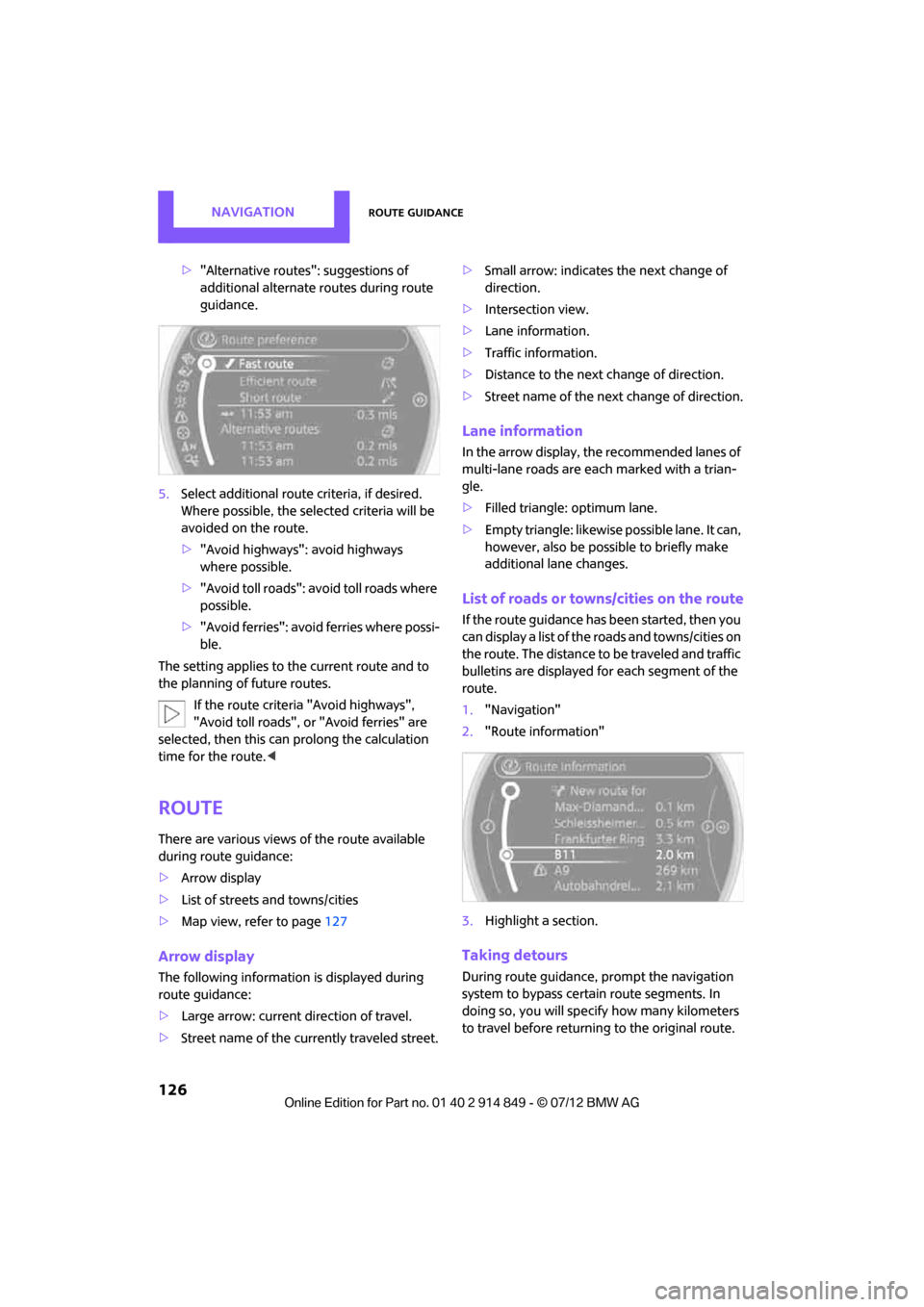
>"Alternative routes": suggestions of
additional alternate routes during route
guidance.
5. Select additional route criteria, if desired.
Where possible, the selected criteria will be
avoided on the route.
>"Avoid highways": avoid highways
where possible.
> "Avoid toll roads": avoid toll roads where
possible.
> "Avoid ferries": avoid ferries where possi-
ble.
The setting applies to the current route and to
the planning of future routes.
If the route criteria "Avoid highways",
"Avoid toll roads", or "Avoid ferries" are
selected, then this can prolong the calculation
time for the route. <
Route
There are various views of the route available
during route guidance:
>Arrow display
> List of streets and towns/cities
> Map view, refer to page 127
Arrow display
The following information is displayed during
route guidance:
>Large arrow: current direction of travel.
> Street name of the currently traveled street. >
Small arrow: indicates the next change of
direction.
> Intersection view.
> Lane information.
> Traffic information.
> Distance to the next change of direction.
> Street name of the next change of direction.
Lane information
In the arrow display, the recommended lanes of
multi-lane roads are each marked with a trian-
gle.
>Filled triangle: optimum lane.
> Empty triangle: likewise possible lane. It can,
however, also be possi ble to briefly make
additional lane changes.
List of roads or towns/cities on the route
If the route guidance has been started, then you
can display a list of the roads and towns/cities on
the route. The distance to be traveled and traffic
bulletins are displayed fo r each segment of the
route.
1. "Navigation"
2. "Route information"
3. Highlight a section.
Taking detours
During route guidance, prompt the navigation
system to bypass certai n route segments. In
doing so, you will specif y how many kilometers
to travel before returning to the original route.
Online Edition for Part no. 01 40 2 914 849 - \251 07/12 BMW AG
Page 138 of 259
On/off and toneENTERTAINMENT
137
Adjusting volume
Turn the knob to the desired volume.
The volume can also be adjusted on the steering
wheel, refer to page10.
The setting is stored for the remote control cur-
rently in use; refer to Personal Profile, page 26.
Setting tone controls
Various tone settings can be changed, e.g. treble
and bass or the speed-dependent volume con-
trol.
The tone settings are set for all audio sources at
once.
The settings are stored for the remote control
currently in use; refer to Personal Profile,
page 26.
Treble, bass, balance, fader
> "Treble": treble adjustment.
> "Bass": bass adjustment.
> "Balance": volume distribution right/left.
> "Fader": volume distribution front/back.
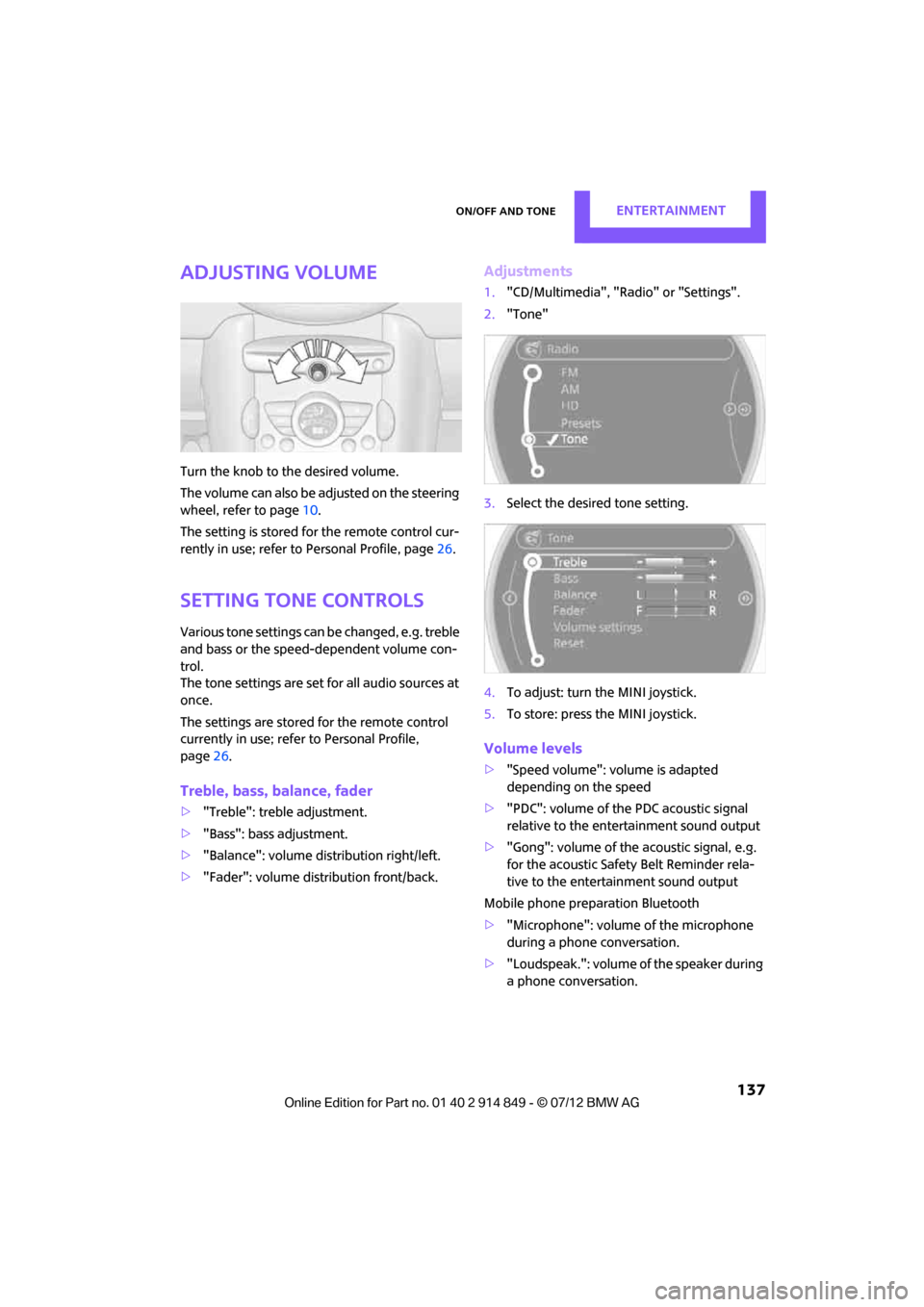
Adjustments
1."CD/Multimedia", "Rad io" or "Settings".
2. "Tone"
3. Select the desired tone setting.
4. To adjust: turn the MINI joystick.
5. To store: press the MINI joystick.
Volume levels
>"Speed volume": vo lume is adapted
depending on the speed
> "PDC": volume of the PDC acoustic signal
relative to the entertainment sound output
> "Gong": volume of the acoustic signal, e.g.
for the acoustic Safety Belt Reminder rela-
tive to the entertainment sound output
Mobile phone preparation Bluetooth
> "Microphone": volume of the microphone
during a phone conversation.
> "Loudspeak.": volume of the speaker during
a phone conversation.
Online Edition for Part no. 01 40 2 914 849 - \251 07/12 BMW AG
Page 144 of 259
RadioENTERTAINMENT
143
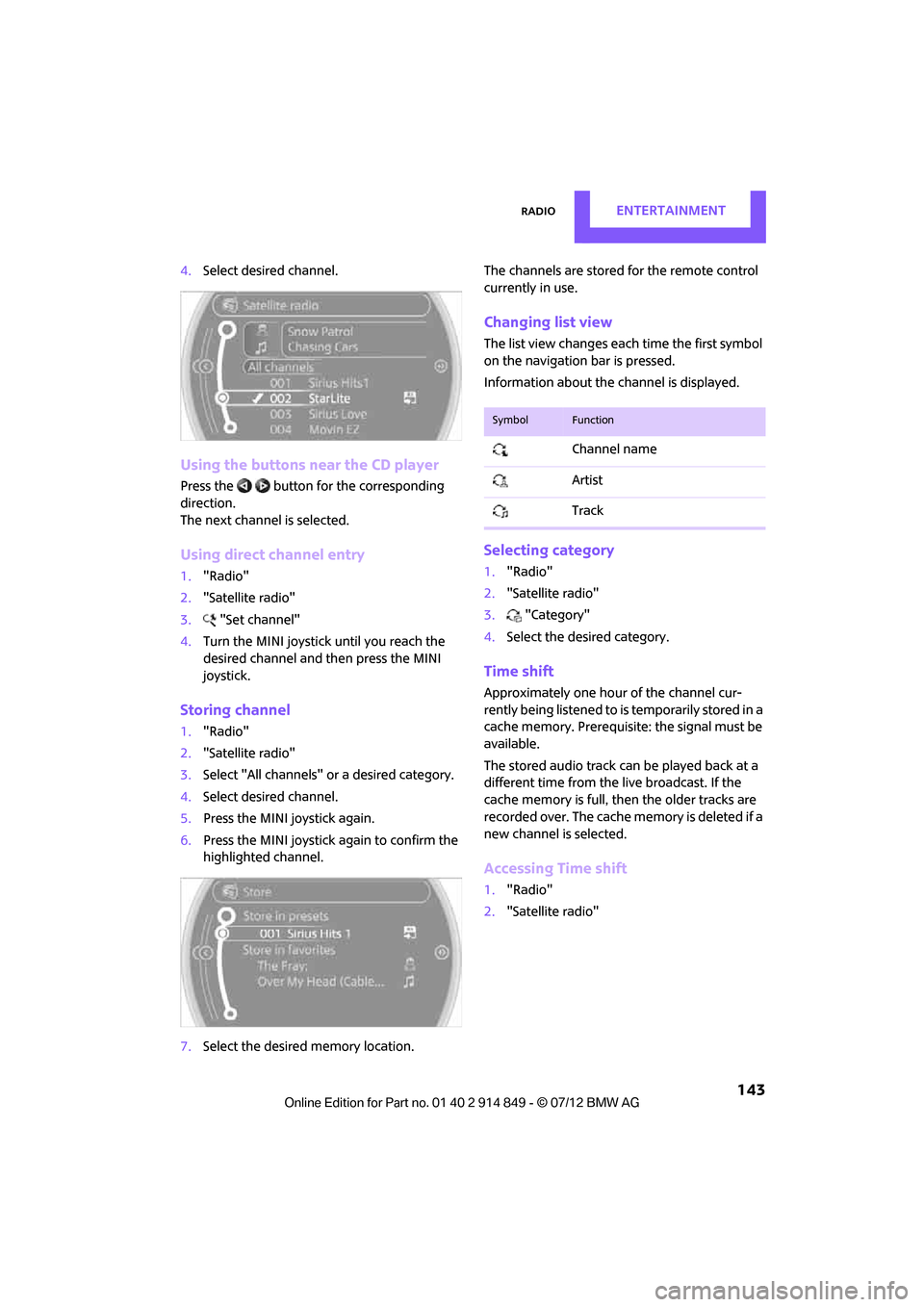
4.Select desired channel.
Using the buttons near the CD player
Press the button for the corresponding
direction.
The next channel is selected.
Using direct channel entry
1."Radio"
2. "Satellite radio"
3. "Set channel"
4. Turn the MINI joystick until you reach the
desired channel and then press the MINI
joystick.
Storing channel
1."Radio"
2. "Satellite radio"
3. Select "All channels" or a desired category.
4. Select desired channel.
5. Press the MINI joystick again.
6. Press the MINI joystick again to confirm the
highlighted channel.
7. Select the desired memory location. The channels are stored for the remote control
currently in use.
Changing list view
The list view changes each time the first symbol
on the navigation bar is pressed.
Information about the channel is displayed.
Selecting category
1.
"Radio"
2. "Satellite radio"
3. "Category"
4. Select the desired category.
Time shift
Approximately one hour of the channel cur-
rently being listened to is temporarily stored in a
cache memory. Prerequisite: the signal must be
available.
The stored audio track ca n be played back at a
different time from the live broadcast. If the
cache memory is full, then the older tracks are
recorded over. The cache memory is deleted if a
new channel is selected.
Accessing Time shift
1. "Radio"
2. "Satellite radio"
SymbolFunction
Channel name
Artist
Track
Online Edition for Part no. 01 40 2 914 849 - \251 07/12 BMW AG
Page 148 of 259
CD playerENTERTAINMENT
147
CD player
Vehicle equipment
In this chapter, all production, country, and
optional equipment that is offered in the model
range is described. Equipment is also described
that is not available because of, for example,
selected options or count ry version. This also
applies to safety related functions and systems.
General information
Inserting CD
Insert the CD into the drive with the labeled side
up. Die CD is automatically pulled in.
Playback starts automatically if the sound out-
put is on. For CDs with compressed audio files, it
can take several minutes to the data, depending
on the folder structure.
Playable formats
CD player
> CD: CD-ROM, CD-R, CD-RW, CD-DA
> Compressed audio file s: MP3, WMA, AAC
Ejecting CD
Press the button on the CD player.
The CD will be slid a short distance out from the
drive.
Audio playback
Selecting the track using the button
Press the button for the corresponding
direction repeatedly until you reach the desired
track.
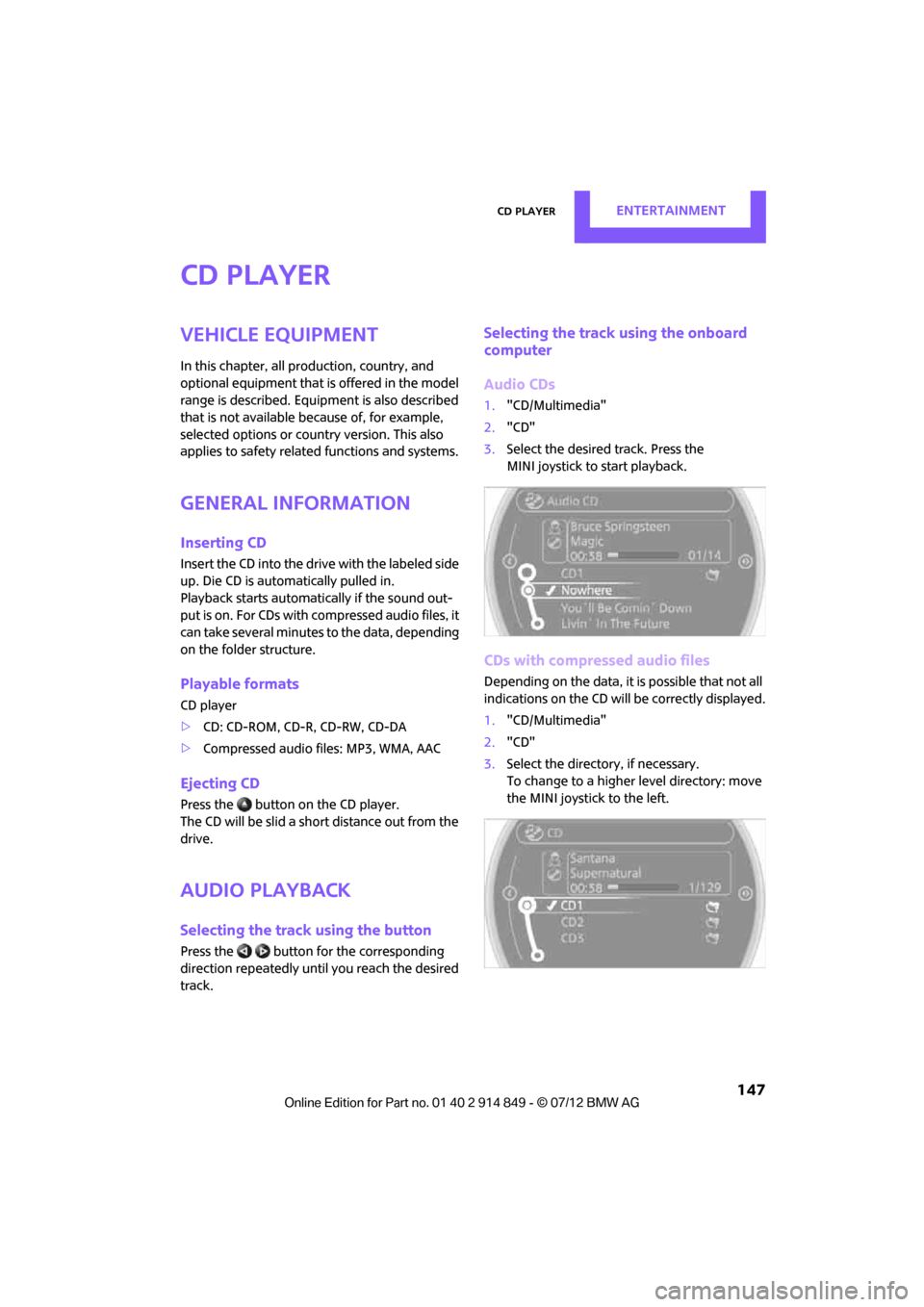
Selecting the track using the onboard
computer
Audio CDs
1. "CD/Multimedia"
2. "CD"
3. Select the desired track. Press the
MINI joystick to start playback.
CDs with compressed audio files
Depending on the data, it is possible that not all
indications on the CD will be correctly displayed.
1."CD/Multimedia"
2. "CD"
3. Select the director y, if necessary.
To change to a higher level directory: move
the MINI joystick to the left.
Online Edition for Part no. 01 40 2 914 849 - \251 07/12 BMW AG
Page 154 of 259
External devicesENTERTAINMENT
153
Notes
Do not subject the audio device to
extreme environmental conditions, e.g.
extremely high temperatures, refer to the
operating instructions for the audio device.
Otherwise the audio device may be damaged,
impairing driving safety while driving. <
Depending on the config uration of the audio
files, e.g. bit rates greater than 256 Kbit/s,
proper playback cannot always be ensured.
Audio and video playback from using a snap-in
adapter may only be possible if a there is no
cable connected to the AV-In connector.
Information on connection
> The connected audio device is supplied with
a max. power of 500 mA if supported by the
device. Therefore, do not connect the device
to the power socket in the vehicle.
> Do not use force when plugging the connec-
tor into the USB interface.
> Do not connect any devices, e.g. fans or
lamps, to the USB audio interface.
> Do not connect USB hard drives.
> Do not use the USB audio interface to
recharge external devices.
Bluetooth audio
Overview
>It is possible to use Bluetooth to play music
files from external devices, e.g. audio
devices or mobile phones.
> Bluetooth® is a registered trademark of
Bluetooth® SIG, Inc.
> Sound is output over the vehicle speakers.
> The volume of the sound output depends on
the device. If necessary, change the volume
setting on the device.
> Up to four external devices can be paired
with the vehicle.
Requirements
>Suitable device. Information is available at
www.mini.com/connectivity.
> Device operational.
> Ignition switched on.
> Bluetooth activated in vehicle, refer to
page 170, and in the device.
> Bluetooth presets in the device are required,
e.g. connection not confirmed or visible,
refer to Owner's Ma nual for the device.
> A number with at least 4 and at most
16 digits has been established as the
Bluetooth passkey. Only required once for
pairing.
Pairing and connecting
Only pair the device when the vehicle is
stopped; otherwise, inattention may lead
to endangerment of passengers or other road
users. <
1. "CD/Multimedia"
2. "Bluetooth® (audio)"
3. "Bluetooth® audio" if applicable
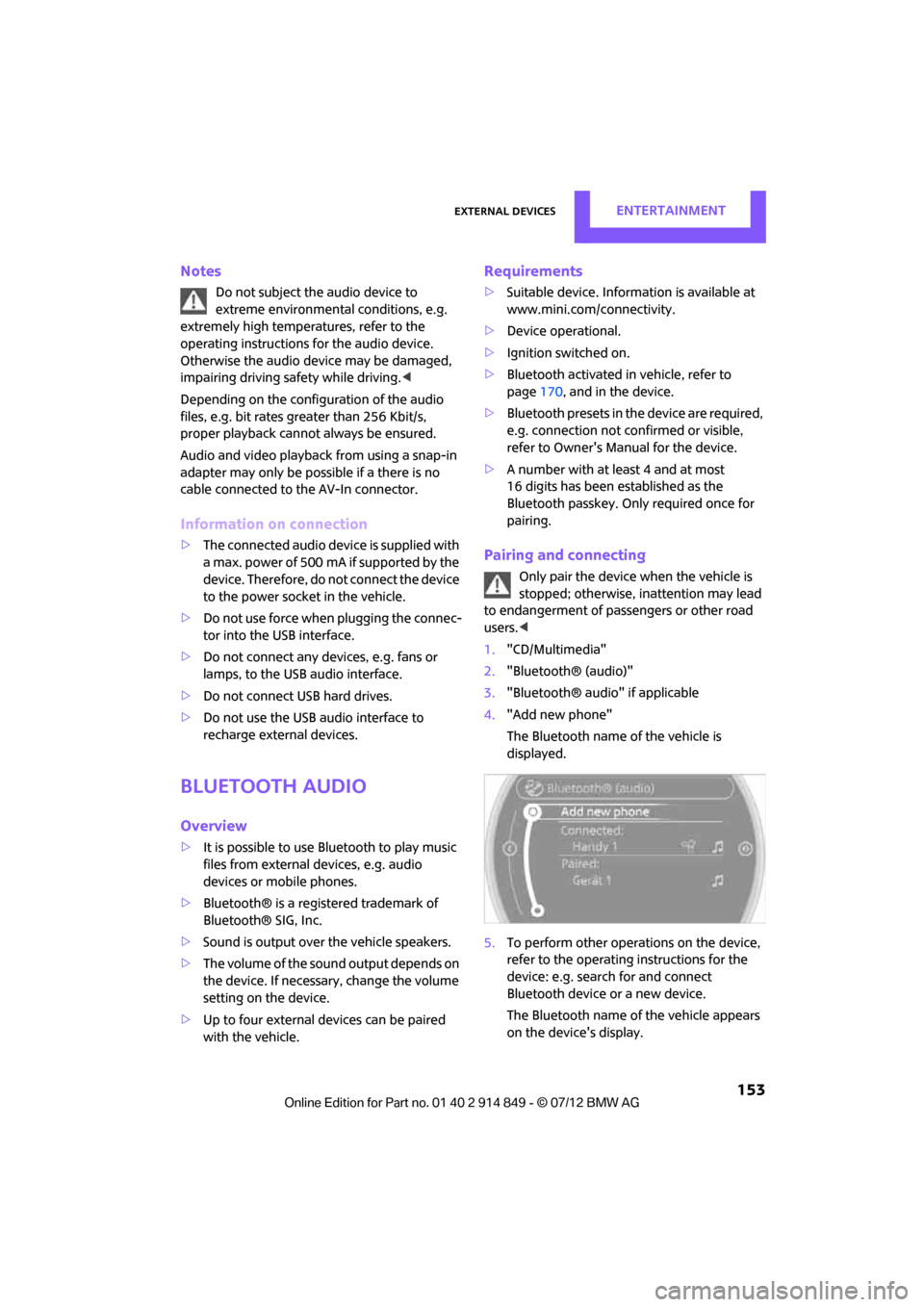
4. "Add new phone"
The Bluetooth name of the vehicle is
displayed.
5. To perform other operations on the device,
refer to the operating instructions for the
device: e.g. search for and connect
Bluetooth device or a new device.
The Bluetooth name of the vehicle appears
on the device's display.
Online Edition for Part no. 01 40 2 914 849 - \251 07/12 BMW AG
Page 155 of 259
ENTERTAINMENTExternal devices
154
6.Select the Bluetooth name of the vehicle on
the device's display.
The onboard computer or the device will
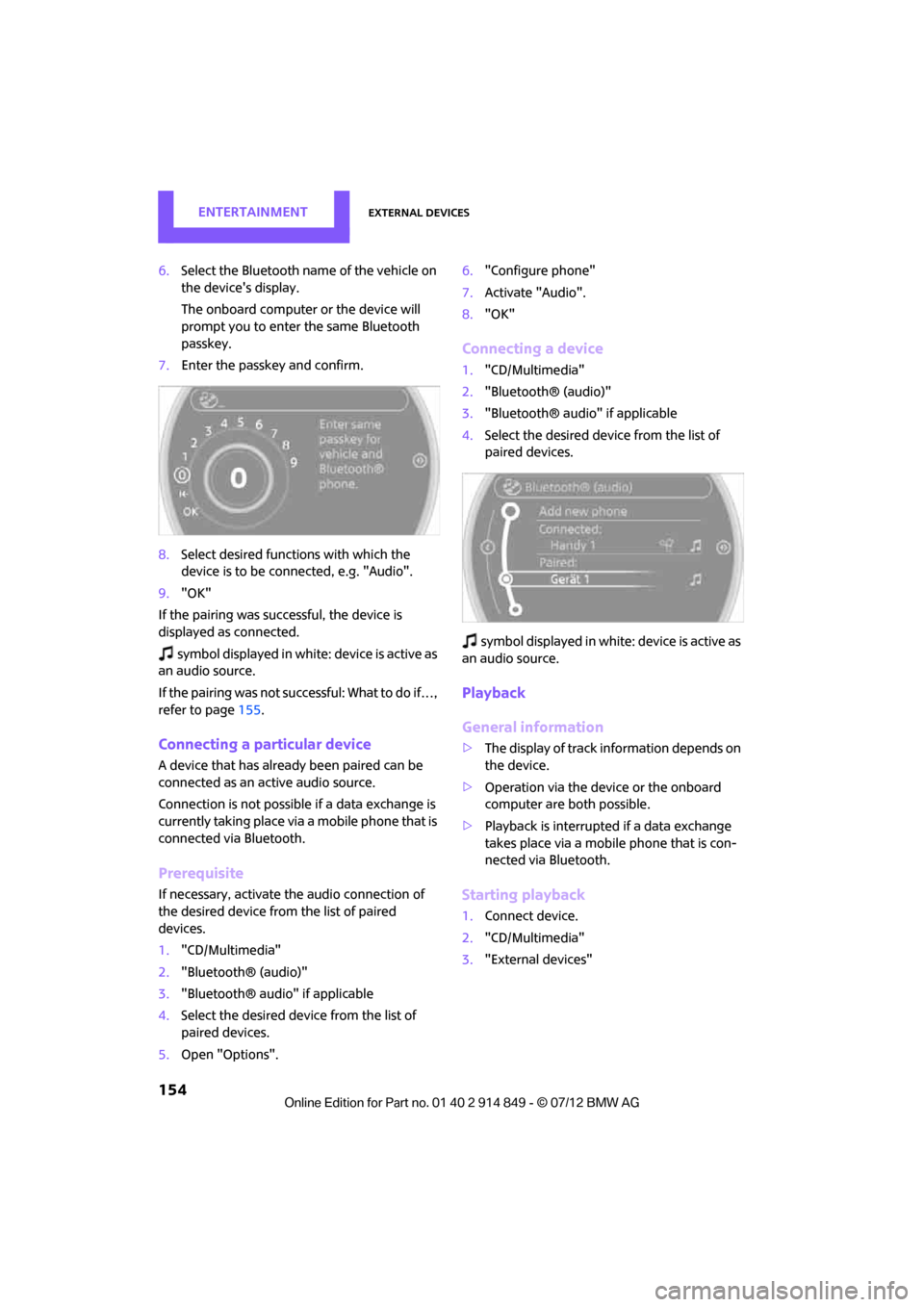
prompt you to enter the same Bluetooth
passkey.
7. Enter the passkey and confirm.
8. Select desired functions with which the
device is to be connected, e.g. "Audio".
9. "OK"
If the pairing was successful, the device is
displayed as connected.
symbol displayed in white: device is active as
an audio source.
If the pairing was not successful: What to do if…,
refer to page 155.
Connecting a particular device
A device that has alread y been paired can be
connected as an active audio source.
Connection is not possible if a data exchange is
currently taking place via a mobile phone that is
connected via Bluetooth.
Prerequisite
If necessary, activate the audio connection of
the desired device from the list of paired
devices.
1. "CD/Multimedia"
2. "Bluetooth® (audio)"
3. "Bluetooth® audio" if applicable
4. Select the desired device from the list of
paired devices.
5. Open "Options". 6.
"Configure phone"
7. Activate "Audio".
8. "OK"
Connecting a device
1."CD/Multimedia"
2. "Bluetooth® (audio)"
3. "Bluetooth® audio" if applicable
4. Select the desired device from the list of
paired devices.
sy mbo l disp layed in w hit e: d evice is act ive as
an audio source.
Playback
General information
> The display of track information depends on
the device.
> Operation via the device or the onboard
computer are both possible.
> Playback is interrupted if a data exchange
takes place via a mobile phone that is con-
nected via Bluetooth.
Starting playback
1. Connect device.
2. "CD/Multimedia"
3. "External devices"
Online Edition for Part no. 01 40 2 914 849 - \251 07/12 BMW AG
Page 192 of 259

MINI ConnectedCOMMUNICATIONS
191
Connecting via the snap-in adapter
The mobile phone can also be connected using
the snap-in adapter, refer to page180.
Using MINI Connected
After successful connecti on of the mobile phone
to the vehicle and activation of MINI Connected,
the applications are displayed on the Control
Display and can be oper ated using the MINI
joystick.
Volume adjustments can be made using the
buttons on the steering wheel, refer to page10,
or using the volume control knob on the radio,
refer to page 137.
1. Press the button.
This opens the main menu.
2. "MINI Connected"
3. Select the desired software application.
The extent of MINI Connected that is shown on
the Control Display depends on the range of
installed software applic ations on the mobile
phone.
The data transfer of the software applica-
tion from the telephone to the vehicle can
take a few minutes. Some software applications
depend on the speed of the available Internet
connection for the mobile phone.<
Certain versions of mo bile phones used and
their software can make it impossible to use
MINI Connected and the Bluetooth hands-free
system at the same time.
After a phone call, it may be necessary to restart
the software application on the mobile phone.
PlugIn
Selected functions for an Apple device are
shown on the Control Display. Operation takes
place using the onboard computer.
1. Connecting an Apple device.
>Via a USB audio interface, refer to
page 190.
> Via the snap-in-Adapter, refer to
page 180.
2. "MINI Connected"
3. "PlugIn"
4. Select the type of conne ction: "Activate via
AUX connection" or "Activate via Snap-In
adapter"
5. "Activate PlugIn"
6. Navigate among the functions shown via a
MINI joystick and, e. g., select a desired
category or track.
Press the button to return back or to change
to a level higher within the functions of the
Apple device.
Press the button twice to return back to the
main menu.
Additional information can be found in the
MINI Connected Owner's Manual at
www.mini.com/connectivity.
Note
Audio and video playback from a snap-in
adapter may only be possible if there is no cable
connected to the AV-In port.
Online Edition for Part no. 01 40 2 914 849 - \251 07/12 BMW AG
Page 213 of 259
MOBILITYCare
212
Automatic transmission
Before driving into the car wash, make sure that
the vehicle can roll:
1.Place the remote control, even with Comfort
Access, in the ignition lock.
2. Move the selector lever to position N.
3. Release the parking brake.
4. Switch off the engine.
5. Insert the remote control in the ignition lock
so that the vehicle can roll.
Steam jets/high-pressure washers
When using steam jets or high-pressure
washers, make sure th at you maintain suf-
ficient distance from the vehicle and do not
exceed a maximum temperature of 140 7/
60 6 .
If the distance is too close, the pressure too high,
or the temperature too high, parts of the vehicle
can be damaged, or water can penetrate.
Observe the operating instructions for high-
pressure washers. <
Do not spray sensors such as the Park
Distance Control wi th high-pressure
washers for a long time and maintain the
greatest possible distance of approx. 1 ft/30 cm
from them. <
Manual washing
Use a great deal of water and, if necessary, car
shampoo when washing your car by hand. Clean
the vehicle with a sponge or a washing brush
applying a slight amount of pressure.
Before cleaning the windshield, deacti-
vate the rain sensor or turn off the ignition
to prevent unintentional wiping. <
Observe local regulations regarding
washing vehicles by hand. <
Headlamps
Do not wipe dry and do not use abrasive or
corrosive cleaning agents. Remove dirt and
contamination, such as in sects, by soaking with shampoo and then washing with plenty of
water.
Do not remove accumulated ice and snow with
an ice scraper; use window deicers instead.
Windows
Clean the outside and inside of the windows and
mirrors with a window cleaner.
Do not clean the mirrors with cleaners
containing quartz. <
Wiper blades
Clean with soapy water and change regularly to
prevent the formation of streaks.
Wax, preservatives and dirt on the win-
dows cause streaks wh en the windshield
wipers are on, and can cause premature wear of
the wiper blades and interfere with the rain
sensor. <
Paintwork, care
Regular care helps your vehicle retain its value
and protects the paint from the long-term
effects of aggressive substances.
Environmental influences in areas with
increased air pollution or natural contaminants,
such as tree sap or pollen, can affect the vehicle
paintwork. It is therefore important to adjust the
frequency and extent of vehicle care corre-
spondingly.
Immediately remove any pa rticularly aggressive
substances, such as fuel that has overflowed, oil,
grease, brake fluid, or bird droppings; otherwise,
paint damage can be caused.
Removing paintwork damage
Depending on the severity of the damage,
immediately repair stone damage or
scratches to prevent rusting. <
The manufacturer of the MINI recommends
repairing paint damage professionally according
to factory specifications with original MINI
paints.
Online Edition for Part no. 01 40 2 914 849 - \251 07/12 BMW AG
Page 217 of 259

MOBILITYReplacing components
216
consumer in question; otherwise, short circuits
could result. To avoid possible injury or equip-
ment damage when replacing bulbs, observe
any instructions provided by the bulb manufac-
turer.<
Caring for headlamp s, refer to page212.
For any bulb replacement not described
below, contact a MINI dealer or a work-
shop that has specially trained personnel
working in accordance with the specifications of
the MINI manufacturer. <
For checking and adjusting headlamp aim,
please contact your MINI dealer. <
Light-emitting diodes LEDs
Light-emitting diodes installed behind translu-
cent lenses serve as the light sources for many of
the controls and displays in your vehicle. These
light-emitting diodes are related to conven-
tional laser diodes, and legislation defines them
as Class 1 light-emitting diodes.
Do not remove the covers or expose the
eyes directly to the unfiltered light source
for several hours; otherwise, this could cause
irritation of the retina. <
Headlamp glass lens
In cool or humid weather, condensation may
occur on the interiors of the headlamps. During
trips with the headlamps on, the condensation
disappears after a short time. The headlamps do
not need to be changed.
Do not remove the condensation from head-
lamps, despite driving with lights on, and if
condensation increases, e.g., because of water
droplets, have this checked by your MINI dealer.
Xenon lamps
The service life of these bulbs is very long and
the probability of failure very low, provided that
they are not switched on and off an excessive
number of times. If a xenon lamp fails neverthe-
less, switch on the fog lamps and continue the
journey with great care , provided that local
legislation does not prohibit this. Work on the xenon lighting system,
including lamp replacement, is only to be
carried out only by your MINI dealer. Due to high
voltage, there is a risk of fatal injury if work on
the xenon lamps is carried out improperly. <
Halogen low beams and high beams
H13 bulb, 60/55 watts
The H13 bulb is pressurized. Therefore,
wear safety glasses and protective gloves.
Otherwise, there is a risk of injury if the bulb is
damaged. <
Be careful when inst alling the cover;
otherwise, leaks co uld occur and cause
damage to the headlamp system. <
Accessing the lamp from the engine
compartment
The low-beam/high-beam bulb can be changed
from the engine compartment.
Removing the cover:
1. Press the tab.
2. Flip open the cover and take it out of the
holder.
Follow the same steps in reverse order to
reattach the cover.
Online Edition for Part no. 01 40 2 914 849 - \251 07/12 BMW AG