phone MINI Countryman 2015 (Mini Connected) Workshop Manual
[x] Cancel search | Manufacturer: MINI, Model Year: 2015, Model line: Countryman, Model: MINI Countryman 2015Pages: 283, PDF Size: 6.76 MB
Page 204 of 283
names may differ from the selected sorting or‐
der.
Show contact pictures
Pictures stored with the contacts are stored in
the vehicle when the mobile phone is con‐
nected to the vehicle. The number of transmit‐
ted pictures depends on the mobile phone. The
mobile phone must support this function.1."Office"2."Contacts"3.Open "Options".4."Configure Bluetooth®"5."Show images"
Display of all contact pictures is activated or de‐
activated.
Deleting contacts
Only contacts that are stored in the vehicle are
deleted. The contacts on the mobile phone
cannot be deleted.
1."Office"2."Contacts"3.Highlight the contact.4.Open "Options".5."Delete contact" or "Delete all contacts"
Messages
General information Whether or not text messages and e-mails from
the mobile phone are displayed depends on
whether transmission from the mobile phone
to the vehicle is supported. Text messages and
e-mails may not be supported by the service
provider, or the function may need to be ena‐
bled separately. After the mobile phone is first
paired, transmission may take several minutes.
Messages are only displayed in full length when
the vehicle is stationary. Messages from the ad‐
ditional telephone are not transmitted.
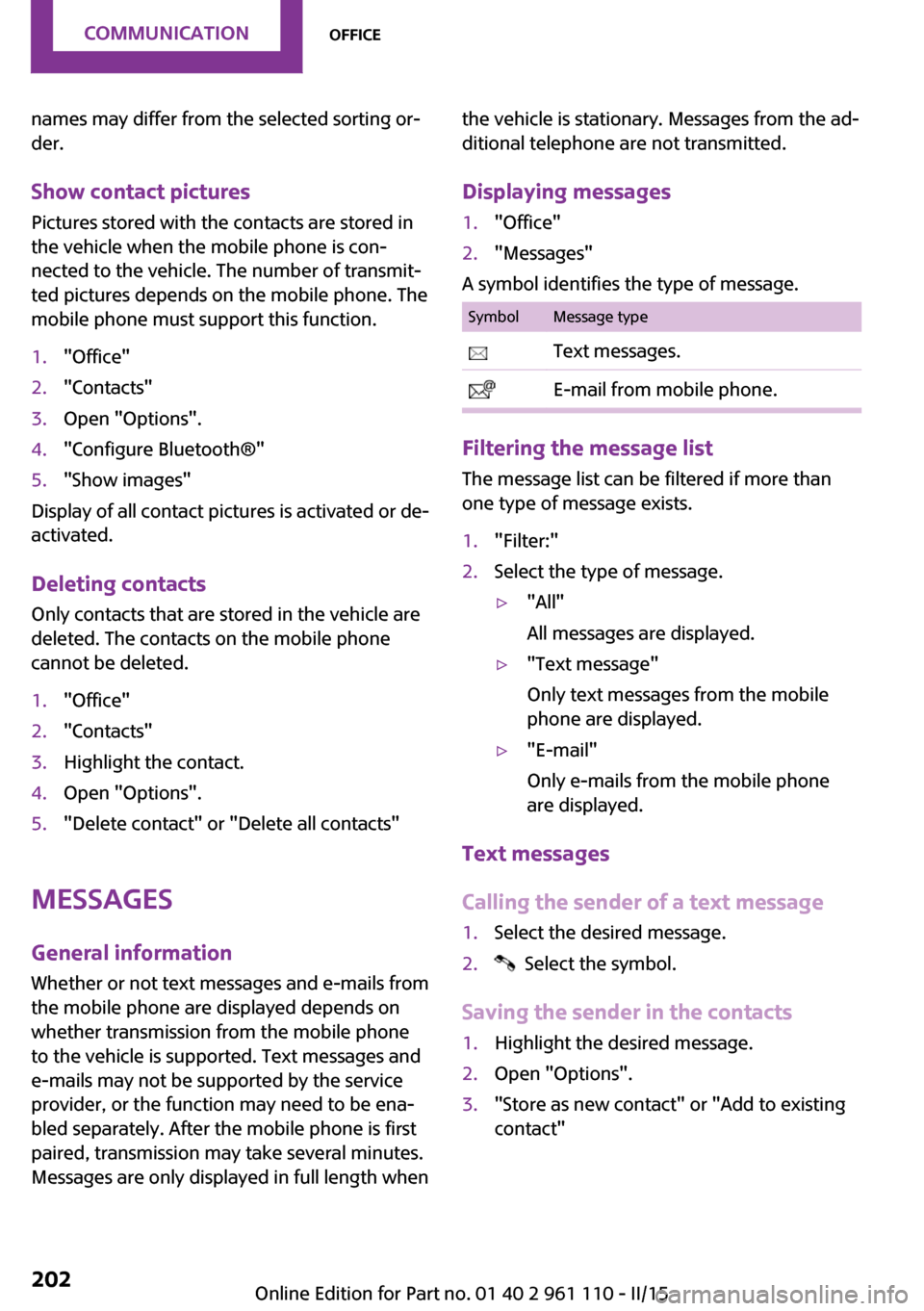
Displaying messages1."Office"2."Messages"
A symbol identifies the type of message.
SymbolMessage type Text messages. E-mail from mobile phone.
Filtering the message list
The message list can be filtered if more than
one type of message exists.
1."Filter:"2.Select the type of message.▷"All"
All messages are displayed.▷"Text message"
Only text messages from the mobile
phone are displayed.▷"E-mail"
Only e-mails from the mobile phone
are displayed.
Text messages
Calling the sender of a text message
1.Select the desired message.2. Select the symbol.
Saving the sender in the contacts
1.Highlight the desired message.2.Open "Options".3."Store as new contact" or "Add to existing
contact"Seite 202COMMUNICATIONOffice202
Online Edition for Part no. 01 40 2 961 110 - II/15
Page 205 of 283

Using contact dataContact data from appointments, tasks, text
messages, e-mails, and notes can be stored or
selected, refer to page 205.
Reading the text message out loud
Read the text message out loud, refer to
page 205.
E-mail
Displaying e-mails1."Office"2."Messages"3.Select the desired e-mail.
Displaying e-mail contacts
If the sender and recipient of an e-mail are
transmitted by the mobile phone, this informa‐
tion is displayed in the e-mail.
"Sender/Recipient"
If the e-mail addresses are stored in the con‐
tacts, the contact is displayed. Select the con‐
tact to display details.
If the e-mail addresses are not stored in the
contacts, only the e-mail address is displayed.
Using contact data Contact data from appointments, tasks, text
messages, e-mails, and notes can be stored or
selected, refer to page 205.
Deactivating the full display When an e-mail is opened in the vehicle, the e-
mail is fully transmitted to the vehicle. This may
result in charges.
1."Office"2."Messages"3.Open "Options".4."Fully download e-mails"
Only a part of the e-mail from the mobile
phone is loaded into the vehicle.Reading the e-mail out loud
Read the e-mail out loud, refer to page 205.
Calendar
Display the calendar
Appointments during the last 20 days and the
next 50 days can be displayed.1."Office"2."Calendar"
The appointments on the current day are
displayed.
Selecting the calendar day
1.Select the date.2.Select the desired day or date.▷"Next day"▷"Date:"▷"Previous day"▷"Today"
Display the appointment
1.Select the desired appointment.2.Scroll through the appointment if neces‐
sary:▷Turn the MINI joystick.▷ Select the symbol.Seite 203OfficeCOMMUNICATION203
Online Edition for Part no. 01 40 2 961 110 - II/15
Page 207 of 283
Reminders
Displaying reminders Reminders of pending appointments and tasks
are displayed. After an appointment or after a
task is due, the reminder is no longer displayed.1."Office"2."Reminders"3.Select the desired reminder.
The corresponding appointment or the task are
displayed.
Using contact data
At a glance Contact data from appointments, tasks, text
messages, e-mails, and notes can be stored or
selected.
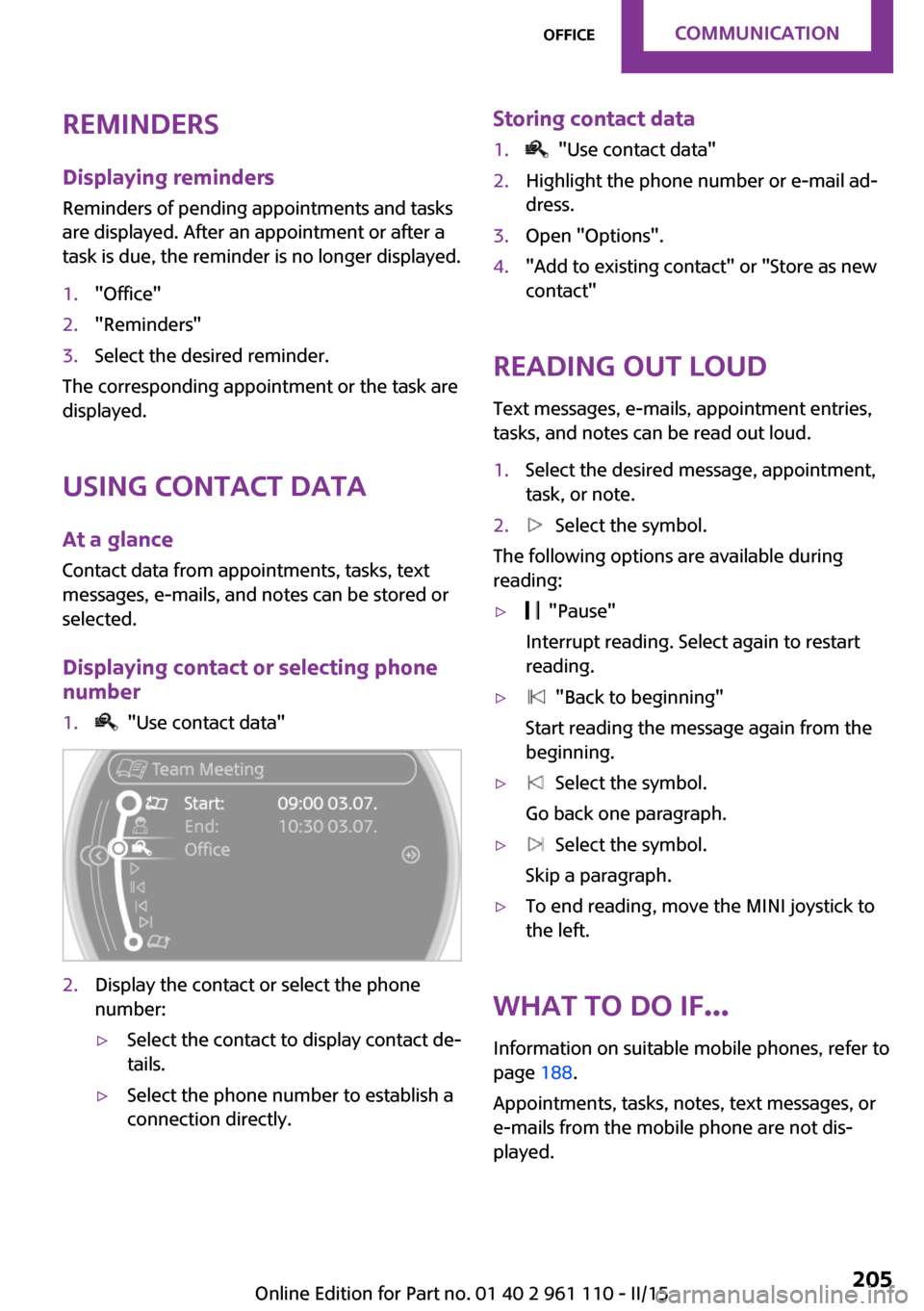
Displaying contact or selecting phone
number
1. "Use contact data"2.Display the contact or select the phone
number:▷Select the contact to display contact de‐
tails.▷Select the phone number to establish a
connection directly.Storing contact data1. "Use contact data"2.Highlight the phone number or e-mail ad‐
dress.3.Open "Options".4."Add to existing contact" or "Store as new
contact"
Reading out loud
Text messages, e-mails, appointment entries,
tasks, and notes can be read out loud.
1.Select the desired message, appointment,
task, or note.2. Select the symbol.
The following options are available during
reading:
▷ "Pause"
Interrupt reading. Select again to restart
reading.▷ "Back to beginning"
Start reading the message again from the
beginning.▷ Select the symbol.
Go back one paragraph.▷ Select the symbol.
Skip a paragraph.▷To end reading, move the MINI joystick to
the left.
What to do if...
Information on suitable mobile phones, refer to
page 188.
Appointments, tasks, notes, text messages, or
e-mails from the mobile phone are not dis‐
played.
Seite 205OfficeCOMMUNICATION205
Online Edition for Part no. 01 40 2 961 110 - II/15
Page 208 of 283

▷The mobile phone is not capable of the
missing function or is not connected cor‐
rectly.▷The Office function is deactivated.▷The mobile phone is connected as an addi‐
tional phone.▷Appointments are older than 20 days or are
more than 50 days in the future.▷The tasks have been marked as completed
or have a due date that lies more than
90 days in the future.▷Depending on the number of stored ap‐
pointments, task notes, and messages in
the mobile phone, not all are displayed in
the vehicle.
Not all appointments and tasks from the mobile
phone are displayed at the right time?
▷The time zone, time, or date is incorrectly
set on the Control Display and mobile
phone.
Entries are not displayed in full length.
▷Text were already transmitted from the
mobile phone in a shortened form.▷Synchronization between the mobile phone
and vehicle may take several minutes.
The contact pictures are not being displayed?
▷Up to 200 contact pictures can be stored in
the vehicle.
If all points in this list have been checked and
the required function is still not available,
please contact the hotline or service center.
Seite 206COMMUNICATIONOffice206
Online Edition for Part no. 01 40 2 961 110 - II/15
Page 209 of 283

MINI ConnectedVehicle equipmentThis chapter describes all series equipment as
well as country-specific and special equipment
offered for this model series. Therefore, it also
describes equipment that may not be found in
your vehicle, for instance due to the selected
special equipment or the country version. This
also applies to safety-related functions and sys‐
tems.
When using the features and systems described
here, adhere to local regulations.
At a glance
The concept
Certain software applications of a suitable mo‐
bile phone can be integrated in the vehicle.
These software applications are displayed on
the Control Display.
They are operated via the onboard monitor.
The scope of the software applications may
vary by country.
Requirements▷The mobile phone is suitable.▷The mobile phone operating system sup‐
ports the software applications of MINI
Connected.▷Software applications are installed on the
mobile phone and ready to use.▷Corresponding mobile wireless contract.
Any additionally incurred costs are not a
part of MINI Connected.
Information about suitable mobile phones,
available software applications, and their instal‐
lation can be obtained at www.mini.com/
connectivity or from the service center.
Create the entries.
Make entries only when traffic and road
conditions allow. Otherwise, the vehicle occu‐
pants and other road users may be put in dan‐
ger because of the distraction from driving.
For reasons of safety, some software applica‐
tions are usable only while the vehicle is sta‐
tionary. ◀
Software applications
Use only software applications approved
by the manufacturer of your MINI; otherwise,
malfunctions may occur. ◀
Connecting the mobile
phone
Connection via the USB audio interface The USB audio interface is in the
center console.
Connect the mobile phone to the
USB interface and the AV-IN port
using a special adapter cable
available from the service center.
To perform additional steps on the mobile
phone, refer to the mobile phone operating in‐
structions: for instance, selecting and activating
software applications.
Connection via the snap-in adapter
The mobile phone can also be connected, refer
to page 198, via the snap-in adapter.
Operating MINI Connected After the mobile phone is successfully con‐
nected with the vehicle and MINI Connected is
started, the applications are displayed on theSeite 207MINI ConnectedCOMMUNICATION207
Online Edition for Part no. 01 40 2 961 110 - II/15
Page 210 of 283

Control Display and can be operated using the
MINI joystick.
The volume can be set using the following con‐
trols:▷
Buttons on the steering
wheel or
▷Volume button on the radio, refer to
page 156.1.Connect the mobile phone via the snap-in
adapter or via the USB audio interface.2. Press the button. The main menu is
opened.3."MINI Connected"4.Select the desired software application.
Notes
▷The scope of MINI Connected that can be
displayed on the Control Display depends
on the range of software applications in‐
stalled on the mobile phone.▷The data transmission of the software ap‐
plications from the mobile phone to the ve‐
hicle can last some time. Some software
applications depend on the speed of the
available Internet connection of the mobile
phone.▷Some mobile phones cannot simultane‐
ously use MINI Connected and the Blue‐
tooth hands-free system.If necessary, restart the software applica‐
tion on the mobile phone after a phone
conversation.▷Audio and video playback from the snap-in
adapter is only possible if no cable is con‐
nected to the AV-IN port.
PlugIn
The concept
Selected functions of a compatible Apple de‐
vice can be displayed on the Control Display via
a video connection. They are operated using
the MINI joystick and the button on the
MINI joystick.
Functional requirement
▷Suitable iPhone or iPod: as of iPhone 3GS or
iPod with software version iOS 4.1 and
higher.▷The MINI Connected app is not required.
Information on compatible adapters and inter‐
faces can be obtained from the service center.
Activating
1.Connect the Apple device.
Operation takes place via the MINI joystick
with its buttons.2."MINI Connected"3."PlugIn"4.Select the connection type: "Activate via
AUX connection" or"Activate via Snap-In
adapter"5."Activate PlugIn"6.Use the MINI joystick to navigate among
the displayed functions and select, for ex‐
ample, a desired category or track.
Controls
The PlugIn is activated to display the graphic
output of the connected device on the Control
Seite 208COMMUNICATIONMINI Connected208
Online Edition for Part no. 01 40 2 961 110 - II/15
Page 211 of 283

Display. This changes the operating functions of
the MINI joystick and the MINI buttons until the
PlugIn is deactivated again.
The operation of the PlugIn depends on the iOS
version in use, e.g., iOS 4.1.
Home button
Press the button to select the following
functions:
▷Press 1x: opens the display menu bar.▷Press 2x: opens the main menu.▷Press 1x and move the MINI joystick to the
left 1x: opens the MINI Connected menu.▷Press 1x and move the MINI joystick to the
left 2x: opens the main menu.
Toggle button
Press the button to select the following
functions.
▷Press 1x: return to the next higher menu
level of the iPhones/iPods.
MINI joystick
▷Press: selection/play/pause.▷Turn: navigate through the lists.▷Move to the left: jump to the beginning of
the current music track or to the previous
music track in the playback list.▷Move the left and hold: reverse.▷Move to the right: jump to the next music
track in the playback list.▷Move to the right and hold: fast forward.
Deactivating
There are several methods of deactivating the
PlugIn and returning to the MINI operating
level.
Via the home button
▷Press 1x: returns to activating the PlugIn.▷Press 2x: opens the main menu.▷Press 1x and move the MINI joystick to the
left 1x: opens the MINI Connected menu.▷Press 1x and move the MINI joystick to the
left 2x. Opens the main menu.
Via the audio source button
Press 1x: changes to the audio source
selected last.
Seite 209MINI ConnectedCOMMUNICATION209
Online Edition for Part no. 01 40 2 961 110 - II/15
Page 253 of 283
▷Remove additional attachments, for in‐
stance a spoiler or telephone antenna, if
there is a risk that these may be damaged.▷Insert the remote control into the ignition
lock.
Steptronic transmission
Before driving into the car wash, note the fol‐
lowing to ensure that the vehicle can roll:
1.Insert the remote control into the ignition
lock, even with Comfort Access.2.Move the selector lever to position N.3.Release the parking brake.4.Switch the engine off.5.Leave the remote control in the ignition
lock so that the vehicle can roll.
Hand car wash
If washing the vehicle by hand, use copious
quantities of water and car shampoo if neces‐
sary. Clean the vehicle with a sponge or a
washing brush by applying gentle pressure.
Before cleaning the windshield, deactivate the
rain sensor to avoid unintentional wiper activa‐
tion or switch off the ignition.
Adhere to the local regulations regarding
washing cars by hand.
Headlights Do not rub dry and do not use abrasive or caus‐
tic cleansers. Soak areas that have been soiled,
e.g., due to insects, with shampoo and rinse off
with copious quantities of water.
Thaw ice with a window deicer; do not use an
ice scraper.
Windows
Clean the outside and inside surfaces of the
windows and the mirror glasses with window
cleaner.
Do not clean mirror glass with cleaners contain‐
ing quartz.
Wiper blades
Clean with soapy water and replace regularly to
avoid streaking.
Wax and preservative residue and soiling on
the windows cause streaking during window
wiping and lead to premature wear on the
wiper blades and malfunctions of the rain sen‐
sor.
Vehicle care Car care products
Regular cleaning and care contributes signifi‐
cantly to vehicle value retention.
The manufacturer recommends using cleaning
and care products from MINI, since these have
been tested and approved.
Original MINI CareProducts have been tested
on materials, in the laboratory, and in the field,
and offer optimum care and protection for MINI
vehicles.
Do not use cleansers that contain alcohol
or solvents
Do not use cleansers that contain alcohol or
solvents, such as lacquer thinners, heavy-duty
grease removers, fuel, or such; this could lead
to surface damage. ◀
Car care and cleaning products
Follow the instructions on the container.
When cleaning the interior, open the doors or
windows.
Only use products intended for cleaning vehi‐
cles.
Cleansers can contain substances that are dan‐
gerous and harmful to your health. ◀Seite 251CareMOBILITY251
Online Edition for Part no. 01 40 2 961 110 - II/15
Page 264 of 283
Short commands for voice
activationVehicle equipment
This chapter describes all series equipment as
well as country-specific and special equipment
offered for this model series. Therefore, it also
describes equipment that may not be found in
your vehicle, for instance due to the selected
special equipment or the country version. This
also applies to safety-related functions and sys‐
tems.
When using the features and systems described
here, adhere to local regulations.General information
Instructions for voice activation system, refer to
page 24.
To have the available spoken instructions read
out loud: ›Voice commands‹
The following short commands apply to vehi‐
cles equipped with a voice activation system.
They have no function in vehicles in which only
the mobile phone is operated using the voice.
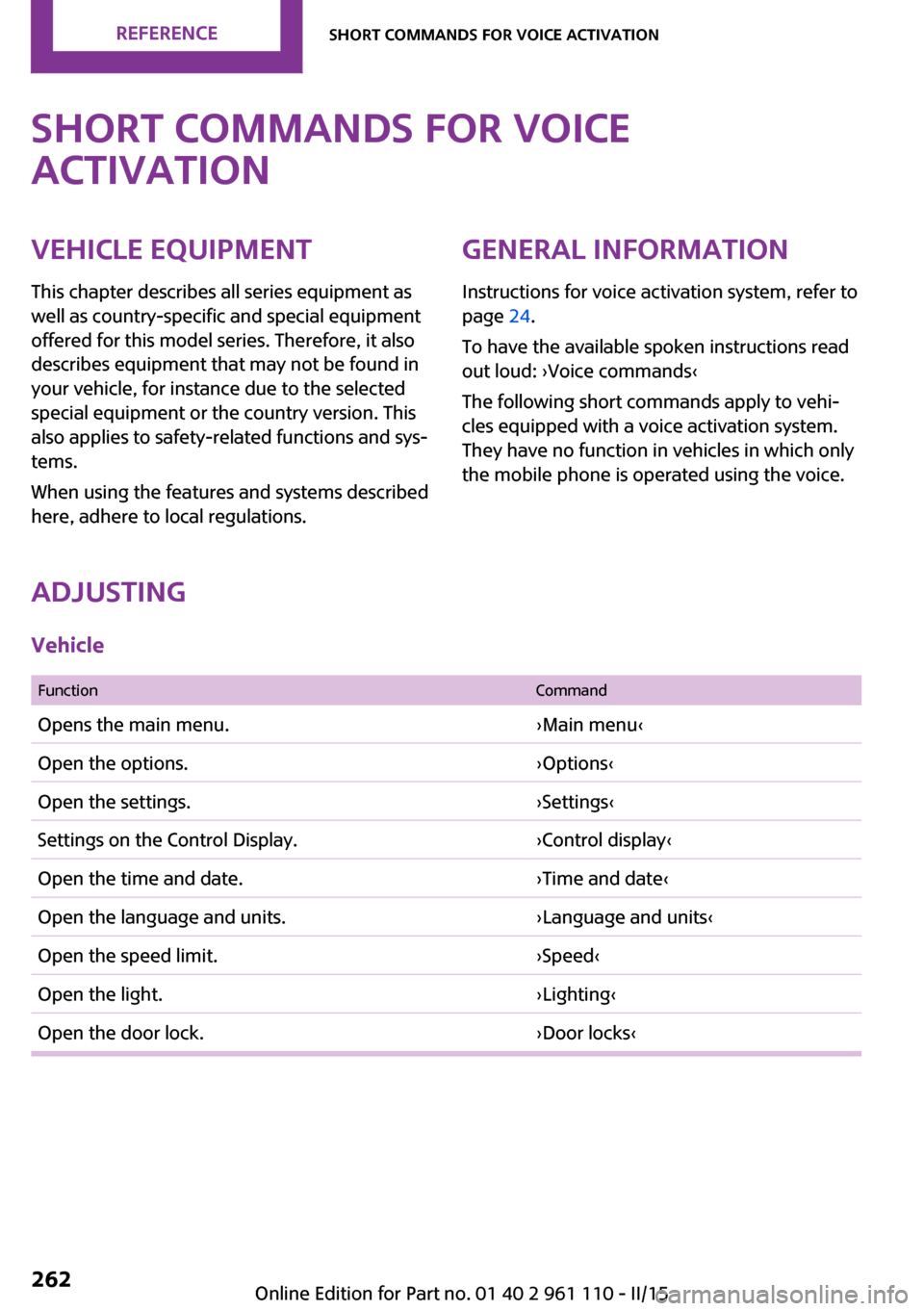
Adjusting
Vehicle
FunctionCommandOpens the main menu.›Main menu‹Open the options.›Options‹Open the settings.›Settings‹Settings on the Control Display.›Control display‹Open the time and date.›Time and date‹Open the language and units.›Language and units‹Open the speed limit.›Speed‹Open the light.›Lighting‹Open the door lock.›Door locks‹Seite 262REFERENCEShort commands for voice activation262
Online Edition for Part no. 01 40 2 961 110 - II/15
Page 268 of 283
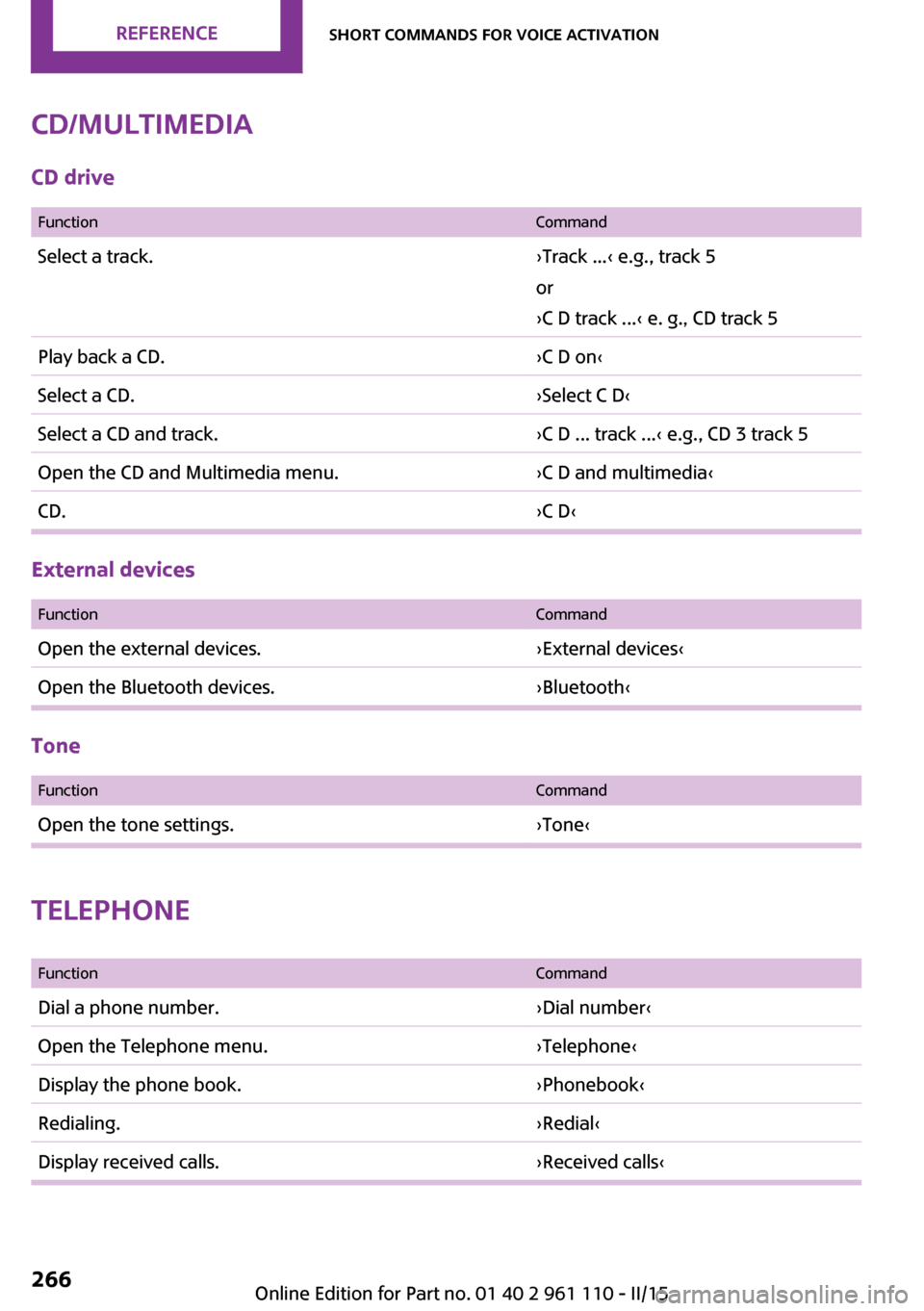
CD/multimediaCD drive
FunctionCommandSelect a track.›Track ...‹ e.g., track 5
or
›C D track ...‹ e. g., CD track 5Play back a CD.›C D on‹Select a CD.›Select C D‹Select a CD and track.›C D ... track ...‹ e.g., CD 3 track 5Open the CD and Multimedia menu.›C D and multimedia‹CD.›C D‹
External devices
FunctionCommandOpen the external devices.›External devices‹Open the Bluetooth devices.›Bluetooth‹
Tone
FunctionCommandOpen the tone settings.›Tone‹
Telephone
FunctionCommandDial a phone number.›Dial number‹Open the Telephone menu.›Telephone‹Display the phone book.›Phonebook‹Redialing.›Redial‹Display received calls.›Received calls‹Seite 266REFERENCEShort commands for voice activation266
Online Edition for Part no. 01 40 2 961 110 - II/15