buttons MINI COUPE ROADSTER CONVERTIBLE 2012 User Guide
[x] Cancel search | Manufacturer: MINI, Model Year: 2012, Model line: COUPE ROADSTER CONVERTIBLE, Model: MINI COUPE ROADSTER CONVERTIBLE 2012Pages: 283, PDF Size: 9.38 MB
Page 150 of 283
RadioENTERTAINMENT
149
Radio
Vehicle equipment
In this chapter, all production, country, and
optional equipment that is offered in the model
range is described. Equipment is also described
that is not available because of, for example,
selected options or count ry version. This also
applies to safety related functions and systems.
General information
Your radio is designed for reception of the
following stations:
> FM and AM
> HD Radio
> Satellite radio
AM/FM station
Selecting a station
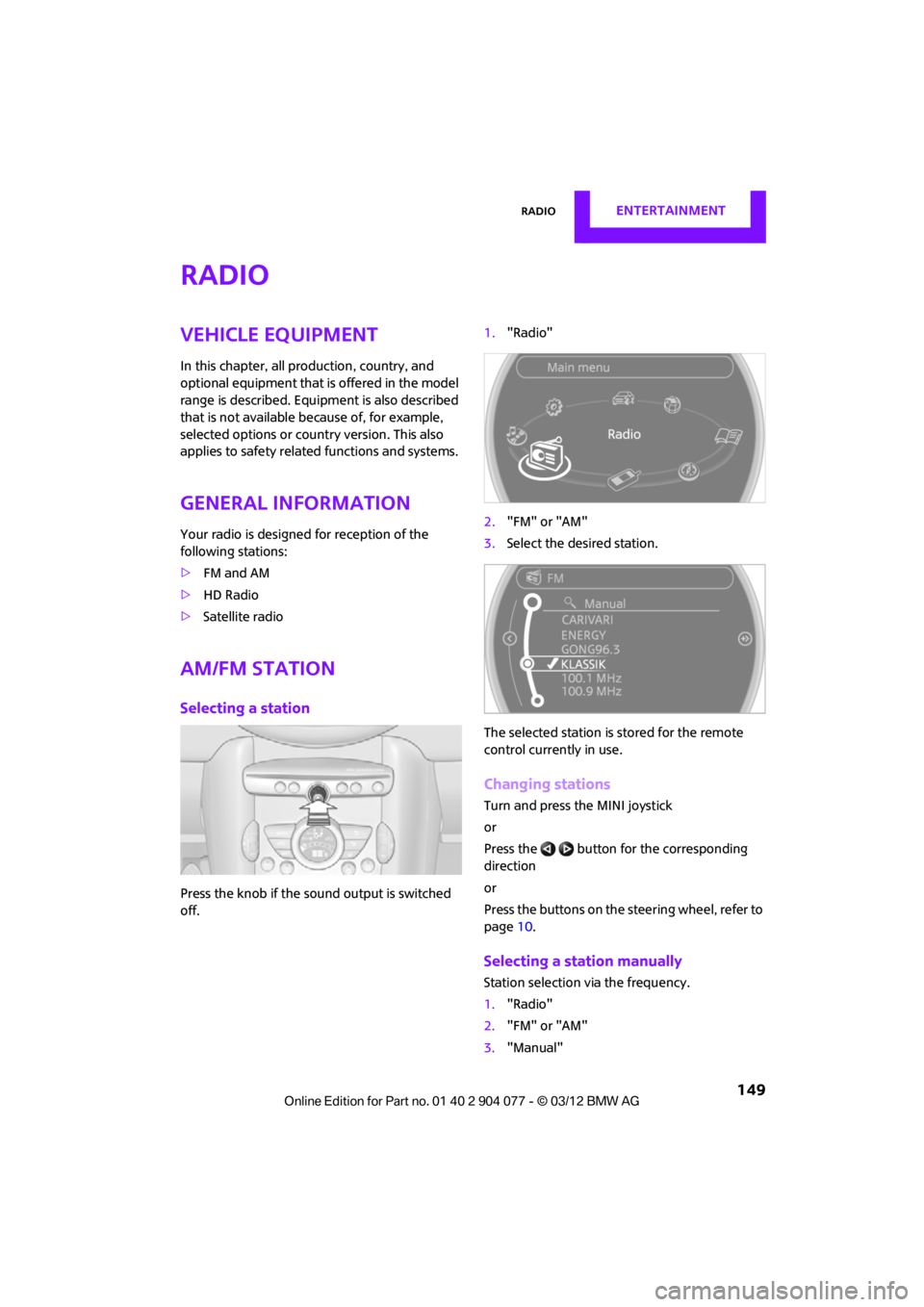
Press the knob if the sound output is switched
off. 1.
"Radio"
2. "FM" or "AM"
3. Select the desired station.
The selected station is stored for the remote
control current ly in use.
Changing stations
Turn and press the MINI joystick
or
Press the button for the corresponding
direction
or
Press the buttons on the steering wheel, refer to
page10.
Selecting a station manually
Station selection via the frequency.
1. "Radio"
2. "FM" or "AM"
3. "Manual"
00320051004F004C00510048000300280047004C0057004C005200510003
Page 154 of 283
RadioENTERTAINMENT
153
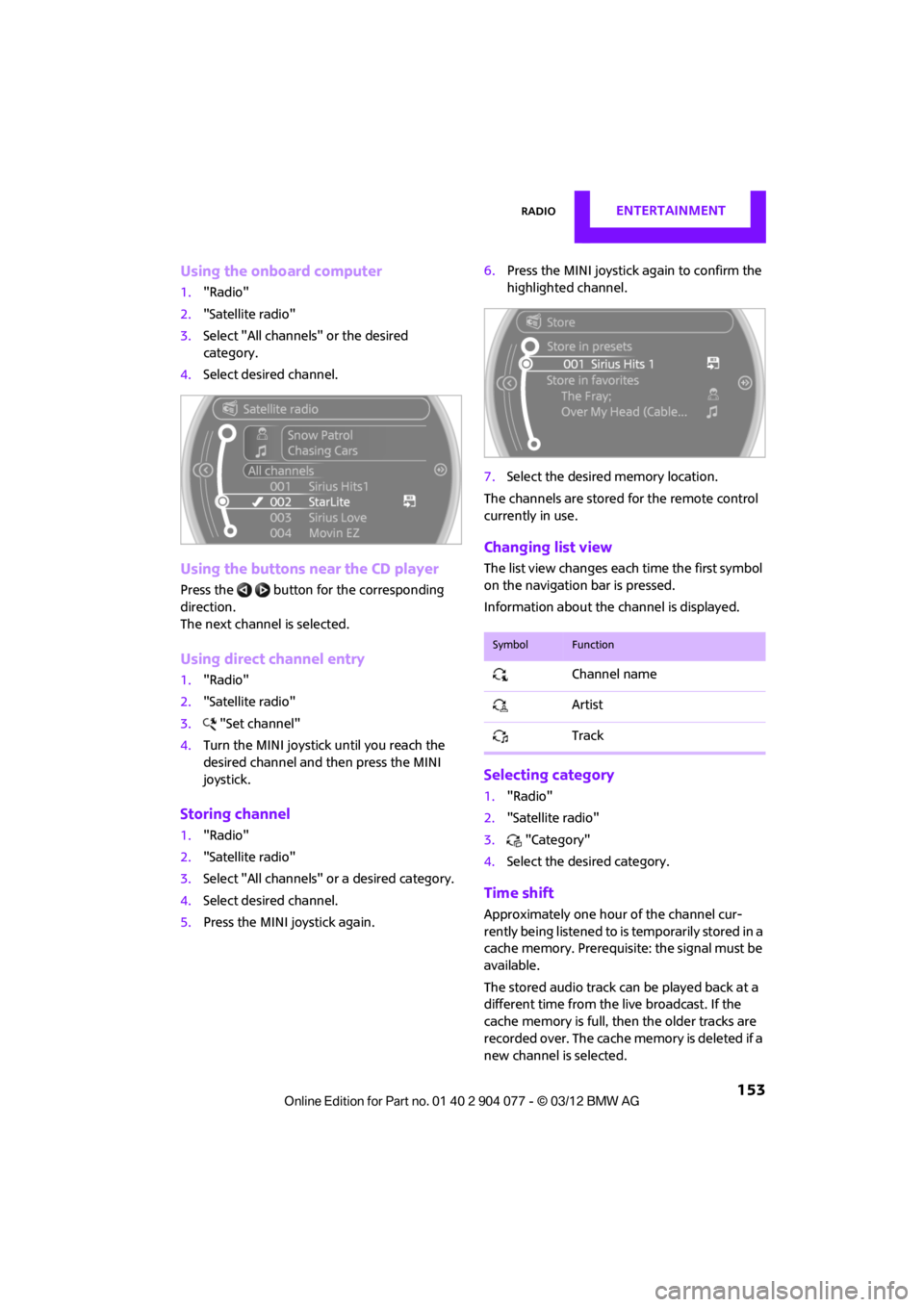
Using the onboard computer
1."Radio"
2. "Satellite radio"
3. Select "All channels" or the desired
category.
4. Select desired channel.
Using the buttons near the CD player
Press the button for the corresponding
direction.
The next channel is selected.
Using direct channel entry
1."Radio"
2. "Satellite radio"
3. "Set channel"
4. Turn the MINI joystick until you reach the
desired channel and then press the MINI
joystick.
Storing channel
1."Radio"
2. "Satellite radio"
3. Select "All channels" or a desired category.
4. Select desired channel.
5. Press the MINI joystick again. 6.
Press the MINI joystick again to confirm the
highlighted channel.
7. Select the desired memory location.
The channels are stored for the remote control
currently in use.
Changing list view
The list view changes each time the first symbol
on the navigation bar is pressed.
Information about the channel is displayed.
Selecting category
1. "Radio"
2. "Satellite radio"
3. "Category"
4. Select the desired category.
Time shift
Approximately one hour of the channel cur-
rently being listened to is temporarily stored in a
cache memory. Prerequisite: the signal must be
available.
The stored audio track ca n be played back at a
different time from the live broadcast. If the
cache memory is full, then the older tracks are
recorded over. The cache memory is deleted if a
new channel is selected.
SymbolFunction
Channel name
Artist
Track
00320051004F004C00510048000300280047004C0057004C005200510003
Page 163 of 283
ENTERTAINMENTExternal devices
162
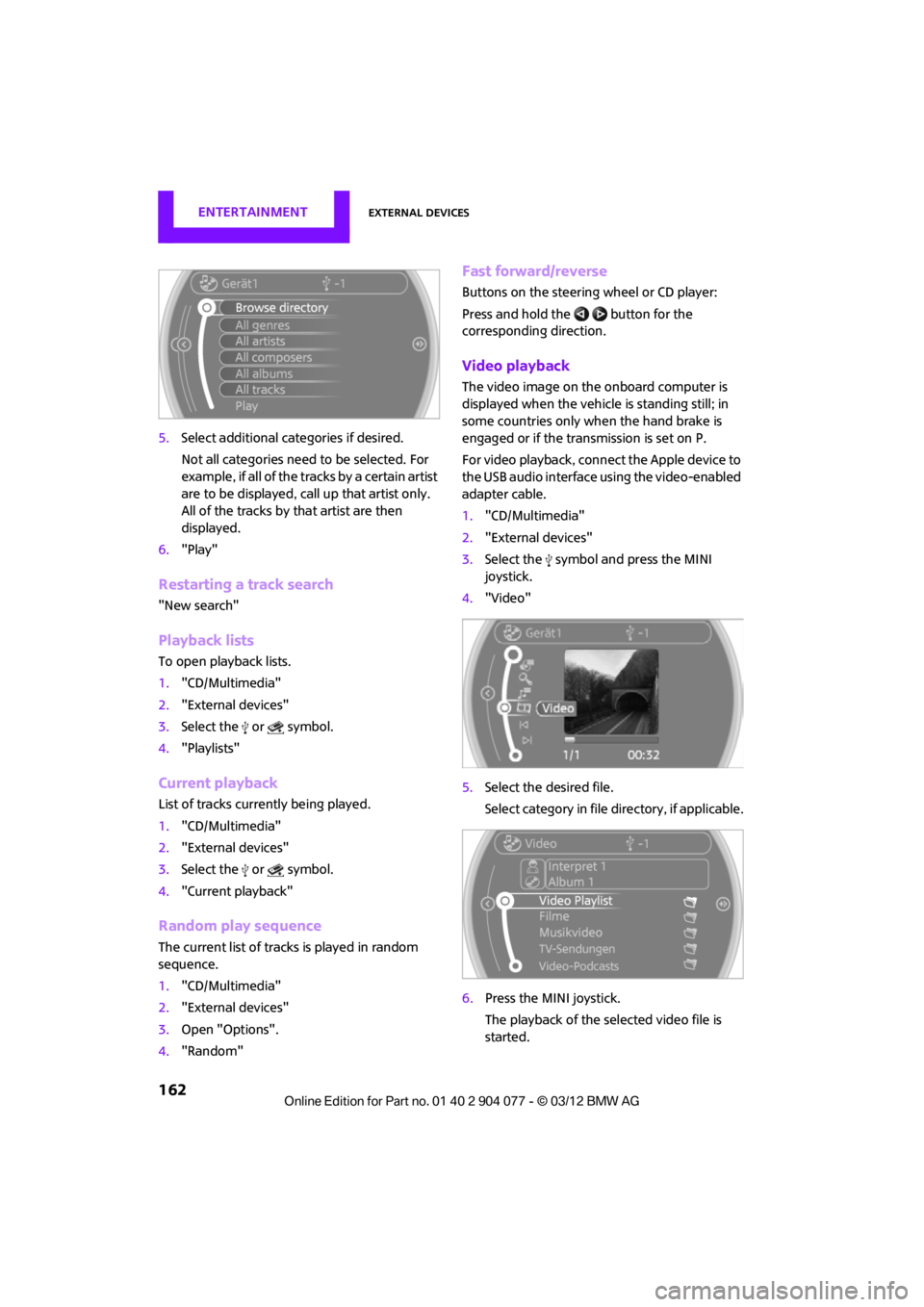
5.Select additional ca tegories if desired.
Not all categories need to be selected. For
example, if all of the tracks by a certain artist
are to be displayed, call up that artist only.
All of the tracks by that artist are then
displayed.
6. "Play"
Restarting a track search
"New search"
Playback lists
To open playback lists.
1."CD/Multimedia"
2. "External devices"
3. Select the or symbol.
4. "Playlists"
Current playback
List of tracks curre ntly being played.
1. "CD/Multimedia"
2. "External devices"
3. Select the or symbol.
4. "Current playback"
Random play sequence
The current list of tracks is played in random
sequence.
1."CD/Multimedia"
2. "External devices"
3. Open "Options".
4. "Random"
Fast forward/reverse
Buttons on the steering wheel or CD player:
Press and hold the button for the
corresponding direction.
Video playback
The video image on the onboard computer is
displayed when the vehicle is standing still; in
some countries only when the hand brake is
engaged or if the transmission is set on P.
For video playback, connect the Apple device to
the USB audio interface using the video-enabled
adapter cable.
1."CD/Multimedia"
2. "External devices"
3. Select the symbol and press the MINI
joystick.
4. "Video"
5. Select the desired file.
Select category in file directory, if applicable.
6. Press the MINI joystick.
The playback of the selected video file is
started.
00320051004F004C00510048000300280047004C0057004C005200510003
Page 171 of 283
COMMUNICATIONSHands-free device Bluetooth
170
Hands-free device Bluetooth
Vehicle equipment
In this chapter, all production, country, and
optional equipment that is offered in the model
range is described. Equipment is also described
that is not available because of, for example,
selected options or coun try version. This also
applies to safety relate d functions and systems.
Overview
The concept
Mobile phones can be connected to the vehicle
through Bluetooth.
Bluetooth® is a registered trademark of Blue-
tooth® SIG, Inc.
After being paired once, when the ignition is
switched on, these devices are automatically
detected as soon as they are present in the
vehicle and can be controlled via the onboard
computer, the buttons on the steering wheel,
and by voice.
Up to four mobile phones can be paired.
It may be necessary for some functions to be
activated by the mobile phone provider.
Only make entries when traffic conditions
permit. Do not hold the mobile phone in
your hand while you are driving; use the hands-
free system instead. If you do not observe this
precaution, your being distracted can endanger
vehicle occupants and other road users. <
Suitable mobile phones
Precise information as to which mobile phones
are supported by the hands-free device can be
found at www.mini.com/connectivity.
With a certain software version, these suitable
mobile phones support the vehicle functions
described below. With other mobile phones
or software versions,
malfunctions may occur.
A mobile phone that is connected to the vehicle
should not be operated via the mobile phone
keypad; otherwise, ma lfunctions may occur.
Displaying vehicle identification number
and software part number
To check which mobile phones are supported by
the hands-free device, th e vehicle identification
number and the software part number will be
required. The software version of the mobile
phone may also be required.
1. "Telephone"
2. Open "Options".
3. "Bluetooth® info"
4. "Display system information"
Notes
Do not expose your mobile phone to extreme
ambient conditions, for example, very high tem-
peratures; otherwise, fu nctions on your mobile
phone may not work. Follow the operating
instructions for yo ur mobile phone.
Pairing/unpairing mobile
phone
Requirements
>Suitable mobile phone, refer to page 170.
> Mobile phone operational.
> Bluetooth activated in vehicle, refer to
page 171, and in the mobile phone.
> Bluetooth presets in the mobile phone are
required, e.g. connection not confirmed or
visible, refer to Ow ner's Manual for the
mobile phone.
00320051004F004C00510048000300280047004C0057004C005200510003
Page 181 of 283
COMMUNICATIONSMobile phone preparation Bluetooth
180
Mobile phone preparation Bluetooth
Vehicle equipment
In this chapter, all production, country, and
optional equipment that is offered in the model
range is described. Equipment is also described
that is not available because of, for example,
selected options or coun try version. This also
applies to safety relate d functions and systems.
Overview
The concept
Mobile phones or other external devices, e.g.
audio players, can be connected to the vehicle
via Bluetooth.
Bluetooth® is a registered trademark of Blue-
tooth® SIG, Inc.
After being paired once, when the ignition is
switched on, these devices are automatically
detected as soon as they are present in the
vehicle and can be controlled via the onboard
computer, the buttons on the steering wheel,
and by voice.
Depending on whether they are functioning as a
telephone and/or as an audio source, external
devices can be used via the vehicle. The tele-
phone functions will be described below. Oper-
ation of audio functions, refer to page 163.
It may be necessary for some functions to be
activated by the mobile phone provider.
Only make entries when traffic conditions
permit. Do not hold the mobile phone in
your hand while you are driving; use the hands-
free system instead. If you do not observe this
precaution, your being distracted can endanger
vehicle occupants and other road users. <
Snap-in adapter
The snap-in adapter, refer to page191, makes it
possible to:
> Accommodate the mobile phone.
> Recharge its battery.
> Connect it to an exte rnal antenna of the
vehicle.
This assures a better network connection
and constant sound quality.
A mobile phone that is connected to the vehicle
should not be operated via the mobile phone
keypad; otherwise, ma lfunctions may occur.
Suitable mobile phones
For precise information as to which mobile
phones and external devices with Bluetooth
interfaces are supported by the mobile phone
preparation package, go to www.mini.com/
connectivity.
With a certain software version, these suitable
mobile phones support the vehicle functions
described below.
With other mobile phones or software versions,
malfunctions may occur.
It is possible to perform a software update, refer
to page 166.
Displaying vehicle identification number
and software part number
Checking which mobile phones are supported
by the mobile phone preparation requires the
vehicle identification number and software part
number. The software version of the mobile
phone may also be required.
1."Telephone"
2. Open "Options".
3. "Bluetooth® info"
4. "Display system information"
00320051004F004C00510048000300280047004C0057004C005200510003
Page 193 of 283
COMMUNICATIONSMobile phone preparation Bluetooth
192
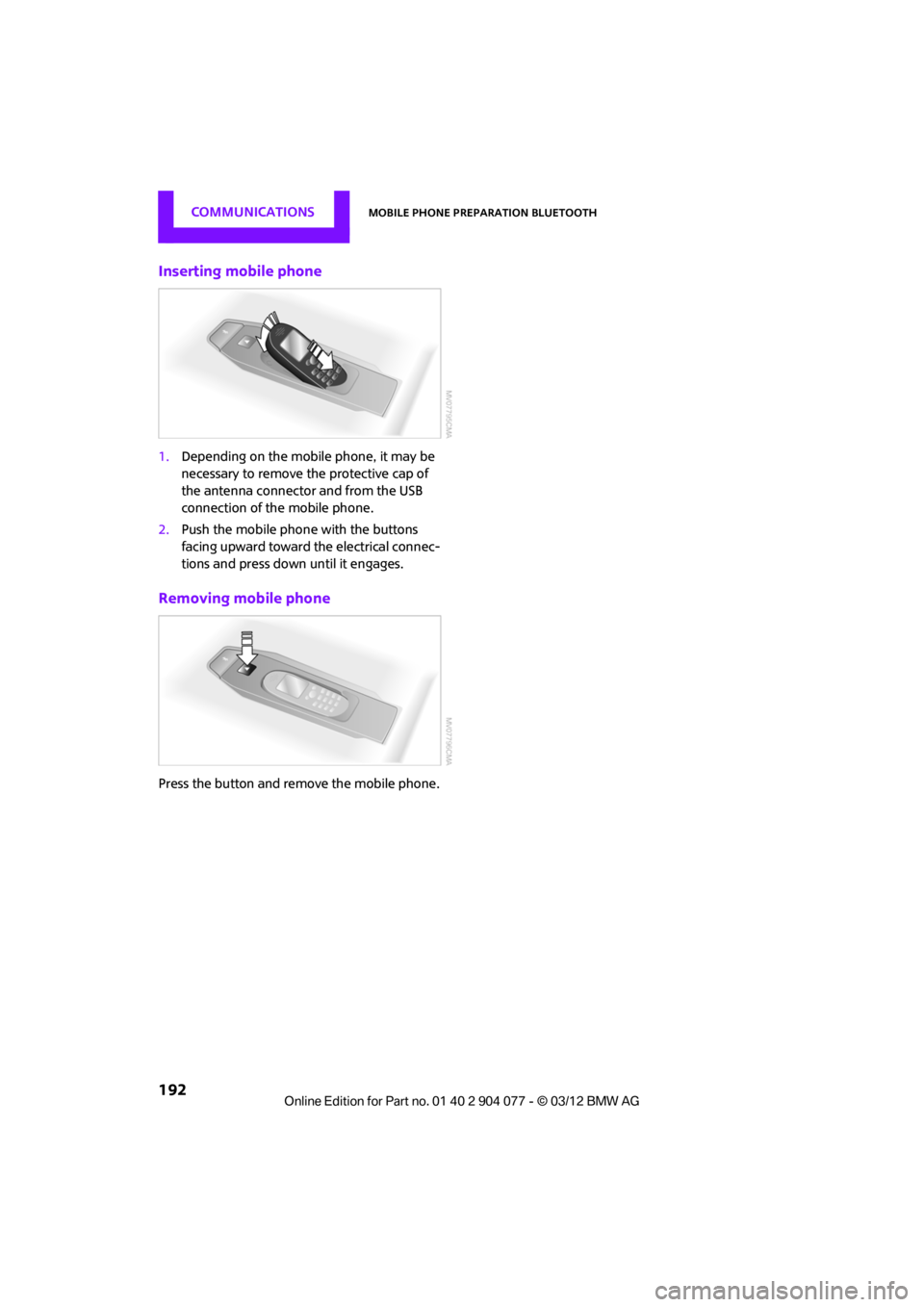
Inserting mobile phone
1.Depending on the mobile phone, it may be
necessary to remove the protective cap of
the antenna connector and from the USB
connection of the mobile phone.
2. Push the mobile phone with the buttons
facing upward toward the electrical connec-
tions and press down until it engages.
Removing mobile phone
Press the button and remove the mobile phone.
00320051004F004C00510048000300280047004C0057004C005200510003
Page 203 of 283
COMMUNICATIONSMINI Connected
202
Connecting via the snap-in adapter
The mobile phone can also be connected using
the snap-in adapter, refer to page191.
Using MINI Connected
After successful connection of the mobile phone
to the vehicle and activation of MINI Connected,
the applications are di splayed on the Control
Display and can be operated using the MINI
joystick.
Volume adjustments can be made using the
buttons on the steering wheel, refer to page 10,
or using the volume control knob on the radio,
refer to page 147.
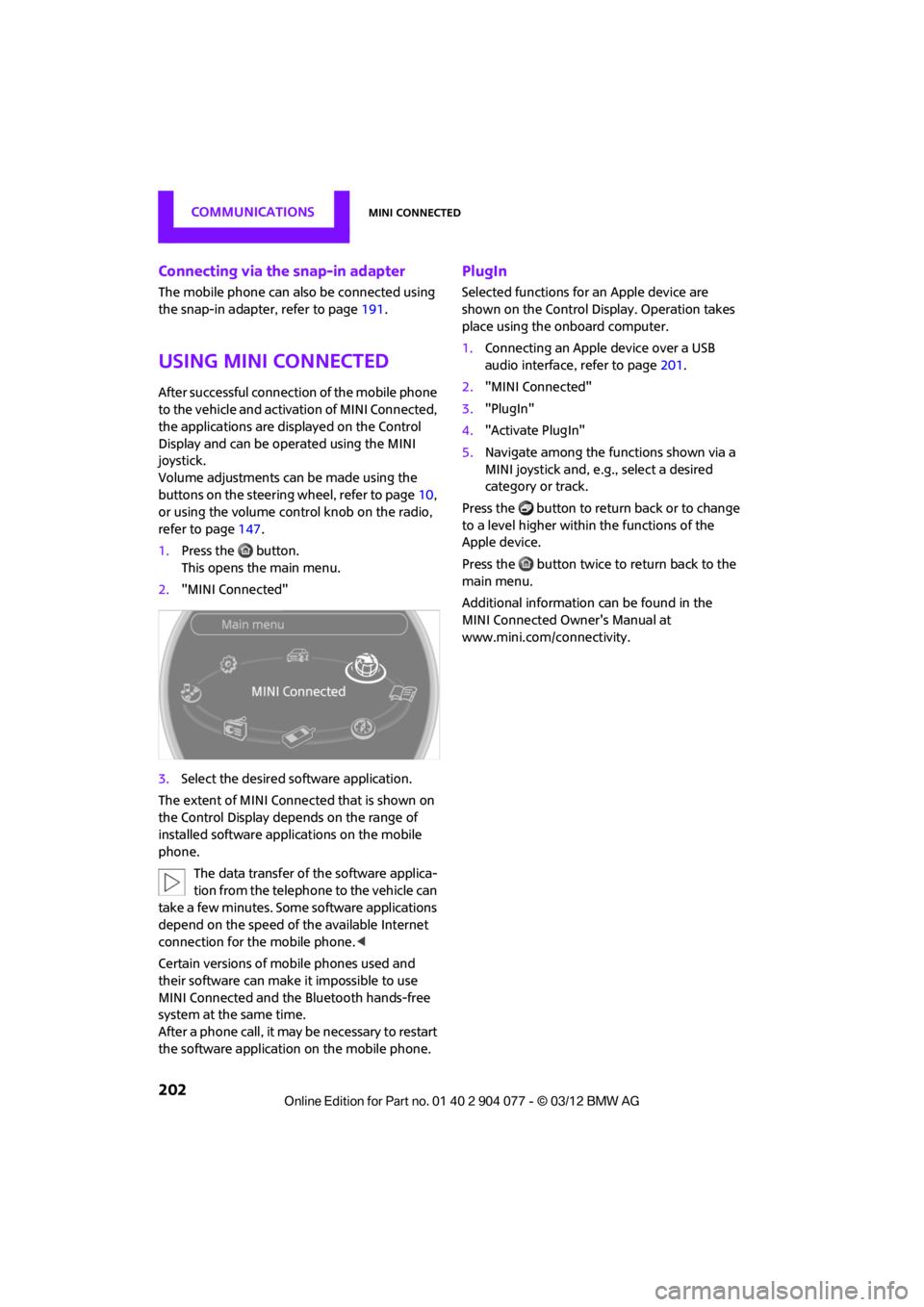
1. Press the button.
This opens the main menu.
2. "MINI Connected"
3. Select the desired so ftware application.
The extent of MINI Connected that is shown on
the Control Display depends on the range of
installed software applic ations on the mobile
phone.
The data transfer of the software applica-
tion from the telephone to the vehicle can
take a few minutes. Some software applications
depend on the speed of the available Internet
connection for the mobile phone. <
Certain versions of mobile phones used and
their software can make it impossible to use
MINI Connected and the Bluetooth hands-free
system at the same time.
After a phone call, it may be necessary to restart
the software application on the mobile phone.
PlugIn
Selected functions for an Apple device are
shown on the Control Display. Operation takes
place using the onboard computer.
1. Connecting an Apple device over a USB
audio interface, refer to page 201.
2. "MINI Connected"
3. "PlugIn"
4. "Activate PlugIn"
5. Navigate among the functions shown via a
MINI joystick and, e. g., select a desired
category or track.
Press the button to return back or to change
to a level higher within the functions of the
Apple device.
Press the button twice to return back to the
main menu.
Additional information can be found in the
MINI Connected Owner's Manual at
www.mini.com/c onnectivity.
00320051004F004C00510048000300280047004C0057004C005200510003
Page 270 of 283

Everything from A to ZREFERENCE
269
Average fuel consumption72
– setting the units 74
Average speed 72
Avoiding highways for
navigation 135
Axle loads, refer to Weights 257
B
Background ligh ting, refer to
Ambient lighting 100
Backrests, refer to Seats 51
Backup lamps
– replacing bulb 235
Band-aids, refer to First aid
pouch 243
Bar, refer to Tow-starting, towing away 245
Base plate for telephone or mobile phone
– refer to Snap-in adapter 191
Bass sounds, refer to Tone control 147
Battery 241
– disposal 38,242
– jump-starting 243
– temporary power failure 242
Battery renewal
– remote control 38
Being towed 245
Belts, refer to Safety belts 53
Belt tensioner, refer to Safety
belts 53
Beverage holders, refer to Cupholders 109
Black ice, refer to External temperature warning 71
Blower, refer to Air flow
rate 102,104
Bluetooth, activating/ deactivating 171,181 Bluetooth audio
163
– device pairing 163
– disconnecting an audio connection 165
– playback 164
– unpairing device 165
– what to do if... 166
Bottle holders, refer to Cupholders 109
Brake Assist 83
Brake fluid, refer to Service requirements 75
Brake lamps
– replacing bulbs 235
Brake pads, breaking in 114
Brake rotors 116
– brakes 114
– breaking in 114
Brakes
– ABS 83
– breaking in 114
– MINI Maintenance
System 225
– parking brake 62
– service requirements 75
Br akes,
refer to Braking
safely 115
Brake system 114
– breaking in 114
– disc brakes 116
– MINI Maintenance System 225
Breakdown service, refer to
Roadside Assistance 243
Breaking in the clutch 114
Break-in period 114
Bulb changing, refer to Lamps and bulbs 232
Button for starting the
engine 60
Buttons on the steering wheel 11
C
Calendar 197
– displaying appointment 197
– selecting calendar day 197
California Proposition 65 warning 5
Call
– accepting 173,185
– ending 174,186
– muting the microphone 187
Calling, refer to Phone numbers, dialing 174,186
Calling, refer to Telephone 108
Can holders, refer to Cupholders 109
Capacities 259
Car battery, refer to Vehicle battery 241
Car care 227
Care 227
– car-care products 227
– car washes 227
– CD/DVD drives 230
– high-pressure washers 228
– leather 230
– manual washing 228
– upholstery and fabrics 229
– windows 228
– wiper blades 228
Cargo, securing 119
Cargo area 116
– capacity 257
– Comfort Access 37
– lamp 99
– opening from outside 33
Cargo area lamp 99
Cargo area lid, refer to Tailgate 33
Cargo loading 118
– securing cargo 119
– stowing cargo 119
– vehicle 116
Car key, refer to Keys/remote controls 28
00320051004F004C00510048000300280047004C0057004C005200510003
Page 272 of 283

Everything from A to ZREFERENCE
271
Data250
– capacities 259
– dimensions 251
– engine 250
– weights 257
Data memory 226
Date
– setting 77
– setting format 77
Daytime running lights 97
DBC Dynamic Brake Control, refer to Brake Assist 83
Deactivating front passenger
airbags 93
Deadlocking, refer to Locking 30
Defect
– door lock 32
– fuel filler flap 206
Defining a home address 195
Defogging windows 103,105
Defrosting windows 103,105
Defrosting windows and removing condensation
– air conditioner 103
– automatic climate control 105
Defrosting windshield, refer to
Defrosting
windows 103,105
Defrost position, refer to Defrosting
windows 103,105
Deleting contacts 179,196
Destination address
– entering 126,132
Destination for navigation
– entering 126
– entering via map 131
Differential, breaking in 114
Digital radio, refer to HD Radio 150
Dimensions 251
Dipstick, engine oil 222
Directional indicators, refer to
Turn signals 65 Direction announcements,
refer to Voice
instructions 139
Direction instructions, refer to
Voice instructions 139
Directory for navigation, refer to Address book 128
Displacement, re fer to Engine
data 250
Display, refer to Onboard
computer controls 17
Disp laying cont
act
pictures 196
Displaying contacts 178
Displaying special destinations 131
Display lighting, refer to Instrument lighting 99
Displays 12
– instrument cluster 12
– on the Control Display 17
Displays, care 230
Displays and controls 10
Disposal
– of coolant 224
– remote control battery 38
– vehicle battery 242
Distance remaining to service,
refer to Service
requirements 75
Distance warning, refer to Park Distance Control PDC 82
Door key, refer to Integrated
key/remote control 28
Door lock 31
Door lock, confirmation
signals 30
Doors, manual operation 32
DOT Quality Grades 217
Drinks holders, refer to Cupholders 109
Drive-off assistant, refer to Hill
Assist 85
Driving dynamics control, refer to Sport button 85
Driving lamps, refer to Parking lamps/low beams 96Driving notes
114
Driving off on inclines, refer to Hill Assist 85
Driving stability control
systems 83
Driving through water 115
Driving tips, refer to Driving
notes 114
Dry air, refer to Cooling function 105
DSC Dynamic Stability Control 83
DTC Dynamic Traction
Control 84
Dynamic Brake Control DBC, refer to Brake Assist 83
Dynamic route guidance 142
Dynamic Stability Control DSC 83
Dynamic Traction Control DTC 84
E
Eject button, refer to Buttons
on the CD player 146
Electrical malfunction
– convertible top 41,48
– door lock 32
– fuel filler flap 206
– tailgate 33
Electric power windows
– initializing 39
Electronic brake-force distribution 83
Electronic Stability Program
ESP, refer to Dynamic
Stability Control DSC 83
E-mail 197
Emergency operation, refer to Manual operation
– convertible top 41,48
– door lock 32
– fuel filler flap 206
– tailgate 33
– transmission lock, automatic transmission 64
00320051004F004C00510048000300280047004C0057004C005200510003
Page 275 of 283

REFERENCEEverything from A to Z
274
Instrument panel, refer to Displays 12
Integrated key 28
Interactive map 132
Interesting destination for navigation 130
Interior lamps 99
– remote control 31
Interior rearview mirror 55
– automatic dimming
feature 55
Interlock 63
Intermittent mode of the
wipers 66
Internal care 229
Internet page 4
J
Jacking points 241
Jets, refer to Window washer nozzles 67
Joystick, refer to Onboard computer 17
Jumpering, refer to Jump-
starting 243
Jump-starting 243
K
Key, refer to Keys/remote
controls 28
Keyless-Go, refer to Comfort
Access 36
Keyless opening and closing, refer to Comfort Access 36
Key Memory, refer to Personal Profile 28
Keypad dialing 175,187
Kickdown 63
– automatic transmission with Steptronic 63
Knock control 207
L
Lamps, refer to Parking lamps/
Low beams 96
Lamps and bulbs, replacing bulbs 232
Lashing eyes, refe r to Securing
cargo 119
Last destinations 129
LATCH child restraint fixing
system 57
Leather care 230
LEDs light-emitting diodes 233
Length, refer to Dimensions 251
License plate lamp
– bulb replacement 236
Light alloy wheels, care 229
Light-emitting diodes
LEDs 233
Lighter 109
– socket 110
Lighting
– lamps and bulbs 232
– of the instruments 99
– of vehicle, refer to Lamps 96
Light switch 96
Limit, refer to Speed limit 79
Load 118
Load securing equipment,
refer to Securing cargo 119
Lock buttons of doors, refer to Locking 32
Locking
– adjusting confirmation signal 30
– from inside 32
– from outside 30
– without remote control, refer
to Comfort Access 36
Locking and unlocking doors
– confirmation signals 30
– from inside 32
– from outside 30 Longlife oils
– approved motor oils
223
Low beams 96
– automatic 96
– replacing bulb 233
Lower back support, refer to Lumbar support 51
Luggage compartment
– emergency operation, refer to Manual unlocking 33
– emergency unlocking 34
– increasing the capacity 117
– opening from the inside 33
Luggage compartment, refer to Cargo area 33
Luggage compartment lid,
refer to Tailgate 33
Lumbar support 51
M
M+S tires, refer to Winter
tires 220
Main menu 18
Maintenance, refer to Service
and Warranty Information
Booklet for US models and
Service Guide Booklet for
Canadian models
Maintenance system 225
Malfunction
– convertible top 41,48
– tailgate 33
Malfunction warnings, refer to Check Control 77
Manual air distribution 103
Manual convertible top 44
Manually operated convertible top 44
Manual mode
– automatic transmission with Steptronic 64
00320051004F004C00510048000300280047004C0057004C005200510003