tow MINI COUPE ROADSTER CONVERTIBLE 2012 Owner's Manual
[x] Cancel search | Manufacturer: MINI, Model Year: 2012, Model line: COUPE ROADSTER CONVERTIBLE, Model: MINI COUPE ROADSTER CONVERTIBLE 2012Pages: 283, PDF Size: 9.38 MB
Page 132 of 283
Destination entryNAVIGATION
131
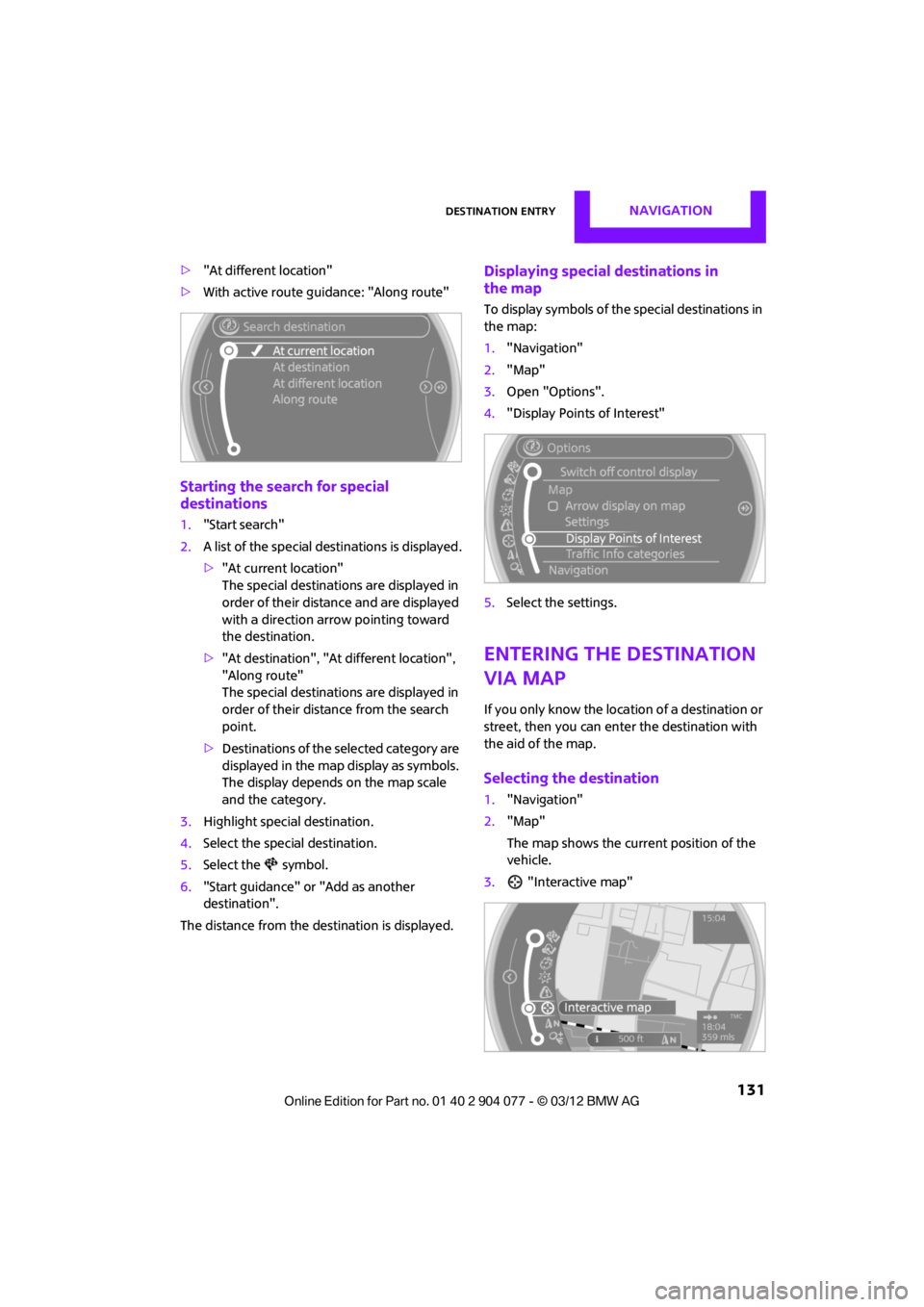
>"At different location"
> With active route guidance: "Along route"
Starting the search for special
destinations
1."Start search"
2. A list of the special destinations is displayed.
>"At current location"
The special destinations are displayed in
order of their distance and are displayed
with a direction arro w pointing toward
the destination.
> "At destination", "At different location",
"Along route"
The special destinations are displayed in
order of their distance from the search
point.
> Destinations of the se lected category are
displayed in the map display as symbols.
The display depends on the map scale
and the category.
3. Highlight special destination.
4. Select the special destination.
5. Select the symbol.
6. "Start guidance" or "Add as another
destination".
The distance from the de stination is displayed.
Displaying special destinations in
the map
To display symbols of the special destinations in
the map:
1. "Navigation"
2. "Map"
3. Open "Options".
4. "Display Points of Interest"
5. Select the settings.
Entering the destination
via map
If you only know the loca tion of a destination or
street, then you can enter the destination with
the aid of the map.
Selecting the destination
1. "Navigation"
2. "Map"
The map shows the curre nt position of the
vehicle.
3. "Interactive map"
00320051004F004C00510048000300280047004C0057004C005200510003
Page 133 of 283
NAVIGATIONDestination entry
132
4.Select the destination with the cross-hairs.
> Changing scale: turn the MINI joystick.
> Moving map: move the MINI joystick in
the corresponding direction.
> Shifting map diag onally: move the
MINI joystick in the corresponding
direction and turn the MINI joystick.
5. Press the MINI joystick to display additional
menu items.
>Select the symbol: "Start guidance" or
"Add as another destination".
> "Find points of interest": the search for
special destinations is started.
Specifying the street
If the system does not detect any street, then a
street name in the vicinity or the coordinates of
the destination are displayed.
Additional functions
In the interactive map, th e scale can be adjusted
and the visible map sectio n can be shifted. You
can also access other func tions by pressing the
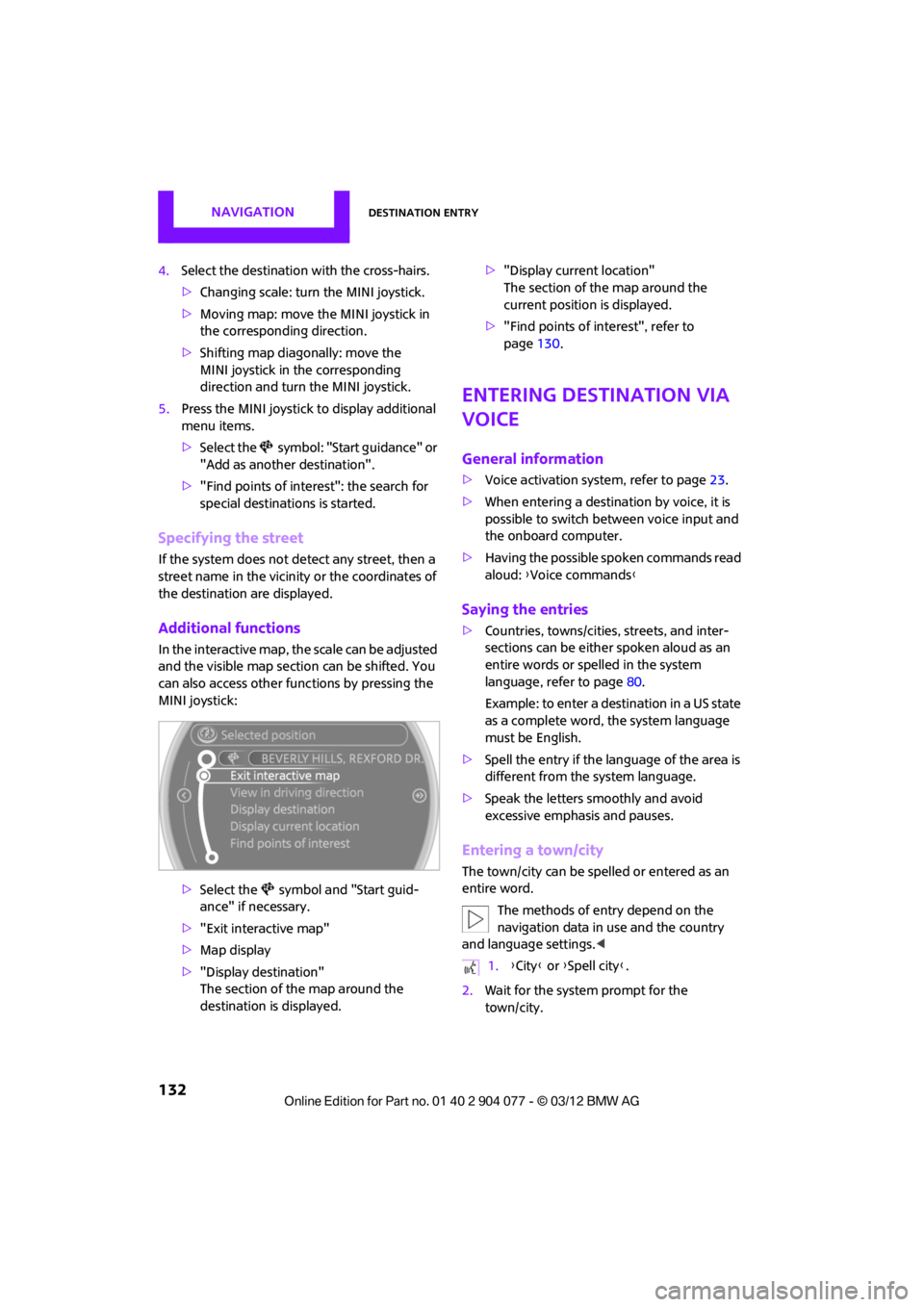
MINI joystick:
>Select the symbol and "Start guid-
ance" if necessary.
> "Exit interactive map"
> Map display
> "Display destination"
The section of the map around the
destination is displayed. >
"Display current location"
The section of the map around the
current position is displayed.
> "Find points of interest", refer to
page 130.
Entering destination via
voice
General information
>Voice activation system, refer to page 23.
> When entering a destinat ion by voice, it is
possible to switch between voice input and
the onboard computer.
> Having the possible spoken commands read
aloud: {Voice commands }
Saying the entries
>Countries, towns/cities , streets, and inter-
sections can be either spoken aloud as an
entire words or spelled in the system
language, refer to page 80.
Example: to enter a destination in a US state
as a complete word, the system language
must be English.
> Spell the entry if the language of the area is
different from the system language.
> Speak the letters smoothly and avoid
excessive emphasis and pauses.
Entering a town/city
The town/city can be spelled or entered as an
entire word.
The methods of entry depend on the
navigation data in use and the country
and language settings. <
2. Wait for the system prompt for the
town/city.
1.{City} or { Spell city}.
00320051004F004C00510048000300280047004C0057004C005200510003
Page 134 of 283
Destination entryNAVIGATION
133
3.Say the name of the town/city or if neces-
sary, spell at least the first three letters.
Similar-sounding towns/cities that cannot
be differentiated by the system are
compiled in a separate list and displayed as a
town/city followed by three dots.
If necessary, select this entry with {Yes }. Then
select the desired city/town in this list. <
The town/city can also be selected from the list
via the onboard computer:
Turn the MINI joystick until the destination is
selected, and press the MINI joystick.
Entering a street or intersection
The street or intersection is entered in the same
way as the town/city.
Entering house number
Depending on the data in the navigation system,
house numbers up to the number 2,000 can be
entered:
Starting route guidance
Route guidance starts immediately.
Adding further intermediate
destinations
Further intermediate dest inations can be added.
Saving destination
The destination is automati cally added to the list
of the last destinations.
Planning a trip with
intermediate
destinations
New trip
Various intermediate destinations can be
entered for a trip. The tr ip destination must be
entered first, refer to Destination input,
page 126.
Entering intermed iate destinations
A maximum of 30 intermed iate destinations can
be entered for one trip.
1. "Navigation"
2. Select the type of destination entry and
enter the intermed iate destination.
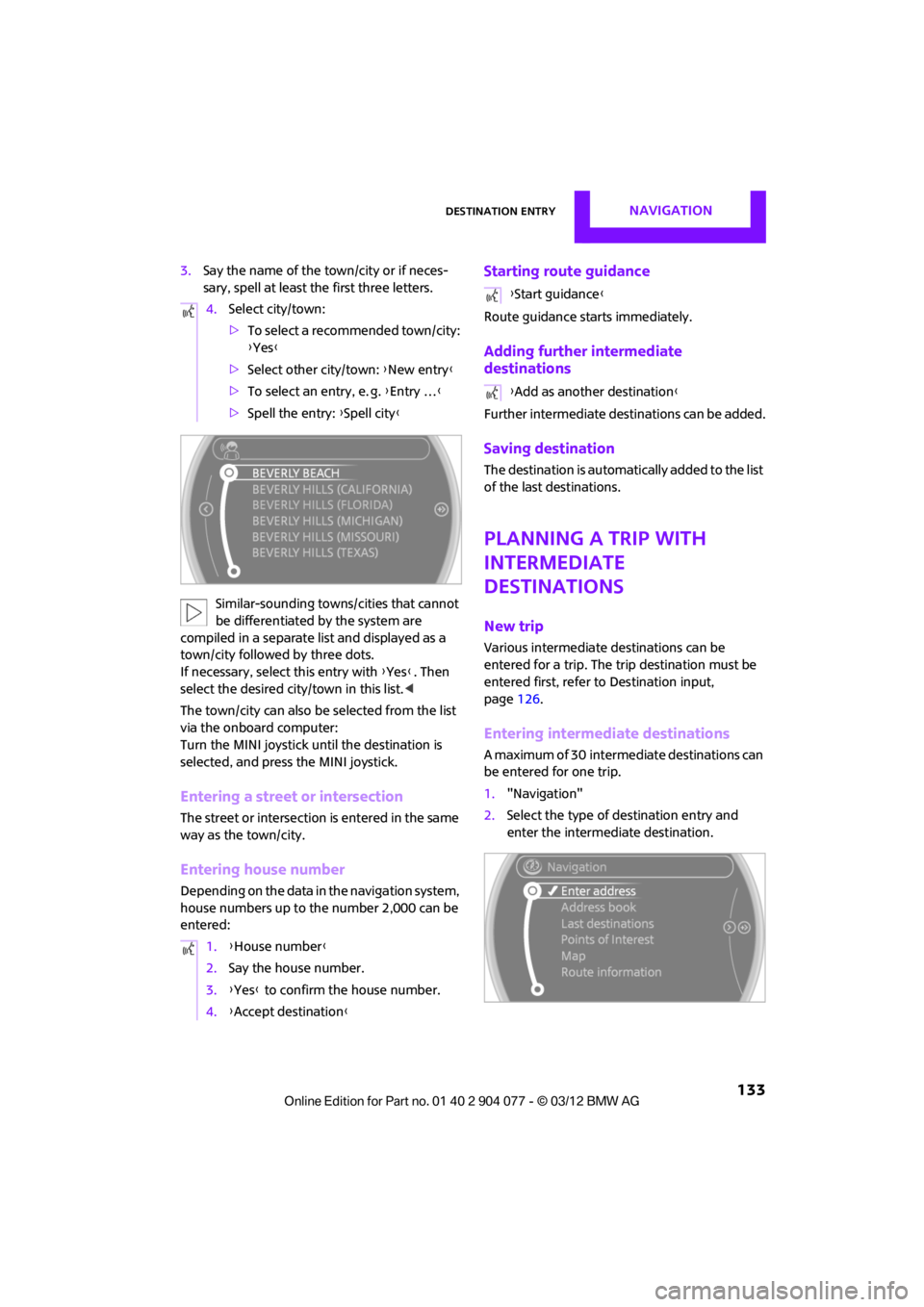
4.
Select city/town:
>To select a recommended town/city:
{Yes }
> Select other city/town: {New entry }
> To select an entry, e. g. {Entry … }
> Spell the entry: {Spell city }
1. {House number }
2. Say the house number.
3. {Yes } to confirm the house number.
4. {Accept destination }
{Start guidance }
{ Add as another destination }
00320051004F004C00510048000300280047004C0057004C005200510003
Page 135 of 283
NAVIGATIONDestination entry
134
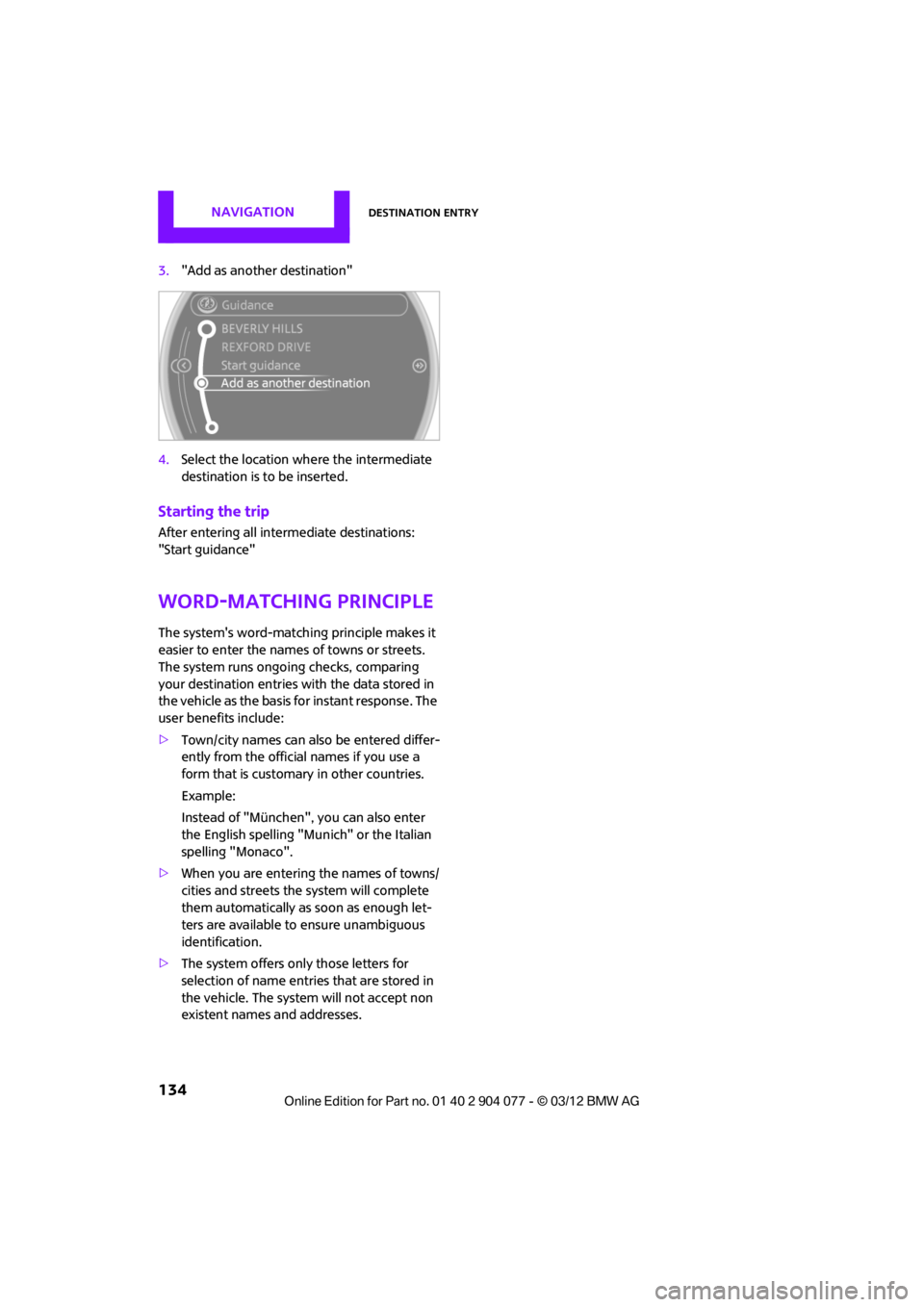
3."Add as another destination"
4. Select the location where the intermediate
destination is to be inserted.
Starting the trip
After entering all inte rmediate destinations:
"Start guidance"
Word-matching principle
The system's word-matching principle makes it
easier to enter the name s of towns or streets.
The system runs ongoing checks, comparing
your destination entries wi th the data stored in
the vehicle as the basis for instant response. The
user benefits include:
> Town/city names can also be entered differ-
ently from the official names if you use a
form that is customary in other countries.
Example:
Instead of "München", you can also enter
the English spelling "Munich" or the Italian
spelling "Monaco".
> When you are entering the names of towns/
cities and streets the system will complete
them automatically as soon as enough let-
ters are available to ensure unambiguous
identification.
> The system offers only those letters for
selection of name entries that are stored in
the vehicle. The system will not accept non
existent names and addresses.
00320051004F004C00510048000300280047004C0057004C005200510003
Page 137 of 283
NAVIGATIONRoute guidance
136
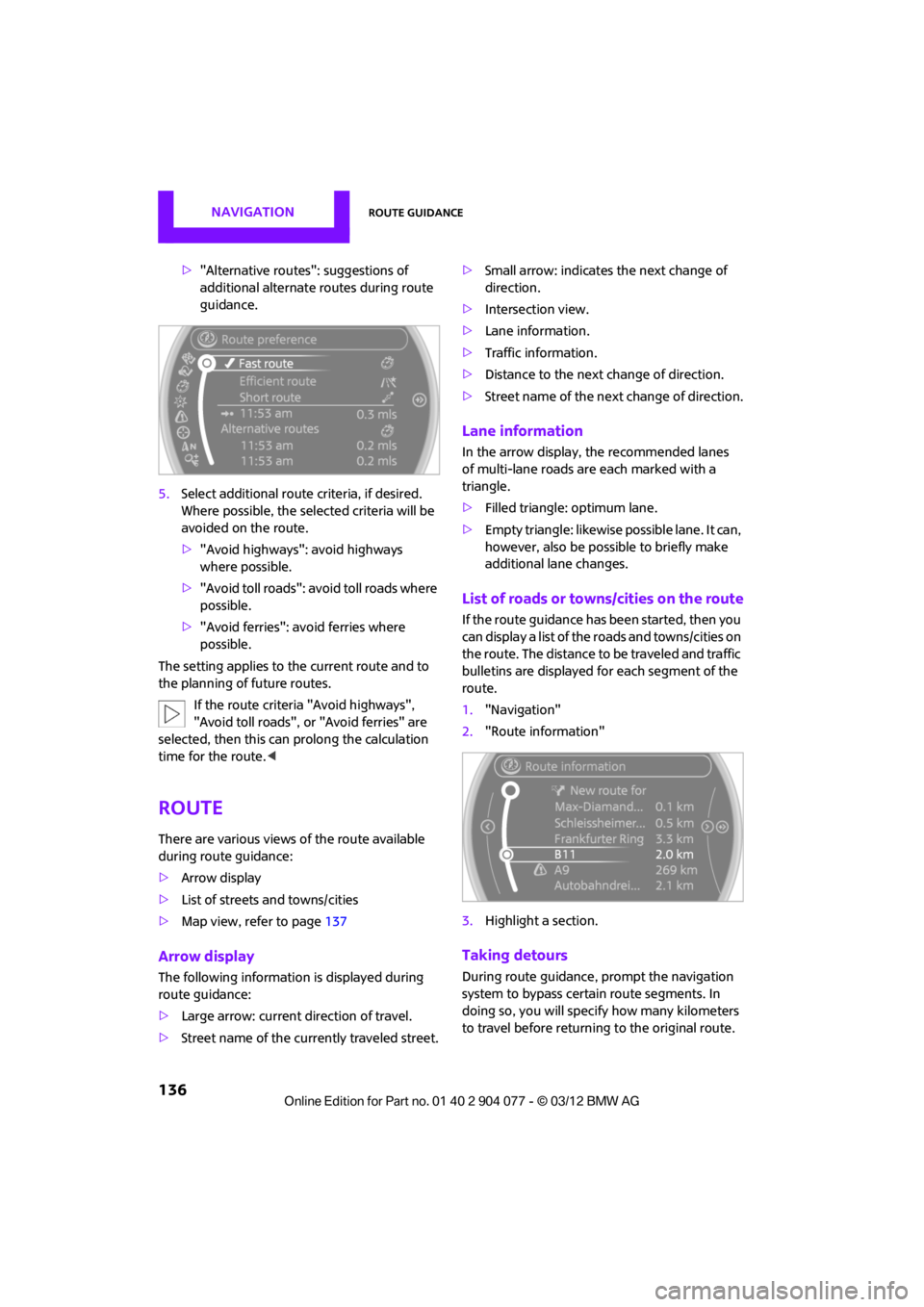
>"Alternative routes": suggestions of
additional alternate routes during route
guidance.
5. Select additional route criteria, if desired.
Where possible, the selected criteria will be
avoided on the route.
>"Avoid highways": avoid highways
where possible.
> "Avoid toll roads": avoid toll roads where
possible.
> "Avoid ferries": avoid ferries where
possible.
The setting applies to the current route and to
the planning of future routes.
If the route criteria "Avoid highways",
"Avoid toll roads", or "Avoid ferries" are
selected, then this can prolong the calculation
time for the route. <
Route
There are various views of the route available
during route guidance:
>Arrow display
> List of streets and towns/cities
> Map view, refer to page 137
Arrow display
The following information is displayed during
route guidance:
>Large arrow: current direction of travel.
> Street name of the currently traveled street. >
Small arrow: indicates the next change of
direction.
> Intersection view.
> Lane information.
> Traffic information.
> Distance to the next change of direction.
> Street name of the next change of direction.
Lane information
In the arrow display, the recommended lanes
of multi-lane roads are each marked with a
triangle.
>Filled triangle: optimum lane.
> Empty triangle: likewise possible lane. It can,
however, also be possi ble to briefly make
additional lane changes.
List of roads or towns/cities on the route
If the route guidance has been started, then you
can display a list of the roads and towns/cities on
the route. The distance to be traveled and traffic
bulletins are displayed fo r each segment of the
route.
1. "Navigation"
2. "Route information"
3. Highlight a section.
Taking detours
During route guidance, prompt the navigation
system to bypass certai n route segments. In
doing so, you will specif y how many kilometers
to travel before returning to the original route.
00320051004F004C00510048000300280047004C0057004C005200510003
Page 144 of 283

What to do if…NAVIGATION
143
What to do if…
What to do if…
>The current position cannot be displayed?
The position is in an unrecognized region, in
a poor reception area, or the system is in the
process of determining the position. Recep-
tion is best when you have an unobstructed
view to the sky.
> The route guidance does not accept an
address without the street name?
A downtown area cannot be determined for
the town or city that has been entered. Input
any street in the select ed town/city and start
route guidance.
> The route guidance does not accept a
destination?
The destination data is not contained in the
navigation data. Select a destination that is
as close as possible to the original.
> The letters for a de stination cannot be
selected during destination entry?
Stored data do not contain the data of the
destination. Select a de stination that is as
close as possible to the original.
> The map view is displayed in grayscale?
When the traffic info map is activated, the
picture on the Control Display is switched to
a grayscale. This permits an optimized
depiction of traf fic information.
> Voice instructions ar e no longer issued
before intersections du ring route guidance?
The area has not been fully recorded yet, or
you have left the recommended route and
the system requires a few seconds to calcu-
late a new route suggestion.
> The navigation system does not react to
entries?
If the battery was disconnected, it takes
about 10 minutes before the system is once
again operational.
00320051004F004C00510048000300280047004C0057004C005200510003
Page 193 of 283
COMMUNICATIONSMobile phone preparation Bluetooth
192
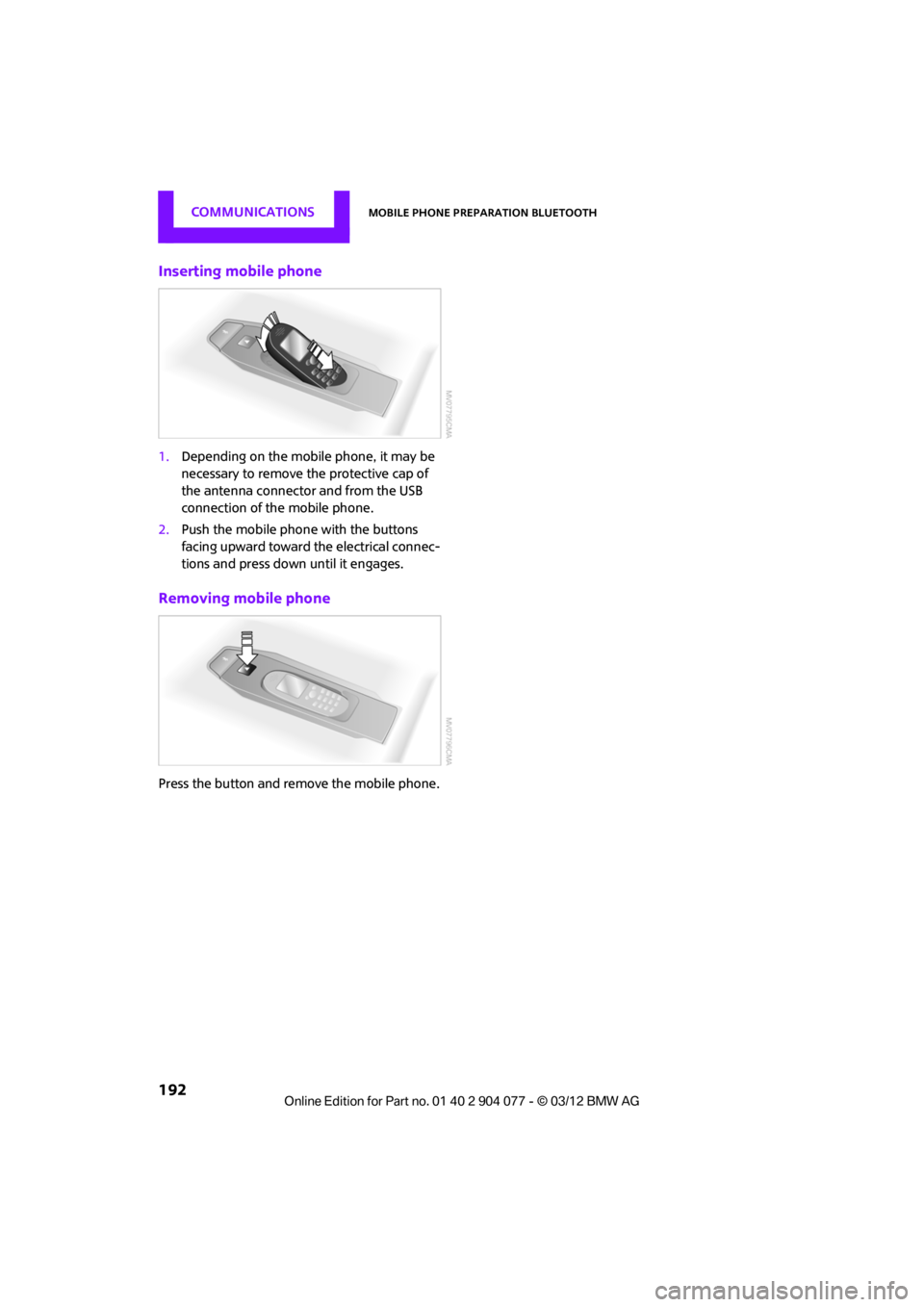
Inserting mobile phone
1.Depending on the mobile phone, it may be
necessary to remove the protective cap of
the antenna connector and from the USB
connection of the mobile phone.
2. Push the mobile phone with the buttons
facing upward toward the electrical connec-
tions and press down until it engages.
Removing mobile phone
Press the button and remove the mobile phone.
00320051004F004C00510048000300280047004C0057004C005200510003
Page 219 of 283
MOBILITYWheels and tires
218
Tread depth
The tread depth should not drop below 1/8 in/
3 mm, although, for example, European
legislation only specifies a minimum tread depth
of 1/16 in/1.6 mm. At tr ead depths below 1/8 in/
3 mm there is an increased risk of high-speed
hydroplaning, even when only small amounts of
water are present on the road surface.
Winter tires
When winter tires wear down past a tread depth
of 1/6 in/4 mm, they become perceptibly less
suitable for winter condit ions. In the interest of
safety, new tires should be installed.
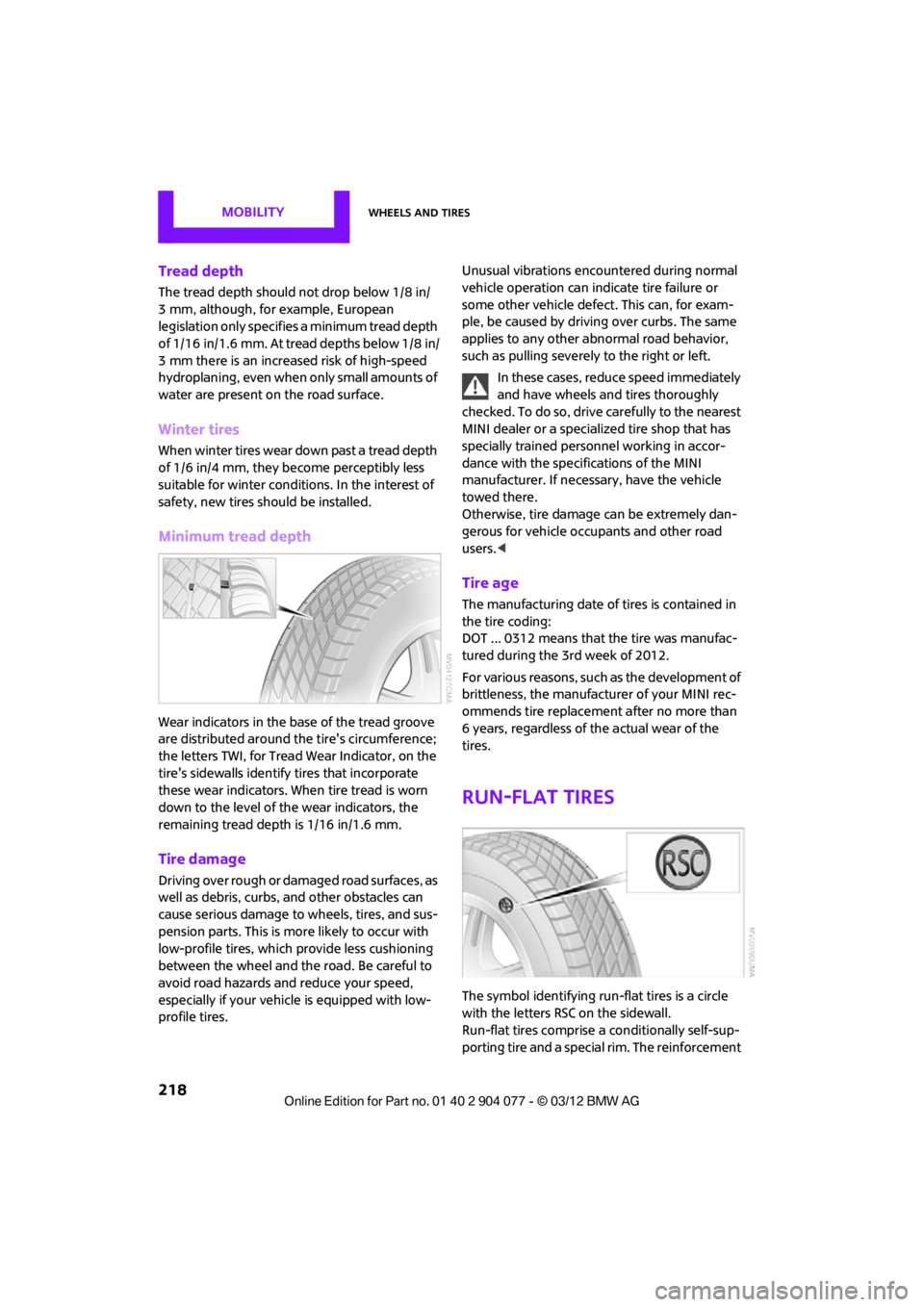
Minimum tread depth
Wear indicators in the base of the tread groove
are distributed around the tire's circumference;
the letters TWI, for Tread Wear Indicator, on the
tire's sidewalls identify tires that incorporate
these wear indicators. When tire tread is worn
down to the level of the wear indicators, the
remaining tread dept h is 1/16 in/1.6 mm.
Tire damage
Driving over rough or damaged road surfaces, as
well as debris, curbs, and other obstacles can
cause serious damage to wheels, tires, and sus-
pension parts. This is more likely to occur with
low-profile tires, which provide less cushioning
between the wheel and the road. Be careful to
avoid road hazards and reduce your speed,
especially if your vehicle is equipped with low-
profile tires. Unusual vibrations encountered during normal
vehicle operation can indi
cate tire failure or
some other vehicle defect . This can, for exam-
ple, be caused by drivin g over curbs. The same
applies to any other abnormal road behavior,
such as pulling severely to the right or left.
In these cases, reduce speed immediately
and have wheels and tires thoroughly
checked. To do so, drive carefully to the nearest
MINI dealer or a specialized tire shop that has
specially trained personnel working in accor-
dance with the specifications of the MINI
manufacturer. If necessa ry, have the vehicle
towed there.
Otherwise, tire damage can be extremely dan-
gerous for vehicle occu pants and other road
users. <
Tire age
The manufacturing date of tires is contained in
the tire coding:
DOT ... 0312 means that the tire was manufac-
tured during the 3rd week of 2012.
For various reasons, such as the development of
brittleness, the manufacturer of your MINI rec-
ommends tire replacemen t after no more than
6 years, regardless of the actual wear of the
tires.
Run-flat tires
The symbol identifying run-flat tires is a circle
with the letters RSC on the sidewall.
Run-flat tires comprise a conditionally self-sup-
porting tire and a special rim. The reinforcement
00320051004F004C00510048000300280047004C0057004C005200510003
Page 223 of 283
MOBILITYEngine compartment
222
Hood
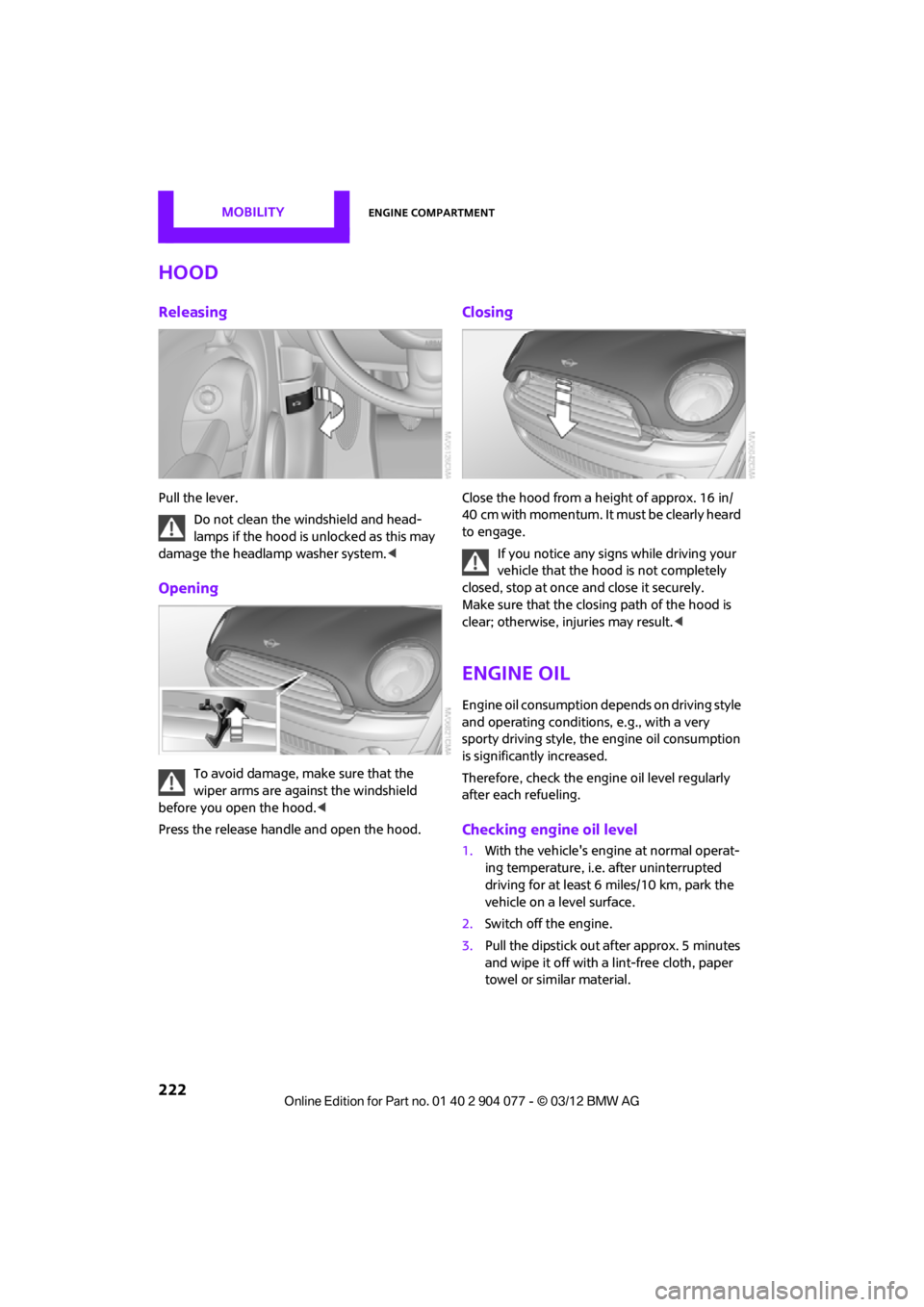
Releasing
Pull the lever.Do not clean the windshield and head-
lamps if the hood is unlocked as this may
damage the headlamp washer system. <
Opening
To avoid damage, make sure that the
wiper arms are against the windshield
before you open the hood. <
Press the release handle and open the hood.
Closing
Close the hood from a height of approx. 16 in/
40 cm with momentum. It must be clearly heard
to engage.
If you notice any signs while driving your
vehicle that the hood is not completely
closed, stop at once and close it securely.
Make sure that the closing path of the hood is
clear; otherwise, injuries may result. <
Engine oil
Engine oil consumption depends on driving style
and operating conditions, e.g., with a very
sporty driving style, the engine oil consumption
is significantly increased.
Therefore, check the engine oil level regularly
after each refueling.
Checking engine oil level
1. With the vehicle's engine at normal operat-
ing temperature, i.e. after uninterrupted
driving for at least 6 miles/10 km, park the
vehicle on a level surface.
2. Switch off the engine.
3. Pull the dipstick out after approx. 5 minutes
and wipe it off with a lint-free cloth, paper
towel or similar material.
00320051004F004C00510048000300280047004C0057004C005200510003
Page 229 of 283
MOBILITYCare
228
Automatic transmission
Before driving into the car wash, make sure that
the vehicle can roll:
1.Place the remote control, even with Comfort
Access, in the ignition lock.
2. Move the selector lever to position N.
3. Release the parking brake.
4. Switch off the engine.
5. Insert the remote control in the ignition lock
so that the vehicle can roll.
Steam jets/high-pressure washers
When using steam jets or high-pressure
washers, make sure that you maintain
sufficient distance from the vehicle and do not
exceed a maximum temperature of 140 7/
60 6 .
If the distance is too close, the pressure too high,
or the temperature too high, parts of the vehicle
can be damaged, or water can penetrate.
Observe the operating instructions for high-
pressure washers. <
Do not spray sensors, such as the Park Dis-
tance Control, with high-pressure washers
for a long time or at a distance of less than 1 ft/
30 cm. <
Manual washing
Use a great deal of water and, if necessary, car
shampoo when washing your car by hand. Clean
the vehicle with a sponge or a washing brush
applying a slight amount of pressure.
Before cleaning the windshield, deacti-
vate the rain sensor or turn off the ignition
to prevent unintentional wiping. <
Observe local regulations regarding wash-
ing vehicles by hand. <
Headlamps
Do not wipe dry and do not use abrasive or
corrosive cleaning agen ts. Remove dirt and
contamination, such as in sects, by soaking with
shampoo and then washing with plenty of
water.
Do not remove accumulated ice and snow with
an ice scraper; use window deicers instead.
Windows
Clean the outside and inside of the windows and
mirrors with a window cleaner.
Do not clean the mirrors with cleaners
containing quartz. <
Wiper blades
Clean with soapy water and change regularly to
prevent the formation of streaks.
Wax, preservatives and dirt on the win-
dows cause streaks wh en the windshield
wipers are on, and can cause premature wear
of the wiper blades and interfere with the rain
sensor. <
Care of the convertible top
The appearance and service life of the convert-
ible top largely depends on its proper care and
operation.
Please follow these instructions:
>Never attempt to fold and stow the convert-
ible top in the convertible compartment
when the top is wet or frozen. Otherwise,
water stains, mildew, and chafe marks may
occur.
> If water spots occur on the inside headliner
despite precautions, remove them using a
microfiber cloth and interior cleaner.
> If the vehicle is parked in an enclosed area
for a longer period of time, make sure that
there is sufficient ventilation.
> Remove any bird droppings immediately,
since they have corrosive properties which
will corrode the conver tible top and damage
the rubber seals.
00320051004F004C00510048000300280047004C0057004C005200510003