ignition MITSUBISHI ASX 2009 1.G Owners Manual
[x] Cancel search | Manufacturer: MITSUBISHI, Model Year: 2009, Model line: ASX, Model: MITSUBISHI ASX 2009 1.GPages: 368, PDF Size: 8.13 MB
Page 241 of 368
NOTE
l The
connected audio equipment cannot be op-
erated with the vehicle’s audio system.
l For information on how to connect and oper-
ate the audio equipment, refer to the owner’s
manual for the equipment. Steering wheel audio remote
control switches* E00710000795
The
remote control switch is located on the left
side of the steering wheel.
It can be used when the ignition switch or the oper-
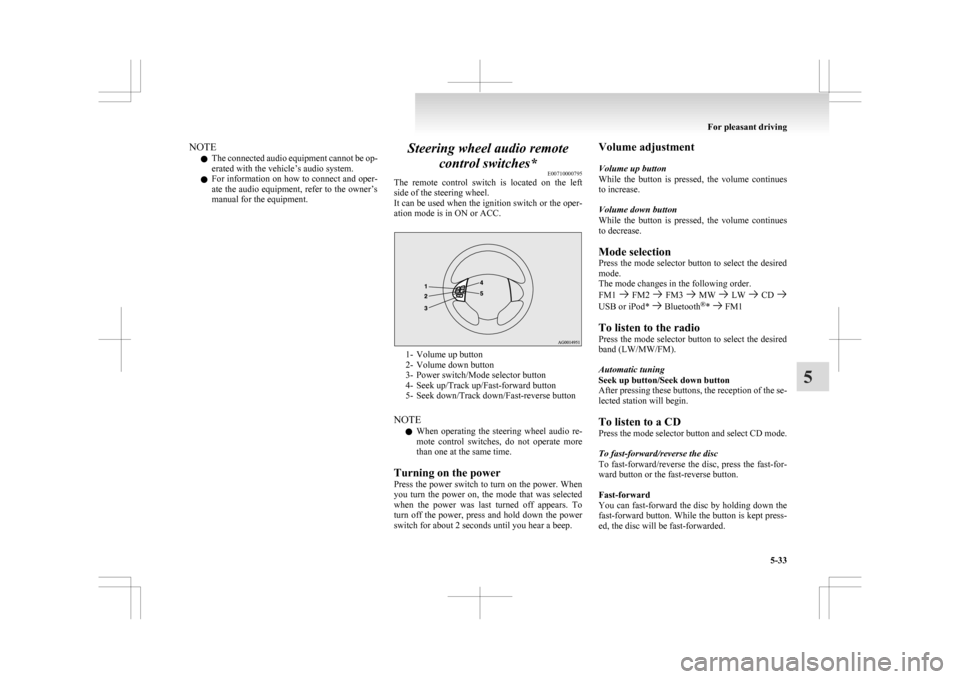
ation mode is in ON or ACC. 1- Volume up button
2-
Volume down button
3- Power switch/Mode selector button
4- Seek up/Track up/Fast-forward button
5- Seek down/Track down/Fast-reverse button
NOTE l When operating the steering wheel audio re-
mote control switches, do not operate more
than one at the same time.
Turning on the power
Press the power switch to turn on the power. When
you turn the power on, the mode that was selected
when the power was last turned off appears. To
turn off the power, press and hold down the power
switch for about 2 seconds until you hear a beep. Volume adjustment
Volume up button
While
the button is pressed, the volume continues
to increase.
Volume down button
While the button is pressed, the volume continues
to decrease.
Mode selection
Press the mode selector button to select the desired
mode.
The mode changes in the following order.
FM1 FM2 FM3 MW LW CD
USB or iPod* Bluetooth
®
* FM1
To listen to the radio
Press
the mode selector button to select the desired
band (LW/MW/FM).
Automatic tuning
Seek up button/Seek down button
After pressing these buttons, the reception of the se-
lected station will begin.
To listen to a CD
Press the mode selector button and select CD mode.
To fast-forward/reverse the disc
To fast-forward/reverse the disc, press the fast-for-
ward button or the fast-reverse button.
Fast-forward
You can fast-forward the disc by holding down the
fast-forward button. While the button is kept press-
ed, the disc will be fast-forwarded.
For pleasant driving
5-33 5
Page 249 of 368

NOTE
l If
the battery cables are disconnected during
repairs or for any other reason, reset the
clock to the correct time after they are recon-
nected.
l The digital clock does not have a second dis-
play. When the “minute” display is adjusted
and reset to zero, the clock begins at zero sec-
onds for the selected minute. Link System*
E00764500012
The
Link System takes overall control of the devi-
ces connected via the USB input terminal or the
Bluetooth ®
2.0 interface allowing the connected de-
vices to be operated by using the switches in the ve-
hicle or voice commands.
See the following section for details on how to op-
erate.
Refer to “Bluetooth ®
2.0 interface” on page 5-41.
Refer to “USB input terminal” on page 5-57.
Refer to “To play tracks from USB device” on
page 5-22.
Refer to “To play tracks from a Bluetooth ®
device”
on page 5-30.
Refer to “To use the external audio input function”
on page .
Bluetooth ®
is a registered trademark of BLUE-
TOOTH SIG, INC.
Link System End User Licence Agree-
ment E00764600013
You have acquired a device that includes software
licensed
by MITSUBISHI MOTORS CORPORA-
TION from JOHNSON CONTROLS Inc (the auto-
motive experience business unit), and their subse-
quent 3 rd
party suppliers. For a complete list of
these 3 rd
party products and their end user licence
agreements, please go to the following website.
http://www.jciblueconnect.com/faq.taf Bluetooth
®
2.0 interface*
E00726000370
The Bluetooth ®
2.0 interface allows for making/re-
ceiving hands-free calls in the vehicle using a Blue-
tooth ®
compatible cellular phone based on the wire-
less communication technology commonly known
as Bluetooth ®
. It also allows the user to play mu-
sic, saved in a Bluetooth ®
music player, from the
vehicle’s speakers.
The system is equipped with a voice recognition
function, which allows you to make hands-free
calls by simple switch operations and voice com-
mand operations using a defined voice tree.
The Bluetooth ®
2.0 interface can be used when the
ignition switch or the operation mode is in ON or
ACC.
Before you can use the Bluetooth ®
2.0 interface,
you must pair the Bluetooth ®
device and Blue-
tooth ®
2.0 interface. Refer to “Connecting the Blue-
tooth® 2.0 interface and Bluetooth® device” on
page 5-46.
Bluetooth ®
is a registered trademark of BLUE-
TOOTH SIG, INC. For pleasant driving
5-41 5
Page 250 of 368
WARNING
l Although the Bluetooth ®
2.0 interface al-
lows you to make hands-free calls, if you
choose to use the cellular phone while driv-
ing, you must not allow yourself to be dis-
tracted from the safe operation of your ve-
hicle. Anything, including cellular phone
usage, that distracts you from the safe op-
eration of your vehicle increases your
risk of an accident.
l Refer to and comply with all state and lo-
cal laws in your area regarding cellular
phone usage while driving.
NOTE l If
the ignition switch or the operation mode
is left in ACC, the accessory power will auto-
matically turn off after a certain period of
time and you will no longer be able to use
the Bluetooth ®
2.0 interface. The accessory
power comes on again if the ignition switch
or the engine switch is operated.
Refer to “ACC power auto-cutout function”
on page 4-11.
l The Bluetooth ®
2.0 interface cannot be used
if the Bluetooth ®
device has a flat battery or
the device power is turned off.
l Hands-free calls will not be possible if your
phone does not have service available.
l If you place the Bluetooth ®
device in the lug-
gage compartment, you may not be able to
use the Bluetooth ®
2.0 interface.
l Some Bluetooth ®
devices are not compatible
with the Bluetooth ®
2.0 interface.
Steering control switch ® p. 5-42 Voice recognition function
® p. 5-43
Useful voice commands ® p. 5-43
Speaker enrollment function
® p. 5-45
Connecting the Bluetooth® 2.0 interface and Blue-
tooth® device ® p. 5-46
Operating a music player connected via Blue-
tooth® ® p. 5-48
How to make or receive hands-free
calls ® p. 5-48
Phone book function ® p. 5-50
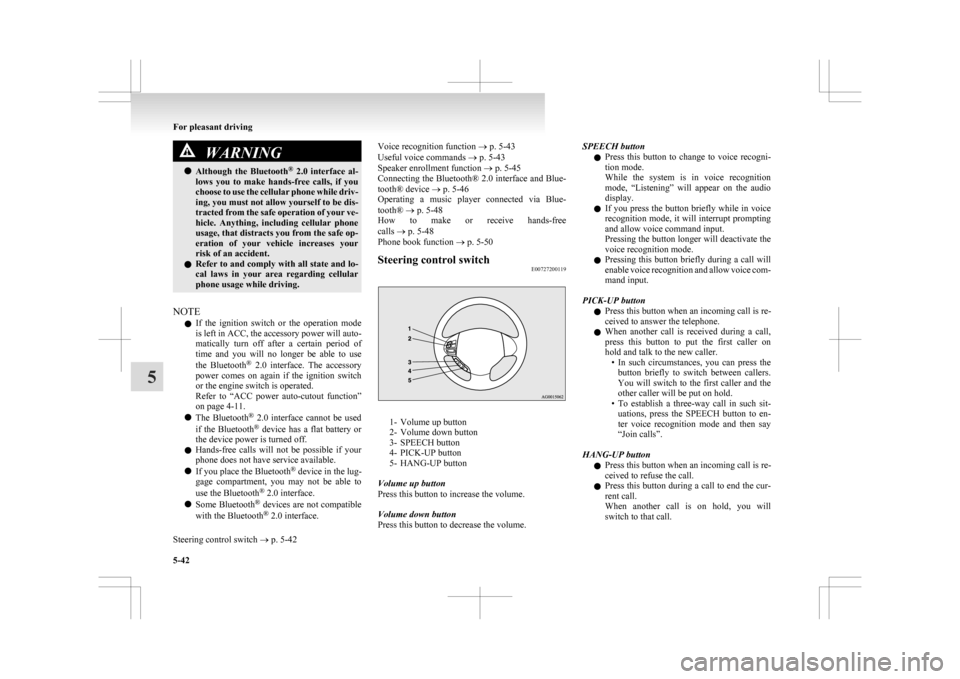
Steering control switch E00727200119 1- Volume up button
2-
Volume down button
3- SPEECH button
4- PICK-UP button
5- HANG-UP button
Volume up button
Press this button to increase the volume.
Volume down button
Press this button to decrease the volume. SPEECH button
l Press
this button to change to voice recogni-
tion mode.
While the system is in voice recognition
mode, “Listening” will appear on the audio
display.
l If you press the button briefly while in voice
recognition mode, it will interrupt prompting
and allow voice command input.
Pressing the button longer will deactivate the
voice recognition mode.
l Pressing this button briefly during a call will
enable voice recognition and allow voice com-
mand input.
PICK-UP button l Press this button when an incoming call is re-
ceived to answer the telephone.
l When another call is received during a call,
press this button to put the first caller on
hold and talk to the new caller.
• In such circumstances, you can press thebutton briefly to switch between callers.
You will switch to the first caller and the
other caller will be put on hold.
• To establish a three-way call in such sit- uations, press the SPEECH button to en-
ter voice recognition mode and then say
“Join calls”.
HANG-UP button l Press this button when an incoming call is re-
ceived to refuse the call.
l Press this button during a call to end the cur-
rent call.
When another call is on hold, you will
switch to that call. For pleasant driving
5-42
5
Page 252 of 368

With the confirmation function activated, you are
given
more opportunities than normal to confirm a
command when making various settings to Blue-
tooth ®
2.0 interface. This allows you to decrease
the possibility that a setting is accidentally changed.
The confirmation function can be turned on or off
by following the steps below. 1. Press the SPEECH button.
2. Say “Setup”.
3. Say “Confirmation prompts”.
4. The voice guide will say “Confirmationprompts are
confirmation prompts
Answer “Yes” to change the setting or an-
swer “No” to keep the current setting.
5. The voice guide will say “Confirmation prompts are
will return to the main menu.
Security function E00760500043
It is possible to use a password as a security func-
tion
by setting a password of your choice for the
Bluetooth ®
2.0 interface.
When the security function is turned on, it is neces-
sary to make a voice input of a 4-digit password in
order to use all functions of the Bluetooth ®
2.0 in-
terface, except for reception.
Setting the password
Use the following procedure to turn on the security
function by setting a password. 1. Press the SPEECH button.
2. Say “Setup”.
3. Say “Password.” 4. The
voice guide will say “Password is disa-
bled. Would you like to enable it?” Answer
“Yes.”
Answer “No” to cancel the setting of the pass-
word and return to the main menu.
5. The voice guide will say “Please say a 4-dig- it password. Remember this password. It will
be required to use this system”.
Say a 4-digit number which you want to set
as a password.
6. For confirmation purposes, the voice guide will say “Password <4-digit password>. Is
this correct?” Answer “Yes.”
Answer “No” to return to the password input
in Step 5.
7. When the registration of the password is com- pleted, the voice guide will say “Password is
enabled” and the system will return to the
main menu.
NOTE l Password will be required to access the sys-
tem after the next ignition cycle.
l It is required for a little time after engine
stop that the entered password is actually re-
corded in the system.
If the ignition switch or the operation mode
is made to ACC or ON or the engine is star-
ted immediately after engine stop, there is a
case when the entered password is not recor-
ded in the system. At this time, please try to
enter the password again. Entering the password
If
a password has been set and the security function
is enabled, the voice guide will say “Hands-free sys-
tem is locked. State the password to continue”
when the SPEECH button is pressed to enter voice
recognition mode. Say the 4-digit password num-
ber to enter the password.
If the entered password is wrong, the voice guide
will say “<4- digit password>, Incorrect password.
Please try again”. Enter the correct password.
NOTE
l You can re-enter the password as many times
as you want.
l If you have forgotten your password, say
“Cancel” to quit the voice input mode and
then check with a MITSUBISHI MOTORS
Authorized Service Point.
Disabling the password
Use the following procedure to turn off the security
function by disabling the password.
NOTE l System must be unlocked to disable the pass-
word.
1. Press the SPEECH button.
2. Say “Setup”.
3. Say “Password.”
4. The voice guide will say “Password is en- abled. Would you like to disable it?” An-
swer “Yes.”
Answer “No” to cancel the disabling of
the password and return to the main menu. For pleasant driving
5-44
5
Page 265 of 368
USB input terminal*
E00761900015
You
can connect your USB memory device or
iPod* to play music files stored in the USB memo-
ry device or iPod.
The following explains how to connect and remove
a USB memory device or iPod.
Refer to the following sections for details on how
to play music files:
Refer to “To play from a USB memory device” on
page 5-27.
*: “iPod” is a registered trademark of Apple Inc. in
the United States and other countries.
How to connect a USB memory device E00762000084
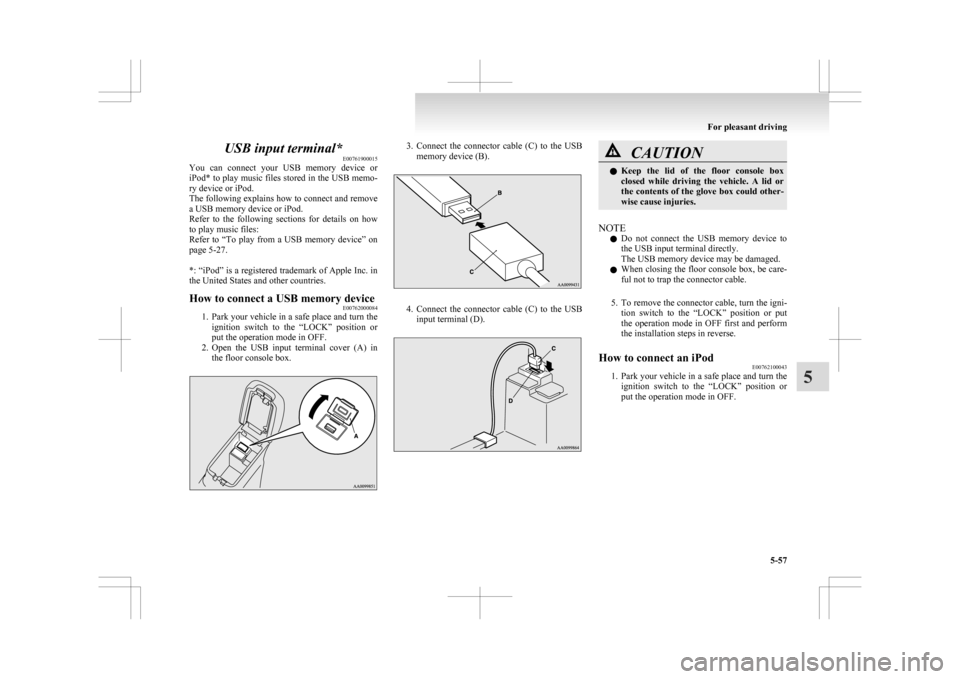
1. Park
your vehicle in a safe place and turn the
ignition switch to the “LOCK” position or
put the operation mode in OFF.
2. Open the USB input terminal cover (A) in the floor console box. 3. Connect
the connector cable (C) to the USB
memory device (B). 4. Connect
the connector cable (C) to the USB
input terminal (D). CAUTION
l
Keep
the lid of the floor console box
closed while driving the vehicle. A lid or
the contents of the glove box could other-
wise cause injuries.
NOTE l Do
not connect the USB memory device to
the USB input terminal directly.
The USB memory device may be damaged.
l When closing the floor console box, be care-
ful not to trap the connector cable.
5. To remove the connector cable, turn the igni- tion switch to the “LOCK” position or put
the operation mode in OFF first and perform
the installation steps in reverse.
How to connect an iPod E00762100043
1. Park
your vehicle in a safe place and turn the
ignition switch to the “LOCK” position or
put the operation mode in OFF. For pleasant driving
5-57 5
Page 266 of 368
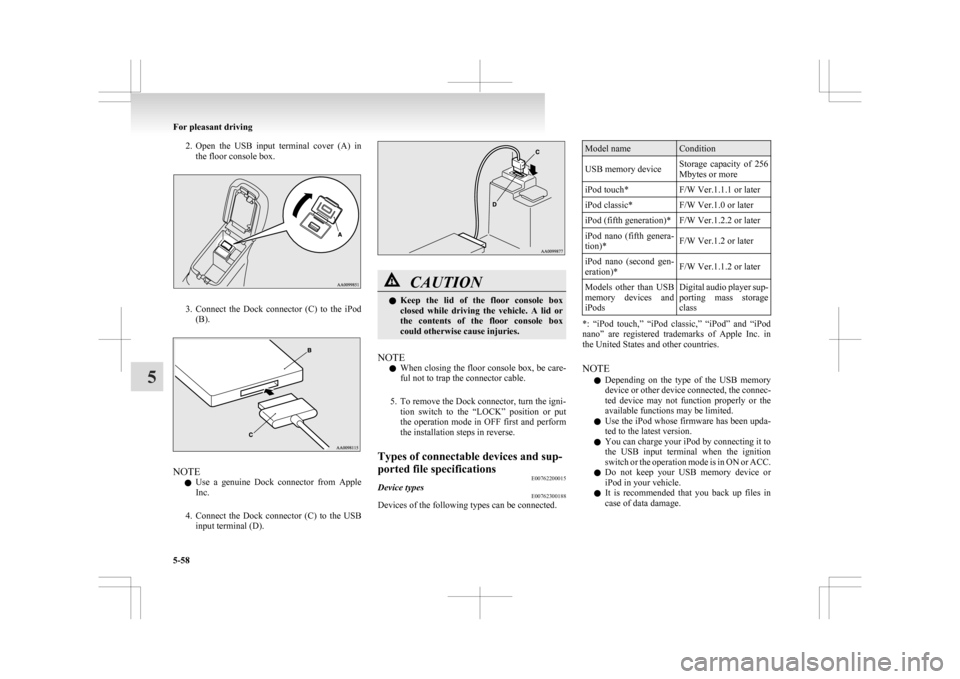
2. Open the USB input terminal cover (A) in
the floor console box. 3. Connect
the Dock connector (C) to the iPod
(B). NOTE
l Use
a genuine Dock connector from Apple
Inc.
4. Connect the Dock connector (C) to the USB input terminal (D). CAUTION
l
Keep
the lid of the floor console box
closed while driving the vehicle. A lid or
the contents of the floor console box
could otherwise cause injuries.
NOTE l When
closing the floor console box, be care-
ful not to trap the connector cable.
5. To remove the Dock connector, turn the igni- tion switch to the “LOCK” position or put
the operation mode in OFF first and perform
the installation steps in reverse.
Types of connectable devices and sup-
ported file specifications E00762200015
Device types E00762300188
Devices of the following types can be connected. Model name Condition
USB memory device Storage capacity of 256
Mbytes or more
iPod touch* F/W Ver.1.1.1 or later
iPod classic* F/W Ver.1.0 or later
iPod (fifth generation)* F/W Ver.1.2.2 or later
iPod nano (fifth genera-
tion)* F/W Ver.1.2 or later
iPod nano (second gen-
eration)* F/W Ver.1.1.2 or later
Models other than USB
memory
devices and
iPods Digital audio player sup-
porting
mass storage
class *: “iPod touch,” “iPod classic,” “iPod” and “iPod
nano”
are registered trademarks of Apple Inc. in
the United States and other countries.
NOTE
l Depending on the type of the USB memory
device or other device connected, the connec-
ted device may not function properly or the
available functions may be limited.
l Use the iPod whose firmware has been upda-
ted to the latest version.
l You can charge your iPod by connecting it to
the USB input terminal when the ignition
switch or the operation mode is in ON or ACC.
l Do not keep your USB memory device or
iPod in your vehicle.
l It is recommended that you back up files in
case of data damage. For pleasant driving
5-58
5
Page 267 of 368
l
Do not connect to the USB input terminal
any device (hard disk, card reader, memory
reader, etc.) other than the connectable devi-
ces specified in the previous section.
The device and/or data may be damaged. If
any of these devices was connected by mis-
take, remove it after turning the ignition
switch to the “LOCK” position or putting the
operation mode in OFF.
File specifications E00762400017
You can play music files of the following specifica-
tions
that are saved in a USB memory device or oth-
er device supporting mass storage class. Item Condition
File format MP3, WMA, AAC,
WAV
Maximum number of
levels
(including the
root) Level 8
Number of folders 700
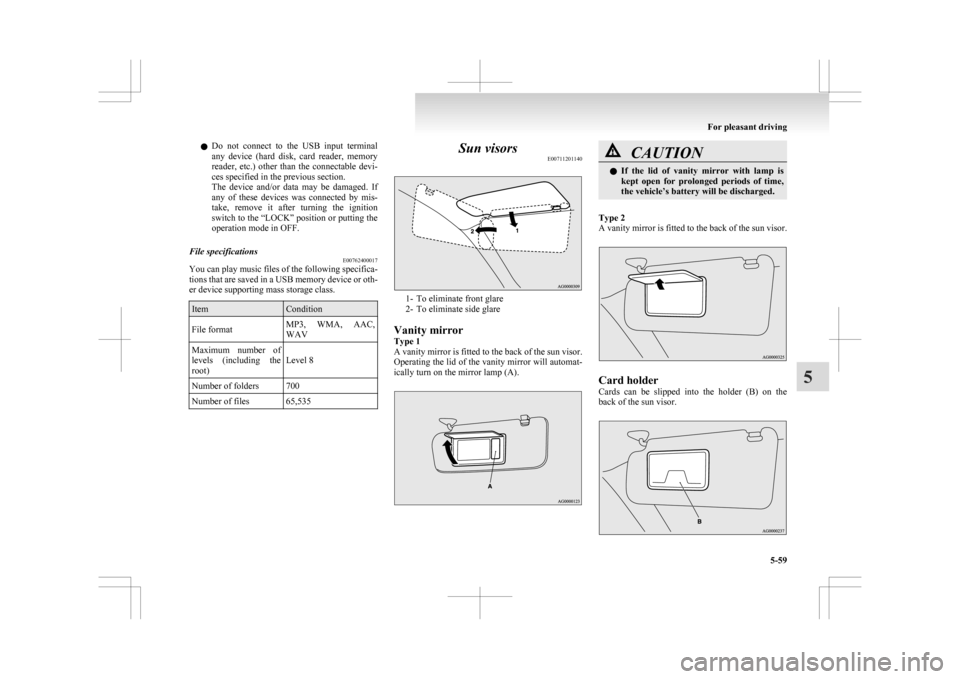
Number of files 65,535 Sun visors
E00711201140 1- To eliminate front glare
2-
To eliminate side glare
Vanity mirror
Type 1
A vanity mirror is fitted to the back of the sun visor.
Operating the lid of the vanity mirror will automat-
ically turn on the mirror lamp (A). CAUTION
l
If
the lid of vanity mirror with lamp is
kept open for prolonged periods of time,
the vehicle’s battery will be discharged.
Type 2
A
vanity mirror is fitted to the back of the sun visor. Card holder
Cards
can be slipped into the holder (B) on the
back of the sun visor. For pleasant driving
5-59 5
Page 268 of 368
Ashtray*
E00711401009CAUTION
l
Put out matches and cigarettes before
they are placed in the ashtray.
l Don’t put papers and other things that
burn into your ashtrays. If you do, ciga-
rettes or other smoking materials could
set them on fire, causing damage.
l Always close the ashtray. If left open, oth-
er cigarette butts in the ashtray may be re-
kindled.
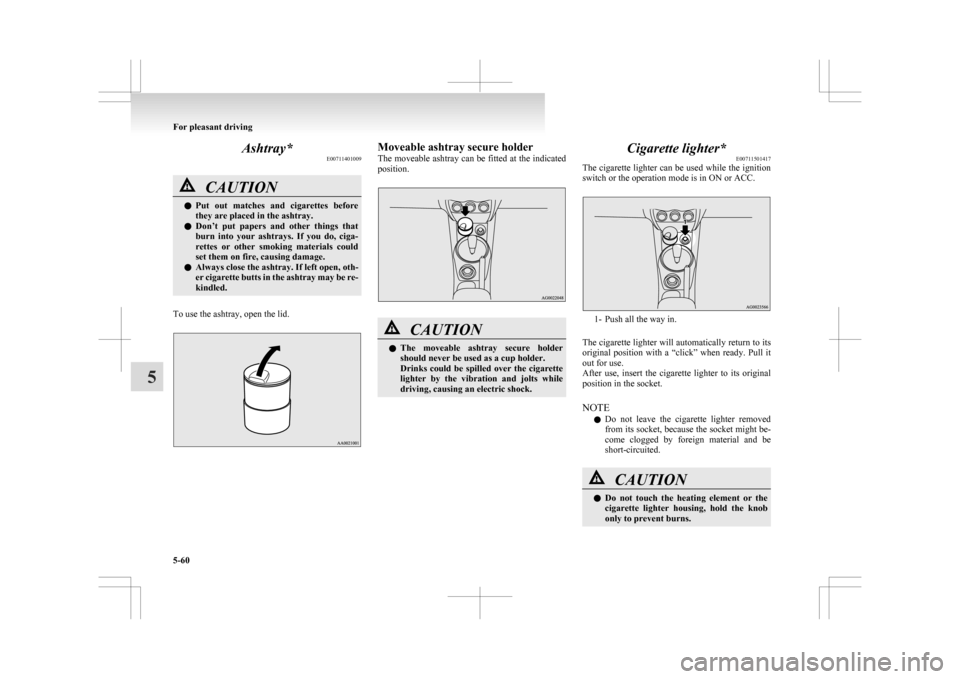
To use the ashtray, open the lid. Moveable ashtray secure holder
The
moveable ashtray can be fitted at the indicated
position. CAUTION
l
The
moveable ashtray secure holder
should never be used as a cup holder.
Drinks could be spilled over the cigarette
lighter by the vibration and jolts while
driving, causing an electric shock. Cigarette lighter*
E00711501417
The
cigarette lighter can be used while the ignition
switch or the operation mode is in ON or ACC. 1- Push all the way in.
The
cigarette lighter will automatically return to its
original position with a “click” when ready. Pull it
out for use.
After use, insert the cigarette lighter to its original
position in the socket.
NOTE
l Do not leave the cigarette lighter removed
from its socket, because the socket might be-
come clogged by foreign material and be
short-circuited. CAUTION
l
Do
not touch the heating element or the
cigarette lighter housing, hold the knob
only to prevent burns. For pleasant driving
5-60
5
Page 269 of 368
CAUTION
l
Do not allow children to operate or play
with the cigarette lighter as burns may oc-
cur.
l Something is wrong with the cigarette
lighter if it does not pop back out within
approximately 30 seconds of being push-
ed in.
Pull it out and have the problem correc-
ted at MITSUBISHI MOTORS Author-
ized Service Point.
l Do not use any electric appliance that is
not approved by MITSUBISHI
MOTORS. Doing so could damage the
socket. If you used the cigarette lighter af-
ter damaging the socket, the cigarette
lighter might pop out or fail to come out
after being pushed in.
l When the cigarette lighter socket is used
as a power source for an electric appli-
ance, be sure that the electric appliance
operates at 12 V and has an electric ca-
pacity of 120 W or less. In addition, long
use of the electric appliance without run-
ning the engine may run down the battery. Accessory socket
E00711601346 CAUTION
l
Be
sure to use a “plug-in” type accessory
operating at 12 V and at 120 W or less.
When using more than one socket at the
same time, make sure that the electrical
accessories are 12 V accessories and that
the total power consumption does not ex-
ceed 120 W.
l Long use of the electric appliance without
running the engine may run down the bat-
tery.
l When the accessory socket is not in use,
be sure to close the lid or install the cap,
because the socket might become clogged
by foreign material and be short-circuited.
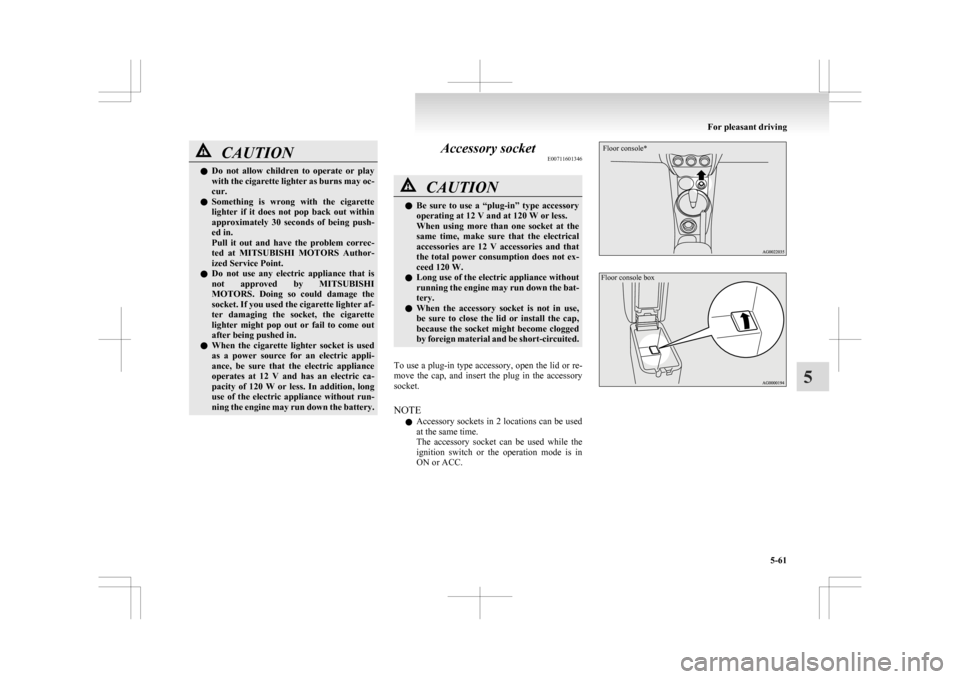
To use a plug-in type accessory, open the lid or re-
move
the cap, and insert the plug in the accessory
socket.
NOTE
l Accessory sockets in 2 locations can be used
at the same time.
The accessory socket can be used while the
ignition switch or the operation mode is in
ON or ACC.
Floor console*
Floor console box For pleasant driving
5-61 5
Page 270 of 368
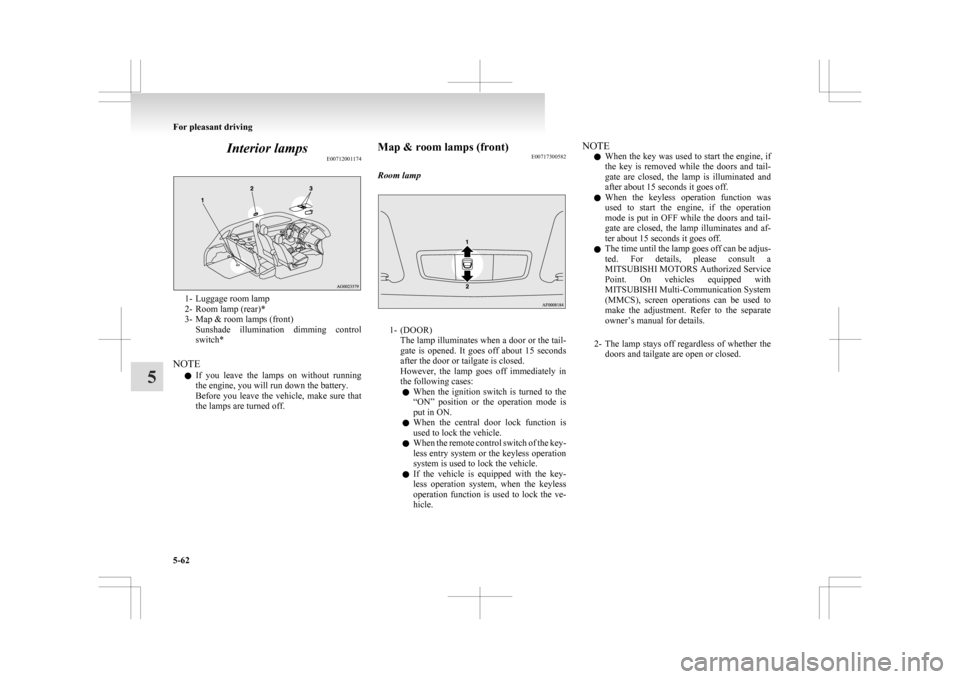
Interior lamps
E007120011741- Luggage room lamp
2-
Room lamp (rear)*
3- Map & room lamps (front) Sunshade illumination dimming control
switch*
NOTE l If you leave the lamps on without running
the engine, you will run down the battery.
Before you leave the vehicle, make sure that
the lamps are turned off. Map & room lamps (front)
E00717300582
Room lamp 1- (DOOR)
The
lamp illuminates when a door or the tail-
gate is opened. It goes off about 15 seconds
after the door or tailgate is closed.
However, the lamp goes off immediately in
the following cases:
l When the ignition switch is turned to the
“ON” position or the operation mode is
put in ON.
l When the central door lock function is
used to lock the vehicle.
l When the remote control switch of the key-
less entry system or the keyless operation
system is used to lock the vehicle.
l If the vehicle is equipped with the key-
less operation system, when the keyless
operation function is used to lock the ve-
hicle. NOTE
l When
the key was used to start the engine, if
the key is removed while the doors and tail-
gate are closed, the lamp is illuminated and
after about 15 seconds it goes off.
l When the keyless operation function was
used to start the engine, if the operation
mode is put in OFF while the doors and tail-
gate are closed, the lamp illuminates and af-
ter about 15 seconds it goes off.
l The time until the lamp goes off can be adjus-
ted. For details, please consult a
MITSUBISHI MOTORS Authorized Service
Point. On vehicles equipped with
MITSUBISHI Multi-Communication System
(MMCS), screen operations can be used to
make the adjustment. Refer to the separate
owner’s manual for details.
2- The lamp stays off regardless of whether the doors and tailgate are open or closed. For pleasant driving
5-62
5