display MITSUBISHI CARISMA 2000 1.G Owner's Manual
[x] Cancel search | Manufacturer: MITSUBISHI, Model Year: 2000, Model line: CARISMA, Model: MITSUBISHI CARISMA 2000 1.GPages: 280, PDF Size: 2.32 MB
Page 147 of 280
FOR PLEASANT DRIVING
6–7
AF (Alternative Frequencies) functionThe AF function finds a station broadcasting
the same program, and selects the station
with the strongest signal of AF lists.
The AF function is tuned on (with the AF indi-
cator (13) shown on the display) at all times
unless you manually switch it off.
To turn the function off, at first, switch off the
power from UKW mode, and while pressing
the No.5 of the memory select buttons (7),
press the PWR switch (1) until it beeps. The
AF indicator (13) on the display will turn off.
To turn the function on, use the same pro-
cedure.
REG (Regional) functionREG function limits to receive the stations
broadcasting regional programs.
Regional programming and regional net-
works are organized differently depending
on the country or area (they may be changed
according to the hour, state, or broadcast
area), so if you don’t want to receive the re-
gional programs automatically, you can set
up REG ON not to receive regional pro-
grams.
To turn the function on, switch off the power
from UKW mode, and while pressing the V
side of the TUNE/SEEK button (5), press the
PWR switch (1) until it beeps. The ”REG ON”
will be shown on the display.To turn the function off, use the same pro-
cedure.
PI (Program Identification) search
function
When traveling long distance and the re-
called preset station is weak, radio searches
another frequency broadcasting the same
programming with the same PI code in AF
list.
If there are no frequencies broadcasting the
same programming, the radio searches a
frequency broadcasting the regional pro-
gramming. The radio succeeds in searching
the regional programming, then the display
shows the REG indicator (10).
If the radio does not succeed in searching
the regional programming, the radio returns
to the recalled preset station.
PTY (Program type)RDS broadcasts are classified according to
program type (PTY) as follows. Use the
TUNE/SEEK button (5 or 6) to select your
desired PTY.1. NEWS
2. AFFAIRS (Current affairs)
3. INFO (Information)
4. SPORT
5. EDUCATE (Education)
6. DRAMA
7. CULTURE
8. SCIENCE
9. VARIED
10. POP M (Pop music)
11.ROCK M (Rock music)
12. EASY M (Easy music)
13. LIGHT M (Light classics)
14. CLASSICS
15. OTHER M (Other music)
16. WEATHER (Weather information)
17. FINANCE
18. CHILDREN
19. SOCIAL
20. RELIGION
21. PHONE IN
22. TRAVEL
23. LEISURE
24. JAZZ
25. COUNTRY
26. NATION M (National music)
27. OLDIES
28. FOLK M (Folk music)
29. DOCUMENT
Page 148 of 280
FOR PLEASANT DRIVING
6–8
H11A249a
To search for a broadcast of desired pro-
gram type:
1. Press the PTY button (3).
2. Press the TUNE/SEEK button (5 or 6)
for less than 1 second at a time to se-
lect your desired PTY.
3. 2 seconds after a desired PTY has
been selected, the radio will begin to
search for a broadcast of your se-
lected PTY. During search, the se-
lected PTY on the display blinks, and
the radio will begin to search for a
broadcast of your selected PTY.
4. When the radio picks up a station with
your desired PTY, the display will
show the name of the station.NOTE
(1) If the TUNE/SEEK button (5 or 6) is
pressed for more than 1 second, the
radio will try to find out another broad-
cast of the same program type as cur-
rently selected.
(2) If no station is found with your desired
PTY, the display will show “EMPTy” for
around 5 seconds, and the radio will re-
turn to the previous station.
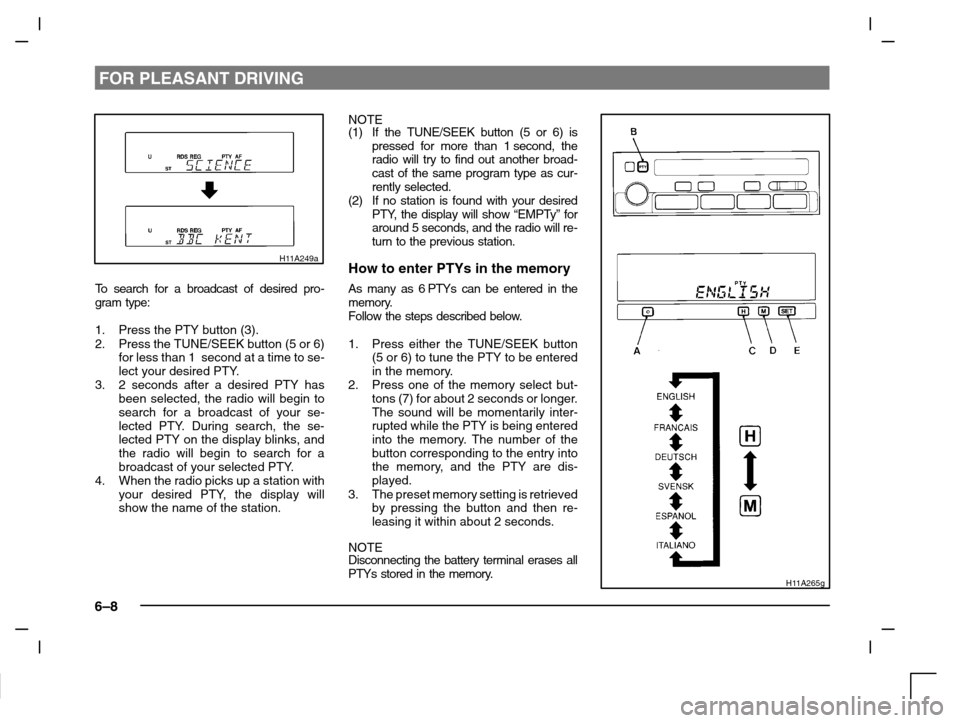
How to enter PTYs in the memory
As many as 6 PTYs can be entered in the
memory.
Follow the steps described below.
1. Press either the TUNE/SEEK button
(5 or 6) to tune the PTY to be entered
in the memory.
2. Press one of the memory select but-
tons (7) for about 2 seconds or longer.
The sound will be momentarily inter-
rupted while the PTY is being entered
into the memory. The number of the
button corresponding to the entry into
the memory, and the PTY are dis-
played.
3. The preset memory setting is retrieved
by pressing the button and then re-
leasing it within about 2 seconds.
NOTE
Disconnecting the battery terminal erases all
PTYs stored in the memory.
H11A265g
Page 149 of 280
FOR PLEASANT DRIVING
6–9
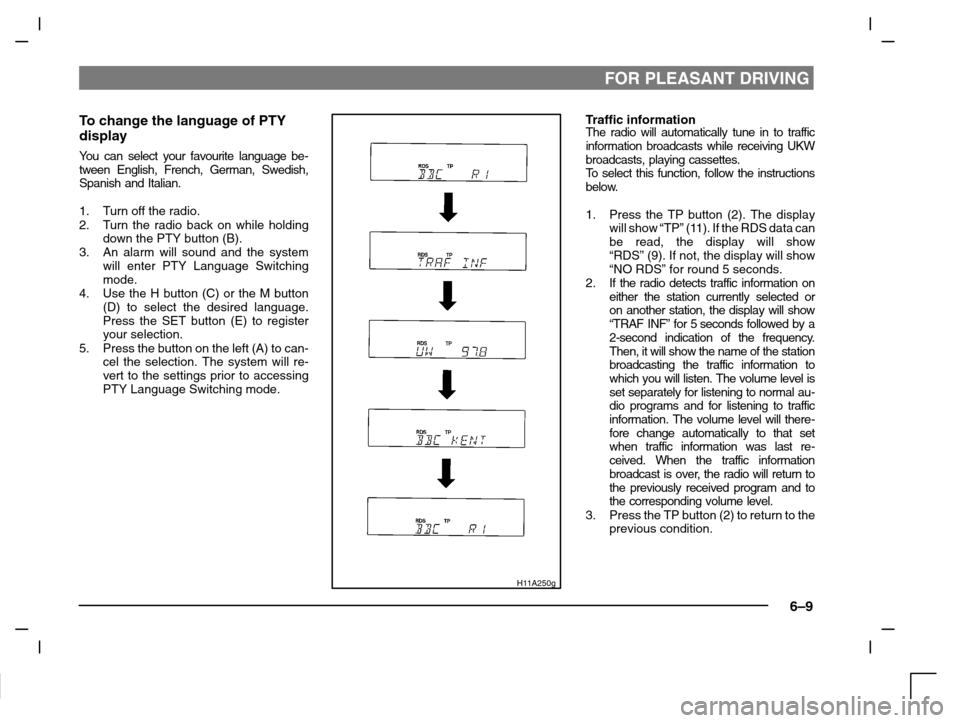
To change the language of PTY
display
You can select your favourite language be-
tween English, French, German, Swedish,
Spanish and Italian.
1. Turn off the radio.
2. Turn the radio back on while holding
down the PTY button (B).
3. An alarm will sound and the system
will enter PTY Language Switching
mode.
4. Use the H button (C) or the M button
(D) to select the desired language.
Press the SET button (E) to register
your selection.
5. Press the button on the left (A) to can-
cel the selection. The system will re-
vert to the settings prior to accessing
PTY Language Switching mode.
H11A250g
Traffic informationThe radio will automatically tune in to traffic
information broadcasts while receiving UKW
broadcasts, playing cassettes.
To s e l e c t this function, follow the instructions
below.
1. Press the TP button (2). The display
will show “TP” (11). If the RDS data can
be read, the display will show
“RDS” (9). If not, the display will show
“NO RDS” for round 5 seconds.
2. If the radio detects traffic information on
either the station currently selected or
on another station, the display will show
“TRAF INF” for 5 seconds followed by a
2-second indication of the frequency.
Then, it will show the name of the station
broadcasting the traffic information to
which you will listen. The volume level is
set separately for listening to normal au-
dio programs and for listening to traffic
information. The volume level will there-
fore change automatically to that set
when traffic information was last re-
ceived. When the traffic information
broadcast is over, the radio will return to
the previously received program and to
the corresponding volume level.
3. Press the TP button (2) to return to the
previous condition.
Page 150 of 280
FOR PLEASANT DRIVING
6–10
H11A204a
NOTE
While “TP” is illuminated, the radio stops only
at TP stations even if the TUNE/SEEK but-
ton (5 or 6) is pressed.
TP (Traffic information Program)
search function
The traffic information program standby
function is turned on (with the TP indicator
(11) shown on the display) and after about 45
seconds since the RDS indicator (9) turns off
due to weak signal or the tuning station is
changed over form a TP station to a station
which does not broadcast traffic information,
the sound will beep 5 times and seeks out a
TP station in all frequencies automatically.
To turn the function off, switch off the power
from UKW mode, and while pressing TP but-
ton (2), press the PWR switch (1) until it
beeps. The ”TP–S OFF” will be shown on
the display.To turn the function on, use the same pro-
cedure.
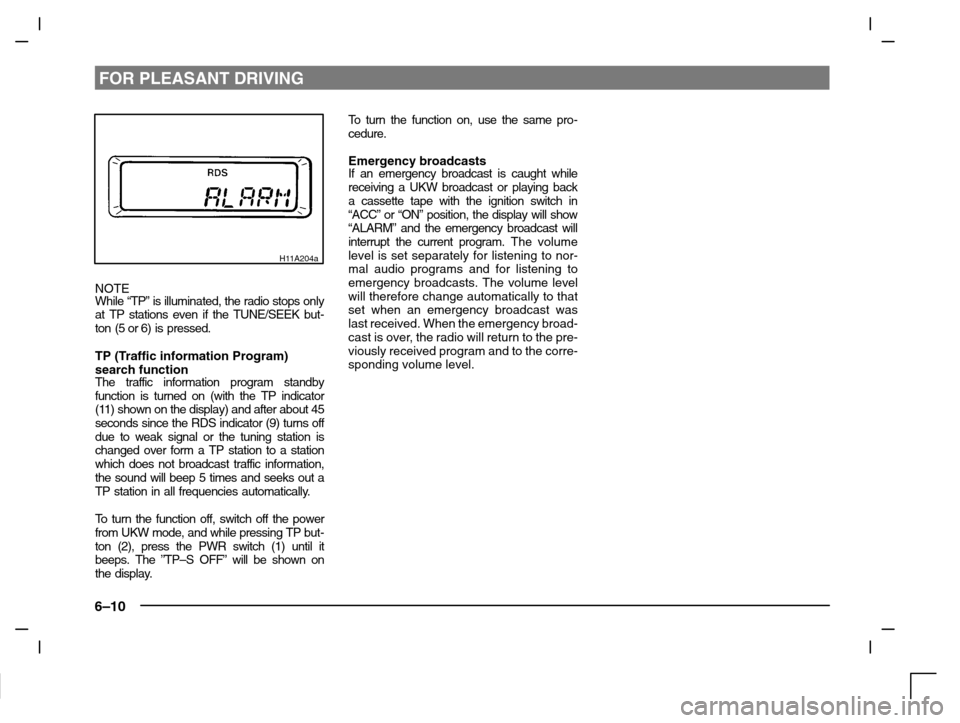
Emergency broadcastsIf an emergency broadcast is caught while
receiving a UKW broadcast or playing back
a cassette tape with the ignition switch in
“ACC” or “ON” position, the display will show
“ALARM” and the emergency broadcast will
interrupt the current program. The volume
level is set separately for listening to nor-
mal audio programs and for listening to
emergency broadcasts. The volume level
will therefore change automatically to that
set when an emergency broadcast was
last received. When the emergency broad-
cast is over, the radio will return to the pre-
viously received program and to the corre-
sponding volume level.
Page 151 of 280
FOR PLEASANT DRIVING
6–11
H11A325d
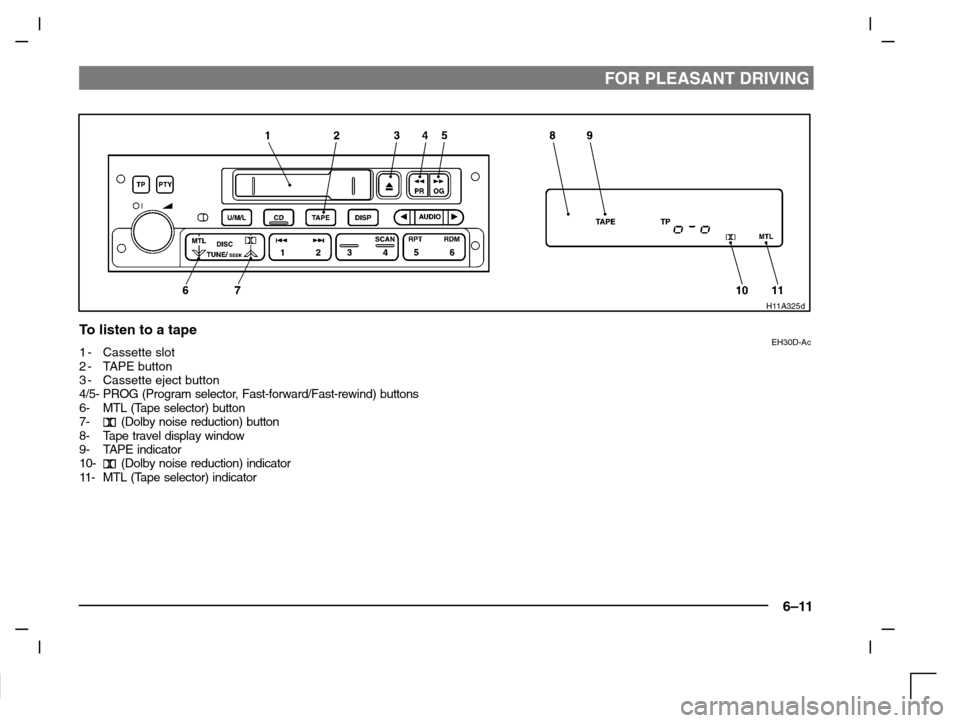
To listen to a tapeEH30D-Ac1-Cassette slot
2-TAPE button
3-Cassette eject button
4/5- PROG (Program selector, Fast-forward/Fast-rewind) buttons
6- MTL (Tape selector) button
7-
(Dolby noise reduction) button
8- Tape travel display window
9- TAPE indicator
10-
(Dolby noise reduction) indicator
11 - M T L ( Tape selector) indicator
Page 152 of 280
FOR PLEASANT DRIVING
6–12
1. After checking to be sure the tape in
the cassette is wound tightly, push a
cassette straight into the slot; the tape
player will automatically start playing.
When a cassette is inserted, the tape
player will begin playing even if the
radio is being used. The tape player
will also start playing when the TAPE
button (2) is pressed with a tape cas-
sette in the player even if the radio is
being used.
2. Press the
(Dolby noise reduction)
button (7) when playing Dolby NR en-
coded tapes. The Dolby noise reduc-
tion circuitry reduces tape hiss. The
indicator illuminates when the circuit is
activated. Pressing the
(Dolby
noise reduction) button a second time
will switch off the Dolby system.
NOTE
Dolby noise reduction is manufactured
under licence from Dolby Laboratories
Licensing Corporation.
“DOLBY” and the Double-D symbol
are
trademarks of Dolby Laboratories Licensing
Corporation.
3. When listening to a metal or chrome
tape, press the MTL button (6).
The indicator will illuminate when the
button is pressed.NOTE
Use this button only when listening to a metal
or chrome tape.
4. To adjust the volume and tone, refer to
the section “How to adjust the vo-
lume”, and “How to adjust the tone”
on
page 6–5.
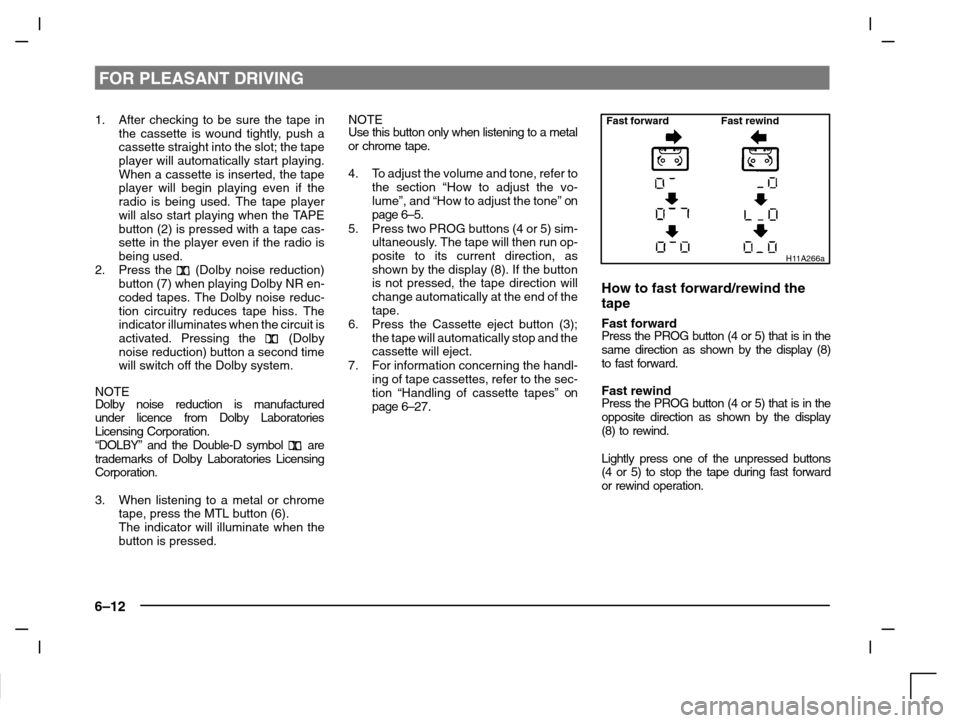
5. Press two PROG buttons (4 or 5) sim-
ultaneously. The tape will then run op-
posite to its current direction, as
shown by the display (8). If the button
is not pressed, the tape direction will
change automatically at the end of the
tape.
6. Press the Cassette eject button (3);
the tape will automatically stop and the
cassette will eject.
7. For information concerning the handl-
ing of tape cassettes, refer to the sec-
tion “Handling of cassette tapes”
on
page 6–27.
Fast forward Fast rewind
H11A266a
How to fast forward/rewind the
tape
Fast forwardPress the PROG button (4 or 5) that is in the
same direction as shown by the display (8)
to fast forward.
Fast rewindPress the PROG button (4 or 5) that is in the
opposite direction as shown by the display
(8) to rewind.
Lightly press one of the unpressed buttons
(4 or 5) to stop the tape during fast forward
or rewind operation.
Page 154 of 280
FOR PLEASANT DRIVING
6–14
To listen to a CD
1. Press the CD button (3) and the CD
mode will be selected, starting play-
back.
NOTE
If the system is equipped with CD auto-
changer, press the DISC button (5), to select
another disc. Every time the
side of the
DISC button is pressed, the next disc is se-
lected. Every time the
side of the button is
pressed, changeover to the previous disc is
made.
2. To adjust the volume and tone, refer to
the section “How to adjust the volume”
and “How to adjust the tone” on page
6–4.
3. To stop the CD, turn off the power by
pressing the PWR switch (1) or make
changeover to the other mode by
pressing the TAPE button (4) or U/M/L
button (2).
4. For information concerning the handl-
ing of compact discs, refer to the sec-
tion “Handling of compact discs” on
page 6–27.
To find the start of a desired track
The start of each track on a disc can be
found by using the
or button (6 or 7).
Track up:Press the button (7) the number of tracks
to skip over.
The frequency-display window will display
the number of tracks thus selected.
Track down:Press the button (6) the number of tracks
to skip over.
The frequency-display window will display
the number of tracks thus selected.
How to repeat the same track
You can repeatedly listen to the same track
by pressing the RPT button (9).
Press the RPT button, and the RPT indicator
(14) will come on.
To r e lease, press the button again.
To change the order of tracks
played back (For CD player)
Press the RDM button (10), and the RDM
indicator (15) will illuminate and tracks for
playback will be randomly selected. To re-
lease, press the button again.
To change the order of discs
played back (For CD autochanger)
Press the RDM button (10), and the RDM
indicator (15) will illuminate and random
tracks for playback will be selected randomly
from all discs loaded into the autochanger.
To r e lease, press the button again.
How to use the SCAN button
Use the SCAN button (8) to search for a par-
ticular track, etc. When this button is
pressed, the first 10 seconds of each track
on the disc will be played.
The disc will advance at fast-forward speed
between each 10-second played in this way.
Press the SCAN button again, to play the
track ordinary. After completion of this scan-
ning of tracks, the disc will begin ordinary
play.
Page 155 of 280
FOR PLEASANT DRIVING
6–15
H11A320d
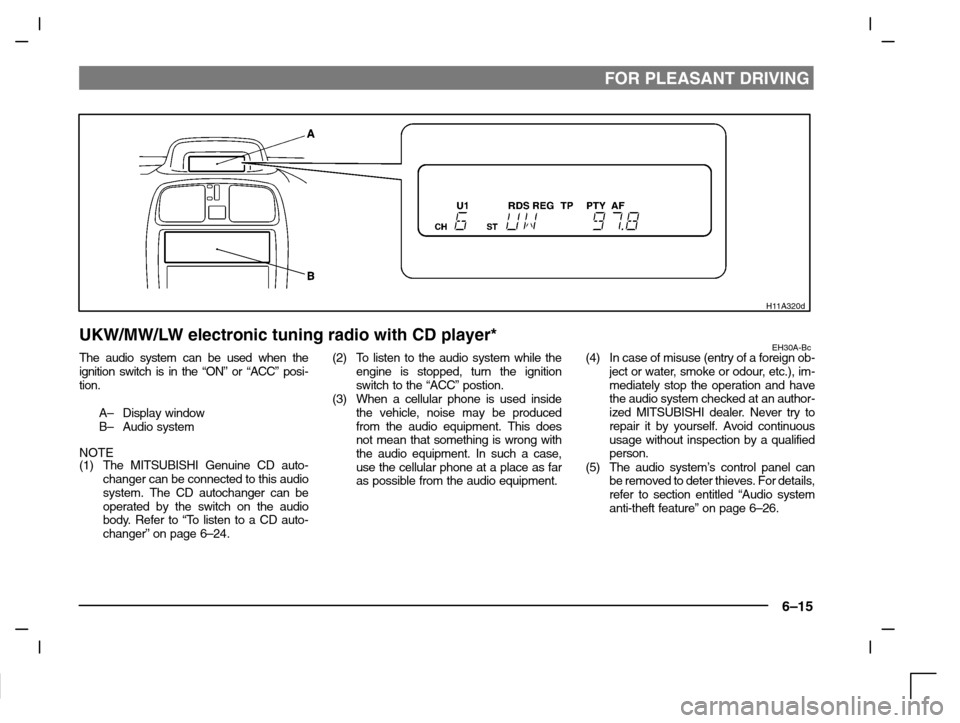
UKW/MW/LW electronic tuning radio with CD player*EH30A-BcThe audio system can be used when the
ignition switch is in the “ON” or “ACC” posi-
tion.
A– Display window
B– Audio system
NOTE
(1) The MITSUBISHI Genuine CD auto-
changer can be connected to this audio
system. The CD autochanger can be
operated by the switch on the audio
body. Refer to “To listen to a CD auto-
changer” on page 6–24.(2) To listen to the audio system while the
engine is stopped, turn the ignition
switch to the “ACC” postion.
(3) When a cellular phone is used inside
the vehicle, noise may be produced
from the audio equipment. This does
not mean that something is wrong with
the audio equipment. In such a case,
use the cellular phone at a place as far
as possible from the audio equipment.(4) In case of misuse (entry of a foreign ob-
ject or water, smoke or odour, etc.), im-
mediately stop the operation and have
the audio system checked at an author-
ized MITSUBISHI dealer. Never try to
repair it by yourself. Avoid continuous
usage without inspection by a qualified
person.
(5) The audio system’s control panel can
be removed to deter thieves. For details,
refer to section entitled “Audio system
anti-theft feature” on page 6–26.
Page 156 of 280
FOR PLEASANT DRIVING
6–16
H11A330d
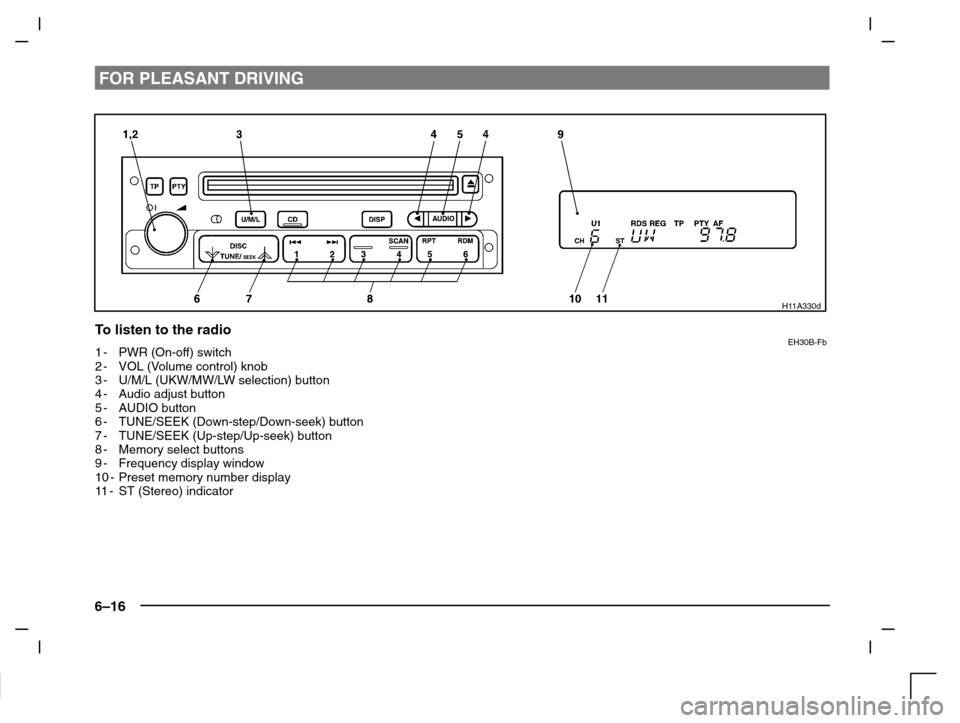
To listen to the radioEH30B-Fb1-PWR (On-off) switch
2-VOL (Volume control) knob
3-U/M/L (UKW/MW/LW selection) button
4-Audio adjust button
5-AUDIO button
6-TUNE/SEEK (Down-step/Down-seek) button
7-TUNE/SEEK (Up-step/Up-seek) button
8-Memory select buttons
9-Frequency display window
10 - Preset memory number display
11-ST (Stereo) indicator
Page 158 of 280
FOR PLEASANT DRIVING
6–18
How to adjust the tune
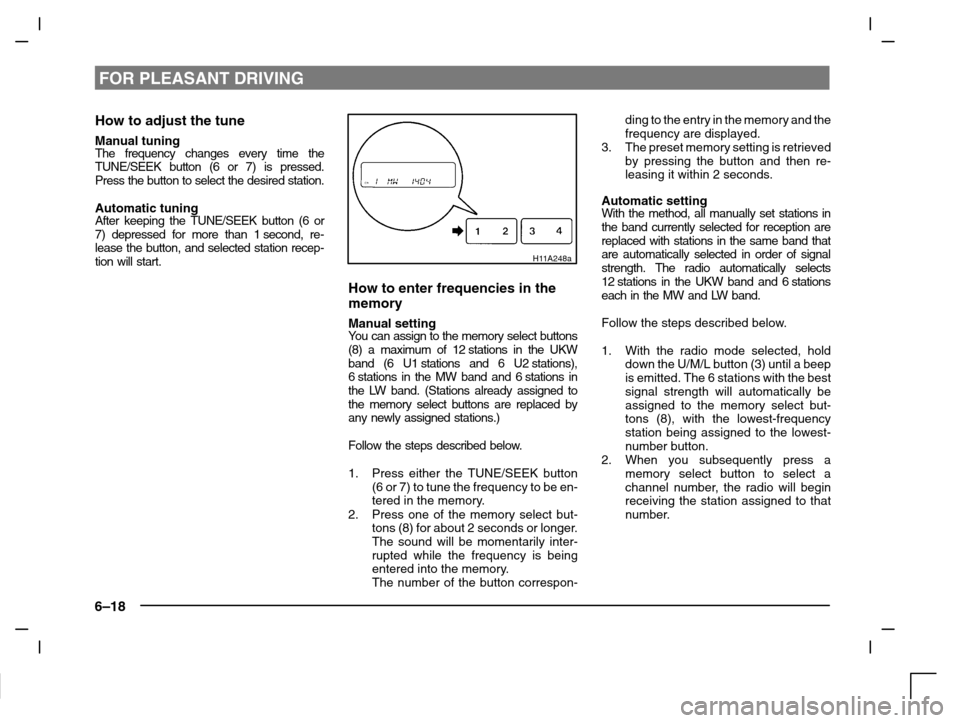
Manual tuningThe frequency changes every time the
TUNE/SEEK button (6 or 7) is pressed.
Press the button to select the desired station.
Automatic tuningAfter keeping the TUNE/SEEK button (6 or
7) depressed for more than 1 second, re-
lease the button, and selected station recep-
tion will start.
H11A248a
How to enter frequencies in the
memory
Manual settingYo u c a n assign to the memory select buttons
(8) a maximum of 12 stations in the UKW
band (6 U1 stations and 6 U2 stations),
6 stations in the MW band and 6 stations in
the LW band. (Stations already assigned to
the memory select buttons are replaced by
any newly assigned stations.)
Follow the steps described below.
1. Press either the TUNE/SEEK button
(6 or 7) to tune the frequency to be en-
tered in the memory.
2. Press one of the memory select but-
tons (8) for about 2 seconds or longer.
The sound will be momentarily inter-
rupted while the frequency is being
entered into the memory.
The number of the button correspon-ding to the entry in the memory and the
frequency are displayed.
3. The preset memory setting is retrieved
by pressing the button and then re-
leasing it within 2 seconds.
Automatic settingWith the method, all manually set stations in
the band currently selected for reception are
replaced with stations in the same band that
are automatically selected in order of signal
strength. The radio automatically selects
12 stations in the UKW band and 6 stations
each in the MW and LW band.
Follow the steps described below.
1. With the radio mode selected, hold
down the U/M/L button (3) until a beep
is emitted. The 6 stations with the best
signal strength will automatically be
assigned to the memory select but-
tons (8), with the lowest-frequency
station being assigned to the lowest-
number button.
2. When you subsequently press a
memory select button to select a
channel number, the radio will begin
receiving the station assigned to that
number.