audio MITSUBISHI COLT 2009 10.G User Guide
[x] Cancel search | Manufacturer: MITSUBISHI, Model Year: 2009, Model line: COLT, Model: MITSUBISHI COLT 2009 10.GPages: 273, PDF Size: 17.28 MB
Page 142 of 273
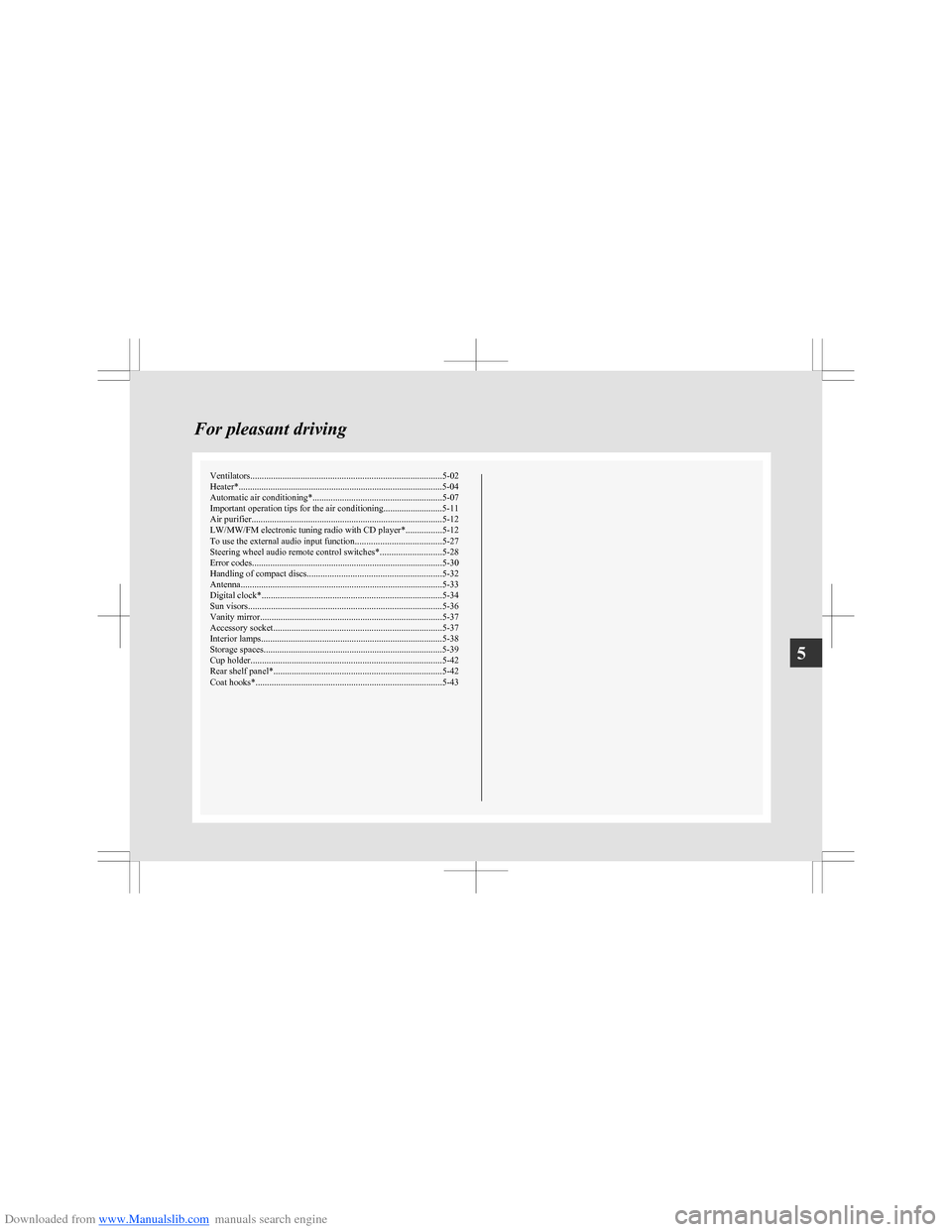
Downloaded from www.Manualslib.com manuals search engine Ventilators.................................................................................... 5-02
Heater*..........................................................................................5-04
Automatic air conditioning* ......................................................... 5-07
Important operation tips for the air conditioning..........................5-11
Air purifier .................................................................................... 5-12
LW/MW/FM electronic tuning radio with CD player* ................5-12
To use the external audio input function ......................................5-27
Steering wheel audio remote control switches* ...........................5-28
Error codes .................................................................................... 5-30
Handling of compact discs ........................................................... 5-32
Antenna ......................................................................................... 5-33
Digital clock* ............................................................................... 5-34
Sun visors ..................................................................................... 5-36
Vanity mirror ................................................................................ 5-37
Accessory socket .......................................................................... 5-37
Interior lamps ................................................................................ 5-38
Storage spaces...............................................................................5-39
Cup holder .................................................................................... 5-42
Rear shelf panel* .......................................................................... 5-42
Coat hooks* .................................................................................. 5-43For pleasant driving5
Page 153 of 273
Downloaded from www.Manualslib.com manuals search engine It is recommended that the refrigerant be recovered
and recycled for further use.
During a long period of disuse
The air conditioning should be operated for at least
five minutes each week, even in cold weather. This
is to prevent poor lubrication of the compressor in-
ternal parts and to maintain the air conditioning in
the best operating condition.Air purifier E00708400024
An air filter has been incorporated into this air con-
ditioning so that dirt and dust are cleaned from the
air.
Replace the air filter periodically as its ability to
clean the air will be reduced as it collects pollen
and dirt. For the maintenance interval, refer to the
“SERVICE BOOKLET”.
NOTE l Operation in certain conditions such as driv-
ing on a dusty road and frequent use of the
air conditioning can lead to reduction of serv-
ice life of the filter. When the air flow rate
suddenly drops or when the windscreen or
windows start to fog up easily, the air filter
requires replacement.
We recommend you to have it checked.LW/MW/FM electronic tuning
radio with CD player* E00708502175
The audio system can be used when the ignition
switch is in the “ON” or “ACC” position.
NOTE l To listen to the audio system while the en-
gine is stopped, turn the ignition key to the
“ACC” position.
For Clear Tec models, the audio system will
continue to operate if the ignition switch is in
the “ON” position when the engine stops au-
tomatically. However, in some cases, the au-
dio system may stop producing sound or turn
off.
l If a cellular phone is used inside the vehicle,
it may create noise from the audio equip-
ment. This does not mean that anything is
wrong with your audio equipment. In such a
case, use the cellular phone at a place as far
away as possible from the audio equipment.
l If foreign objects or water get into the audio
equipment, or if smoke or a strange odour
comes from it, immediately turn off the au-
dio system. We recommend you to have it
checked. Never try to repair it by yourself.
Avoid continuous usage without inspection
by a qualified person.
For pleasant driving
5-12
5
Page 154 of 273
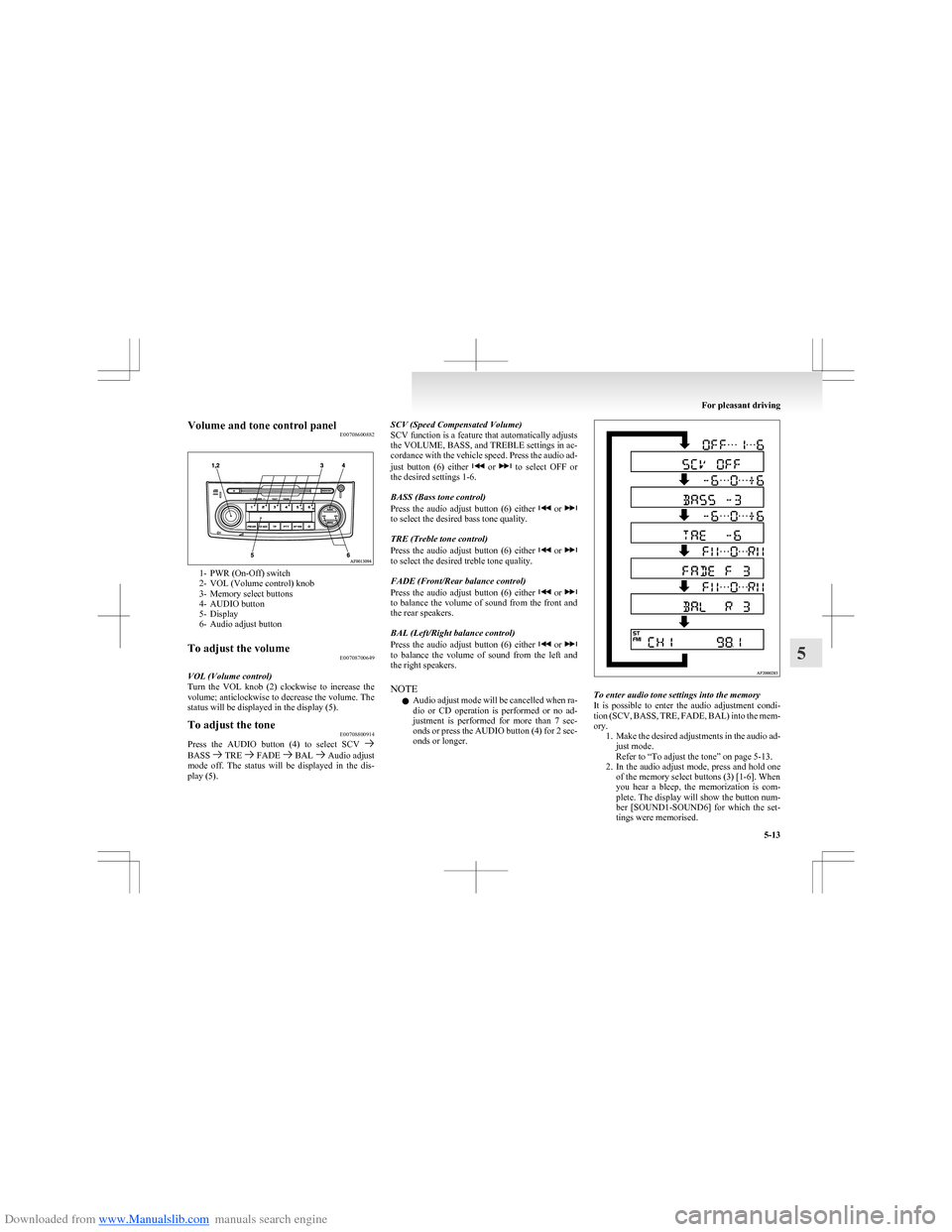
Downloaded from www.Manualslib.com manuals search engine Volume and tone control panelE00708600882
1- PWR (On-Off) switch
2- VOL (Volume control) knob
3- Memory select buttons
4- AUDIO button
5- Display
6- Audio adjust button
To adjust the volume E00708700649
VOL (Volume control)
Turn the VOL knob (2) clockwise to increase the
volume; anticlockwise to decrease the volume. The
status will be displayed in the display (5).
To adjust the tone E00708800914
Press the AUDIO button (4) to select SCV BASS TRE FADE BAL Audio adjust
mode off. The status will be displayed in the dis-
play (5).
SCV (Speed Compensated Volume)
SCV function is a feature that automatically adjusts
the VOLUME, BASS, and TREBLE settings in ac-
cordance with the vehicle speed. Press the audio ad-
just button (6) either
or to select OFF or
the desired settings 1-6.
BASS (Bass tone control)
Press the audio adjust button (6) either
or to select the desired bass tone quality.
TRE (Treble tone control)
Press the audio adjust button (6) either
or to select the desired treble tone quality.
FADE (Front/Rear balance control)
Press the audio adjust button (6) either
or to balance the volume of sound from the front and
the rear speakers.
BAL (Left/Right balance control)
Press the audio adjust button (6) either
or to balance the volume of sound from the left and
the right speakers.
NOTE l Audio adjust mode will be cancelled when ra-
dio or CD operation is performed or no ad-
justment is performed for more than 7 sec-
onds or press the AUDIO button (4) for 2 sec-
onds or longer.
To enter audio tone settings into the memory
It is possible to enter the audio adjustment condi-
tion (SCV, BASS, TRE, FADE, BAL) into the mem-
ory. 1.Make the desired adjustments in the audio ad-
just mode.
Refer to “To adjust the tone” on page 5-13.
2. In the audio adjust mode, press and hold one
of the memory select buttons (3) [1-6]. When
you hear a bleep, the memorization is com-
plete. The display will show the button num-
ber [SOUND1-SOUND6] for which the set-
tings were memorised.
For pleasant driving
5-13
5
Page 155 of 273
Downloaded from www.Manualslib.com manuals search engine 3.In future, when you gently press the memory
select button in the audio adjust mode, the au-
dio adjustment condition memorised for that
button will take effect.
For pleasant driving
5-14
5
Page 157 of 273
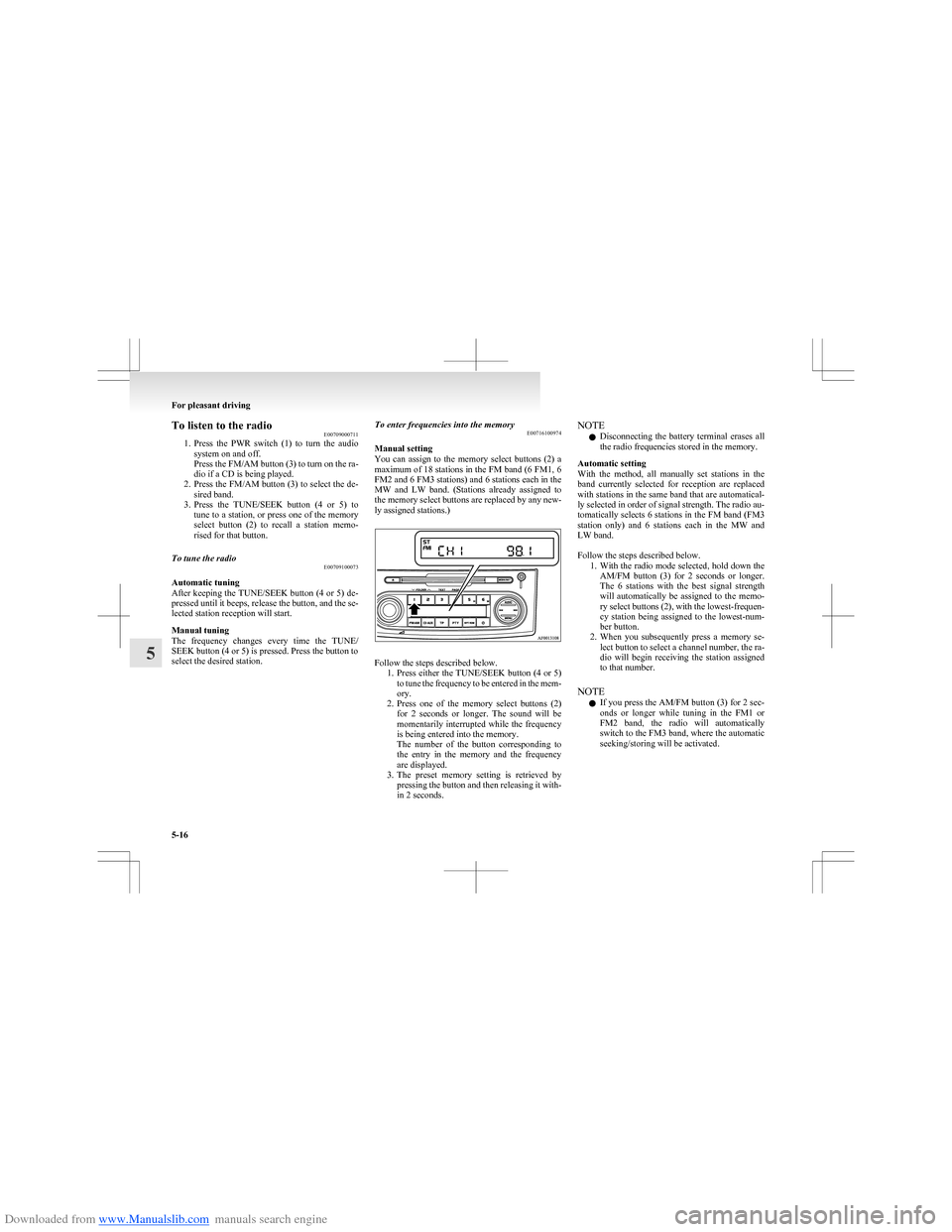
Downloaded from www.Manualslib.com manuals search engine To listen to the radioE00709000711
1. Press the PWR switch (1) to turn the audio
system on and off.
Press the FM/AM button (3) to turn on the ra-
dio if a CD is being played.
2. Press the FM/AM button (3) to select the de-
sired band.
3. Press the TUNE/SEEK button (4 or 5) to
tune to a station, or press one of the memory
select button (2) to recall a station memo-
rised for that button.To tune the radio E00709100073
Automatic tuning
After keeping the TUNE/SEEK button (4 or 5) de-
pressed until it beeps, release the button, and the se-
lected station reception will start.
Manual tuning
The frequency changes every time the TUNE/
SEEK button (4 or 5) is pressed. Press the button to
select the desired station.
To enter frequencies into the memory E00716100974
Manual setting
You can assign to the memory select buttons (2) a
maximum of 18 stations in the FM band (6 FM1, 6
FM2 and 6 FM3 stations) and 6 stations each in the
MW and LW band. (Stations already assigned to
the memory select buttons are replaced by any new-
ly assigned stations.)
Follow the steps described below. 1.Press either the TUNE/SEEK button (4 or 5)
to tune the frequency to be entered in the mem-
ory.
2. Press one of the memory select buttons (2)
for 2 seconds or longer. The sound will be
momentarily interrupted while the frequency
is being entered into the memory.
The number of the button corresponding to
the entry in the memory and the frequency
are displayed.
3. The preset memory setting is retrieved by
pressing the button and then releasing it with-
in 2 seconds.
NOTE
l Disconnecting the battery terminal erases all
the radio frequencies stored in the memory.
Automatic setting
With the method, all manually set stations in the
band currently selected for reception are replaced
with stations in the same band that are automatical-
ly selected in order of signal strength. The radio au-
tomatically selects 6 stations in the FM band (FM3
station only) and 6 stations each in the MW and
LW band.
Follow the steps described below. 1.With the radio mode selected, hold down the
AM/FM button (3) for 2 seconds or longer.
The 6 stations with the best signal strength
will automatically be assigned to the memo-
ry select buttons (2), with the lowest-frequen-
cy station being assigned to the lowest-num-
ber button.
2. When you subsequently press a memory se-
lect button to select a channel number, the ra-
dio will begin receiving the station assigned
to that number.
NOTE l If you press the AM/FM button (3) for 2 sec-
onds or longer while tuning in the FM1 or
FM2 band, the radio will automatically
switch to the FM3 band, where the automatic
seeking/storing will be activated.
For pleasant driving
5-16
5
Page 159 of 273
Downloaded from www.Manualslib.com manuals search engine AF (Alternative Frequencies) functionE00720900146
The AF function finds a station broadcasting the
same program and selects the station with the stron-
gest signal of AF lists.
The AF function is turned on (with the AF indica-
tor (10) shown on the display) at all times unless
you manually switch it off.
The AF function can be turned ON and OFF.
Refer to “Function setup mode” on page 5-20.CT (Clock Time) function E00721000128
The clock can be set automatically by using the sig-
nal from the local RDS stations. Refer to “Digital
clock” on page 5-34.
REG (Regional) function E00721100015
REG function limits to receive the stations broad-
casting regional programs.
Regional programming and regional networks are
organized differently depending on the country or
area (they may be changed according to the hour,
state, or broadcast area), so if you don’t want to re-
ceive the regional programs automatically, you can
set up REG ON not to receive regional programs.
The REG function can be turned ON and OFF.
Refer to “Function setup mode” on page 5-20.
PI (Program Identification) search function E00721200175
When travelling long distance and the recalled pre-
set station is weak, the radio searches another fre-
quency broadcasting the same programming with
the same PI code in AF list.
If there are no frequencies broadcasting the same
programming, the radio searches a frequency broad-
casting the regional programming. The radio suc-
ceeds in searching the regional programming, then
the display shows the REG indicator (14).
If the radio does not succeed in searching the re-
gional programming, the radio returns to the recal-
led preset station.
The PI function can be turned ON and OFF on
some vehicles.
Refer to “Function setup mode” on page 5-20.
NOTE l While searching, the audio system is muted.
The display shows “WAIT” or “SEARCH”.PTY (Program Type) E00721300264
RDS broadcasts are classified according to pro-
gram type (PTY) as follows. Use the TUNE/SEEK
button (3 or 4) to select your desired PTY.
1. NEWS
2. AFFAIRS (Current affairs)
3. INFO (Information)
4. SPORT
5. EDUCATE (Education)
6. DRAMA
7. CULTURE
8. SCIENCE
9. VARIED
10. POP M (Pop music)
11. ROCK M (Rock music)
12. EASY M (Easy music)
13. LIGHT M (Light classics)
14. CLASSICS
15. OTHER M (Other music)
16. WEATHER (Weather information)
17. FINANCE
18. CHILDREN
19. SOCIAL
20. RELIGION
21. PHONE IN
22. TRAVEL
23. LEISURE
24. JAZZ
25. COUNTRY
26. NATION M (National music)
27. OLDIES
28. FOLK M (Folk music)
29. DOCUMENT
30. TEST
31. ALARM
To search for a broadcast of desired program type: 1. Press the PTY button (7).
2. Press the TUNE/SEEK button (3 or 4) for
less than 1 second at a time to select your de-
sired PTY.
3. Two seconds after a desired PTY has been se-
lected, the radio will begin to search for a
broadcast of your selected PTY. During
search, the selected PTY on the display
blinks and the radio will begin to search for a
broadcast of your selected PTY.
For pleasant driving
5-18
5
Page 161 of 273
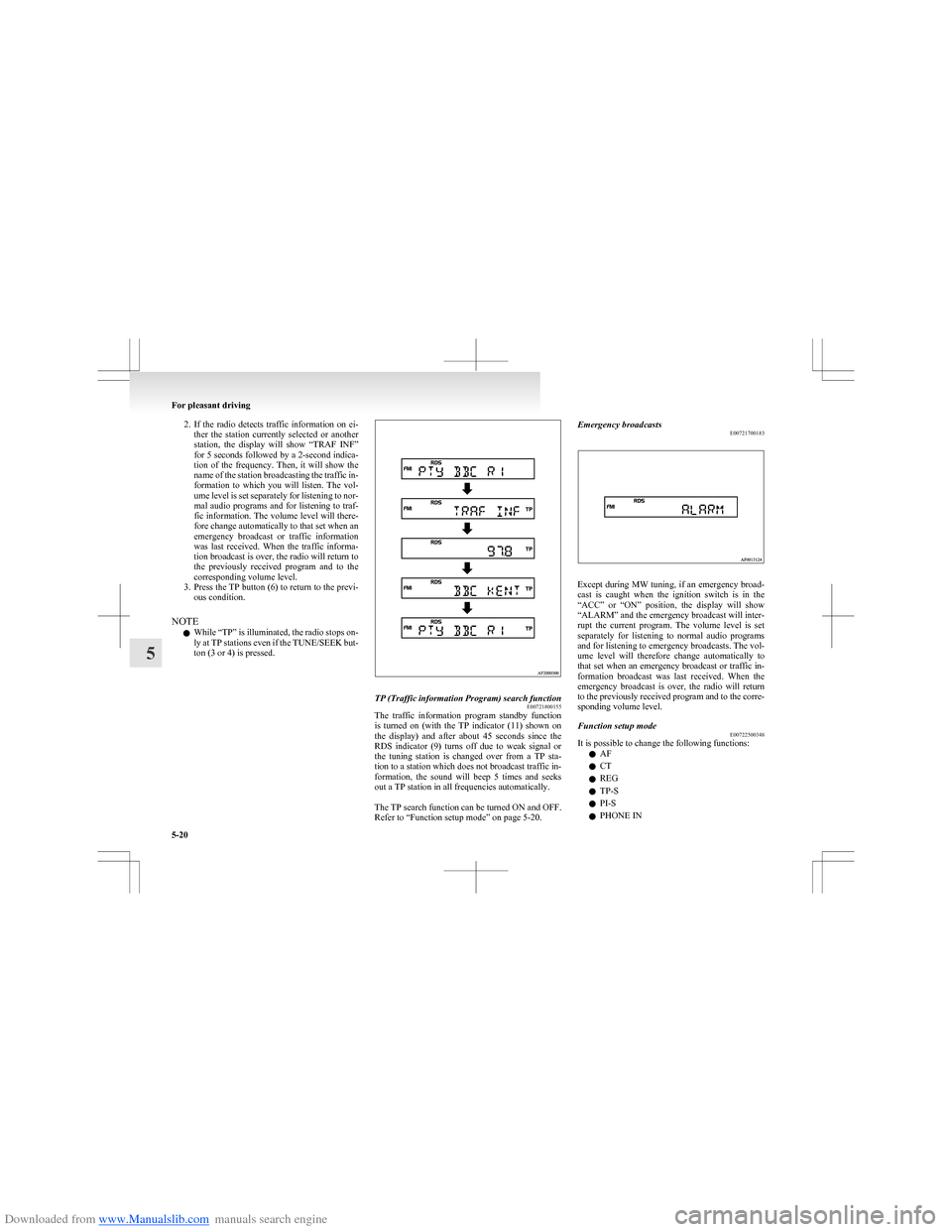
Downloaded from www.Manualslib.com manuals search engine 2.If the radio detects traffic information on ei-
ther the station currently selected or another
station, the display will show “TRAF INF”
for 5 seconds followed by a 2-second indica-
tion of the frequency. Then, it will show the
name of the station broadcasting the traffic in-
formation to which you will listen. The vol-
ume level is set separately for listening to nor-
mal audio programs and for listening to traf-
fic information. The volume level will there-
fore change automatically to that set when an
emergency broadcast or traffic information
was last received. When the traffic informa-
tion broadcast is over, the radio will return to
the previously received program and to the
corresponding volume level.
3. Press the TP button (6) to return to the previ-
ous condition.
NOTE l While “TP” is illuminated, the radio stops on-
ly at TP stations even if the TUNE/SEEK but-
ton (3 or 4) is pressed.TP (Traffic information Program) search function E00721800155
The traffic information program standby function
is turned on (with the TP indicator (11) shown on
the display) and after about 45 seconds since the
RDS indicator (9) turns off due to weak signal or
the tuning station is changed over from a TP sta-
tion to a station which does not broadcast traffic in-
formation, the sound will beep 5 times and seeks
out a TP station in all frequencies automatically.
The TP search function can be turned ON and OFF.
Refer to “Function setup mode” on page 5-20.
Emergency broadcasts E00721700183
Except during MW tuning, if an emergency broad-
cast is caught when the ignition switch is in the
“ACC” or “ON” position, the display will show
“ALARM” and the emergency broadcast will inter-
rupt the current program. The volume level is set
separately for listening to normal audio programs
and for listening to emergency broadcasts. The vol-
ume level will therefore change automatically to
that set when an emergency broadcast or traffic in-
formation broadcast was last received. When the
emergency broadcast is over, the radio will return
to the previously received program and to the corre-
sponding volume level.
Function setup mode E00722500348
It is possible to change the following functions:
l AF
l CT
l REG
l TP-S
l PI-S
l PHONE IN
For pleasant driving
5-20
5
Page 165 of 273
Downloaded from www.Manualslib.com manuals search engine To listen to a CDE00709601554
1. Insert disc with label facing up.
When a disc is inserted, the CD player will
begin playing even if the radio is being used.
The CD player will also start playback when
the CD button (9) is pressed with a disc in
the player even if the radio is being used.
2. To stop the CD, turn off the power by press-
ing the PWR switch (1), or change over to
the radio mode by pressing the FM/AM but-
ton (8), or change over to the external audio
input mode by pressing the CD button (9), or
eject the disc by pressing the eject button (2).
NOTE l To adjust the volume and tone, refer to
“To
adjust the volume” on page 5-13 and “To ad-
just the tone” on page 5-13.
l When an 8 cm compact disc is used, the adapt-
er is not used for playback. Insert the disc in
the centre of the disc-loading slot.
l For information concerning the handling of
compact discs, refer to “Handling of compact
discs” on page 5-32.
To fast-forward/reverse the disc
To fast-forward or reverse the disc, use the
TRACK buttons (11).
Fast-forward
You can fast-forward by holding down the
side
of the TRACK button (11) for more than about 1
second.
Fast-reverse
You can fast-reverse by holding down the
side
of the TRACK button (11) for more than about 1
second.
NOTE
l When you have fast-forwarded/fast-reversed
the disc, the playing-time may be shown
with deviation.
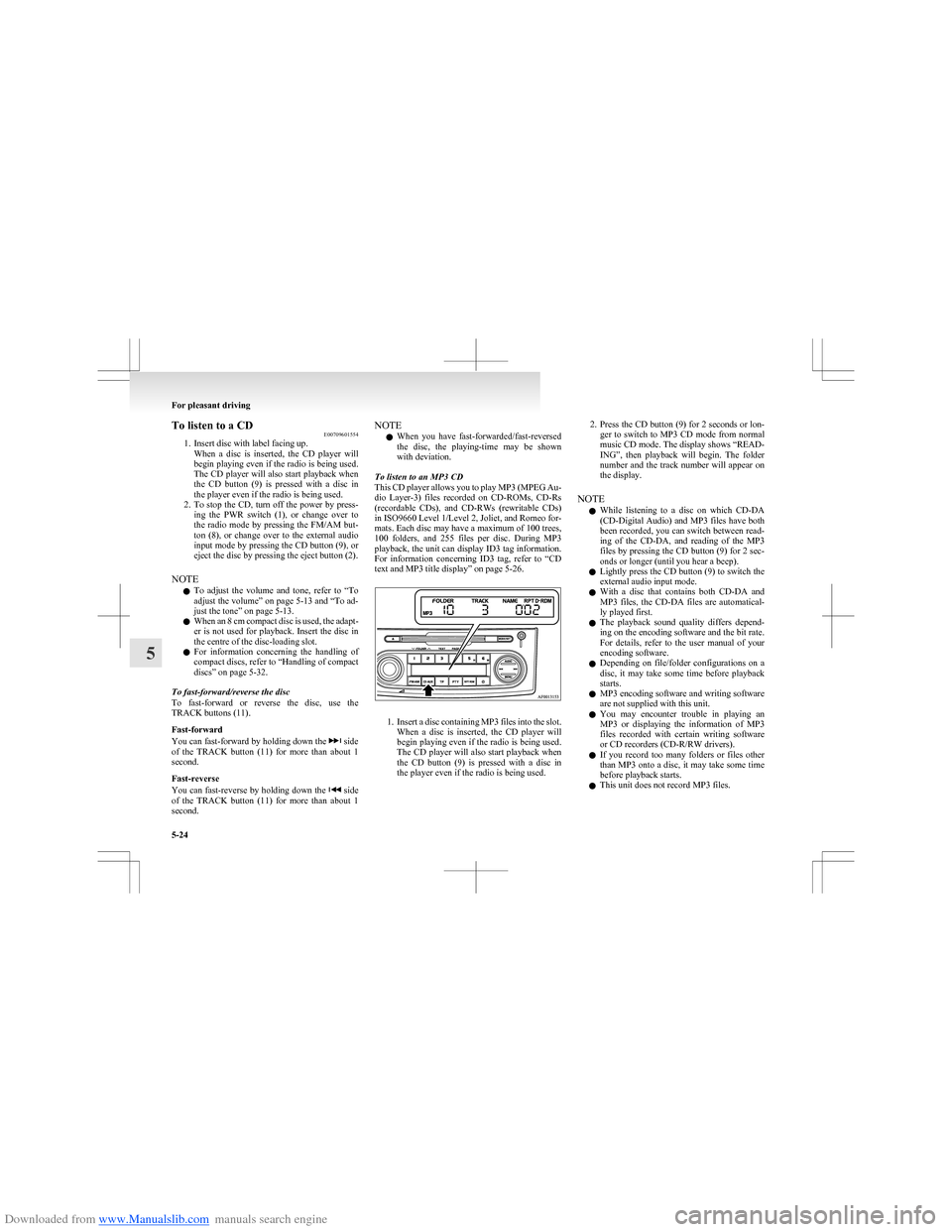
To listen to an MP3 CD
This CD player allows you to play MP3 (MPEG Au-
dio Layer-3) files recorded on CD-ROMs, CD-Rs
(recordable CDs), and CD-RWs (rewritable CDs)
in ISO9660 Level 1/Level 2, Joliet, and Romeo for-
mats. Each disc may have a maximum of 100 trees,
100 folders, and 255 files per disc. During MP3
playback, the unit can display ID3 tag information.
For information concerning ID3 tag, refer to “CD
text and MP3 title display” on page 5-26.
1. Insert a disc containing MP3 files into the slot.
When a disc is inserted, the CD player will
begin playing even if the radio is being used.
The CD player will also start playback when
the CD button (9) is pressed with a disc in
the player even if the radio is being used.
2. Press the CD button (9) for 2 seconds or lon-
ger to switch to MP3 CD mode from normal
music CD mode. The display shows “READ-
ING”, then playback will begin. The folder
number and the track number will appear on
the display.
NOTE l While listening to a disc on which
CD-DA
(CD-Digital Audio) and MP3 files have both
been recorded, you can switch between read-
ing of the CD-DA, and reading of the MP3
files by pressing the CD button (9) for 2 sec-
onds or longer (until you hear a beep).
l Lightly press the CD button (9) to switch the
external audio input mode.
l With a disc that contains both
CD-DA and
MP3 files, the CD-DA files are automatical-
ly played first.
l The playback sound quality differs depend-
ing on the encoding software and the bit rate.
For details, refer to the user manual of your
encoding software.
l Depending on file/folder configurations on a
disc, it may take some time before playback
starts.
l MP3 encoding software and writing software
are not supplied with this unit.
l You may encounter trouble in playing an
MP3 or displaying the information of MP3
files recorded with certain writing software
or CD recorders (CD-R/RW drivers).
l If you record too many folders or files other
than MP3 onto a disc, it may take some time
before playback starts.
l This unit does not record MP3 files.
For pleasant driving
5-24
5
Page 168 of 273
Downloaded from www.Manualslib.com manuals search engine MP3 title
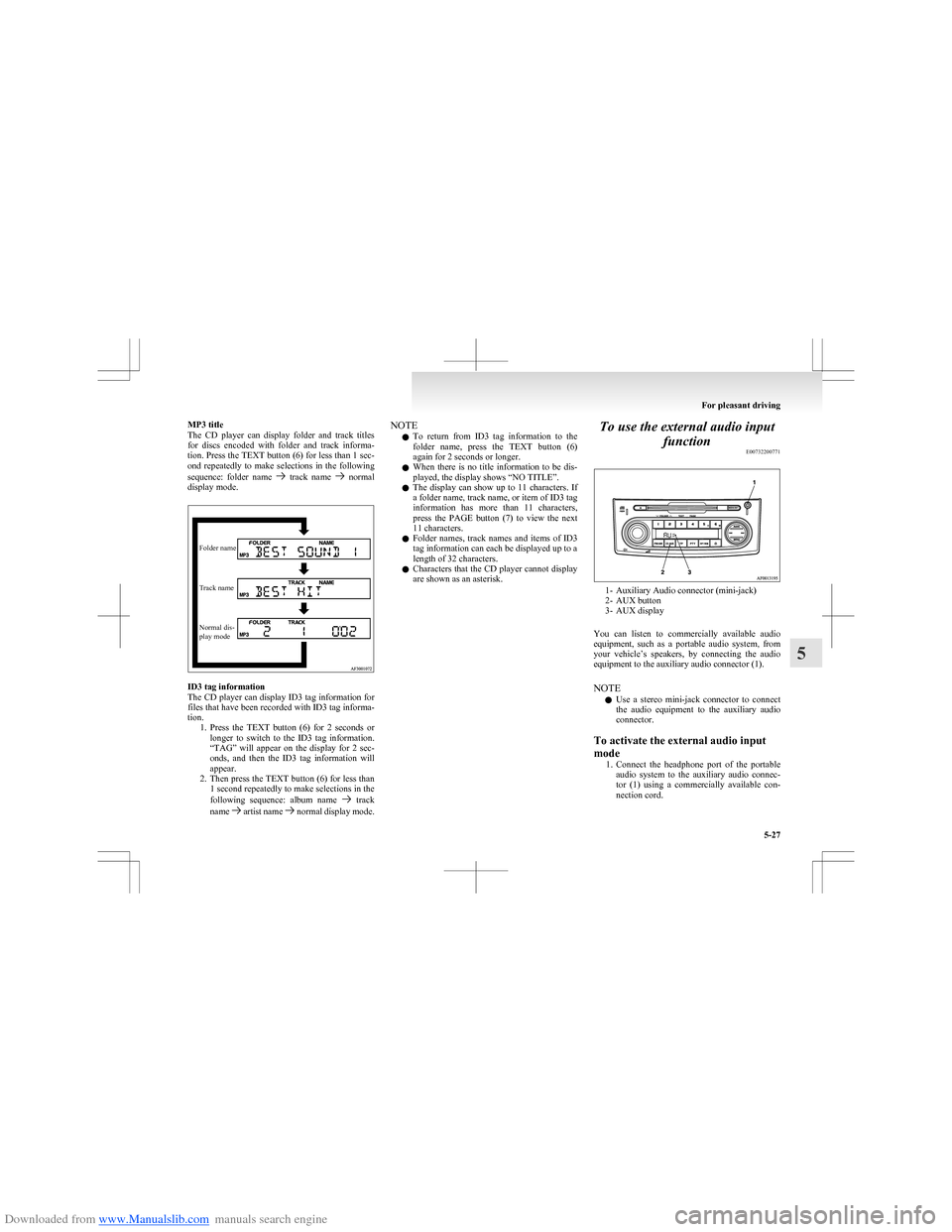
The CD player can display folder and track titles
for discs encoded with folder and track informa-
tion. Press the TEXT button (6) for less than 1 sec-
ond repeatedly to make selections in the following
sequence: folder name
track name normal
display mode.
Folder nameTrack nameNormal dis-
play mode
ID3 tag information
The CD player can display ID3 tag information for
files that have been recorded with ID3 tag informa-
tion. 1.Press the TEXT button (6) for 2 seconds or
longer to switch to the ID3 tag information.
“TAG” will appear on the display for 2 sec-
onds, and then the ID3 tag information will
appear.
2. Then press the TEXT button (6) for less than
1 second repeatedly to make selections in the
following sequence: album name
track
name artist name normal display mode.
NOTE
l To return from ID3 tag information to the
folder name, press the TEXT button (6)
again for 2 seconds or longer.
l When there is no title information to be dis-
played, the display shows “NO TITLE”.
l The display can show up to 11 characters. If
a folder name, track name, or item of ID3 tag
information has more than 11 characters,
press the PAGE button (7) to view the next
11 characters.
l Folder names, track names and items of ID3
tag information can each be displayed up to a
length of 32 characters.
l Characters that the CD player cannot display
are shown as an asterisk.To use the external audio input
function E00732200771
1- Auxiliary Audio connector (mini-jack)
2- AUX button
3- AUX display
You can listen to commercially available audio
equipment, such as a portable audio system, from
your vehicle’s speakers, by connecting the audio
equipment to the auxiliary audio connector (1).
NOTE l Use a stereo mini-jack connector to connect
the audio equipment to the auxiliary audio
connector.
To activate the external audio input
mode 1.Connect the headphone port of the portable
audio system to the auxiliary audio connec-
tor (1) using a commercially available con-
nection cord.
For pleasant driving
5-27
5
Page 169 of 273
Downloaded from www.Manualslib.com manuals search engine 2. Press the AUX button (2).The display (3) will show “AUX” and then
the external audio input mode will be activa-
ted.
3. To deactivate the external audio input mode,
press the AUX button (2). To switch to anoth-
er mode.CAUTIONl Do not operate the connected audio equip-
ment while driving.
This could distract you and an accident
might occur.
NOTE
l The connected audio equipment cannot be op-
erated with the vehicle’s audio system.
l Depending on the connected audio equip-
ment, it may produce noise from the speakers.
l Use the connected audio equipment’s own
power source, such as its battery.
Noise may be produced from the speakers if
the connected audio equipment is used while
charging it using the accessory socket of the
vehicle.
l Do not activate the external audio input
mode when no audio equipment is connected.
Otherwise, noise may be produced from the
speakers.
l Connect audio equipment when the external
audio input mode is deactivated or lower the
vehicle’s speaker volume before connecting it.
Noise may be produced from the speakers if
audio equipment is connected after the exter-
nal audio input mode is activated.
l Compared to the CD player mode and radio
mode, the vehicle’s speaker volume will be
lower in the external audio input mode. There-
fore, be careful when switching from the ex-
ternal audio input mode to the CD player
mode or radio mode since the speaker vol-
ume will be higher.
l Do not use excessive force on the connection
cord. Otherwise, the cord and connectors
may be damaged.
l If the connection cord alone is left connected
to the auxiliary audio connector, noise may
be produced from the speakers.
l For information on how to connect and oper-
ate the commercially available audio equip-
ment, refer to the owner’s manual for the com-
mercially available audio equipment.Steering wheel audio remote
control switches* E00710000447
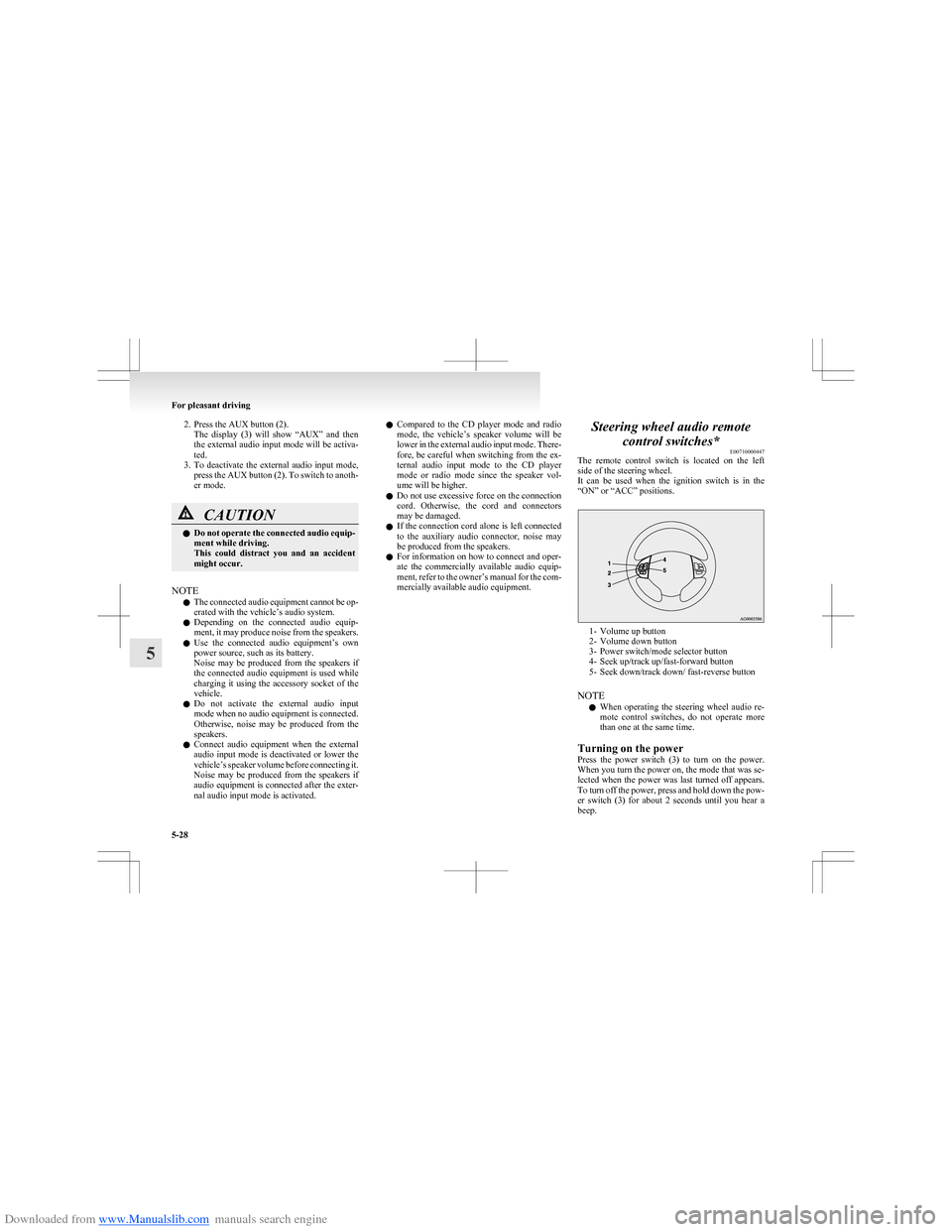
The remote control switch is located on the left
side of the steering wheel.
It can be used when the ignition switch is in the
“ON” or “ACC” positions.
1- Volume up button
2- Volume down button
3- Power switch/mode selector button
4- Seek up/track up/fast-forward button
5- Seek down/track down/ fast-reverse button
NOTE l When operating the steering wheel audio re-
mote control switches, do not operate more
than one at the same time.
Turning on the power
Press the power switch (3) to turn on the power.
When you turn the power on, the mode that was se-
lected when the power was last turned off appears.
To turn off the power, press and hold down the pow-
er switch (3) for about 2 seconds until you hear a
beep.
For pleasant driving
5-28
5