phone MITSUBISHI LANCER 2014 8.G Owner's Guide
[x] Cancel search | Manufacturer: MITSUBISHI, Model Year: 2014, Model line: LANCER, Model: MITSUBISHI LANCER 2014 8.GPages: 434, PDF Size: 57.5 MB
Page 323 of 434

Listen to an iPod 7-48 Comfort controls
7
Press the MEDIA key to set the iPod as the source. The selected source is indicated on the dis- play.
Press the key or key to select the track. This enables selection of the next or previous track. Hold down the 3 key or the 4 key. Fast forward/rewind is possible. Repeat playback and shuffle playback are possible. Press the 1RPT key. Repeat playback of th
e track currently being
played.
NOTE
Depending on the generation, model, or soft- ware version of the iPod/iPhone, playback on this product may not be possible. ( P.7-30) Additionally, playback as
explained in this document may not be possi-ble. Regarding details such as types of iPod/iPhone that can be connected to equip- ment by type (vehicles with a Bluetooth
® 2.0
interface), and types of files that can beplayed back, refer to “Types of connectable devices and supported file specifications” on page 5-185. Regarding how to connect the iPod/iPhone, refer to “How to connect an iPod” on page5-184. When connecting the iPod/iPhone, use a commercially-available iPod connection cable. Set up the device in order that no unsafe actions, such as plugging in the connectioncable are taken while driving. When inserting and removing the iPod/iPhone, for safety’s sake first stop the vehicle. Depending on the status of the iPod/iPhone, it may take some time until the device is rec- ognized, or playback starts. Buttons on the product will not operate while iPod/iPhone is connected. iPod/iPhone specifications and settings may mean that connection is not possible, orresult in differences in operation or display.
Depending on audio data in the iPod/iPhone, track information may not be displayed cor- rectly. Depending on the status of the vehicle and device, the iPod/iPhone may not play back after starting the engine. Data containing copyright information may not play back. It is recommended that the iPod/iPhone equalizer settings be set to flat. Operate the iPod/iPhone while connected to this product. If the iPod/iPhone is connected via Bluetooth as a Bluetooth-capable audio device, then do not connect the iPod/iPhone using an iPodcable. Connection using both methods will result in erroneous operation. If an iPod/iPhone does not operate correctly, then remove the iPod/iPhone from the prod- uct, reset, then reconnect.
Play iPod
NOTE
Select the Track (File) Fast Forward or Rewind Switch Playback Mode Repeat Playback (RPT)
NOTE
Pressing again will cancel.
Page 325 of 434

Listen to Audio Files on a USB Device 7-50 Comfort controls
7
Press the MEDIA key to set USB as the source. The selected source is indicated on the dis- play.
Press the key or key to select the track. This enables selection of the next or previous track. Hold down the 3 key or the 4 key. Fast forward/rewind is possible. Repeat playback, random playback, and scan playback are possible. Press the 1RPT key. Repeat playback of th
e track currently being
played.
NOTE
Regarding details such as types of USB devices that can be connected, and USB input ports, refer to “Device types” on page 5-185. Regarding details of types of files that can be played back in equipment by type (vehicles with a Bluetooth
® 2.0 interface), refer to
“File specifications” on page 5-186. Regarding how to connect USB devices, refer to “How to connect a USB memory device” on page 5-184. When connecting a USB device, use a con- nection cable. Failure to use a connection cable when connecting may place undue loadon, or damage the USB connector. Set up the device in order that no unsafe actions, such as plugging in the connection cable are taken while driving. When inserting and removing the USB device, for safety’s sake first stop the vehi-cle. Do not insert other than audio devices into the USB port. Damage to the device or equipment may result. Depending on the status of the USB device, it may take some time until the device is rec- ognized, or playback starts. Depending on USB devices, buttons on the product will not operate while the USBdevice is connected. USB device specifications and settings may mean that connection is not possible, or result in differences in operation or display.
Depending on audio data in the USB device, track information may not be displayed cor- rectly. Depending on the status of the vehicle and device, the iPod/iPhone may not play back after starting the engine. Data containing copyright information may not play back. This product can play back MP3, WMA, and AAC format audio files. Depending on the type of USB device, usage may not be possible, or functions that can be used may be restricted. The recommended file system for USB memory is FAT32. The maximum supported capacity for USB memory is 32GB. Operate the USB device containing recorded audio files while connected to this product.
Play Back of Audio Files on a USB Device
NOTE
Select the Track (File) Fast Forward or Rewind Switch Playback Mode Repeat Playback (RPT)
NOTE
Pressing again will cancel.
Page 327 of 434
Listen to Bluetooth Audio (if so equipped) 7-52 Comfort controls
7
4. Press the /SEL key. This plays the selected file (track).
N00717500020
This product can play back tracks on com- mercially-available Bluetooth-capable audiodevices.
Regarding how to connect your Bluetooth device, refer to “Connecting the Bluetooth
®
2.0 interface and Bluetooth device” on page 5-169. Operation methods below describe situationsonce connection has been completed. 1. Press the MEDIA key to set Bluetooth Audio as the source. The selected source is indicated on the display.
NOTE
While the folder is selected, press the 6 key to cancel track search mode. If there is no operation for 10 seconds after selecting the folder, then track search modewill be cancelled. Select the folder, and hold down the /SEL key to start playback from the first track inthat folder. While the file is selected, press the 6 key to return to the previous operation. While the file is selected, hold down the 6 key to cancel track search mode. If there is no operation for five seconds after selecting the file, that file is played back. Operations such as selecting a track will can- cel track search mode.
Listen to Bluetooth Audio
(if
so equipped)
CAUTION Never hold these devices in your hand to operate while driving, as this is dangerous. Do not leave the Bluetooth audio device unattended in the vehicle. Depending on how the devices are handled, audio files being damaged or lost, thereforeit is recommended that data be backed up.NOTE
Depending on the type of Bluetooth-capable audio devices, usage may not be possible, orfunctions that can be used may be restricted. Confirm together with the user manuals for the commercially-available Bluetooth-capa- ble audio devices. Depending on the type of Bluetooth-capable audio devices, volume levels may differ. There is the danger of loud volumes, so priorto use, it is recommended that you turn the volume down. “Adjust Volume” (P.7-39)
Depending on the status of the Bluetooth audio device, it may take some time until thedevice is recognized, or playback starts. Bluetooth audio device specifications and settings may mean that connection is not possible, or result in differences in operationor display. Depending on audio data in the Bluetooth audio device, track information may not be displayed correctly.
Depending on the status of the vehicle and device, the iPod/iPhone may not play back after starting the engine.
Connect a Bluetooth-capable Audio Device
NOTE
If the iPod/iPhone is connected via Bluetooth as a Bluetooth-capable audio device, then do not connect the iPod/iPhone using an iPod cable. Connection using both methods willresult in erroneous operation.
Play Bluetooth Audio
NOTE
Page 332 of 434
System Settings
Comfort controls 7-57
7
N00718500030
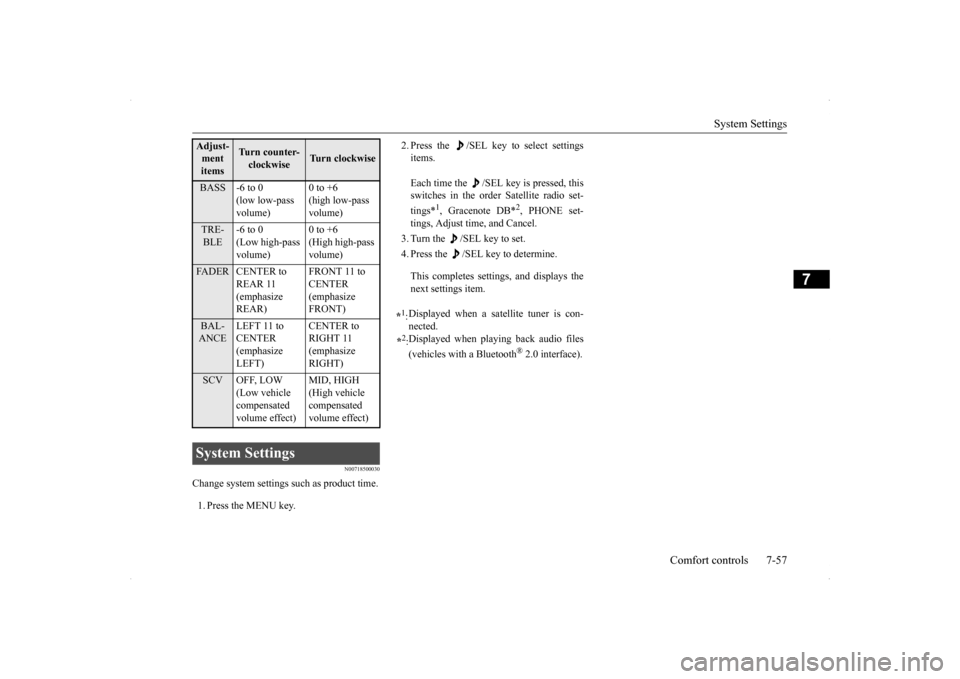
Change system settings such as product time. 1. Press the MENU key.
2. Press the /SEL key to select settings items. Each time the /SEL key is pressed, this switches in the order Satellite radio set- tings*
1, Gracenote DB*
2, PHONE set-
tings, Adjust time, and Cancel. 3. Turn the /SEL key to set.4. Press the /SEL key to determine. This completes settings, and displays the next settings item.
Adjust- ment items
Turn counter-clockwise
Turn clockwise
BASS -6 to 0
(low low-pass volume)
0 to +6 (high low-pass volume)
TRE- BLE
-6 to 0 (Low high-pass volume)
0 to +6 (High high-pass volume)
FADER CENTER to
REAR 11 (emphasize REAR)
FRONT 11 to CENTER (emphasize FRONT)
BAL- ANCE
LEFT 11 to CENTER (emphasize LEFT)
CENTER to RIGHT 11 (emphasize RIGHT)
SCV OFF, LOW
(Low vehicle compensated volume effect)
MID, HIGH (High vehicle compensated volume effect)
System Settings
*1: Displayed when a satellite tuner is con- nected.
*2: Displayed when playing back audio files (vehicles with a Bluetooth
® 2.0 interface).
Page 334 of 434
System Settings
Comfort controls 7-59
7
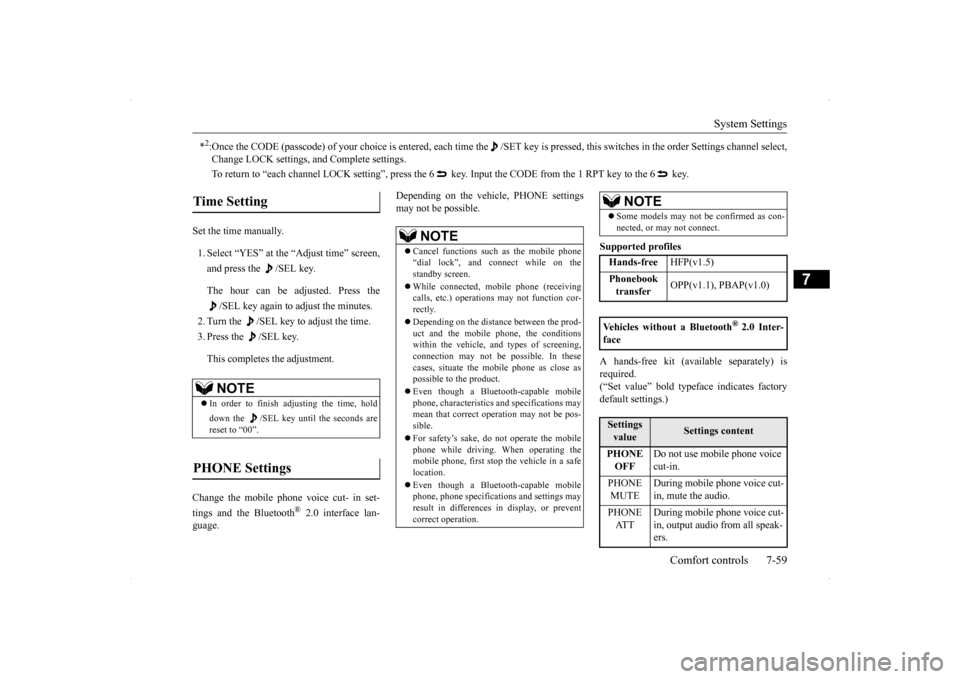
Set the time manually. 1. Select “YES” at the “Adjust time” screen, and press the /SEL key. The hour can be adjusted. Press the
/SEL key again to adjust the minutes.
2. Turn the /SEL key to adjust the time.3. Press the /SEL key. This completes the adjustment.
Change the mobile phone voice cut- in set- tings and the Bluetooth
® 2.0 interface lan-
guage.
Depending on the vehicle, PHONE settings may not be possible.
Supported profiles A hands-free kit (available separately) is required.(“Set value” bold typeface indicates factory default settings.)
*2:Once the CODE (passcode) of your choice is entered, each time th
e /SET key is pressed, this switches in the order Settings chan
nel select,
Change LOCK settings, and Complete settings. To return to “each channel LOCK setting”, press the 6
key. Input the CODE from the 1 RPT key to the 6 key.
Time Setting
NOTE
In order to finish adjusting the time, hold down the /SEL key until the seconds are reset to “00”.
PHONE Settings
NOTE
Cancel functions such as the mobile phone “dial lock”, and connect while on the standby screen. While connected, mobile phone (receiving calls, etc.) operations may not function cor- rectly. Depending on the distance between the prod- uct and the mobile phone, the conditions within the vehicle, and types of screening, connection may not be possible. In thesecases, situate the mobile phone as close as possible to the product. Even though a Bluetooth-capable mobile phone, characteristics and specifications may mean that correct operation may not be pos-sible. For safety’s sake, do not operate the mobile phone while driving. When operating the mobile phone, first stop the vehicle in a safe location. Even though a Bluetooth-capable mobile phone, phone specifications and settings mayresult in differences in display, or prevent correct operation.
Some models may not be confirmed as con- nected, or may not connect.Hands-free
HFP(v1.5)
Phonebook transfer
OPP(v1.1), PBAP(v1.0)
Vehicles without a Bluetooth
® 2.0 Inter-
faceSettings value
Settings content
PHONE OFF
Do not use mobile phone voice cut-in.
PHONE MUTE
During mobile phone voice cut- in, mute the audio.
PHONE AT T
During mobile phone voice cut- in, output audio from all speak- ers.
NOTE
Page 335 of 434
Troubleshooting 7-60 Comfort controls
7
(“Set value” bold typeface indicates factory default settings.)
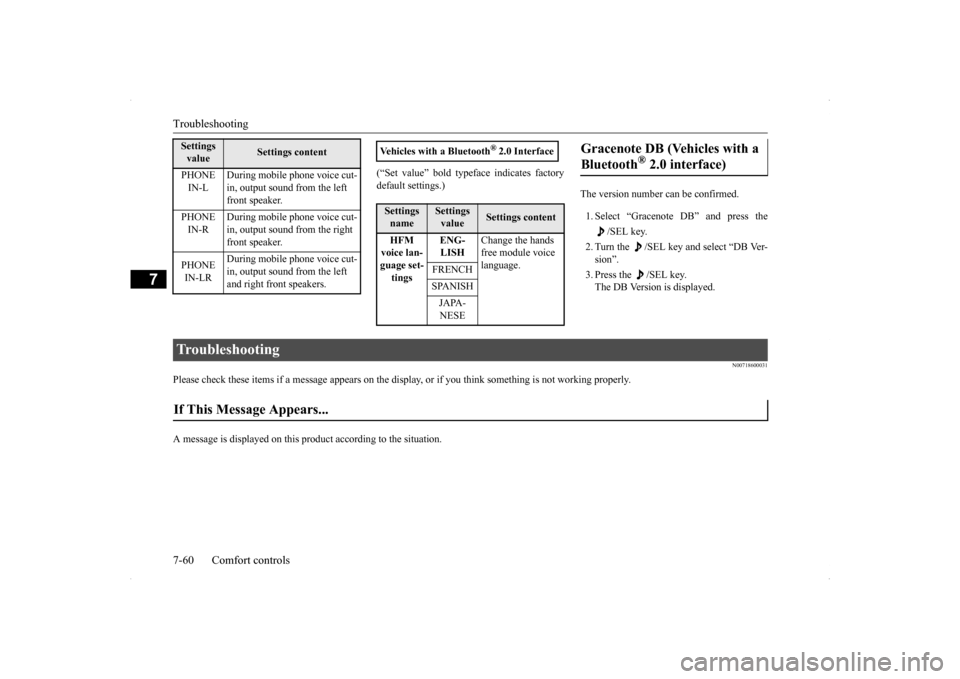
The version number can be confirmed. 1. Select “Gracenote DB” and press the
/SEL key.
2. Turn the /SEL key and select “DB Ver- sion”. 3. Press the /SEL key. The DB Version is displayed.
N00718600031
Please check these items if a message appears on the displa
y, or if you think something is not working properly.
A message is displayed on this
product according to the situation.
PHONE IN-L
During mobile phone voice cut- in, output sound from the left front speaker.
PHONE IN-R
During mobile phone voice cut- in, output sound from the right front speaker.
PHONE IN-LR
During mobile phone voice cut- in, output sound from the left and right front speakers.
Settings value
Settings content
Vehicles with a Bluetooth
® 2.0 Interface
Settings name
Settings value
Settings content
HFM voice lan- guage set- tings
ENG- LISH
Change the hands free module voice language.
FRENCH SPANISHJAPA- NESE
Gracenote DB (Vehicles with a Bluetooth
® 2.0 interface)
Troubleshooting If This Message Appears...
Page 336 of 434
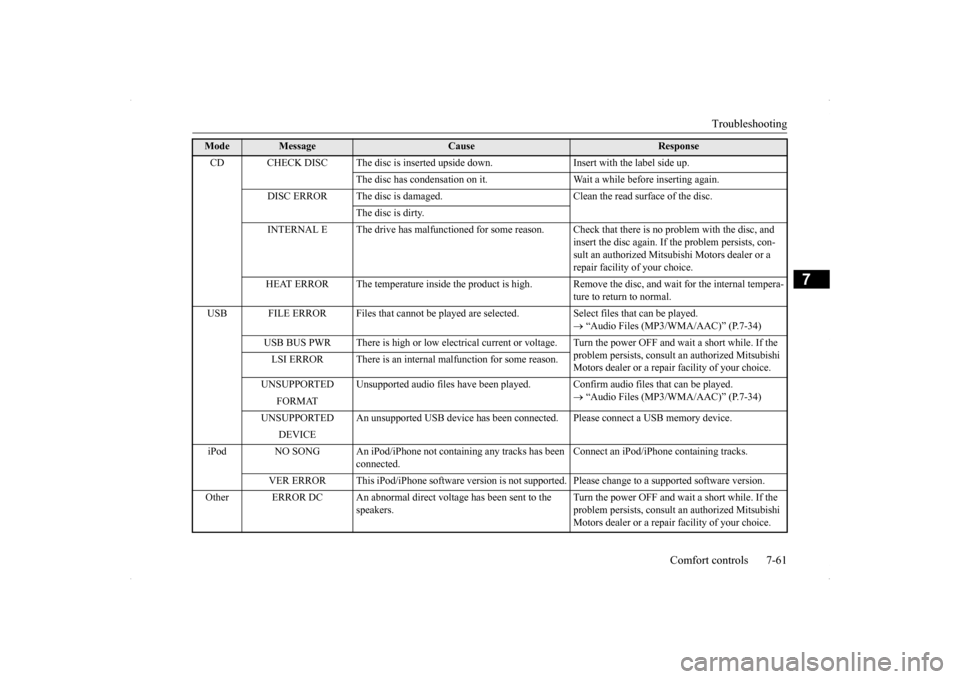
Troubleshooting
Comfort controls 7-61
7
Mode
Message
Cause
Response
CD CHECK DISC The disc is inserted upsi
de down. Insert with the label side up.
The disc has condensation on it. Wait a while before inserting again.
DISC ERROR The disc is damaged. Clean the read surface of the disc.
The disc is dirty.
INTERNAL E The drive has malfunctioned for some reason. Check that there is no problem with the disc, and
insert the disc again. If the problem persists, con-sult an authorized Mitsubishi Motors dealer or a repair facility of your choice.
HEAT ERROR The temperature inside the product is high.
Remove the disc, and wait for the internal tempera- ture to return to normal.
USB FILE ERROR Files that cannot be played are
selected. Select files that can be played.
“Audio Files (MP3/WMA/AAC)” (P.7-34)
USB BUS PWR There is high or low electrical current or
voltage. Turn the power OFF and wait a short while. If the
problem persists, consult an authorized Mitsubishi Motors dealer or a repair facility of your choice.
LSI ERROR There is an internal malfunction for some reason. UNSUPPORTED Unsupported audio files have been pl
ayed. Confirm audio files that can be played.
“Audio Files (MP3/WMA/AAC)” (P.7-34)
FORMAT
UNSUPPORTED An unsupported USB device has been co
nnected. Please connect a USB memory device.
DEVICE
iPod NO SONG An iPod/iPhone not containing any tracks has been
connected.
Connect an iPod/iPhone containing tracks.
VER ERROR This iPod/iPhone software version is not supported. Please change to a supported software version.
Other ERROR DC An abnormal direct voltage has been sent to the
speakers.
Turn the power OFF and wait a short while. If the problem persists, consult an authorized Mitsubishi Motors dealer or a repair facility of your choice.