phone MITSUBISHI LANCER 2015 8.G Owner's Manual
[x] Cancel search | Manufacturer: MITSUBISHI, Model Year: 2015, Model line: LANCER, Model: MITSUBISHI LANCER 2015 8.GPages: 434, PDF Size: 16.59 MB
Page 245 of 434

Bluetooth® 2.0 interface (if so equipped) 5-176 Features and controls
5
6. Operate the Bluetooth
® compatible cellu-
lar phone to set it up so that the phone- book entry you want to register in the vehicle phonebook can be transferred to the Bluetooth
® 2.0 interface.
7. When the reception is complete, the voice guide will say “
8. The voice guide will say “Adding
10. The voice guide will say “Would you like
to import another contact?”Answer “Yes” if you want to continue with the registration. You can continue to register a new phonebook entry from Step5. Answer “No,” the system will return to the main menu.
N00579800023
You can change or delete a name or telephone number registered in the vehicle phonebook. You can also listen to the list of names regis-tered in the vehicle phonebook.
N00579900024
1. Press the SPEECH button (except forvehicles with Mitsubishi Multi-Commu-nication System) or PICK-UP button (for vehicles with Mitsubishi Multi-Commu- nication System).2. Say “Phonebook.” 3. The voice guide will say “Select one of the following: new entry, edit number,edit name, list names, delete, erase all, orimport contact”. Say “Edit number.” name of the entry you would like to edit,or say list names.” Say the name of the phonebook entry you want to edit. 5. The voice guide will say “Home, work, mobile or other?” Select and say the loca- tion where the telephone number youwant to change or add is registered. When the confirmation function is on, the system will check the target name andlocation again. Answer “Yes” if you want to continue with the editing.
NOTE
If the Bluetooth
® 2.0 interface cannot recog-
nise the Bluetooth
® compatible cellular
phone or the connection takes too much time, the voice guide will say “Import con- tact has timed out” and then the system will cancel the registration. In such case, start over again from Step 1. Pressing the HANG-UP button or pressing and holding the SPEECH button will cancelthe registration.NOTE
If the entered name is already used for other phonebook entry or similar to a name used for other phonebook entry, that name cannot be registered.
To change the content registered in the vehicle phonebook NOTE
The system must have at least one entry.
Editing a telephone number
NOTE
Say “List names,” and the names registered in the phonebook will be read out in order. Refer to “Listening to the list of registered names” on page 5-177.
BK0210300US.book
176 ページ 2014年4月8日 火曜日 午前10時46分
Page 246 of 434

Bluetooth® 2.0 interface (if so equipped)
Features and controls 5-177
5
Answer “No,” the system will return to Step 3. 6. The voice guide will say “Number, please.” Say the telephone number youwant to register. 7. The voice guide will repeat the telephone number. When the confirmation function is on, thesystem will ask if the number is correct. Answer “Yes.” Answer “No,” the system will return tothe Step 3. 8. Once the telephone number is registered, the voice guide will say “Number saved”and then the system will return to the main menu.
N00580100026
1. Press the SPEECH button (except for vehicles with Mits
ubishi Multi-Commu-
nication System) or PICK-UP button (for vehicles with Mits
ubishi Multi-Commu-
nication System).2. Say “Phonebook.” 3. The voice guide will say “Select one of the following: new entry, edit number,edit name, list names, delete, erase all, orimport contact.” Say “Edit name.” 4. The voice guide will say “Please say the name of the entry you would like to edit,or say list names.” Say the name you want to edit. 5. The voice guide will say “Changing
6. The voice guide will say “Name please.” Say the new name you want to register. 7. The registered name will be changed. When the change is complete, the systemwill return to the main menu.
N00580200027
1. Press the SPEECH button (except forvehicles with Mitsubishi Multi-Commu- nication System) or PICK-UP button (for vehicles with Mitsubishi Multi-Commu-nication System).2. Say “Phonebook.” 3. The voice guide will say “Select one of the following: new entry, edit number,edit name, list names, delete, erase all, or import contact.” Say “List names.” 4. Bluetooth
® 2.0 interface will read out the
entries in the phonebook in order. 5. When the voice guide is done reading the list, it will say “End of list, would you liketo start from the beginning?” When you want to check the list again from the beginning, answer “Yes.”When you are done, answer “No” to return to the previous or main menu.
NOTE
If the telephone number is already registered in the selected location, the voice guide willsay “The current number is
If the location where a telephone number was already registered has been overwritten with a new number, the voice guide will say“Number changed” and then the system will return to the main menu.
Editing a name
NOTE
Say “List names,” and the names registered in the phonebook are read out in order. Refer to “Listening to the list of registered names” on page 5-177.
Listening to the list of registered names
BK0210300US.book
177 ページ 2014年4月8日 火曜日 午前10時46分
Page 247 of 434

Bluetooth® 2.0 interface (if so equipped) 5-178 Features and controls
5
N00580300028
1. Press the SPEECH button (except for vehicles with Mitsubishi Multi-Commu- nication System) or PICK-UP button (for vehicles with Mitsubishi Multi-Commu-nication System). 2. Say “Phonebook.” 3. The voice guide will say “Select one ofthe following: new entry, edit number, edit name, list names, delete, erase all, or import contact.” Say “Delete.”
4. The voice guide will say “Please say the name of the entry you would like to delete, or say list names.” Say the name of the phonebook entry in which the tele-phone number you want to delete is regis- tered. 5. If only one telephone number is registered in the selected phonebook entry, the voice guide will say “Deleting
6. The system will ask if you really want to delete the selected telephone number(s) to go ahead with the deletion, answer “Yes.” Answer “No,” the system will canceldeleting the telephone number(s) and then return to Step 4. 7. When the telephone number deletion iscomplete, the voice guide will say “
N00580400029
You can delete all registered information from the vehicle phonebook. 1. Press the SPEECH button (except for vehicles with Mitsubishi Multi-Commu- nication System) or PICK-UP button (forvehicles with Mitsubishi Multi-Commu- nication System). 2. Say “Phonebook.”3. The voice guide will say “Select one of the following: new entry, edit number, edit name, list names, delete, erase all, orimport contact.” Say “Erase all.”
NOTE
You can call, edit or delete a name that is being read out. Press the SPEECH button and say “Call” to call the name, “Edit name” to edit it, or “Delete” to delete it.The system will beep and then execute your command. If you press the SPEECH button and say “Continue” or “Previous” while the list is being read, the system will advance orrewind the list. Say “Continue” to proceed to the next entry or “Previous” to return to the previous entry.
Deleting a telephone number
NOTE
Say “List names,” and the names registered in the phonebook are read out in order. Refer to “Listening to the list of registered names”on page 5-177.NOTE
To delete the telephone numbers from all locations, say “All.”
Erasing the phonebook
BK0210300US.book
178 ページ 2014年4月8日 火曜日 午前10時46分
Page 248 of 434

Bluetooth® 2.0 interface (if so equipped)
Features and controls 5-179
5
4. For confirmation purposes, the voice guide will ask “Are you sure you want to erase everything from your hands-free system phonebook?” Answer “Yes.”Answer “No” to cancel the deletion of all registered information in the phonebook and return to the main menu. 5. The voice guide will say “You are about to delete everything from your hands-free system phonebook. Do you want to con-tinue?” Answer “Yes” to continue.Answer “No” to cancel the deletion of all registered information in the phonebook and return to the main menu.6. The voice guide will say “Please wait, erasing the hands-free system phone- book” and then the system will delete alldata in the phonebook. When the deletion is complete, the voice guide will say “Hands-free system phone-book erased” and then the system will return to the main menu.
N00566201062
All entries in the phonebook stored in the cel-lular phone can be transferred in a batch and registered in the mobile phonebook.Up to 7 mobile phonebooks, each containing up to 1,000 names, can be registered.
The Bluetooth
® 2.0 interface automatically
converts from text to voice the names regis- tered in the transferred phonebook entries, and creates names. Follow the steps below to transfer to the mobile phonebook the phonebook stored inthe cellular phone.
1. Press the SPEECH button (except for vehicles with Mitsubishi Multi-Commu- nication System) or PICK-UP button (for vehicles with Mitsubishi Multi-Commu-nication System). 2. Say “Phonebook.” 3. The voice guide will say “Select one ofthe following: new entry, edit number,edit name, list names, delete, erase all, or import contact.” Say “Import contact.” 4. The voice guide will say “Would you liketo import a single entry or all contacts?” Say “All contacts.”
Mobile phonebook
NOTE
Only the mobile phonebook transferred from the connected cellular phone can be usedwith that cellular phone. You cannot change the names and telephone numbers in the phonebook entries registered in the mobile phonebook. You cannot select and delete specific phonebook entries, either.To change or delete any of the above, change the applicable information in the source phonebook of the cellular phone and thentransfer the phonebook again.
To import a devices phonebook
NOTE
Transfer should be completed while the vehi- cle is parked. Before transferring, make sure that the vehicle is parked in a safe location. The already stored phonebook in the mobile phonebook is overwritten by the storedphonebook in the cellular phone.
All or part of data may not be transferred, even when the cellular phone supports Blue- tooth
®, depending on the compatibility of
the device. Only a home, a work, and a mobile number can be imported. The maximum supported telephone number length is 19 digits. Any telephone number of 20 digits or more will be truncated to the first19 digits. If telephone numbers contain characters other than 0 to 9,
*, # or +, these characters
are deleted before the transfer. For the connection sett
ings on the cellular
phone side, refer to the instructions for the cellular phone.NOTE
BK0210300US.book
179 ページ 2014年4月8日 火曜日 午前10時46分
Page 249 of 434
Bluetooth® 2.0 interface (if so equipped) 5-180 Features and controls
5
5. The voice guide will say “Importing the contact list from the mobile phonebook. This may take several minutes to com- plete. Would you like to continue?”Answer “Yes,” transferring to the mobile phonebook the phonebook stored in the cellular phone will start.Answer “No,” the system will return to the main menu.
6. When the transfer is complete, the voice guide will say “Import complete” and then the system will return to the main menu.
N00566301106
MODEL: MMC FCC ID: CB2MDGMY10IC: 279B-MDGMY10 Your Bluetooth
® 2.0 interface operates on a
radio frequency subject to Federal Communi- cations Commission (FCC) Rules (For vehi- cles sold in U.S.A.) and Industry CanadaRules (For vehicles sold in Canada). This device complies with Part 15 of the FCC Rules and RSS-210 of the Industry CanadaRules. Operation is subject to the following two conditions: This device may not cause harmful inter- ference. This device must accept any interference received, including interference that may cause undesired operation.
The term “IC:” before the radio certification number only signifies that Industry Canada technical specifications were met. The antenna used for this transmitter must notbe co-located or operating in conjunction with any other antenna or transmitter. End- users and installers must be provided withinstallation instructions and transmitter oper- ating conditions for satisfying RF exposure compliance.FCC Notice: This equipment has been testedand found to comply with the limits for a Class B digital device, pursuant to part 15 of the FCC Rules. These limits are designed toprovide reasonable protection against harmful interference in a residential installation. This equipment generates, uses and can radi-ate radio frequency energy and, if not installed and used in accordance with the instructions, may cause harmful interferenceto radio communications. However, there is no guarantee that interfer- ence will not occur in a particular installation.If this equipment does cause harmful interfer- ence to radio or television reception, which can be determined by turning the equipmentoff and on, the user is encouraged to try to correct the interference by one or more of the following measures: Reorient or relocate the receiving antenna. Increase the separation between the equipment and receiver.
NOTE
The transfer may take some time to complete depending on the number of contacts. If the Bluetooth
® 2.0 interface could not be
connected to the Bluetooth
® compatible cel-
lular phone, the voice guide will say “Unable to transfer contact list from phone” and then the system will return to the main menu. If you press the HANG-UP button or press and hold the SPEECH button during the datatransfer, the transfer will be cancelled and the system will return to the main menu. If an error occurs during the data transfer, all transfer will be cancelled and the voice guide will say “Unable to complete the phonebookimport” and then the system will return to the main menu. If there are no contacts in the phonebook, the voice guide will say “There are no contacts on the connected phone.”
General information
CAUTION Changes or modifications made to this equipment not expressly approved by themanufacturer may void the FCC authoriza- tion to operate this equipment.
BK0210300US.book
180 ページ 2014年4月8日 火曜日 午前10時46分
Page 252 of 434
USB input terminal (if so equipped)
Features and controls 5-183
5
Refer to “Listen to an iPod” on page 7-47, “Listen to Audio Files on a USB Device” on page 7-49 and “Audio Files(MP3/WMA/AAC)” on page 7-34. Refer to the separate owner’s manual. Refer to the separate owner’s manual.
N00583300029
For details about the types of connectable devices and supported file specifications, refer to the following section.
N00583400020
Devices of the following types can be con- nected.
For these connectable device types, “iPod*,” “iPod classic*,” “iPod nano*,” “iPod touch*”and “iPhone*,” refer to the following web- site: [For vehicles sold in U.S.A.]You can access the Mitsubishi Motors North America website. [For vehicles sold in Canada and Mexico]You can access the Mitsubishi Motors web-site. Please read and agree to the “Warning about Links to the Web Sites of Other Com- panies”. The websites mentioned above mayconnect you to websites other than the Mitsubishi Motors website. http://www.mitsubishi-motors.com/en/prod-ucts/index.html
N00583500021
You can play music files of the followingspecifications that are saved in a USB mem-ory device or other device supporting mass storage class. When you connect your iPod, playable file specifications depend on theconnected iPod.
For vehicles equipped with the AM/FM radio/CD player For vehicles equipped with the DISPLAY AUDIO For vehicles equipped with the Mitsubishi Multi-Communication Sys-temFor vehicles equipped with the Bluetooth
® 2.0 interface
Device types
Model name
Condition
USB memory device
Storage capacity of 256 Mbytes or more
Models other than USB memory devices and iPods
Digital audio player supporting mass storage class
* : “iPod,” “iPod classic,” “iPod nano,” “iPod touch,” and “iPhone” are regis- tered trademarks of Apple Inc. in the United States and other countries.
NOTE
Depending on the type of the USB memory device or other device connected, the con- nected device may not function properly or the available functions may be limited. It is recommended to us
e an iPod with firm-
ware updated to the latest version. You can charge your iPod by connecting it to the USB input terminal when the ignition switch is in the “ACC” or “ON” position. Do not keep your USB memory device or iPod in your vehicle. It is recommended that
you back up the files
in case of data damage. Do not connect to the USB input terminal any device (hard disk, card reader, memoryreader, etc.) other than the connectable devices specified in
the previous section.
The device and/or data may be damaged. Ifany of these devices was connected by mis- take, remove it after turning the ignition switch to the “LOCK” position.
File specifications
BK0210300US.book
183 ページ 2014年4月8日 火曜日 午前10時46分
Page 304 of 434
AM/FM radio/CD player (if so equipped)
Comfort controls 7-29
7
N00734302098
The audio system can only be used when the ignition switch is in the “ON” or “ACC” position.
N00715000021
This product supports audio playback from iPod/iPhone devices, however dif- fering versions mean that playback cannot be guaranteed.
Please be aware that depending on the iPod/iPhone model or version, operation may differ.
N00715200023
If the product becomes dirty, wipe with a soft cloth. If very dirty, use a soft cloth dipped in neutral detergent diluted in water, andthen wrung out. Do not use benzene, thin- ners, or other chemical wipes. This may harm the surface.
N00715300066
Product names and other proper names are the trademarks or registered trade-marks of their respective owners. Furthermore, even if there is no specific denotation of trademarks or registeredtrademarks, these are to be observed in their entirety.
AM/FM radio/CD player
(if
so equipped)
NOTE
To listen to the audio system while the engine is not running, turn the ignition switch to the “ACC” position. If the ignition switch is left in the “ACC”position, the accessory power will automati- cally turn off after a
certain period of time
and you will no longer be able to use theaudio system. The accessory power comes on again if the ignition switch is turned from the “ACC” position. Refer to “ACC powerauto-cutout function” on page 5-54. If a cellular phone is used inside the vehicle, it may create noise in the audio equipment. This does not mean that anything is wrong with your audio equipment. In such a case,use the cellular phone at a place as far away as possible from the audio equipment.
If foreign objects or water get into the audio equipment, or if smoke or a strange odor comes from it, immediately turn off the audio system and have it checked at an authorized Mitsubishi Motors dealer or arepair facility of your choice. Never try to repair it yourself. Avoid using the audio sys- tem until it is inspected by a qualified per-son. If the audio system is damaged by foreign objects, water, or fire, have the system checked by a qualified Mitsubishi Motors technician. The audio amplifier (if so equipped) is located under the front left seat.Do not subject the amplifier to a strong impact. It could damage the amplifier or malfunc-tioning could result.
Important Points on Usage
iPod/iPhone Playback Function
(if
so equipped)
NOTE
How to Clean
Tr a d e m a r k s
BK0210300US.bo
ok 29 ページ 2014年4月8日 火曜日 午前10時46分
Page 305 of 434

AM/FM radio/CD player (if so equipped) 7-30 Comfort controls
7
“Made for iPod”, “Made for iPhone” mean that an electronic accessory has been designed to connect specifically to iPod or iPhone, respectively, and has beencertified by the developer to meet Apple performance standards. iPhone, iPod, iPod classic, iPod nano, andiPod touch are trademarks of Apple Inc., registered in the U.S. and other countries. Apple is not responsible for the operationof this device or its compliance withsafety and regulatory standards.NOTE
iPod and iTunes licensing allows individual users to privately reproduce and play back non- copyrighted material as well as material that may be legally copied and reproduced.Infringement of copyright is prohibited.
For vehicles with a Bluetooth
® 2.0 interface,
the types of devices that can be connectedmay vary. [For vehicles sold in U.S.A.] For details, access the Mitsubishi MotorsNorth America website. [For vehicles sold in Canada and Mexico] For details, access the Mitsubishi Motorswebsite. Please read and agree to the “Warn- ing about Links to the Web Sites of Other Companies”. The websites mentioned abovemay connect you to websites other than the Mitsubishi Motors website. http://www.mitsubishi-motors.com/en/prod-ucts/index.htmlNOTE
BK0210300US.bo
ok 30 ページ 2014年4月8日 火曜日 午前10時46分
Page 316 of 434
Operation Keys
Comfort controls 7-41
7
N00716800039
13-
5 key Play/Pause Bluetooth Audio
*2, and use
as preset key 5 for radio.
14-
6 key Return during audio track search, and stop Bluetooth Audio
*2.
For radio, use as preset key 6.
15-
key/ key
For audio, select audio track/file; forradio, perform automatic station selec- tion. Select channels in the satellite radio*
1.
16- MENU key
Switch to Menu mode.
17-
/SEL key
Adjust audio quality and select items.For radio, manually select stations. Select channels in the satellite radio*
1.
*1: Requires a satellite tuner connection.*2: Requires a separately-purchased Blue- tooth-capable audio device in equip- ment by type (vehicles with a Bluetooth
® 2.0 interface).
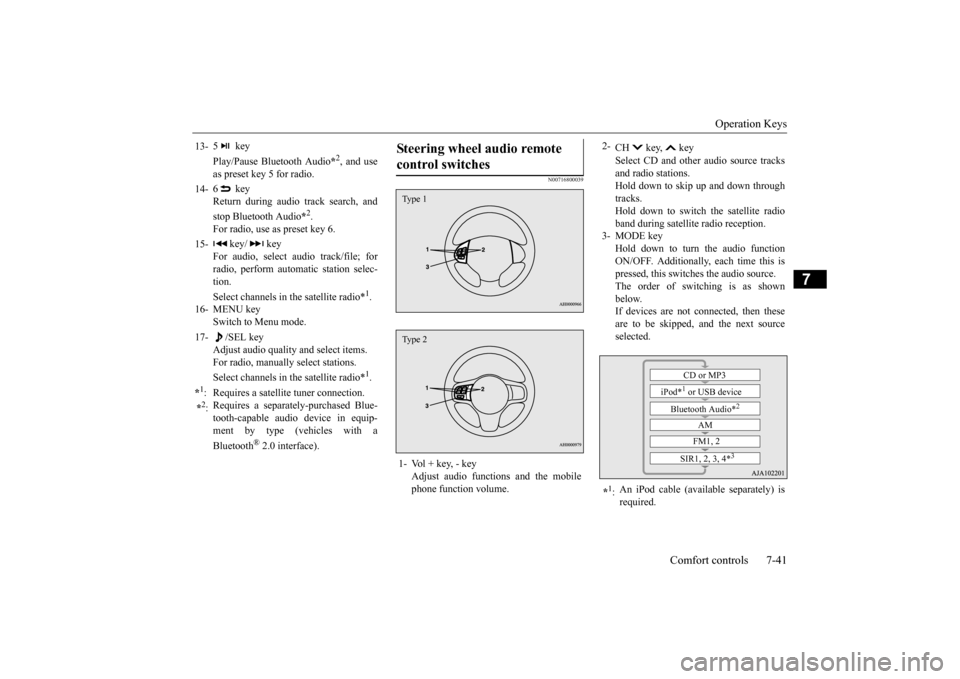
Steering wheel audio remote control switches 1- Vol + key, - key
Adjust audio functions and the mobilephone function volume.Type 1Type 2
2-
CH key, key Select CD and other audio source tracks and radio stations.Hold down to skip up and down through tracks. Hold down to switch the satellite radioband during satellite radio reception.
3- MODE key
Hold down to turn the audio functionON/OFF. Additionally, each time this is pressed, this switches the audio source. The order of switching is as shownbelow. If devices are not connected, then these are to be skipped, and the next sourceselected.
*1: An iPod cable (available separately) is required.
CD or MP3
iPod*
1 or USB device
Bluetooth Audio*
2
AM FM1, 2
SIR1, 2, 3, 4*
3
BK0210300US.bo
ok 41 ページ 2014年4月8日 火曜日 午前10時46分
Page 322 of 434
Listen to an iPod
Comfort controls 7-47
7
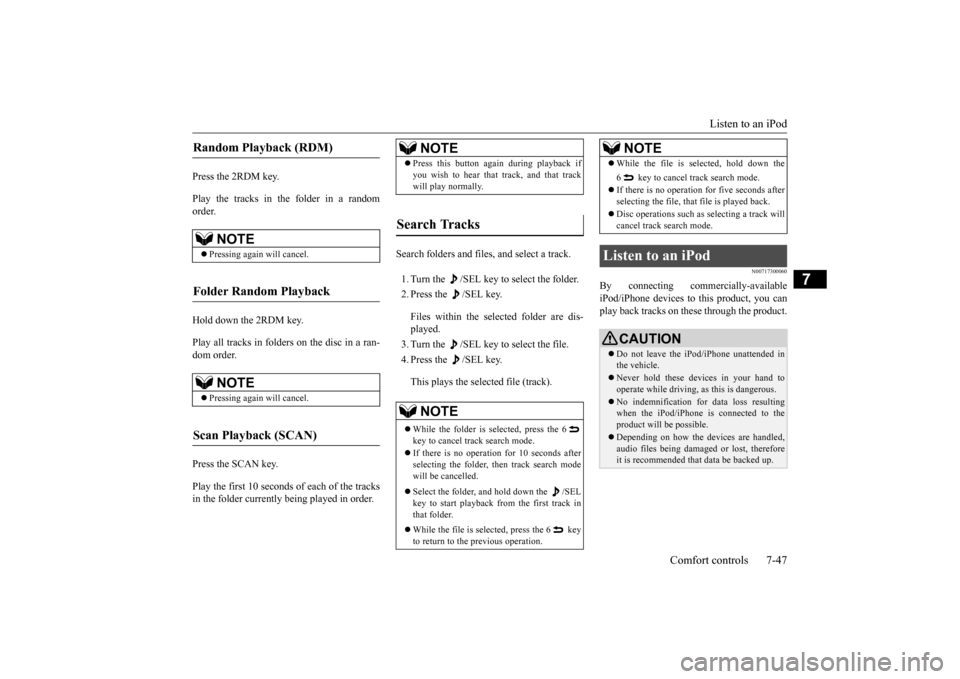
Press the 2RDM key. Play the tracks in the folder in a random order. Hold down the 2RDM key. Play all tracks in folders on the disc in a ran- dom order. Press the SCAN key. Play the first 10 seconds of each of the tracks in the folder currently being played in order.
Search folders and files, and select a track. 1. Turn the /SEL key to select the folder. 2. Press the /SEL key. Files within the selected folder are dis- played. 3. Turn the /SEL key to select the file.4. Press the /SEL key. This plays the selected file (track).
N00717300060
By connecting commercially-available iPod/iPhone devices to this product, you can play back tracks on th
ese through the product.
Random Playback (RDM)
NOTE
Pressing again will cancel.
Folder Random Playback
NOTE
Pressing again will cancel.
Scan Playback (SCAN)
NOTE
Press this button again during playback if you wish to hear that track, and that track will play normally.
Search Tracks
NOTE
While the folder is selected, press the 6 key to cancel track search mode. If there is no operation for 10 seconds after selecting the folder, then track search mode will be cancelled. Select the folder, an
d hold down the /SEL
key to start playback from the first track in that folder. While the file is selected, press the 6 key to return to the previous operation.
While the file is selected, hold down the 6 key to cancel track search mode. If there is no operation for five seconds after selecting the file, that file is played back. Disc operations such as
selecting a track will
cancel track search mode.
Listen to an iPod
CAUTION Do not leave the iPod/iPhone unattended in the vehicle. Never hold these devices in your hand to operate while driving, as this is dangerous. No indemnification for data loss resulting when the iPod/iPhone is connected to theproduct will be possible. Depending on how the devices are handled, audio files being damaged or lost, therefore it is recommended that data be backed up.NOTE
BK0210300US.bo
ok 47 ページ 2014年4月8日 火曜日 午前10時46分