reset MITSUBISHI MIRAGE 2014 6.G MMCS Manual
[x] Cancel search | Manufacturer: MITSUBISHI, Model Year: 2014, Model line: MIRAGE, Model: MITSUBISHI MIRAGE 2014 6.GPages: 135, PDF Size: 26.9 MB
Page 130 of 135
![MITSUBISHI MIRAGE 2014 6.G MMCS Manual 130
Clock Settings
You can set various settings related to the clock.1. Touch the [Clock] key.
The Clock screen is displayed.
2. Touch the desired menu item to set.
[On-screen Clock] key:
Sets wheth](/img/19/7509/w960_7509-129.png "MITSUBISHI MIRAGE 2014 6.G MMCS Manual 130
Clock Settings
You can set various settings related to the clock.1. Touch the [Clock] key.
The Clock screen is displayed.
2. Touch the desired menu item to set.
[On-screen Clock] key:
Sets wheth")
130
Clock Settings
You can set various settings related to the clock.1. Touch the [Clock] key.
The Clock screen is displayed.
2. Touch the desired menu item to set.
[On-screen Clock] key:
Sets whether to display the clock on the
screen.
[Clock Format (24h)] key:
Sets to [ON] to change the clock to 24-hour
format. Turn off to change the clock to 12-hour
format.
Other Settings
When you touch the [Others] key from the
Settings menu, you can check system details
and adjust various system settings.
qInterruption featureYou can choose to automatically display
information on upcoming route directions in
the audio mode screen.
1. Touch the [AV Screen Navigation Guide
Interrupt] key.
The AV Screen Navigation Guide Interrupt
function turns on/off.
qUnit InformationYou can view details about this unit, and
update this unit’s software.
1. Touch the [Unit Information] key.
The Unit Information screen is displayed.
You can view software version
information by touching the [Version
Info] key. You can view the unit code and serial
number for this unit by touching the
[Product Info] key.
Note:
To update the unit’s software, insert an SD card
with a newer version of the system software,
and then touch the [Software Update] key after
touching the [Version Info] key. Normally this
feature is not used.
qChecking ConnectivityYou can view details for various connections
to this unit.
1. Touch the [Check Connectivity] key.
The Check Connectivity screen is
displayed.
2. [OK] is displayed in the panel for each item
that is correctly connected.
You can also touch the [GPS] key for
detailed GPS connection information.
qResetting to Factory
Settings
You can reset the system to return to the
factory settings.
Note:
When the system is reset to the factory settings,
all stored data will be erased except for updated
system software and map data.
All telephone numbers and phonebook data
used with the Bluetooth function will also be
erased.
1. Touch the [Reset to Factory Setting] key.
2. Touch the [Delete All Data] key.
3. From the displayed confirmation screen,
touch the [Ye s] key.
205-0010-00_QY-7375M-A_EN.indb 130205-0010-00_QY-7375M-A_EN.indb 1303/12/2013 9:57:29 AM3/12/2013 9:57:29 AM
Page 135 of 135
135
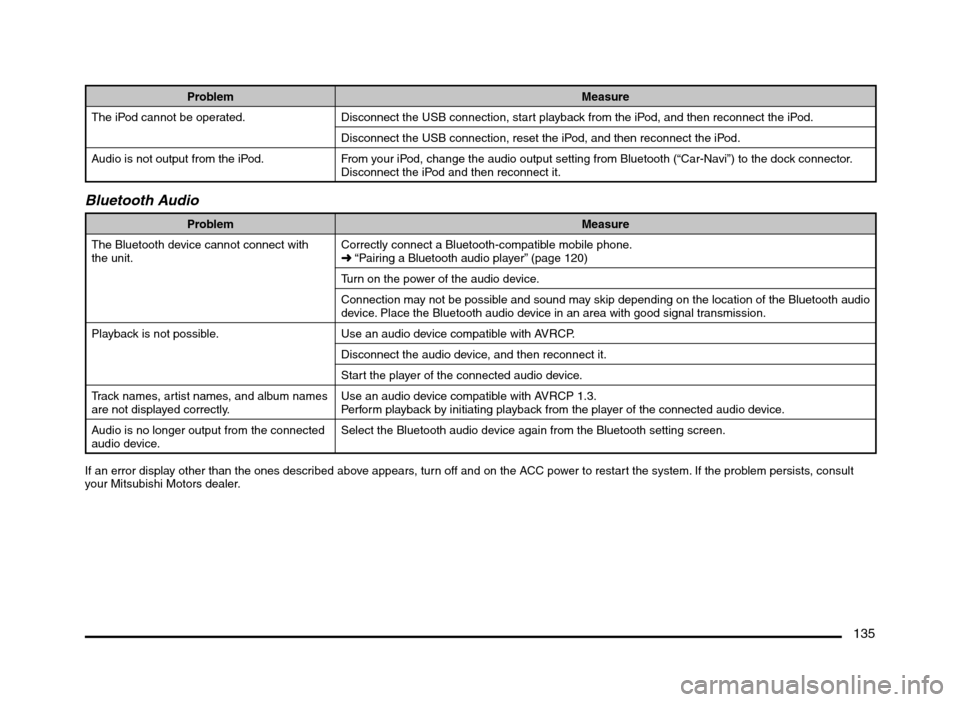
Problem Measure
The iPod cannot be operated. Disconnect the USB connection, start playback from the iPod, and then reconnect the iPod.
Disconnect the USB connection, reset the iPod, and then reconnect the iPod.
Audio is not output from the iPod. From your iPod, change the audio output setting from Bluetooth (“Car-Navi”) to the dock connector.
Disconnect the iPod and then reconnect it.
Bluetooth Audio
Problem Measure
The Bluetooth device cannot connect with
the unit.Correctly connect a Bluetooth-compatible mobile phone.
É “Pairing a Bluetooth audio player” (page 120)
Turn on the power of the audio device.
Connection may not be possible and sound may skip depending on the location of the Bluetooth audio
device. Place the Bluetooth audio device in an area with good signal transmission.
Playback is not possible. Use an audio device compatible with AVRCP.
Disconnect the audio device, and then reconnect it.
Start the player of the connected audio device.
Track names, artist names, and album names
are not displayed correctly.Use an audio device compatible with AVRCP 1.3.
Perform playback by initiating playback from the player of the connected audio device.
Audio is no longer output from the connected
audio device.Select the Bluetooth audio device again from the Bluetooth setting screen.
If an error display other than the ones described above appears, turn off and on the ACC power to restart the system. If the problem persists, consult
your Mitsubishi Motors dealer.
205-0010-00_QY-7375M-A_EN.indb 135205-0010-00_QY-7375M-A_EN.indb 1353/12/2013 9:57:30 AM3/12/2013 9:57:30 AM