tow MITSUBISHI MIRAGE 2014 6.G MMCS Manual
[x] Cancel search | Manufacturer: MITSUBISHI, Model Year: 2014, Model line: MIRAGE, Model: MITSUBISHI MIRAGE 2014 6.GPages: 135, PDF Size: 26.9 MB
Page 37 of 135
37
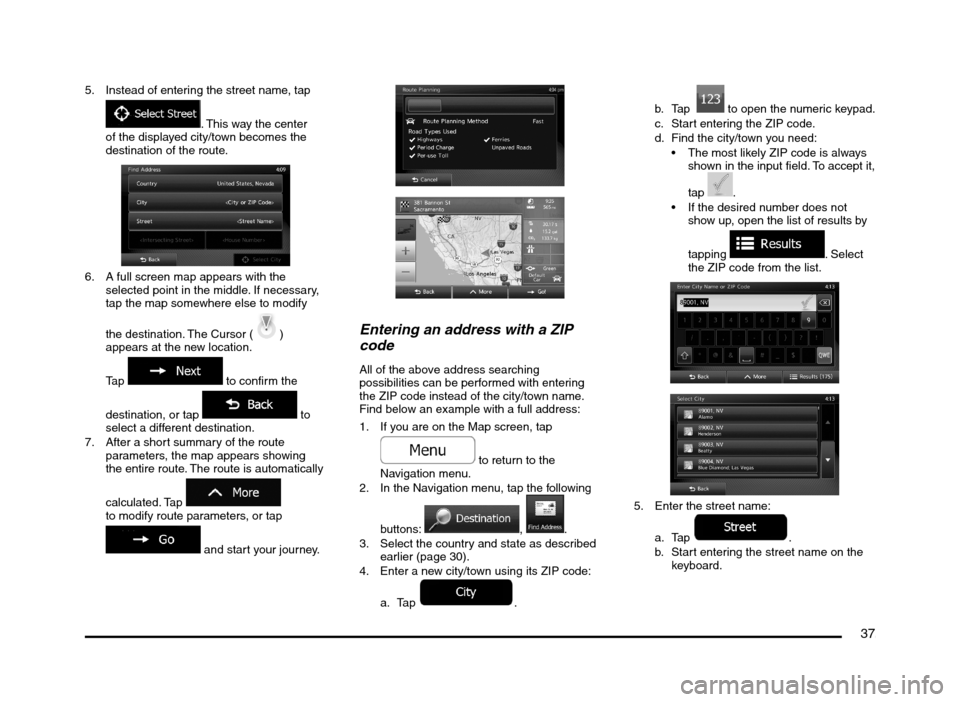
5. Instead of entering the street name, tap
. This way the center
of the displayed city/town becomes the
destination of the route.
6. A full screen map appears with the
selected point in the middle. If necessary,
tap the map somewhere else to modify
the destination. The Cursor (
)
appears at the new location.
Tap
to confirm the
destination, or tap
to
select a different destination.
7. After a short summary of the route
parameters, the map appears showing
the entire route. The route is automatically
calculated. Tap
to modify route parameters, or tap
and start your journey.
Entering an address with a ZIP
code
All of the above address searching
possibilities can be performed with entering
the ZIP code instead of the city/town name.
Find below an example with a full address:
1. If you are on the Map screen, tap
to return to the
Navigation menu.
2. In the Navigation menu, tap the following
buttons:
, .
3. Select the country and state as described
earlier (page 30).
4. Enter a new city/town using its ZIP code:
a. Tap
.b. Tap
to open the numeric keypad.
c. Start entering the ZIP code.
d. Find the city/town you need:
The most likely ZIP code is always
shown in the input field. To accept it,
tap
.
If the desired number does not
show up, open the list of results by
tapping
. Select
the ZIP code from the list.
5. Enter the street name:
a. Tap
.
b. Start entering the street name on the
keyboard.
205-0010-00_QY-7375M-A_EN.indb 37205-0010-00_QY-7375M-A_EN.indb 373/12/2013 9:57:19 AM3/12/2013 9:57:19 AM
Page 38 of 135
38
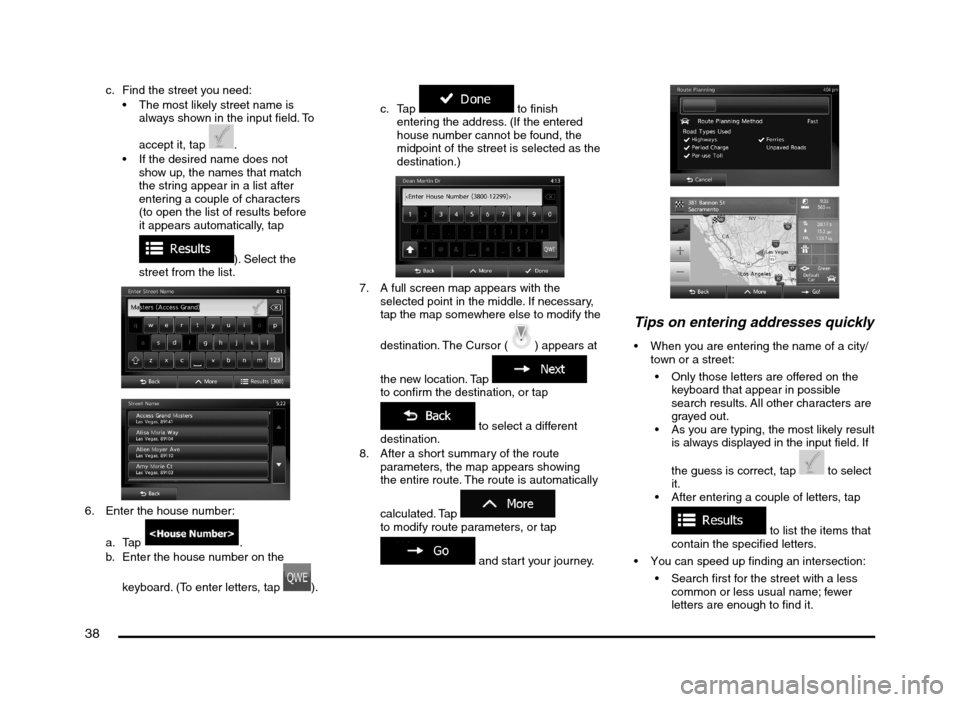
c. Find the street you need:
The most likely street name is
always shown in the input field. To
accept it, tap
.
If the desired name does not
show up, the names that match
the string appear in a list after
entering a couple of characters
(to open the list of results before
it appears automatically, tap
). Select the
street from the list.
6. Enter the house number:
a. Tap
.
b. Enter the house number on the
keyboard. (To enter letters, tap
).c. Tap
to finish
entering the address. (If the entered
house number cannot be found, the
midpoint of the street is selected as the
destination.)
7. A full screen map appears with the
selected point in the middle. If necessary,
tap the map somewhere else to modify the
destination. The Cursor (
) appears at
the new location. Tap
to confirm the destination, or tap
to select a different
destination.
8. After a short summary of the route
parameters, the map appears showing
the entire route. The route is automatically
calculated. Tap
to modify route parameters, or tap
and start your journey.
Tips on entering addresses quickly
When you are entering the name of a city/
town or a street:
Only those letters are offered on the
keyboard that appear in possible
search results. All other characters are
grayed out.
As you are typing, the most likely result
is always displayed in the input field. If
the guess is correct, tap
to select
it.
After entering a couple of letters, tap
to list the items that
contain the specified letters.
You can speed up finding an intersection:
Search first for the street with a less
common or less usual name; fewer
letters are enough to find it.
205-0010-00_QY-7375M-A_EN.indb 38205-0010-00_QY-7375M-A_EN.indb 383/12/2013 9:57:19 AM3/12/2013 9:57:19 AM
Page 39 of 135
39
If one of the streets is shorter, search
for that one first. You can then find the
second one faster.
You can search for both the type and the
name of a road. If the same word appears
in several names, for example in the name
of streets, roads and avenues, you can
obtain the result faster if you enter the first
letter of the street type: For example, enter
‘PI A’ to obtain Pine Avenue and skip all
Pine Streets and Pickwick Roads.
You can also search in ZIP codes. As ZIP
codes consist of only a few characters, this
is usually faster than entering the name of
the city/town.
q
Selecting the destination
from the Places of Interest
You can select your destination from the
Places of Interest included with MMES.
Using the same screen, you can find a Place
in different ways:
with the Quick search feature, you can
quickly find a nearby Place by its name
with the Preset search feature, you can
find frequently searched types of Places
with only a few screen taps
you can search for a Place by its category
you can search for a Place by its name
In addition, you can search for special
services from the ‘Where Am I?’ screen.
You can also find MITSUBISHI dealer and
service locations directly from the Destination
screen with the
button.
Quick search for a Place of
Interest
The Quick search feature lets you quickly find
a Place by its name. The search is always
carried out
along the recommended route if it exists or
around your current location if there is no
destination given.
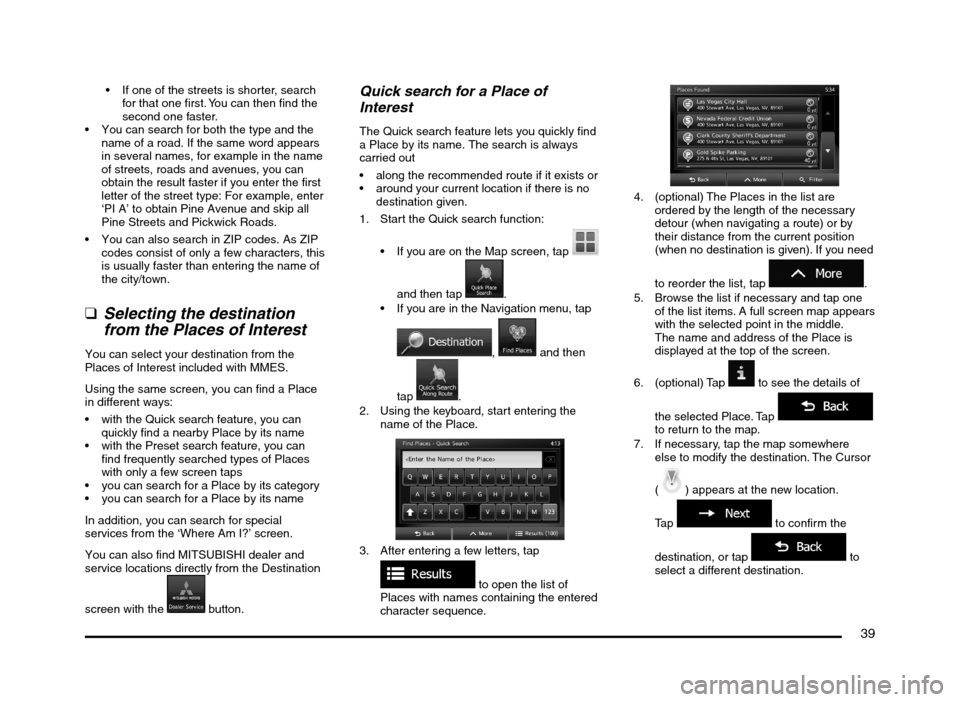
1. Start the Quick search function:
If you are on the Map screen, tap
and then tap
.
If you are in the Navigation menu, tap
, and then
tap
.
2. Using the keyboard, start entering the
name of the Place.
3. After entering a few letters, tap
to open the list of
Places with names containing the entered
character sequence.
4. (optional) The Places in the list are
ordered by the length of the necessary
detour (when navigating a route) or by
their distance from the current position
(when no destination is given). If you need
to reorder the list, tap
.
5. Browse the list if necessary and tap one
of the list items. A full screen map appears
with the selected point in the middle.
The name and address of the Place is
displayed at the top of the screen.
6. (optional) Tap
to see the details of
the selected Place. Tap
to return to the map.
7. If necessary, tap the map somewhere
else to modify the destination. The Cursor
(
) appears at the new location.
Tap
to confirm the
destination, or tap
to
select a different destination.
205-0010-00_QY-7375M-A_EN.indb 39205-0010-00_QY-7375M-A_EN.indb 393/12/2013 9:57:19 AM3/12/2013 9:57:19 AM
Page 41 of 135
41
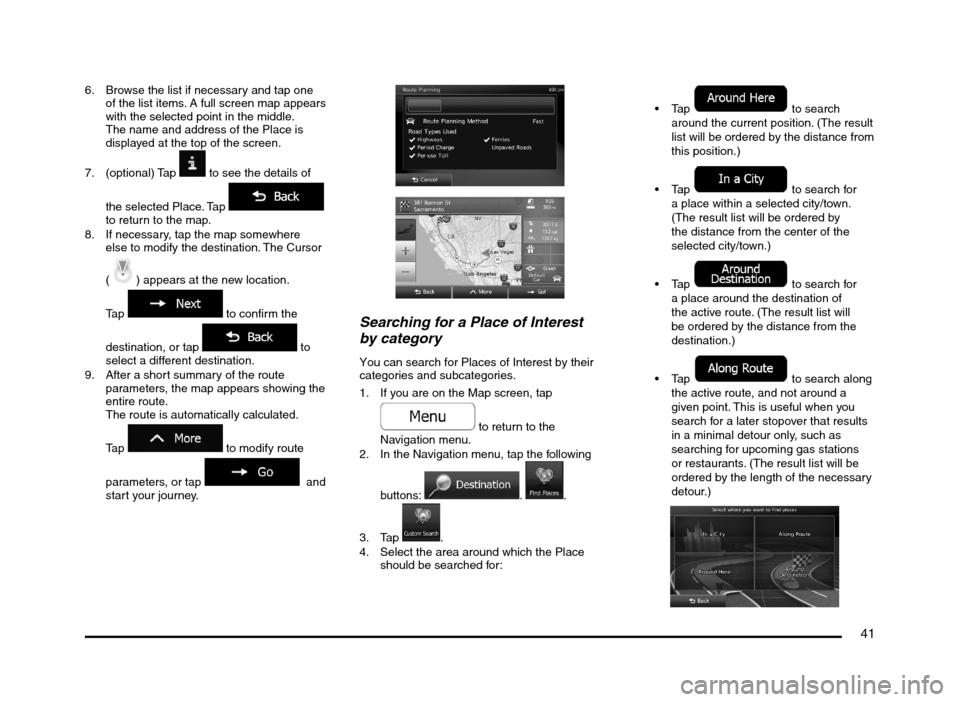
6. Browse the list if necessary and tap one
of the list items. A full screen map appears
with the selected point in the middle.
The name and address of the Place is
displayed at the top of the screen.
7. (optional) Tap
to see the details of
the selected Place. Tap
to return to the map.
8. If necessary, tap the map somewhere
else to modify the destination. The Cursor
(
) appears at the new location.
Tap
to confirm the
destination, or tap
to
select a different destination.
9. After a short summary of the route
parameters, the map appears showing the
entire route.
The route is automatically calculated.
Tap
to modify route
parameters, or tap
and
start your journey.
Searching for a Place of Interest
by category
You can search for Places of Interest by their
categories and subcategories.
1. If you are on the Map screen, tap
to return to the
Navigation menu.
2. In the Navigation menu, tap the following
buttons:
. .
3. Tap
.
4. Select the area around which the Place
should be searched for:
to search
around the current position. (The result
list will be ordered by the distance from
this position.)
to search for
a place within a selected city/town.
(The result list will be ordered by
the distance from the center of the
selected city/town.)
to search for
a place around the destination of
the active route. (The result list will
be ordered by the distance from the
destination.)
to search along
the active route, and not around a
given point. This is useful when you
search for a later stopover that results
in a minimal detour only, such as
searching for upcoming gas stations
or restaurants. (The result list will be
ordered by the length of the necessary
detour.)
205-0010-00_QY-7375M-A_EN.indb 41205-0010-00_QY-7375M-A_EN.indb 413/12/2013 9:57:20 AM3/12/2013 9:57:20 AM
Page 42 of 135
42
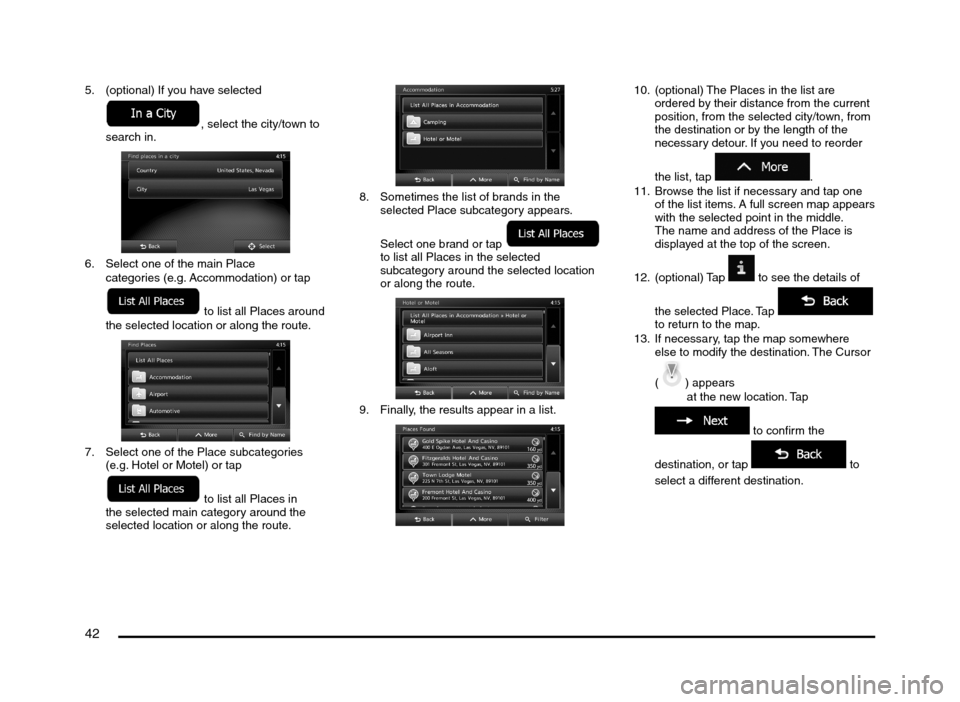
5. (optional) If you have selected
, select the city/town to
search in.
6. Select one of the main Place
categories (e.g. Accommodation) or tap
to list all Places around
the selected location or along the route.
7. Select one of the Place subcategories
(e.g. Hotel or Motel) or tap
to list all Places in
the selected main category around the
selected location or along the route.
8. Sometimes the list of brands in the
selected Place subcategory appears.
Select one brand or tap
to list all Places in the selected
subcategory around the selected location
or along the route.
9. Finally, the results appear in a list.
10. (optional) The Places in the list are
ordered by their distance from the current
position, from the selected city/town, from
the destination or by the length of the
necessary detour. If you need to reorder
the list, tap
.
11. Browse the list if necessary and tap one
of the list items. A full screen map appears
with the selected point in the middle.
The name and address of the Place is
displayed at the top of the screen.
12. (optional) Tap
to see the details of
the selected Place. Tap
to return to the map.
13. If necessary, tap the map somewhere
else to modify the destination. The Cursor
(
) appears
at the new location. Tap
to confirm the
destination, or tap
to
select a different destination.
205-0010-00_QY-7375M-A_EN.indb 42205-0010-00_QY-7375M-A_EN.indb 423/12/2013 9:57:20 AM3/12/2013 9:57:20 AM
Page 43 of 135
43
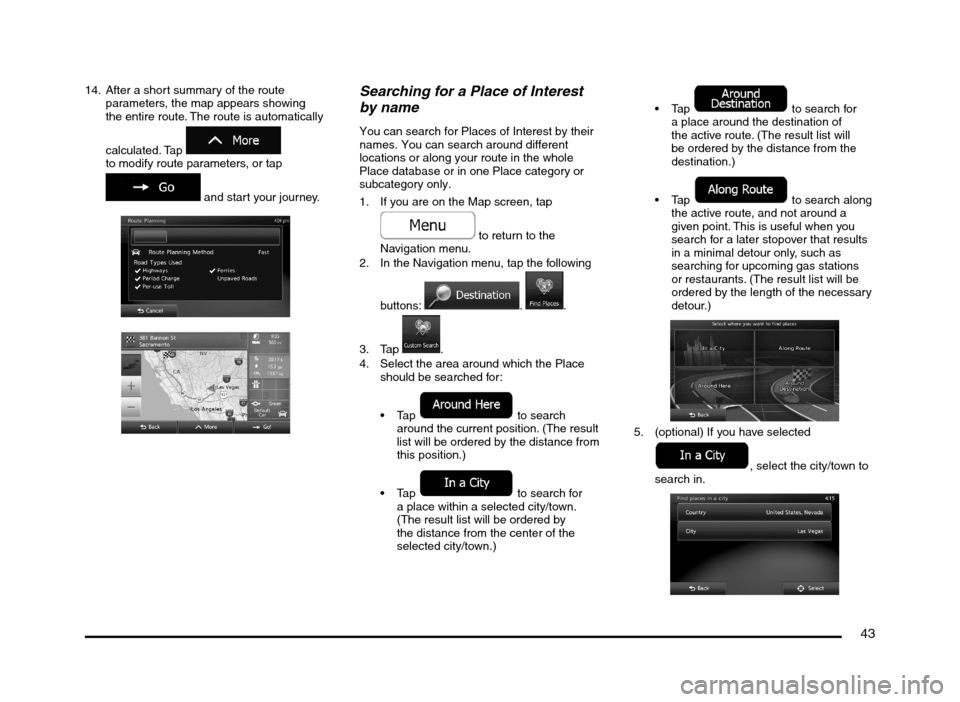
14. After a short summary of the route
parameters, the map appears showing
the entire route. The route is automatically
calculated. Tap
to modify route parameters, or tap
and start your journey.
Searching for a Place of Interest
by name
You can search for Places of Interest by their
names. You can search around different
locations or along your route in the whole
Place database or in one Place category or
subcategory only.
1. If you are on the Map screen, tap
to return to the
Navigation menu.
2. In the Navigation menu, tap the following
buttons:
. .
3. Tap
.
4. Select the area around which the Place
should be searched for:
to search
around the current position. (The result
list will be ordered by the distance from
this position.)
to search for
a place within a selected city/town.
(The result list will be ordered by
the distance from the center of the
selected city/town.)
to search for
a place around the destination of
the active route. (The result list will
be ordered by the distance from the
destination.)
to search along
the active route, and not around a
given point. This is useful when you
search for a later stopover that results
in a minimal detour only, such as
searching for upcoming gas stations
or restaurants. (The result list will be
ordered by the length of the necessary
detour.)
5. (optional) If you have selected
, select the city/town to
search in.
205-0010-00_QY-7375M-A_EN.indb 43205-0010-00_QY-7375M-A_EN.indb 433/12/2013 9:57:20 AM3/12/2013 9:57:20 AM
Page 44 of 135
44
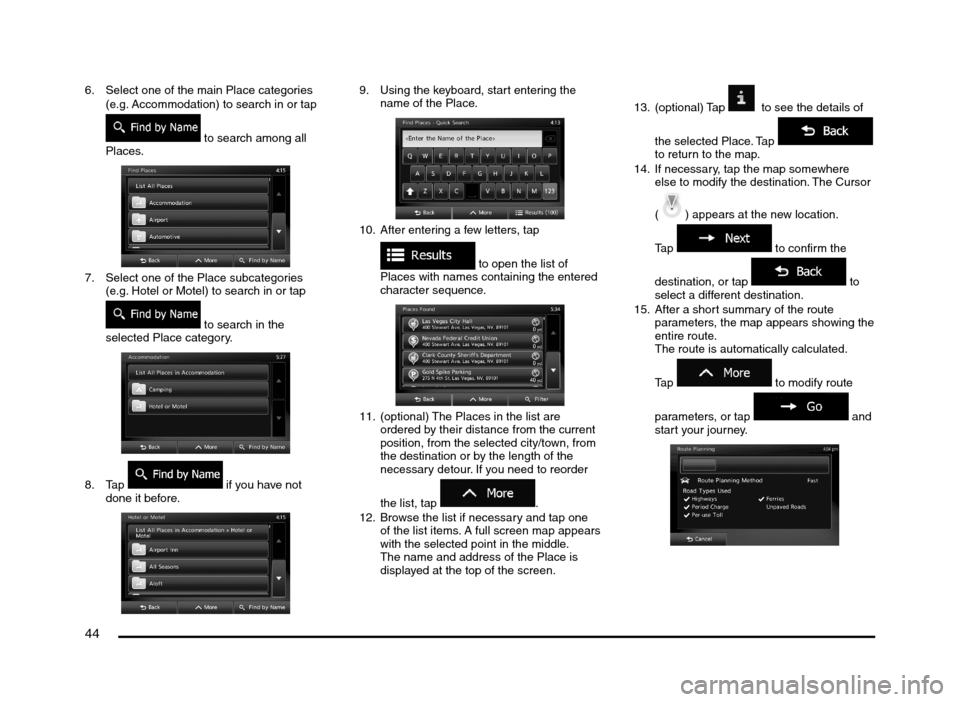
6. Select one of the main Place categories
(e.g. Accommodation) to search in or tap
to search among all
Places.
7. Select one of the Place subcategories
(e.g. Hotel or Motel) to search in or tap
to search in the
selected Place category.
8. Tap if you have not
done it before.
9. Using the keyboard, start entering the
name of the Place.
10. After entering a few letters, tap
to open the list of
Places with names containing the entered
character sequence.
11. (optional) The Places in the list are
ordered by their distance from the current
position, from the selected city/town, from
the destination or by the length of the
necessary detour. If you need to reorder
the list, tap
.
12. Browse the list if necessary and tap one
of the list items. A full screen map appears
with the selected point in the middle.
The name and address of the Place is
displayed at the top of the screen.13. (optional) Tap
to see the details of
the selected Place. Tap
to return to the map.
14. If necessary, tap the map somewhere
else to modify the destination. The Cursor
(
) appears at the new location.
Tap
to confirm the
destination, or tap
to
select a different destination.
15. After a short summary of the route
parameters, the map appears showing the
entire route.
The route is automatically calculated.
Tap
to modify route
parameters, or tap
and
start your journey.
205-0010-00_QY-7375M-A_EN.indb 44205-0010-00_QY-7375M-A_EN.indb 443/12/2013 9:57:20 AM3/12/2013 9:57:20 AM
Page 45 of 135
45
Searching for a Place of Interest
by its phone number
You can search for Places of Interest by their
phone number:
1. If you are on the Map screen, tap
to return to the
Navigation menu.
2. In the Navigation menu, tap the following
buttons:
, .
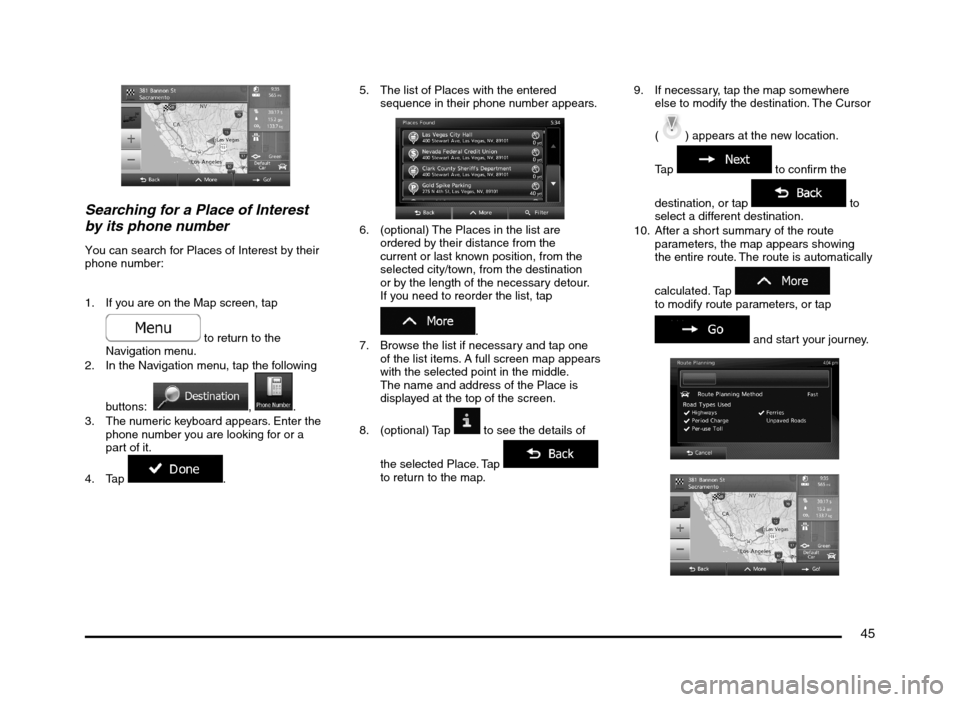
3. The numeric keyboard appears. Enter the
phone number you are looking for or a
part of it.
4. Tap
.5. The list of Places with the entered
sequence in their phone number appears.
6. (optional) The Places in the list are
ordered by their distance from the
current or last known position, from the
selected city/town, from the destination
or by the length of the necessary detour.
If you need to reorder the list, tap
.
7. Browse the list if necessary and tap one
of the list items. A full screen map appears
with the selected point in the middle.
The name and address of the Place is
displayed at the top of the screen.
8. (optional) Tap
to see the details of
the selected Place. Tap
to return to the map.9. If necessary, tap the map somewhere
else to modify the destination. The Cursor
(
) appears at the new location.
Tap
to confirm the
destination, or tap
to
select a different destination.
10. After a short summary of the route
parameters, the map appears showing
the entire route. The route is automatically
calculated. Tap
to modify route parameters, or tap
and start your journey.
205-0010-00_QY-7375M-A_EN.indb 45205-0010-00_QY-7375M-A_EN.indb 453/12/2013 9:57:21 AM3/12/2013 9:57:21 AM
Page 46 of 135
46
Selecting nearby assistance from
‘Where Am I?’
You can quickly search for nearby assistance
from the ‘Where Am I?’ screen.
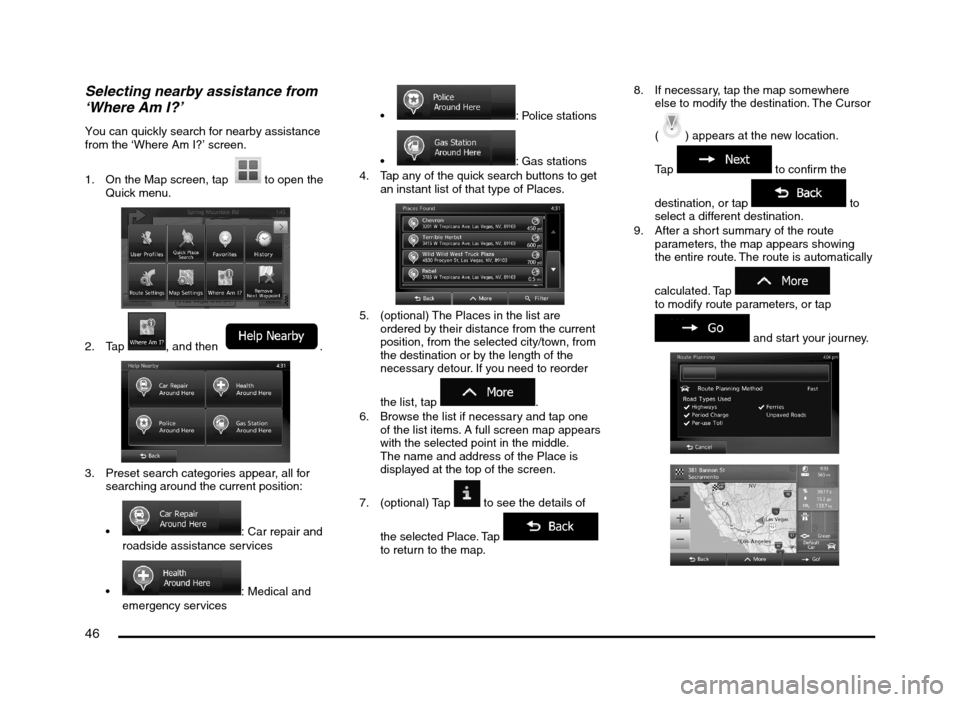
1. On the Map screen, tap
to open the
Quick menu.
2. Tap , and then .
3. Preset search categories appear, all for
searching around the current position:
: Car repair and
roadside assistance services
: Medical and
emergency services
: Police stations
: Gas stations
4. Tap any of the quick search buttons to get
an instant list of that type of Places.
5. (optional) The Places in the list are
ordered by their distance from the current
position, from the selected city/town, from
the destination or by the length of the
necessary detour. If you need to reorder
the list, tap
.
6. Browse the list if necessary and tap one
of the list items. A full screen map appears
with the selected point in the middle.
The name and address of the Place is
displayed at the top of the screen.
7. (optional) Tap
to see the details of
the selected Place. Tap
to return to the map.8. If necessary, tap the map somewhere
else to modify the destination. The Cursor
(
) appears at the new location.
Tap
to confirm the
destination, or tap
to
select a different destination.
9. After a short summary of the route
parameters, the map appears showing
the entire route. The route is automatically
calculated. Tap
to modify route parameters, or tap
and start your journey.
205-0010-00_QY-7375M-A_EN.indb 46205-0010-00_QY-7375M-A_EN.indb 463/12/2013 9:57:21 AM3/12/2013 9:57:21 AM
Page 55 of 135
55
qChecking route alternatives
for an existing route
To recalculate the active route with a different
route planning method, you can modify
the Route settings. There is another way
to do this and to compare different route
alternatives with the same route planning
method. Do as follows:
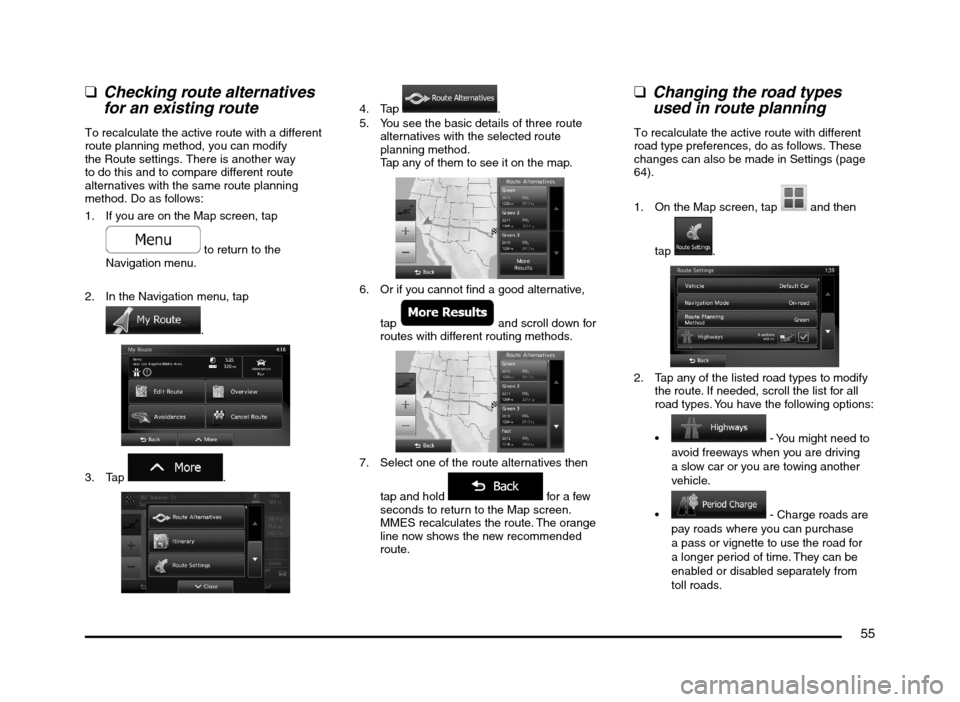
1. If you are on the Map screen, tap
to return to the
Navigation menu.
2. In the Navigation menu, tap
.
3. Tap .
4. Tap .
5. You see the basic details of three route
alternatives with the selected route
planning method.
Tap any of them to see it on the map.
6. Or if you cannot find a good alternative,
tap
and scroll down for
routes with different routing methods.
7. Select one of the route alternatives then
tap and hold
for a few
seconds to return to the Map screen.
MMES recalculates the route. The orange
line now shows the new recommended
route.
qChanging the road types
used in route planning
To recalculate the active route with different
road type preferences, do as follows. These
changes can also be made in Settings (page
64).
1. On the Map screen, tap
and then
tap
.
2. Tap any of the listed road types to modify
the route. If needed, scroll the list for all
road types. You have the following options:
- You might need to
avoid freeways when you are driving
a slow car or you are towing another
vehicle.
- Charge roads are
pay roads where you can purchase
a pass or vignette to use the road for
a longer period of time. They can be
enabled or disabled separately from
toll roads.
205-0010-00_QY-7375M-A_EN.indb 55205-0010-00_QY-7375M-A_EN.indb 553/12/2013 9:57:23 AM3/12/2013 9:57:23 AM