audio MITSUBISHI OUTLANDER 2015 3.G Owner's Manual
[x] Cancel search | Manufacturer: MITSUBISHI, Model Year: 2015, Model line: OUTLANDER, Model: MITSUBISHI OUTLANDER 2015 3.GPages: 446, PDF Size: 59.52 MB
Page 337 of 446
Audio Files (MP3/WMA/AAC) 7-22 Comfort controls
7
N00715900020
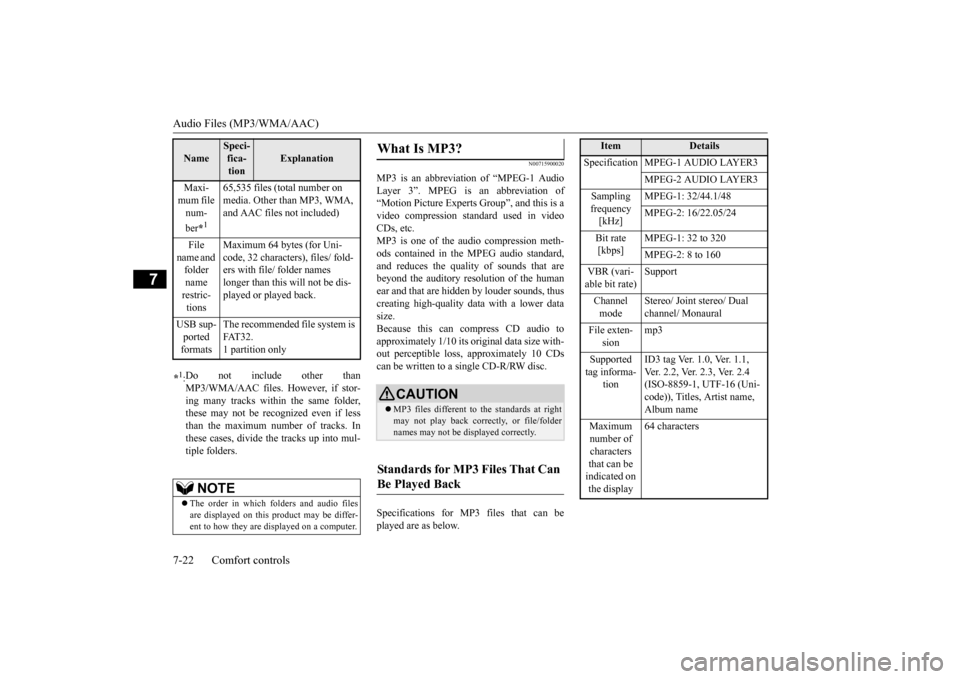
MP3 is an abbreviation of “MPEG-1 Audio Layer 3”. MPEG is an abbreviation of “Motion Picture Experts Group”, and this is avideo compression standard used in video CDs, etc. MP3 is one of the audio compression meth-ods contained in the MPEG audio standard, and reduces the quality
of sounds that are
beyond the auditory resolution of the human ear and that are hidden by louder sounds, thus creating high-qua
lity data with a lower data
size. Because this can co
mpress CD audio to
approximately 1/10 its orig
inal data size with-
out perceptible loss, approximately 10 CDs can be written to a single CD-R/RW disc. Specifications for MP3 files that can be played are as below.
Maxi- mum file num- ber
*1
65,535 files (total number on media. Other than MP3, WMA, and AAC files not included)
File
name and folder name restric-tions
Maximum 64 bytes (for Uni- code, 32 characters), files/ fold-ers with file/ folder names longer than this will not be dis- played or played back.
USB sup- ported formats
The recommended file system is FAT32. 1 partition only
*1: Do not include other than MP3/WMA/AAC files. However, if stor- ing many tracks within the same folder,these may not be recognized even if less than the maximum number of tracks. In these cases, divide the tracks up into mul-tiple folders.
NOTE
The order in which folders and audio files are displayed on this product may be differ- ent to how they are displayed on a computer.Name
Speci- fica- tion
Explanation
What Is MP3?
CAUTION MP3 files different to the standards at right may not play back corr
ectly, or file/folder
names may not be di
splayed correctly.
Standards for MP3 Files That Can Be Played Back
Item
Details
Specification MPEG-1 AUDIO LAYER3
MPEG-2 AUDIO LAYER3
Sampling frequency [kHz]
MPEG-1: 32/44.1/48 MPEG-2: 16/22.05/24
Bit rate [kbps]
MPEG-1: 32 to 320 MPEG-2: 8 to 160
VBR (vari- able bit rate)
Support
Channel mode
Stereo/ Joint stereo/ Dual channel/ Monaural
File exten-
sion
mp3
Supported tag informa-
tion
ID3 tag Ver. 1.0, Ver. 1.1, Ver. 2.2, Ver. 2.3, Ver. 2.4 (ISO-8859-1, UTF-16 (Uni-code)), Titles, Artist name, Album name
Maximum number of characters that can be indicated on the display
64 characters
BK0211800US.book 22 ページ 2014年3月12日 水曜日 午後2時42分
Page 338 of 446
Audio Files (MP3/WMA/AAC)
Comfort controls 7-23
7
N00716000028
WMA is an abbreviation of Windows Media Audio, and this is an
audio compression for-
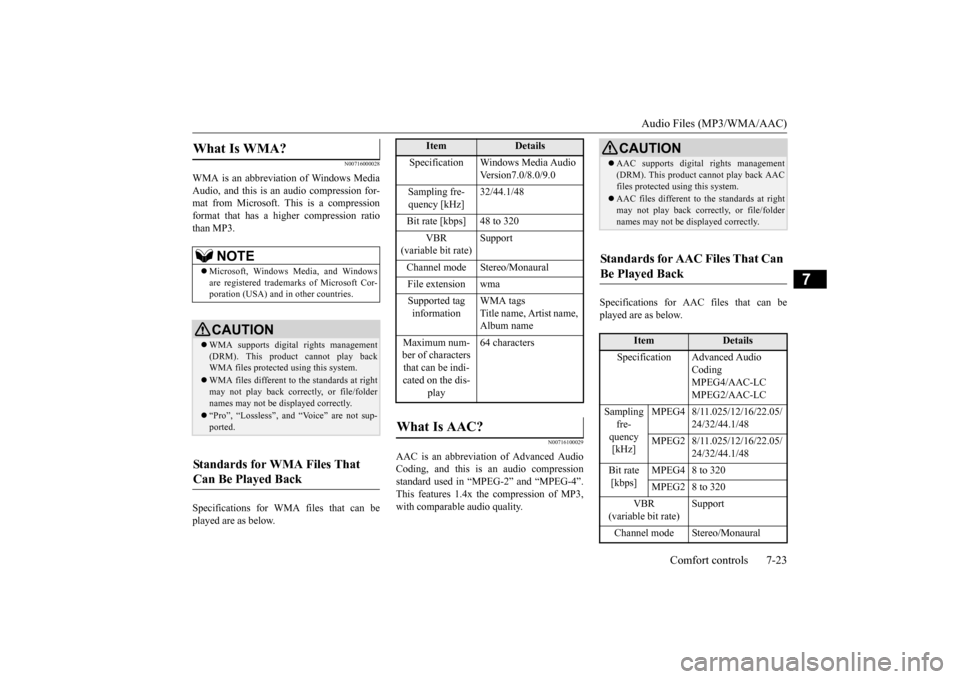
mat from Microsoft. This is a compressionformat that has a higher compression ratio than MP3. Specifications for WMA files that can be played are as below.
N00716100029
AAC is an abbreviation of Advanced Audio Coding, and this is
an audio compression
standard used in “MPEG-2” and “MPEG-4”. This features 1.4x th
e compression of MP3,
with comparable audio quality.
Specifications for AAC files that can be played are as below.
What Is WMA?
NOTE
Microsoft, Windows Media, and Windows are registered trademarks of Microsoft Cor- poration (USA) and in
other countries.
CAUTIONWMA supports digita
l rights management
(DRM). This product cannot play back WMA files protected
using this system.
WMA files different to the standards at right may not play back correctly, or file/folder names may not be displayed correctly. “Pro”, “Lossless”, and “Voice” are not sup- ported.
Standards for WMA Files That Can Be Played Back
Item
Details
Specification Windows Media Audio
Version7.0/8.0/9.0
Sampling fre- quency [kHz]
32/44.1/48
Bit rate [kbps] 48 to 320
VBR
(variable bit rate)
Support
Channel mode Stereo/Monaural File extension wma Supported tag information
WMA tags Title name, Artist name, Album name
Maximum num- ber of characters that can be indi- cated on the dis-
play
64 characters
What Is AAC?
CAUTION AAC supports digita
l rights management
(DRM). This product cannot play back AACfiles protected using this system. AAC files different to
the standards at right
may not play back correctly, or file/foldernames may not be displayed correctly.
Standards for AAC Files That Can Be Played Back
Item
Details
Specification Advanced Audio
CodingMPEG4/AAC-LC MPEG2/AAC-LC
Sampling
fre- quency [kHz]
MPEG4 8/11.025/12/16/22.05/
24/32/44.1/48
MPEG2 8/11.025/12/16/22.05/
24/32/44.1/48
Bit rate [kbps]
MPEG4 8 to 320 MPEG2 8 to 320
VBR
(variable bit rate)
Support
Channel mode Stereo/Monaural
BK0211800US.book 23 ページ 2014年3月12日 水曜日 午後2時42分
Page 340 of 446
Operation Keys
Comfort controls 7-25
7
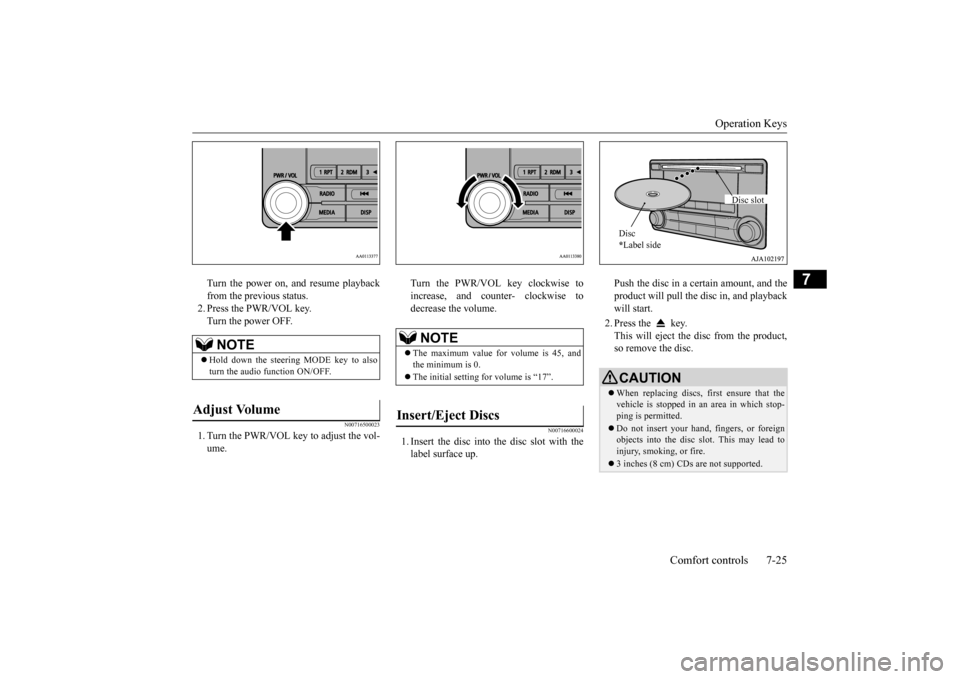
Turn the power on, and resume playback from the previous status.2. Press the PWR/VOL key. Turn the power OFF.
N00716500023
1. Turn the PWR/VOL key to adjust the vol-ume.
Turn the PWR/VOL key clockwise to increase, and counter- clockwise todecrease the volume.
N00716600024
1. Insert the disc into
the disc slot with the
label surface up.
Push the disc in a certain amount, and the product will pull the disc in, and playbackwill start. 2. Press the key. This will eject the disc from the product, so remove the disc.
NOTE
Hold down the steering MODE key to also turn the audio function ON/OFF.
Adjust Volume
NOTE
The maximum value for volume is 45, and the minimum is 0. The initial setting for volume is “17”.
Insert/Eject Discs
CAUTIONWhen replacing discs, first ensure that the vehicle is stopped in an
area in which stop-
ping is permitted. Do not insert your hand, fingers, or foreign objects into the disc slot. This may lead toinjury, smoking, or fire. 3 inches (8 cm) CDs are not supported.Disc * Label side
Disc slot
BK0211800US.book 25 ページ 2014年3月12日 水曜日 午後2時42分
Page 341 of 446
Operation Keys 7-26 Comfort controls
7
N00716700038
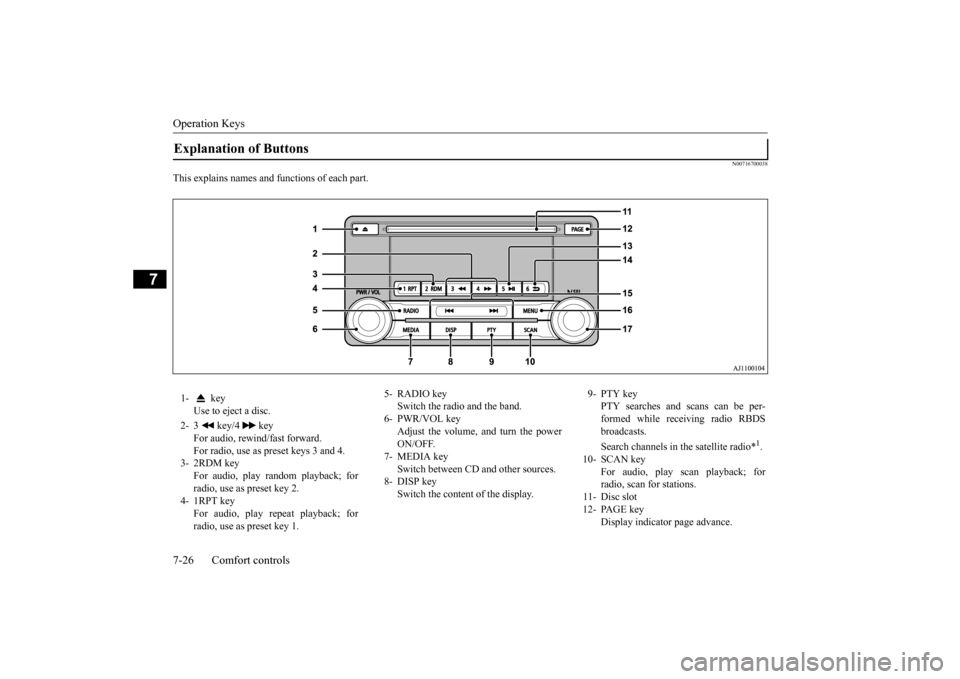
This explains names and functions of each part.Explanation of Buttons 1- key
Use to eject a disc.
2- 3 key/4 key
For audio, rewind/fast forward. For radio, use as preset keys 3 and 4.
3- 2RDM key
For audio, play random playback; for radio, use as preset key 2.
4- 1RPT key
For audio, play repeat playback; for radio, use as preset key 1.
5- RADIO key
Switch the radio and the band.
6- PWR/VOL key
Adjust the volume, and turn the powerON/OFF.
7- MEDIA key
Switch between CD
and other sources.
8- DISP key
Switch the content of the display.
9- PTY key
PTY searches and scans can be per- formed while receiving radio RBDS broadcasts. Search channels in the satellite radio*
1.
10- SCAN key
For audio, play scan playback; forradio, scan for stations.
11- Disc slot 12- PAGE key
Display indicator page advance.
BK0211800US.book 26 ページ 2014年3月12日 水曜日 午後2時42分
Page 342 of 446
Operation Keys
Comfort controls 7-27
7
N00716800042
13-
5 key Play/Pause Bluetooth Audio
*2, and use
as preset key 5 for radio.
14-
6 key Return during audio track search, and stop Bluetooth Audio
*2.
For radio, use as preset key 6.
15-
key/ key
For audio, select a
udio track/file; for
radio, perform auto
matic station selec-
tion. Select channels in the satellite radio*
1.
16- MENU key
Switch to Menu mode.
17- /SEL key
Adjust audio quality
and select items.
For radio, manually select stations. Select channels in the satellite radio*
1.
*1: Requires a satellite
tuner connection.
*2: Requires a separately
-purchased Blue-
tooth-capable audio
device in equip-
ment by type (vehicles with a Bluetooth
® 2.0 interface).
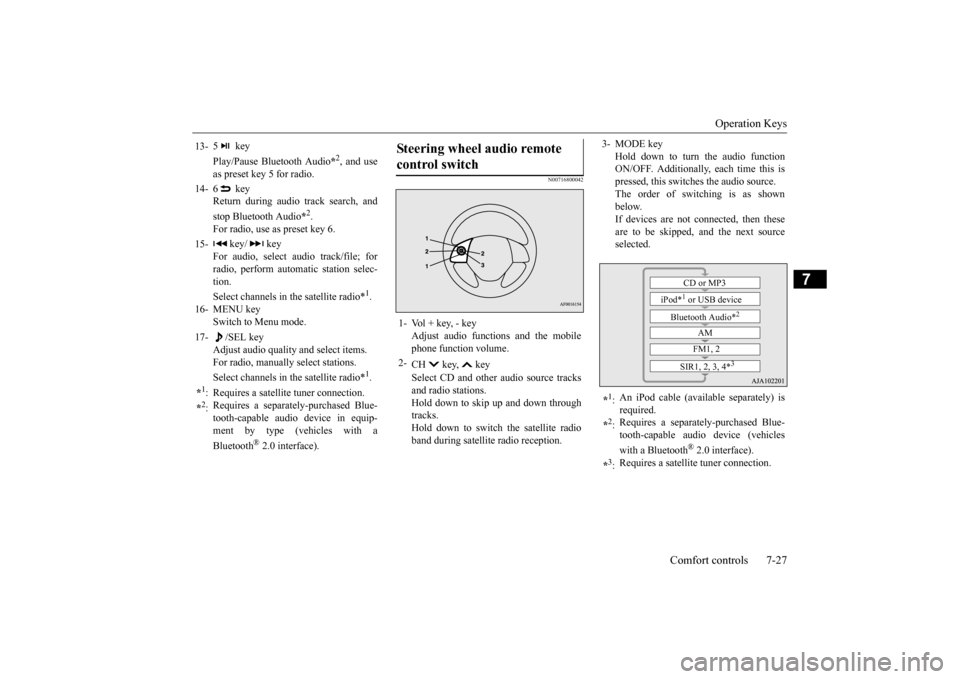
Steering wheel audio remote control switch 1- Vol + key, - key
Adjust audio functions and the mobile phone function volume.
2-
CH key, key Select CD and other
audio source tracks
and radio stations. Hold down to skip up and down through tracks.Hold down to switch the satellite radio band during satellit
e radio reception.
3- MODE key
Hold down to turn the audio function ON/OFF. Additionally, each time this ispressed, this switches the audio source. The order of switching is as shown below.If devices are not connected, then these are to be skipped, and the next source selected.
*1: An iPod cable (availa
ble separately) is
required.
*2: Requires a separately
-purchased Blue-
tooth-capable audio device (vehicles with a Bluetooth
® 2.0 interface).
*3: Requires a satellit
e tuner connection.CD or MP3
iPod*
1 or USB device
Bluetooth Audio*
2
AM FM1, 2
SIR1, 2, 3, 4*
3
BK0211800US.book 27 ページ 2014年3月12日 水曜日 午後2時42分
Page 346 of 446
Listen to CDs
Comfort controls 7-31
7
The CODE required for changing the LOCK settings in the satellite settings is initialized. (The factory setting is “1111”.) When the power is off, press the PWR/VOL key while holding dow
n the /SEL key.
“Turn the Power ON/OFF” (P7-24)
N00717100026
This explains how to
listen to audio CDs
(CD-DA/CD-TEXT). Insert the disc. Insert a disc to automatically start playback. “Insert/Eject Discs” (P.7-25) If a disc is already within the product, press the MEDIA key to switch to CD as the source. Press the key or key to select the track. This enables selection of
the next or previous
track. Hold down the 3 key or the 4 key. Fast forward/rewind is possible.
Repeat playback, random
playback, and scan
playback are possible. Press the 1RPT key. Repeat playback of the track currently being played. Press the 2RDM key. Play the tracks on the disc in a random order.
NOTE
After making preliminar
y settings in the
channel search mode, this will switch to thechannel being received. Channel number “000” is for the SIRUS ID display, so it cannot be searched. If the “PTY ALL” category is selected, all channels can be searched in the channelsearch mode. In the category mode, press the PTY key to cancel search mode. In the channel search mode, press the 6 key to return to the category search mode. In the channel pre
liminary setting mode,
press the 6 key to return to the category search mode without returning to the previ- ous channel search mode. If there is no operation for 10 seconds, the search mode wi
ll be cancelled.
Initialize the CODE (Passcode)
Listen to CDs Play CDs Select the Track Fast Forward or Rewind
Switch Playback Mode Repeat Playback (RPT)
NOTE
Pressing again will cancel. Selecting a track, ejec
ting, fast forwarding,
or rewinding will cancel.
Random Playback (RDM)
NOTE
Pressing again will cancel. Ejecting will cancel this.
BK0211800US.book 31 ページ 2014年3月12日 水曜日 午後2時42分
Page 347 of 446
Listen to MP3s 7-32 Comfort controls
7
Press the SCAN key. Play the first 10 seconds of each of the tracks on the whole disc in order.
N00717200027
This explains how to li
sten to audio files on a
disc. Insert the disc. Insert a disc to automatically start playback. “Insert/Eject Discs” (P.7-25)
If a disc is already wi
thin the product, press
the MEDIA key to switch to CD as thesource. Press the key or key to select the track. This enables selection of the next or previous track. Hold down the 3 key or the 4 key. Fast forward/rewind is possible. Repeat playback, random
playback, and scan
playback are possible.
Press the 1RPT key. Repeat playback of th
e track currently being
played. Hold down the 1RPT key. Repeat playback of the tracks within the folder currently being played. Press the 2RDM key.
Scan Playback (SCAN)
NOTE
Press this button again during playback if you wish to hear that track, and that track will play normally.
Listen to MP3s
CAUTION CD-ROM and CD-R/RW media can only play back MP3 fo
rmat audio files.
To Listen to MP3s
NOTE
Depending on the file st
ructure, it may take
some time to read the contents of the disc.
Select the Track (File) Fast Forward or Rewind Switch Playback Mode
Repeat Playback (RPT)
NOTE
Pressing again will cancel. Selecting a file, ejecti
ng, fast forwarding, or
rewinding will cancel.
Folder Repeat Playback
NOTE
Pressing again will cancel. Even if the file is
selected, folder repeat
playback will not
be cancelled.
Random Playback (RDM)
BK0211800US.book 32 ページ 2014年3月12日 水曜日 午後2時42分
Page 348 of 446
Listen to an iPod
Comfort controls 7-33
7
Play the tracks in the folder in a random order. Hold down the 2RDM key. Play all tracks in folders on the disc in a ran- dom order. Press the SCAN key. Play the first 10 seconds of each of the tracks in the folder currently being played in order.
Search folders and files, and select a track. 1. Turn the /SEL key to select the folder. 2. Press the /SEL key. Files within the selected folder are dis- played. 3. Turn the /SEL key to select the file.4. Press the /SEL key. This plays the selected file (track).
N00717300044
By connecting commercially-available iPod/iPhone devices to this product, you can play back tracks on these through the product.
NOTE
Pressing again will cancel.
Folder Random Playback
NOTE
Pressing again will cancel.
Scan Playback (SCAN)
NOTE
Press this button again during playback if you wish to hear that track, and that track will play normally.
Search Tracks
NOTE
While the folder is selected, press the 6 key to cancel track search mode. If there is no operation for 10 seconds after selecting the folder, then track search mode will be cancelled. Select the folder, and hold down the /SEL key to start playback from the first track inthat folder. While the file is selected, press the 6 key to return to the
previous operation.
While the file is selected, hold down the 6 key to cancel track search mode. If there is no operation for five seconds after selecting the file, that file is played back. Disc operations such as
selecting a track will
cancel track search mode.
Listen to an iPod
CAUTION Do not leave the iP
od/iPhone unattended in
the vehicle. Never hold these devices in your hand to operate while driving,
as this is dangerous.
No indemnification for data loss resulting when the iPod/iPhone is connected to the product will be possible. Depending on how the de
vices are handled,
audio files being damage
d or lost, therefore
it is recommended that
data be backed up.
NOTE
Depending on the generati
on, model, or soft-
ware version of th
e iPod/iPhone, playback
on this product may
not be possible.
( P.7-15) Additionally, playback as
explained in this docum
ent may not be possi-
ble.
BK0211800US.book 33 ページ 2014年3月12日 水曜日 午後2時42分
Page 349 of 446

Listen to an iPod 7-34 Comfort controls
7
Press the MEDIA key to set the iPod as the source. The selected source is
indicated on the dis-
play.
Press the key or key to select the track. This enables selection of
the next or previous
track. Hold down the 3 key or the 4 key. Fast forward/rewind is possible. Repeat playback and
shuffle playback are
possible. Press the 1RPT key. Repeat playback of th
e track currently being
played.
For vehicles with a Bluetooth
® 2.0 interface,
the types of devices
that can be connected
may vary. [For vehicles sold in U.S.A.]For details, access the Mitsubishi Motors North America website. [For vehicles sold in
Canada and Mexico]
For details, access the Mitsubishi Motors website. Please read and agree to the “Warn- ing about Links to the Web Sites of OtherCompanies”. The webs
ites mentioned above
may connect you to websites other than the Mitsubishi Motors website.http://www.mitsubishi
-motors.com/en/prod-
ucts/index.html Regarding how to c
onnect the iPod/iPhone,
refer to “How to c
onnect an iPod” on page
5-207. When connecting th
e iPod/iPhone, use a
commercially-available iPod connection cable. Set up the device in order that no unsafe actions, such as pluggi
ng in the connection
cable are taken while driving. When inserting and removing the iPod/iPhone, for safety’s
sake first stop the
vehicle. Depending on the status
of the iPod/iPhone,
it may take some time
until the device is rec-
ognized, or playback starts. Buttons on the product will not operate while iPod/iPhone is
connected.
NOTE
iPod/iPhone specificati
ons and settings may
mean that connection is not possible, orresult in differences
in operation or display.
Depending on audio data in the iPod/iPhone, track information may
not be displayed cor-
rectly. Depending on the status of the vehicle and device, the iPod/iPhone
may not play back
after starting the engine. Data containing copyri
ght information may
not play back. It is recommended
that the iPod/iPhone
equalizer settings be set to flat. Operate the iPod/iPhone while connected to this product. If the iPod/iPhone is
connected via Bluetooth
as a Bluetooth-capable
audio device, then do
not connect the iPod/iP
hone using an iPod
cable. Connection us
ing both methods will
result in erroneous operation. If an iPod/iPhone does
not operate
correctly,
then remove the iPod/iPhone from the prod- uct, reset, then reconnect.
Play iPod
NOTE
Select the Track (File) Fast Forward or Rewind Switch Playback Mode Repeat Playback (RPT)
NOTE
Pressing again will cancel.
BK0211800US.book 34 ページ 2014年3月12日 水曜日 午後2時42分
Page 350 of 446
Listen to Audio Files on a USB Device
Comfort controls 7-35
7
Press the 2RDM key. Play tracks in the category currently being played in a random order. Hold down the 2RDM key. Play back the album in a random order (tracks in any order on the album). Search categories or trac
k names, and select a
track. 1. Turn the /SEL key to select the cate- gory.
2. Press the /SEL key. Categories or tracks within the selected category aredisplayed. 3. Turn the /SEL key to select the cate- gory or track. 4. Press the /SEL key. Repeat steps 1 to 4,
and search for tracks.
Select the track, and press the /SEL key to play.
N00717400061
By connecting commer
cially-available USB
devices such as USB memory to this product, you can play back audio files on thesethrough the product.
Shuffle Playback (RDM)
NOTE
Pressing again will cancel.
Album Shuffle Playback
NOTE
Pressing again will cancel.
Search Tracks
NOTE
While the category (1st level) is selected, press the 6 key to
cancel track search
mode. If there is no operation for 10 seconds after selecting the category, then track searchmode will be cancelled. Select the category, and hold down the
/SEL key to start playback from the first
track in that category. While the track is selected, press the 6 key to return to th
e previous operation.
While the track is selected, hold down the 6 key to cancel track search mode. If there is no operation for five seconds after selecting the track, that file is played back. iPod operations such as
selecting a track will
cancel track search mode.
Listen to Audio Files on a USB Device
CAUTION Do not leave the USB device unattended in the vehicle. Never hold these devices in your hand to operate while driving,
as this is dangerous.
Do not use hard discs, card readers, or mem- ory readers, as damage may occur to these orto the data contained
therein. If these are
erroneously connected, then turn the ignition switch to the “OFF” or “LOCK” position orput the operation mode in OFF, then remove. Because of the risk of data loss, it is recom- mended that file
s be backed up.
No guarantee is made as regards damage to the USB device, nor regarding loss or dam- age to data contained therein. Depending on how the de
vices are handled,
audio files being damage
d or lost, therefore
it is recommended that
data be backed up.
BK0211800US.book 35 ページ 2014年3月12日 水曜日 午後2時42分