audio MITSUBISHI OUTLANDER 2015 3.G User Guide
[x] Cancel search | Manufacturer: MITSUBISHI, Model Year: 2015, Model line: OUTLANDER, Model: MITSUBISHI OUTLANDER 2015 3.GPages: 446, PDF Size: 59.52 MB
Page 265 of 446

Bluetooth® 2.0 interface (if so equipped) 5-188 Features and controls
5
1. Press the SPEECH button (except for vehicles with Mitsubishi Multi-Commu- nication System) or
PICK-UP button (for
vehicles with Mitsubishi Multi-Commu-nication System). 2. Say “Setup.” 3. Say “Language.”4. The voice guide will say “Select a lan- guage: English, Spanish, French or Japa- nese.” Say the desired language.(Example: “English”)
5. The voice guide will say “English (Span- ish, French or Japanese) selected. Is thiscorrect?” Say “Yes.” If you say “No,” the system will return to Step 4. 6. When the voice gui
de says “English
(Spanish, French or
Japanese) selected,”
the language change pr
ocess will be com-
pleted and the system will return to themain menu.
N00564200016 N00564301027
The Bluetooth
® 2.0 interface is equipped
with a help function. If you say “Help” when th
e system is waiting
for a voice command input, the system will tell you a list of the
commands that can be
used under the ci
rcumstances.
N00564400018
There are 2 cancel functions. If you are at the main menu, say “Cancel” to exit from the Bluetooth
® 2.0 interface.
If you are anywhere else within the system,say “Cancel” to return to the main menu.
N00564501032
The Bluetooth
® 2.0 interface is equipped
with a confirmation function. With the confirmation function activated, you are given more opportunities than normal toconfirm a command when making various settings to the Bluetooth
® 2.0 interface. This
For best performance
and further reduction
of ambient noise, the vehicle windowsshould be closed, lower the blower speed andrefrain from conversat
ion with your passen-
gers while engaging
the voice recognition
function. Some voice commands
have alternative
commands. Depending on the sele
cted language, some
functions may not
be available.
Language can be change
d by using the audio
control panel besides the following proce-dure. For details, refer to
“System settings” on
page 7-42. For DISP
LAY AUDIO and Mit-
subishi Multi-Communication System, refer to the separate owner’s manuals.
Selecting the language
NOTE
NOTE
The voice guide will
repeat the same mes-
sage twice. The first message is in the cur- rent language, and the
second message is in
the selected language. If many entries are registered in the vehicle phonebook, changing the language will take a longer time. Changing the language
deletes the mobile
phonebook imported to the Bluetooth
® 2.0
interface. If you wish to use it, you will have to import it again.
Useful voice commands
Help function
Canceling
Confirmation function setting
BK0211800US.book 188 ページ 2014年3月12日 水曜日 午後2時42分
Page 272 of 446

Bluetooth® 2.0 interface (if so equipped)
Features and controls 5-195
5
5. The voice guide will read out device tags of corresponding device
s in order, starting
with the Bluetooth
® device that has been
most recently connected. 6. After the device tags of all paired Blue- tooth
® devices have been read, the system
will say “End of list,
would you like to
start from the beginning?”To hear the list again from the beginning, answer “Yes.” When you are done, answer “No” to return to the main menu.
N00565301037
You can change the device tag of a paired cel-lular phone or music player. Follow the steps below to change a devicetag. 1. Press the SPEECH button (except for vehicles with Mitsubishi Multi-Commu- nication System) or
PICK-UP button (for
vehicles with Mitsubishi Multi-Commu- nication System). 2. Say “Setup.” 3. Say “Pairing Options.” 4. The voice guide will say “Select one ofthe following: pair, edit, delete, or list.” Say “Edit.” 5. The voice guide will
say “Please say,” and
read out the numbers of the Bluetooth
®
devices and device tags of corresponding devices in order, starting with the Blue- tooth
® that has been most recently con-
nected. After all paired devi
ce tags have been
read, the voice guide will say “Which device, please?” Say the number of the device tag you want to change.
6. The voice guide will say “New name, please.” Say the name you want to regis- ter as a new device tag.When the confirmation function is on, the voice guide will say
“
Is this correct?” Answer “Yes.”Answer “No,” you can say the new device tag you want to register again. 7. The device tag is changed.When the change is complete, the voice guide will say “New
name saved” and
then the system will return to the mainmenu.
N00565401070
For the operation of a music player connected via Bluetooth®, refer to the following sec- tions. [For vehicles equi
pped with the AM/FM
radio/CD player] Refer to “Listen to Bluetooth Audio” on page 7-38.
NOTE
If you press and release the SPEECH button and say “Continue” or
“Previous” while the
list is being read, the system will advance or rewind the list. Say “Continue” to proceed to the device withthe next highest number or “Previous” to return to the phone with the previous num- ber. You can change the device tag by pressing and releasing the SPEECH button and thensaying “Edit” while the
list is being read.
You can change the
phone to be connected
by pressing and releasing the SPEECH but- ton and then saying “S
elect phone” while the
list is being read. You can change the music player to be con- nected by pressing
and releasing the
SPEECH button and th
en saying “Select
music player” while the list is being read.
Changing a device tag
NOTE
You can press and release the SPEECH but- ton while the list is
being read, and immedi-
ately say the number of the device tag youwant to change.
Operating a music player con- nected via Bluetooth
®
BK0211800US.book 195 ページ 2014年3月12日 水曜日 午後2時42分
Page 273 of 446
![MITSUBISHI OUTLANDER 2015 3.G User Guide Bluetooth® 2.0 interface (if so equipped) 5-196 Features and controls
5
[For vehicles equippe
d with the Mitsubishi
Multi-Communication System (MMCS)]Refer to the separate owner’s manual. [For ve](/img/19/7534/w960_7534-272.png "MITSUBISHI OUTLANDER 2015 3.G User Guide Bluetooth® 2.0 interface (if so equipped) 5-196 Features and controls
5
[For vehicles equippe
d with the Mitsubishi
Multi-Communication System (MMCS)]Refer to the separate owner’s manual. [For ve")
Bluetooth® 2.0 interface (if so equipped) 5-196 Features and controls
5
[For vehicles equippe
d with the Mitsubishi
Multi-Communication System (MMCS)]Refer to the separate owner’s manual. [For vehicles equipped with the DISPLAY AUDIO]Refer to the separate owner’s manual.
N00565501097
You can make or receive hands-free calls using a Bluetooth
® compatible cellular phone
connected to the Bluetooth
® 2.0 interface.
You can also use the phonebooks in the Blue- tooth
® 2.0 interface to make calls without
dialing telephone numbers. To make a call P.5-196 Send function P.5-198 Receiving calls P.5-198Mute function P.5-198 Switching between hand
s-free mode and pri-
vate mode P.5-198
N00565601098
You can make a call in the following 3 ways using the Bluetooth
® 2.0 interface:
By saying a telephone number By using the Bluetooth
® 2.0 interface’s
phonebook By redialing a telephone number
You can make a call by saying the telephone number. 1. Press the SPEECH button (except for vehicles with Mitsubishi Multi-Commu-nication System) or PICK-UP button (for vehicles with Mitsubishi Multi-Commu- nication System).2. Say “Dial.” 3. After the voice gui
de says “Number
please,” say the
telephone number.
4. The voice guide wi
ll say “Dialing
® 2.0 interface will then
make the call.
When the confirmation function is on, the system will confirm the telephone numberagain. To continue with that number, answer “Yes.” To change the telephone number, answer“No.” The system
will say “Number
please” then say th
e telephone number
again.
You can make calls using the vehicle phone- book or mobile phonebook of the Bluetooth
®
2.0 interface. For details on the phonebooks, refer to “Phonebook function” on page 5-198.
How to make or receive hands- free calls
NOTE
Hands-free calls may not
operate correctly
when you place or receive the call directly from your cellular phone, instead of using the Bluetooth
® 2.0 interface.
To m a k e a c a l l
Making a call by using the telephone number
NOTE
In the case of English, the system will recog- nise both “zero” and “oh”
(Letter “o”) for the
number “0.” The Bluetooth
® 2.0 interface supports num-
bers (0 to 9) and characters (+, # and
*).
The maximum supporte
d telephone number
length is as follows: • International telephone
number: + and tele-
phone numbers (to 18 digits). • Except for international telephone number: telephone numbers (to 19 digits).
Making a call using a phonebook
BK0211800US.book 196 ページ 2014年3月12日 水曜日 午後2時42分
Page 275 of 446

Bluetooth® 2.0 interface (if so equipped) 5-198 Features and controls
5
1. Press the SPEECH button (except for vehicles with Mitsubishi Multi-Commu-nication System) or
PICK-UP button (for
vehicles with Mitsubishi Multi-Commu- nication System).2. Say “Redial.”
N00565700018
During a call, press
the SPEECH button to
enter voice recognition mode, then say “
N00565801045
If an incoming phone call is received whilethe ignition switch or the operation mode is in ON or ACC, the audio
system will be auto-
matically turned on and switched to theincoming call, even when the audio system was originally off. The voice guide announcement for theincoming call will be output from the front passenger’s seat speaker.
If the CD player or radio was playing when the incoming call was received, the audio sys-tem will mute the sound from the CD player or radio and output only the incoming call. To receive the call, press the PICK-UP buttonon the steering wheel control switch. When the call is over, the audio system will return to its previous state.
N00565900010
At any time during a
call, you can mute the
vehicle microphone. Pressing the SPEECH but
ton and then saying
“Mute” during a call will turn ON the mutefunction and mute the microphone. Saying “Mute off” in the same way will turn off the mute function and cancel the mute onthe microphone.
N00566600014
The Bluetooth
® 2.0 interface can switch
between hands-free m
ode (hands-free calls)
and private mode (calls
using cellular phone).
If you press the SPEECH button and say “Transfer call” duri
ng a hands-free call, you
can stop the hands-free m
ode and talk in pri-
vate mode.
To return to hands-free mode, press the SPEECH button again and say “Transfercall.”
N00566000018
The Bluetooth
® 2.0 interface
has 2 types of
unique phonebooks that are different from the phonebook stored in the cellular phone. They are the vehicle phonebook and the mobile phonebook. These phonebooks are used to register tele-phone numbers and make
calls to desired
numbers via voice re
cognition function.
N00566101120
This phonebook is used when making calls with the voice recognition function. Up to 32 names can be registered in the vehi- cle phonebook per language.Also, each entry has 4 locations associated with: home, work, mobile and other. You can register one telephone number for each loca-tion.
Send function
Receiving calls
Mute function
Switching between hands-free mode and private mode
Phonebook function
NOTE
Disconnecting the ba
ttery cable will not
delete information registered in the phone-book.
Vehicle phonebook
BK0211800US.book 198 ページ 2014年3月12日 水曜日 午後2時42分
Page 284 of 446
USB input terminal (if so equipped)
Features and controls 5-207
5
N00566901102
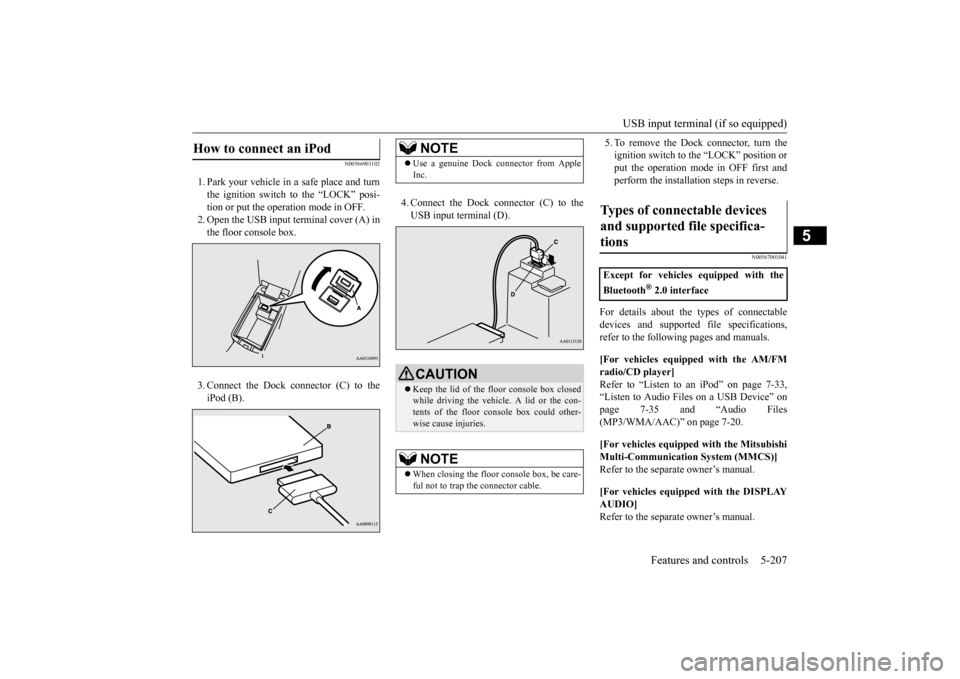
1. Park your vehicle in
a safe place and turn
the ignition switch to the “LOCK” posi-tion or put the opera
tion mode in OFF.
2. Open the USB input
terminal cover (A) in
the floor console box. 3. Connect the Dock connector (C) to the iPod (B).
4. Connect the Dock connector (C) to the USB input terminal (D).
5. To remove the Dock connector, turn the ignition switch to the “LOCK” position orput the operation mode in OFF first and perform the installation steps in reverse.
N00567001041
For details about the
types of connectable
devices and supported fi
le specifications,
refer to the following pages and manuals. [For vehicles equipped with the AM/FM radio/CD player] Refer to “Listen to an
iPod” on page 7-33,
“Listen to Audio File
s on a USB Device” on
page 7-35 and “Audio Files (MP3/WMA/AAC)” on page 7-20. [For vehicles equipped with the Mitsubishi Multi-Communication
System (MMCS)]
Refer to the separa
te owner’s manual.
[For vehicles equipped with the DISPLAY AUDIO] Refer to the separa
te owner’s manual.
How to connect an iPod
NOTE
Use a genuine Dock connector from Apple Inc.CAUTION Keep the lid of the floor console box closed while driving the vehicle. A lid or the con- tents of the floor console box could other-wise cause injuries.NOTE
When closing the floor console box, be care- ful not to trap the connector cable.
Types of connectable devices and supported file specifica-tions
Except for vehicles equipped with the Bluetooth
® 2.0 interface
BK0211800US.book 207 ページ 2014年3月12日 水曜日 午後2時42分
Page 285 of 446
USB input terminal (if so equipped) 5-208 Features and controls
5
For details about the types of connectable devices and supported fi
le specifications,
refer to the following section.
N00567101130
Devices of the follow
ing types can be con-
nected. For these connectable de
vice types, “iPod*,”
“iPod classic*,” “iP
od nano*,” “iPod touch*”
and “iPhone*,” refer to the following web- site: [For vehicles sold in U.S.A.]You can access the Mitsubishi Motors North America website. [For vehicles sold in Canada and Mexico]
You can access the Mi
tsubishi Motors web-
site. Please read and agree to the “Warningabout Links to the Web Sites of Other Com- panies”. The websites
mentioned above may
connect you to websites
other than the Mit-
subishi Motors website. http://www.mitsubishi-
motors.com/en/prod-
ucts/index.html * : “iPod,” “iPod classic,” “iPod nano,” “iPod touch,” and “iPhone” are registered trade- marks of Apple Inc. in the United States and other countries.
N00567201056
You can play music files of the followingspecifications that are saved in a USB mem- ory device or other device supporting mass storage class. When you connect your iPod,playable file specifications depend on the connected iPod.
For vehicles equipped with the Blue- tooth
® 2.0 interface
Device types
Model name
Condition
USB memory device
Storage capac- ity of 256 Mbytes or more
Models other than USB memory devices and iPods
Digital audio player support-ing mass stor- age class
NOTE
Depending on the type of the USB memory device or other devi
ce connected, the con-
nected device may not
function properly or
the available functi
ons may be limited.
It is recommended to use an iPod with firm- ware updated to th
e latest version.
You can charge your iP
od by connecting it to
the USB input terminal
when the ignition
switch or the operation mode is in ON or ACC. Do not keep your USB memory device or iPod in your vehicle. It is recommended that you back up the files in case of data damage.
Do not connect to the USB input terminal any device (hard disk, card reader, memoryreader, etc.) other than the connectabledevices specified in the previous section. The device and/or data
may be damaged. If
any of these devices
was connected by mis-
take, remove it afte
r turning the ignition
switch to the “LOCK”
position or putting the
operation mode in OFF.
File specifications
Item
Condition
File format
MP3, WMA, AAC, WAV
Maximum number of levels (including the root)
Level 8
Number of folders 700 Number of files 65,535
NOTE
BK0211800US.book 208 ページ 2014年3月12日 水曜日 午後2時42分
Page 316 of 446
7
Comfort controlsVents ................................................................................................7-2 Automatic climate control air conditioner
..............
...........
.........
.....7-5
Important air conditioning operating tips ..
...........
...........
.........
.....7-14
Air purifier .....................................................................................7-14 AM/FM radio/CD player (if so equipped) .....................................7-15 Handling of Discs ..........................................................................7-18Audio Files (MP3/WMA/AAC) ....................................................7-20 Important Points on Safety for the Customer ................................7-24 Operation Keys ..............................................................................7-24Listen to Radio ...............................................................................7-28 Listen to Satellite Radio (if so equipped) .......................................7-29 Listen to CDs .................................................................................7-31Listen to MP3s ...............................................................................7-32 Listen to an iPod ............................................................................7-33 Listen to Audio Files on a USB Device .........................................7-35Listen to Bluetooth Audio (if so equipped) ....................................7-38 Display Indicator ...........................................................................7-40 Audio Quality and Volume Balance Adjustment ...........................7-41System Settings ..............................................................................7-42 Troubleshooting ..........
...........
...........
...........
...........
.........
.........
.....7-45
Antenna ..........................................................................................7-47General information about your radio .....
...........
...........
...........
.....7-48
BK0211800US.book 1 ページ 2014年3月12日 水曜日 午後2時42分
Page 330 of 446
AM/FM radio/CD player (if so equipped)
Comfort controls 7-15
7
N00734302102
The audio system can only be used when the ignition switch or the
operation mode is in
ON or ACC.
N00715000021
This product supports audio playback from iPod/iPhone devices, however dif- fering versions mean
that playback cannot
be guaranteed. Please be aware that depending on the iPod/iPhone model or
version, operation
may differ.
N00715200023
If the product becomes dirty, wipe with a soft cloth. If very dirty, use a soft cloth dipped in neutral detergent diluted in water, and then wrung out. Do not use benzene, thin- ners, or other chemic
al wipes. This may
harm the surface.
N00715300053
Product names and other proper names are the trademarks or registered trade- marks of their respective owners. Furthermore, even if there is no specific denotation of trademarks or registered trademarks, these are to be observed intheir entirety. “Made for iPod”, “Made for iPhone” mean that an electronic accessory has been designed to conne
ct specifically to
iPod or iPhone, respectively, and has beencertified by the deve
loper to meet Apple
performance standards. iPhone, iPod, iPod cla
ssic, iPod nano, and
iPod touch are trademarks of Apple Inc., registered in the U.S.
and other countries.
AM/FM radio/CD player
(if
so equipped)
NOTE
To listen to the audio system while the engine is not running, turn the ignitionswitch to the “ACC” position or put the oper- ation mode in ACC. If the ignition switch
or the operation mode
is left in ACC, the accessory power will automatically turn off after a certain period of time and you will no longer be able to usethe audio system. The accessory power comes on again if the ignition switch or the engine switch is operated with it in the“ACC” position. Refer
to “ACC power auto-
cutout function” on page 5-18 and 5-56. If a cellular phone is
used inside the vehicle,
it may create noise in the audio equipment. This does not mean that anything is wrongwith your audio equipment. In such a case, use the cellular phone at
a place as far away
as possible from the audio equipment.
If foreign objects or water get into the audio equipment, or if smoke or a strange odorcomes from it, immediately turn off theaudio system and have it checked at an authorized Mitsubishi
Motors dealer or a
repair facility of your
choice. Never try to
repair it yourself. Avoid using the audio sys- tem until it is insp
ected by a qualified per-
son. If the audio system is damaged by foreign objects, water, or fi
re, have the system
checked by a qualified Mitsubishi Motors technician.
Important Points on Usage
iPod/iPhone Playback Function
(if
so equipped)
NOTE
How to Clean
Trademarks
BK0211800US.book 15 ページ 2014年3月12日 水曜日 午後2時42分
Page 335 of 446
Audio Files (MP3/WMA/AAC) 7-20 Comfort controls
7
Discs that have not
been finalized cannot
be played back. Even if recorded using the correct format on a recorder or computer, application software settings and environments; discpeculiarities, damage,
or marking; or dirt
or condensation on the lens inside the product may render the disc unplayable. Depending on the disc
, some functions
may not be used, or the disc may not play back. Do not use discs with cracks or warps. If the disc has sticke
rs affixed, remains
from removed stickers, or affixed adhe- sive, then do not use the disc. Discs that have decora
tive labels or stick-
ers may not be used.
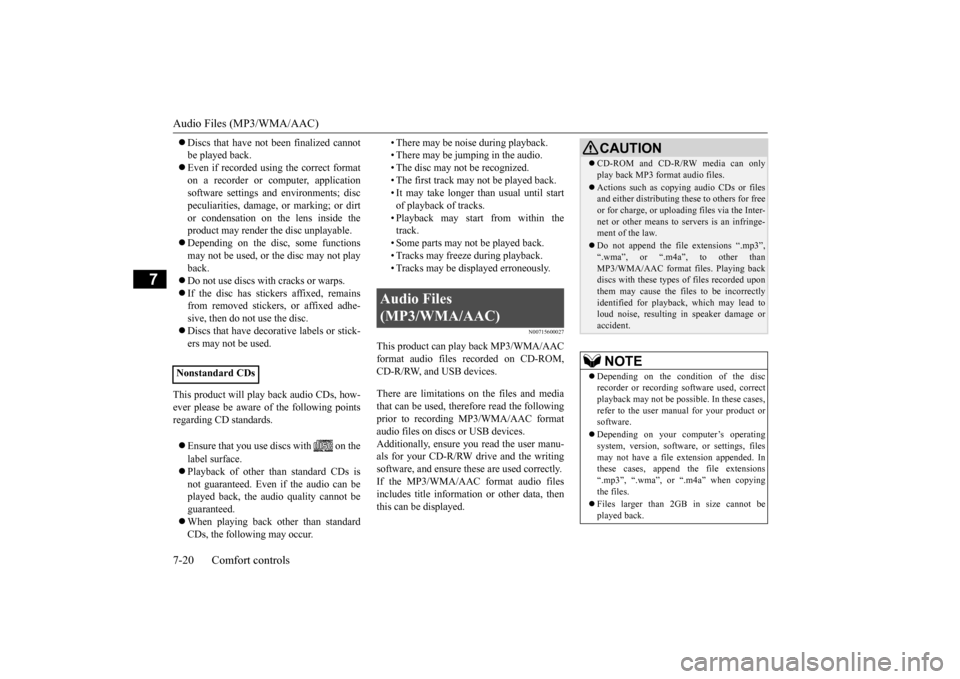
This product will play
back audio CDs, how-
ever please be aware of the following points regarding CD standards. Ensure that you use discs with on the label surface. Playback of other than standard CDs is not guaranteed. Even
if the audio can be
played back, the audio quality cannot beguaranteed. When playing back other than standard CDs, the following may occur.
• There may be noise during playback. • There may be jumping in the audio.• The disc may not be recognized. • The first track may not be played back. • It may take longer than usual until startof playback of tracks. • Playback may start from within the track.• Some parts may not be played back. • Tracks may freeze during playback. • Tracks may be displayed erroneously.
N00715600027
This product can play back MP3/WMA/AACformat audio files recorded on CD-ROM, CD-R/RW, and USB devices. There are limitations on the files and media that can be used, therefore read the followingprior to recording MP3/WMA/AAC format audio files on discs or USB devices. Additionally, ensure y
ou read the user manu-
als for your CD-R/RW drive and the writing software, and ensure these are used correctly. If the MP3/WMA/AAC
format audio files
includes title informati
on or other data, then
this can be displayed.
Nonstandard CDs
Audio Files (MP3/WMA/AAC)
CAUTION CD-ROM and CD-R/RW media can only play back MP3 fo
rmat audio files.
Actions such as copying audio CDs or files and either distributing these to others for free or for charge, or uploading files via the Inter-net or other means to servers is an infringe- ment of the law. Do not append the file
extensions “.mp3”,
“.wma”, or “.m4a”, to other than MP3/WMA/AAC format
files. Playing back
discs with these types of files recorded upon them may cause the files to be incorrectly identified for playback, which may lead toloud noise, resulting in speaker damage or accident.NOTE
Depending on the condition of the disc recorder or recording software used, correctplayback may not be po
ssible. In these cases,
refer to the user manual for your product or software. Depending on your computer’s operating system, version, softwa
re, or settings, files
may not have a file
extension appended. In
these cases, append
the file extensions
“.mp3”, “.wma”, or “.m4a” when copying the files. Files larger than 2GB in size cannot be played back.
BK0211800US.book 20 ページ 2014年3月12日 水曜日 午後2時42分
Page 336 of 446
Audio Files (MP3/WMA/AAC)
Comfort controls 7-21
7
N00715700028
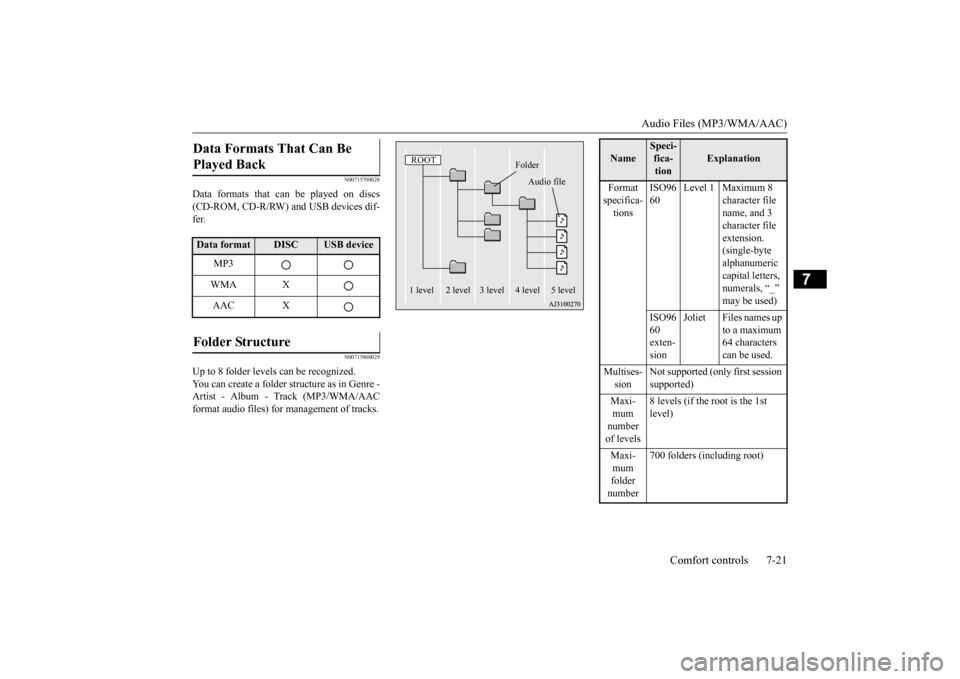
Data formats that can be played on discs (CD-ROM, CD-R/RW) and USB devices dif-fer.
N00715800029
Up to 8 folder levels can be recognized.You can create a folder structure as in Genre -Artist - Album - Track (MP3/WMA/AAC format audio files) for
management of tracks.
Data Formats That Can Be Played Back Data format
DISC
USB device
MP3 WMA XAAC X
Folder Structure
ROOT
Folder
Audio file
1 level 2 level 3 level 4 level 5 level
Name
Speci- fica- tion
Explanation
Format specifica- tions
ISO96 60
Level 1 Maximum 8
character file name, and 3 character file extension. (single-byte alphanumeric capital letters, numerals, “_” may be used)
ISO96 60 exten- sion
Joliet Files names up
to a maximum 64 characters can be used.
Multises- sion
Not supported (only first session supported)
Maxi- mum number of levels
8 levels (if the root is the 1st level)
Maxi- mum folder number
700 folders (including root)
BK0211800US.book 21 ページ 2014年3月12日 水曜日 午後2時42分