All MITSUBISHI OUTLANDER 2016 3.G Owners Manual
[x] Cancel search | Manufacturer: MITSUBISHI, Model Year: 2016, Model line: OUTLANDER, Model: MITSUBISHI OUTLANDER 2016 3.GPages: 464, PDF Size: 60.77 MB
Page 342 of 464
Important air condit
ioning operating tips
7-14 Comfort controls
7
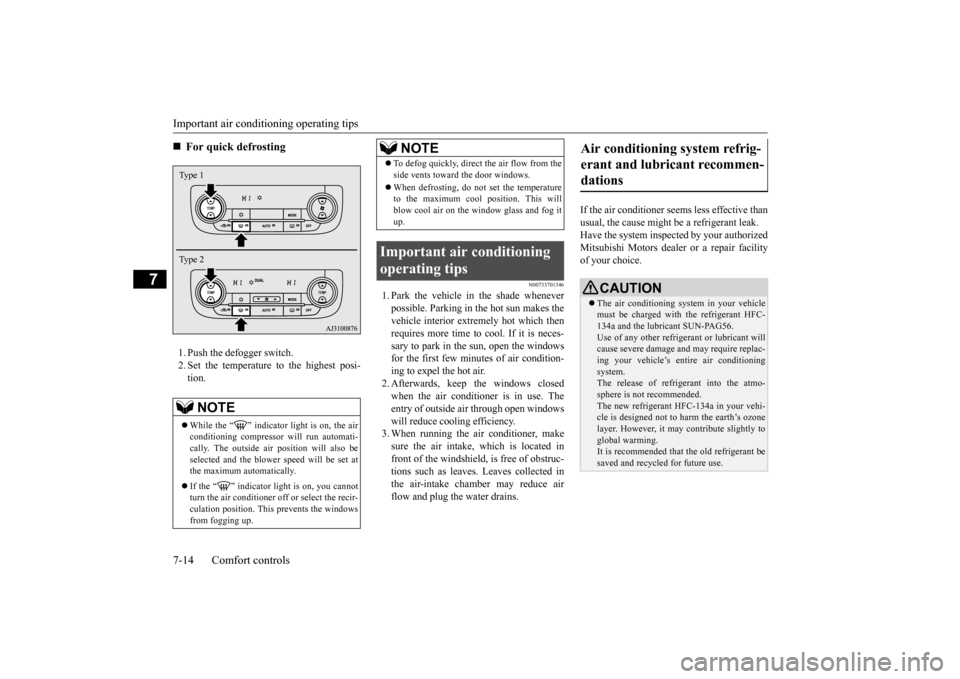
1. Push the defogger switch. 2. Set the temperature to the highest posi- tion.
N00733701346
1. Park the vehicle in the shade whenever possible. Parking in the hot sun makes thevehicle interior extremely hot which then requires more time to cool. If it is neces- sary to park in the sun, open the windowsfor the first few minutes of air condition- ing to expel the hot air. 2. Afterwards, keep the windows closedwhen the air conditioner is in use. The entry of outside air through open windows will reduce cooling efficiency.3. When running the air conditioner, make sure the air intake, which is located in front of the windshield,
is free of obstruc-
tions such as leaves. Leaves collected in the air-intake chamber may reduce air flow and plug the water drains.
If the air conditioner seem
s less effective than
usual, the cause might
be a refrigerant leak.
Have the system inspected by your authorized Mitsubishi Motors dealer
or a repair facility
of your choice.
For quick defrosting NOTE
While the “ ” indicator light is on, the air conditioning compressor
will run automati-
cally. The outside ai
r position will also be
selected and the blower
speed will be set at
the maximum au
tomatically.
If the “ ” indicator light is on, you cannot turn the air conditioner off or select the recir- culation position. This prevents the windows from fogging up.Type 1 Type 2
To defog quickly, direct the air flow from the side vents toward the door windows. When defrosting, do not set the temperature to the maximum cool position. This will blow cool air on the window glass and fog itup.
Important air conditioning operating tips
NOTE
Air conditioning system refrig- erant and lubricant recommen-dations
CAUTION The air conditioning system in your vehicle must be charged with the refrigerant HFC-134a and the lubricant SUN-PAG56. Use of any other refrige
rant or lubricant will
cause severe da
mage and may re
quire replac-
ing your vehicle’s entire air conditioning system. The release of refrigerant into the atmo-sphere is not recommended. The new refrigerant HFC-134a in your vehi- cle is designed not to harm the earth’s ozonelayer. However, it ma
y contribute slightly to
global warming. It is recommended that the old refrigerant besaved and recycled for future use.
BK0223400US.book 14 ページ 2015年2月13日 金曜日 午後12時15分
Page 343 of 464
Air purifier
Comfort controls 7-15
7
The air conditioner should be operated for at least five minutes each week, even in cold weather. This includes the quick defrostingmode. Operating the
air condition system
weekly maintains lubrication of the compres- sor internal parts to keep the air conditionerin the best operating condition.
N00733801190
The air conditioning syst
em is equipped with
an air filter to remove pollen and dust. The air filter’s ability to collect pollen anddirt is reduced as it be
comes dirty, so replace
it periodically. For the
maintenance interval,
refer to the “WARRANTY AND MAINTE-NANCE MANUAL”.
N00734302102
The audio system can only be used when theignition switch or the
operation mode is in
ON or ACC.
N00715000021
This product supports audio playback from iPod/iPhone devi
ces, however dif-
fering versions mean
that playback cannot
be guaranteed. Please be aware that depending on the iPod/iPhone model or
version, operation
may differ.
During a long period of disuse Air purifier
NOTE
Operation in certain conditions such as driv- ing on a dusty road and frequent use of the air conditioner can lead
to reduction of ser-
vice life of the filter. When you feel that theair flow is lower than normal or when the windshield or windows start to fog up easily, replace the air filter.Contact your Mitsubishi
Motors dealer or a
repair facility of your
choice for assistance.
AM/FM radio/CD player
(if
so equipped)
NOTE
To listen to the audio system while the engine is not running, turn the ignitionswitch to the “ACC”
position or put the oper-
ation mode in ACC. If the ignition switch
or the operation mode
is left in ACC, the accessory power will automatically turn off after a certain period of time and you will no
longer be able to use
the audio system. The accessory power comes on again if the ignition switch or the engine switch is operated with it in the“ACC” position. Refer to “ACC power auto- cutout function” on page 5-19 and 5-60. If a cellular phone is used inside the vehicle, it may create noise in
the audio equipment.
This does not mean that anything is wrongwith your audio equipmen
t. In such a case,
use the cellular phone at a place as far away as possible from the audio equipment.
If foreign objects or wa
ter get into the audio
equipment, or if smoke or a strange odorcomes from it, immediately turn off theaudio system and have
it checked at an
authorized Mitsubishi Motors dealer or a repair facility of your choice. Never try torepair it yourself. Avoid using the audio sys- tem until it is inspected by a qualified per- son. If the audio system is damaged by foreign objects, water, or fire, have the systemchecked by a qualified Mitsubishi Motors technician.
Important Points on Usage
iPod/iPhone Playback Function
(if
so equipped)
NOTE
BK0223400US.book 15 ページ 2015年2月13日 金曜日 午後12時15分
Page 344 of 464
AM/FM radio/CD player (if so equipped) 7-16 Comfort controls
7
N00715200023
If the product becomes dirty, wipe with a soft cloth. If very dirty, use a soft cloth dipped in neutral detergent diluted in water, and then wrung out. Do not use benzene, thin- ners, or other chemic
al wipes. This may
harm the surface.
N00715300053
Product names and other proper names are the trademarks or registered trade- marks of their respective owners. Furthermore, even if there is no specific denotation of trademarks or registered trademarks, these are to be observed intheir entirety. “Made for iPod”, “Made for iPhone” mean that an electronic accessory has been designed to connect specifically to iPod or iPhone, respec
tively, and has been
certified by the devel
oper to meet Apple
performance standards. iPhone, iPod, iPod clas
sic, iPod nano, and
iPod touch are trademarks of Apple Inc., registered in the U.S. and other countries.
Apple is not responsible for the operation of this device or its compliance withsafety and regulatory standards.
How to Clean
Trademarks
NOTE
iPod and iTunes licensi
ng allows individual
users to privately re
produce and play back
non- copyrighted material
as well as material
that may be legally copied and reproduced. Infringement of copyr
ight is prohibited.
For vehicles w
ith a Bluetooth
® 2.0 interface,
the types of devices
that can be connected
may vary.[For vehicles sold in U.S.A.] For details, access the Mitsubishi Motors North America website.[For vehicles sold in Canada and Mexico] For details, access the Mitsubishi Motors website. Please read and agree to the “Warn-ing about Links to the Web Sites of OtherCompanies”. The webs
ites mentioned above
may connect you to websites other than the Mitsubishi Motors website.http://www.mitsubishi-motors.com/en/prod- ucts/index.html
BK0223400US.book 16 ページ 2015年2月13日 金曜日 午後12時15分
Page 347 of 464
Handling of Discs
Comfort controls 7-19
7
Fingerprints or other marks on the read surface of the disc may result in its con-tent being more difficult to read. When holding the disc, grip
both edges, or one
edge and the center hole, in order that theread surface is not touched. Do not affix paper or stickers, or other- wise damage the disc. Do not forcefully insert a disc if another is already within the device. This can result in damage to discs, or malfunction. Periodically clean the read surface of the disc. When cleaning, do not wipe in a cir- cular motion. Instead, wipe gently out-wards from the center of the disc to the outer edge. New discs may have burring around the outer edge or in the hole in the center. Ensure you check for these. If there are burrs, these may lead to faulty operation,therefore ensure these are removed. When not using discs, ensure these are kept in cases, and stor
ed out of direct sun-
light.
If discs are not going to be used for a long period of time, remove these from theproduct.
In cold environments such as in mid-winter when the interior of the vehicle is cold, turn- ing the heater on and
immediately trying to
use the product may cause condensation (water droplets) to form
on the disc and inter-
nal optical components,
and this may prevent
the product from operating correctly. In these conditions, rem
ove the disc
, and wait
a short time before use. Actions such as unauthorized reproduction, broadcast, public perfo
rmance, or rental of
discs that comprise other than personal useare prohibited by law.
N00715500026
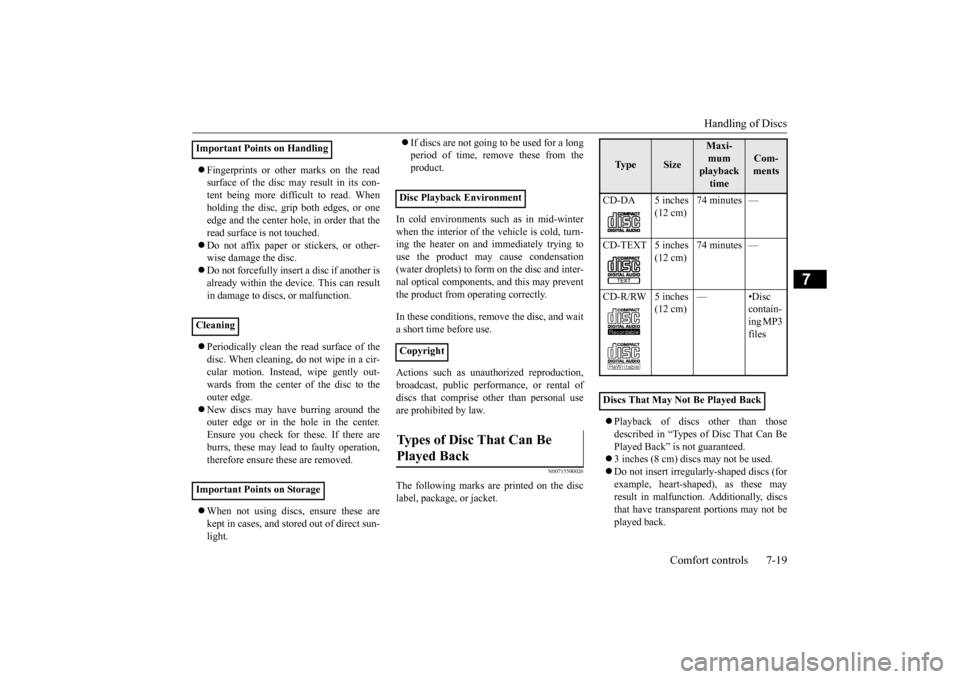
The following marks are printed on the disc label, package, or jacket.
Playback of discs
other than those
described in “Types of Disc That Can Be Played Back” is not guaranteed. 3 inches (8 cm) discs may not be used. Do not insert irregularly-shaped discs (for example, heart-shaped), as these mayresult in malfunction.
Additionally, discs
that have transparent portions may not be played back.
Important Points on Handling Cleaning Important Points on Storage
Disc Playback Environment CopyrightTypes of Disc That Can Be Played Back
Ty p e
Size
Maxi- mum playback time
Com- ments
CD-DA 5 inches
(12 cm)
74 minutes —
CD-TEXT 5 inches
(12 cm)
74 minutes —
CD-R/RW 5 inches
(12 cm)
—•Disc
contain-ing MP3 files
Discs That May Not Be Played Back
BK0223400US.book 19 ページ 2015年2月13日 金曜日 午後12時15分
Page 348 of 464
Audio Files (MP3/WMA/AAC) 7-20 Comfort controls
7
Discs that have not
been finalized cannot
be played back. Even if recorded using the correct format on a recorder or computer, application software settings and environments; discpeculiarities, damage,
or marking; or dirt
or condensation on the lens inside the product may render the disc unplayable. Depending on the disc
, some functions
may not be used, or the disc may not play back. Do not use discs with cracks or warps. If the disc has sticke
rs affixed, remains
from removed stickers, or affixed adhe- sive, then do not use the disc. Discs that have decora
tive labels or stick-
ers may not be used.
This product will play
back audio CDs, how-
ever please be aware of the following points regarding CD standards. Ensure that you use discs with on the label surface. Playback of other than standard CDs is not guaranteed. Even
if the audio can be
played back, the audio quality cannot beguaranteed. When playing back other than standard CDs, the following may occur.
• There may be noise during playback. • There may be jumping in the audio.• The disc may not be recognized. • The first track may not be played back. • It may take longer than usual until startof playback of tracks. • Playback may start from within the track.• Some parts may not be played back. • Tracks may freeze during playback. • Tracks may be displayed erroneously.
N00715600027
This product can play back MP3/WMA/AACformat audio files recorded on CD-ROM, CD-R/RW, and USB devices. There are limitations on the files and media that can be used, therefore read the followingprior to recording MP3/WMA/AAC format audio files on discs or USB devices. Additionally, ensure y
ou read the user manu-
als for your CD-R/RW drive and the writing software, and ensure these are used correctly. If the MP3/WMA/AAC
format audio files
includes title informati
on or other data, then
this can be displayed.
Nonstandard CDs
Audio Files (MP3/WMA/AAC)
CAUTION CD-ROM and CD-R/RW media can only play back MP3 fo
rmat audio files.
Actions such as copying audio CDs or files and either distributing these to others for free or for charge, or uploading files via the Inter-net or other means to servers is an infringe- ment of the law. Do not append the file
extensions “.mp3”,
“.wma”, or “.m4a”, to other than MP3/WMA/AAC format
files. Playing back
discs with these types of files recorded upon them may cause the files to be incorrectly identified for playback, which may lead toloud noise, resulting in speaker damage or accident.NOTE
Depending on the condition of the disc recorder or recording software used, correctplayback may not be po
ssible. In these cases,
refer to the user manual for your product or software. Depending on your computer’s operating system, version, softwa
re, or settings, files
may not have a file
extension appended. In
these cases, append
the file extensions
“.mp3”, “.wma”, or “.m4a” when copying the files. Files larger than 2GB in size cannot be played back.
BK0223400US.book 20 ページ 2015年2月13日 金曜日 午後12時15分
Page 355 of 464
Operation Keys
Comfort controls 7-27
7
N00716800042
13-
5 key Play/Pause Bluetooth Audio
*2, and use
as preset key 5 for radio.
14-
6 key Return during audio track search, and stop Bluetooth Audio
*2.
For radio, use as preset key 6.
15-
key/ key
For audio, select a
udio track/file; for
radio, perform auto
matic station selec-
tion. Select channels in the satellite radio*
1.
16- MENU key
Switch to Menu mode.
17- /SEL key
Adjust audio quality and select items. For radio, manually select stations. Select channels in the satellite radio*
1.
*1: Requires a satellite
tuner connection.
*2: Requires a separate
ly-purchased Blue-
tooth-capable audio
device in equip-
ment by type (vehicles with a Bluetooth
® 2.0 interface).
Steering wheel audio remote control switch 1- Vol + key, - key
Adjust audio functions and the mobile phone function volume.
2-
CH key, key Select CD and other
audio source tracks
and radio stations. Hold down to skip up and down through tracks.Hold down to switch the satellite radio band during satellit
e radio reception.
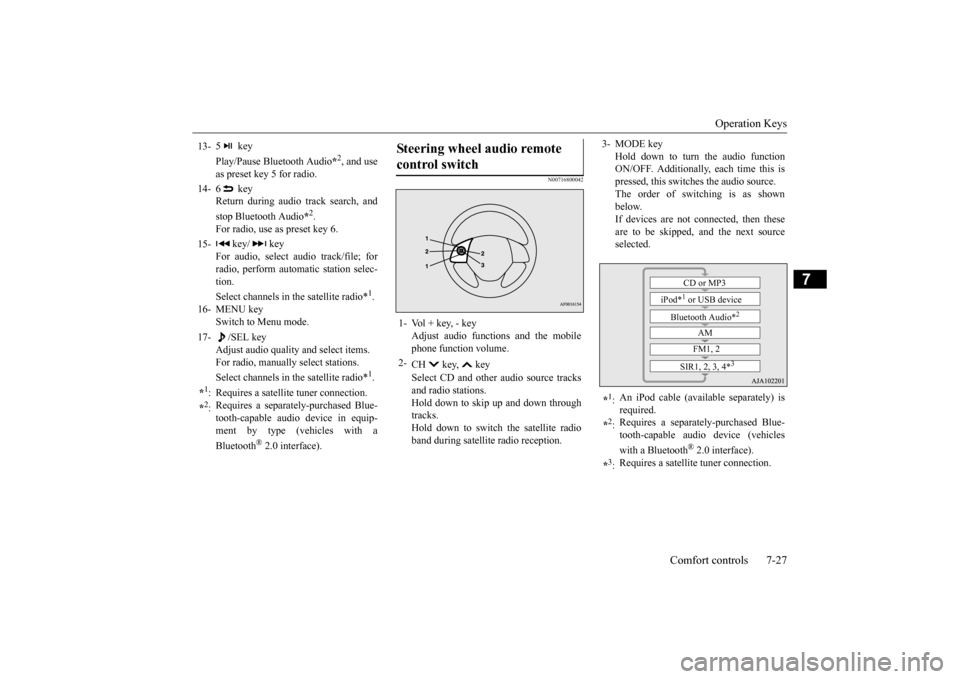
3- MODE key
Hold down to turn the audio function ON/OFF. Additionally, each time this ispressed, this switches the audio source. The order of switching is as shown below.If devices are not connected, then these are to be skipped, and the next source selected.
*1: An iPod cable (availa
ble separately) is
required.
*2: Requires a separately
-purchased Blue-
tooth-capable audio device (vehicles with a Bluetooth
® 2.0 interface).
*3: Requires a satellit
e tuner connection.CD or MP3
iPod*
1 or USB device
Bluetooth Audio*
2
AM FM1, 2
SIR1, 2, 3, 4*
3
BK0223400US.book 27 ページ 2015年2月13日 金曜日 午後12時15分
Page 356 of 464
Listen to Radio 7-28 Comfort controls
7
N00716900069
This explains how to listen to AM and FM radio broadcasts. Press the RADIO key to switch the band. Switch between AM and FM bands. The selected band is indicated on the display. *: When a satellite
tuner is connected
Turn the /SEL key to the frequency to lis- ten to.
Collective search for stations that can be received. Press the SCAN key.When a station is received, this is played for 5 seconds, then the product searches for the next station. Register the broadcast st
ation in advance, and
select this at a later time. 1. Tune in to the frequency to register.
2. Hold down any of the keys from the 1RPT key to the 6 key. A “Beep” sounds, and the preset key is registered.
During RBDS broadcast
reception,
select
CAT (category conten
t), and automatically
scan for stations. 1. During FM reception, press the CAT key. This switches to the CAT selection mode. 2. Press the CAT key to select CAT. 3. Press the key or key. The CAT (category content) indicator will flash, and station selection will automati- cally start.When a station is received, the frequency is displayed.
Listen to Radio To Listen to the Radio
NOTE
Bands switch in the order AM, FM1, FM2, SIR1*, SIR2*, SIR3*, and SIR4*. If no signal is receiv
ed, bands will not be
switched to SIR2, SIR3, or SIR4.
Manual/Seek Station Selection
/SEL key (counter- clockwise)
Reduces the frequency being received.
/SEL key (clockwise)
Increases the frequency being received.
key
(hold down)
Release the button to start seek station selection, and when a station is received, scanning stops.
key
(hold down)Scan Station Selection
NOTE
Press this button again while receiving the station to return
to normal reception.
Preset Memory
NOTE
The preset memory can register a maximum of 6 stations for each band. If a preset key that al
ready has a station reg-
istered is selected, then this is overwritten with the new preset. Pressing the preset ke
y will select the previ-
ously registered frequency.
CAT Search
BK0223400US.book 28 ページ 2015年2月13日 金曜日 午後12時15分
Page 357 of 464
Listen to Satellite Radio (if so equipped)
Comfort controls 7-29
7
During RBDS broadcast
reception, select
CAT (category content) to perform a collec- tive search for stations. 1. During FM reception, press the CAT key. This switches to the CAT selection mode. 2. Press the CAT key to select CAT.3. Press the SCAN key. When a broadcast station is received, this is played for 5 seconds, then the productsearches for the next station.
N00717000054
This section explains how
to listen to satellite
radio. Press the RADIO key to switch the band. Switches between SIR1, SIR2, SIR3, and SIR4 bands. The selected band is indicated on the display.
Press the key or ke
y to select the sta-
tion.
NOTE
This receives the station detected first. 10 seconds after reception, CAT search mode will be cancelled. To receive a different station, press the key or key again.
CAT Scan
NOTE
Press this key again while receiving the sta- tion to return to normal reception.
Listen to Satellite Radio
(if so
equipped)
NOTE
A subscription is require
d to listen to satel-
lite radio. Satellite
radio cannot be received
after the free tria
l period has expired.
If no subscription has been made when the free trial period expire
s, the display will
alternate between “CALL” and “888-539-SIRI”.
To listen to Satellite Radio
NOTE
Bands switch in the order AM, FM1, FM2, SIR1, SIR2*, SIR3*, and SIR4*. Switch satellite radi
o bands by holding down
the key or key on the steering remote control switch.
*:If no signal is received, bands will not be switched.
Select a Station
key
Go down one step from the channel being received.
key
Go up one step from the channel being received.
key
(Hold down)
While the key is held down, it will cycle down through the channels being received.
key
(Hold down)
While the key is held down, it will cycle up through the channels being received.
NOTE
When cycling up/down through channels, the channel number display
in the upper level of
the display changes. When channel number “
000” is selected, the
SIRIUS ID (12 digi
ts) is displayed.
BK0223400US.book 29 ページ 2015年2月13日 金曜日 午後12時15分
Page 358 of 464

Listen to Satellite Radio (if so equipped) 7-30 Comfort controls
7
Channels are received in order and take 10 seconds each. Press the SCAN key. All of the channels are scanned. 1. Press the CAT key. Switches to the category search mode, and the category name is indicated on thedisplay. 2. Turn the /SEL key to select the cate- gory.3. Press the SCAN key. The channels in the selected category are scanned.
Register the channel in
advance, and select
this at a later time. 1. Tune in to the channel to register. 2. Hold down any of the keys from the 1RPT key to the 6 key. A “Beep” sounds, and the preset key isregistered.
Other channels can be
selected while listen-
ing to a channel. 1. Press the CAT key. Switches to the category search mode,and the category name is indicated on the display. 2. Turn the /SEL key to select the cate- gory. 3. Press the /SEL key. Switches to channe
l search mode.
4. Turn the /SEL key to select the chan- nel. 5. Press the /SEL key. A “Beep” sounds, and the selected chan- nel is received. (Channel preliminary set-ting mode) The channel name shown on the display flashes. Press the /SEL key again to cancel the search mode and retu
rn to normal recep-
tion. 6. To continue the search, turn the /SEL key to select the channel. The selected channel is received. 7. Press the /SEL key. Cancels the search mode and returns tonormal reception.
Scan Station Selection
Scan All Channels
NOTE
Press this key again while receiving the channel to return to normal reception. Selecting a channel will cancel this.
Scan Category Channels
NOTE
Press the SCAN key or CAT key again while receiving the channel to return to normalreception. Turning the /SET key will cancel.
Preset Memory
NOTE
The preset memory can register a maximum of 6 stations per band. If a preset key that already has a channel reg- istered is selected, then this is overwritten with the new preset. Pressing the preset key will select the previ- ously registered channel. The preset channels on the display are shownas “P1” though “P6”.
Channel Search
BK0223400US.book 30 ページ 2015年2月13日 金曜日 午後12時15分
Page 359 of 464
Listen to CDs
Comfort controls 7-31
7
The CODE required for changing the LOCK settings in the satellite settings is initialized. (The factory setting is “1111”.) When the power is off, press the PWR/VOL key while holding dow
n the /SEL key.
“Turn the Power ON/OFF” (P7-24)
N00717100026
This explains how to
listen to audio CDs
(CD-DA/CD-TEXT). Insert the disc. Insert a disc to automatically start playback. “Insert/Eject Discs” (P.7-25) If a disc is already within the product, press the MEDIA key to switch to CD as the source. Press the key or key to select the track. This enables selection of
the next or previous
track. Hold down the 3 key or the 4 key. Fast forward/rewind is possible.
Repeat playback, random
playback, and scan
playback are possible. Press the 1RPT key. Repeat playback of the track currently being played. Press the 2RDM key. Play the tracks on the disc in a random order.
NOTE
After making preliminar
y settings in the
channel search mode, this will switch to thechannel being received. Channel number “000” is for the SIRUS ID display, so it cannot be searched. If the “CAT ALL” category is selected, all channels can be searched in the channelsearch mode. In the category mode, press the CAT key to cancel search mode. In the channel search mode, press the 6 key to return to the category search mode. In the channel pre
liminary setting mode,
press the 6 key to return to the category search mode without returning to the previ- ous channel search mode. If there is no operation for 10 seconds, the search mode wi
ll be cancelled.
Initialize the CODE (Passcode)
Listen to CDs Play CDs Select the Track Fast Forward or Rewind
Switch Playback Mode Repeat Playback (RPT)
NOTE
Pressing again will cancel. Selecting a track, ejec
ting, fast forwarding,
or rewinding will cancel.
Random Playback (RDM)
NOTE
Pressing again will cancel. Ejecting will cancel this.
BK0223400US.book 31 ページ 2015年2月13日 金曜日 午後12時15分