phone MITSUBISHI OUTLANDER III 2016 Owner's Manual
[x] Cancel search | Manufacturer: MITSUBISHI, Model Year: 2016, Model line: OUTLANDER III, Model: MITSUBISHI OUTLANDER III 2016Pages: 464, PDF Size: 60.77 MB
Page 287 of 464

Bluetooth® 2.0 interface (if so equipped)
Features and controls 5-211
5
Answer “No,” the system will return to Step 3.6. The voice guide will say “Number, please.” Say the
telephone number you
want to register. 7. The voice guide will repeat the telephone number. When the confirmation function is on, the system will ask if th
e number is correct.
Answer “Yes.” Answer “No,” the system will return to the Step 3.8. Once the telephone number is registered, the voice guide will say “Number saved” and then the system will return to themain menu.
N00580100055
1. Press the SPEECH button (except for vehicles with Mitsubishi Multi-Commu- nication System) or
PICK-UP button (for
vehicles with Mitsubishi Multi-Commu- nication System). 2. Say “Phonebook.”3. The voice guide will say “Select one of the following: new entry, edit number, edit name, list names, delete, erase all, or import contact.”
Say “Edit name.”
4. The voice guide will say “Please say thename of the entry you would like to edit, or say list names.”
Say the name you want
to edit. 5. The voice guide
will say “Changing
6. The voice guide will say “Name please.” Say the new name you
want to register.
7. The registered name will be changed. When the change is complete, the system will return to the main menu.
N00580200043
1. Press the SPEECH button (except forvehicles with Mitsubishi Multi-Commu-nication System) or PICK-UP button (for vehicles with Mitsubishi Multi-Commu- nication System). 2. Say “Phonebook.” 3. The voice guide will
say “Select one of
the following: new entry, edit number, edit name, list names, delete, erase all, or import contact.” Sa
y “List names.”
4. Bluetooth
® 2.0 interface will read out the
entries in the phonebook in order. 5. When the voice guide
is done reading the
list, it will say “End
of list, would you like
to start from the beginning?” When you want to check the list again from thebeginning, answer “Yes.” When you are done, answer “No” to return to the previous or main menu.
NOTE
If the telephone number is already registered in the selected location, the voice guide will say “The current number is
se.” Say a new tele-
phone number to change the current number.NOTE
If the location where a telephone number was already registered
has been overwritten
with a new number, the
voice guide will say
“Number changed” and
then the system will
return to the main menu.
Editing a name
NOTE
Say “List names,” and the names registered in the phonebook are read out in order. Referto “Vehicle phonebook: Listening to the list of registered name
s” on page 5-211.
Listening to the list of registered names
BK0223400US.book 211 ページ 2015年2月13日 金曜日 午後12時15分
Page 288 of 464

Bluetooth® 2.0 interface (if so equipped) 5-212 Features and controls
5
N00580300057
1. Press the SPEECH button (except for vehicles with Mitsubishi Multi-Commu-nication System) or
PICK-UP button (for
vehicles with Mitsubishi Multi-Commu- nication System).2. Say “Phonebook.” 3. The voice guide will say “Select one of the following: new entry, edit number,edit name, list names, delete, erase all, or import contact.” Say “Delete.”
4. The voice guide will
say “Please say the
name of the entry you would like todelete, or say list names.” Say the name of the phonebook entry in which the tele- phone number you want to delete is regis-tered. 5. If only one telephone
number is registered
in the selected phonebook entry, the voiceguide will say “Deleting
ed phonebook entry, the
voice guide will say “Would you like to delete [home], [work], [mobile], [other],or all?” Select the location to delete, and the voice guide will say “Deleting
6. The system will ask
if you really want to
delete the selected
telephone number(s) to
go ahead with the deletion, answer “Yes.” Answer “No,” the system will cancel deleting the telephone number(s) and thenreturn to Step 4. 7. When the telephone number deletion is complete, the voice guide will say“
deleted” and then
the system will return to the main menu. If all locations are deleted, the system will say “
removed from the
phonebook. If numbers still remain under the entry, the name will retain the other associated numbers.
N00580400045
You can delete all registered information from the vehicle phonebook. 1. Press the SPEECH button (except for vehicles with Mitsubishi Multi-Commu-nication System) or
PICK-UP button (for
vehicles with Mitsubishi Multi-Commu- nication System).2. Say “Phonebook.” 3. The voice guide will say “Select one of the following: new entry, edit number,edit name, list names, delete, erase all, or import contact.” Say “Erase all.”
NOTE
You can call, edit or delete a name that is being read out.Press the SPEECH butt
on and say “Call” to
call the name, “Edit name” to edit it, or “Delete” to delete it. The system will beep and then execute yourcommand. If you press the SPEECH button and say “Continue” or “Previous” while the list is being read, the system will advance or rewind the list. Say “C
ontinue” to proceed to
the next entry or “Previous” to return to the previous entry.
Deleting a telephone number
NOTE
Say “List names,” and
the names registered
in the phonebook are read out in order. Refer to “Vehicle phonebook: Listening to the list of registered names” on page 5-211.NOTE
To delete the telephone
numbers from all
locations, say “All.”
Erasing the phonebook
BK0223400US.book 212 ページ 2015年2月13日 金曜日 午後12時15分
Page 289 of 464

Bluetooth® 2.0 interface (if so equipped)
Features and controls 5-213
5
4. For confirmation purposes, the voice guide will ask “Are you sure you want toerase everything from your hands-free system phonebook?” Answer “Yes.” Answer “No” to cancel the deletion of allregistered information in the phonebook and return to the main menu. 5. The voice guide will say “You are aboutto delete everything from your hands-free system phonebook. Do
you want to con-
tinue?” Answer “Yes” to continue. Answer “No” to cancel the deletion of all registered information in the phonebookand return to the main menu. 6. The voice guide wi
ll say “Please wait,
erasing the hands-free system phone-book” and then the syst
em will de
lete all
data in the phonebook. When the deletion is complete, the voiceguide will say “Ha
nds-free system phone-
book erased” and then the system will return to the main menu.
N00566201059
All entries in the phonebook stored in the cel-lular phone can be transferred in a batch andregistered in the mobile phonebook. Up to 7 mobile phonebooks, each containing up to 1,000 names, can be registered.
The Bluetooth
® 2.0 interface automatically
converts from text to
voice the na
mes regis-
tered in the transferred phonebook entries, and creates names. Follow the steps below to transfer to the mobile phonebook the phonebook stored in the cellular phone.
1. Press the SPEECH button (except for vehicles with Mitsubishi Multi-Commu- nication System) or PICK-UP button (forvehicles with Mitsubishi Multi-Commu- nication System). 2. Say “Phonebook.”3. The voice guide will
say “Select one of
the following: new entry, edit number, edit name, list names, delete, erase all, orimport contact.
” Say “Import contact.”
4. The voice guide will say “Would you like to import a single entry or all contacts?”Say “All contacts.”
Mobile phonebook
NOTE
Only the mobile phonebook transferred from the connected cellul
ar phone can be used
with that cellular phone. You cannot change the names and telephone numbers in the phonebook entries registeredin the mobile phonebook. You cannot select and delete spec
ific phonebook entries, either.
To change or delete any of the above, changethe applicable information in the source phonebook of the cellular phone and then transfer the phonebook again.
To import a devices phonebook
NOTE
Transfer should be completed while the vehi- cle is parked. Before transferring, make sure that the vehicle is park
ed in a safe location.
The already stored phonebook in the mobile phonebook is overwritten by the stored phonebook in the cellular phone.
All or part of data
may not be transferred,
even when the cellular phone supports Blue- tooth
®, depending on the compatibility of
the device. Only a home, a work, and a mobile number can be imported. The maximum supported telephone number length is 19 digits. A
ny telephone number of
20 digits or more will be
truncated to the first
19 digits. If telephone numbers
contain characters
other than 0 to 9,
*, # or +, these characters
are deleted before the transfer. For the connection set
tings on the cellular
phone side, refer to the instructions for thecellular phone.NOTE
BK0223400US.book 213 ページ 2015年2月13日 金曜日 午後12時15分
Page 290 of 464
Bluetooth® 2.0 interface (if so equipped) 5-214 Features and controls
5
5. The voice guide will say “Importing the contact list from the mobile phonebook.This may take several minutes to com- plete. Would you li
ke to continue?”
Answer “Yes,” transferring to the mobilephonebook the phonebook stored in the cellular phone will start. Answer “No,” the system will return tothe main menu.
6. When the transfer is complete, the voice guide will say “Import complete” andthen the system will return to the main menu.
N00566301092
MODEL: MMC FCC ID: CB2MDGMY10IC: 279B-MDGMY10 Your Bluetooth
® 2.0 interface operates on a
radio frequency subject to Federal Communi- cations Commission (FCC)
Rules (For vehi-
cles sold in U.S.A.
) and Industry Canada
Rules (For vehicles so
ld in Canada). This
device complies with Part 15 of the FCCRules and RSS-210 of the Industry Canada Rules. Operation is subject to the following two conditions: This device may not
cause harmful inter-
ference. This device must ac
cept any interference
received, including interference that maycause undesired operation.
The term “IC:” before
the radio certification
number only signifies th
at Industry Canada
technical specifications were met. The antenna used for this transmitter must not be co-located or operating in conjunctionwith any other antenna
or transmitter. End-
users and installers must be provided with installation instructions
and transmitter oper-
ating conditions for sa
tisfying RF exposure
compliance. FCC Notice: This equipment has been tested and found to comply with the limits for a Class B digital device, pursuant to part 15 ofthe FCC Rules. These limits are designed to provide reasonable prot
ection against harmful
interference in a residential installation.This equipment generate
s, use and can radiate
radio frequency energy a
nd, if not installed
and used in accordance with the instructions,may cause harmful interf
erence to radio com-
munications. However, there is no guarantee that interfer-ence will not occur in a particular installation. If this equipment does
cause harmful interfer-
ence to radio or tele
vision reception, which
can be determined by turning the equipment off and on, the user is encouraged to try to correct the interference by one or more of thefollowing measures: Reorient or relocate the receiving antenna. Increase the separation between the equipment and receiver.
NOTE
The transfer may take some time to complete depending on the number of contacts. If the Bluetooth
® 2.0 interface could not be
connected to the Bluetooth
® compatible cel-
lular phone, the voice gui
de will sa
y “Unable
to transfer contact list from phone” and thenthe system will return to the main menu. If you press the HANG-UP button or press and hold the SPEECH button during the data transfer, the transfer will be cancelled and the system will return to the main menu. If an error occurs during the data transfer, all transfer will be canc
elled and the voice guide
will say “Unable to complete the phonebook import” and then the system will return to the main menu. If there are no contacts in the phonebook, the voice guide will say
“There are no contacts
on the connected phone.”
General information
CAUTION Changes or modifica
tions made to this
equipment not expressly approved by the manufacturer may void the FCC authoriza- tion to operate this equipment.
BK0223400US.book 214 ページ 2015年2月13日 金曜日 午後12時15分
Page 293 of 464
USB input terminal (if so equipped)
Features and controls 5-217
5
5. To remove the Dock connector, turn the ignition switch to the “LOCK” position orput the operation mode in OFF first and perform the installation steps in reverse.
N00567001041
For details about the
types of connectable
devices and supported fi
le specifications,
refer to the following pages and manuals. [For vehicles equipped with the AM/FM radio/CD player] Refer to “Listen to an iPod” on page 7-33, “Listen to Audio File
s on a USB Device” on
page 7-35 and “Audio Files (MP3/WMA/AAC)” on page 7-20. [For vehicles equipped with the Mitsubishi Multi-Communication
System (MMCS)]
Refer to the separate owner’s manual. [For vehicles equipped with the DISPLAY AUDIO] Refer to the separate owner’s manual.
For details about the types of connectable devices and supported fi
le specifications,
refer to the following section.
N00567101130
Devices of the follow
ing types can be con-
nected. For these connectable de
vice types, “iPod*,”
“iPod classic*,” “iPo
d nano*,” “iPod touch*”
and “iPhone*,” refer to the following web- site: [For vehicles sold in U.S.A.]You can access the Mitsubishi Motors North America website. [For vehicles sold in Canada and Mexico]
You can access the Mi
tsubishi Motors web-
site. Please read and agree to the “Warningabout Links to the Web Sites of Other Com- panies”. The websites
mentioned above may
connect you to websites
other than the Mit-
subishi Motors website. http://www.mitsubishi-
motors.com/en/prod-
ucts/index.html * : “iPod,” “iPod classi
c,” “iPod nano,” “iPod
touch,” and “iPhone” are registered trade- marks of Apple Inc. in the United States and other countries.
Types of connectable devices and supported file specifica-tions
Except for vehicles equipped with the Bluetooth
® 2.0 interface
For vehicles equipped with the Blue- tooth
® 2.0 interface
Device types
Model name
Condition
USB memory device
Storage capac- ity of 256 Mbytes or more
Models other than USB memory devices and iPods
Digital audio player support-ing mass stor- age class
NOTE
Depending on the type of the USB memory device or other devi
ce connected, the con-
nected device may not
function properly or
the available functi
ons may be limited.
It is recommended to use an iPod with firm- ware updated to th
e latest version.
You can charge your iP
od by connecting it to
the USB input terminal
when the ignition
switch or the operation mode is in ON or ACC. Do not keep your USB memory device or iPod in your vehicle. It is recommended that you back up the files in case of data damage.
BK0223400US.book 217 ページ 2015年2月13日 金曜日 午後12時15分
Page 343 of 464
Air purifier
Comfort controls 7-15
7
The air conditioner should be operated for at least five minutes each week, even in cold weather. This includes the quick defrostingmode. Operating the
air condition system
weekly maintains lubrication of the compres- sor internal parts to keep the air conditionerin the best operating condition.
N00733801190
The air conditioning syst
em is equipped with
an air filter to remove pollen and dust. The air filter’s ability to collect pollen anddirt is reduced as it be
comes dirty, so replace
it periodically. For the
maintenance interval,
refer to the “WARRANTY AND MAINTE-NANCE MANUAL”.
N00734302102
The audio system can only be used when theignition switch or the
operation mode is in
ON or ACC.
N00715000021
This product supports audio playback from iPod/iPhone devi
ces, however dif-
fering versions mean
that playback cannot
be guaranteed. Please be aware that depending on the iPod/iPhone model or
version, operation
may differ.
During a long period of disuse Air purifier
NOTE
Operation in certain conditions such as driv- ing on a dusty road and frequent use of the air conditioner can lead
to reduction of ser-
vice life of the filter. When you feel that theair flow is lower than normal or when the windshield or windows start to fog up easily, replace the air filter.Contact your Mitsubishi
Motors dealer or a
repair facility of your
choice for assistance.
AM/FM radio/CD player
(if
so equipped)
NOTE
To listen to the audio system while the engine is not running, turn the ignitionswitch to the “ACC”
position or put the oper-
ation mode in ACC. If the ignition switch
or the operation mode
is left in ACC, the accessory power will automatically turn off after a certain period of time and you will no
longer be able to use
the audio system. The accessory power comes on again if the ignition switch or the engine switch is operated with it in the“ACC” position. Refer to “ACC power auto- cutout function” on page 5-19 and 5-60. If a cellular phone is used inside the vehicle, it may create noise in
the audio equipment.
This does not mean that anything is wrongwith your audio equipmen
t. In such a case,
use the cellular phone at a place as far away as possible from the audio equipment.
If foreign objects or wa
ter get into the audio
equipment, or if smoke or a strange odorcomes from it, immediately turn off theaudio system and have
it checked at an
authorized Mitsubishi Motors dealer or a repair facility of your choice. Never try torepair it yourself. Avoid using the audio sys- tem until it is inspected by a qualified per- son. If the audio system is damaged by foreign objects, water, or fire, have the systemchecked by a qualified Mitsubishi Motors technician.
Important Points on Usage
iPod/iPhone Playback Function
(if
so equipped)
NOTE
BK0223400US.book 15 ページ 2015年2月13日 金曜日 午後12時15分
Page 344 of 464
AM/FM radio/CD player (if so equipped) 7-16 Comfort controls
7
N00715200023
If the product becomes dirty, wipe with a soft cloth. If very dirty, use a soft cloth dipped in neutral detergent diluted in water, and then wrung out. Do not use benzene, thin- ners, or other chemic
al wipes. This may
harm the surface.
N00715300053
Product names and other proper names are the trademarks or registered trade- marks of their respective owners. Furthermore, even if there is no specific denotation of trademarks or registered trademarks, these are to be observed intheir entirety. “Made for iPod”, “Made for iPhone” mean that an electronic accessory has been designed to connect specifically to iPod or iPhone, respec
tively, and has been
certified by the devel
oper to meet Apple
performance standards. iPhone, iPod, iPod clas
sic, iPod nano, and
iPod touch are trademarks of Apple Inc., registered in the U.S. and other countries.
Apple is not responsible for the operation of this device or its compliance withsafety and regulatory standards.
How to Clean
Trademarks
NOTE
iPod and iTunes licensi
ng allows individual
users to privately re
produce and play back
non- copyrighted material
as well as material
that may be legally copied and reproduced. Infringement of copyr
ight is prohibited.
For vehicles w
ith a Bluetooth
® 2.0 interface,
the types of devices
that can be connected
may vary.[For vehicles sold in U.S.A.] For details, access the Mitsubishi Motors North America website.[For vehicles sold in Canada and Mexico] For details, access the Mitsubishi Motors website. Please read and agree to the “Warn-ing about Links to the Web Sites of OtherCompanies”. The webs
ites mentioned above
may connect you to websites other than the Mitsubishi Motors website.http://www.mitsubishi-motors.com/en/prod- ucts/index.html
BK0223400US.book 16 ページ 2015年2月13日 金曜日 午後12時15分
Page 355 of 464
Operation Keys
Comfort controls 7-27
7
N00716800042
13-
5 key Play/Pause Bluetooth Audio
*2, and use
as preset key 5 for radio.
14-
6 key Return during audio track search, and stop Bluetooth Audio
*2.
For radio, use as preset key 6.
15-
key/ key
For audio, select a
udio track/file; for
radio, perform auto
matic station selec-
tion. Select channels in the satellite radio*
1.
16- MENU key
Switch to Menu mode.
17- /SEL key
Adjust audio quality and select items. For radio, manually select stations. Select channels in the satellite radio*
1.
*1: Requires a satellite
tuner connection.
*2: Requires a separate
ly-purchased Blue-
tooth-capable audio
device in equip-
ment by type (vehicles with a Bluetooth
® 2.0 interface).
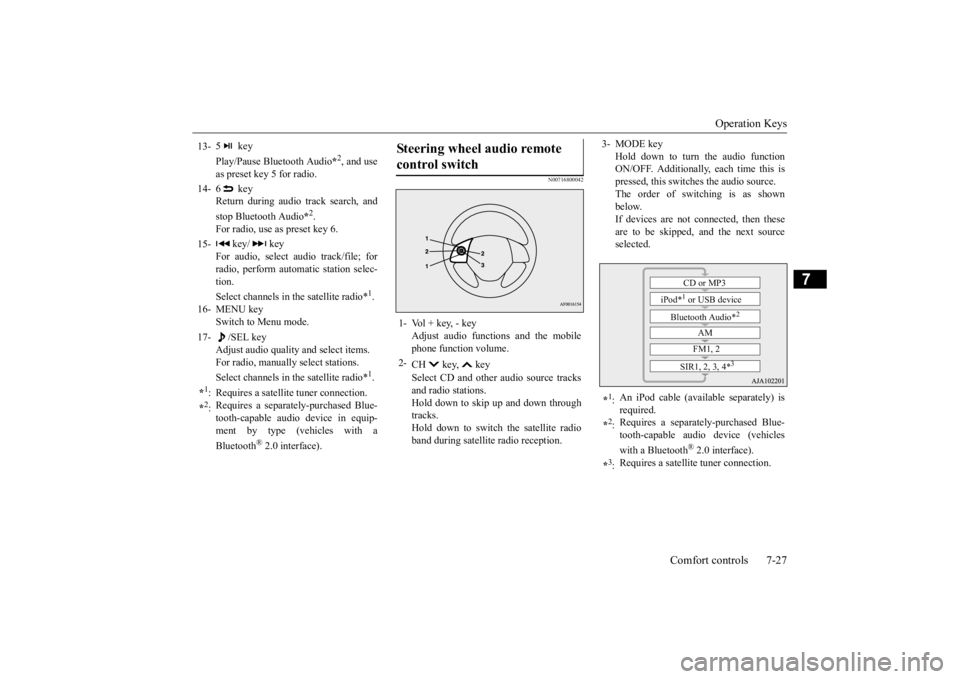
Steering wheel audio remote control switch 1- Vol + key, - key
Adjust audio functions and the mobile phone function volume.
2-
CH key, key Select CD and other
audio source tracks
and radio stations. Hold down to skip up and down through tracks.Hold down to switch the satellite radio band during satellit
e radio reception.
3- MODE key
Hold down to turn the audio function ON/OFF. Additionally, each time this ispressed, this switches the audio source. The order of switching is as shown below.If devices are not connected, then these are to be skipped, and the next source selected.
*1: An iPod cable (availa
ble separately) is
required.
*2: Requires a separately
-purchased Blue-
tooth-capable audio device (vehicles with a Bluetooth
® 2.0 interface).
*3: Requires a satellit
e tuner connection.CD or MP3
iPod*
1 or USB device
Bluetooth Audio*
2
AM FM1, 2
SIR1, 2, 3, 4*
3
BK0223400US.book 27 ページ 2015年2月13日 金曜日 午後12時15分
Page 361 of 464
Listen to an iPod
Comfort controls 7-33
7
Play the tracks in the folder in a random order. Hold down the 2RDM key. Play all tracks in folders on the disc in a ran- dom order. Press the SCAN key. Play the first 10 seconds of each of the tracks in the folder currently being played in order.
Search folders and files, and select a track. 1. Turn the /SEL key to select the folder. 2. Press the /SEL key. Files within the selected folder are dis- played. 3. Turn the /SEL key to select the file.4. Press the /SEL key. This plays the selected file (track).
N00717300044
By connecting commercially-available iPod/iPhone devices to this product, you can play back tracks on these through the product.
NOTE
Pressing again will cancel.
Folder Random Playback
NOTE
Pressing again will cancel.
Scan Playback (SCAN)
NOTE
Press this button again during playback if you wish to hear that track, and that track will play normally.
Search Tracks
NOTE
While the folder is selected, press the 6 key to cancel track search mode. If there is no operation for 10 seconds after selecting the folder, then track search mode will be cancelled. Select the folder, and hold down the /SEL key to start playback from the first track inthat folder. While the file is selected, press the 6 key to return to the
previous operation.
While the file is selected, hold down the 6 key to cancel track search mode. If there is no operation for five seconds after selecting the file, that file is played back. Disc operations such as
selecting a track will
cancel track search mode.
Listen to an iPod
CAUTION Do not leave the iP
od/iPhone unattended in
the vehicle. Never hold these devices in your hand to operate while driving,
as this is dangerous.
No indemnification for data loss resulting when the iPod/iPhone is connected to the product will be possible. Depending on how the de
vices are handled,
audio files being damage
d or lost, therefore
it is recommended that
data be backed up.
NOTE
Depending on the generati
on, model, or soft-
ware version of th
e iPod/iPhone, playback
on this product may
not be possible.
( P.7-16) Additionally, playback as
explained in this docum
ent may not be possi-
ble.
BK0223400US.book 33 ページ 2015年2月13日 金曜日 午後12時15分
Page 362 of 464

Listen to an iPod 7-34 Comfort controls
7
Press the MEDIA key to set the iPod as the source. The selected source is
indicated on the dis-
play.
Press the key or key to select the track. This enables selection of
the next or previous
track. Hold down the 3 key or the 4 key. Fast forward/rewind is possible. Repeat playback and
shuffle playback are
possible. Press the 1RPT key. Repeat playback of th
e track currently being
played.
For vehicles with a Bluetooth
® 2.0 interface,
the types of devices
that can be connected
may vary. [For vehicles sold in U.S.A.]For details, access the Mitsubishi Motors North America website. [For vehicles sold in
Canada and Mexico]
For details, access the Mitsubishi Motors website. Please read and agree to the “Warn- ing about Links to the Web Sites of OtherCompanies”. The webs
ites mentioned above
may connect you to websites other than the Mitsubishi Motors website.http://www.mitsubishi
-motors.com/en/prod-
ucts/index.html Regarding how to c
onnect the iPod/iPhone,
refer to “How to c
onnect an iPod” on page
5-216. When connecting th
e iPod/iPhone, use a
commercially-available iPod connection cable. Set up the device in order that no unsafe actions, such as pluggi
ng in the connection
cable are taken while driving. When inserting and removing the iPod/iPhone, for safety’s
sake first stop the
vehicle. Depending on the status
of the iPod/iPhone,
it may take some time
until the device is rec-
ognized, or playback starts. Buttons on the product will not operate while iPod/iPhone is
connected.
NOTE
iPod/iPhone specificati
ons and settings may
mean that connection is not possible, orresult in differences
in operation or display.
Depending on audio data in the iPod/iPhone, track information may
not be displayed cor-
rectly. Depending on the status of the vehicle and device, the iPod/iPhone
may not play back
after starting the engine. Data containing copyri
ght information may
not play back. It is recommended
that the iPod/iPhone
equalizer settings be set to flat. Operate the iPod/iPhone while connected to this product. If the iPod/iPhone is
connected via Bluetooth
as a Bluetooth-capable
audio device, then do
not connect the iPod/iP
hone using an iPod
cable. Connection us
ing both methods will
result in erroneous operation. If an iPod/iPhone does
not operate
correctly,
then remove the iPod/iPhone from the prod- uct, reset, then reconnect.
Play iPod
NOTE
Select the Track (File) Fast Forward or Rewind Switch Playback Mode Repeat Playback (RPT)
NOTE
Pressing again will cancel.
BK0223400US.book 34 ページ 2015年2月13日 金曜日 午後12時15分