ad blue MITSUBISHI OUTLANDER PHEV 2018 (in English) Owner's Guide
[x] Cancel search | Manufacturer: MITSUBISHI, Model Year: 2018, Model line: OUTLANDER PHEV, Model: MITSUBISHI OUTLANDER PHEV 2018Pages: 538, PDF Size: 25.01 MB
Page 374 of 538
During CD-DA playback
This switches in the order “Disc title”,“Track title”, and “Operating status”.
NOTEl If there is no text information to display,
then “NO TITLE” is displayed.
During MP3/WMA/AAC Play-
back
This switches in the order “Folder title”,
“File title”, and “Operating status”.
NOTEl If there is no text information to display,
then “NO TITLE” is displayed.
Display the ID3tag
Hold down the DISP key.
This switches the ID3tag display.
[DISP] Each time the key is pressed, this
switches in the order “Album name”, “Track name”, “Artist name”, “Genre name”*, and “Operating status”.
*:Displayed when playing back audio
files on a USB device (vehicles with a
Bluetooth ®
2.0 interface).NOTEl During display of the ID3tag, hold down the
DISP key to switch to the folder title dis- play.
l The genre name display may not be possible.During iPod Playback
E00738901096
This switches in the order “Albums”, “Track
name”, “Artist name”, “Genre name”*, and
“Operating status”.
NOTEl If there is no text information to display,
then “NO TITLE” is displayed.
l Displayed genre name in equipment by type
(vehicles with a Bluetooth ®
2.0 interface).
l The genre name display may not be possible.During Bluetooth ®
2.0 Audio
Playback*
E00739001036
Operating details are the same as in “During
iPod Playback” on page 8-42.
Audio Quality and Volume
Balance Adjustment E00738201161
Change audio quality settings.
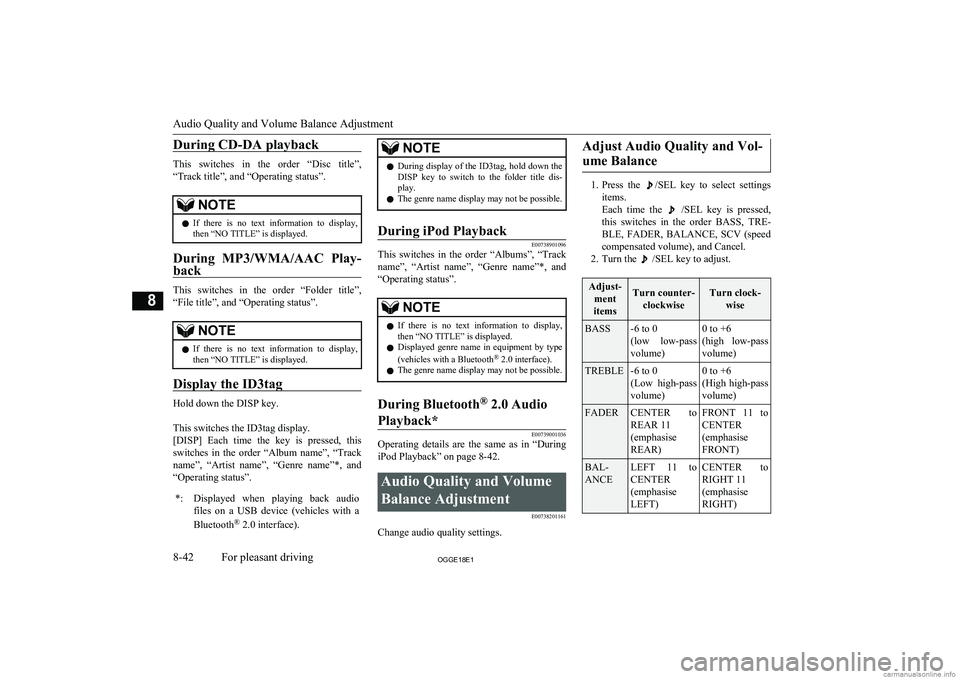
Adjust Audio Quality and Vol-
ume Balance
1. Press the /SEL key to select settings
items.
Each time the
/SEL key is pressed,
this switches in the order BASS, TRE-
BLE, FADER, BALANCE, SCV (speed
compensated volume), and Cancel.
2. Turn the
/SEL key to adjust.
Adjust- ment
itemsTurn counter- clockwiseTurn clock- wiseBASS-6 to 0
(low low-pass volume)0 to +6
(high low-pass volume)TREBLE-6 to 0
(Low high-pass volume)0 to +6
(High high-pass
volume)FADERCENTER to
REAR 11
(emphasise
REAR)FRONT 11 to CENTER
(emphasise
FRONT)BAL-
ANCELEFT 11 to
CENTER
(emphasise
LEFT)CENTER to
RIGHT 11
(emphasise
RIGHT)
Audio Quality and Volume Balance Adjustment
8-42OGGE18E1For pleasant driving8
Page 375 of 538
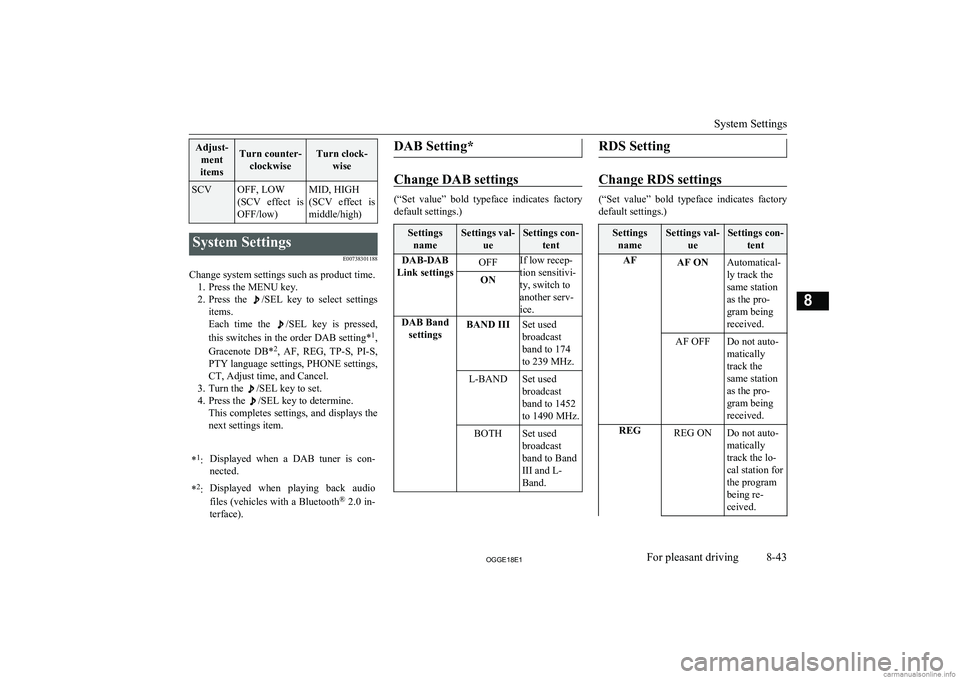
Adjust-ment
itemsTurn counter- clockwiseTurn clock- wiseSCVOFF, LOW
(SCV effect is
OFF/low)MID, HIGH
(SCV effect is middle/high)System Settings
E00738301188
Change system settings such as product time.1. Press the MENU key.
2. Press the
/SEL key to select settings
items.
Each time the
/SEL key is pressed,
this switches in the order DAB setting* 1
,
Gracenote DB* 2
, AF, REG, TP-S, PI-S,
PTY language settings, PHONE settings,
CT, Adjust time, and Cancel.
3. Turn the
/SEL key to set.
4. Press the
/SEL key to determine.
This completes settings, and displays the
next settings item.
* 1
:Displayed when a DAB tuner is con-
nected.* 2
:Displayed when playing back audio
files (vehicles with a Bluetooth ®
2.0 in-
terface).DAB Setting*
Change DAB settings
(“Set value” bold typeface indicates factory
default settings.)
Settings nameSettings val- ueSettings con-tentDAB-DAB
Link settingsOFFIf low recep-
tion sensitivi-
ty, switch to
another serv-
ice.ONDAB Band settingsBAND IIISet used
broadcast
band to 174
to 239 MHz.L-BANDSet used
broadcast
band to 1452
to 1490 MHz.BOTHSet used
broadcast
band to Band
III and L-
Band.RDS Setting
Change RDS settings
(“Set value” bold typeface indicates factory
default settings.)
Settings nameSettings val- ueSettings con-tentAFAF ONAutomatical-
ly track the
same station
as the pro-
gram being
received.AF OFFDo not auto-
matically
track the
same station
as the pro-
gram being
received.REGREG ONDo not auto-
matically
track the lo-
cal station for
the program
being re-
ceived.
System Settings
8-43OGGE18E1For pleasant driving8
Page 377 of 538
![MITSUBISHI OUTLANDER PHEV 2018 (in English) Owners Guide SettingsnameSettings val- ueSettings con-tentCT OFFDo not up-
date the time
even if time
data is re-
ceived.*:It is necessary to press the [TP] key and
turn traffic message standby mode “ON”.](/img/19/34890/w960_34890-376.png "MITSUBISHI OUTLANDER PHEV 2018 (in English) Owners Guide SettingsnameSettings val- ueSettings con-tentCT OFFDo not up-
date the time
even if time
data is re-
ceived.*:It is necessary to press the [TP] key and
turn traffic message standby mode “ON”.")
SettingsnameSettings val- ueSettings con-tentCT OFFDo not up-
date the time
even if time
data is re-
ceived.*:It is necessary to press the [TP] key and
turn traffic message standby mode “ON”.
Time Setting
Turning the RDS setting CT setting “CT
OFF” enables manual setting of the time. 1. Select “YES” at the “Adjust time”
screen, and press the
/SEL key.
The hour can be adjusted. Press the
/SEL key again to adjust the minutes.
2. Turn the
/SEL key to adjust the time.
3. Press the
/SEL key.
This completes the adjustment.
NOTEl In order to finish adjusting the time, hold
down the /SEL key until the seconds are
reset to “00”.PHONE Settings
Change the mobile phone voice cut- in set-
tings and the Bluetooth ®
2.0 interface lan-
guage.
Depending on the vehicle, PHONE settings
may not be possible.
NOTEl Cancel functions such as the mobile phone
“dial lock”, and connect while on the stand- by screen.
l While connected, mobile phone (receiving
calls, etc.) operations may not function cor- rectly.
l Depending on the distance between the
product and the mobile phone, the condi- tions within the vehicle, and types of screen-ing, connection may not be possible. In thesecases, situate the mobile phone as close as
possible to the product.
l Even though a Bluetooth-capable mobile
phone, characteristics and specifications
may mean that correct operation may not be possible.
l For safety’s sake, do not operate the mobile
phone while driving. When operating the mobile phone, first stop the vehicle in a safe
location.
l Even though a Bluetooth-capable mobile
phone, phone specifications and settings
may result in differences in display, or pre- vent correct operation.NOTEl Some models may not be confirmed as con-
nected, or may not connect.
Supported profiles
Hands-freeHFP(v1.5)Phone book trans-
ferOPP(v1.1),
PBAP(v1.0)
Vehicles without a Bluetooth ®
2.0 Interface
A hands-free kit (available separately) is re- quired.
(“Set value” bold typeface indicates factory
default settings.)
Settings valueSettings contentPHONE OFFDo not use mobile phone
voice cut-in.PHONE MUTEDuring mobile phone
voice cut-in, mute the au-
dio.PHONE ATTDuring mobile phone
voice cut-in, output audio
from all speakers.
System Settings
8-45OGGE18E1For pleasant driving8
Page 378 of 538
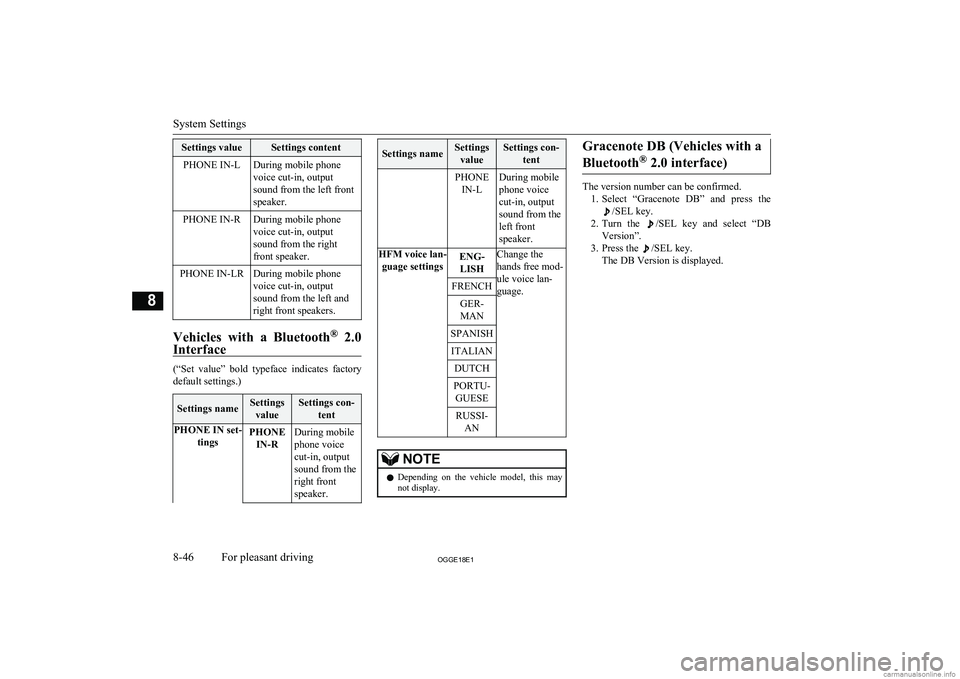
Settings valueSettings contentPHONE IN-LDuring mobile phone
voice cut-in, output
sound from the left front
speaker.PHONE IN-RDuring mobile phone
voice cut-in, output
sound from the right
front speaker.PHONE IN-LRDuring mobile phone
voice cut-in, output
sound from the left and
right front speakers.
Vehicles with a Bluetooth ®
2.0
Interface
(“Set value” bold typeface indicates factory
default settings.)
Settings nameSettings
valueSettings con- tentPHONE IN set- tingsPHONEIN-RDuring mobile
phone voice
cut-in, output
sound from the
right front
speaker.Settings nameSettings valueSettings con- tentPHONEIN-LDuring mobile
phone voice
cut-in, output
sound from the
left front
speaker.HFM voice lan- guage settingsENG-LISHChange the
hands free mod-
ule voice lan-
guage.FRENCHGER-
MANSPANISHITALIANDUTCHPORTU- GUESERUSSI- ANNOTEl Depending on the vehicle model, this may
not display.Gracenote DB (Vehicles with a
Bluetooth ®
2.0 interface)
The version number can be confirmed.
1. Select “Gracenote DB” and press the
/SEL key.
2. Turn the
/SEL key and select “DB
Version”.
3. Press the
/SEL key.
The DB Version is displayed.
System Settings
8-46OGGE18E1For pleasant driving8
Page 381 of 538
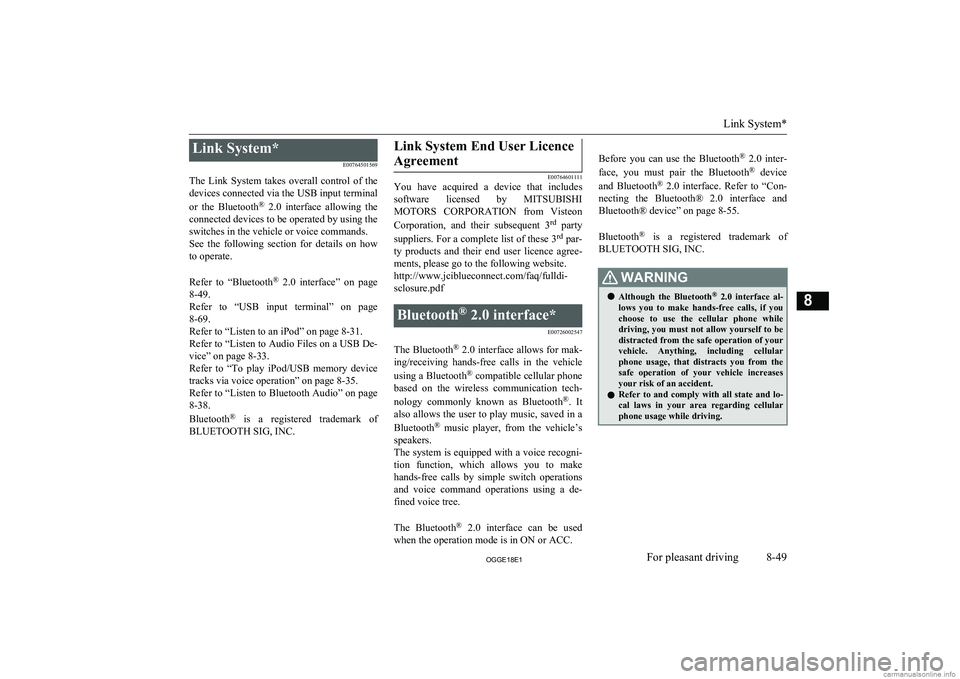
Link System*E00764501569
The Link System takes overall control of the devices connected via the USB input terminal
or the Bluetooth ®
2.0 interface allowing the
connected devices to be operated by using the
switches in the vehicle or voice commands.
See the following section for details on how
to operate.
Refer to “Bluetooth ®
2.0 interface” on page
8-49.
Refer to “USB input terminal” on page
8-69.
Refer to “Listen to an iPod” on page 8-31.
Refer to “Listen to Audio Files on a USB De-
vice” on page 8-33.
Refer to “To play iPod/USB memory device
tracks via voice operation” on page 8-35.
Refer to “Listen to Bluetooth Audio” on page 8-38.
Bluetooth ®
is a registered trademark of
BLUETOOTH SIG, INC.Link System End User Licence
Agreement
E00764601111
You have acquired a device that includes
software licensed by MITSUBISHI
MOTORS CORPORATION from Visteon
Corporation, and their subsequent 3 rd
party
suppliers. For a complete list of these 3 rd
par-
ty products and their end user licence agree-
ments, please go to the following website. http://www.jciblueconnect.com/faq/fulldi-
sclosure.pdf
Bluetooth ®
2.0 interface*
E00726002547
The Bluetooth®
2.0 interface allows for mak-
ing/receiving hands-free calls in the vehicle
using a Bluetooth ®
compatible cellular phone
based on the wireless communication tech-
nology commonly known as Bluetooth ®
. It
also allows the user to play music, saved in a
Bluetooth ®
music player, from the vehicle’s
speakers.
The system is equipped with a voice recogni-
tion function, which allows you to make hands-free calls by simple switch operations
and voice command operations using a de-
fined voice tree.
The Bluetooth ®
2.0 interface can be used
when the operation mode is in ON or ACC.
Before you can use the Bluetooth ®
2.0 inter-
face, you must pair the Bluetooth ®
device
and Bluetooth ®
2.0 interface. Refer to “Con-
necting the Bluetooth® 2.0 interface and Bluetooth® device” on page 8-55.
Bluetooth ®
is a registered trademark of
BLUETOOTH SIG, INC.WARNINGl Although the Bluetooth ®
2.0 interface al-
lows you to make hands-free calls, if you choose to use the cellular phone while
driving, you must not allow yourself to be
distracted from the safe operation of your vehicle. Anything, including cellularphone usage, that distracts you from the safe operation of your vehicle increasesyour risk of an accident.
l Refer to and comply with all state and lo-
cal laws in your area regarding cellular phone usage while driving.
Link System*
8-49OGGE18E1For pleasant driving8
Page 382 of 538
NOTElIf the operation mode is left in ACC, the ac-
cessory power will automatically turn off af-ter a certain period of time and you will no
longer be able to use the Bluetooth ®
2.0 in-
terface. The accessory power comes on again if the power switch is operated.
Refer to “ACC power auto-cutout function”
on page 7-13.
l The Bluetooth ®
2.0 interface cannot be used
if the Bluetooth ®
device has a flat battery or
the device power is turned off.
l Hands-free calls will not be possible if your
phone does not have service available.
l If you place the Bluetooth ®
device in the
luggage compartment, you may not be able
to use the Bluetooth ®
2.0 interface.
l Some Bluetooth ®
devices are not compatible
with the Bluetooth ®
2.0 interface.
l You can confirm the Link System software
version by pressing the HANG-UP button 3
times (press and hold 2 times and then press briefly) within 10 seconds.
l For details on the Bluetooth ®
2.0 interface,
you can see them by accessing the MITSUBISHI MOTORS website.
Please read and agree on the “Warning about
Links to the Web Sites of Other Companies”
because it connects to other than MITSUBISHI MOTORS website.
http://www.mitsubishi-motors.com/en/prod-
ucts/index.htmlNOTEl Software updates by cellular phone/digital
audio device manufacturers may change/
alter device connectivity.
Steering control switch and microphone
® p. 8-50
Voice recognition function ® p. 8-51
Useful voice commands ® p. 8-52
Speaker enrollment function ® p. 8-54
Connecting the Bluetooth® 2.0 interface and Bluetooth® device ® p. 8-55
Operating a music player connected via Blue-
tooth® ® p. 8-60
How to make or receive hands-free calls ® p. 8-60
Phone book function ® p. 8-63
Steering control switch and mi-
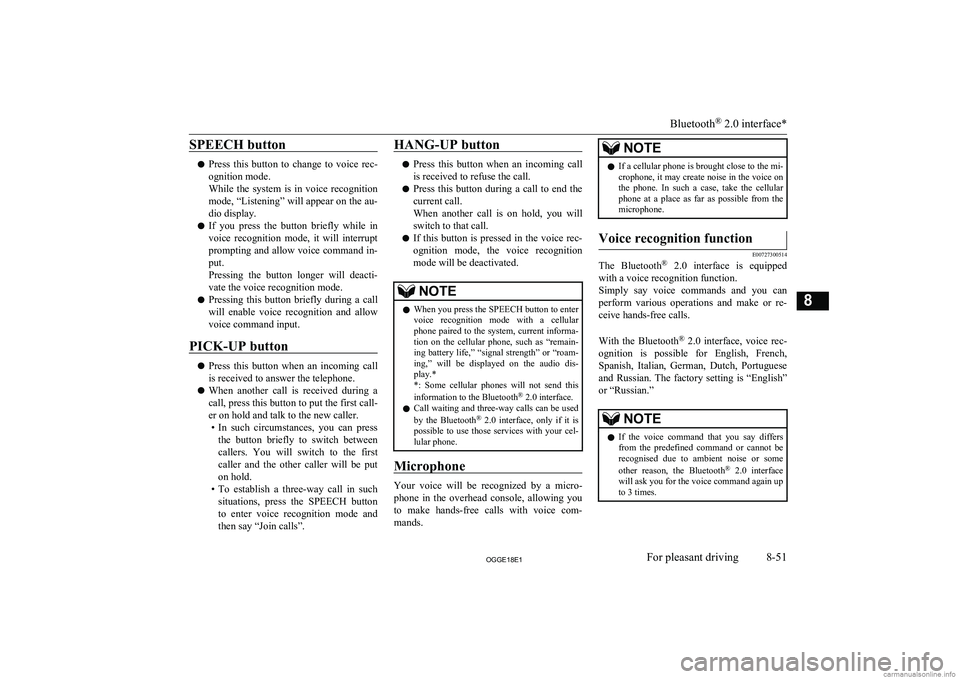
crophone
E00727201451
1- Volume up/down switch2- SPEECH button
3- PICK-UP button
4- HANG-UP button
5- Microphone
Volume up switch
Push up this switch to increase the volume.
Volume down switch
Push down this switch to decrease the vol- ume.
Bluetooth ®
2.0 interface*
8-50OGGE18E1For pleasant driving8
Page 383 of 538
SPEECH button
lPress this button to change to voice rec-
ognition mode.
While the system is in voice recognition
mode, “Listening” will appear on the au- dio display.
l If you press the button briefly while in
voice recognition mode, it will interrupt prompting and allow voice command in-
put.
Pressing the button longer will deacti-
vate the voice recognition mode.
l Pressing this button briefly during a call
will enable voice recognition and allow voice command input.
PICK-UP button
l Press this button when an incoming call
is received to answer the telephone.
l When another call is received during a
call, press this button to put the first call-
er on hold and talk to the new caller. • In such circumstances, you can press
the button briefly to switch between
callers. You will switch to the first
caller and the other caller will be put on hold.
• To establish a three-way call in such
situations, press the SPEECH button
to enter voice recognition mode and then say “Join calls”.
HANG-UP button
l Press this button when an incoming call
is received to refuse the call.
l Press this button during a call to end the
current call.
When another call is on hold, you will switch to that call.
l If this button is pressed in the voice rec-
ognition mode, the voice recognition
mode will be deactivated.
NOTEl When you press the SPEECH button to enter
voice recognition mode with a cellular
phone paired to the system, current informa- tion on the cellular phone, such as “remain- ing battery life,” “signal strength” or “roam-
ing,” will be displayed on the audio dis-
play.*
*: Some cellular phones will not send this
information to the Bluetooth ®
2.0 interface.
l Call waiting and three-way calls can be used
by the Bluetooth ®
2.0 interface, only if it is
possible to use those services with your cel- lular phone.
Microphone
Your voice will be recognized by a micro-
phone in the overhead console, allowing you to make hands-free calls with voice com-
mands.
NOTEl If a cellular phone is brought close to the mi-
crophone, it may create noise in the voice on
the phone. In such a case, take the cellular phone at a place as far as possible from the
microphone.Voice recognition function
E00727300514
The Bluetooth ®
2.0 interface is equipped
with a voice recognition function.
Simply say voice commands and you can
perform various operations and make or re- ceive hands-free calls.
With the Bluetooth ®
2.0 interface, voice rec-
ognition is possible for English, French,
Spanish, Italian, German, Dutch, Portuguese and Russian. The factory setting is “English” or “Russian.”
NOTEl If the voice command that you say differs
from the predefined command or cannot be recognised due to ambient noise or some
other reason, the Bluetooth ®
2.0 interface
will ask you for the voice command again up
to 3 times.
Bluetooth ®
2.0 interface*
8-51OGGE18E1For pleasant driving8
Page 384 of 538
NOTElFor best performance and further reduction
of ambient noise, close the vehicle windows,lower the blower speed and refrain from
conversation with your passengers while en- gaging the voice recognition function.
l Some voice commands have alternative
commands.
l Depending on the selected language, some
functions may not be available.
Selecting the Language
1. Press the SPEECH button.
2. Say “Setup”.
3. Say “Language.”
4. The voice guide will say “Select a lan-
guage: English, French, Spanish, Italian,
German, Dutch, Portuguese or Russian” Say the desired language. (Example: Say“English.”)
5. The voice guide will say “English
(French, Spanish, Italian, German, Dutch, Portuguese or Russian) selected.
Is this correct?” Say “Yes.”
Answer “No” to return to Step 4.
NOTEl The voice guide will repeat the same mes-
sage twice. The first message is in the cur-rent language, and the second message is in the selected language.NOTEl If many entries are registered in the vehicle
phone book, changing the language will take
longer.
l Changing the language deletes the mobile
phone book imported to the Bluetooth ®
2.0
interface. If you wish to use it, you will have
to import it again.
6. When the voice guide says “English
(French, Spanish, Italian, German, Dutch, Portuguese or Russian) selected,”the language change process will be
completed and the system will return to the main menu.
Useful voice commands
E00760000019
Help function
E00760100010
The Bluetooth ®
2.0 interface is equipped
with a help function.
If you say “Help” when the system is waiting for a voice command input, the system will
tell you a list of the commands that can be used under the circumstances.
Cancelling
E00760201021
There are two cancel functions.
If you are at the main menu, say “Cancel” to
exit from the Bluetooth ®
2.0 interface.
If you are anywhere else within the system,
say “Cancel” to return to the main menu.NOTEl You can return to the previous menu by say-
ing “Go Back.” (if so equipped)Confirmation function setting
E00760400013
The Bluetooth ®
2.0 interface is equipped
with a confirmation function.
With the confirmation function activated, you are given more opportunities than normal to
confirm a command when making various
settings to the Bluetooth ®
2.0 interface. This
allows you to decrease the possibility that a setting is accidentally changed.
The confirmation function can be turned on
or off by following the steps below. 1. Press the SPEECH button.
2. Say “Setup”.
3. Say “Confirmation prompts”.
4. The voice guide will say “Confirmation
prompts are
turn confirmation prompts
5. The voice guide will say “Confirmation
prompts are
Bluetooth ®
2.0 interface*
8-52OGGE18E1For pleasant driving8
Page 385 of 538
Security functionE00760501242
It is possible to use a password as a security
function by setting a password of your choice
for the Bluetooth ®
2.0 interface.
When the security function is turned on, it is
necessary to make a voice input of a 4-digit password in order to use all functions of the
Bluetooth ®
2.0 interface, except for recep-
tion.
Setting the password
Use the following procedure to turn on the security function by setting a password. 1. Press the SPEECH button.
2. Say “Setup”.
3. Say “Password.”
4. The voice guide will say “Password is
disabled. Would you like to enable it?”
Answer “Yes.”
Answer “No” to cancel the setting of the
password and return to the main menu.
5. The voice guide will say “Please say a 4-
digit password. Remember this pass-
word. It will be required to use this sys-
tem”.
Say a 4-digit number which you want to set as a password.
6. For confirmation purposes, the voice
guide will say “Password <4-digit pass-
word>. Is this correct?” Answer “Yes.”
Answer “No” to return to the password input in Step 5.
7. When the registration of the password is
completed, the voice guide will say “Password is enabled” and the systemwill return to the main menu.NOTEl After activating Plug-in Hybrid EV system
again and pressing SPEECH button, you areasked to tell your password.
l The set password is actually recorded in the
Link system after a while after the ready in- dicator goes out.
If you set the operation mode to ACC or ON or activate Plug-in Hybrid EV system soon
after the ready indicator goes out, the set password may not be recorded in the Link
system in some cases. In such a case, set your password again.
Entering the password
If a password has been set and the security
function is enabled, the voice guide will say “Hands-free system is locked. State the pass-word to continue” when the SPEECH button
is pressed to enter voice recognition mode.
Say the 4-digit password number to enter the
password.
If the entered password is wrong, the voice
guide will say “<4- digit password>, Incor-
rect password. Please try again”. Enter the correct password.
NOTEl You can re-enter the password as many
times as you want.
l If you have forgotten your password, say
“Cancel” to quit the voice input mode andthen check with a MITSUBISHI MOTORS
Authorized Service Point.
Disabling the password
Use the following procedure to turn off the
security function by disabling the password.
NOTEl System must be unlocked to disable the
password.
1. Press the SPEECH button.
2. Say “Setup”.
3. Say “Password.”
4. The voice guide will say “Password is
enabled. Would you like to disable it?”
Answer “Yes.”
Answer “No” to cancel the disabling of the password and return to the main
menu.
5. When the disabling of the password is
completed, the voice guide will say “Password is disabled” and the system
will return to the main menu.
Bluetooth ®
2.0 interface*
8-53OGGE18E1For pleasant driving8
Page 386 of 538
Speaker enrollment function
E00727400209
The Bluetooth ®
2.0 interface can use the
speaker enrollment function to create a voice model for one person per language.
This makes it easier for the Bluetooth ®
2.0
interface to recognise voice commands said
by you.
You can turn a voice model registered with the speaker enrollment function on and off
whenever you want.
Speaker enrollment
E00727501294
It takes about 2 to 3 minutes to complete the speaker enrollment process.
To ensure the best results, run through the
process while in the driver’s seat, in an envi- ronment that is as quiet as possible (whenthere is no rain or strong winds and the vehi-cle windows are closed). Please turn off your
phone while in speaker enrollment to prevent
interruption of the process.
Use the following procedure for speaker en- rollment. 1. Stop your vehicle in a safe area, firmly
apply the parking brake and push the
electrical parking switch.
NOTEl Speaker enrollment is not possible unless the
vehicle is parked. Make sure you park the
vehicle in a safe area before attempting speaker enrollment.
2. Press the SPEECH button.
3. Say “Voice training”.
4. The voice guide will say “This operation
must be performed in a quiet environ- ment while the vehicle is stopped. See
the owner’s manual for the list of re- quired training phrases. Press and re-
lease the SPEECH button when you are ready to begin. Press the HANG-UP but-
ton to cancel at any time”.
Press the SPEECH button to start the
speaker enrollment process.
NOTEl If you do not start the speaker enrollment
process within 3 minutes of pressing the SPEECH button, the speaker enrollment function will time out.
The voice guide will say “Speaker Enroll-
ment has timed out”. The system will then beep and the voice recognition mode will be
deactivated.
5. The voice guide will prompt for phrase
1. Repeat the corresponding phrase lis-
ted in table “Enrollment commands” on
page 8-69.
The system will register your voice and
then move on to the registration of the next command. Continue the process un-
til all phrases have been registered.NOTEl To repeat the most recent voice training
command, press and release the SPEECH button.
l If you press the HANG-UP button anytime
during the process, the system will beep and
stop the speaker enrollment process.
6. When all enrollment commands have
been read out, the voice guide will say “Speaker enrollment is complete”. The
system will then end the speaker enroll-
ment process and return to the main
menu.
NOTEl Completing the speaker enrollment process
will turn on the voice model automatically.
l The commands “Help” and “Cancel” will
not work in this mode.
Bluetooth ®
2.0 interface*
8-54OGGE18E1For pleasant driving8