volume MITSUBISHI PAJERO IV 2011 User Guide
[x] Cancel search | Manufacturer: MITSUBISHI, Model Year: 2011, Model line: PAJERO IV, Model: MITSUBISHI PAJERO IV 2011Pages: 377, PDF Size: 29.43 MB
Page 218 of 377

Emergency broadcasts
E00721700200 If an emergency broadcast is caught while receiv-
ing a FM broadcast or playing back a compact disc,
the display will
show “ALARM” and the emergen-
cy broadcast will interrupt the current program.
The volume level is set separately for listening to
normal audio programs and for listening to emer-
gency broadcasts. The volume level will therefore
change automatically to that set when an emergen-
cy broadcast or traffic information broadcast was
last received. When the emergency broadcast is
over, the radio will return to the previously re-
ceived program and to the corresponding volume
level.
Function setup mode E00722500306
It is possible to change the following functions:
lAF
l CT
l REG
l TP-S
l PI-S
l SCV (Refer
to
“Speed Compensated Vol-
ume function” on page 5-29).
l PHONE 1. Press
the “MENU” button (4) for 2 seconds
or longer to select the function setup mode. For pleasant driving
5-35 5
OBKE12E1
Page 221 of 377

To listen to a CD
E00709601961
The CD can
be loaded or ejected by pressing the
LOAD button (15) or the eject button (7) even if
the audio system power is off. 1. Press the PWR button (2) to turn the audiosystem on and off. The system turns on in
the last mode used.
2. Press the CD button (4) to enter CD mode. The autochanger will start playback if the
CD is already in the autochanger.
3. To stop the CD, turn off the power by press- ing the PWR button (2) or change over to ra-
dio mode by pressing the AM/FM button (1),
or eject the disc by pressing the eject button
(7).
NOTE l To adjust the volume and tone, refer to “To
adjust the volume” on page 5-27 and “To ad-
just the tone” on page 5-27.
l As many as 6 CDs can be inserted into the
CD autochanger.
l For information concerning the handling of
the compact discs, refer to “Handling of com-
pact discs” on page 5-65. To set discs To set a single disc
1. Press the LOAD button (15) briefly.
2.The
autochanger will show “WAIT” on the
display and start making itself ready for disc
loading.
3. When the autochanger is ready for disc load- ing, the indicator light (A) will come on and
the display will show “LOAD DISC (1~6)”.
4. Insert a disc into the disc loading slot.
NOTE l If there are multiple empty slots, you can se-
lect your desired slot by pressing the DISC
buttons (16 or 17).
l If you do not insert a disc for about
15 seconds after the autochanger starts stand-
ing by for loading, the loading standby mode
will be cancelled.
To set all the discs 1. Press the LOAD button (15) for 2 seconds orlonger (until you hear a beep).
2. The autochanger will select the lowest-num- bered empty slot and switch to loading stand-
by mode. 3. When
the display shows “LOAD DISC
(1~6)”, insert
a disc. The autochanger will
then automatically select the next empty slot
and enter loading standby mode.
4. Repeat the above-described steps until every slot contains a disc. Playback will then begin
with the disc that you inserted last.
NOTE l If you press the LOAD button (15) again
while the autochanger is in loading standby
mode, the loading standby mode will be can-
celled.
To eject discs To eject a single disc
Press the
eject
button (7) briefly to eject the current-
ly selected disc.
NOTE
l If you press the eject button (7) while the dis-
play is showing “LOAD DISC (1~6)”, the
loading standby mode will be cancelled and
the next disc will be ejected. For pleasant driving
5-38
5
OBKE12E1
Page 228 of 377

To play from an iPod
E00756300226
1. Press the PWR
button (2) to turn on the au-
dio system. The system turns on in the last
mode used.
2. Connect your iPod to the USB input termi- nal. Refer to “How to connect an iPod” on
page 5-82.
3. Press the CD button (4) several times to switch to the iPod mode. The input mode
changes every time the CD button is pressed.
CD mode → iPod mode → Bluetooth ®
mode* → Rear-seat display mode*
NOTE l If your vehicle is equipped with audio/video
input RCA terminals, pressing and holding
the CD button for 2 seconds or more
switches the system to the AUX mode.
4. Once the device is selected, playback starts and “iPod” appears on the display.
NOTE l Depending on the condition of your iPod, it
may take a longer time before the playback
starts.
5. To stop the playback, press the AM/FM but- ton (1) or CD button (4) to switch to a differ-
ent mode.
NOTE l Buttons on the iPod are disabled while the
iPod is connected to the audio system. l
To
adjust the volume and tone, refer to “To
adjust the volume” on pages 5-13, 5-27 and
“To adjust the tone” on pages 5-13, 5-27.
To fast-forward/reverse the track E00756400012
To fast-forward/reverse the current track, press the
fast-forward (8) or fast-reverse (7) button.
Fast-forward
To fast-forward the current track, press the fast-for-
ward (8) button.
While the button is pressed, the
track will be fast-forwarded.
Fast-reverse
To fast-reverse the current track, press the fast-re-
verse (7) button. While the button is pressed, the
track will be fast-reversed.
To select a desired track E00756500013
Press the TRACK button (11) to select the desired
track number.
Press : The track number increases by
one.
Press : The track number decreases by
one.
Press for a
long period (ap- prox. 2 seconds
or more) :
The track number increases con-
tinuously while the button is
pressed.
Press for a
long period (ap-
prox. 2 seconds
or more) :
The track number decreases con-
tinuouslywhile the button is
pressed. If the side of the button is pressed once while a
track is playing,
playback returns to the start of that
track.
NOTE
l Every time the track selection button is press-
ed, the track number in the display changes.
To find a track from the iPod menu E00756600014
You can select desired tracks from the “Playlists”,
“Artists”, “Albums”, “Songs”
or “Genre” (vehicles
with Bluetooth ®
2.0 interface) menus on your iPod.
Press the following buttons to select desired tracks.
The selected menu or category or track is shown in
the display.
FOLDER but-
ton (12 or 13) : To show the menu or category
or track.
MENU button
(10) : To select the menu or category
or track.
NOTE l To
cancel the
selection, press the DISC but-
ton (14) to return to the previous step.
l If no operation is performed for 10 seconds
or more or other button is operated after the
FOLDER button has been pressed, searching
of the desired tracks is cancelled.
l If no operation is performed for 5 seconds or
more after the track is displayed, playback
starts.
To play the same track repeatedly E00756700015
Press the RPT button (5) during playback to show
“RPT” in the display. For pleasant driving
5-45 5
OBKE12E1
Page 233 of 377
To play from a USB memory device
E00762500210
1. Press the PWR
button (2) to turn on the au-
dio system. The system turns on in the last
mode used.
2. Connect your USB memory device to the USB input terminal. Refer to “How to con-
nect a USB memory device” on page 5-82.
3. Press the CD button (4) several times to switch to the USB mode. The input mode
changes as follows every time the CD button
is pressed.
CD mode → USB mode → Bluetooth ®
mode* → Rear-seat display mode*
NOTE l If your vehicle is equipped with audio/video
input RCA terminals, pressing and holding
the CD button for 2 seconds or more
switches the system to the AUX mode.
4. Once the device is selected, playback starts and “USB” appears on the display.
NOTE l Depending on the condition of your USB de-
vice, it may take a longer time before the play-
back starts.
5. To stop the playback, press the AM/FM but- ton (1) or CD button (4) to switch to a differ-
ent mode. NOTE
l To
adjust the
volume and tone, refer to “To
adjust the volume” on pages 5-13, 5-27 and
“To adjust the tone” on pages 5-13, 5-27.
Supported compressed music files E00758300318
This audio can play MP3, WMA, AAC and WAV
files recorded
in
a USB memory device. This audio
supports up to 65,535 files in 700 folders on 8 levels.
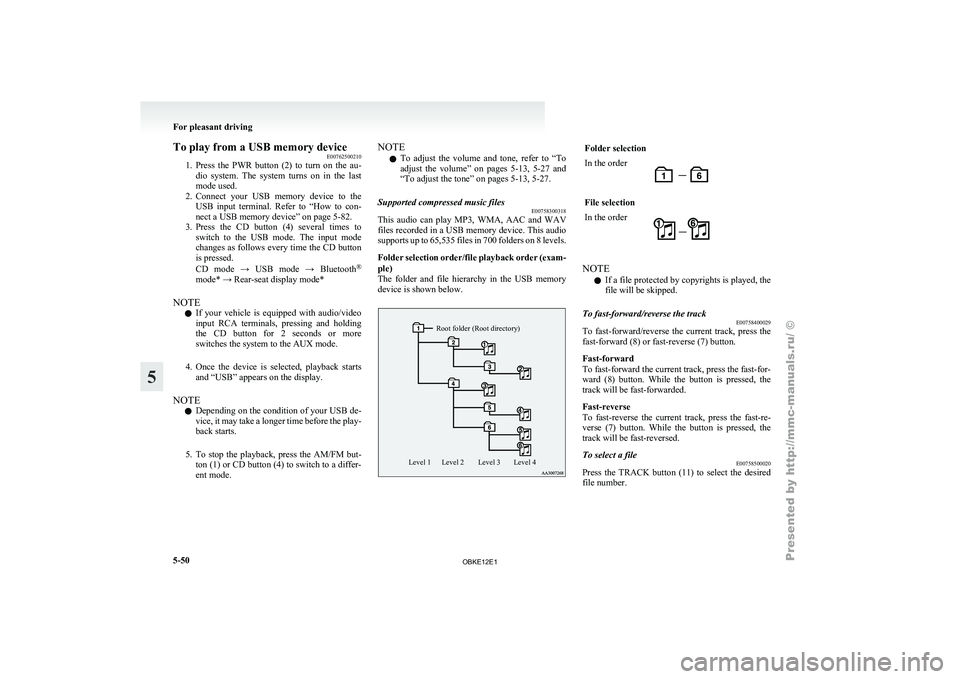
Folder selection order/file playback order (exam-
ple)
The folder and file hierarchy in the USB memory
device is shown below.
Root folder (Root directory)
Level 4
Level 3
Level 2
Level 1 Folder selection
In the order
File selection
In the order
NOTE
l If a file protected by copyrights is played, the
file will be skipped.
To fast-forward/reverse the track E00758400029
To fast-forward/reverse the current track, press the
fast-forward (8) or fast-reverse (7) button.
Fast-forward
To fast-forward the current track, press the fast-for-
ward (8) button.
While the button is pressed, the
track will be fast-forwarded.
Fast-reverse
To fast-reverse the current track, press the fast-re-
verse (7) button. While the button is pressed, the
track will be fast-reversed.
To select a file E00758500020
Press the TRACK button (11) to select the desired
file number. For pleasant driving
5-50
5
OBKE12E1
Page 240 of 377

CAUTION
l
Do not operate the connected audio equip-
ment while driving.
This could distract you and an accident
might occur.
NOTE l The
connected audio
equipment cannot be op-
erated with the vehicle’s audio system.
l Depending on the connected audio equip-
ment, it may produce noise from the speakers.
l Use the connected audio equipment’s own
power source, such as its battery.
Noise may be produced from the speakers if
the connected audio equipment is used while
charging it using the accessory socket of the
vehicle.
l Do not activate the external audio input
mode when no audio equipment is connected.
Otherwise, noise may be produced from the
speakers.
l Connect audio equipment when the external
audio input mode is deactivated or lower the
vehicle’s speaker volume before connecting it.
Noise may be produced from the speakers if
audio equipment is connected after the exter-
nal audio input mode is activated.
l For information on how to connect and oper-
ate the audio equipment, refer to the owner’s
manual for the equipment. To listen to a disc in the rear-seat
display (vehicles with rear-seat display) E00755100096
It is possible
to listen to the audio from the rear-
seat display using the vehicle’s speakers.
Press the CD button to select the rear-seat display
mode. The word “REAR” will appear at the top-
left of the display.
Each push of the CD button changes the mode to
the next one in the following sequence: CD mode
→ Rear-seat display mode → CD mode.
The following operation of the rear-seat display is
possible from the audio system. Source Operation
CD Track selection
MP3/WMA Folder/Track selection Video CD Track/Scene selection
DVD video Title/Chapter selection
DVD audio Group/Track selection To make your desired selection, use the TRACK
button or the FOLDER button on the audio system.Steering wheel remote control
switch* E00710000665
The remote control
switches are located on the left
side of the steering wheel.
These switches can be used when the ignition
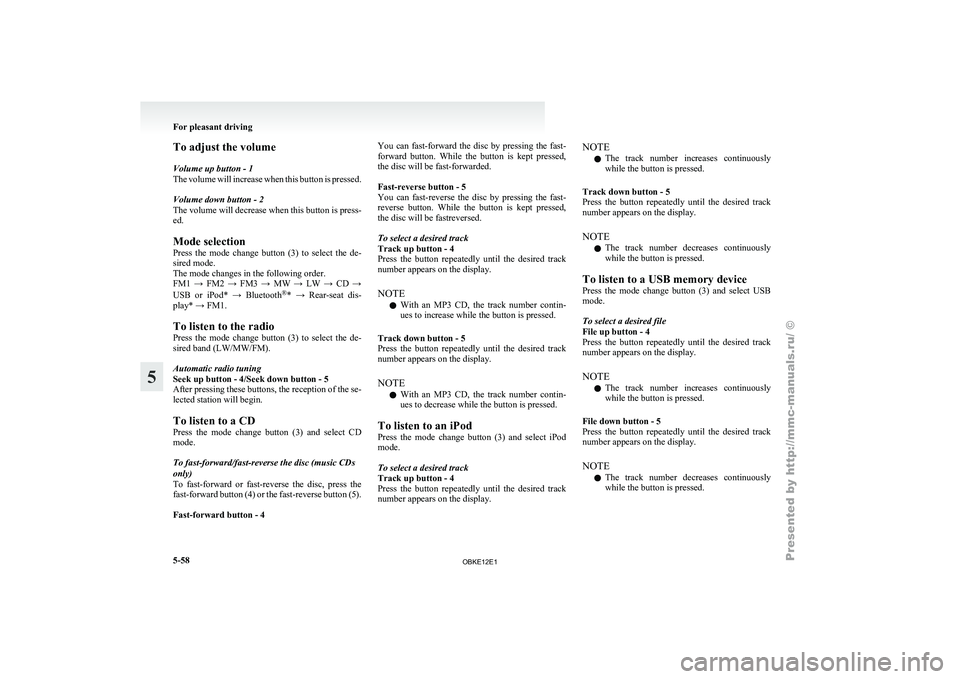
switch is in the “ON” or “ACC” position. 1- Volume up button
2- Volume down button
3-
PWR (ON-OFF)/Mode change button
4-
Seek up/Track up/File up/Fast-forward button
5- Seek down/Track down/File down/Fast-re- verse button
NOTE l Do not push two or more of the steering
wheel remote control switches at the same
time.
To turn on the power
PWR (ON-OFF) button - 3
When the power is off, press this button to turn the
power on. To turn the power off, press this button
for 2 seconds or longer. For pleasant driving
5-57 5
OBKE12E1
Page 241 of 377
To adjust the volume
Volume up button - 1
The volume
will
increase when this button is pressed.
Volume down button - 2
The volume will decrease when this button is press-
ed.
Mode selection
Press the mode change button (3) to select the de-
sired mode.
The mode changes in the following order.
FM1 → FM2 → FM3 → MW → LW → CD →
USB or iPod* → Bluetooth ®
* → Rear-seat dis-
play* → FM1.
To listen to the radio
Press the mode change button (3) to select the de-
sired band (LW/MW/FM).
Automatic radio tuning
Seek up button - 4/Seek down button - 5
After pressing these buttons, the reception of the se-
lected station will begin.
To listen to a CD
Press the mode change button (3) and select CD
mode.
To fast-forward/fast-reverse the disc (music CDs
only)
To fast-forward or fast-reverse the disc, press the
fast-forward button (4) or the fast-reverse button (5).
Fast-forward button - 4 You can fast-forward the disc by pressing the fast-
forward
button.
While
the button is kept pressed,
the disc will be fast-forwarded.
Fast-reverse button - 5
You can fast-reverse the disc by pressing the fast-
reverse button. While the button is kept pressed,
the disc will be fastreversed.
To select a desired track
Track up button - 4
Press the button repeatedly until the desired track
number appears on the display.
NOTE
l With an MP3 CD, the track number contin-
ues to increase while the button is pressed.
Track down button - 5
Press the button repeatedly until the desired track
number appears on the display.
NOTE l With an MP3 CD, the track number contin-
ues to decrease while the button is pressed.
To listen to an iPod
Press the mode change button (3) and select iPod
mode.
To select a desired track
Track up button - 4
Press the button repeatedly until the desired track
number appears on the display. NOTE
l The
track number
increases continuously
while the button is pressed.
Track down button - 5
Press the button repeatedly until the desired track
number appears on the display.
NOTE l The track number decreases continuously
while the button is pressed.
To listen to a USB memory device
Press the mode change button (3) and select USB
mode.
To select a desired file
File up button - 4
Press the button repeatedly until the desired track
number appears on the display.
NOTE l The track number increases continuously
while the button is pressed.
File down button - 5
Press the button repeatedly until the desired track
number appears on the display.
NOTE l The track number decreases continuously
while the button is pressed. For pleasant driving
5-58
5
OBKE12E1
Page 251 of 377
How to make or receive hands-free
calls ® p. 5-74
Phone book function ® p. 5-76
Steering control switch
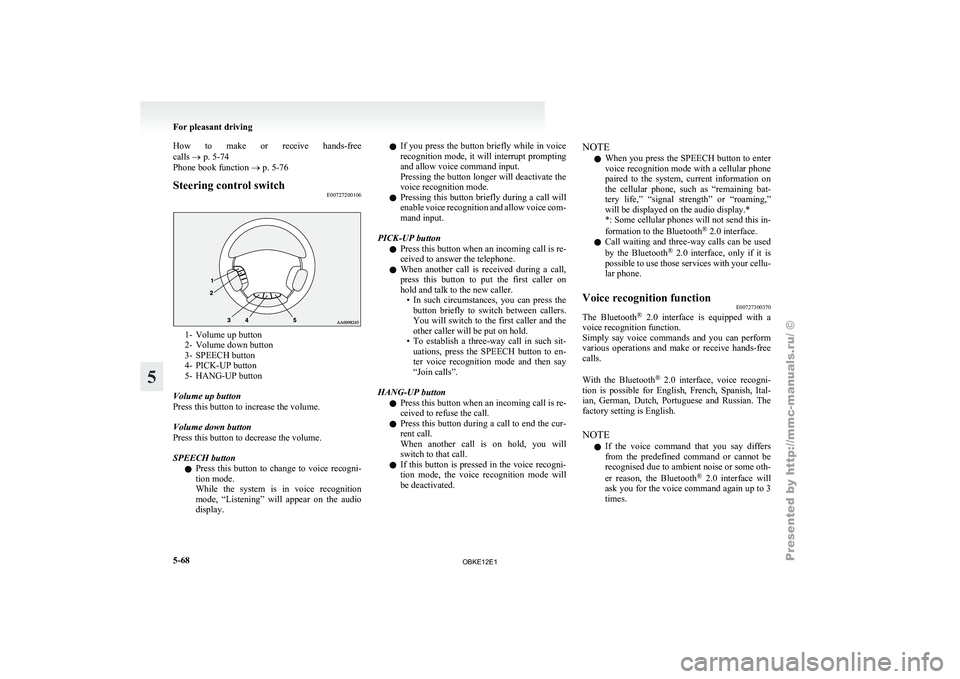
E007272001061- Volume up button
2- Volume down button
3-
SPEECH button
4-
PICK-UP button
5- HANG-UP button
Volume up button
Press this button to increase the volume.
Volume down button
Press this button to decrease the volume.
SPEECH button l Press this button to change to voice recogni-
tion mode.
While the system is in voice recognition
mode, “Listening” will appear on the audio
display. l
If you
press
the button briefly while in voice
recognition mode, it will interrupt prompting
and allow voice command input.
Pressing the button longer will deactivate the
voice recognition mode.
l Pressing this button briefly during a call will
enable voice recognition and allow voice com-
mand input.
PICK-UP button l Press this button when an incoming call is re-
ceived to answer the telephone.
l When another call is received during a call,
press this button to put the first caller on
hold and talk to the new caller.
• In such circumstances, you can press thebutton briefly to switch between callers.
You will switch to the first caller and the
other caller will be put on hold.
• To establish a three-way call in such sit- uations, press the SPEECH button to en-
ter voice recognition mode and then say
“Join calls”.
HANG-UP button l Press this button when an incoming call is re-
ceived to refuse the call.
l Press this button during a call to end the cur-
rent call.
When another call is on hold, you will
switch to that call.
l If this button is pressed in the voice recogni-
tion mode, the voice recognition mode will
be deactivated. NOTE
l When
you press
the SPEECH button to enter
voice recognition mode with a cellular phone
paired to the system, current information on
the cellular phone, such as “remaining bat-
tery life,” “signal strength” or “roaming,”
will be displayed on the audio display.*
*: Some cellular phones will not send this in-
formation to the Bluetooth ®
2.0 interface.
l Call waiting and three-way calls can be used
by the Bluetooth ®
2.0 interface, only if it is
possible to use those services with your cellu-
lar phone.
Voice recognition function E00727300370
The Bluetooth ®
2.0 interface
is equipped with a
voice recognition function.
Simply say voice commands and you can perform
various operations and make or receive hands-free
calls.
With the Bluetooth ®
2.0 interface, voice recogni-
tion is possible for English, French, Spanish, Ital-
ian, German, Dutch, Portuguese and Russian. The
factory setting is English.
NOTE
l If the voice command that you say differs
from the predefined command or cannot be
recognised due to ambient noise or some oth-
er reason, the Bluetooth ®
2.0 interface will
ask you for the voice command again up to 3
times. For pleasant driving
5-68
5
OBKE12E1