Blink MITSUBISHI PAJERO IV 2011 Owner's Manual
[x] Cancel search | Manufacturer: MITSUBISHI, Model Year: 2011, Model line: PAJERO IV, Model: MITSUBISHI PAJERO IV 2011Pages: 377, PDF Size: 29.43 MB
Page 234 of 377
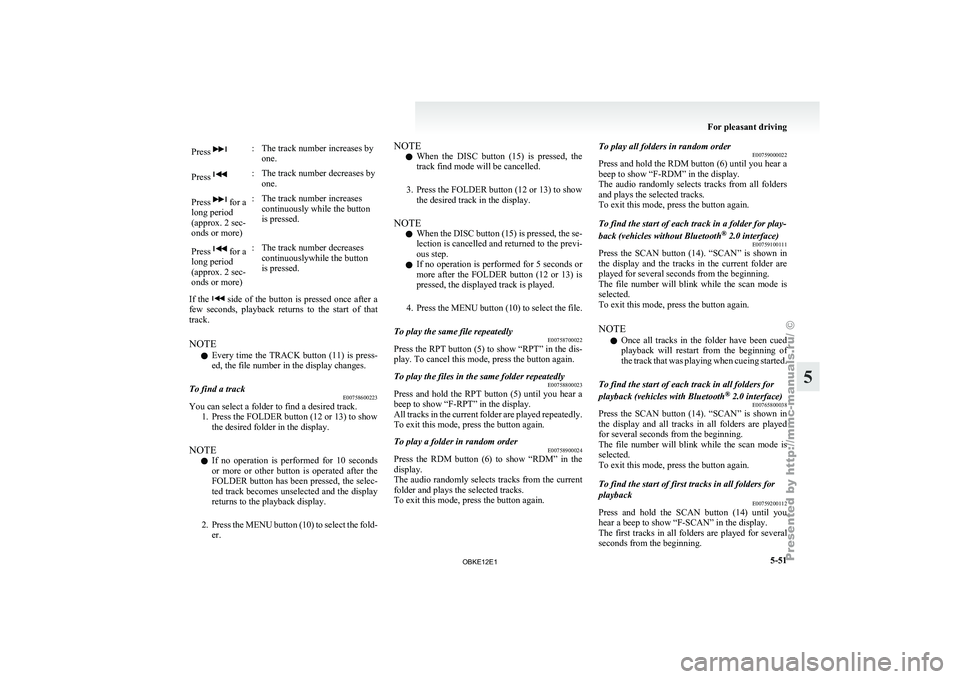
Press : The track number increases by
one.
Press : The track number decreases by
one.
Press for a
long period
(approx. 2 sec-
onds or more) : The track number increases
continuously while the button
is pressed.
Press for a
long period
(approx. 2 sec-
onds or more) : The track number decreases
continuouslywhile the button
is pressed.
If the side of the button is pressed once after a
few seconds, playback
returns to the start of that
track.
NOTE
l Every time the TRACK button (11) is press-
ed, the file number in the display changes.
To find a track E00758600223
You can select a folder to find a desired track.
1. Press the FOLDER button (12 or 13) to showthe desired folder in the display.
NOTE l If
no
operation is performed for 10 seconds
or more or other button is operated after the
FOLDER button has been pressed, the selec-
ted track becomes unselected and the display
returns to the playback display.
2. Press the MENU button (10) to select the fold- er. NOTE
l When
the DISC
button (15) is pressed, the
track find mode will be cancelled.
3. Press the FOLDER button (12 or 13) to show the desired track in the display.
NOTE l When the DISC button (15) is pressed, the se-
lection is cancelled and returned to the previ-
ous step.
l If no operation is performed for 5 seconds or
more after the FOLDER button (12 or 13) is
pressed, the displayed track is played.
4. Press the MENU button (10) to select the file.
To play the same file repeatedly E00758700022
Press the RPT button (5) to show “RPT” in the dis-
play. To cancel this mode, press the button again.
To play the files in the same folder repeatedly E00758800023
Press and hold the RPT button (5) until you hear a
beep to show “F-RPT” in the display.
All tracks
in
the current folder are played repeatedly.
To exit this mode, press the button again.
To play a folder in random order E00758900024
Press the RDM button (6) to show “RDM” in the
display.
The audio randomly
selects tracks from the current
folder and plays the selected tracks.
To exit this mode, press the button again. To play all folders in random order
E00759000022
Press and hold
the RDM button (6) until you hear a
beep to show “F-RDM” in the display.
The audio randomly selects tracks from all folders
and plays the selected tracks.
To exit this mode, press the button again.
To find the start of each track in a folder for play-
back (vehicles without Bluetooth ®
2.0 interface)
E00759100111
Press the SCAN button (14). “SCAN” is shown in
the display and
the tracks in the current folder are
played for several seconds from the beginning.
The file number will blink while the scan mode is
selected.
To exit this mode, press the button again.
NOTE
l Once all tracks in the folder have been cued
playback will restart from the beginning of
the track that was playing when cueing started.
To find the start of each track in all folders for
playback (vehicles with Bluetooth ®
2.0 interface)
E00765800038
Press the SCAN button (14). “SCAN” is shown in
the display and
all tracks in all folders are played
for several seconds from the beginning.
The file number will blink while the scan mode is
selected.
To exit this mode, press the button again.
To find the start of first tracks in all folders for
playback E00759200112
Press and hold the SCAN button (14) until you
hear a beep to show “F-SCAN” in the display.
The first tracks
in all folders are played for several
seconds from the beginning. For pleasant driving
5-51 5
OBKE12E1
Page 235 of 377
Playback starts from the folder next to the one cur-
rently playing.
The folder number
will blink while the scan mode
is selected.
To exit this mode, press the button again.
NOTE
l Once the cueing playback ends, playback
will start from the track at the beginning of
the folder next to the one that was playing
when the cueing started.
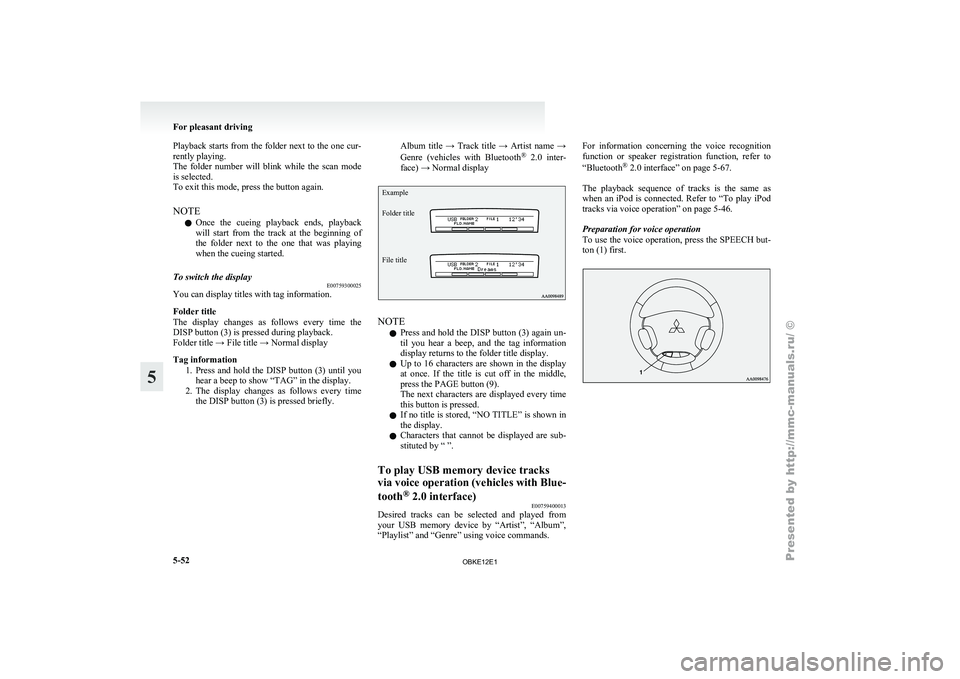
To switch the display E00759300025
You can display titles with tag information.
Folder title
The display changes
as follows every time the
DISP button (3) is pressed during playback.
Folder title → File title → Normal display
Tag information
1. Press and hold the DISP button (3) until youhear a beep to show “TAG” in the display.
2. The display changes as follows every time the DISP button (3) is pressed briefly. Album title → Track title → Artist name →
Genre
(vehicles with
Bluetooth®
2.0 inter-
face) → Normal display
Example
Folder title
File title NOTE
l Press
and hold
the DISP button (3) again un-
til you hear a beep, and the tag information
display returns to the folder title display.
l Up to 16 characters are shown in the display
at once. If the title is cut off in the middle,
press the PAGE button (9).
The next characters are displayed every time
this button is pressed.
l If no title is stored, “NO TITLE” is shown in
the display.
l Characters that cannot be displayed are sub-
stituted by “ ”.
To play USB memory device tracks
via voice operation
(vehicles with Blue-
tooth ®
2.0 interface)
E00759400013
Desired tracks can be selected and played from
your USB memory
device by “Artist”, “Album”,
“Playlist” and “Genre” using voice commands. For information concerning the voice recognition
function or
speaker
registration function, refer to
“Bluetooth ®
2.0 interface” on page 5-67.
The playback sequence of tracks is the same as
when an iPod is connected. Refer to “To play iPod
tracks via voice operation” on page 5-46.
Preparation for voice operation
To use the voice operation, press the SPEECH but-
ton (1) first. For pleasant driving
5-52
5
OBKE12E1
Page 245 of 377
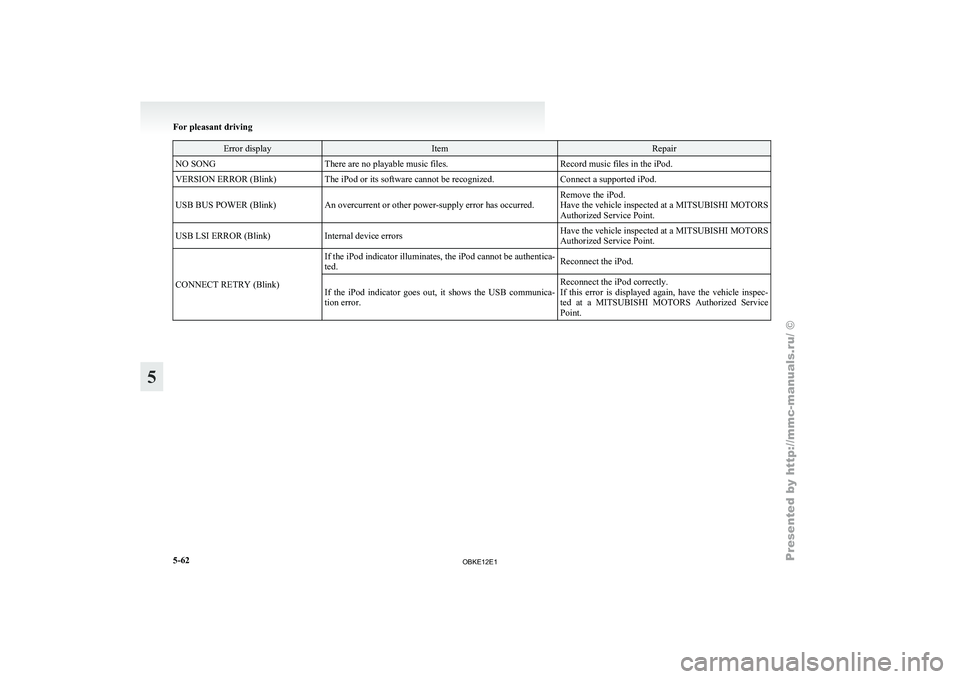
Error display Item Repair
NO SONG There are no playable music files. Record music files in the iPod.
VERSION ERROR (Blink) The iPod or its software cannot be recognized. Connect a supported iPod.
USB BUS POWER (Blink) An overcurrent or other power-supply error has occurred. Remove the iPod.
Have the vehicle inspected at a MITSUBISHI MOTORS
Authorized Service Point.
USB LSI ERROR (Blink) Internal device errors Have the vehicle inspected at a
MITSUBISHI MOTORS
Authorized Service Point.
CONNECT RETRY (Blink) If the iPod indicator illuminates, the iPod cannot be authentica-
ted.
Reconnect the iPod.
If the iPod indicator goes out, it shows the USB communica-
tion error. Reconnect the iPod correctly.
If this error
is displayed again, have the vehicle inspec-
ted at a MITSUBISHI MOTORS Authorized Service
Point. For pleasant driving
5-62
5
OBKE12E1
Page 247 of 377
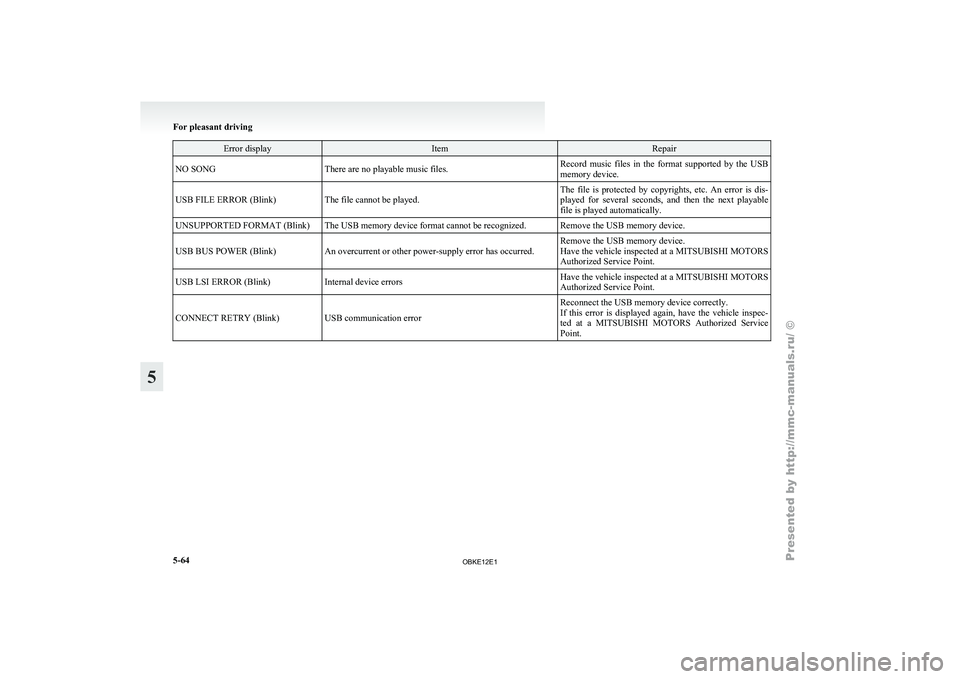
Error display Item Repair
NO SONG There are no playable music files. Record music files in the format supported by the USB
memory device.
USB FILE ERROR (Blink) The file cannot be played. The file is protected by copyrights, etc. An error is dis-
played for several
seconds, and then the next playable
file is played automatically.
UNSUPPORTED FORMAT (Blink) The USB memory device format cannot be recognized. Remove the USB memory device.
USB BUS POWER (Blink) An overcurrent or other power-supply error has occurred. Remove the USB memory device.
Have the vehicle inspected at a MITSUBISHI MOTORS
Authorized Service Point.
USB LSI ERROR (Blink) Internal device errors Have the vehicle inspected at a
MITSUBISHI MOTORS
Authorized Service Point.
CONNECT RETRY (Blink) USB communication error Reconnect the USB memory device correctly.
If this error
is displayed again, have the vehicle inspec-
ted at a MITSUBISHI MOTORS Authorized Service
Point. For pleasant driving
5-64
5
OBKE12E1