ESP MITSUBISHI PAJERO IV 2011 Owner's Guide
[x] Cancel search | Manufacturer: MITSUBISHI, Model Year: 2011, Model line: PAJERO IV, Model: MITSUBISHI PAJERO IV 2011Pages: 377, PDF Size: 29.43 MB
Page 253 of 377
NOTE
l Password
will be
required to access the sys-
tem after the next ignition cycle.
l It is required for a little time after engine
stop that the entered password is actually re-
corded in the system.
If the ignition switch is made to “ACC” or
“ON” or the engine is started immediately af-
ter engine stop, there is a case when the en-
tered password is not recorded in the system.
At this time, please try to enter the password
again.
Entering the password
If a password has been set and the security function
is enabled, the voice guide will say “Hands-free sys-
tem is locked. State the password to continue”
when the SPEECH button is pressed to enter voice
recognition mode. Say the 4-digit password num-
ber to enter the password.
If the entered password is wrong, the voice guide
will say “<4- digit password>, Incorrect password.
Please try again”. Enter the correct password.
NOTE l You can re-enter the password as many times
as you want.
l If you have forgotten your password, say
“Cancel” to quit the voice input mode and
then check with a MITSUBISHI MOTORS
Authorized Service Point.
Disabling the password
Use the following procedure to turn off the security
function by disabling the password. NOTE
l System
must be
unlocked to disable the pass-
word.
1. Press the SPEECH button.
2. Say “Setup”.
3. Say “Password.”
4. The voice guide will say “Password is ena- bled. Would you like to disable it?” Answer
“Yes.”
Answer “No” to cancel the disabling of the
password and return to the main menu.
5. When the disabling of the password is com- pleted, the voice guide will say “Password is
disabled” and the system will return to the
main menu.
Speaker enrollment function E00727400209
The Bluetooth ®
2.0 interface
can use the speaker en-
rollment function to create a voice model for one
person per language.
This makes it easier for the Bluetooth ®
2.0 inter-
face to recognise voice commands said by you.
You can turn a voice model registered with the
speaker enrollment function on and off whenever
you want.
Speaker enrollment E00727500196
It takes about 2 to 3 minutes to complete the speak-
er enrollment process.
To ensure the
best results, run through the process
while in the driver’s seat, in an environment that is
as quiet as possible (when there is no rain or strong
winds and the vehicle windows are closed). Please
turn off your phone while in speaker enrollment to
prevent interruption of the process.
Use the following procedure for speaker enrollment. 1. Stop your vehicle in a safe area, put the gear-
shift lever
in the “N” (Neutral) position
(M/T), or the selector lever in the “P”
(PARK) position (A/T), and pull the parking
brake lever.
NOTE l Speaker enrollment is not possible unless the
vehicle is parked. Make sure you park the ve-
hicle in a safe area before attempting speaker
enrollment.
2. Press the SPEECH button.
3. Say “Voice training”.
4. The voice guide will say “This operation must be performed in a quiet environment
while the vehicle is stopped. See the owner’s
manual for the list of required training phra-
ses. Press and release the SPEECH button
when you are ready to begin. Press the HANG-
UP button to cancel at any time”.
Press the SPEECH button to start the speaker
enrollment process.
NOTE l If you do not start the speaker enrollment proc-
ess within 3 minutes of pressing the
SPEECH button, the speaker enrollment func-
tion will time out.
The voice guide will say “Speaker Enroll-
ment has timed out”. The system will then
beep and the voice recognition mode will be
deactivated.
5. The voice guide will prompt for phrase 1. Re- peat the corresponding phrase listed in table
“Enrollment commands” on page 5-81. For pleasant driving
5-70
5
OBKE12E1
Page 255 of 377
When the confirmation function is on, the sys-
tem will confirm
whether the number said is
acceptable. Answer “Yes.”
Answer “No” to return to pairing code selec-
tion.
NOTE l Some Bluetooth ®
devices require a specific
pairing code. Please refer to the device man-
ual for pairing code requirements.
l The pairing code entered here is only used
for the Bluetooth ®
connection certification.
It is any 4-digit number the user would like
to select.
Remember the pairing code as it needs to be
keyed into the Bluetooth ®
device later in the
pairing process.
Depending on the connection settings of the
Bluetooth ®
device, this code may have to be
entered each time you connect the Blue-
tooth ®
device to the Bluetooth ®
2.0 inter-
face. For the default connection settings, re-
fer to the instructions for the device.
7. The voice guide will say “Start pairing proce- dure on the device. See the device manual
for instructions.” Enter in the Bluetooth ®
de-
vice the 4-digit number you have registered
in Step 6.
NOTE l According to the corresponding device to
Bluetooth ®
, it might take a few minutes to
pair the Bluetooth ®
device with the Blue-
tooth ®
2.0 interface. l
If the
Bluetooth ®
2.0 interface cannot recog-
nize the Bluetooth ®
device, the voice guide
will say “Pairing has timed out” and the pair-
ing process will be cancelled.
Confirm that the device you are pairing sup-
ports Bluetooth ®
, and try pairing it again.
l If you enter the wrong number, the voice
guide will say “Pairing failed” and the pair-
ing process will be cancelled.
Confirm the number is right, and try pairing
it again.
8. The voice guide will say “Please say the name of the device after the beep.” You can
assign a desired name for the Bluetooth ®
de-
vice and register it as a device tag. Say the
name you want to register after the beep.
NOTE l When the confirmation function is on, after
repeating the device tag you have said, the
voice guide will ask “Is this correct?” An-
swer “Yes.”
To change the device tag, answer “No” and
then say the device tag again.
9. The voice guide will say “Pairing complete,” after which a beep will be played and the pair-
ing process will end.
Selecting a device E00760700016
If multiple paired Bluetooth ®
devices are
available
in the vehicle, the cellular phone or music player
most recently connected is automatically connected
to the Bluetooth ®
2.0 interface.
You can connect to the other cellular phone or mu-
sic player by following setting change procedures. To select a cellular phone
1. Press the SPEECH button.
2. Say “Setup.”
3.
Say “Select phone.”
4. After the voice guide says “Please say,” the numbers of the cellular phones and device
tags of corresponding cellular phones will be
read out in order, starting with the cellular
phone that has been most recently connected.
Say the number of the cellular phone that
you want to connect to.
When the confirmation function is on, the sys-
tem will ask you again whether the phone
that you want to connect to is correct. An-
swer “Yes” to continue and connect to the cel-
lular phone.
Answer “No,” and the voice guide will say
“Please say.”
Say the number of the phone that you want
to connect to.
NOTE l You can connect to a phone at any time by
pressing the SPEECH button and saying the
number, even before all of the paired num-
bers and device tags of corresponding cellu-
lar phones are read out by the system.
5. The selected phone will be connected to the Bluetooth ®
2.0 interface. The voice guide
will say “
system will return to the main menu.
To select a music player 1. Press the SPEECH button.
2. Say “Setup.”
3. Say “Select music player.”
4. After the voice guide says “Please say,” thenumbers of the music players and device tags For pleasant driving
5-72
5
OBKE12E1
Page 256 of 377

of corresponding music players will be read
out in order,
starting with the music player
that has been most recently connected.
Say the number of the music player that you
want to connect to.
When the confirmation function is on, the sys-
tem will ask you again whether the music
player that you want to connect to is correct.
Answer “Yes” to continue and connect to the
music player.
Answer “No,” and the voice guide will say
“Please say.”
Say the number of the music player that you
want to connect to.
NOTE l You can connect to a music player at any
time by pressing the SPEECH button and say-
ing the number, even before all of the paired
numbers and device tags of corresponding mu-
sic players are read out by the system.
5. The selected music player will be connected to the Bluetooth ®
2.0 interface.
The voice guide will say “
ted” and then the system will return to the
main menu.
Deleting a device
Use the following procedure to delete a paired Blue-
tooth ®
device from the Bluetooth ®
2.0 interface.
1. Press the SPEECH button.
2. Say “Setup.”
3. Say “Pairing Options.”
4. The voice guide will say “Select one of the following: pair, edit, delete, or list.” Say “De-
lete.” 5. After the voice guide says “Please say,” the
numbers of the devices and device tags of cor-
responding devices will be read out in order,
starting with the device that has been most re-
cently connected. After it completes reading
all pairs, the voice guide will say “or all.”
Say the number of the device that you want
to delete from the system.
If you want to delete all paired phones from
the system, say “All.”
6. For confirmation purposes, the voice guide will say “Deleting
Is this correct?” or “Deleting all devices. Is
this correct?”
Answer “Yes” to delete the phone(s).
Answer “No,” the system will return to Step
4.
7. The voice guide will say “Deleted,” and then the system will end the device deletion proc-
ess.
NOTE l If the device deletion process fails for some
reason, the voice guide will say “Delete
failed” and then the system will cancel delet-
ing the device.
To check a paired Bluetooth ®
device
E00760800017
You can check a paired Bluetooth ®
device by
fol-
lowing the steps below. 1. Press the SPEECH button.
2. Say “Setup.”
3. Say “Pairing Options.”
4. The voice guide will say “Select one of thefollowing: pair, edit, delete, or list.” Say
“List.” 5. The voice guide will read out device tags of
corresponding devices
in order, starting with
the Bluetooth ®
device that has been most re-
cently connected.
6. After the device tags of all paired Bluetooth ®
devices have been read, the system will say
“End of list, would you like to start from the
beginning?”
To hear the list again from the beginning, an-
swer “Yes.” When you are done, answer
“No” to return to the main menu.
NOTE l If you press and release the SPEECH button
and say “Continue” or “Previous” while the
list is being read, the system will advance or
rewind the list.
Say “Continue” to proceed to the device with
the next highest number or “Previous” to re-
turn to the phone with the previous number.
l You can change the device tag by pressing
and releasing the SPEECH button and then
saying “Edit” while the list is being read.
l You can change the phone to be connected
by pressing and releasing the SPEECH but-
ton and then saying “Select phone” while the
list is being read.
l You can change the music player to be con-
nected by pressing and releasing the
SPEECH button and then saying “Select mu-
sic player” while the list is being read.
Changing a device tag E00760900018
You can change the device tag of a paired cellular
phone or music player.
Follow the steps below to change a device tag.
1. Press the SPEECH button.
2. Say “Setup.” For pleasant driving
5-73 5
OBKE12E1
Page 257 of 377
3. Say “Pairing Options.”
4. The voice guide
will say “Select one of the
following: pair, edit, delete, or list.” Say “Ed-
it.”
5. The voice guide will say “Please say,” and
read out the numbers of the Bluetooth ®
devi-
ces and device tags of corresponding devices
in order, starting with the Bluetooth ®
that
has been most recently connected.
After all paired device tags have been read,
the voice guide will say “Which device,
please?” Say the number of the device tag
you want to change.
NOTE l You can press and release the SPEECH but-
ton while the list is being read, and immedi-
ately say the number of the device tag you
want to change.
6. The voice guide will say “New name, please.” Say the name you want to register as
a new device tag.
When the confirmation function is on, the
voice guide will say “
this correct?” Answer “Yes.”
Answer “No,” you can say the new device
tag you want to register again.
7. The device tag is changed. When the change is complete, the voice
guide will say “New name saved” and then
the system will return to the main menu. Operating a music player connected
via Bluetooth
®
E00761000016
For the operation
of a music player connected via
Bluetooth ®
, refer to “To play tracks from a Blue-
tooth ®
device” on page 5-53.
How to make or receive hands-free calls E00761100020
You can make or receive hands-free calls using a
Bluetooth ®
compatible cellular
phone connected to
the Bluetooth ®
2.0 interface.
You can also use the phone books in the Blue-
tooth ®
2.0 interface to make calls without dialling
telephone numbers.
To make a call ® p. 5-74
SEND function ® p. 5-75
Receiving calls ® p. 5-75
MUTE function ® p. 5-76
Switching between hands-free mode and private
mode ® p. 5-76
NOTE
l The hands-free calls might not be operated
correctly when it makes calling or receiving
by operating the cellular phone directly.
To make a call E00761200122
You can make a call in the following 3 ways using
the Bluetooth ®
2.0 interface:
Making a call
by saying a telephone number, mak-
ing a call using the Bluetooth ®
2.0 interface’s
phone book, and making a call by redialing.
Making a call by using the telephone number
You can make a call by saying the telephone number. 1. Press the SPEECH button. 2. Say “Dial.”
3. After the
voice
guide says “Number please,”
say the telephone number.
4. The voice guide will say “Dialing
The Bluetooth ®
2.0 interface will then make
the call.
When the confirmation function is on, the sys-
tem will confirm again the telephone num-
ber. To continue with that number, answer
“Yes.”
To change the telephone number, answer
“No.” The system will say “Number please”
then say the telephone number again.
NOTE l In the case of English, the system will recog-
nise both “zero” and “oh” (Letter “o”) for the
number “0.”
l The Bluetooth ®
2.0 interface supports num-
bers (0 to 9) and characters (+, # and *).
l The maximum supported telephone number
length is as follows:
• International telephone number: + and tel-ephone numbers (to 18 digits).
• Except for international telephone num- ber: telephone numbers (to 19 digits).
Making a call using a phone book
You can make calls using the vehicle phone book
or mobile phone book of the Bluetooth ®
2.0 inter-
face.
For details on the phone books, refer to “Phone
book function” on page 5-76. 1. Press the SPEECH button.
2. Say “Call.” For pleasant driving
5-74
5
OBKE12E1
Page 258 of 377

NOTE
l If
you say
“Call” when the vehicle phone
book and the mobile phone book are empty,
the voice guide will say “The vehicle phone
book is empty. Would you like to add a new
entry now?”
Answer “Yes,” and the voice guide will say
“Entering the phone book - new entry
menu.” You can now create data in the vehi-
cle phone book.
Answer “No,” to return to the main menu.
3. After the voice guide says “Name please,” say the name you want to call, from those reg-
istered in the phone book.
4. If there is only one match, the system pro- ceeds to Step 5.
If there are two or more matches, the voice
guide will say “More than one match was
found, would you like to call
call, answer “Yes.”
Answer “No,” and the name of the next match-
ing person will be uttered by the voice guide.
NOTE l If you say “No” to all names read by the sys-
tem, the voice guide will say “Name not
found, returning to main menu” and the sys-
tem will return to the main menu.
5. If only one telephone number is registered un- der the name you just said, the voice guide
proceeds to Step 6.
If two or more telephone numbers are regis-
tered that match the name you just said, the
voice guide will say “Would you like to call
er]?” Select the location to call.
NOTE l If
the name
you selected has matching data
in the vehicle phone book but no telephone
number is registered under the selected loca-
tion, the voice guide will say “{home/work/
mobile/other} not found for
Would you like to add location or try again?”
Say “Try again,” and the system will return
to Step 3.
Say “Add location” and you can register an
additional telephone number under the selec-
ted location.
l If the name you selected has matching data
in the mobile phone book but no telephone
number is registered under the selected loca-
tion, the voice guide will say “{home/work/
mobile/other} not found for
Would you like to try again?”
Answer “Yes,” and the system will return to
Step 3.
Answer “No,” and the call will be cancelled.
Start over again from Step 1.
6. The voice guide will say “Calling
telephone number.
NOTE l When the confirmation function is on, the sys-
tem will ask if the name and location of the
receiver are correct.
If the name is correct, answer “Yes.”
If you want to change the name or location to
call, answer “No.” The system will return to
Step 3. Redialing
You can redial
the last number called, based on the
history of dialed calls in the paired cellular phone.
Use the following procedure to redial. 1. Press the SPEECH button.
2. Say “Redial.”
SEND function E00761300035
During a call, press the SPEECH button to enter
voice recognition mode,
then say “
SEND” to generate DTMF tones.
For example, if during a call you need to simulate
the press of a phone button as a response to an auto-
mated system, press the SPEECH button and speak
“1 2 3 4 pound SEND” and the 1234# will be sent
on your cellular phone.
Receiving calls E00761600012
If an incoming phone call is received while the ig-
nition switch is in the “ACC” or “ON” position, the
audio system will
be automatically turned on and
switched to the incoming call, even when the audio
system was originally off.
The voice guide announcement for the incoming
call will be output from the front passenger’s seat
speaker.
If the CD player or radio was playing when the in-
coming call was received, the audio system will
mute the sound from the CD player or radio and out-
put only the incoming call.
To receive the call, press the PICK-UP button on
the steering wheel control switch.
When the call is over, the audio system will return
to its previous state. For pleasant driving
5-75 5
OBKE12E1
Page 304 of 377
NOTE
l If
genuine leather
is wet with water or is wash-
ed in water, wipe off water as quickly as pos-
sible with a dry, soft cloth. If left damp, mil-
dew may grow.
l The genuine leather surface may be damaged
if a nylon brush or synthetic fibre is rubbed
hard against it.
l Organic solvents such as benzine, kerosene,
alcohol and petrol, acid or alkaline solvents
may discolour the genuine leather surface.
Be sure to use neutral detergents.
l Remove dirty patches or oil substances quick-
ly as they can stain genuine leather.
l The genuine leather surface may harden and
shrink if it is exposed to direct sun for long
hours. When your vehicle is parked, place it
in the shade as much as possible.
l When the temperature of the vehicle interior
rises in summer, vinyl products left on the
genuine leather seat may deteriorate and
stick to the seat. Cleaning the exterior of your
vehicle E00900700195
If the
following
is left on your vehicle, it may
cause corrosion, discolouration and stains, wash
the vehicle as soon as possible.
l Seawater, road deicing products.
l Soot and dust, iron powder from factories,
chemical substance (acids, alkalis, coal-tar,
etc.).
l Droppings from birds, carcasses of insects,
tree sap, etc.
Washing E00900901875
Chemicals contained in the dirt and dust picked up
from the road
surface can damage the paint coat
and body of your vehicle if left in prolonged contact.
Frequent washing and waxing is the best way to pro-
tect your vehicle from this damage. This will also
be effective in protecting it from environmental el-
ements such as rain, snow, salt air, etc.
Do not wash the vehicle in direct sunlight. Park the
vehicle in the shade and spray it with water to re-
move dust. Next, using an ample amount of clean
water and a car washing brush or sponge, wash the
vehicle from top to bottom.
Use a mild car washing soap if necessary. Rinse
thoroughly and wipe dry with a soft cloth. After
washing the vehicle, carefully clean the joints and
flanges of the doors, bonnet, etc., where dirt is like-
ly to remain. CAUTION
l
When washing the
under side of your ve-
hicle or wheel, be careful not to injure
your hands.
l If your vehicle has rain sensor wipers,
place the wiper switch lever in the “OFF”
position to deactivate the rain sensor be-
fore washing the vehicle. Otherwise, the
wipers will operate in the presence of wa-
ter spray on the windscreen and may get
damaged as a result.
l Refrain from excessively using a car wash
as its brushes may scratch the paint sur-
face, causing it to lose its gloss.
Scratches will be especially visible on
darker coloured vehicles.
l Never spray or splash water on the electri-
cal components in the engine compart-
ment, as this may adversely affect engine
starting.
Exercise caution also when washing the
underbody; be careful not to spray water
into the engine compartment.
l Some types of hot water washing equip-
ment apply high pressure and heat to the
vehicle. They may cause heat distortion
and damage to the vehicle resin parts and
may result in flooding of the vehicle inte-
rior. Therefore;
• Maintain a distance of approx. 50 cmor more between the vehicle body and
the washing nozzle.
• When washing around the door glass, hold the nozzle at a distance of more
than 50 cm and at right angles to the
glass surface. Vehicle care
7-03 7
OBKE12E1
Page 309 of 377
Service precautions
E01000100764
Adequate care of
your vehicle at regular intervals
serves to preserve the value and appearance as long
as possible.
Maintenance items as described in this owner’s man-
ual can be performed by the owner.
We recommend you to have the periodic inspection
and maintenance performed by a MITSUBISHI
MOTORS Authorized Service Point or another spe-
cialist. In the event a malfunction or other problem
is discovered, we recommend you to have it
checked and repaired. This section contains infor-
mation on inspection maintenance procedures that
you can do yourself.
Follow the instructions and cautions for each of the
various procedures. WARNING
l When checking
or
servicing the inside of
the engine compartment, make sure the
engine is switched off and has had a
chance to cool down.
l If it is necessary to do work in the engine
compartment with the engine running, be
especially careful that your clothing, hair,
etc., does not become caught by the fans,
drive belts, or other moving parts.
l Do not smoke, cause sparks or allow open
flames around fuel or battery. The fumes
are flammable.
l Be extremely cautious when working
around the battery. It contains poisonous
and corrosive sulphuric acid. WARNING
l Do not get
under your vehicle with just
the body jack supporting it. Always use
automotive jack stands.
l Improper handling of components and
materials used in the vehicle can endan-
ger your personal safety. We recommend
you to consult a specialist for necessary in-
formation. Catalytic converter
E01000201355
For ordinary use,
there are no particular precau-
tions except that of using unleaded petrol.
The exhaust gas scavenging devices used with the
catalytic converter are extremely efficient for the re-
duction of noxious gases. The catalytic converter is
installed in the exhaust system.
It is important to keep the engine properly tuned to
ensure proper catalyst operation and prevent possi-
ble catalyst damage. WARNING
l As with
any
vehicle, do not park or oper-
ate this vehicle in areas where combusti-
ble materials such as dry grass or leaves
can come in contact with a hot exhaust
since a fire could occur.
l Paint should not be applied to the catalyt-
ic converter.
NOTE l In
case of
the petrol-powered vehicles, use
UNLEADED PETROL ONLY of the type
recommended in “Fuel selection” on page 02. Maintenance
8-02
8
OBKE12E1
Page 317 of 377
If the fluid level falls markedly in a short length of
time, it indicates leaks from the clutch system.
If this occurs,
we recommend you to have the vehi-
cle checked.
Fluid type
Brake fluid conforming to DOT 3 or DOT 4 should
be used.
The reservoir cap must be fully tightened to avoid
contamination from foreign matter or moisture.
DO NOT ALLOW PETROLEUM-BASED FLUID
TO CONTACT, MIX WITH, OR OTHERWISE
CONTAMINATE THE BRAKE FLUID. SEAL
DAMAGE WILL RESULT. WARNING
l Take
care
in
handling brake fluid as it is
harmful to the eyes, may irritate your
skin and also damage painted surfaces.
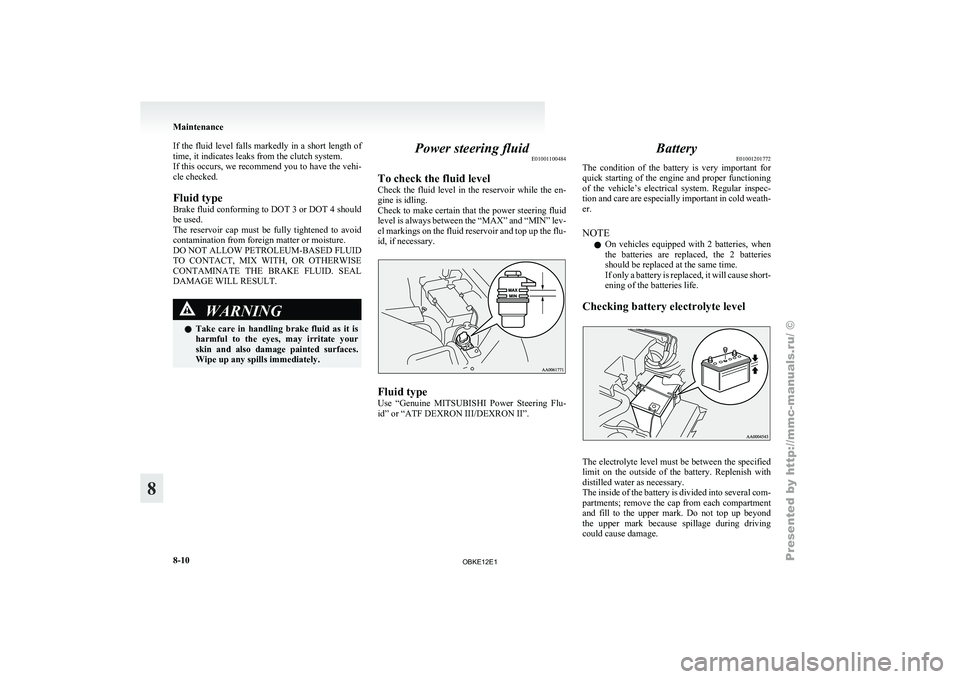
Wipe up any spills immediately. Power steering fluid
E01001100484
To check the fluid level
Check the fluid
level in the reservoir while the en-
gine is idling.
Check to make certain that the power steering fluid
level is always between the “MAX” and “MIN” lev-
el markings on the fluid reservoir and top up the flu-
id, if necessary. Fluid type
Use “Genuine
MITSUBISHI
Power Steering Flu-
id” or “ATF DEXRON III/DEXRON II”. Battery
E01001201772
The condition of
the battery is very important for
quick starting of the engine and proper functioning
of the vehicle’s electrical system. Regular inspec-
tion and care are especially important in cold weath-
er.
NOTE
l On vehicles equipped with 2 batteries, when
the batteries are replaced, the 2 batteries
should be replaced at the same time.
If only a battery is replaced, it will cause short-
ening of the batteries life.
Checking battery electrolyte level The electrolyte level must be between the specified
limit on the
outside of the battery. Replenish with
distilled water as necessary.
The inside of the battery is divided into several com-
partments; remove the cap from each compartment
and fill to the upper mark. Do not top up beyond
the upper mark because spillage during driving
could cause damage. Maintenance
8-10
8
OBKE12E1
Page 328 of 377
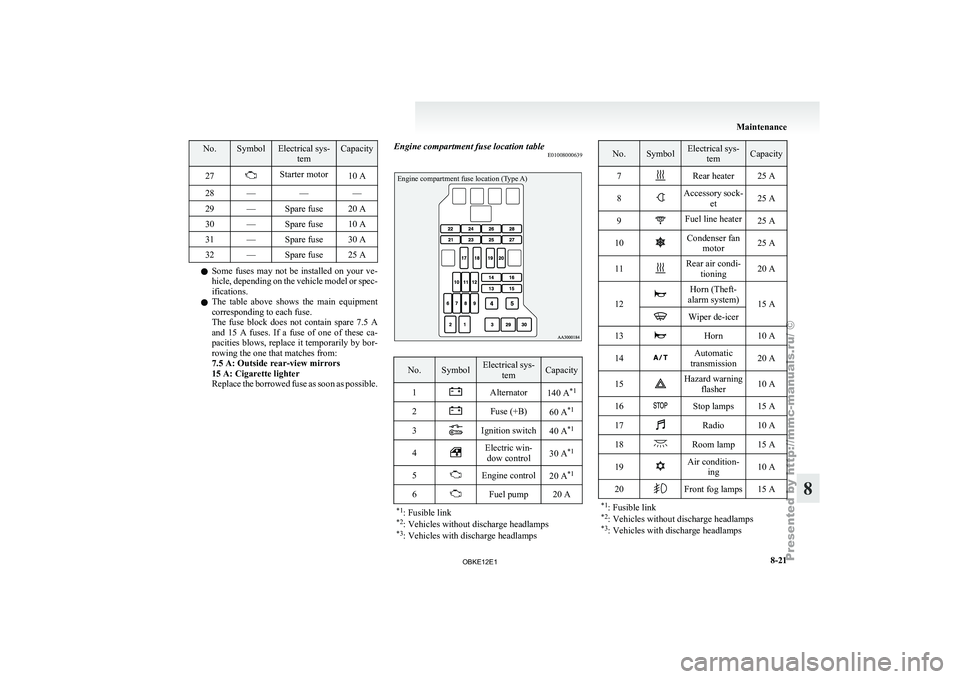
No. Symbol Electrical sys-
tem Capacity
27 Starter motor
10 A
28 — — —
29 — Spare fuse 20 A
30 — Spare fuse 10 A
31 — Spare fuse 30 A
32 — Spare fuse 25 A l
Some fuses
may not be installed on your ve-
hicle, depending on the vehicle model or spec-
ifications.
l The table above shows the main equipment
corresponding to each fuse.
The fuse block does not contain spare 7.5 A
and 15 A fuses. If a fuse of one of these ca-
pacities blows, replace it temporarily by bor-
rowing the one that matches from:
7.5 A: Outside rear-view mirrors
15 A: Cigarette lighter
Replace the borrowed fuse as soon as possible. Engine compartment fuse location table
E01008000639
Engine compartment fuse location (Type A) No. Symbol Electrical sys-
tem Capacity
1 Alternator
140 A*1
2 Fuse (+B)
60 A*1
3 Ignition switch
40 A*1
4 Electric win-
dow control 30 A
*1
5 Engine control
20 A*1
6 Fuel pump 20 A
*1 : Fusible link
*2 : Vehicles without discharge headlamps
*3 : Vehicles with discharge headlamps No. Symbol Electrical sys-
tem Capacity
7 Rear heater 25 A
8 Accessory sock-
et 25 A
9 Fuel line heater
25 A
10 Condenser fan
motor 25 A
11 Rear air condi-
tioning 20 A
12 Horn (Theft-
alarm system) 15 A Wiper de-icer
13 Horn 10 A
14 Automatic
transmission 20 A
15 Hazard warning
flasher 10 A
16 Stop lamps 15 A
17 Radio 10 A
18 Room lamp 15 A
19 Air condition-
ing 10 A
20 Front fog lamps 15 A
*1 : Fusible link
*2 : Vehicles without discharge headlamps
*3 : Vehicles with discharge headlamps Maintenance
8-21 8
OBKE12E1
Page 329 of 377
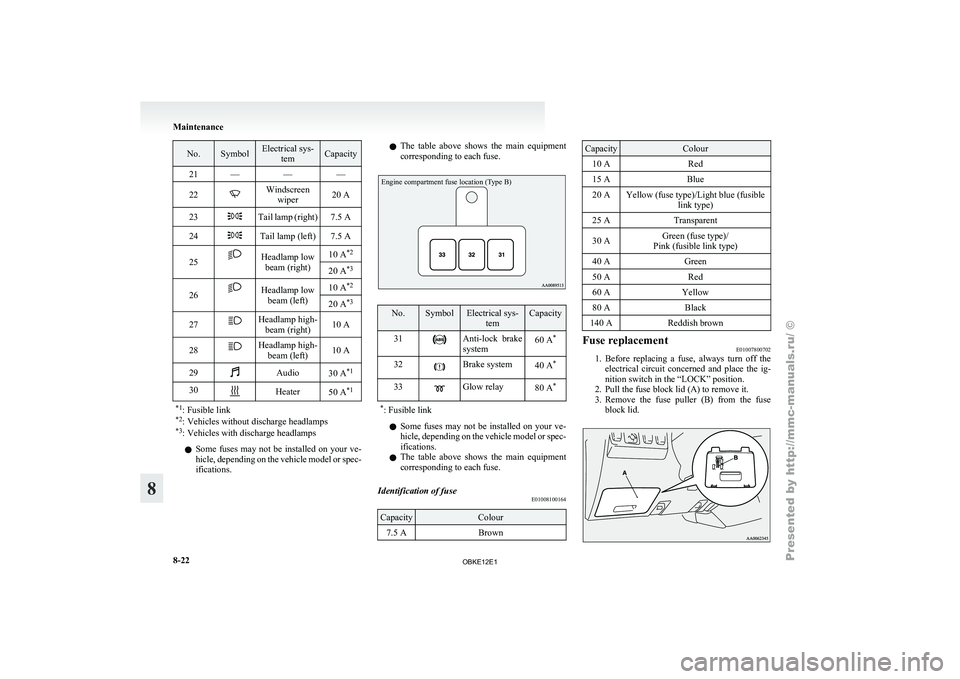
No. Symbol Electrical sys-
tem Capacity
21 — — —
22 Windscreen
wiper 20 A
23 Tail lamp (right) 7.5 A
24 Tail lamp (left) 7.5 A
25 Headlamp low
beam (right) 10 A
*2
20 A *3
26 Headlamp low
beam (left) 10 A
*2
20 A *3
27 Headlamp high-
beam (right) 10 A
28 Headlamp high-
beam (left) 10 A
29 Audio
30 A*1
30 Heater
50 A*1
*1 : Fusible link
*2 : Vehicles without discharge headlamps
*3 : Vehicles with discharge headlamps l
Some fuses
may not be installed on your ve-
hicle, depending on the vehicle model or spec-
ifications. l
The
table above
shows the main equipment
corresponding to each fuse.
Engine compartment fuse location (Type B) No. Symbol Electrical sys-
tem Capacity
31 Anti-lock brake
system
60 A
*
32 Brake system
40 A*
33 Glow relay
80 A*
* : Fusible link l
Some fuses
may
not be installed on your ve-
hicle, depending on the vehicle model or spec-
ifications.
l The table above shows the main equipment
corresponding to each fuse.
Identification of fuse E01008100164 Capacity Colour
7.5 A Brown Capacity Colour
10 A Red
15 A Blue
20 A Yellow (fuse type)/Light blue (fusible link type)
25 A Transparent
30 A Green (fuse type)/
Pink (fusible link type)
40 A Green
50 A Red
60 A Yellow
80 A Black
140 A Reddish brown Fuse replacement
E01007800702
1. Before replacing a fuse, always turn off the
electrical circuit
concerned and place the ig-
nition switch in the “LOCK” position.
2. Pull the fuse block lid (A) to remove it.
3. Remove the fuse puller (B) from the fuse block lid. Maintenance
8-22
8
OBKE12E1