Tom NISSAN 350Z 2008 Z33 04IT Navigation Manual
[x] Cancel search | Manufacturer: NISSAN, Model Year: 2008, Model line: 350Z, Model: NISSAN 350Z 2008 Z33Pages: 270, PDF Size: 5.97 MB
Page 132 of 270
Black plate (134,1)
Model "NISSAN_NAVI" EDITED: 2007/ 2/ 26
GUIDANCE SCREENS AND PREVIEW
MODE
Route guidance displays map screens and
various information according to the situation.
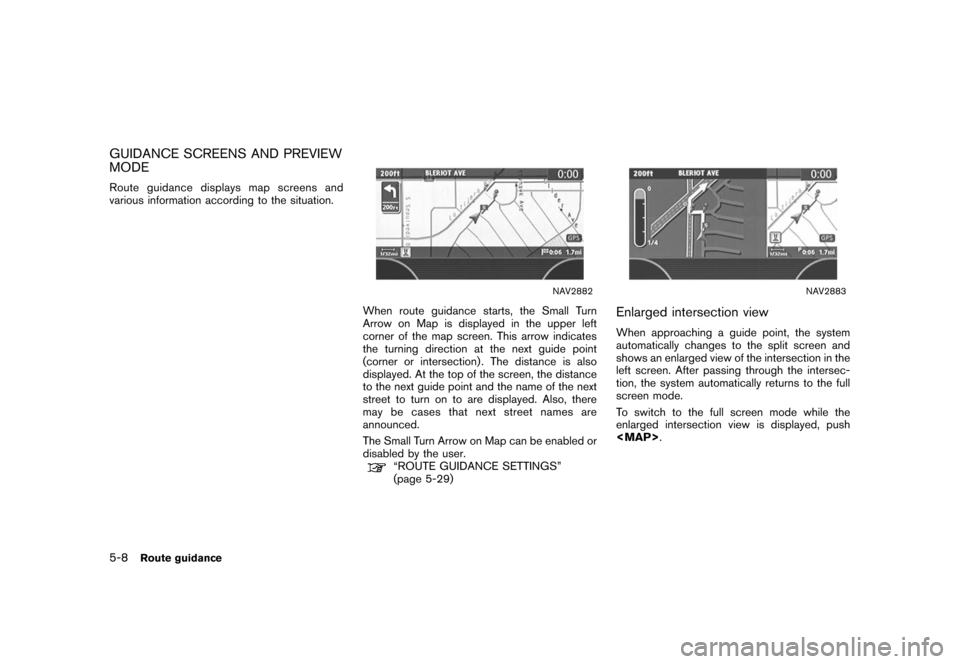
NAV2882
When route guidance starts, the Small Turn
Arrow on Map is displayed in the upper left
corner of the map screen. This arrow indicates
the turning direction at the next guide point
(corner or intersection) . The distance is also
displayed. At the top of the screen, the distance
to the next guide point and the name of the next
street to turn on to are displayed. Also, there
may be cases that next street names are
announced.
The Small Turn Arrow on Map can be enabled or
disabled by the user.
“ROUTE GUIDANCE SETTINGS”
(page 5-29)
NAV2883
Enlarged intersection view
When approaching a guide point, the system
automatically changes to the split screen and
shows an enlarged view of the intersection in the
left screen. After passing through the intersec-
tion, the system automatically returns to the full
screen mode.
To switch to the full screen mode while the
enlarged intersection view is displayed, push
Page 133 of 270
Black plate (135,1)
Model "NISSAN_NAVI" EDITED: 2007/ 2/ 26
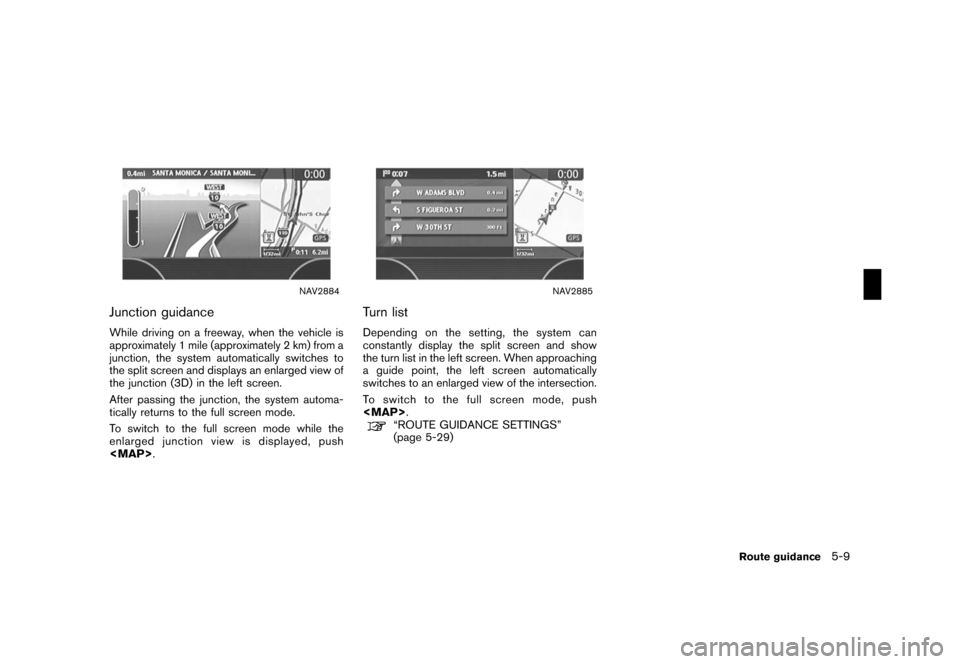
NAV2884
Junction guidance
While driving on a freeway, when the vehicle is
approximately 1 mile (approximately 2 km) from a
junction, the system automatically switches to
the split screen and displays an enlarged view of
the junction (3D) in the left screen.
After passing the junction, the system automa-
tically returns to the full screen mode.
To switch to the full screen mode while the
enlarged junction view is displayed, push
Page 137 of 270
Black plate (139,1)
Model "NISSAN_NAVI" EDITED: 2007/ 2/ 26
DETAILED ROUTE PRIORITIES
Detailed conditions can be set for the route
calculation.
Basic operation
1. Push
2. Highlight [Route Priority] and push
3. Highlight [Detailed Route Priorities] and
push
4. Highlight the preferred condition and push
condition illuminates.
5. When the current location map screen or
route setting screen is displayed, the system
recalculates a route with the set conditions.
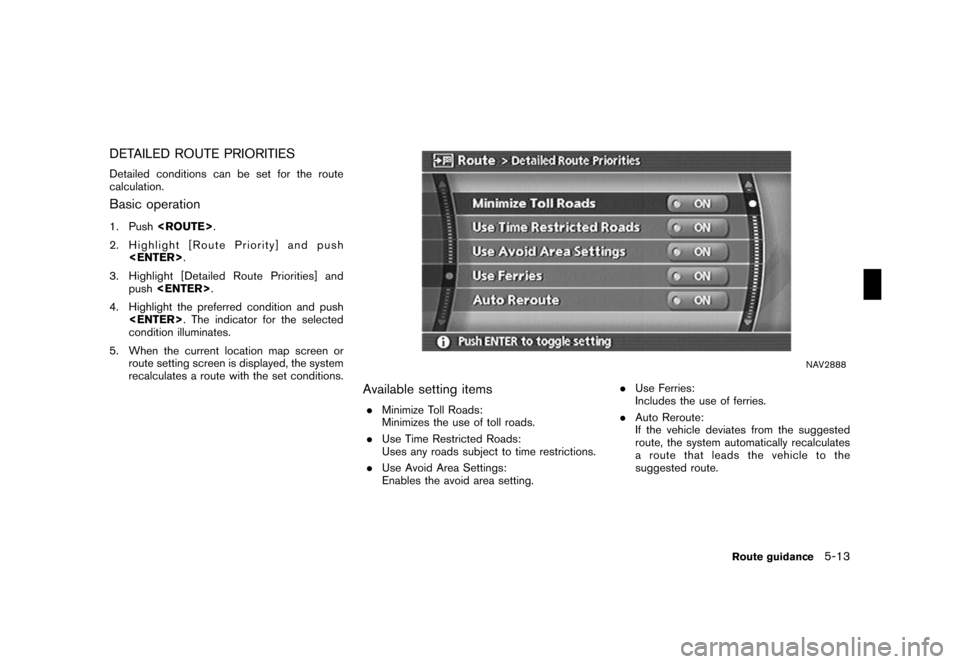
NAV2888
Available setting items
.Minimize Toll Roads:
Minimizes the use of toll roads.
.Use Time Restricted Roads:
Uses any roads subject to time restrictions.
.Use Avoid Area Settings:
Enables the avoid area setting..Use Ferries:
Includes the use of ferries.
.Auto Reroute:
If the vehicle deviates from the suggested
route, the system automatically recalculates
a route that leads the vehicle to the
suggested route.
Route guidance5-13
Page 139 of 270
Black plate (141,1)
Model "NISSAN_NAVI" EDITED: 2007/ 2/ 26
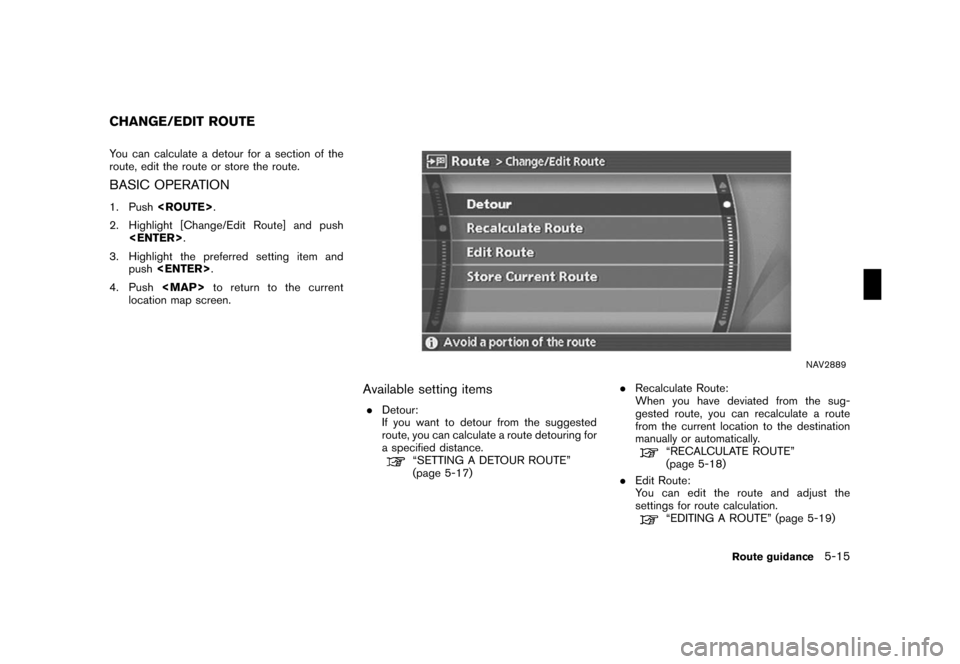
You can calculate a detour for a section of the
route, edit the route or store the route.
BASIC OPERATION
1. Push
2. Highlight [Change/Edit Route] and push
3. Highlight the preferred setting item and
push
4. Push
Page 145 of 270
Black plate (147,1)
Model "NISSAN_NAVI" EDITED: 2007/ 2/ 26
NAV2898
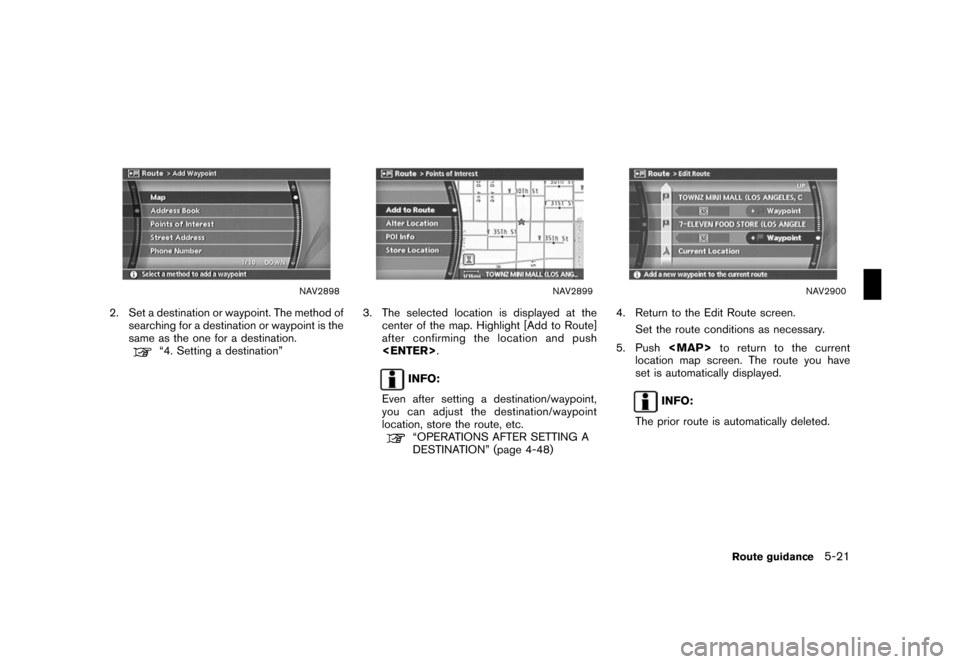
2. Set a destination or waypoint. The method of
searching for a destination or waypoint is the
same as the one for a destination.
“4. Setting a destination”
NAV2899
3. The selected location is displayed at the
center of the map. Highlight [Add to Route]
after confirming the location and push
INFO:
Even after setting a destination/waypoint,
you can adjust the destination/waypoint
location, store the route, etc.
“OPERATIONS AFTER SETTING A
DESTINATION” (page 4-48)
NAV2900
4. Return to the Edit Route screen.
Set the route conditions as necessary.
5. Push
Page 149 of 270
Black plate (151,1)
Model "NISSAN_NAVI" EDITED: 2007/ 2/ 26
NAV2907
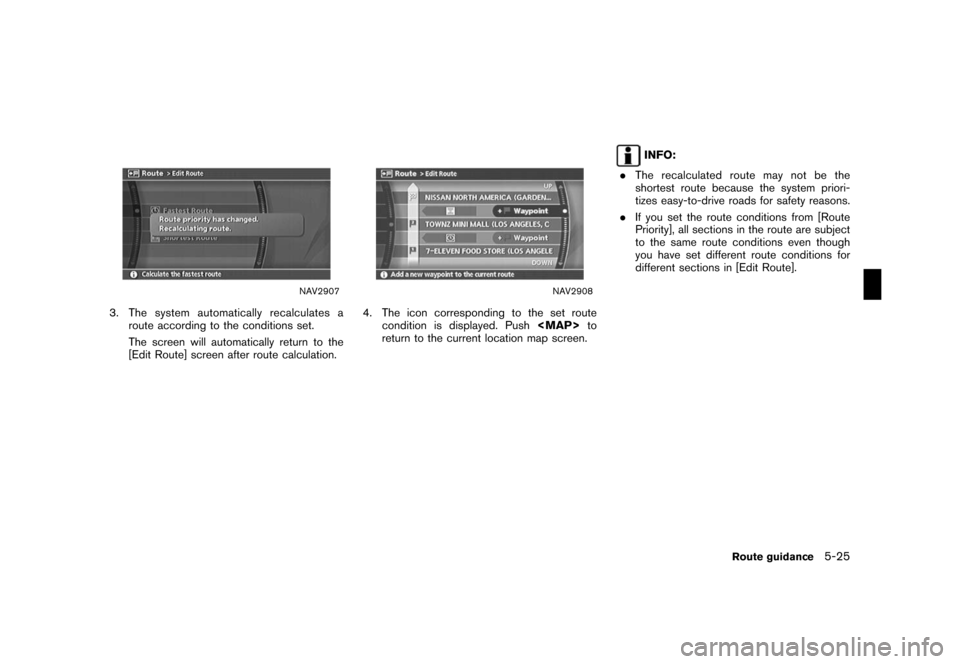
3. The system automatically recalculates a
route according to the conditions set.
The screen will automatically return to the
[Edit Route] screen after route calculation.
NAV2908
4. The icon corresponding to the set route
condition is displayed. Push
Page 157 of 270
Black plate (159,1)
Model "NISSAN_NAVI" EDITED: 2007/ 2/ 26
SET AVERAGE SPEEDS
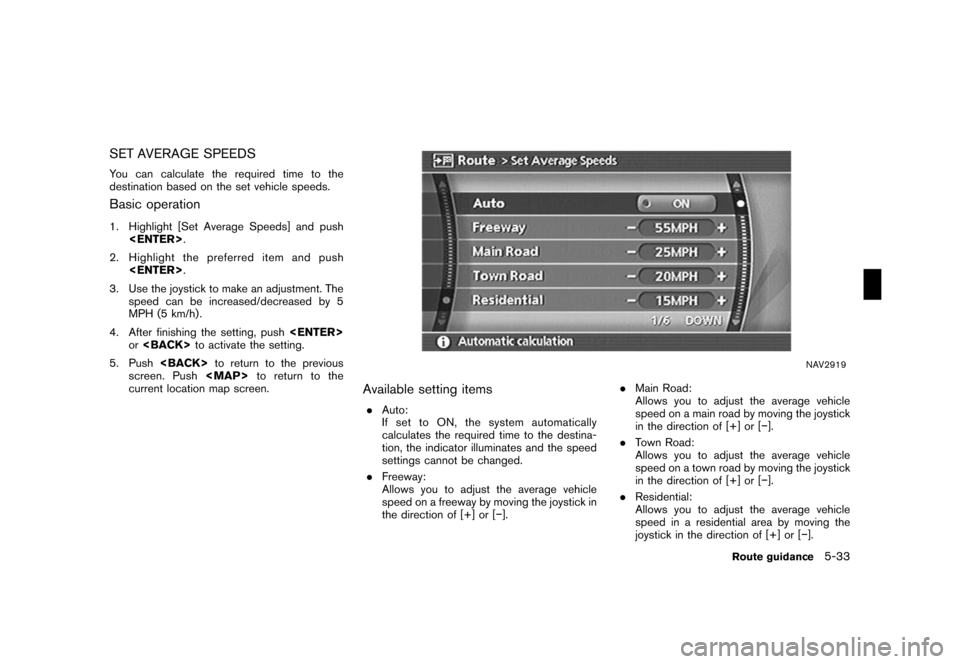
You can calculate the required time to the
destination based on the set vehicle speeds.
Basic operation
1. Highlight [Set Average Speeds] and push
2. Highlight the preferred item and push
3. Use the joystick to make an adjustment. The
speed can be increased/decreased by 5
MPH (5 km/h) .
4. After finishing the setting, push
or
5. Push
screen. Push
Page 161 of 270

Black plate (16,1)
6 Storing a location/route
Model "NISSAN_NAVI" EDITED: 2007/ 2/
Storing a location............................................... 6-2
Storing a location by searching......................... 6-2
Storing the current vehicle location..................... 6-5
Storing a location by moving the map................. 6-6
Avoid area settings......................................... 6-7
Storing a route................................................ 6-12
Storing a tracked route...................................... 6-14
Editing the address book................................... 6-15
Basic operation........................................... 6-15
Editing the stored home and location................ 6-16Minor adjustment of the stored home and
locations.................................................... 6-17
Editing the stored route................................. 6-25
Editing the stored tracking.............................. 6-26
Editing the avoid area................................... 6-27
Deleting a stored item....................................... 6-28
Deleting a stored item individually.................... 6-28
Deleting an individual item on the map.............. 6-30
Deleting all stored items................................ 6-31
Customizing nearby places................................. 6-33
Page 193 of 270
Black plate (195,1)
Model "NISSAN_NAVI" EDITED: 2007/ 2/ 26
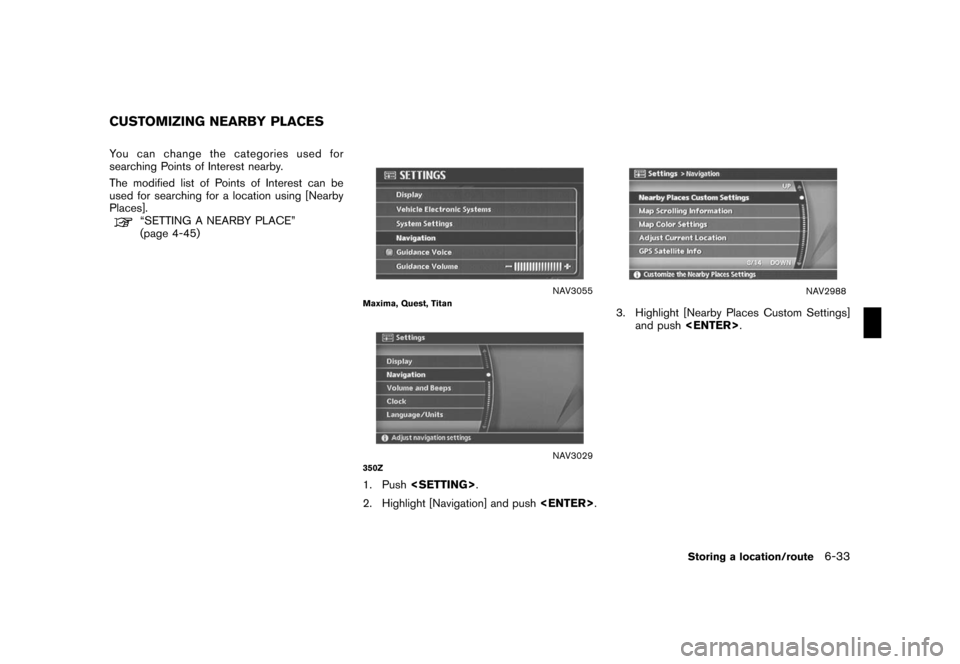
You can change the categories used for
searching Points of Interest nearby.
The modified list of Points of Interest can be
used for searching for a location using [Nearby
Places].
“SETTING A NEARBY PLACE”
(page 4-45)
NAV3055Maxima, Quest, Titan
NAV3029350Z
1. Push
2. Highlight [Navigation] and push
NAV2988
3. Highlight [Nearby Places Custom Settings]
and push
CUSTOMIZING NEARBY PLACES
Storing a location/route6-33
Page 202 of 270
Black plate (206,1)
Model "NISSAN_NAVI" EDITED: 2007/ 2/ 26
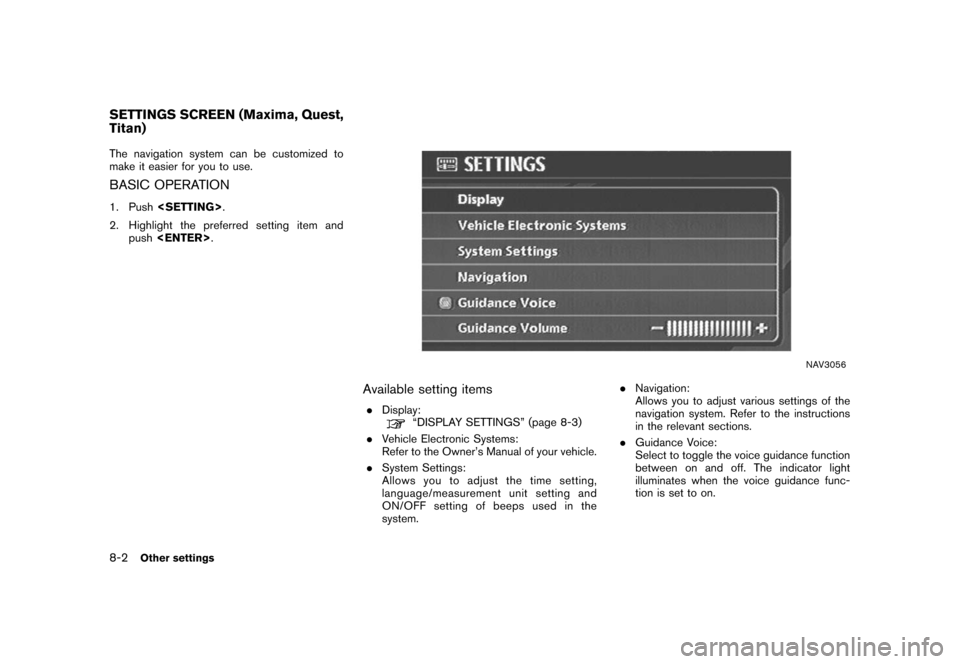
The navigation system can be customized to
make it easier for you to use.
BASIC OPERATION
1. Push
2. Highlight the preferred setting item and
push
NAV3056
Available setting items
.Display:“DISPLAY SETTINGS” (page 8-3)
.Vehicle Electronic Systems:
Refer to the Owner’s Manual of your vehicle.
.System Settings:
Allows you to adjust the time setting,
language/measurement unit setting and
ON/OFF setting of beeps used in the
system..Navigation:
Allows you to adjust various settings of the
navigation system. Refer to the instructions
in the relevant sections.
.Guidance Voice:
Select to toggle the voice guidance function
between on and off. The indicator light
illuminates when the voice guidance func-
tion is set to on.
SETTINGS SCREEN (Maxima, Quest,
Titan)
8-2Other settings