Tom NISSAN 350Z 2008 Z33 04IT Navigation Manual
[x] Cancel search | Manufacturer: NISSAN, Model Year: 2008, Model line: 350Z, Model: NISSAN 350Z 2008 Z33Pages: 270, PDF Size: 5.97 MB
Page 204 of 270
![NISSAN 350Z 2008 Z33 04IT Navigation Manual Black plate (208,1)
Model "NISSAN_NAVI" EDITED: 2007/ 2/ 26
NAV3100
Display off
To turn off the display, push<ENTER>and turn
the [Display off] indicator on, and hold<>
(Day/Night) for more than 2 seco](/img/5/794/w960_794-203.png "NISSAN 350Z 2008 Z33 04IT Navigation Manual Black plate (208,1)
Model \"NISSAN_NAVI\" EDITED: 2007/ 2/ 26
NAV3100
Display off
To turn off the display, push<ENTER>and turn
the [Display off] indicator on, and hold<>
(Day/Night) for more than 2 seco")
Black plate (208,1)
Model "NISSAN_NAVI" EDITED: 2007/ 2/ 26
NAV3100
Display off
To turn off the display, push
the [Display off] indicator on, and hold<>
(Day/Night) for more than 2 seconds.
NAV3101
When any button is pushed with the display off,
the display turns on. The display will automati-
cally turn off 3 seconds after the operation is
finished.
To turn on the display, push<
>(Day/Night)
for more than 2 seconds.
NAV3102
Brightness
Adjust the display brightness by tilting the
joystick in the direction of [+] or [−].
INFO:
The preview of the map screen is displayed on
the upper portion of the screen, if the previous
screen showed a map.
8-4Other settings
Page 208 of 270
![NISSAN 350Z 2008 Z33 04IT Navigation Manual Black plate (212,1)
Model "NISSAN_NAVI" EDITED: 2007/ 2/ 26
NAV3033
3. A message is displayed. Confirm the con-
tents of the message.
After confirming the message, highlight [Yes]
and push<ENTER>.
NAV](/img/5/794/w960_794-207.png "NISSAN 350Z 2008 Z33 04IT Navigation Manual Black plate (212,1)
Model \"NISSAN_NAVI\" EDITED: 2007/ 2/ 26
NAV3033
3. A message is displayed. Confirm the con-
tents of the message.
After confirming the message, highlight [Yes]
and push<ENTER>.
NAV")
Black plate (212,1)
Model "NISSAN_NAVI" EDITED: 2007/ 2/ 26
NAV3033
3. A message is displayed. Confirm the con-
tents of the message.
After confirming the message, highlight [Yes]
and push
NAV3034
4. The program loading screen is displayed,
and the system initiates language setting.
Upon completion, the start-up screen is
automatically displayed.
CAUTION
Do not change the ignition switch posi-
tion while changing the language. Doing
so may cause a system malfunction.
8-8Other settings
Page 212 of 270
Black plate (216,1)
Model "NISSAN_NAVI" EDITED: 2007/ 2/ 26
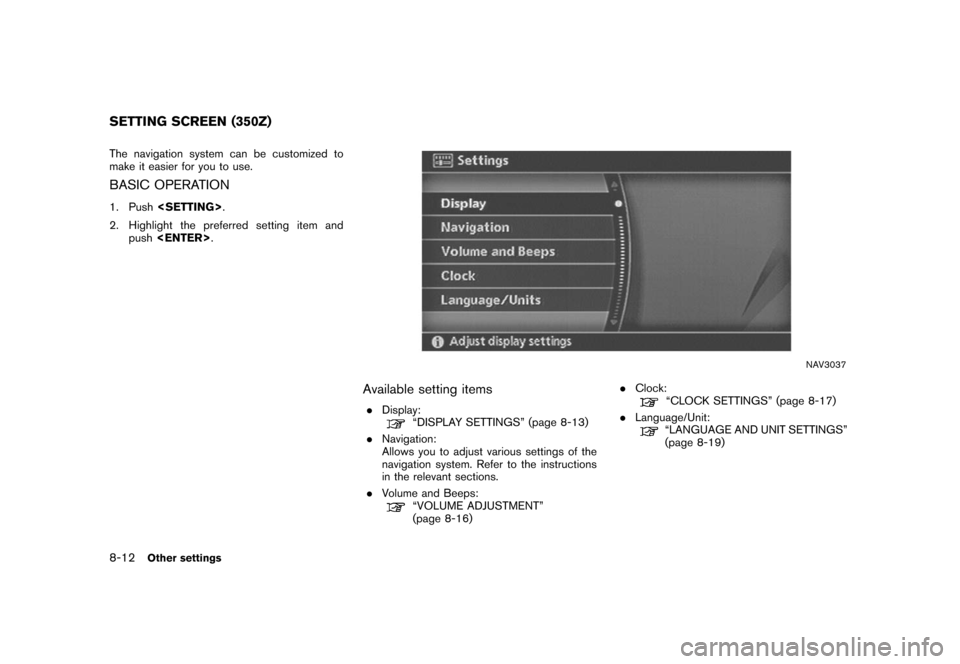
The navigation system can be customized to
make it easier for you to use.
BASIC OPERATION
1. Push
2. Highlight the preferred setting item and
push
NAV3037
Available setting items
.Display:“DISPLAY SETTINGS” (page 8-13)
.Navigation:
Allows you to adjust various settings of the
navigation system. Refer to the instructions
in the relevant sections.
.Volume and Beeps:
“VOLUME ADJUSTMENT”
(page 8-16).Clock:
“CLOCK SETTINGS” (page 8-17)
.Language/Unit:
“LANGUAGE AND UNIT SETTINGS”
(page 8-19)
SETTING SCREEN (350Z)
8-12Other settings
Page 214 of 270
Black plate (218,1)
Model "NISSAN_NAVI" EDITED: 2007/ 2/ 26
NAV3105
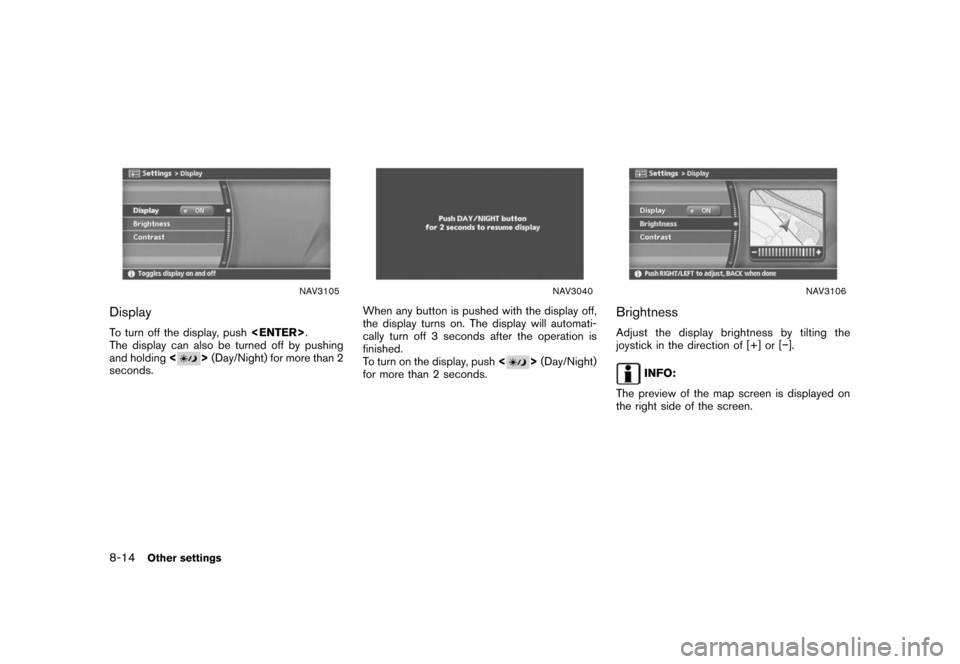
Display
To turn off the display, push
The display can also be turned off by pushing
and holding<
>(Day/Night) for more than 2
seconds.
NAV3040
When any button is pushed with the display off,
the display turns on. The display will automati-
cally turn off 3 seconds after the operation is
finished.
To turn on the display, push<
>(Day/Night)
for more than 2 seconds.
NAV3106
Brightness
Adjust the display brightness by tilting the
joystick in the direction of [+] or [−].
INFO:
The preview of the map screen is displayed on
the right side of the screen.
8-14Other settings
Page 220 of 270
Black plate (224,1)
Model "NISSAN_NAVI" EDITED: 2007/ 2/ 26
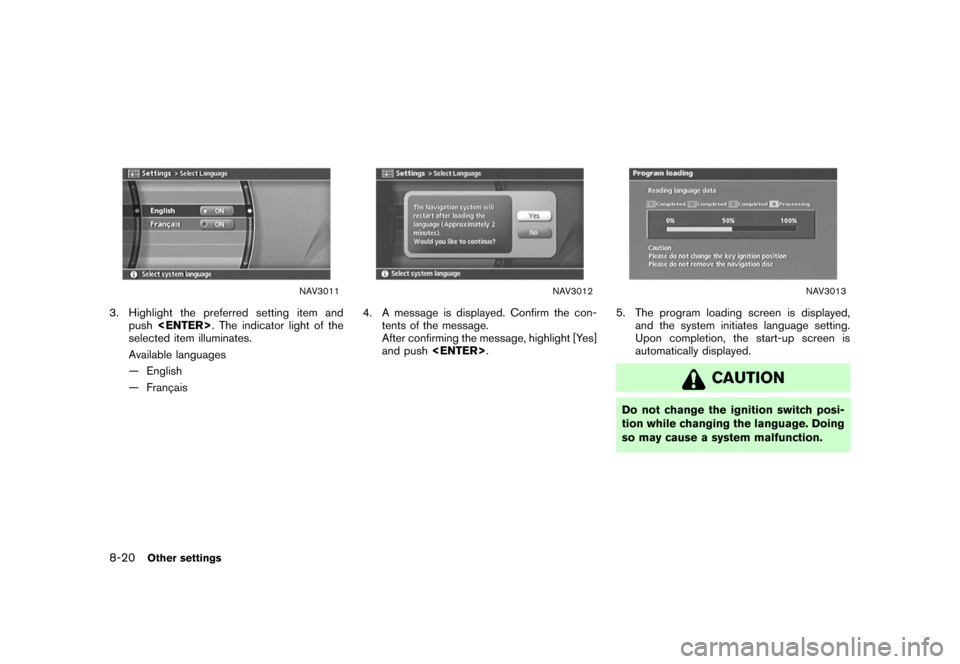
NAV3011
3. Highlight the preferred setting item and
push
selected item illuminates.
Available languages
— English
— Franc¸ ais
NAV3012
4. A message is displayed. Confirm the con-
tents of the message.
After confirming the message, highlight [Yes]
and push
NAV3013
5. The program loading screen is displayed,
and the system initiates language setting.
Upon completion, the start-up screen is
automatically displayed.
CAUTION
Do not change the ignition switch posi-
tion while changing the language. Doing
so may cause a system malfunction.
8-20Other settings
Page 223 of 270
Black plate (227,1)
Model "NISSAN_NAVI" EDITED: 2007/ 2/ 26
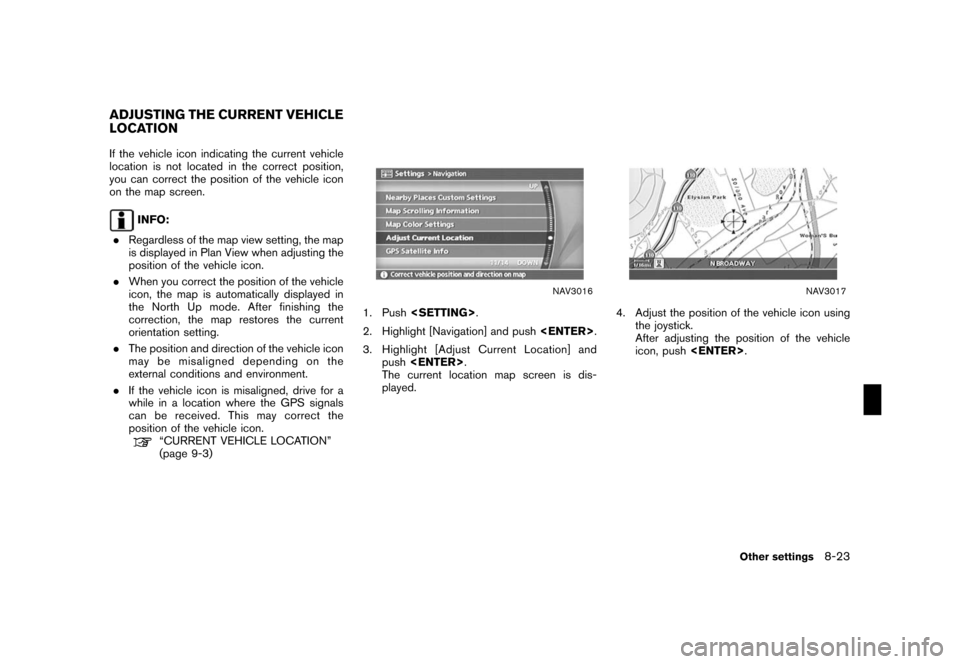
If the vehicle icon indicating the current vehicle
location is not located in the correct position,
you can correct the position of the vehicle icon
on the map screen.
INFO:
.Regardless of the map view setting, the map
is displayed in Plan View when adjusting the
position of the vehicle icon.
.When you correct the position of the vehicle
icon, the map is automatically displayed in
the North Up mode. After finishing the
correction, the map restores the current
orientation setting.
.The position and direction of the vehicle icon
may be misaligned depending on the
external conditions and environment.
.If the vehicle icon is misaligned, drive for a
while in a location where the GPS signals
can be received. This may correct the
position of the vehicle icon.
“CURRENT VEHICLE LOCATION”
(page 9-3)
NAV3016
1. Push
2. Highlight [Navigation] and push
3. Highlight [Adjust Current Location] and
push
The current location map screen is dis-
played.
NAV3017
4. Adjust the position of the vehicle icon using
the joystick.
After adjusting the position of the vehicle
icon, push
ADJUSTING THE CURRENT VEHICLE
LOCATION
Other settings8-23
Page 227 of 270

Black plate (25,1)
9 General system information
Model "NISSAN_NAVI" EDITED: 2007/ 2/
Features of this navigation system.......................... 9-2
Route guidance............................................. 9-2
Points of interest (POI) directory........................ 9-2
Address book................................................ 9-2
Avoid area.................................................... 9-2
Automatic reroute........................................... 9-2
Detour......................................................... 9-2
Birdview
TM................................................... 9-3
Voice guidance.............................................. 9-3
Current vehicle location....................................... 9-3
Display of current vehicle location...................... 9-3
What is GPS (Global Positioning System)?.......... 9-3
Accuracy of positioning................................... 9-4
Incorrect display of vehicle position.................... 9-6
Detailed Map Coverage Areas (MCA) for the
navigation system........................................... 9-8
When a gray road is displayed on the map.......... 9-9Route calculation............................................... 9-9
Route guidance............................................... 9-11
Basics of voice guidance............................... 9-11
Directions provided and the distances to guide
points........................................................ 9-11
Repeating voice guidance.............................. 9-14
Notes on voice guidance............................... 9-14
Map DVD-ROM............................................... 9-15
How to order map DVD-ROM updates.............. 9-15
About the map DVD-ROM............................. 9-15
Map DVD-ROM drive location......................... 9-16
Disc replacement......................................... 9-17
How to handle the DVD-ROM......................... 9-18
How to handle the display.................................. 9-19
Characteristics of a liquid crystal display............ 9-19
Maintenance of the display............................. 9-20
Page 228 of 270

Black plate (232,1)
Model "NISSAN_NAVI" EDITED: 2007/ 2/ 26
ROUTE GUIDANCE
The main features of the NISSAN Navigation
System are visual guidance and voice guidance
in selected map coverage areas. Utilizing a
network of GPS (Global Positioning System)
satellites, the NISSAN Navigation System tracks
your location on the map and navigates you to a
preferred location.
Once you set the destination in a map coverage
area, the NISSAN Navigation System will
calculate a route from your current location to
your destination. The real-time map display and
turn-by-turn voice guidance leads the driver
along the route.
These features can be especially helpful when
driving to unfamiliar locations.
The system may be unable to set a destination
and/or calculate a route when the destination is
outside the map coverage area. Additionally,
voice guidance may not be available if the
destination is outside the map coverage area.
For more information on how to set a destina-
tion, refer to section 4.
POINTS OF INTEREST (POI) DIREC-
TO RY
The NISSAN Navigation System offers an
extensive Points of Interest (POI) directory in
map coverage areas. This directory includes awide variety of destinations ranging from gas
stations, ATMs, and restaurants to casinos, ski
resorts, shopping centers and businesses. By
accessing the Points of Interest directory, you
can search for addresses and phone numbers
for a destination, and just by pushing a button,
the NISSAN Navigation System will calculate a
route to the destination.
The POI directory has many uses. For example,
the directory can be sorted by the various types
of restaurants near your current location. If you
need an ATM or gas station, the NISSAN
Navigation System can navigate you to the
closest preferred location.
For more information on how to use the Points of
Interest directory, refer to section 4.
ADDRESS BOOK
The Address Book can store up to 100 locations
from map coverage areas into a personal
directory. This is especially useful for frequently
visited locations, such as clients, relatives and
friends. The Address Book function allows easy
access to frequently visited locations when
setting them as your destination.
For more information on how to use the Address
Book, refer to section 6.
AVOID AREA
The Avoid Area function allows you to identify
areas or freeways that you would like the
NISSAN Navigation System to avoid when
calculating routes. For example, if a freeway or
area is always congested with traffic, you can
set the NISSAN Navigation System to calculate
routes that exclude that freeway or area.
For more information on the Avoid Area function,
refer to section 6.
AUTOMATIC REROUTE
If you deviate from the suggested route, the
NISSAN Navigation System will automatically
recalculate a new route to your destination.
For more information on the Automatic reroute
function, refer to section 5.
DETOUR
If you want to make a detour due to traffic
conditions, you can use the Detour function to
calculate an alternative route. The NISSAN
Navigation System can calculate a route using
secondary roads that will return you to primary
roads after a specified number of miles.
For more information on the Detour function,
refer to section 5.
FEATURES OF THIS NAVIGATION
SYSTEM
9-2General system information
Page 230 of 270
Black plate (234,1)
Model "NISSAN_NAVI" EDITED: 2007/ 2/ 26
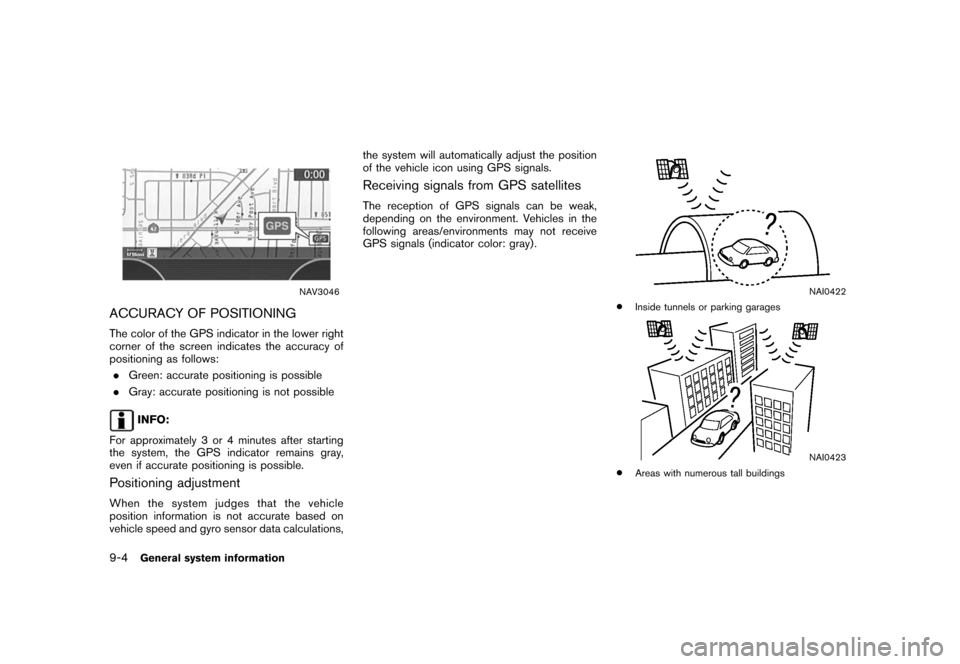
NAV3046
ACCURACY OF POSITIONING
The color of the GPS indicator in the lower right
corner of the screen indicates the accuracy of
positioning as follows:
.Green: accurate positioning is possible
.Gray: accurate positioning is not possible
INFO:
For approximately 3 or 4 minutes after starting
the system, the GPS indicator remains gray,
even if accurate positioning is possible.
Positioning adjustment
When the system judges that the vehicle
position information is not accurate based on
vehicle speed and gyro sensor data calculations,the system will automatically adjust the position
of the vehicle icon using GPS signals.
Receiving signals from GPS satellites
The reception of GPS signals can be weak,
depending on the environment. Vehicles in the
following areas/environments may not receive
GPS signals (indicator color: gray) .
NAI0422
*Inside tunnels or parking garages
NAI0423
*Areas with numerous tall buildings
9-4General system information
Page 234 of 270

Black plate (238,1)
Model "NISSAN_NAVI" EDITED: 2007/ 2/ 26
NAI0436
*When the GPS positioning accuracy is low.
INFO:
.The vehicle icon may be misaligned when
starting the vehicle just after starting the
engine.
.The vehicle icon may also be misaligned if
different sized tires or tire chains are
installed.
.The system has a function that automatically
corrects the vehicle icon position when it is
misaligned from the actual position.
.Vehicle position correction by GPS may not
function when the vehicle is stopped..If the vehicle icon position does not return to
normal even after driving for a while, correct
the vehicle icon position manually.
“ADJUSTING THE CURRENT VEHI-
CLE LOCATION” (page 8-23)
DETAILED MAP COVERAGE AREAS
(MCA) FOR THE NAVIGATION SYS-
TEM
This system is designed to help you reach your
destination, and it also performs other functions
as outlined in this manual. However, you, the
driver, must use the system safely and properly.
Information concerning road conditions, traffic
signs and the availability of services may not
always be up-to-date. The system is not a
substitute for safe, proper and legal driving.
Map data covers select metropolitan areas in the
United States.
Map data is available on map DVD-ROMs. For
information about map DVD-ROMs, contact a
NISSAN dealer or call the NISSAN NAVIGA-
TION SYSTEM HELPDESK. See the contact
information on the inside front cover of this
manual.
Map data includes two types of areas: “Detailed
coverage areas” providing all detailed road data
and other areas showing “Main roads only”.
NOTE:
Detailed map data is not available in many
areas and is generally limited to select
major metropolitan areas.
For information on which metropolitan areas are
in detailed coverage areas, please refer to the
NISSAN Navigation System Software Booklet
(included) . When you purchase an updated map
DVD-ROM, a new software booklet will be
included.
9-8General system information