change time NISSAN 370Z 2018 Owner´s Manual
[x] Cancel search | Manufacturer: NISSAN, Model Year: 2018, Model line: 370Z, Model: NISSAN 370Z 2018Pages: 453, PDF Size: 2.19 MB
Page 213 of 453
language setting.
Scroll direction:
Set the scrolling behavior of the TUNE/
MENU knob to scroll UP or DOWN.
FM·AM radio operation
The audio system operates when the
ignition switch is in the “ACC” or “ON”
position.
FM·AM button:
When the FM·AM button is pushed while
the audio system is off, the audio system
will turn on and the radio will turn on.
When the FM·AM button is pushed while
another audio source is already operat-
ing, it will automatically turn off, and the
radio will turn on.
To change the radio bands, push the
FM·AM button until the desired band
appears.
AM ?FM 1 ?FM 2 ?AM
TUNE/MENU knob:
When adjusting the broadcasting station
frequency manually, turn the TUNE/MENU
knob until the preferred frequency is
achieved.
Seek tuning button:
When adjusting the broadcasting station
frequency automatically, push the
button. When the system detects a
broadcasting station, it will stop at the
station.
Radio memory buttons:
During radio reception, pushing the radio
memory button for less than 2 seconds
will select the stored radio station.
The audio system can store up to 12 FM
station frequencies (six in each of FM 1and
FM 2) and 6 AM station frequencies.
To store the station frequency manually:
1. Tune to the desired broadcasting station frequency by using the
button.
2. Push and hold a radio memory button
-until a beep sounds. (The radio
mutes when the radio memory button
is pushed.)
3. The channel indicator will display and the radio mute disengages, indicating
that the memory is stored properly.
4. Perform steps 1 - 3 for all other memory buttons.
If the battery cable is disconnected, or if
the audio fuse blows, the radio memory
will be erased. In such a case, reset the desired stations.
SCAN button:
Push the SCAN button to tune from low
to high frequencies and stops at each
broadcasting station for 5 seconds. Push-
ing the SCAN button again during this 5
seconds period will stop SCAN tuning and
the radio will remain tuned to that
station.
If the SCAN button is not pushed within 5
seconds, SCAN tuning moves to the next
station.
CD player operation
The audio system operates when the
ignition switch is in the “ACC” or “ON”
position.
Loading:
Insert a CD into the slot with the label side
facing up. The CD will be guided auto-
matically into the slot and will start
playing. After loading the CD, the number
of tracks and the playtime will appear on
the display.
CAUTION
Do not force the CD into the slot. This
could damage the player.
Center display, heater, air conditioner, audio, phone and voice recognition systems4-45
Page 223 of 453
PLAY:
When the DISC·AUX (CD play) button is
pushed with the system off and the CD
loaded, the system will turn on and the
CD will start to play.
When the DISC·AUX button is pushed with
the CD loaded and the radio playing, the
radio will automatically be turned off and
the CD will start to play.
Menu:
When the “Menu” key on the display is
selected while the CD is being played, the
menu screen will be displayed. The fol-
lowing menu options are available.
. Folder List (for CD with compressed
audio files)
Displays the folder list.
. Track List
Displays the track list.
. Play Mode
Select a play mode from the following
items.
— Normal
— 1 Folder Repeat (for CD with com-
pressed audio files)
— 1 Track Repeat
— 1 Disc Random
— 1 Folder Random (for CD with com- pressed audio files)Next/Previous Track and
Fast Forward/Rewind:
When the
orbutton is pushed for
more than 1.5 seconds while the CD is
being played, the CD will play while fast
forwarding or rewinding. When the but-
ton is released, the CD will return to
normal play speed.
When the
orbutton is pushed for
less than 1.5 seconds while the CD is being
played, the next track or the beginning of
the current track on the CD will be played.
When the rewind button is pushed for less
than 1.5 seconds within 3 seconds after
the current track starts playing, the pre-
vious track will be played. Push the button
several times to skip through the tracks.
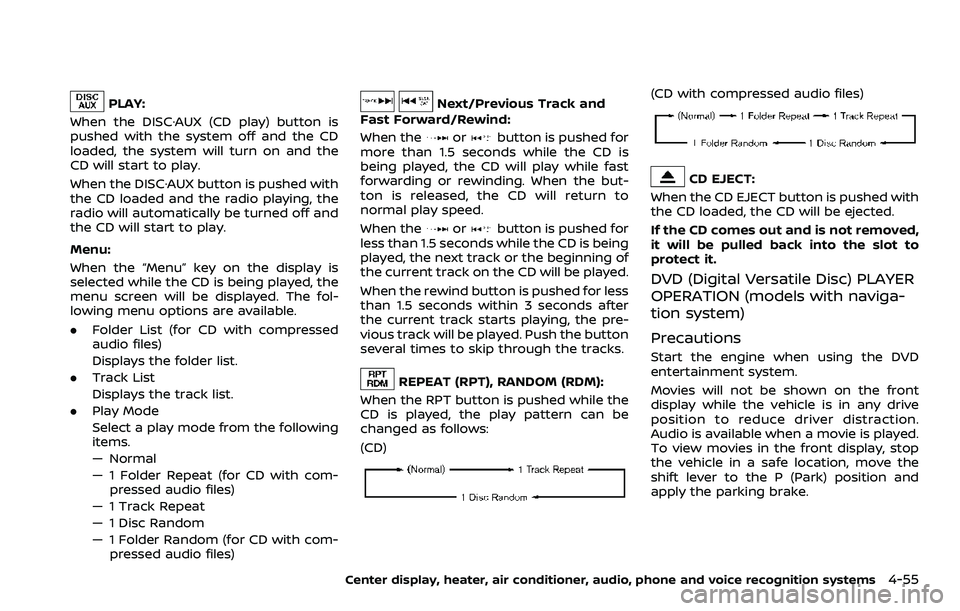
REPEAT (RPT), RANDOM (RDM):
When the RPT button is pushed while the
CD is played, the play pattern can be
changed as follows:
(CD)
(CD with compressed audio files)
CD EJECT:
When the CD EJECT button is pushed with
the CD loaded, the CD will be ejected.
If the CD comes out and is not removed,
it will be pulled back into the slot to
protect it.
DVD (Digital Versatile Disc) PLAYER
OPERATION (models with naviga-
tion system)
Precautions
Start the engine when using the DVD
entertainment system.
Movies will not be shown on the front
display while the vehicle is in any drive
position to reduce driver distraction.
Audio is available when a movie is played.
To view movies in the front display, stop
the vehicle in a safe location, move the
shift lever to the P (Park) position and
apply the parking brake.
Center display, heater, air conditioner, audio, phone and voice recognition systems4-55
Page 224 of 453
4-56Center display, heater, air conditioner, audio, phone and voice recognition systems
WARNING
.The driver must not attempt to
operate the DVD system or wear
the headphones while the vehicle
is in motion so that full attention
may be given to vehicle opera-
tion.
. Do not attempt to modify the
system to display a movie on the
front screen while the vehicle is
being driven. Doing so may dis-
tract the driver and may cause a
collision and serious personal in-
jury or death.
CAUTION
.Only operate the DVD while the
vehicle engine is running. Operat-
ing the DVD for extended periods
of time with the engine OFF can
discharge the vehicle battery.
. Do not allow the system to get
wet. Excessive moisture such as
spilled liquids may cause the
system to malfunction. .
While playing VIDEO-CD media,
this DVD player does not guaran-
tee complete functionality of all
VIDEO-CD formats.
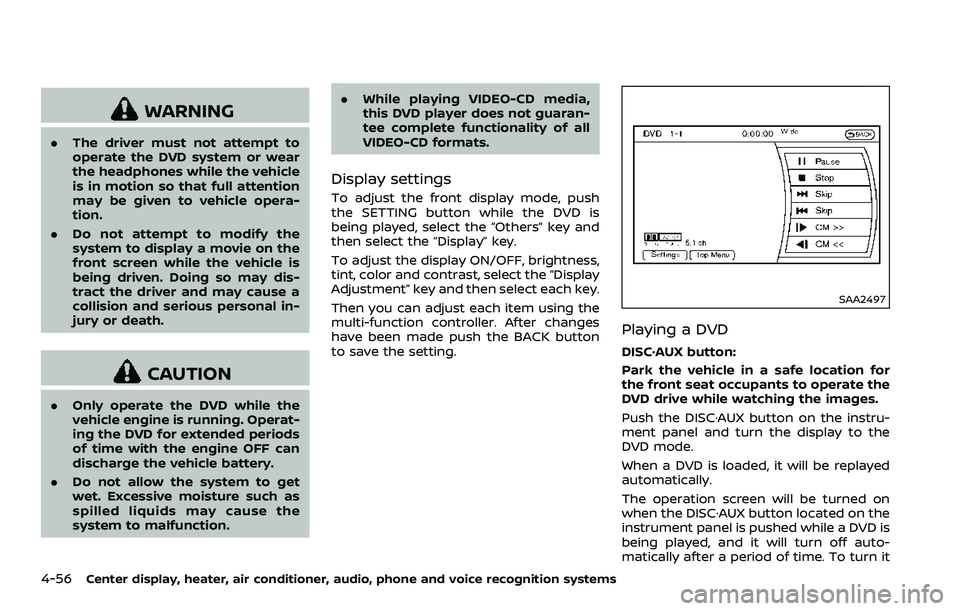
Display settings
To adjust the front display mode, push
the SETTING button while the DVD is
being played, select the “Others” key and
then select the “Display” key.
To adjust the display ON/OFF, brightness,
tint, color and contrast, select the “Display
Adjustment” key and then select each key.
Then you can adjust each item using the
multi-function controller. After changes
have been made push the BACK button
to save the setting.
SAA2497
Playing a DVD
DISC·AUX button:
Park the vehicle in a safe location for
the front seat occupants to operate the
DVD drive while watching the images.
Push the DISC·AUX button on the instru-
ment panel and turn the display to the
DVD mode.
When a DVD is loaded, it will be replayed
automatically.
The operation screen will be turned on
when the DISC·AUX button located on the
instrument panel is pushed while a DVD is
being played, and it will turn off auto-
matically after a period of time. To turn it
Page 226 of 453
4-58Center display, heater, air conditioner, audio, phone and voice recognition systems
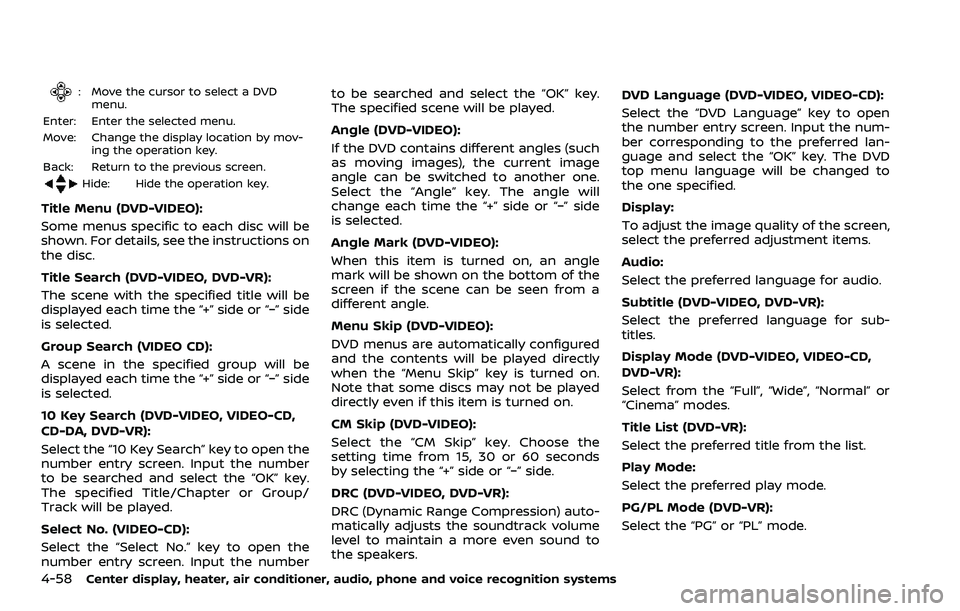
: Move the cursor to select a DVDmenu.
Enter: Enter the selected menu.
Move: Change the display location by mov- ing the operation key.
Back: Return to the previous screen.
Hide: Hide the operation key.
Title Menu (DVD-VIDEO):
Some menus specific to each disc will be
shown. For details, see the instructions on
the disc.
Title Search (DVD-VIDEO, DVD-VR):
The scene with the specified title will be
displayed each time the “+” side or “−” side
is selected.
Group Search (VIDEO CD):
A scene in the specified group will be
displayed each time the “+” side or “−” side
is selected.
10 Key Search (DVD-VIDEO, VIDEO-CD,
CD-DA, DVD-VR):
Select the “10 Key Search” key to open the
number entry screen. Input the number
to be searched and select the “OK” key.
The specified Title/Chapter or Group/
Track will be played.
Select No. (VIDEO-CD):
Select the “Select No.” key to open the
number entry screen. Input the number to be searched and select the “OK” key.
The specified scene will be played.
Angle (DVD-VIDEO):
If the DVD contains different angles (such
as moving images), the current image
angle can be switched to another one.
Select the “Angle” key. The angle will
change each time the “+” side or “−” side
is selected.
Angle Mark (DVD-VIDEO):
When this item is turned on, an angle
mark will be shown on the bottom of the
screen if the scene can be seen from a
different angle.
Menu Skip (DVD-VIDEO):
DVD menus are automatically configured
and the contents will be played directly
when the “Menu Skip” key is turned on.
Note that some discs may not be played
directly even if this item is turned on.
CM Skip (DVD-VIDEO):
Select the “CM Skip” key. Choose the
setting time from 15, 30 or 60 seconds
by selecting the “+” side or “−” side.
DRC (DVD-VIDEO, DVD-VR):
DRC (Dynamic Range Compression) auto-
matically adjusts the soundtrack volume
level to maintain a more even sound to
the speakers. DVD Language (DVD-VIDEO, VIDEO-CD):
Select the “DVD Language” key to open
the number entry screen. Input the num-
ber corresponding to the preferred lan-
guage and select the “OK” key. The DVD
top menu language will be changed to
the one specified.
Display:
To adjust the image quality of the screen,
select the preferred adjustment items.
Audio:
Select the preferred language for audio.
Subtitle (DVD-VIDEO, DVD-VR):
Select the preferred language for sub-
titles.
Display Mode (DVD-VIDEO, VIDEO-CD,
DVD-VR):
Select from the “Full”, “Wide”, “Normal” or
“Cinema” modes.
Title List (DVD-VR):
Select the preferred title from the list.
Play Mode:
Select the preferred play mode.
PG/PL Mode (DVD-VR):
Select the “PG” or “PL” mode.
Page 228 of 453
4-60Center display, heater, air conditioner, audio, phone and voice recognition systems
SAA2500
File selection
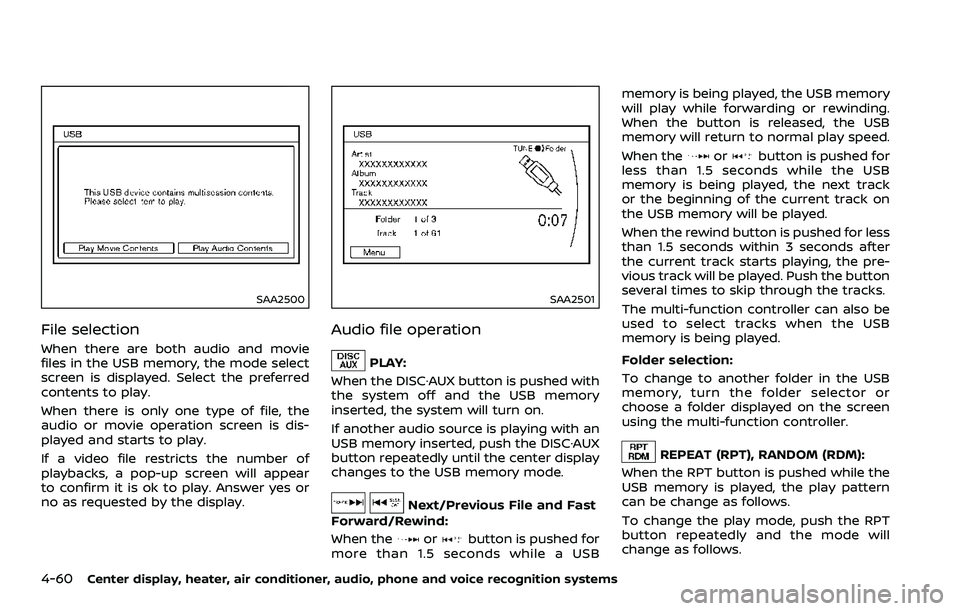
When there are both audio and movie
files in the USB memory, the mode select
screen is displayed. Select the preferred
contents to play.
When there is only one type of file, the
audio or movie operation screen is dis-
played and starts to play.
If a video file restricts the number of
playbacks, a pop-up screen will appear
to confirm it is ok to play. Answer yes or
no as requested by the display.
SAA2501
Audio file operation
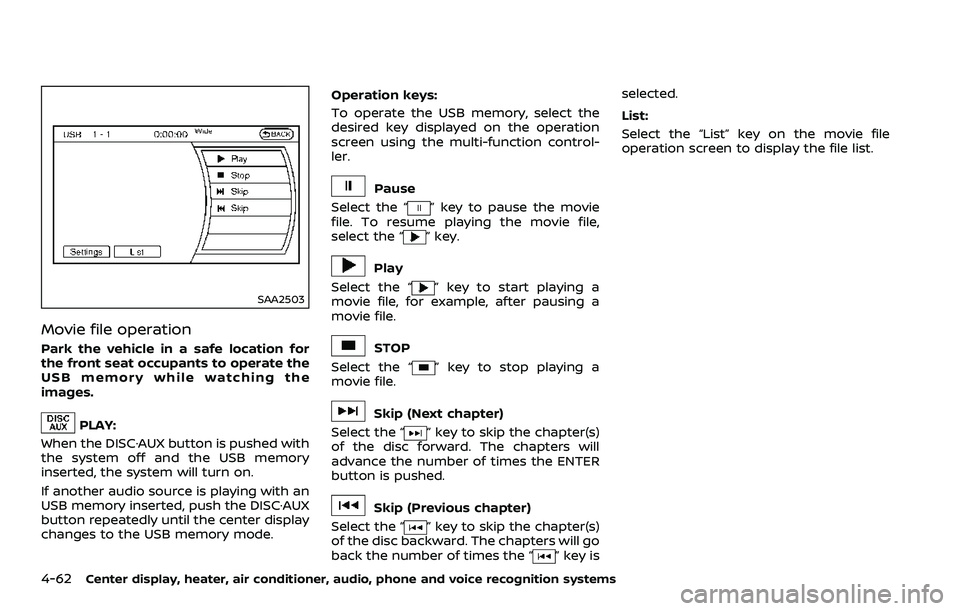
PLAY:
When the DISC·AUX button is pushed with
the system off and the USB memory
inserted, the system will turn on.
If another audio source is playing with an
USB memory inserted, push the DISC·AUX
button repeatedly until the center display
changes to the USB memory mode.
Next/Previous File and Fast
Forward/Rewind:
When the
orbutton is pushed for
more than 1.5 seconds while a USB memory is being played, the USB memory
will play while forwarding or rewinding.
When the button is released, the USB
memory will return to normal play speed.
When the
orbutton is pushed for
less than 1.5 seconds while the USB
memory is being played, the next track
or the beginning of the current track on
the USB memory will be played.
When the rewind button is pushed for less
than 1.5 seconds within 3 seconds after
the current track starts playing, the pre-
vious track will be played. Push the button
several times to skip through the tracks.
The multi-function controller can also be
used to select tracks when the USB
memory is being played.
Folder selection:
To change to another folder in the USB
memory, turn the folder selector or
choose a folder displayed on the screen
using the multi-function controller.
REPEAT (RPT), RANDOM (RDM):
When the RPT button is pushed while the
USB memory is played, the play pattern
can be change as follows.
To change the play mode, push the RPT
button repeatedly and the mode will
change as follows.
Page 230 of 453
4-62Center display, heater, air conditioner, audio, phone and voice recognition systems
SAA2503
Movie file operation
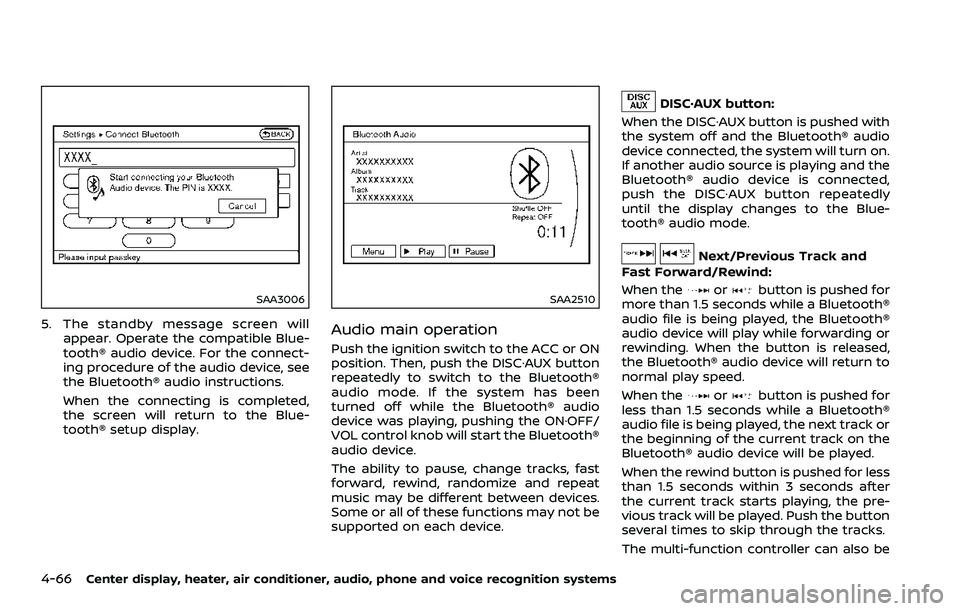
Park the vehicle in a safe location for
the front seat occupants to operate the
USB memory while watching the
images.
PLAY:
When the DISC·AUX button is pushed with
the system off and the USB memory
inserted, the system will turn on.
If another audio source is playing with an
USB memory inserted, push the DISC·AUX
button repeatedly until the center display
changes to the USB memory mode. Operation keys:
To operate the USB memory, select the
desired key displayed on the operation
screen using the multi-function control-
ler.
Pause
Select the “
” key to pause the movie
file. To resume playing the movie file,
select the “
” key.
Play
Select the “
” key to start playing a
movie file, for example, after pausing a
movie file.
STOP
Select the “
” key to stop playing a
movie file.
Skip (Next chapter)
Select the “
” key to skip the chapter(s)
of the disc forward. The chapters will
advance the number of times the ENTER
button is pushed.
Skip (Previous chapter)
Select the “
” key to skip the chapter(s)
of the disc backward. The chapters will go
back the number of times the “
” key is selected.
List:
Select the “List” key on the movie file
operation screen to display the file list.
Page 234 of 453
4-66Center display, heater, air conditioner, audio, phone and voice recognition systems
SAA3006
5. The standby message screen willappear. Operate the compatible Blue-
tooth® audio device. For the connect-
ing procedure of the audio device, see
the Bluetooth® audio instructions.
When the connecting is completed,
the screen will return to the Blue-
tooth® setup display.
SAA2510
Audio main operation
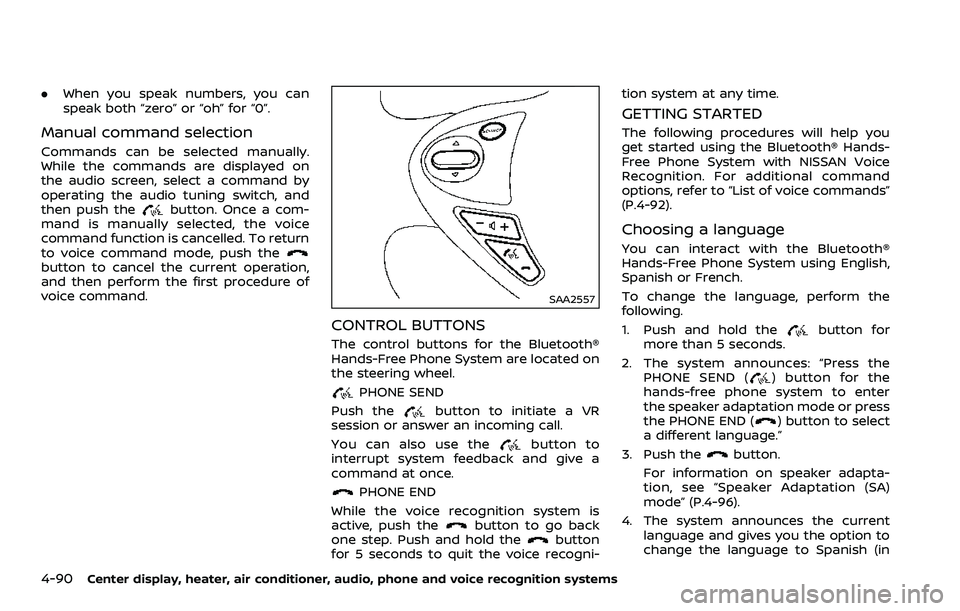
Push the ignition switch to the ACC or ON
position. Then, push the DISC·AUX button
repeatedly to switch to the Bluetooth®
audio mode. If the system has been
turned off while the Bluetooth® audio
device was playing, pushing the ON·OFF/
VOL control knob will start the Bluetooth®
audio device.
The ability to pause, change tracks, fast
forward, rewind, randomize and repeat
music may be different between devices.
Some or all of these functions may not be
supported on each device.
DISC·AUX button:
When the DISC·AUX button is pushed with
the system off and the Bluetooth® audio
device connected, the system will turn on.
If another audio source is playing and the
Bluetooth® audio device is connected,
push the DISC·AUX button repeatedly
until the display changes to the Blue-
tooth® audio mode.
Next/Previous Track and
Fast Forward/Rewind:
When the
orbutton is pushed for
more than 1.5 seconds while a Bluetooth®
audio file is being played, the Bluetooth®
audio device will play while forwarding or
rewinding. When the button is released,
the Bluetooth® audio device will return to
normal play speed.
When the
orbutton is pushed for
less than 1.5 seconds while a Bluetooth®
audio file is being played, the next track or
the beginning of the current track on the
Bluetooth® audio device will be played.
When the rewind button is pushed for less
than 1.5 seconds within 3 seconds after
the current track starts playing, the pre-
vious track will be played. Push the button
several times to skip through the tracks.
The multi-function controller can also be
Page 258 of 453
4-90Center display, heater, air conditioner, audio, phone and voice recognition systems
.When you speak numbers, you can
speak both “zero” or “oh” for “0”.
Manual command selection
Commands can be selected manually.
While the commands are displayed on
the audio screen, select a command by
operating the audio tuning switch, and
then push the
button. Once a com-
mand is manually selected, the voice
command function is cancelled. To return
to voice command mode, push the
button to cancel the current operation,
and then perform the first procedure of
voice command.
SAA2557
CONTROL BUTTONS
The control buttons for the Bluetooth®
Hands-Free Phone System are located on
the steering wheel.
PHONE SEND
Push the
button to initiate a VR
session or answer an incoming call.
You can also use the
button to
interrupt system feedback and give a
command at once.
PHONE END
While the voice recognition system is
active, push the
button to go back
one step. Push and hold thebutton
for 5 seconds to quit the voice recogni- tion system at any time.
GETTING STARTED
The following procedures will help you
get started using the Bluetooth® Hands-
Free Phone System with NISSAN Voice
Recognition. For additional command
options, refer to “List of voice commands”
(P.4-92).
Choosing a language
You can interact with the Bluetooth®
Hands-Free Phone System using English,
Spanish or French.
To change the language, perform the
following.
1. Push and hold the
button for
more than 5 seconds.
2. The system announces: “Press the PHONE SEND (
) button for the
hands-free phone system to enter
the speaker adaptation mode or press
the PHONE END (
) button to select
a different language.”
3. Push the
button.
For information on speaker adapta-
tion, see “Speaker Adaptation (SA)
mode” (P.4-96).
4. The system announces the current language and gives you the option to
change the language to Spanish (in
Page 264 of 453
4-96Center display, heater, air conditioner, audio, phone and voice recognition systems
“Select Phone”
Use the Select Phone command to select
from a list of phones connected to the
vehicle. The system will list the names
assigned to each phone and then prompt
you for the phone you wish to select. Only
one phone can be active at a time.
“Delete Phone”
Use the Delete Phone command to delete
a phone that is connected to the vehicle.
The system will list the names assigned to
each phone and then prompt you for the
phone you wish to delete. Deleting a
phone from the vehicle will also delete
that phonebook for that phone.
“Bluetooth Off”
Use the Bluetooth Off command to pre-
vent a wireless connection to your phone.
“Replace phone”
This can be used to reconnect a new
phone with the vehicle you have changed
your cellular phone.
SPEAKER ADAPTATION (SA) MODE
Speaker Adaptation allows up to two out-
of dialect users to train the system to
improve recognition accuracy. By repeat-
ing a number of commands, the users
can create a voice model of their own
voice that is stored in the system. The
system is capable of storing a differentspeaker adaptation model for each con-
nected phone.
Training procedure
1. Position the vehicle in a reasonably
quiet outdoor location.
2. Sit in the driver’s seat with the engine running, the parking brake on, and the
transmission in Park.
3. Push and hold the
button for
more than 5 seconds.
4. The system announces: “Press the PHONE SEND (
) button for the
hands-free phone system to enter
the speaker adaptation mode or press
the PHONE END (
) button to select
a different language.”
5. Push the
button.
For information on selecting a differ-
ent language, see “Choosing a lan-
guage” (P.4-90).
6. If the connected phone is already in use, the system will prompt you to
overwrite. Follow the instructions pro-
vided by the system.
7. When preparation is complete and you are ready to begin, push the
button.
8. The SA mode will be explained. Follow the instructions provided by the sys-
tem. 9. When training is finished, the system
will tell you an adequate number of
phrases have been recorded.
10. The system will announce that speak- er adaptation has been completed
and the system is ready.
The SA mode will stop if:
. The
button is pressed for more
than 5 seconds in SA mode.
. The vehicle is driven during SA mode.
. The ignition switch is placed in the
OFF or LOCK position.
Training phrases
During the SA mode, the system instructs
you to say the following phrases.
(The system will prompt you for each
phrase.)
.phonebook transfer entry
. dial 3 0 4 2 9
. delete call back number
. Incoming
. Transfer entry
. 8 pause 9 3 2 pause 7
. delete all entries
. call 7 2 4 0 9
. phonebook delete entry
. next entry
Page 294 of 453
5-2Starting and driving
WARNING
.Do not leave children or adults
who would normally require the
support of others alone in your
vehicle. Pets should not be left
alone either. They could acciden-
tally injure themselves or others
through inadvertent operation of
the vehicle. Also, on hot, sunny
days, temperatures in a closed
vehicle could quickly become
high enough to cause severe or
possibly fatal injuries to people or
animals.
. Properly secure all cargo to help
prevent it from sliding or shifting.
Do not place cargo higher than
the seatbacks. In a sudden stop
or collision, unsecured cargo
could cause personal injury
(Coupe models).
. Closely supervise children when
they are around cars to prevent
them from playing and becoming
locked in the trunk where they
could be seriously injured. Keep
the car locked with the trunk
closed when not in use, and pre-
vent children’s access to car keys (Roadster models).
If the engine oil temperature is high, the
engine protection mode, which helps
reduce the chance of engine damage,
could activate and automatically de-
crease engine power. Driving while the
engine oil temperature is high may
result in engine damage.
EXHAUST GAS (carbon monoxide)
WARNING
. Do not breathe exhaust gases;
they contain colorless and odor-
less carbon monoxide. Carbon
monoxide is dangerous. It can
cause unconsciousness or death.
. If you suspect that exhaust fumes
are entering the vehicle, drive
with all windows fully open, and
have the vehicle inspected imme-
diately.
. Do not run the engine in closed
spaces such as a garage.
. Do not park the vehicle with the
engine running for any extended
length of time.
. Keep the rear hatch/trunk lid
closed while driving, otherwise exhaust gases could be drawn
into the passenger compartment.
If you must drive with the rear
hatch/trunk lid open, follow these
precautions:
1) Open all the windows.
2) Set the
air recirculation to
off and the fan control to high
to circulate the air.
. The exhaust system and body
should be inspected by a quali-
fied mechanic whenever:
— The vehicle is raised for ser-
vice.
— You suspect that exhaust fumes are entering into the
passenger compartment.
— You notice a change in the sound of the exhaust system.
— You have had an accident involving damage to the ex-
haust system, underbody, or
rear of the vehicle.
PRECAUTIONS WHEN STARTING
AND DRIVING