radio NISSAN 370Z 2018 Owner´s Manual
[x] Cancel search | Manufacturer: NISSAN, Model Year: 2018, Model line: 370Z, Model: NISSAN 370Z 2018Pages: 453, PDF Size: 2.19 MB
Page 198 of 453
4-30Center display, heater, air conditioner, audio, phone and voice recognition systems
OPERATING TIPS
When the engine coolant temperature
and outside air temperature are low, the
air flow from the foot outlets may not
operate. This is not a malfunction. After
the coolant temperature warms up, air
will flow normally from the foot outlets.
The sensors
andon the instrument
panel helps maintain a constant tem-
perature. Do not put anything on or
around this sensor.
IN-CABIN MICROFILTER
The air conditioning system is equipped
with an in-cabin microfilter which collects
dirt, pollen, dust, etc. To make sure the air
conditioner heats, defogs, and ventilates
efficiently, replace the filter in accordance
with the specified maintenance intervals
listed in the “9. Maintenance and sche-
dules” section. It is recommended to see a
NISSAN dealer to replace the filter.
The filter should be replaced if air flow
is extremely decreased or when win-
dows fog up easily when operating
heater or air conditioning system.
SERVICING AIR CONDITIONER
The air conditioning system in your
NISSAN is charged with a refrigerant
designed with the environment in mind.
This refrigerant will not harm the
earth’s ozone layer. However, special
charging equipment and lubricant are
required when servicing your NISSAN air
conditioner. Using improper refrigerants
or lubricants will cause severe damage to
your air conditioning system. (See “Capa-
cities and recommended fluids/lubri-
cants” (P.10-2) for air conditioning
system refrigerant and lubricant recom-
mendations.)
Your NISSAN dealer will be able to service
your environmentally friendly air condi-
tioning system.
WARNING
The system contains refrigerant un-
der high pressure. To avoid personal
injury, any air conditioner service
should be done only by an experi-
enced technician with the proper
equipment.
AUDIO OPERATION PRECAUTIONS
Radio
Push the ignition switch to the ACC or ON
position and push the radio band select
button to turn on the radio. If you listen to
the radio with the engine not running, the
ignition switch should be pushed to the
ACC position.
Radio reception is affected by station
signal strength, distance from radio
transmitter, buildings, bridges, mountains
and other external influences. Intermit-
tent changes in reception quality nor-
mally are caused by these external
influences.
Using a cellular phone in or near the
vehicle may influence radio reception
quality.
Radio reception:
Your NISSAN radio system is equipped
with state-of-the-art electronic circuits to
enhance radio reception. These circuits
are designed to extend reception range,
and to enhance the quality of that recep-
tion.
However there are some general charac-
teristics of both FM and AM radio signals
that can affect radio reception quality in a
moving vehicle, even when the finest
equipment is used. These characteristics
AUDIO SYSTEM
Page 199 of 453
are completely normal in a given recep-
tion area, and do not indicate any mal-
function in your NISSAN radio system.
Reception conditions will constantly
change because of vehicle movement.
Buildings, terrain, signal distance and
interference from other vehicles can work
against ideal reception. Described below
are some of the factors that can affect
your radio reception.
Some cellular phones or other devices
may cause interference or a buzzing
noise to come from the audio system
speakers. Storing the device in a different
location may reduce or eliminate the
noise.
SAA0306
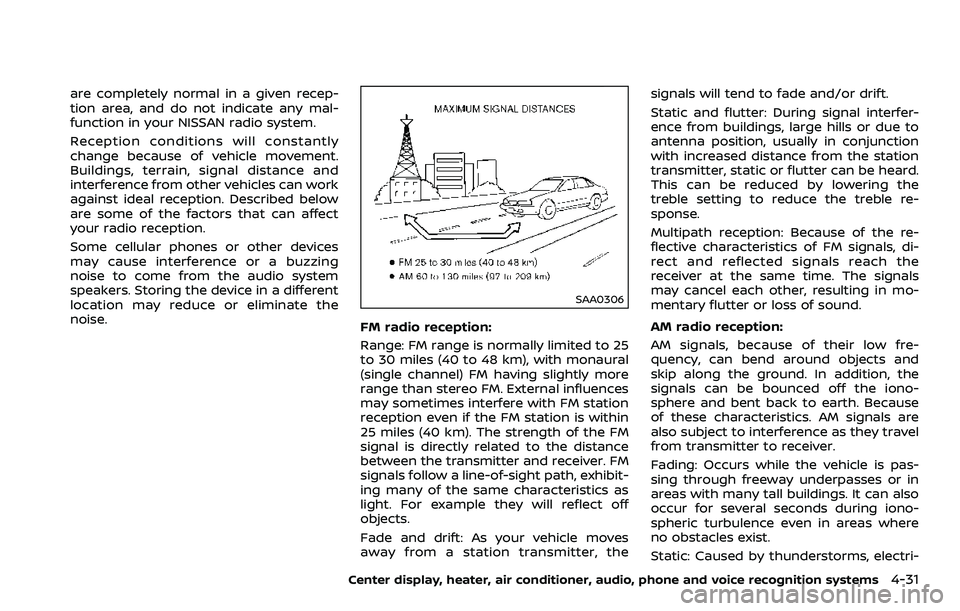
FM radio reception:
Range: FM range is normally limited to 25
to 30 miles (40 to 48 km), with monaural
(single channel) FM having slightly more
range than stereo FM. External influences
may sometimes interfere with FM station
reception even if the FM station is within
25 miles (40 km). The strength of the FM
signal is directly related to the distance
between the transmitter and receiver. FM
signals follow a line-of-sight path, exhibit-
ing many of the same characteristics as
light. For example they will reflect off
objects.
Fade and drift: As your vehicle moves
away from a station transmitter, thesignals will tend to fade and/or drift.
Static and flutter: During signal interfer-
ence from buildings, large hills or due to
antenna position, usually in conjunction
with increased distance from the station
transmitter, static or flutter can be heard.
This can be reduced by lowering the
treble setting to reduce the treble re-
sponse.
Multipath reception: Because of the re-
flective characteristics of FM signals, di-
rect and reflected signals reach the
receiver at the same time. The signals
may cancel each other, resulting in mo-
mentary flutter or loss of sound.
AM radio reception:AM signals, because of their low fre-
quency, can bend around objects and
skip along the ground. In addition, the
signals can be bounced off the iono-
sphere and bent back to earth. Because
of these characteristics. AM signals are
also subject to interference as they travel
from transmitter to receiver.
Fading: Occurs while the vehicle is pas-
sing through freeway underpasses or in
areas with many tall buildings. It can also
occur for several seconds during iono-
spheric turbulence even in areas where
no obstacles exist.
Static: Caused by thunderstorms, electri-
Center display, heater, air conditioner, audio, phone and voice recognition systems4-31
Page 200 of 453
4-32Center display, heater, air conditioner, audio, phone and voice recognition systems
cal power lines, electric signs and even
traffic lights.
Satellite radio reception (if so
equipped):
When the satellite radio is used for the
first time or the battery has been re-
placed, the satellite radio may not work
properly. This is not a malfunction. Wait
more than 10 minutes with the satellite
radio ON and the vehicle outside of any
metal or large building for the satellite
radio to receive all of the necessary data.
The satellite radio mode requires an
active SiriusXM Satellite Radio subscrip-
tion. The satellite radio is not available in
Alaska, Hawaii and Guam.
The satellite radio performance may be
affected if cargo carried on the roof
blocks the satellite radio signal.
If possible, do not put cargo near the
satellite antenna.
A build up of ice on the satellite radio
antenna can affect satellite radio perfor-
mance. Remove the ice to restore satellite
radio reception.
SAA0480
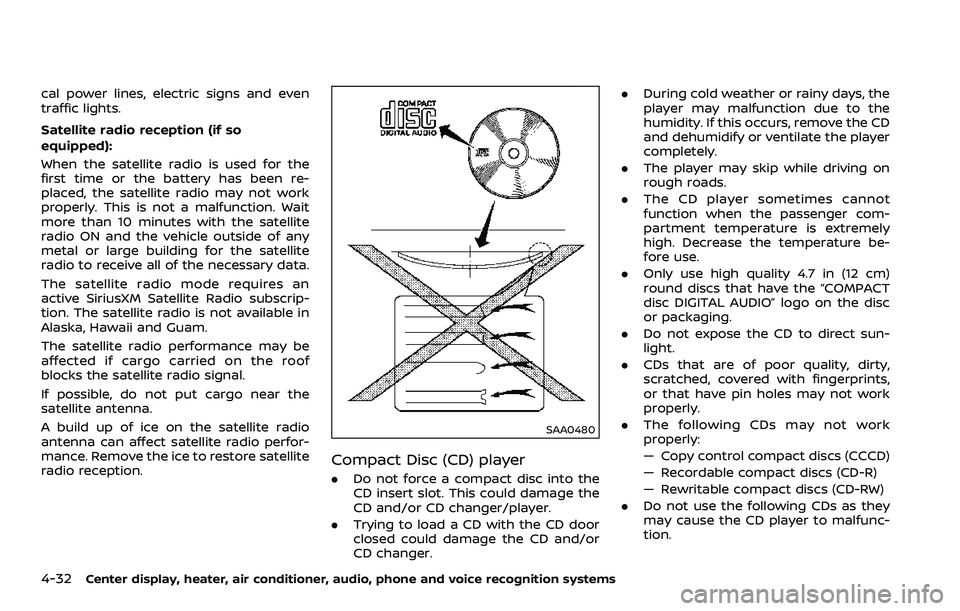
Compact Disc (CD) player
.Do not force a compact disc into the
CD insert slot. This could damage the
CD and/or CD changer/player.
. Trying to load a CD with the CD door
closed could damage the CD and/or
CD changer. .
During cold weather or rainy days, the
player may malfunction due to the
humidity. If this occurs, remove the CD
and dehumidify or ventilate the player
completely.
. The player may skip while driving on
rough roads.
. The CD player sometimes cannot
function when the passenger com-
partment temperature is extremely
high. Decrease the temperature be-
fore use.
. Only use high quality 4.7 in (12 cm)
round discs that have the “COMPACT
disc DIGITAL AUDIO” logo on the disc
or packaging.
. Do not expose the CD to direct sun-
light.
. CDs that are of poor quality, dirty,
scratched, covered with fingerprints,
or that have pin holes may not work
properly.
. The following CDs may not work
properly:
— Copy control compact discs (CCCD)
— Recordable compact discs (CD-R)
— Rewritable compact discs (CD-RW)
. Do not use the following CDs as they
may cause the CD player to malfunc-
tion.
Page 211 of 453
JVH0923X
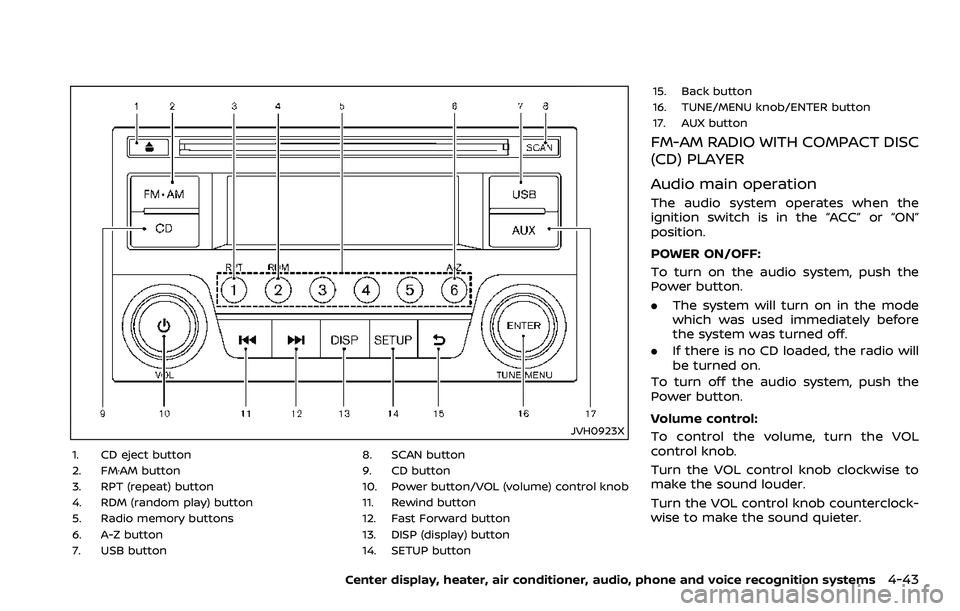
1. CD eject button
2. FM·AM button
3. RPT (repeat) button
4. RDM (random play) button
5. Radio memory buttons
6. A-Z button
7. USB button8. SCAN button
9. CD button
10. Power button/VOL (volume) control knob
11. Rewind button
12. Fast Forward button
13. DISP (display) button
14. SETUP button15. Back button
16. TUNE/MENU knob/ENTER button
17. AUX button
FM-AM RADIO WITH COMPACT DISC
(CD) PLAYER
Audio main operation
The audio system operates when the
ignition switch is in the “ACC” or “ON”
position.
POWER ON/OFF:
To turn on the audio system, push the
Power button.
.
The system will turn on in the mode
which was used immediately before
the system was turned off.
. If there is no CD loaded, the radio will
be turned on.
To turn off the audio system, push the
Power button.
Volume control:
To control the volume, turn the VOL
control knob.
Turn the VOL control knob clockwise to
make the sound louder.
Turn the VOL control knob counterclock-
wise to make the sound quieter.
Center display, heater, air conditioner, audio, phone and voice recognition systems4-43
Page 213 of 453
language setting.
Scroll direction:
Set the scrolling behavior of the TUNE/
MENU knob to scroll UP or DOWN.
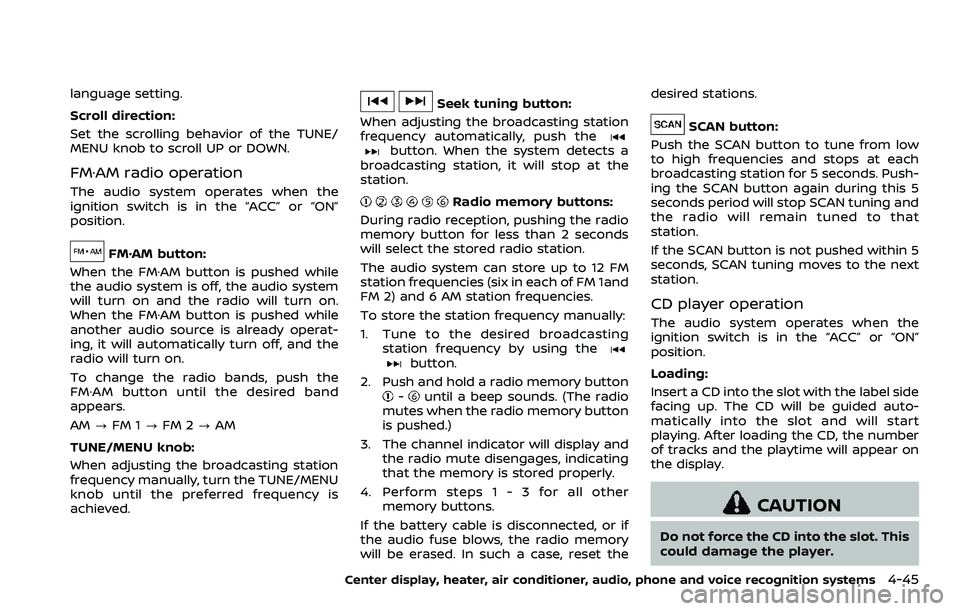
FM·AM radio operation
The audio system operates when the
ignition switch is in the “ACC” or “ON”
position.
FM·AM button:
When the FM·AM button is pushed while
the audio system is off, the audio system
will turn on and the radio will turn on.
When the FM·AM button is pushed while
another audio source is already operat-
ing, it will automatically turn off, and the
radio will turn on.
To change the radio bands, push the
FM·AM button until the desired band
appears.
AM ?FM 1 ?FM 2 ?AM
TUNE/MENU knob:
When adjusting the broadcasting station
frequency manually, turn the TUNE/MENU
knob until the preferred frequency is
achieved.
Seek tuning button:
When adjusting the broadcasting station
frequency automatically, push the
button. When the system detects a
broadcasting station, it will stop at the
station.
Radio memory buttons:
During radio reception, pushing the radio
memory button for less than 2 seconds
will select the stored radio station.
The audio system can store up to 12 FM
station frequencies (six in each of FM 1and
FM 2) and 6 AM station frequencies.
To store the station frequency manually:
1. Tune to the desired broadcasting station frequency by using the
button.
2. Push and hold a radio memory button
-until a beep sounds. (The radio
mutes when the radio memory button
is pushed.)
3. The channel indicator will display and the radio mute disengages, indicating
that the memory is stored properly.
4. Perform steps 1 - 3 for all other memory buttons.
If the battery cable is disconnected, or if
the audio fuse blows, the radio memory
will be erased. In such a case, reset the desired stations.
SCAN button:
Push the SCAN button to tune from low
to high frequencies and stops at each
broadcasting station for 5 seconds. Push-
ing the SCAN button again during this 5
seconds period will stop SCAN tuning and
the radio will remain tuned to that
station.
If the SCAN button is not pushed within 5
seconds, SCAN tuning moves to the next
station.
CD player operation
The audio system operates when the
ignition switch is in the “ACC” or “ON”
position.
Loading:
Insert a CD into the slot with the label side
facing up. The CD will be guided auto-
matically into the slot and will start
playing. After loading the CD, the number
of tracks and the playtime will appear on
the display.
CAUTION
Do not force the CD into the slot. This
could damage the player.
Center display, heater, air conditioner, audio, phone and voice recognition systems4-45
Page 220 of 453
4-52Center display, heater, air conditioner, audio, phone and voice recognition systems
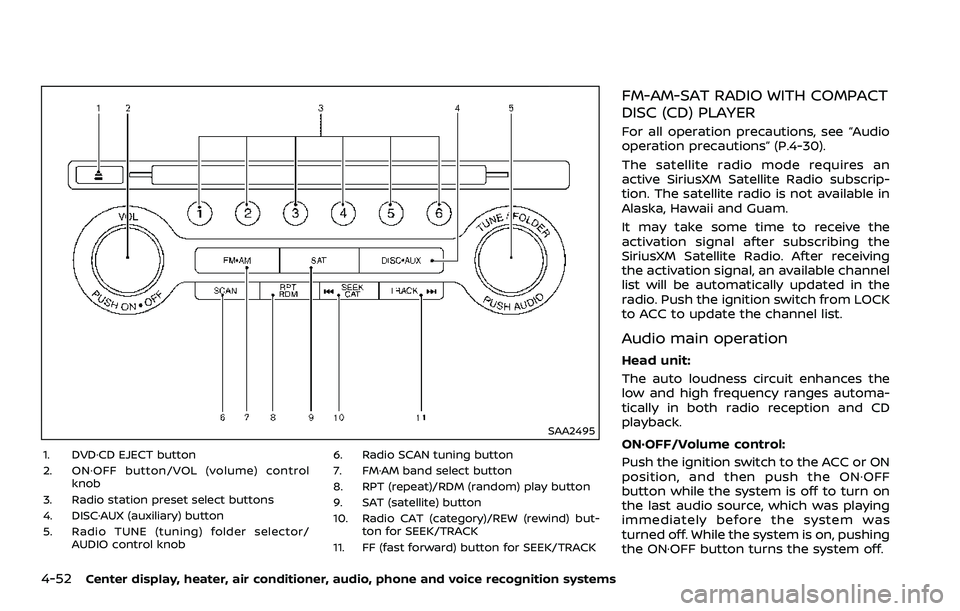
SAA2495
1. DVD·CD EJECT button
2. ON·OFF button/VOL (volume) controlknob
3. Radio station preset select buttons
4. DISC·AUX (auxiliary) button
5. Radio TUNE (tuning) folder selector/ AUDIO control knob 6. Radio SCAN tuning button
7. FM·AM band select button
8. RPT (repeat)/RDM (random) play button
9. SAT (satellite) button
10. Radio CAT (category)/REW (rewind) but-
ton for SEEK/TRACK
11. FF (fast forward) button for SEEK/TRACK
FM-AM-SAT RADIO WITH COMPACT
DISC (CD) PLAYER
For all operation precautions, see “Audio
operation precautions” (P.4-30).
The satellite radio mode requires an
active SiriusXM Satellite Radio subscrip-
tion. The satellite radio is not available in
Alaska, Hawaii and Guam.
It may take some time to receive the
activation signal after subscribing the
SiriusXM Satellite Radio. After receiving
the activation signal, an available channel
list will be automatically updated in the
radio. Push the ignition switch from LOCK
to ACC to update the channel list.
Audio main operation
Head unit:
The auto loudness circuit enhances the
low and high frequency ranges automa-
tically in both radio reception and CD
playback.
ON·OFF/Volume control:
Push the ignition switch to the ACC or ON
position, and then push the ON·OFF
button while the system is off to turn on
the last audio source, which was playing
immediately before the system was
turned off. While the system is on, pushing
the ON·OFF button turns the system off.
Page 221 of 453
Turn the VOL control knob to adjust the
volume.
Adjusting tone quality and speaker
balance:
To adjust Bass, Treble, Balance and Fade,
push the Audio control knob. When the
display shows the setting you want to
change (Bass, Treble, Balance and Fade),
rotate the Audio control knob to set the
desired setting. For the other setting
methods, see “How to use SETTING but-
ton” (P.4-11).
This vehicle has some sound effect func-
tions as follows:
.Speed Sensitive Vol.
For more details, see “How to use SETTING
button” (P.4-11).
Switching the display:
Pushing the DISC·AUX button will switch
the displays as follows:
iPod®/USB ?CD/DVD ?Bluetooth®
Audio ?AUX ?iPod®/USBFM-AM-SAT radio operation
radio (FM/AM) band select:
Pushing the radio band select button will
change the band as follows:
AM ?FM1 ?FM2 ?AM
radio (SAT) band select:
Pushing the radio band select button will
change the band as follows:
XM1 ?XM2 ?XM3 ?XM1
When the radio band select button is
pushed while the ignition switch is in the
ACC or ON position, the radio will come
on at the channel last played.
The last channel played will also come on
when the ON·OFF button is pushed to ON.
The satellite radio is not available in
Alaska, Hawaii and Guam.
If another audio source is playing when
the radio band select button is turned to
ON, the audio source will automatically be
turned off and the last radio channel
played will come on.
When the stereo broadcast signal is weak,
the radio will automatically change from
stereo to monaural reception. TUNE (Tuning):
. For AM and FM radio
Turn the radio TUNE knob for manual
tuning.
. For SiriusXM Satellite Radio
Turn the radio TUNE knob to seek
channels from all of the categories
when any category is not selected.
SEEK tuning/CATEGORY
(CAT):
. For AM and FM radio
Push the SEEK button
orto
tune from low to high or high to low
frequencies and to stop at the next
broadcasting station.
. For SiriusXM Satellite Radio
Push the SEEK button
orto
tune to the first channel of the next or
previous category.
During satellite radio reception, the fol-
lowing notices will be displayed under
certain conditions.
. NO SIGNAL (No signal is received while
the SAT tuner is connected.)
. OFF AIR (Broadcasting signed off)
. CHECK ANTENNA (Antenna connec-
tion error)
. LOADING (When the initial setting is
performed)
Center display, heater, air conditioner, audio, phone and voice recognition systems4-53
Page 222 of 453
4-54Center display, heater, air conditioner, audio, phone and voice recognition systems
.UPDATING (When the satellite radio
subscription is not active)
SCAN tuning:
Push the SCAN tuning button to tune
from low to high frequencies and stop at
each broadcasting station/channel for 5
seconds. Pushing the button again during
this 5 seconds period will stop SCAN
tuning and the radio will remain tuned
to that station/channel.
If the SCAN tuning button is not pushed
within 5 seconds, SCAN tuning moves to
the next station/channel.
toStation memory operations:
12 stations/channels can be set for the
FM band (6 each for FM1 and FM2), 18 for
SiriusXM Satellite Radio (6 each for XM1,
XM2 and XM3) and 6 stations can be set
for the AM band.
1. Choose the radio band using the radio band select button.
2. Tune to the desired station/channel using the SEEK/TRACK, SCAN button
or the radio TUNE knob.
3. Push and hold the desired station preset button
tountil the radio
mutes.
4. The station indicator will then come on and the sound will resume. Mem- orizing is now complete.
5. Other buttons can be set in the same manner.
If the battery cable is disconnected, or if
the fuse opens, the radio memory will be
erased. In that case, reset the desired
stations/channels.
List (AM and FM radio):
When the “List” key on the display is
selected while the FM or AM radio is being
played, the preset station list will be
displayed.
If 1 of the 6 preset stations listed is
touched and held, the current station will
be stored as the new preset.
Menu (SiriusXM Satellite Radio):
When the “Menu” key on the display is
selected while the SiriusXM Satellite Radio
is being played, the menu list will be
displayed.
The following items are available.
. Preset List
Displays the preset channel list. If 1 of
the 6 preset stations listed is touched
and held, the current station will be
stored as the new preset.
. Customize Channel List
Selects specific channels to skip while
using the TUNE, SEEK/CATEGORY or Menu-Categories feature.
. Favorite Artists & Songs
Stores the current artist or song that
is being played. Touch the “Alert” key
to be reminded when the stored artist
or song is playing on a station while
listening to SiriusXM Satellite Radio.
. Categories
Selecting a category will go to the first
channel in that category as defined by
SiriusXM Satellite Radio.
. Direct Tune
Inputs the channel number by using a
keypad.
Compact Disc (CD) player operation
Push the ignition switch to the ACC or ON
position and insert the Compact Disc (CD)
into the slot with the label side facing up.
The CD will be guided automatically into
the slot and start playing.
After loading the CD, the number of
tracks on the CD and the play time will
appear on the display.
If the radio is already operating, it will
automatically turn off and the CD will
play.
If the system has been turned off while
the CD was playing, pushing the ON·OFF
button will start the CD.
Do not use 3.1 in (8 cm) discs.
Page 223 of 453
PLAY:
When the DISC·AUX (CD play) button is
pushed with the system off and the CD
loaded, the system will turn on and the
CD will start to play.
When the DISC·AUX button is pushed with
the CD loaded and the radio playing, the
radio will automatically be turned off and
the CD will start to play.
Menu:
When the “Menu” key on the display is
selected while the CD is being played, the
menu screen will be displayed. The fol-
lowing menu options are available.
. Folder List (for CD with compressed
audio files)
Displays the folder list.
. Track List
Displays the track list.
. Play Mode
Select a play mode from the following
items.
— Normal
— 1 Folder Repeat (for CD with com-
pressed audio files)
— 1 Track Repeat
— 1 Disc Random
— 1 Folder Random (for CD with com- pressed audio files)Next/Previous Track and
Fast Forward/Rewind:
When the
orbutton is pushed for
more than 1.5 seconds while the CD is
being played, the CD will play while fast
forwarding or rewinding. When the but-
ton is released, the CD will return to
normal play speed.
When the
orbutton is pushed for
less than 1.5 seconds while the CD is being
played, the next track or the beginning of
the current track on the CD will be played.
When the rewind button is pushed for less
than 1.5 seconds within 3 seconds after
the current track starts playing, the pre-
vious track will be played. Push the button
several times to skip through the tracks.
REPEAT (RPT), RANDOM (RDM):
When the RPT button is pushed while the
CD is played, the play pattern can be
changed as follows:
(CD)
(CD with compressed audio files)
CD EJECT:
When the CD EJECT button is pushed with
the CD loaded, the CD will be ejected.
If the CD comes out and is not removed,
it will be pulled back into the slot to
protect it.
DVD (Digital Versatile Disc) PLAYER
OPERATION (models with naviga-
tion system)
Precautions
Start the engine when using the DVD
entertainment system.
Movies will not be shown on the front
display while the vehicle is in any drive
position to reduce driver distraction.
Audio is available when a movie is played.
To view movies in the front display, stop
the vehicle in a safe location, move the
shift lever to the P (Park) position and
apply the parking brake.
Center display, heater, air conditioner, audio, phone and voice recognition systems4-55
Page 241 of 453
1. Audio source switch
2. Menu control switch (models with naviga-tion system) or audio tuning switch (mod-
els without navigation system)
3. Back switch
4. Volume control switch
STEERING-WHEEL-MOUNTED CON-
TROLS FOR AUDIO
Menu control switch (models with
navigation system) or audio tuning
switch (models without navigation
system)
While the display is showing a MAP
(navigation systems only), STATUS or
Audio screen, tilt the switch upward or
downward to select a station, track, CD or
folder. For most audio sources, tilting the
switch up/down for more than 1.5 sec-
onds provides a different function than
tilting up/down for less than 1.5 seconds.
AM and FM radio:
. Tilting up/down for less than 1.5
seconds will scroll up or down
through the preset station.
. Tilting up/down for more than 1.5
seconds will seek up or down to the
next station.
. Pushing the menu control switch will
show the list of preset stations. SiriusXM Satellite Radio (if so equipped):
. Tilting up/down for less than 1.5
seconds will scroll up or down
through the preset channel.
. Tilting up/down for more than 1.5
seconds will go to the next or previous
category.
. Pushing the menu control switch will
show the XM menu.
iPod® (models with navigation system):
. Tilting up/down for less than 1.5
seconds will scroll up or down
through the track number.
. Pushing the menu control switch will
show the iPod® menu.
CD:
. Tilting up/down for less than 1.5
seconds will scroll up or down
through the track number.
. Tilting up/down for more than 1.5
seconds will scroll up or down
through the folder number (if playing
compressed audio files).
. Pushing the menu control switch will
show the CD menu.
DVD (models with navigation system):
. Tilting up/down for less than 1.5
seconds will scroll up or down
through the track number. .
Tilting up/down for more than 1.5
seconds will scroll up or down
through the title number.
. Pushing the menu control switch will
select an item from the DVD display.
. When the transparent operation
menu appears, the switch will control
the menu.
USB (models with navigation system):
. Tilting up/down for less than 1.5
seconds will scroll up or down
through the track number.
. Tilting up/down for more than 1.5
seconds will scroll up or down
through the folder number.
. Pushing the menu control switch will
show the USB menu.
Bluetooth® Audio (models with naviga-
tion system):
. Tilting up/down for less than 1.5
seconds will scroll up or down
through the track number.
AUX:
. Pushing the menu control switch will
show the AUX menu.
Center display, heater, air conditioner, audio, phone and voice recognition systems4-73