navigation system NISSAN 370Z 2018 Owner´s Manual
[x] Cancel search | Manufacturer: NISSAN, Model Year: 2018, Model line: 370Z, Model: NISSAN 370Z 2018Pages: 453, PDF Size: 2.19 MB
Page 180 of 453
4-12Center display, heater, air conditioner, audio, phone and voice recognition systems
Sensitive Vol.” and adjust the effect level
with the multi-function controller. The
Speed Sensitive Volume function is
turned off when the level is set to “OFF”.
Increasing the value will cause the vo-
lume to increase faster with vehicle
speed.
DivX® Registration Code:
The registration code for a device that is
used to download DivX® files will be
displayed on the screen. If a disc is loaded
or a USB memory is connected to the
audio system, this function will not be
activated.
Display Album Cover Art:
When this item is turned to ON, the album
cover image is displayed when playing
iPod® or MP3 music files through a CD,
DVD or USB memory. When the image is
not properly embedded in the file or
device, the image will not be displayed.
Phone settings
For details of the “Phone” settings, see
“Bluetooth® hands-free phone system
(models with navigation system)” (P.4-76).
Bluetooth® settings
For details of the “Bluetooth” settings, see
“Bluetooth® hands-free phone system
(models with navigation system)” (P.4-76)
or “Bluetooth® streaming audio (models
with navigation system)” (P.4-63).
SAA2554
Example
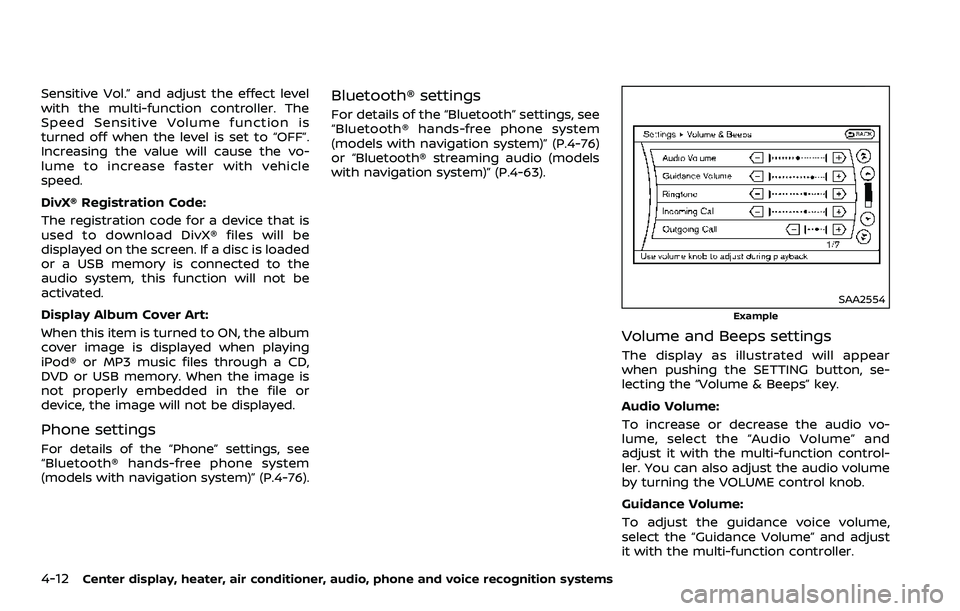
Volume and Beeps settings
The display as illustrated will appear
when pushing the SETTING button, se-
lecting the “Volume & Beeps” key.
Audio Volume:
To increase or decrease the audio vo-
lume, select the “Audio Volume” and
adjust it with the multi-function control-
ler. You can also adjust the audio volume
by turning the VOLUME control knob.
Guidance Volume:
To adjust the guidance voice volume,
select the “Guidance Volume” and adjust
it with the multi-function controller.
Page 181 of 453

Ringtone/Incoming Call/Outgoing Call:
For the details of these items, see “Blue-
tooth® hands-free phone system (models
with navigation system)” (P.4-76).
Switch Beeps:
When this item is turned to ON, you will
hear a beep sound when you use a
button.
Guidance Voice:
When this item is turned to ON, you will
hear voice guidance in the navigation
operation or in other operations.
SAA2486
Display settings
The display as illustrated will appear
when pushing the SETTING button and
selecting the “Display” key.
Display Adjustment:
To adjust the display settings, select the
“Display Adjustment” key. The following
settings are available.
.Display
To turn off the screen, push the ENTER
button and turn the “Display” indicator off.
The other method is to push and hold the
“
OFF” button for more than 2 sec-
onds.
When any mode button is pushed with the screen off, the screen turns on for
further operation. The screen will turn off
automatically 5 seconds after the opera-
tion is finished.
To turn on the screen, set this item to the
ON position, or push and hold the “
OFF” button.
.
Brightness/Contrast/Background
Color
To adjust the brightness and contrast of
the screen, select the “Brightness” or
“Contrast” key.
Then, you can adjust the brightness and
contrast using the multi-function control-
ler.
For information on the “Background Col-
or” key, refer to the separate Navigation
System Owner’s Manual.
For Roadster models:
Depending on the driver’s seat position,
the display could be hard to read. Adjust
the brightness and contrast of the display
on the setting screen.
Color Theme:
Choose the theme color of the menu
screen from “Black”, “Blue” or “Red”.
Center display, heater, air conditioner, audio, phone and voice recognition systems4-13
Page 184 of 453
4-16Center display, heater, air conditioner, audio, phone and voice recognition systems
Select Units:
Select the “Select Units” key. Choose “US”
(Mile, °F, MPG) or “Metric” (km, °C, L/100
km) for your favorite display appearance.
Voice Recognition settings
For details about the “Voice Recognition”
settings, see “NISSAN Voice Recognition
System (models with navigation system)”
(P.4-99).
Camera settings
The “Camera” screen will appear when
selecting the “Camera” key.
For details about the camera system
operation, see “RearView Monitor (models
with navigation system)” (P.4-17).
SAA2491
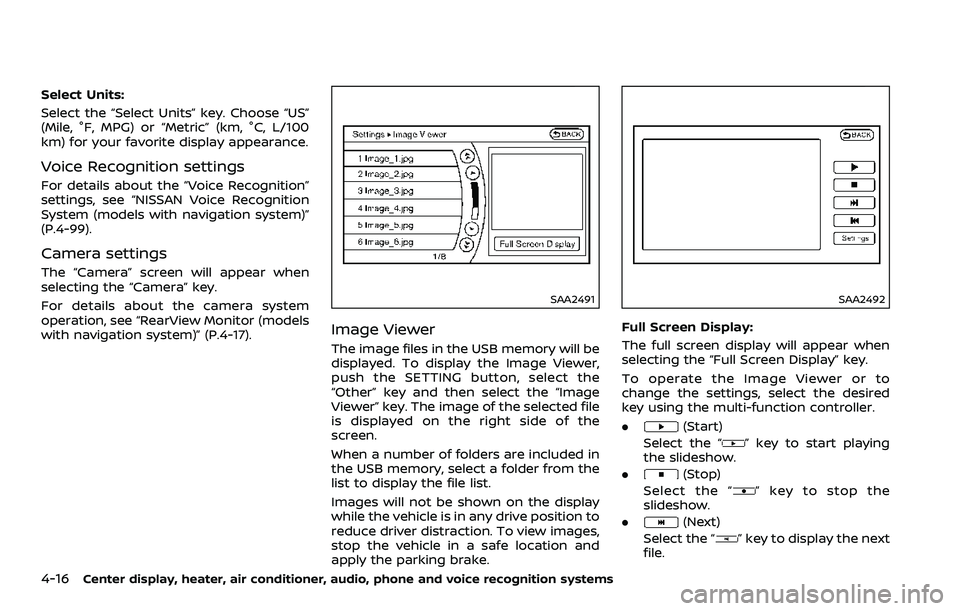
Image Viewer
The image files in the USB memory will be
displayed. To display the Image Viewer,
push the SETTING button, select the
“Other” key and then select the “Image
Viewer” key. The image of the selected file
is displayed on the right side of the
screen.
When a number of folders are included in
the USB memory, select a folder from the
list to display the file list.
Images will not be shown on the display
while the vehicle is in any drive position to
reduce driver distraction. To view images,
stop the vehicle in a safe location and
apply the parking brake.
SAA2492
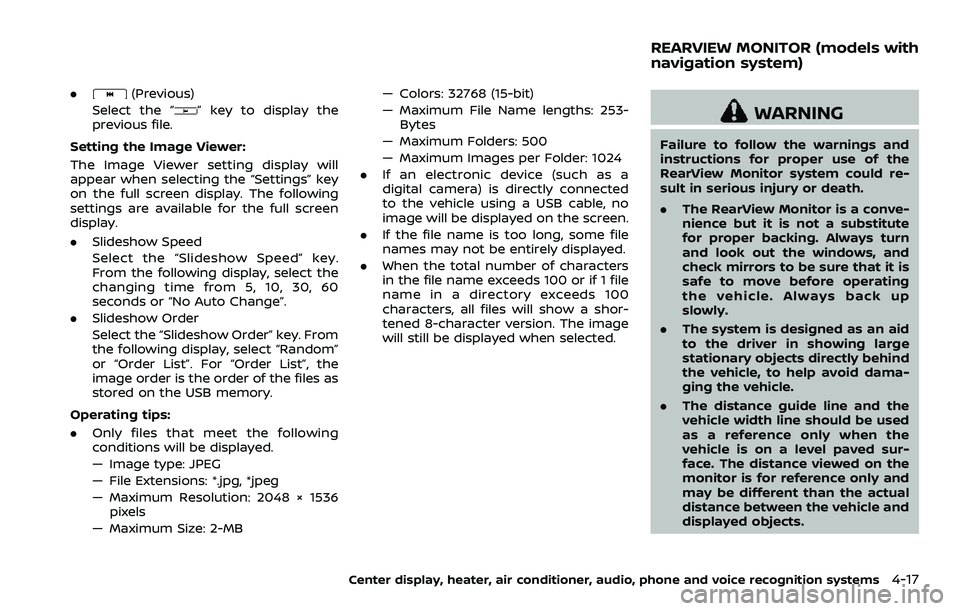
Full Screen Display:
The full screen display will appear when
selecting the “Full Screen Display” key.
To operate the Image Viewer or to
change the settings, select the desired
key using the multi-function controller.
.
(Start)
Select the “
” key to start playing
the slideshow.
.
(Stop)
Select the “
” key to stop the
slideshow.
.
(Next)
Select the “
” key to display the next
file.
Page 185 of 453
.(Previous)
Select the “
” key to display the
previous file.
Setting the Image Viewer:
The Image Viewer setting display will
appear when selecting the “Settings” key
on the full screen display. The following
settings are available for the full screen
display.
. Slideshow Speed
Select the “Slideshow Speed” key.
From the following display, select the
changing time from 5, 10, 30, 60
seconds or “No Auto Change”.
. Slideshow Order
Select the “Slideshow Order” key. From
the following display, select “Random”
or “Order List”. For “Order List”, the
image order is the order of the files as
stored on the USB memory.
Operating tips:
. Only files that meet the following
conditions will be displayed.
— Image type: JPEG
— File Extensions: *.jpg, *jpeg
— Maximum Resolution: 2048 × 1536
pixels
— Maximum Size: 2-MB — Colors: 32768 (15-bit)
— Maximum File Name lengths: 253-
Bytes
— Maximum Folders: 500
— Maximum Images per Folder: 1024
. If an electronic device (such as a
digital camera) is directly connected
to the vehicle using a USB cable, no
image will be displayed on the screen.
. If the file name is too long, some file
names may not be entirely displayed.
. When the total number of characters
in the file name exceeds 100 or if 1 file
name in a directory exceeds 100
characters, all files will show a shor-
tened 8-character version. The image
will still be displayed when selected.
WARNING
Failure to follow the warnings and
instructions for proper use of the
RearView Monitor system could re-
sult in serious injury or death.
.The RearView Monitor is a conve-
nience but it is not a substitute
for proper backing. Always turn
and look out the windows, and
check mirrors to be sure that it is
safe to move before operating
the vehicle. Always back up
slowly.
. The system is designed as an aid
to the driver in showing large
stationary objects directly behind
the vehicle, to help avoid dama-
ging the vehicle.
. The distance guide line and the
vehicle width line should be used
as a reference only when the
vehicle is on a level paved sur-
face. The distance viewed on the
monitor is for reference only and
may be different than the actual
distance between the vehicle and
displayed objects.
Center display, heater, air conditioner, audio, phone and voice recognition systems4-17
REARVIEW MONITOR (models with
navigation system)
Page 193 of 453
WARNING
.The air conditioner cooling func-
tion operates only when the en-
gine is running.
. Do not leave children or adults
who would normally require the
support of others alone in your
vehicle. Pets should not be left
alone either. On hot, sunny days,
temperatures in a closed vehicle
could quickly become high en-
ough to cause severe or possibly
fatal injuries to people or animals.
. Do not use the recirculation mode
for long periods as it may cause
the interior air to become stale
and the windows to fog up.
Start the engine and operate the heater
and air conditioner system.
NOTE:
. Odors from inside and outside the
vehicle can build up in the air condi-
tioner unit. Odor can enter the pas-
senger compartment through the
vents.
. When parking, set the heater and air
conditioner controls to turn off air
recirculation to allow fresh air into the passenger compartment. This
should help reduce odors inside the
vehicle.
SAA2493
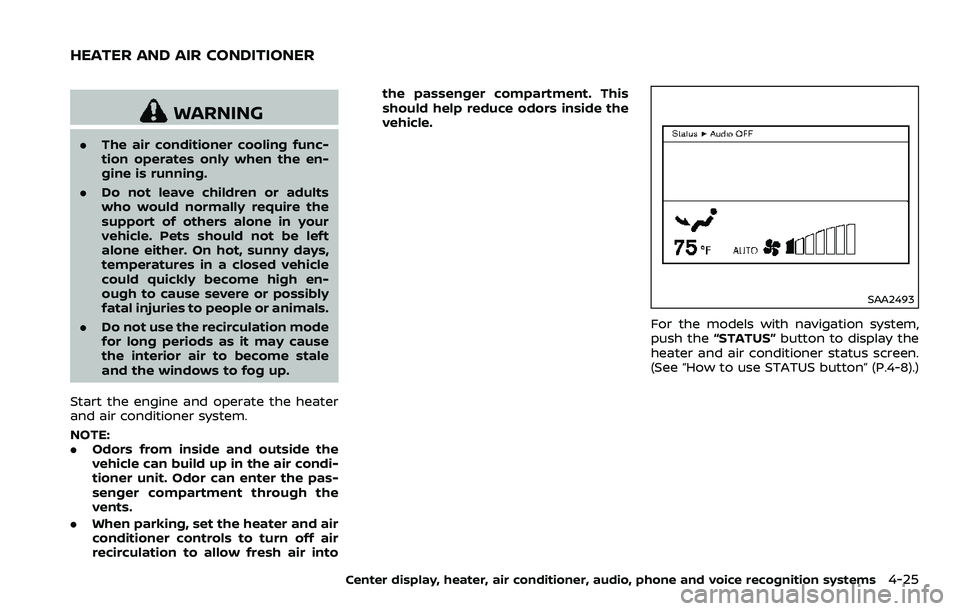
For the models with navigation system,
push the
“STATUS” button to display the
heater and air conditioner status screen.
(See “How to use STATUS button” (P.4-8).)
Center display, heater, air conditioner, audio, phone and voice recognition systems4-25
HEATER AND AIR CONDITIONER
Page 201 of 453
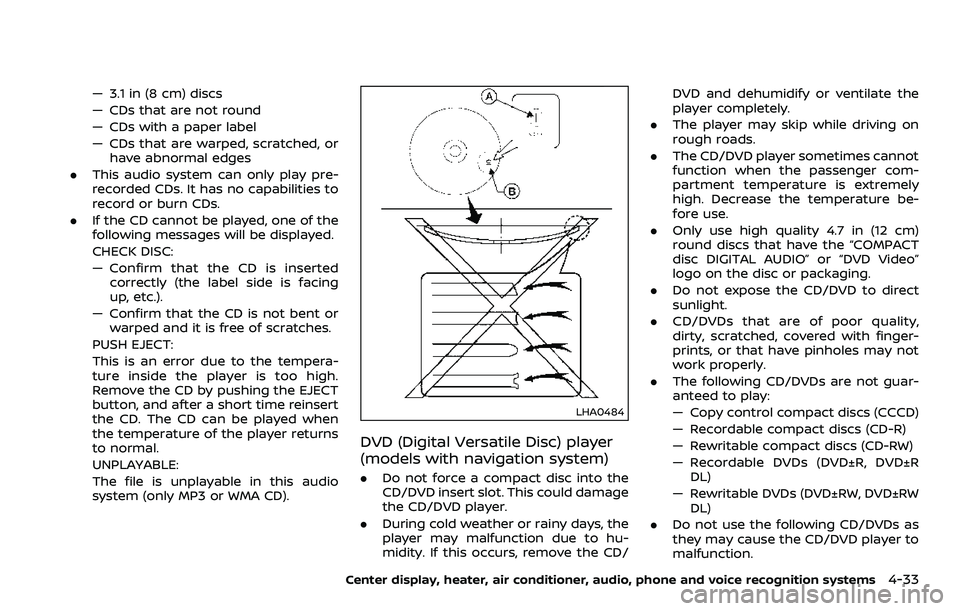
— 3.1 in (8 cm) discs
— CDs that are not round
— CDs with a paper label
— CDs that are warped, scratched, orhave abnormal edges
. This audio system can only play pre-
recorded CDs. It has no capabilities to
record or burn CDs.
. If the CD cannot be played, one of the
following messages will be displayed.
CHECK DISC:
— Confirm that the CD is inserted
correctly (the label side is facing
up, etc.).
— Confirm that the CD is not bent or warped and it is free of scratches.
PUSH EJECT:
This is an error due to the tempera-
ture inside the player is too high.
Remove the CD by pushing the EJECT
button, and after a short time reinsert
the CD. The CD can be played when
the temperature of the player returns
to normal.
UNPLAYABLE:
The file is unplayable in this audio
system (only MP3 or WMA CD).
LHA0484
DVD (Digital Versatile Disc) player
(models with navigation system)
. Do not force a compact disc into the
CD/DVD insert slot. This could damage
the CD/DVD player.
. During cold weather or rainy days, the
player may malfunction due to hu-
midity. If this occurs, remove the CD/ DVD and dehumidify or ventilate the
player completely.
. The player may skip while driving on
rough roads.
. The CD/DVD player sometimes cannot
function when the passenger com-
partment temperature is extremely
high. Decrease the temperature be-
fore use.
. Only use high quality 4.7 in (12 cm)
round discs that have the “COMPACT
disc DIGITAL AUDIO” or “DVD Video”
logo on the disc or packaging.
. Do not expose the CD/DVD to direct
sunlight.
. CD/DVDs that are of poor quality,
dirty, scratched, covered with finger-
prints, or that have pinholes may not
work properly.
. The following CD/DVDs are not guar-
anteed to play:
— Copy control compact discs (CCCD)
— Recordable compact discs (CD-R)
— Rewritable compact discs (CD-RW)
— Recordable DVDs (DVD±R, DVD±R
DL)
— Rewritable DVDs (DVD±RW, DVD±RW DL)
. Do not use the following CD/DVDs as
they may cause the CD/DVD player to
malfunction.
Center display, heater, air conditioner, audio, phone and voice recognition systems4-33
Page 206 of 453
4-38Center display, heater, air conditioner, audio, phone and voice recognition systems
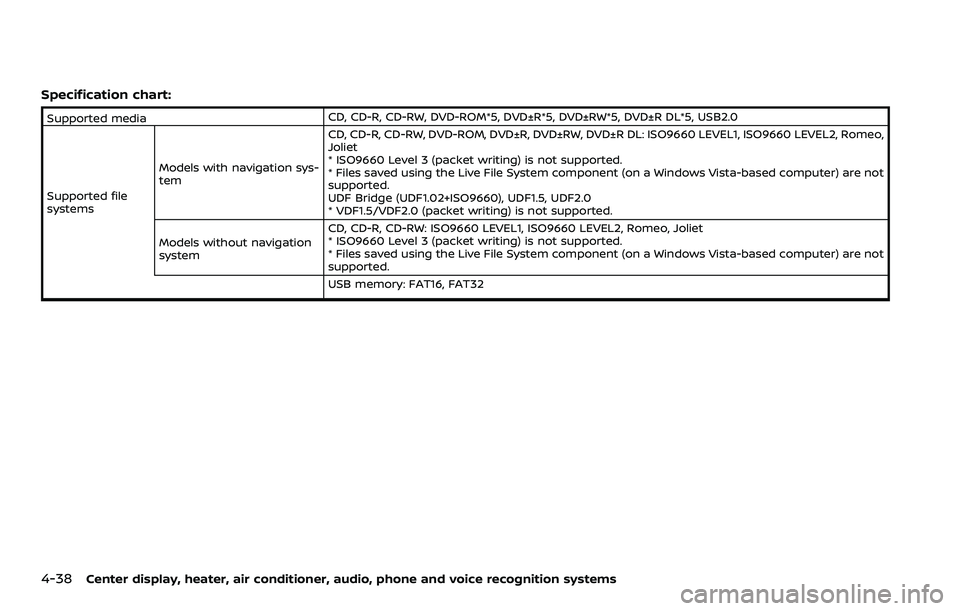
Specification chart:
Supported mediaCD, CD-R, CD-RW, DVD-ROM*5, DVD±R*5, DVD±RW*5, DVD±R DL*5, USB2.0
Supported file
systems Models with navigation sys-
tem CD, CD-R, CD-RW, DVD-ROM, DVD±R, DVD±RW, DVD±R DL: ISO9660 LEVEL1, ISO9660 LEVEL2, Romeo,
Joliet
* ISO9660 Level 3 (packet writing) is not supported.
* Files saved using the Live File System component (on a Windows Vista-based computer) are not
supported.
UDF Bridge (UDF1.02+ISO9660), UDF1.5, UDF2.0
* VDF1.5/VDF2.0 (packet writing) is not supported.
Models without navigation
system CD, CD-R, CD-RW: ISO9660 LEVEL1, ISO9660 LEVEL2, Romeo, Joliet
* ISO9660 Level 3 (packet writing) is not supported.
* Files saved using the Live File System component (on a Windows Vista-based computer) are not
supported.
USB memory: FAT16, FAT32
Page 207 of 453
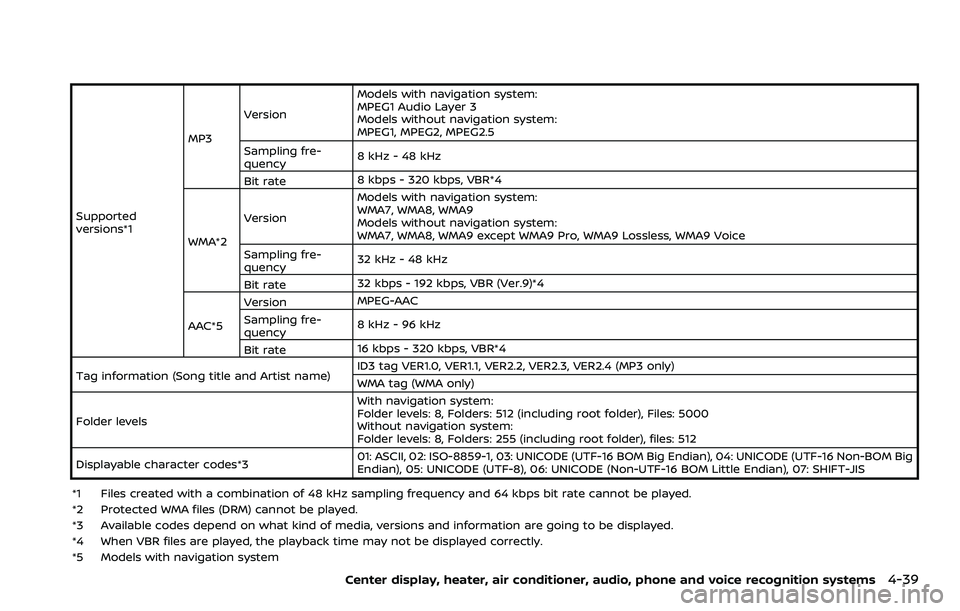
Supported
versions*1MP3
Version
Models with navigation system:
MPEG1 Audio Layer 3
Models without navigation system:
MPEG1, MPEG2, MPEG2.5
Sampling fre-
quency 8 kHz - 48 kHz
Bit rate 8 kbps - 320 kbps, VBR*4
WMA*2 Version
Models with navigation system:
WMA7, WMA8, WMA9
Models without navigation system:
WMA7, WMA8, WMA9 except WMA9 Pro, WMA9 Lossless, WMA9 Voice
Sampling fre-
quency 32 kHz - 48 kHz
Bit rate 32 kbps - 192 kbps, VBR (Ver.9)*4
AAC*5 Version
MPEG-AAC
Sampling fre-
quency 8 kHz - 96 kHz
Bit rate 16 kbps - 320 kbps, VBR*4
Tag information (Song title and Artist name) ID3 tag VER1.0, VER1.1, VER2.2, VER2.3, VER2.4 (MP3 only)
WMA tag (WMA only)
Folder levels With navigation system:
Folder levels: 8, Folders: 512 (including root folder), Files: 5000
Without navigation system:
Folder levels: 8, Folders: 255 (including root folder), files: 512
Displayable character codes*3 01: ASCII, 02: ISO-8859-1, 03: UNICODE (UTF-16 BOM Big Endian), 04: UNICODE (UTF-16 Non-BOM Big
Endian), 05: UNICODE (UTF-8), 06: UNICODE (Non-UTF-16 BOM Little Endian), 07: SHIFT-JIS
*1 Files created with a combination of 48 kHz sampling frequency and 64 kbps bit rate cannot be played.
*2 Protected WMA files (DRM) cannot be played.
*3 Available codes depend on what kind of media, versions and information are going to be displayed.
*4 When VBR files are played, the playback time may not be displayed correctly.
*5 Models with navigation system
Center display, heater, air conditioner, audio, phone and voice recognition systems4-39
Page 209 of 453
Compressed Video Files (models
with navigation system)
Explanation of terms:
.DivX® - DivX® refers to the DivX® codec
owned by DivX, Inc. used for a lossy
compression of video based on MPEG-
4.
. AVI - AVI stands for Audio Video
Interleave. It is a standard file format
originated by Microsoft Corporation. A
“.divx” encoded file can be saved into
the “.avi” file format for playback on
this system if it meets the require-
ments stated in the table in this
section. However, not all the “.avi” files
are playable on this system since
different encodings can be used than
the DivX® codec.
. ASF - ASF stands for Advanced Sys-
tems Format. It is a file format owned
by Microsoft Corporation. Note: Only “.
asf” files that meet the requirements
stated in the table in this section can
be played.
. Bit rate — Bit rate denotes the number
of bits per second used by a digital
video file. The size and quality of a
compressed digital audio file is deter-
mined by the bit rate used when
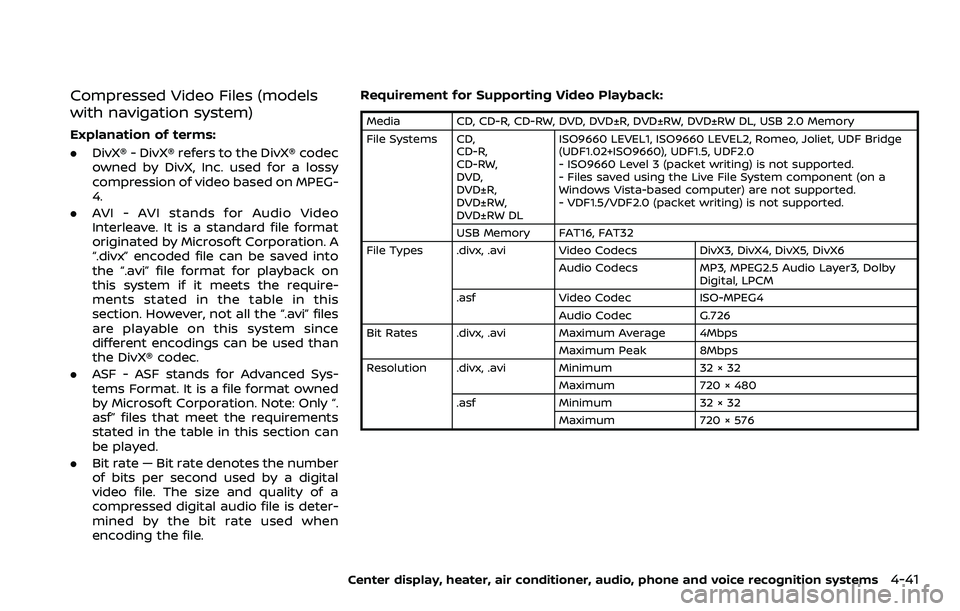
encoding the file. Requirement for Supporting Video Playback:
Media CD, CD-R, CD-RW, DVD, DVD±R, DVD±RW, DVD±RW DL, USB 2.0 Memory
File Systems CD,
CD-R,
CD-RW,
DVD,
DVD±R,
DVD±RW,
DVD±RW DL ISO9660 LEVEL1, ISO9660 LEVEL2, Romeo, Joliet, UDF Bridge
(UDF1.02+ISO9660), UDF1.5, UDF2.0
- ISO9660 Level 3 (packet writing) is not supported.
- Files saved using the Live File System component (on a
Windows Vista-based computer) are not supported.
- VDF1.5/VDF2.0 (packet writing) is not supported.
USB Memory FAT16, FAT32
File Types .divx, .avi Video Codecs DivX3, DivX4, DivX5, DivX6
Audio Codecs MP3, MPEG2.5 Audio Layer3, Dolby
Digital, LPCM
.asf Video Codec ISO-MPEG4
Audio Codec G.726
Bit Rates .divx, .avi Maximum Average 4Mbps
Maximum Peak 8Mbps
Resolution .divx, .avi Minimum 32 × 32
Maximum 720 × 480
.asf Minimum 32 × 32
Maximum 720 × 576
Center display, heater, air conditioner, audio, phone and voice recognition systems4-41
Page 210 of 453
4-42Center display, heater, air conditioner, audio, phone and voice recognition systems
Bluetooth® Audio player (models
with navigation system)
Bluetooth® is a trademark
owned by Bluetooth SIG, Inc.
and licensed to Clarion Co.,
Ltd.
.Some Bluetooth® audio devices may
not be recognized by the in-vehicle
audio system.
. It is necessary to set up the wireless
connection between a compatible
Bluetooth® audio device and the in-
vehicle Bluetooth® module before
using the Bluetooth® audio player.
. Operating procedure of the Blue-
tooth® audio player will vary depend-
ing on the device. Make sure it is
understood how to operate an audio
device before using it with this system.
. The Bluetooth® audio player may be
stopped under the following condi-
tions:
— Receiving a hands-free call.
— Checking the connection to the
hands-free phone.
. Do not place a Bluetooth® audio
device in an area surrounded by metal
or far away from the in-vehicle Blue-
tooth® module to prevent tone quality
degradation and wireless connection
disruption. .
While an audio device is connected
through a Bluetooth® wireless con-
nection, the battery power of the
device may discharge quicker than
usual.
. This system supports the Bluetooth®
Audio Distribution Profile (A2DP,
AVRCP).
. Wireless LAN (Wi-Fi) and the Blue-
tooth® functions share the same fre-
quency band (2.4 GHz). Using the
Bluetooth® and the wireless LAN func-
tions at the same time may slow down
or disconnect the communication and
cause undesired noise. It is recom-
mended that you turn off the wireless
LAN (Wi-Fi) when using the Bluetooth®
functions.