AUX NISSAN 370Z 2019 Owner´s Manual
[x] Cancel search | Manufacturer: NISSAN, Model Year: 2019, Model line: 370Z, Model: NISSAN 370Z 2019Pages: 460, PDF Size: 2.26 MB
Page 231 of 460
USB (Universal Serial Bus) CON-
NECTION PORT (models with navi-
gation system)
Audio main operation
WARNING
Do not connect, disconnect or oper-
ate the USB device while driving.
Doing so can be a distraction. If
distracted you could lose control of
your vehicle and cause an accident
or serious injury.
CAUTION
.Do not force the USB device into
the USB connection port. Insert-
ing the USB device tilted or up-
side-down into the port may da-
mage the port. Make sure that
the USB device is connected cor-
rectly into the USB connection
port.
. Do not grab the USB connection
port cover (if so equipped) when
pulling the USB device out of the
port. This could damage the port and the cover.
. Do not leave the USB cable in a
place where it can be pulled
unintentionally. Pulling the cable
may damage the port.
Refer to your device manufacturer’s own-
er information regarding the proper use
and care of the device.
SAA2499
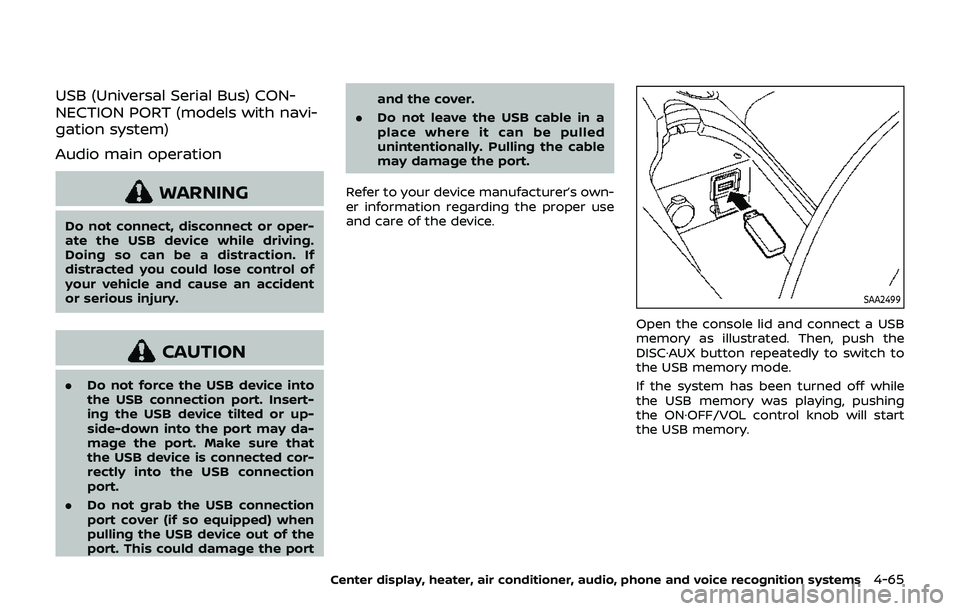
Open the console lid and connect a USB
memory as illustrated. Then, push the
DISC·AUX button repeatedly to switch to
the USB memory mode.
If the system has been turned off while
the USB memory was playing, pushing
the ON·OFF/VOL control knob will start
the USB memory.
Center display, heater, air conditioner, audio, phone and voice recognition systems4-65
Page 232 of 460
4-66Center display, heater, air conditioner, audio, phone and voice recognition systems
SAA2500
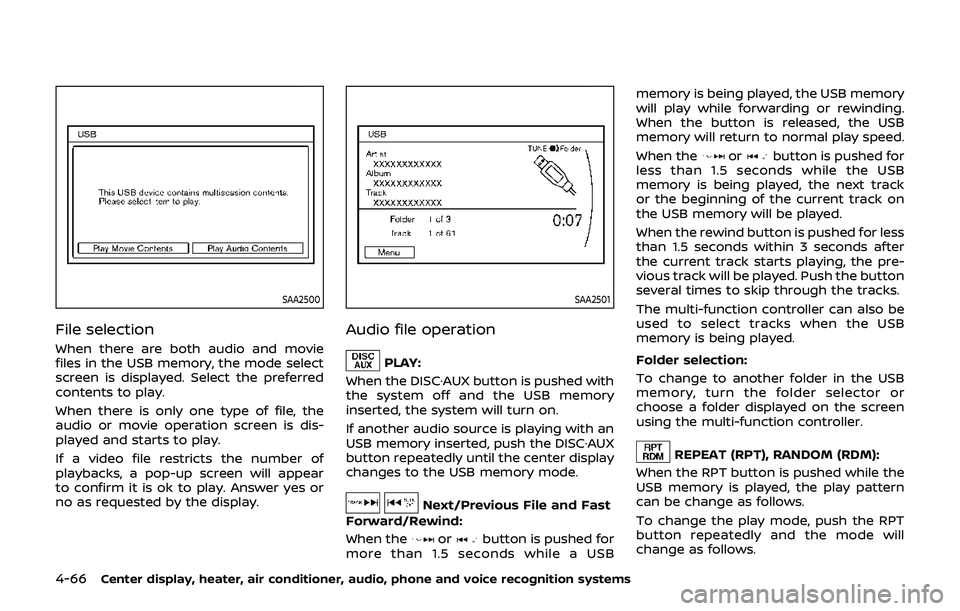
File selection
When there are both audio and movie
files in the USB memory, the mode select
screen is displayed. Select the preferred
contents to play.
When there is only one type of file, the
audio or movie operation screen is dis-
played and starts to play.
If a video file restricts the number of
playbacks, a pop-up screen will appear
to confirm it is ok to play. Answer yes or
no as requested by the display.
SAA2501
Audio file operation
PLAY:
When the DISC·AUX button is pushed with
the system off and the USB memory
inserted, the system will turn on.
If another audio source is playing with an
USB memory inserted, push the DISC·AUX
button repeatedly until the center display
changes to the USB memory mode.
Next/Previous File and Fast
Forward/Rewind:
When the
orbutton is pushed for
more than 1.5 seconds while a USB memory is being played, the USB memory
will play while forwarding or rewinding.
When the button is released, the USB
memory will return to normal play speed.
When the
orbutton is pushed for
less than 1.5 seconds while the USB
memory is being played, the next track
or the beginning of the current track on
the USB memory will be played.
When the rewind button is pushed for less
than 1.5 seconds within 3 seconds after
the current track starts playing, the pre-
vious track will be played. Push the button
several times to skip through the tracks.
The multi-function controller can also be
used to select tracks when the USB
memory is being played.
Folder selection:
To change to another folder in the USB
memory, turn the folder selector or
choose a folder displayed on the screen
using the multi-function controller.
REPEAT (RPT), RANDOM (RDM):
When the RPT button is pushed while the
USB memory is played, the play pattern
can be change as follows.
To change the play mode, push the RPT
button repeatedly and the mode will
change as follows.
Page 234 of 460
4-68Center display, heater, air conditioner, audio, phone and voice recognition systems
SAA2503
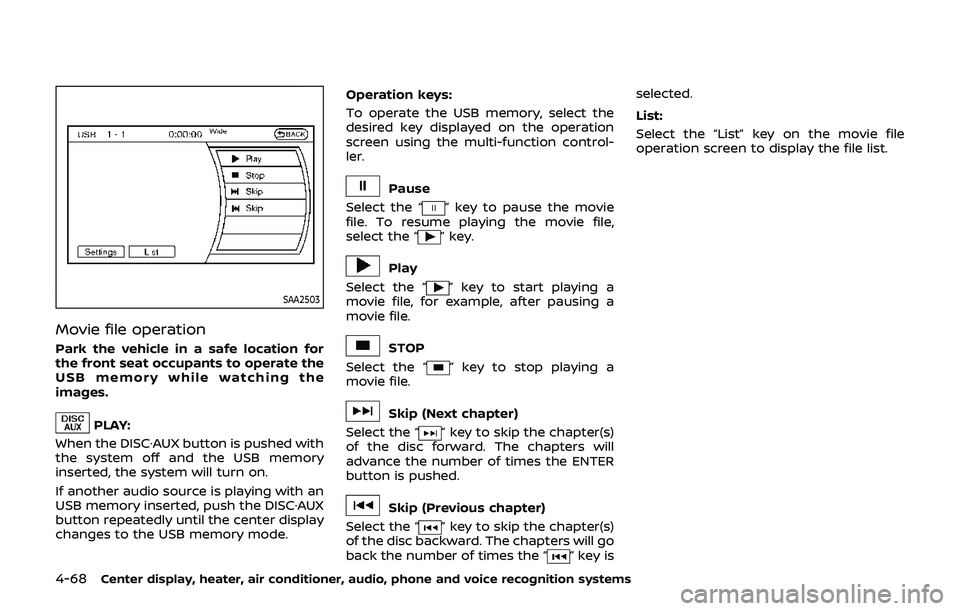
Movie file operation
Park the vehicle in a safe location for
the front seat occupants to operate the
USB memory while watching the
images.
PLAY:
When the DISC·AUX button is pushed with
the system off and the USB memory
inserted, the system will turn on.
If another audio source is playing with an
USB memory inserted, push the DISC·AUX
button repeatedly until the center display
changes to the USB memory mode. Operation keys:
To operate the USB memory, select the
desired key displayed on the operation
screen using the multi-function control-
ler.
Pause
Select the “
” key to pause the movie
file. To resume playing the movie file,
select the “
” key.
Play
Select the “
” key to start playing a
movie file, for example, after pausing a
movie file.
STOP
Select the “
” key to stop playing a
movie file.
Skip (Next chapter)
Select the “
” key to skip the chapter(s)
of the disc forward. The chapters will
advance the number of times the ENTER
button is pushed.
Skip (Previous chapter)
Select the “
” key to skip the chapter(s)
of the disc backward. The chapters will go
back the number of times the “
” key is selected.
List:
Select the “List” key on the movie file
operation screen to display the file list.
Page 238 of 460
4-72Center display, heater, air conditioner, audio, phone and voice recognition systems
SAA3006
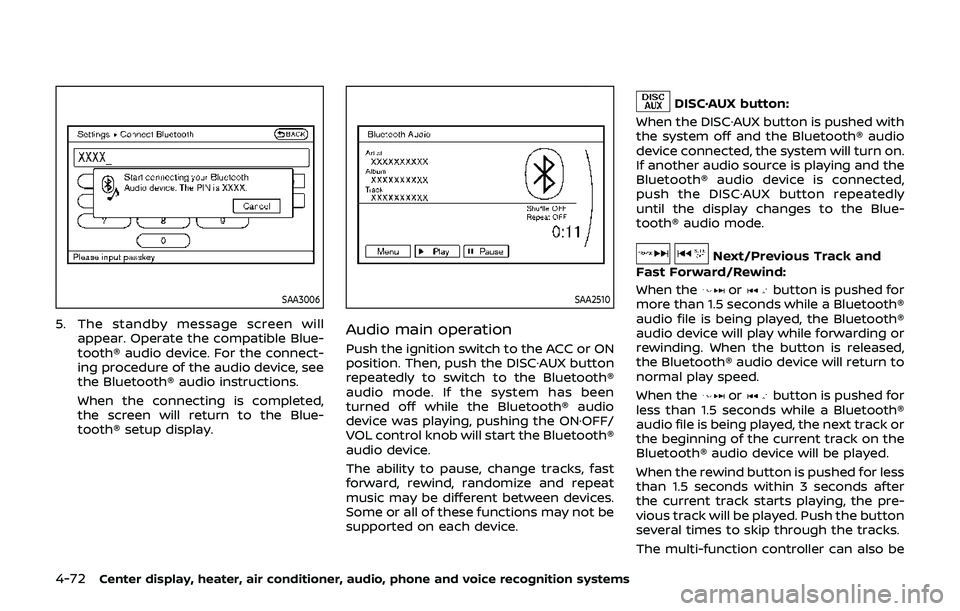
5. The standby message screen willappear. Operate the compatible Blue-
tooth® audio device. For the connect-
ing procedure of the audio device, see
the Bluetooth® audio instructions.
When the connecting is completed,
the screen will return to the Blue-
tooth® setup display.
SAA2510
Audio main operation
Push the ignition switch to the ACC or ON
position. Then, push the DISC·AUX button
repeatedly to switch to the Bluetooth®
audio mode. If the system has been
turned off while the Bluetooth® audio
device was playing, pushing the ON·OFF/
VOL control knob will start the Bluetooth®
audio device.
The ability to pause, change tracks, fast
forward, rewind, randomize and repeat
music may be different between devices.
Some or all of these functions may not be
supported on each device.
DISC·AUX button:
When the DISC·AUX button is pushed with
the system off and the Bluetooth® audio
device connected, the system will turn on.
If another audio source is playing and the
Bluetooth® audio device is connected,
push the DISC·AUX button repeatedly
until the display changes to the Blue-
tooth® audio mode.
Next/Previous Track and
Fast Forward/Rewind:
When the
orbutton is pushed for
more than 1.5 seconds while a Bluetooth®
audio file is being played, the Bluetooth®
audio device will play while forwarding or
rewinding. When the button is released,
the Bluetooth® audio device will return to
normal play speed.
When the
orbutton is pushed for
less than 1.5 seconds while a Bluetooth®
audio file is being played, the next track or
the beginning of the current track on the
Bluetooth® audio device will be played.
When the rewind button is pushed for less
than 1.5 seconds within 3 seconds after
the current track starts playing, the pre-
vious track will be played. Push the button
several times to skip through the tracks.
The multi-function controller can also be
Page 241 of 460
SAA2512
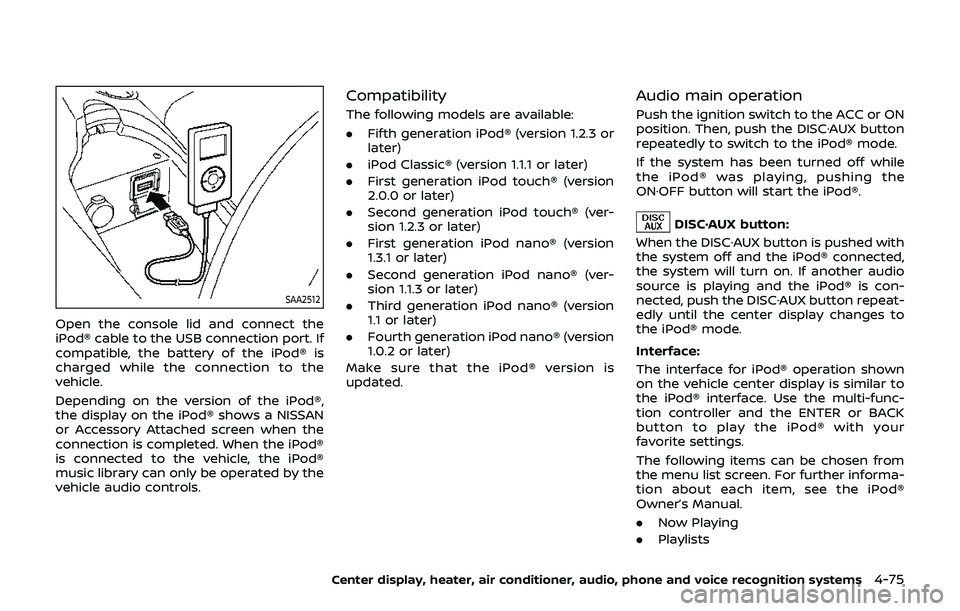
Open the console lid and connect the
iPod® cable to the USB connection port. If
compatible, the battery of the iPod® is
charged while the connection to the
vehicle.
Depending on the version of the iPod®,
the display on the iPod® shows a NISSAN
or Accessory Attached screen when the
connection is completed. When the iPod®
is connected to the vehicle, the iPod®
music library can only be operated by the
vehicle audio controls.
Compatibility
The following models are available:
.Fifth generation iPod® (version 1.2.3 or
later)
. iPod Classic® (version 1.1.1 or later)
. First generation iPod touch® (version
2.0.0 or later)
. Second generation iPod touch® (ver-
sion 1.2.3 or later)
. First generation iPod nano® (version
1.3.1 or later)
. Second generation iPod nano® (ver-
sion 1.1.3 or later)
. Third generation iPod nano® (version
1.1 or later)
. Fourth generation iPod nano® (version
1.0.2 or later)
Make sure that the iPod® version is
updated.
Audio main operation
Push the ignition switch to the ACC or ON
position. Then, push the DISC·AUX button
repeatedly to switch to the iPod® mode.
If the system has been turned off while
the iPod® was playing, pushing the
ON·OFF button will start the iPod®.
DISC·AUX button:
When the DISC·AUX button is pushed with
the system off and the iPod® connected,
the system will turn on. If another audio
source is playing and the iPod® is con-
nected, push the DISC·AUX button repeat-
edly until the center display changes to
the iPod® mode.
Interface:
The interface for iPod® operation shown
on the vehicle center display is similar to
the iPod® interface. Use the multi-func-
tion controller and the ENTER or BACK
button to play the iPod® with your
favorite settings.
The following items can be chosen from
the menu list screen. For further informa-
tion about each item, see the iPod®
Owner’s Manual.
. Now Playing
. Playlists
Center display, heater, air conditioner, audio, phone and voice recognition systems4-75
Page 242 of 460
4-76Center display, heater, air conditioner, audio, phone and voice recognition systems
.Artists
. Albums
. Songs
. Podcasts
. Genres
. Composers
. Audiobooks
. Shuffle Songs
. Play mode
The following touch-panel buttons
shown on the screen are also available:
.
: returns to the previous screen.
.
: plays/pauses the music selected.
Next/Previous Track and
Fast Forward/Rewind:
When the
orbutton is pushed for
more than 1.5 seconds while the iPod® is
playing, the iPod® will play while fast
forwarding or rewinding. When the but-
ton is released, the iPod® will return to the
normal play speed.
When the
orbutton is pushed for
less than 1.5 seconds while the iPod® is
playing, the next track or the beginning of
the current track on the iPod® will be
played.
When the rewind button is pushed for less
than 1.5 seconds within 3 seconds after
the current track starts playing, the pre- vious track will be played.
The multi-function controller can also be
used to select tracks when the iPod® is
playing.
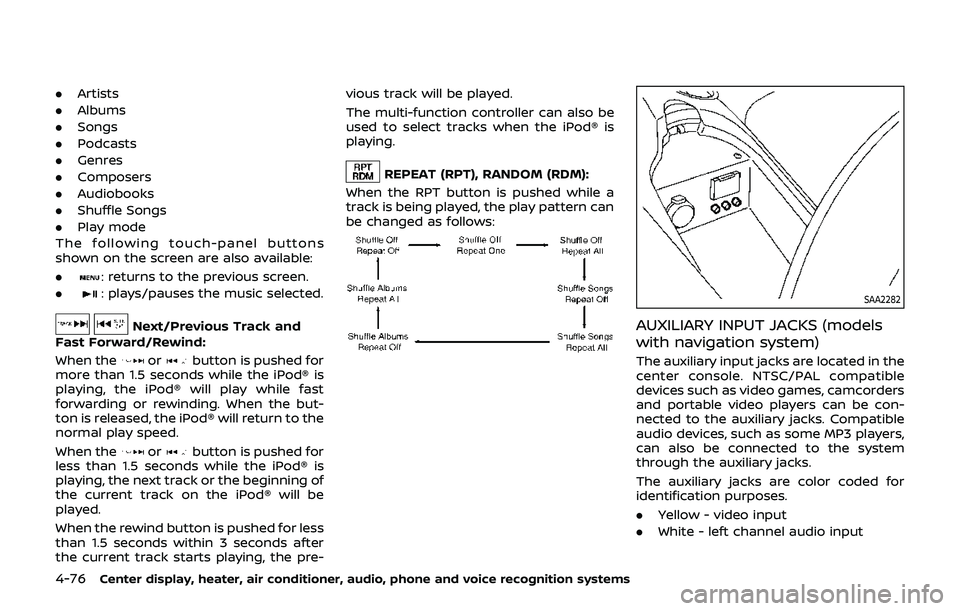
REPEAT (RPT), RANDOM (RDM):
When the RPT button is pushed while a
track is being played, the play pattern can
be changed as follows:
SAA2282
AUXILIARY INPUT JACKS (models
with navigation system)
The auxiliary input jacks are located in the
center console. NTSC/PAL compatible
devices such as video games, camcorders
and portable video players can be con-
nected to the auxiliary jacks. Compatible
audio devices, such as some MP3 players,
can also be connected to the system
through the auxiliary jacks.
The auxiliary jacks are color coded for
identification purposes.
. Yellow - video input
. White - left channel audio input
Page 243 of 460
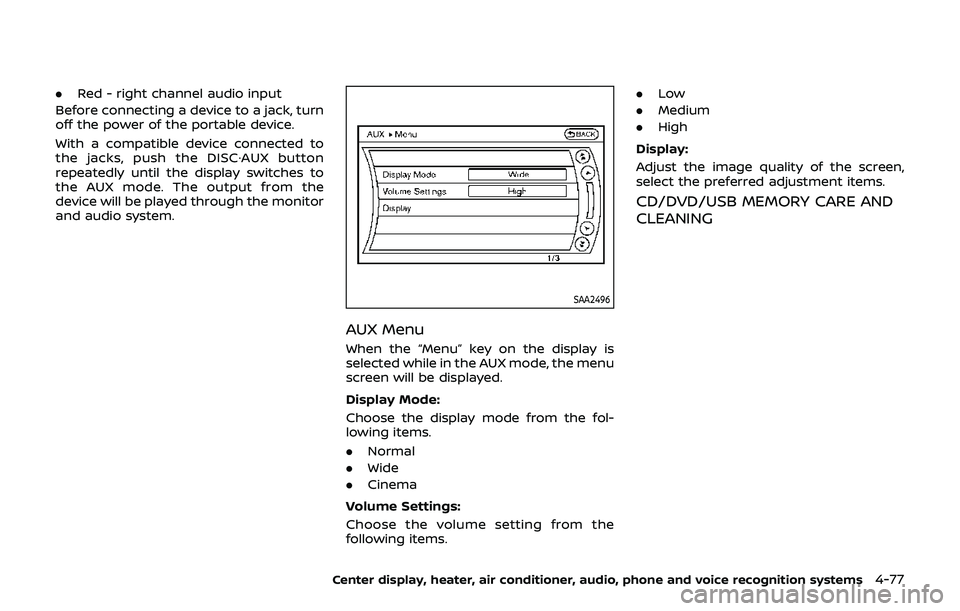
.Red - right channel audio input
Before connecting a device to a jack, turn
off the power of the portable device.
With a compatible device connected to
the jacks, push the DISC·AUX button
repeatedly until the display switches to
the AUX mode. The output from the
device will be played through the monitor
and audio system.
SAA2496
AUX Menu
When the “Menu” key on the display is
selected while in the AUX mode, the menu
screen will be displayed.
Display Mode:
Choose the display mode from the fol-
lowing items.
. Normal
. Wide
. Cinema
Volume Settings:
Choose the volume setting from the
following items. .
Low
. Medium
. High
Display:
Adjust the image quality of the screen,
select the preferred adjustment items.
CD/DVD/USB MEMORY CARE AND
CLEANING
Center display, heater, air conditioner, audio, phone and voice recognition systems4-77
Page 245 of 460
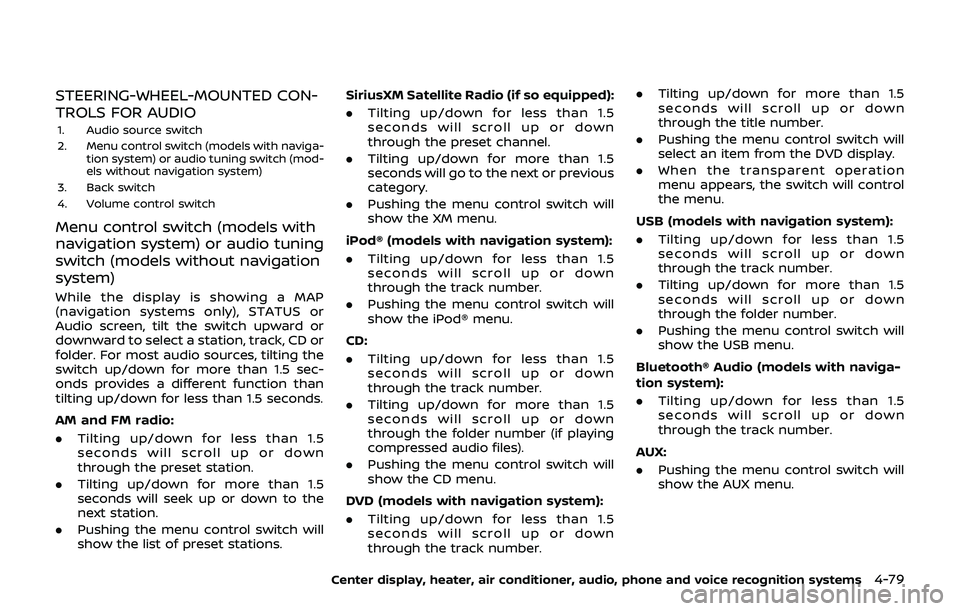
STEERING-WHEEL-MOUNTED CON-
TROLS FOR AUDIO
1. Audio source switch
2. Menu control switch (models with naviga-tion system) or audio tuning switch (mod-
els without navigation system)
3. Back switch
4. Volume control switch
Menu control switch (models with
navigation system) or audio tuning
switch (models without navigation
system)
While the display is showing a MAP
(navigation systems only), STATUS or
Audio screen, tilt the switch upward or
downward to select a station, track, CD or
folder. For most audio sources, tilting the
switch up/down for more than 1.5 sec-
onds provides a different function than
tilting up/down for less than 1.5 seconds.
AM and FM radio:
. Tilting up/down for less than 1.5
seconds will scroll up or down
through the preset station.
. Tilting up/down for more than 1.5
seconds will seek up or down to the
next station.
. Pushing the menu control switch will
show the list of preset stations. SiriusXM Satellite Radio (if so equipped):
.
Tilting up/down for less than 1.5
seconds will scroll up or down
through the preset channel.
. Tilting up/down for more than 1.5
seconds will go to the next or previous
category.
. Pushing the menu control switch will
show the XM menu.
iPod® (models with navigation system):
. Tilting up/down for less than 1.5
seconds will scroll up or down
through the track number.
. Pushing the menu control switch will
show the iPod® menu.
CD:
. Tilting up/down for less than 1.5
seconds will scroll up or down
through the track number.
. Tilting up/down for more than 1.5
seconds will scroll up or down
through the folder number (if playing
compressed audio files).
. Pushing the menu control switch will
show the CD menu.
DVD (models with navigation system):
. Tilting up/down for less than 1.5
seconds will scroll up or down
through the track number. .
Tilting up/down for more than 1.5
seconds will scroll up or down
through the title number.
. Pushing the menu control switch will
select an item from the DVD display.
. When the transparent operation
menu appears, the switch will control
the menu.
USB (models with navigation system):
. Tilting up/down for less than 1.5
seconds will scroll up or down
through the track number.
. Tilting up/down for more than 1.5
seconds will scroll up or down
through the folder number.
. Pushing the menu control switch will
show the USB menu.
Bluetooth® Audio (models with naviga-
tion system):
. Tilting up/down for less than 1.5
seconds will scroll up or down
through the track number.
AUX:
. Pushing the menu control switch will
show the AUX menu.
Center display, heater, air conditioner, audio, phone and voice recognition systems4-79
Page 288 of 460
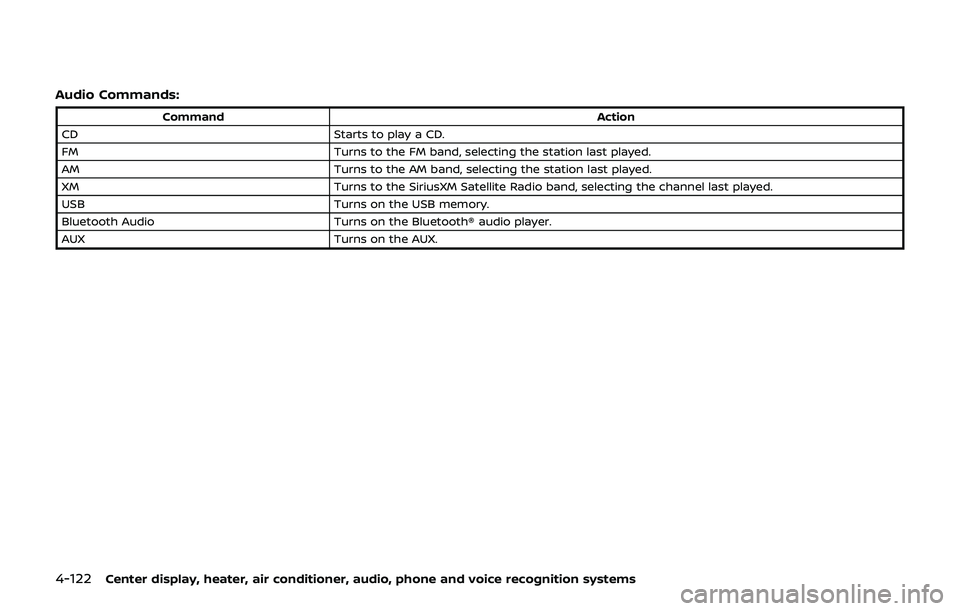
4-122Center display, heater, air conditioner, audio, phone and voice recognition systems
Audio Commands:
CommandAction
CD Starts to play a CD.
FM Turns to the FM band, selecting the station last played.
AM Turns to the AM band, selecting the station last played.
XM Turns to the SiriusXM Satellite Radio band, selecting the channel last played.
USB Turns on the USB memory.
Bluetooth Audio Turns on the Bluetooth® audio player.
AUX Turns on the AUX.
Page 451 of 460
11 Index
A
ABS (Anti-lock Braking System) ....................... 5-28
Active noise cancellation....................................... 5-35
Active sound enhancement................................ 5-35
Advanced air bag system ..................................... 1-36
Air bag systemAdvanced air bag system .............................. 1-36
Front passenger air bag and
status light................................................................. 1-38
Front-seat mounted side-impact
supplemental air bag system..................... 1-41
Roof-mounted curtain side-impact
supplemental air bag system..................... 1-41
Air bag warning labels ............................................ 1-44
Air bag warning light................................. 1-44, 2-14
Air cleaner housing filter ....................................... 8-15
Air conditioner Air conditioner operation............................... 4-31
Air conditioner service...................................... 4-36
Air conditioner specification label....... 10-14
Air conditioning system refrigerant
and lubricant
recommendations ................................ 4-36, 10-8
In-cabin microfilter .............................................. 4-36
Air deflectors ................................................................ 10-18
Alarm, How to stop alarm (see vehicle
security system)............................................................ 2-30
Alcohol, drugs and driving ....................................... 5-7
Antenna........................................................................\
....... 4-80
Anti-lock Braking System (ABS) ....................... 5-28
Anti-lock braking system (ABS)
warning light ................................................................... 2-11
Appearance care Exterior appearance care ................................. 7-2 Interior appearance care................................... 7-5
Audible reminders....................................................... 2-18
Audio operation precautions ............................. 4-37
Audio system .................................................................. 4-37 FM-AM radio with Compact Disc
(CD) player .................................................................. 4-49
FM-AM-SAT radio with Compact Disc
(CD) player .................................................................. 4-58
Steering wheel audio controls................... 4-79
Autolight system.......................................................... 2-35
Automatic Air conditioner (Type A)................................... 4-32
Air conditioner (Type B)................................... 4-34
Automatic adjusting function
(front windows) ...................................................... 2-49
Automatic Transmission Fluid (ATF) ........ 8-8
Door locks...................................................................... 3-6
Driving with
automatic transmission .................................. 5-12
Auxiliary input jacks................................................... 4-76
Average fuel consumption and speed ....... 2-25
Avoiding collision and rollover.............................. 5-6
B
Battery........................................................................\
.......... 8-11 Battery saver system......................................... 2-36
Intelligent Key.......................................................... 8-20
Variable voltage control system .............. 8-13
Before starting the engine................................... 5-11
Belts (See drive belts)............................................... 8-14
Bluetooth® hands-free phone system
(models with navigation system) ................... 4-82
Bluetooth® hands-free phone system
(models without navigation system) ........... 4-92
Bluetooth® streaming audio............................... 4-69 Booster seats.................................................................. 1-26
Brake
Anti-lock Braking System (ABS) ................ 5-28
Brake and clutch fluid ......................................... 8-9
Brake fluid ..................................................................... 8-9
Brake system ........................................................... 5-27
Parking brake operation................................. 5-21
Warning light............................................................ 2-11
Break-in schedule ....................................................... 5-24
Brightness control .......................................................... 4-8 Display ON/OFF button ...................................... 4-8
Instrument panel .................................................. 2-37
Bulb replacement ........................................................ 8-22
C
Cabin air filter ................................................................. 4-36
Capacities and
recommended fluids/lubricants...................... 10-2
Car phone or CB radio ............................................ 4-81
Cargo cover ..................................................................... 2-45
Catalytic converter, Three way catalyst ....... 5-3
CD/DVD/USB memory care
and cleaning.................................................................... 4-77
Center multi-function control panel
(models with navigation system) ....................... 4-4
Chassis and body maintenance...................... 9-11
Child restraints .............................................................. 1-19 Booster seats........................................................... 1-26
Precautions on child restraints................. 1-19
Top tether strap .................................................... 1-20
Child safety....................................................................... 1-16
Chimes Audible reminders................................................ 2-18
Seat belt warning light and chime......... 2-14
Circuit breaker, Fusible link ................................. 8-18