center console NISSAN 370Z 2019 Owner´s Manual
[x] Cancel search | Manufacturer: NISSAN, Model Year: 2019, Model line: 370Z, Model: NISSAN 370Z 2019Pages: 460, PDF Size: 2.26 MB
Page 241 of 460
SAA2512
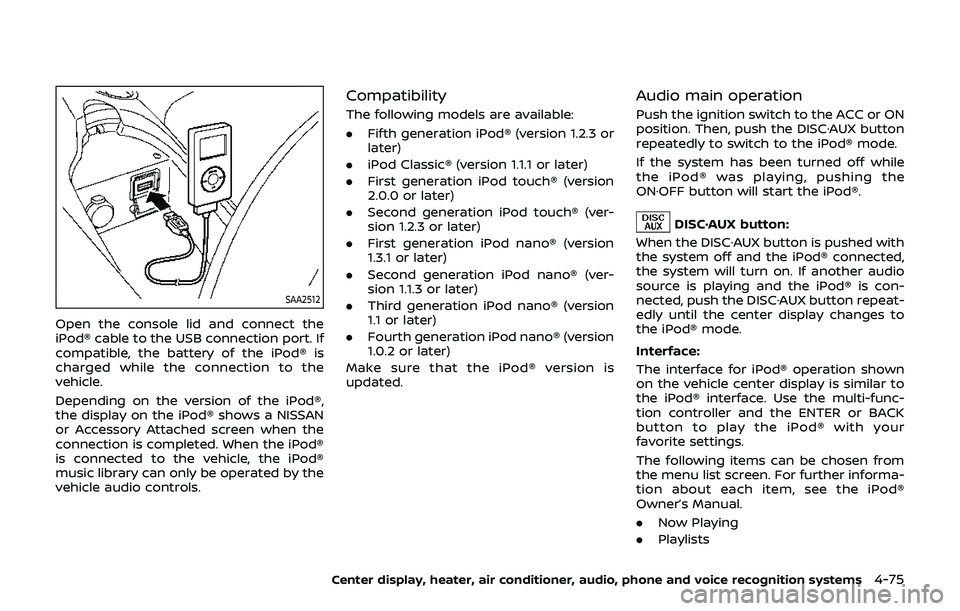
Open the console lid and connect the
iPod® cable to the USB connection port. If
compatible, the battery of the iPod® is
charged while the connection to the
vehicle.
Depending on the version of the iPod®,
the display on the iPod® shows a NISSAN
or Accessory Attached screen when the
connection is completed. When the iPod®
is connected to the vehicle, the iPod®
music library can only be operated by the
vehicle audio controls.
Compatibility
The following models are available:
.Fifth generation iPod® (version 1.2.3 or
later)
. iPod Classic® (version 1.1.1 or later)
. First generation iPod touch® (version
2.0.0 or later)
. Second generation iPod touch® (ver-
sion 1.2.3 or later)
. First generation iPod nano® (version
1.3.1 or later)
. Second generation iPod nano® (ver-
sion 1.1.3 or later)
. Third generation iPod nano® (version
1.1 or later)
. Fourth generation iPod nano® (version
1.0.2 or later)
Make sure that the iPod® version is
updated.
Audio main operation
Push the ignition switch to the ACC or ON
position. Then, push the DISC·AUX button
repeatedly to switch to the iPod® mode.
If the system has been turned off while
the iPod® was playing, pushing the
ON·OFF button will start the iPod®.
DISC·AUX button:
When the DISC·AUX button is pushed with
the system off and the iPod® connected,
the system will turn on. If another audio
source is playing and the iPod® is con-
nected, push the DISC·AUX button repeat-
edly until the center display changes to
the iPod® mode.
Interface:
The interface for iPod® operation shown
on the vehicle center display is similar to
the iPod® interface. Use the multi-func-
tion controller and the ENTER or BACK
button to play the iPod® with your
favorite settings.
The following items can be chosen from
the menu list screen. For further informa-
tion about each item, see the iPod®
Owner’s Manual.
. Now Playing
. Playlists
Center display, heater, air conditioner, audio, phone and voice recognition systems4-75
Page 242 of 460
4-76Center display, heater, air conditioner, audio, phone and voice recognition systems
.Artists
. Albums
. Songs
. Podcasts
. Genres
. Composers
. Audiobooks
. Shuffle Songs
. Play mode
The following touch-panel buttons
shown on the screen are also available:
.
: returns to the previous screen.
.
: plays/pauses the music selected.
Next/Previous Track and
Fast Forward/Rewind:
When the
orbutton is pushed for
more than 1.5 seconds while the iPod® is
playing, the iPod® will play while fast
forwarding or rewinding. When the but-
ton is released, the iPod® will return to the
normal play speed.
When the
orbutton is pushed for
less than 1.5 seconds while the iPod® is
playing, the next track or the beginning of
the current track on the iPod® will be
played.
When the rewind button is pushed for less
than 1.5 seconds within 3 seconds after
the current track starts playing, the pre- vious track will be played.
The multi-function controller can also be
used to select tracks when the iPod® is
playing.
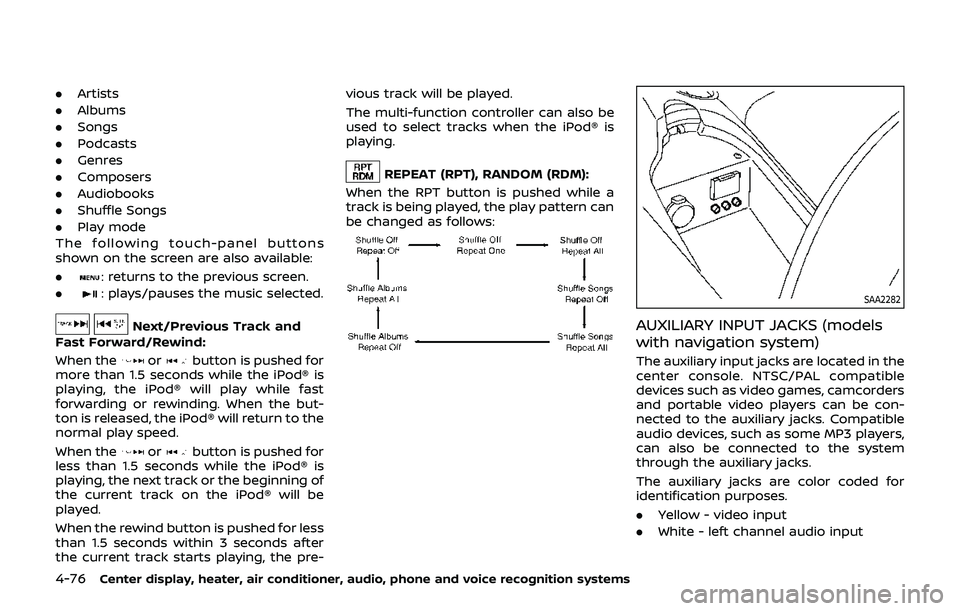
REPEAT (RPT), RANDOM (RDM):
When the RPT button is pushed while a
track is being played, the play pattern can
be changed as follows:
SAA2282
AUXILIARY INPUT JACKS (models
with navigation system)
The auxiliary input jacks are located in the
center console. NTSC/PAL compatible
devices such as video games, camcorders
and portable video players can be con-
nected to the auxiliary jacks. Compatible
audio devices, such as some MP3 players,
can also be connected to the system
through the auxiliary jacks.
The auxiliary jacks are color coded for
identification purposes.
. Yellow - video input
. White - left channel audio input