display NISSAN 370Z COUPE 2010 Owner's Manual
[x] Cancel search | Manufacturer: NISSAN, Model Year: 2010, Model line: 370Z COUPE, Model: NISSAN 370Z COUPE 2010Pages: 409, PDF Size: 3.56 MB
Page 93 of 409
Black plate (91,1)
Model "Z34-D" EDITED: 2009/ 9/ 10
automatically when it is dark and turn off the
headlights when it is light.
If the ignition switch is pushed to the OFF
position and one of the doors is opened and this
condition is continued, the headlights remain on
for 5 minutes.
Automatic headlights off delay:
You can keep the headlights on for up to 180
seconds after you push the ignition switch to
OFF and open any door then close all the doors.
You can adjust the period of the automatic
headlights off delay from 0 seconds (OFF) to
180 seconds. The factory default setting is 45
seconds.
For automatic headlights off delay setting, see
“Light Off Delay” in the “4. Center display,
heater, air conditioner, audio, phone and voice
recognition systems” section.
SIC3784A
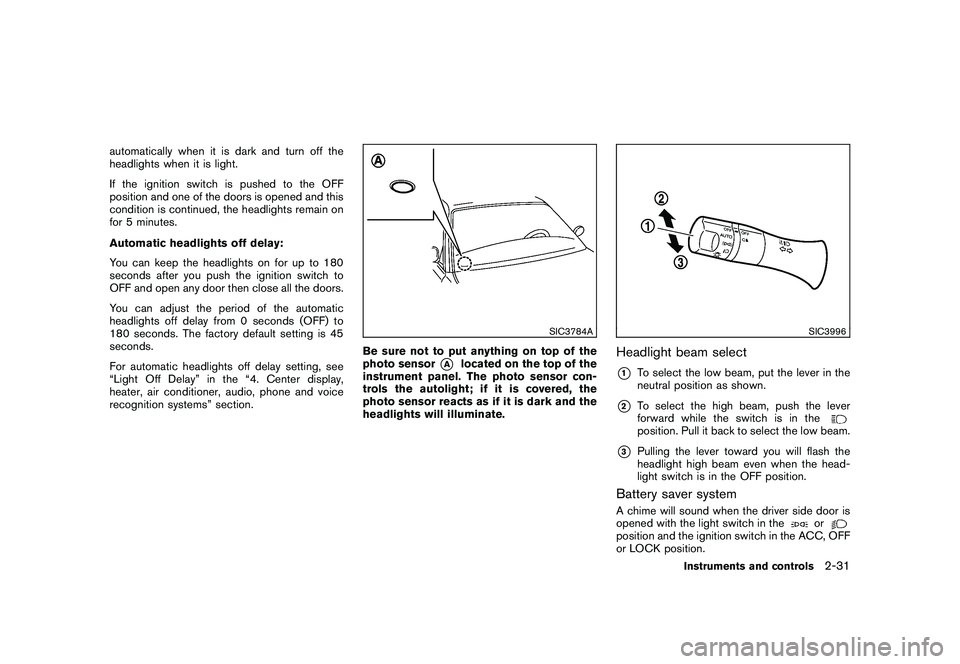
Be sure not to put anything on top of the
photo sensor
*A
located on the top of the
instrument panel. The photo sensor con-
trols the autolight; if it is covered, the
photo sensor reacts as if it is dark and the
headlights will illuminate.
SIC3996
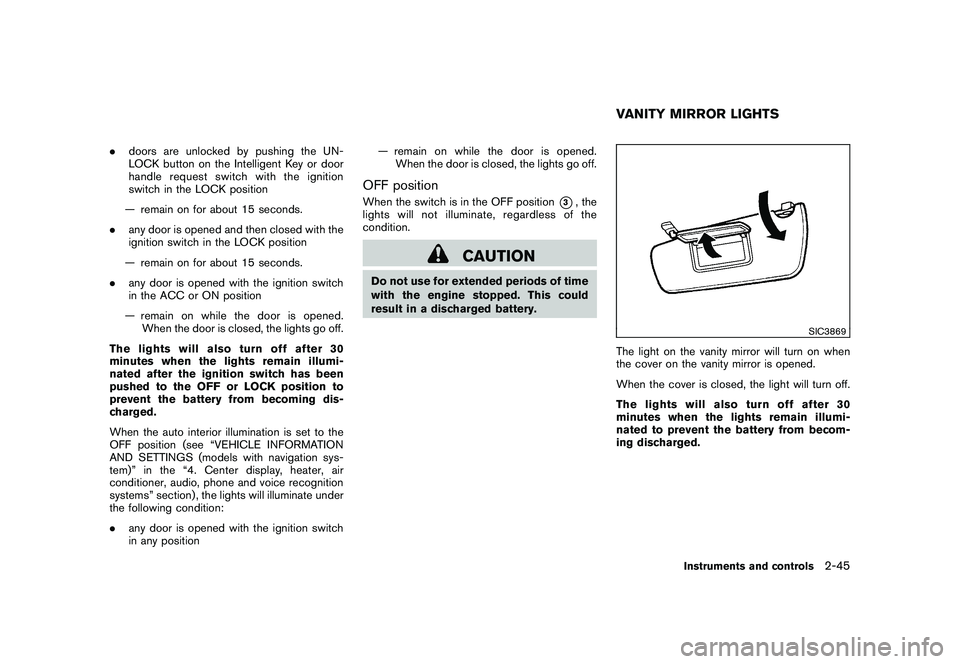
Headlight beam select*1
To select the low beam, put the lever in the
neutral position as shown.
*2
To select the high beam, push the lever
forward while the switch is in theposition. Pull it back to select the low beam.
*3
Pulling the lever toward you will flash the
headlight high beam even when the head-
light switch is in the OFF position.
Battery saver systemA chime will sound when the driver side door is
opened with the light switch in the
or
position and the ignition switch in the ACC, OFF
or LOCK position.
Instruments and controls
2-31
Page 107 of 409
Black plate (105,1)
Model "Z34-D" EDITED: 2009/ 9/ 10
.doors are unlocked by pushing the UN-
LOCK button on the Intelligent Key or door
handle request switch with the ignition
switch in the LOCK position
— remain on for about 15 seconds.
. any door is opened and then closed with the
ignition switch in the LOCK position
— remain on for about 15 seconds.
. any door is opened with the ignition switch
in the ACC or ON position
— remain on while the door is opened. When the door is closed, the lights go off.
The lights will also turn off after 30
minutes when the lights remain illumi-
nated after the ignition switch has been
pushed to the OFF or LOCK position to
prevent the battery from becoming dis-
charged.
When the auto interior illumination is set to the
OFF position (see “VEHICLE INFORMATION
AND SETTINGS (models with navigation sys-
tem)” in the “4. Center display, heater, air
conditioner, audio, phone and voice recognition
systems” section) , the lights will illuminate under
the following condition:
. any door is opened with the ignition switch
in any position — remain on while the door is opened.
When the door is closed, the lights go off.
OFF positionWhen the switch is in the OFF position
*3, the
lights will not illuminate, regardless of the
condition.
CAUTION
Do not use for extended periods of time
with the engine stopped. This could
result in a discharged battery.
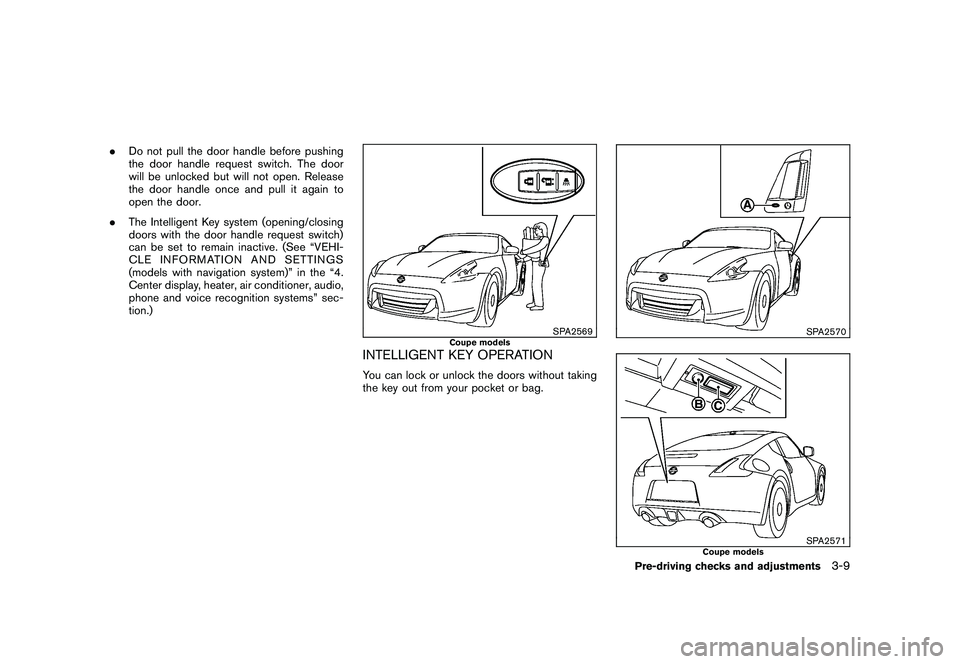
SIC3869
The light on the vanity mirror will turn on when
the cover on the vanity mirror is opened.
When the cover is closed, the light will turn off.
The lights will also turn off after 30
minutes when the lights remain illumi-
nated to prevent the battery from becom-
ing discharged.VANITY MIRROR LIGHTS
Instruments and controls
2-45
Page 121 of 409
Black plate (121,1)
Model "Z34-D" EDITED: 2009/ 9/ 10
.Do not pull the door handle before pushing
the door handle request switch. The door
will be unlocked but will not open. Release
the door handle once and pull it again to
open the door.
. The Intelligent Key system (opening/closing
doors with the door handle request switch)
can be set to remain inactive. (See “VEHI-
CLE INFORMATION AND SETTINGS
(models with navigation system)” in the “4.
Center display, heater, air conditioner, audio,
phone and voice recognition systems” sec-
tion.)
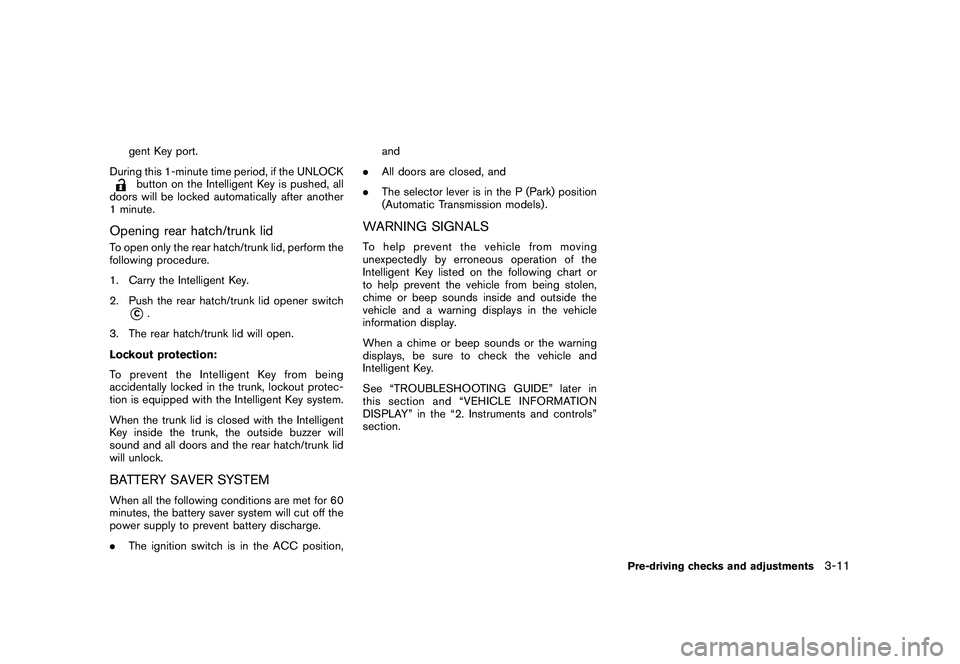
SPA2569
Coupe models
INTELLIGENT KEY OPERATIONYou can lock or unlock the doors without taking
the key out from your pocket or bag.
SPA2570SPA2571
Coupe models
Pre-driving checks and adjustments
3-9
Page 123 of 409
Black plate (123,1)
Model "Z34-D" EDITED: 2009/ 9/ 10
gent Key port.
During this 1-minute time period, if the UNLOCKbutton on the Intelligent Key is pushed, all
doors will be locked automatically after another
1 minute.
Opening rear hatch/trunk lidTo open only the rear hatch/trunk lid, perform the
following procedure.
1. Carry the Intelligent Key.
2. Push the rear hatch/trunk lid opener switch
*C.
3. The rear hatch/trunk lid will open.
Lockout protection:
To prevent the Intelligent Key from being
accidentally locked in the trunk, lockout protec-
tion is equipped with the Intelligent Key system.
When the trunk lid is closed with the Intelligent
Key inside the trunk, the outside buzzer will
sound and all doors and the rear hatch/trunk lid
will unlock.
BATTERY SAVER SYSTEMWhen all the following conditions are met for 60
minutes, the battery saver system will cut off the
power supply to prevent battery discharge.
. The ignition switch is in the ACC position, and
. All doors are closed, and
. The selector lever is in the P (Park) position
(Automatic Transmission models) .
WARNING SIGNALSTo help prevent the vehicle from moving
unexpectedly by erroneous operation of the
Intelligent Key listed on the following chart or
to help prevent the vehicle from being stolen,
chime or beep sounds inside and outside the
vehicle and a warning displays in the vehicle
information display.
When a chime or beep sounds or the warning
displays, be sure to check the vehicle and
Intelligent Key.
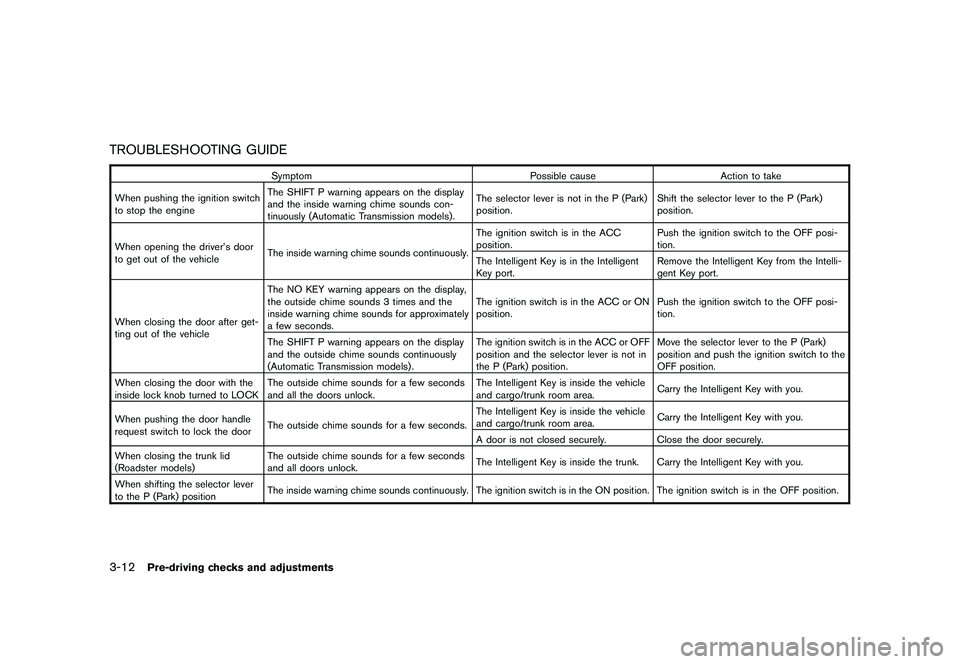
See “TROUBLESHOOTING GUIDE” later in
this section and “VEHICLE INFORMATION
DISPLAY” in the “2. Instruments and controls”
section.
Pre-driving checks and adjustments
3-11
Page 124 of 409
Black plate (124,1)
Model "Z34-D" EDITED: 2009/ 9/ 10
TROUBLESHOOTING GUIDE
SymptomPossible causeAction to take
When pushing the ignition switch
to stop the engine The SHIFT P warning appears on the display
and the inside warning chime sounds con-
tinuously (Automatic Transmission models) . The selector lever is not in the P (Park)
position.
Shift the selector lever to the P (Park)
position.
When opening the driver’s door
to get out of the vehicle The inside warning chime sounds continuously. The ignition switch is in the ACC
position.
Push the ignition switch to the OFF posi-
tion.
The Intelligent Key is in the Intelligent
Key port. Remove the Intelligent Key from the Intelli-
gent Key port.
When closing the door after get-
ting out of the vehicle The NO KEY warning appears on the display,
the outside chime sounds 3 times and the
inside warning chime sounds for approximately
a few seconds.
The ignition switch is in the ACC or ON
position.
Push the ignition switch to the OFF posi-
tion.
The SHIFT P warning appears on the display
and the outside chime sounds continuously
(Automatic Transmission models) . The ignition switch is in the ACC or OFF
position and the selector lever is not in
the P (Park) position.Move the selector lever to the P (Park)
position and push the ignition switch to the
OFF position.
When closing the door with the
inside lock knob turned to LOCK The outside chime sounds for a few seconds
and all the doors unlock. The Intelligent Key is inside the vehicle
and cargo/trunk room area.
Carry the Intelligent Key with you.
When pushing the door handle
request switch to lock the door The outside chime sounds for a few seconds. The Intelligent Key is inside the vehicle
and cargo/trunk room area.
Carry the Intelligent Key with you.
A door is not closed securely. Close the door securely.
When closing the trunk lid
(Roadster models) The outside chime sounds for a few seconds
and all doors unlock.
The Intelligent Key is inside the trunk. Carry the Intelligent Key with you.
When shifting the selector lever
to the P (Park) position The inside warning chime sounds continuously. The ignition switch is in the ON position.
The ignition switch is in the OFF position.
3-12
Pre-driving checks and adjustments
Page 152 of 409
Black plate (13,1)
4
Center display, heater, air conditioner,
audio, phone and voice recognition systems
Model "Z34-D" EDITED: 2009/ 9/ 10
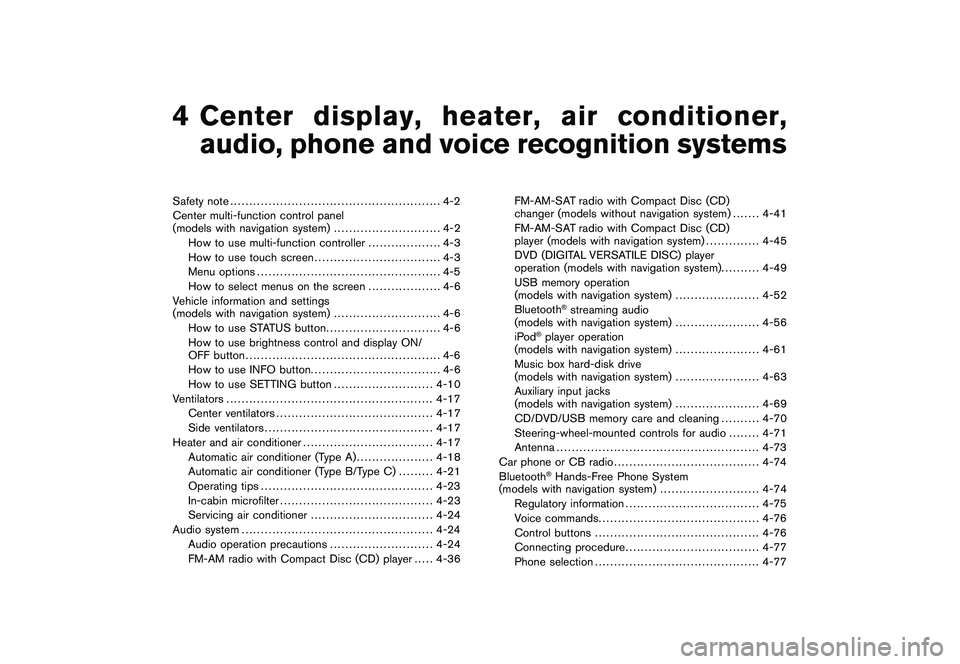
Safety note....................................................... 4-2
Center multi-function control panel
(models with navigation system) ............................ 4-2
How to use multi-function controller ................... 4-3
How to use touch screen ................................. 4-3
Menu options ................................................ 4-5
How to select menus on the screen ................... 4-6
Vehicle information and settings
(models with navigation system) ............................ 4-6
How to use STATUS button .............................. 4-6
How to use brightness control and display ON/
OFF button ................................................... 4-6
How to use INFO button. ................................. 4-6
How to use SETTING button .......................... 4-10
Ventilators ...................................................... 4-17
Center ventilators ......................................... 4-17
Side ventilators ............................................ 4-17
Heater and air conditioner .................................. 4-17
Automatic air conditioner (Type A) .................... 4-18
Automatic air conditioner (Type B/Type C) ......... 4-21
Operating tips ............................................. 4-23
In-cabin microfilter ........................................ 4-23
Servicing air conditioner ................................ 4-24
Audio system .................................................. 4-24
Audio operation precautions ........................... 4-24
FM-AM radio with Compact Disc (CD) player ..... 4-36FM-AM-SAT radio with Compact Disc (CD)
changer (models without navigation system) . . .
.... 4-41
FM-AM-SAT radio with Compact Disc (CD)
player (models with navigation system) .............. 4-45
DVD (DIGITAL VERSATILE DISC) player
operation (models with navigation system). ......... 4-49
USB memory operation
(models with navigation system) ...................... 4-52
Bluetooth
®streaming audio
(models with navigation system) ...................... 4-56
iPod
®player operation
(models with navigation system) ...................... 4-61
Music box hard-disk drive
(models with navigation system) ...................... 4-63
Auxiliary input jacks
(models with navigation system) ...................... 4-69
CD/DVD/USB memory care and cleaning .......... 4-70
Steering-wheel-mounted controls for audio ........ 4-71
Antenna ..................................................... 4-73
Car phone or CB radio ...................................... 4-74
Bluetooth®Hands-Free Phone System
(models with navigation system) .......................... 4-74
Regulatory information ................................... 4-75
Voice commands. ......................................... 4-76
Control buttons ........................................... 4-76
Connecting procedure ................................... 4-77
Phone selection ........................................... 4-77
Page 154 of 409
Black plate (154,1)
Model "Z34-D" EDITED: 2009/ 9/ 10
WARNING
.Do not disassemble or modify this
system. If you do, it may result in
accidents, fire, or electric shock.
. Do not use this system if you notice
any abnormality, such as a frozen
screen or lack of sound. Continued
use of the system may result in
accident, fire or electric shock.
. In case you notice any foreign
object in the system hardware, spill
liquid on it, or notice smoke or smell
coming from it, stop using the
system immediately and contact
your nearest NISSAN dealer. Ignor-
ing such conditions may lead to
accidents, fire, or electric shock.
. Park the vehicle in a safe location
and apply the parking brake to view
the images on the front center dis-
play screen using devices connected
to the auxiliary input jacks.
Do not attempt to operate the system in
extreme temperature conditions [below
48F( 208 C) and above 158 8F(70 8C)].
Operating this system under these condi-
tions may result in system malfunctions.
SAA2273
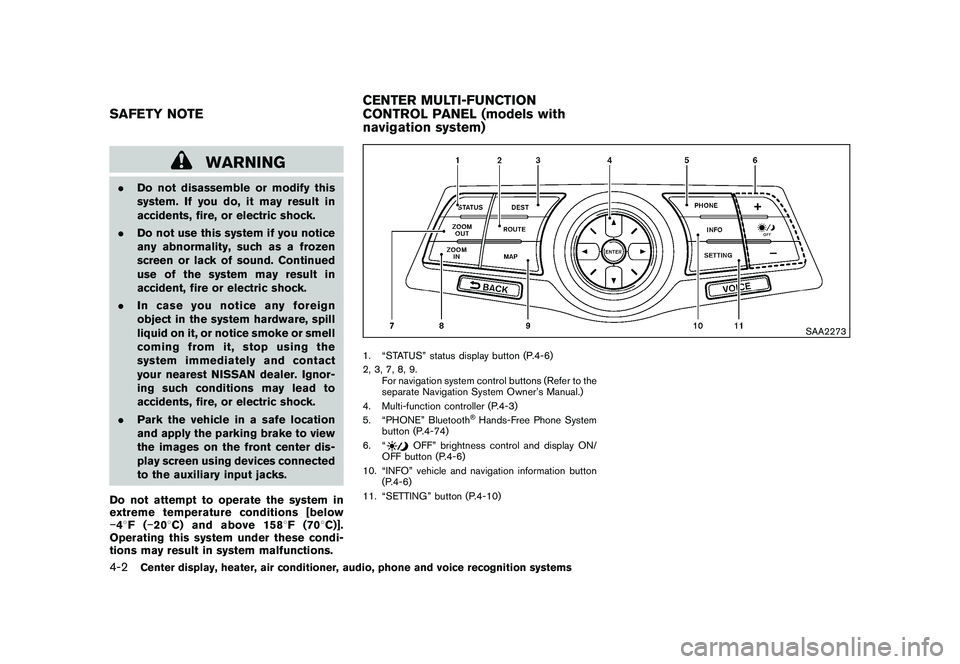
1. “STATUS” status display button (P.4-6)
2, 3, 7, 8, 9.
For navigation system control buttons (Refer to the
separate Navigation System Owner’s Manual.)
4. Multi-function controller (P.4-3)
5. “PHONE” Bluetooth
®Hands-Free Phone System
button (P.4-74)
6. “
OFF” brightness control and display ON/
OFF button (P.4-6)
10. “INFO” vehicle and navigation information button (P.4-6)
11. “SETTING” button (P.4-10)
SAFETY NOTE CENTER MULTI-FUNCTION
CONTROL PANEL (models with
navigation system)4-2
Center display, heater, air conditioner, audio, phone and voice recognition systems
Page 155 of 409
Black plate (155,1)
Model "Z34-D" EDITED: 2009/ 9/ 10
SAA2274
HOW TO USE MULTI-FUNCTION
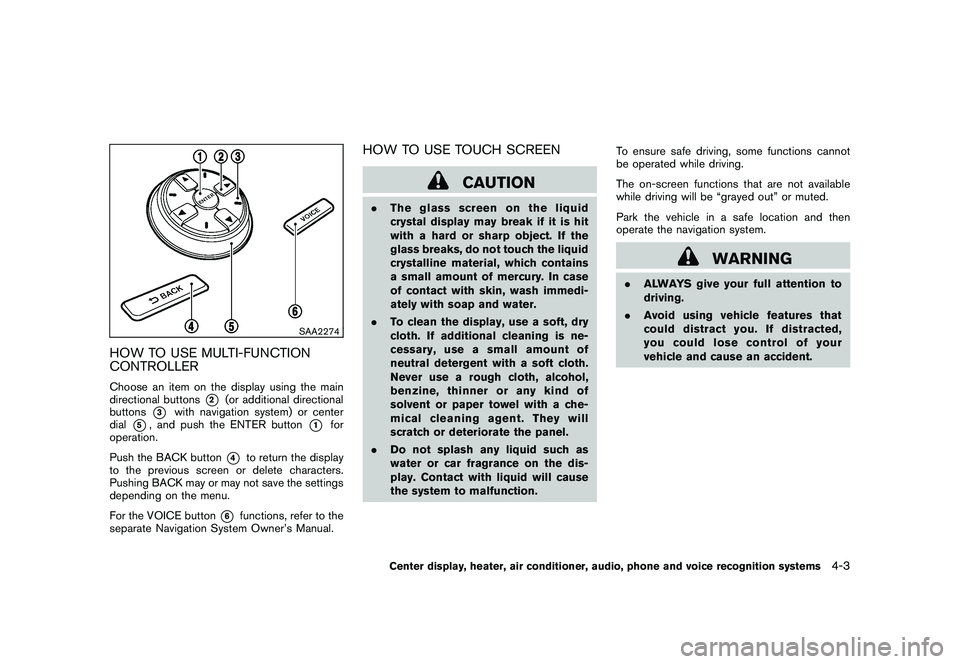
CONTROLLERChoose an item on the display using the main
directional buttons
*2
(or additional directional
buttons
*3
with navigation system) or center
dial
*5, and push the ENTER button
*1
for
operation.
Push the BACK button
*4
to return the display
to the previous screen or delete characters.
Pushing BACK may or may not save the settings
depending on the menu.
For the VOICE button
*6
functions, refer to the
separate Navigation System Owner’s Manual.
HOW TO USE TOUCH SCREEN
CAUTION
. The glass screen on the liquid
crystal display may break if it is hit
with a hard or sharp object. If the
glass breaks, do not touch the liquid
crystalline material, which contains
a small amount of mercury. In case
of contact with skin, wash immedi-
ately with soap and water.
. To clean the display, use a soft, dry
cloth. If additional cleaning is ne-
cessary, use a small amount of
neutral detergent with a soft cloth.
Never use a rough cloth, alcohol,
benzine, thinner or any kind of
solvent or paper towel with a che-
mical cleaning agent. They will
scratch or deteriorate the panel.
. Do not splash any liquid such as
water or car fragrance on the dis-
play. Contact with liquid will cause
the system to malfunction. To ensure safe driving, some functions cannot
be operated while driving.
The on-screen functions that are not available
while driving will be “grayed out” or muted.
Park the vehicle in a safe location and then
operate the navigation system.
WARNING
.
ALWAYS give your full attention to
driving.
. Avoid using vehicle features that
coulddistractyou.Ifdistracted,
you could lose control of your
vehicle and cause an accident.
Center display, heater, air conditioner, audio, phone and voice recognition systems
4-3
Page 156 of 409
Black plate (156,1)
Model "Z34-D" EDITED: 2009/ 9/ 10
SAA2473
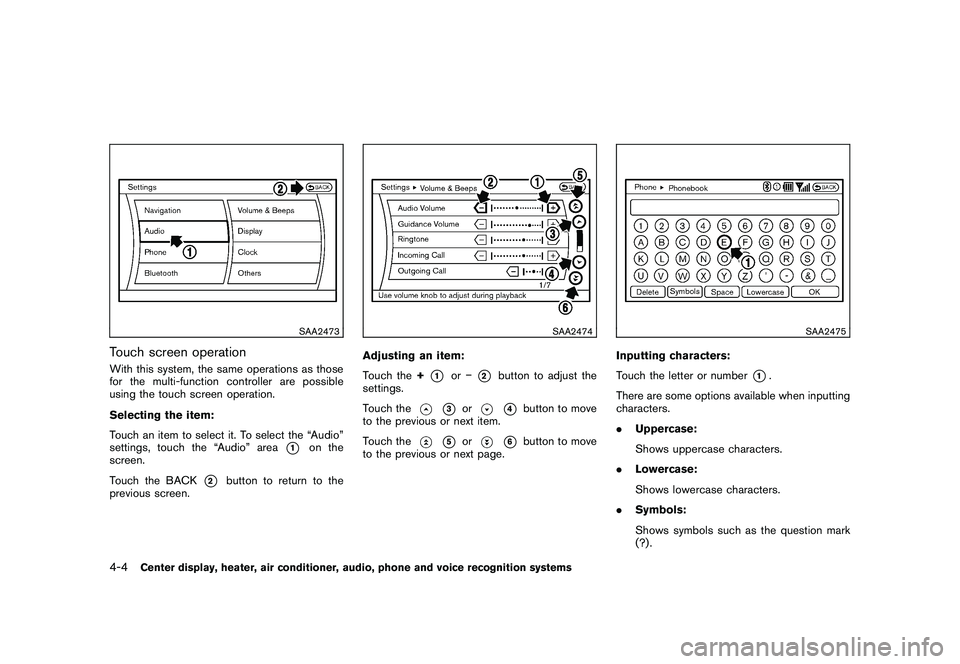
Touch screen operationWith this system, the same operations as those
for the multi-function controller are possible
using the touch screen operation.
Selecting the item:
Touch an item to select it. To select the “Audio”
settings, touch the “Audio” area
*1
on the
screen.
Touch the BACK
*2
button to return to the
previous screen.
SAA2474
Adjusting an item:
Touch the +
*1
or
*2
button to adjust the
settings.
Touch the
*3
or
*4
button to move
to the previous or next item.
Touch the
*5
or
*6
button to move
to the previous or next page.
SAA2475
Inputting characters:
Touch the letter or number
*1.
There are some options available when inputting
characters.
. Uppercase:
Shows uppercase characters.
. Lowercase:
Shows lowercase characters.
. Symbols:
Shows symbols such as the question mark
(?) .
4-4
Center display, heater, air conditioner, audio, phone and voice recognition systems
Page 157 of 409
Black plate (157,1)
Model "Z34-D" EDITED: 2009/ 9/ 10
.Space:
Inserts a space.
. Delete:
Deletes the last character that has been
input with one touch. Push and hold the
button to delete all of the characters.
. OK:
Completes character inputs.Touch screen maintenanceIf you clean the display screen, use a dry, soft
cloth. If additional cleaning is necessary, use a
small amount of neutral detergent with a soft
cloth. Never spray the screen with water or
detergent. Dampen the cloth first, and then wipe
the screen.
SAA2143
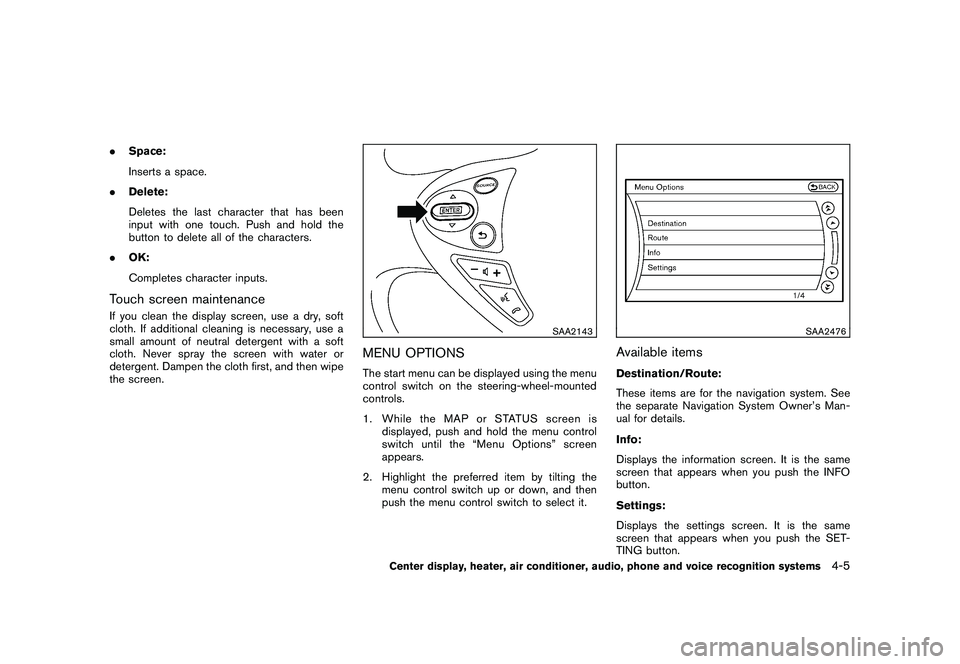
MENU OPTIONSThe start menu can be displayed using the menu
control switch on the steering-wheel-mounted
controls.
1. While the MAP or STATUS screen is
displayed, push and hold the menu control
switch until the “Menu Options” screen
appears.
2. Highlight the preferred item by tilting the menu control switch up or down, and then
push the menu control switch to select it.
SAA2476
Available itemsDestination/Route:
These items are for the navigation system. See
the separate Navigation System Owner’s Man-
ual for details.
Info:
Displays the information screen. It is the same
screen that appears when you push the INFO
button.
Settings:
Displays the settings screen. It is the same
screen that appears when you push the SET-
TING button.
Center display, heater, air conditioner, audio, phone and voice recognition systems
4-5