stop start NISSAN 370Z COUPE 2011 User Guide
[x] Cancel search | Manufacturer: NISSAN, Model Year: 2011, Model line: 370Z COUPE, Model: NISSAN 370Z COUPE 2011Pages: 419, PDF Size: 3.61 MB
Page 148 of 419
Black plate (144,1)
Model "Z34-D" EDITED: 2010/ 7/ 27
SPA2581
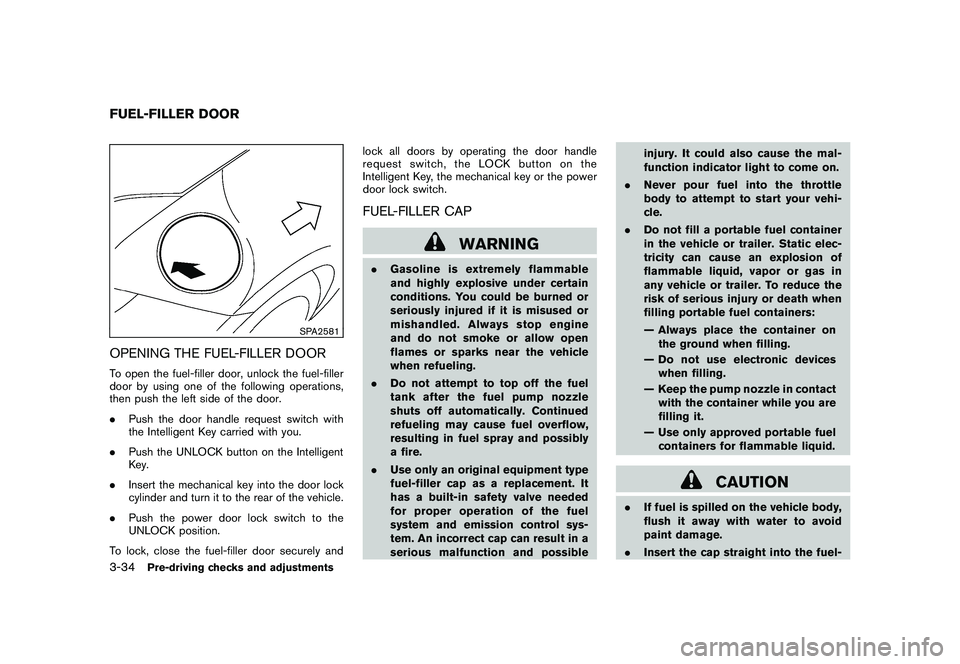
OPENING THE FUEL-FILLER DOORTo open the fuel-filler door, unlock the fuel-filler
door by using one of the following operations,
then push the left side of the door.
.Push the door handle request switch with
the Intelligent Key carried with you.
. Push the UNLOCK button on the Intelligent
Key.
. Insert the mechanical key into the door lock
cylinder and turn it to the rear of the vehicle.
. Push the power door lock switch to the
UNLOCK position.
To lock, close the fuel-filler door securely and lock all doors by operating the door handle
request switch, the LOCK button on the
Intelligent Key, the mechanical key or the power
door lock switch.
FUEL-FILLER CAP
WARNING
.
Gasoline is extremely flammable
and highly explosive under certain
conditions. You could be burned or
seriously injured if it is misused or
mishandled. Always stop engine
and do not smoke or allow open
flames or sparks near the vehicle
when refueling.
. Do not attempt to top off the fuel
tank after the fuel pump nozzle
shuts off automatically. Continued
refueling may cause fuel overflow,
resulting in fuel spray and possibly
a fire.
. Use only an original equipment type
fuel-filler cap as a replacement. It
has a built-in safety valve needed
for proper operation of the fuel
system and emission control sys-
tem. An incorrect cap can result in a
serious malfunction and possible injury. It could also cause the mal-
function indicator light to come on.
. Never pour fuel into the throttle
body to attempt to start your vehi-
cle.
. Do not fill a portable fuel container
in the vehicle or trailer. Static elec-
tricity can cause an explosion of
flammable liquid, vapor or gas in
any vehicle or trailer. To reduce the
risk of serious injury or death when
filling portable fuel containers:
— Always place the container on
the ground when filling.
— Do not use electronic devices when filling.
— Keep the pump nozzle in contact with the container while you are
filling it.
— Use only approved portable fuel containers for flammable liquid.
CAUTION
. If fuel is spilled on the vehicle body,
flush it away with water to avoid
paint damage.
. Insert the cap straight into the fuel-
FUEL-FILLER DOOR3-34
Pre-driving checks and adjustments
Page 170 of 419
Black plate (166,1)
Model "Z34-D" EDITED: 2010/ 7/ 27
SAA2491
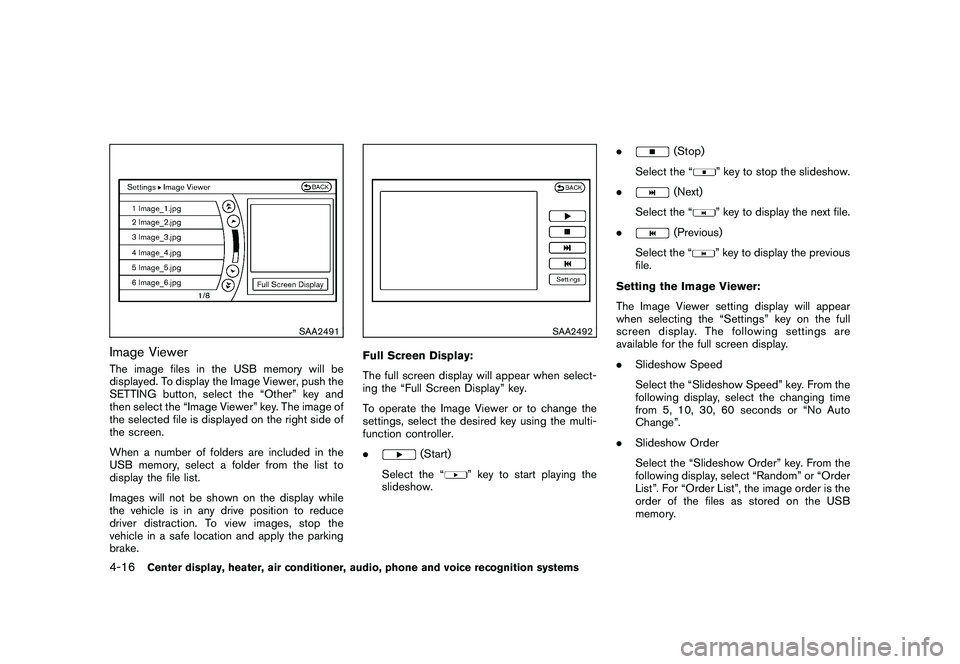
Image ViewerThe image files in the USB memory will be
displayed. To display the Image Viewer, push the
SETTING button, select the “Other” key and
then select the “Image Viewer” key. The image of
the selected file is displayed on the right side of
the screen.
When a number of folders are included in the
USB memory, select a folder from the list to
display the file list.
Images will not be shown on the display while
the vehicle is in any drive position to reduce
driver distraction. To view images, stop the
vehicle in a safe location and apply the parking
brake.
SAA2492
Full Screen Display:
The full screen display will appear when select-
ing the “Full Screen Display” key.
To operate the Image Viewer or to change the
settings, select the desired key using the multi-
function controller.
.
(Start)
Select the “
” key to start playing the
slideshow. .
(Stop)
Select the “
” key to stop the slideshow.
.
(Next)
Select the “
” key to display the next file.
.
(Previous)
Select the “
” key to display the previous
file.
Setting the Image Viewer:
The Image Viewer setting display will appear
when selecting the “Settings” key on the full
screen display. The following settings are
available for the full screen display.
. Slideshow Speed
Select the “Slideshow Speed” key. From the
following display, select the changing time
from 5, 10, 30, 60 seconds or “No Auto
Change”.
. Slideshow Order
Select the “Slideshow Order” key. From the
following display, select “Random” or “Order
List”. For “Order List”, the image order is the
order of the files as stored on the USB
memory.
4-16
Center display, heater, air conditioner, audio, phone and voice recognition systems
Page 198 of 419
Black plate (194,1)
Model "Z34-D" EDITED: 2010/ 7/ 27
SEEK tuning:
Push the SEEK button
or
to tune from
low to high or high to low frequencies and to
stop at the next broadcasting station.
SCAN tuning:
Push the SCAN tuning button to tune from low
to high frequencies and stops at each broad-
casting station for 5 seconds. Pushing the
button again during this 5 seconds period will
stop SCAN tuning and the radio will remain
tuned to that station.
If the SCAN tuning button is not pushed within 5
seconds, SCAN tuning moves to the next
station.
to
Station memory operations:
Twelve stations can be set for the FM band (6
each for FM1 and FM2) and 6 stations can be
set for the AM band.
1. Choose the radio band AM, FM1 or FM2 using the radio band select button.
2. Tune to the desired station using the SEEK, SCAN or TUNE button.
3. Select the desired station and push and hold the desired station preset buttons 1 to
6 until a beep sound is heard. (The radio mutes when the select button is pushed.)
4. The station indicator will then come on and the sound will resume. Memorizing is now
complete.
5. Other buttons can be set in the same manner.
If the battery cable is disconnected, or if the fuse
blows, the radio memory will be erased. In that
case, reset the desired stations.
Compact Disc (CD) player operationPlace the ignition switch in the ACC or ON
position, and insert the CD into the slot with the
label side facing up. The CD will be guided
automatically into the slot and start playing.
After loading the disc, the number of tracks on
the disc will appear on the display.
If the radio is already operating, it will auto-
matically turn off and the CD will play.
If the system has been turned off while the CD
was playing, pushing the PWR button will start
the CD.
MP3 or WMA CDs are not supported with this
CD player. If an MP3 or WMA CD is inserted
into the slot, the counter on the audio display
automatically advances without sound. However
this is a specification of the CD mechanism and
not a malfunction. Do not use 3.1 in (8 cm) discs.
CD PLAY:
When the CD button is pushed with the system
off and the CD loaded, the system will turn on
and the CD will start to play.
When the CD button is pushed with the CD
loaded and the radio playing, the radio will
automatically be turned off and the CD will start
to play.FF (Fast Forward) , REW (Rewind):
When the
(fast forward) or
(rewind) of
the TUNE button is pushed while the CD is
being played, the CD will play while fast
forwarding or rewinding.
When the button is released, the CD will return
to normal play speed.
APS (Automatic Program Search)
FF, APS REW:
When the
(APS FF) of the SEEK button is
pushed while the CD is being played, the next
track or the current track on the CD will start to
play from its beginning. Push several times to
skip through tracks. The CD will advance the
number of times the button is pushed. (When
the last track on the CD is skipped through, the
4-44
Center display, heater, air conditioner, audio, phone and voice recognition systems
Page 209 of 419
Black plate (205,1)
Model "Z34-D" EDITED: 2010/ 7/ 27
When the
or
button is pushed for less
than 1.5 seconds while the CD is being played,
the next track or the beginning of the current
track on the CD will be played.
REPEAT (RPT) , RANDOM (RDM):
When the RPT button is pushed while the CD is
played, the play pattern can be changed as
follows:
(CD)
(CD with compressed audio files)
CD EJECT:
When the CD EJECT button is pushed with the
CD loaded, the CD will be ejected.
When this button is pushed while the CD is
being played, the CD will be ejected.
If the CD comes out and is not removed, it
will be pulled back into the slot to protect it.
DVD (DIGITAL VERSATILE DISC)
PLAYER OPERATION (models with na-
vigation system)
PrecautionsStart the engine when using the DVD entertain-
ment system.
Movies will not be shown on the front display
while the vehicle is in any drive position to
reduce driver distraction. Audio is available
when a movie is played. To view movies in the
front display, stop the vehicle in a safe location,
move the selector lever to the P (Park) position
and apply the parking brake.
WARNING
.
The driver must not attempt to
operate the DVD system or wear
the headphones while the vehicle is
in motion so that full attention may
be given to vehicle operation.
. Do not attempt to modify the system
to display a movie on the front
screen while the vehicle is being
driven. Doing so may distract the
driver and may cause a collision and
serious personal injury or death.
CAUTION
.Only operate the DVD while the
vehicle engine is running. Operating
the DVD for extended periods of
time with the engine OFF can dis-
charge the vehicle battery.
. Do not allow the system to get wet.
Excessive moisture such as spilled
liquids may cause the system to
malfunction.
. While playing VIDEO-CD media, this
DVD player does not guarantee
complete functionality of all VI-
DEO-CD formats.Display settingsTo adjust the front display mode, push the
SETTING button while the DVD is being played,
select the “Others” key and then select the
“Display” key.
To adjust the display ON/OFF, brightness, tint,
color and contrast, select the “Display Adjust-
ment” key and then select each key.
Then you can adjust each item using the multi-
function controller. After changes have been
made push the BACK button to save the setting.
Center display, heater, air conditioner, audio, phone and voice recognition systems
4-55
Page 210 of 419
Black plate (206,1)
Model "Z34-D" EDITED: 2010/ 7/ 27
SAA2497
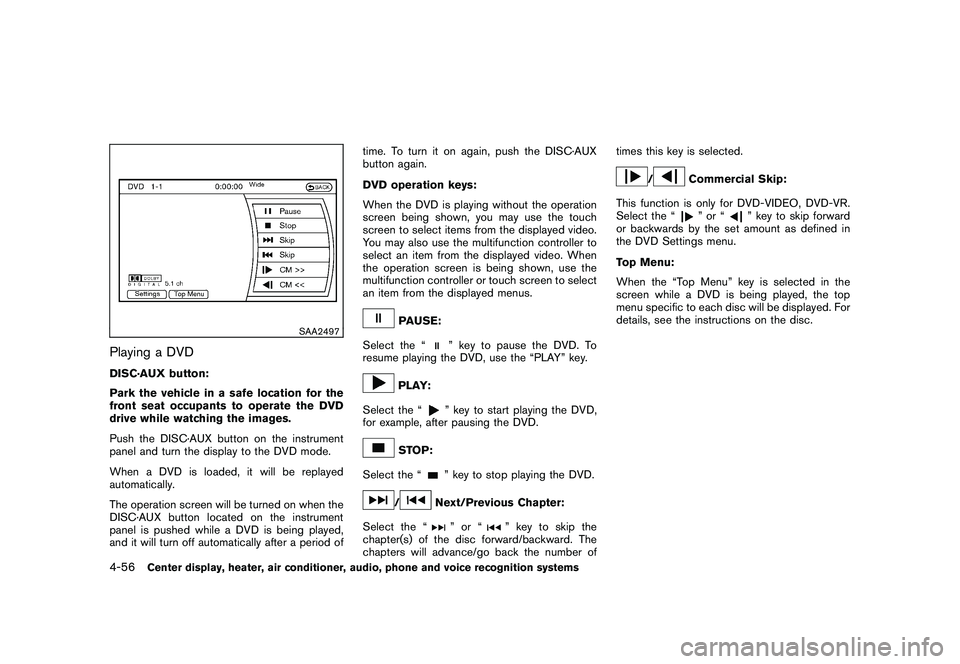
Playing a DVDDISC·AUX button:
Park the vehicle in a safe location for the
front seat occupants to operate the DVD
drive while watching the images.
Push the DISC·AUX button on the instrument
panel and turn the display to the DVD mode.
When a DVD is loaded, it will be replayed
automatically.
The operation screen will be turned on when the
DISC·AUX button located on the instrument
panel is pushed while a DVD is being played,
and it will turn off automatically after a period oftime. To turn it on again, push the DISC·AUX
button again.
DVD operation keys:
When the DVD is playing without the operation
screen being shown, you may use the touch
screen to select items from the displayed video.
You may also use the multifunction controller to
select an item from the displayed video. When
the operation screen is being shown, use the
multifunction controller or touch screen to select
an item from the displayed menus.
PAUSE:
Select the “
” key to pause the DVD. To
resume playing the DVD, use the “PLAY” key.
PLAY:
Select the “
” key to start playing the DVD,
for example, after pausing the DVD.
STOP:
Select the “
” key to stop playing the DVD.
/
Next/Previous Chapter:
Select the “
”or“
” key to skip the
chapter(s) of the disc forward/backward. The
chapters will advance/go back the number of times this key is selected.
/
Commercial Skip:
This function is only for DVD-VIDEO, DVD-VR.
Select the “”or“
” key to skip forward
or backwards by the set amount as defined in
the DVD Settings menu.
Top Menu:
When the “Top Menu” key is selected in the
screen while a DVD is being played, the top
menu specific to each disc will be displayed. For
details, see the instructions on the disc.
4-56
Center display, heater, air conditioner, audio, phone and voice recognition systems
Page 215 of 419
Black plate (211,1)
Model "Z34-D" EDITED: 2010/ 7/ 27
Operation keys:
To operate the USB memory, select the desired
key displayed on the operation screen using the
multi-function controller.
Pause
Select the “
” key to pause the movie file. To
resume playing the movie file, select the “
”
key.
Play
Select the “
” key to start playing a movie file,
for example, after pausing a movie file.
STOP
Select the “
” key to stop playing a movie file.
Skip (Next chapter)
Select the “
” key to skip the chapter(s) of
the disc forward. The chapters will advance the
number of times the ENTER button is pushed.
Skip (Previous chapter)
Select the “
” key to skip the chapter(s) of
the disc backward. The chapters will go back the number of times the “
” key is selected.
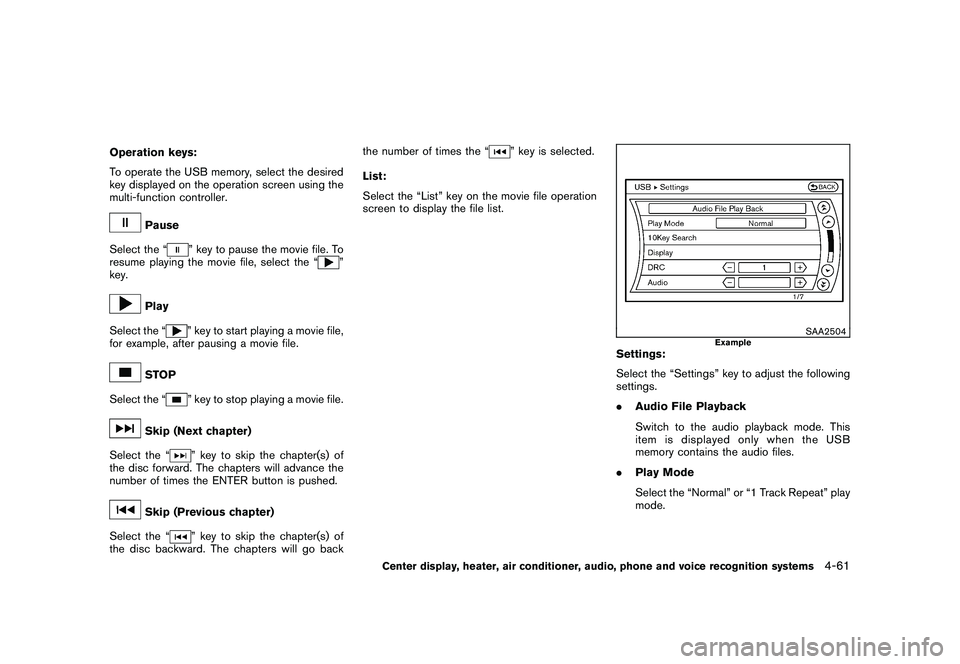
List:
Select the “List” key on the movie file operation
screen to display the file list.
SAA2504
Example
Settings:
Select the “Settings” key to adjust the following
settings.
. Audio File Playback
Switch to the audio playback mode. This
item is displayed only when the USB
memory contains the audio files.
. Play Mode
Select the “Normal” or “1 Track Repeat” play
mode.
Center display, heater, air conditioner, audio, phone and voice recognition systems
4-61
Page 223 of 419
Black plate (219,1)
Model "Z34-D" EDITED: 2010/ 7/ 27
Music Box
®(models with navigation
system)
The Music Box
®can store songs from CDs
being played. 40.0 GB (9.3 GB for music
storage capacity) (with navigation system) .
The following CDs can be recorded in the Music
Box
®audio system.
. CDs that contain uncompressed audio files
. Hybrid Compact Disc Digital Audio (Hybrid
CD-DA) specification in Super Audio CDs
. Compact Disc Digital Audio (CD-DA) spe-
cification in CD-Extras
. First session of multisession disc
Extreme temperature conditions [below
48 F( 20 8C) and above 158 8F (70 8C)] could
affect the performance of the hard drive.
NOTE:
If the hard drive needs to be replaced due
to a malfunction, all stored music data will
be erased.
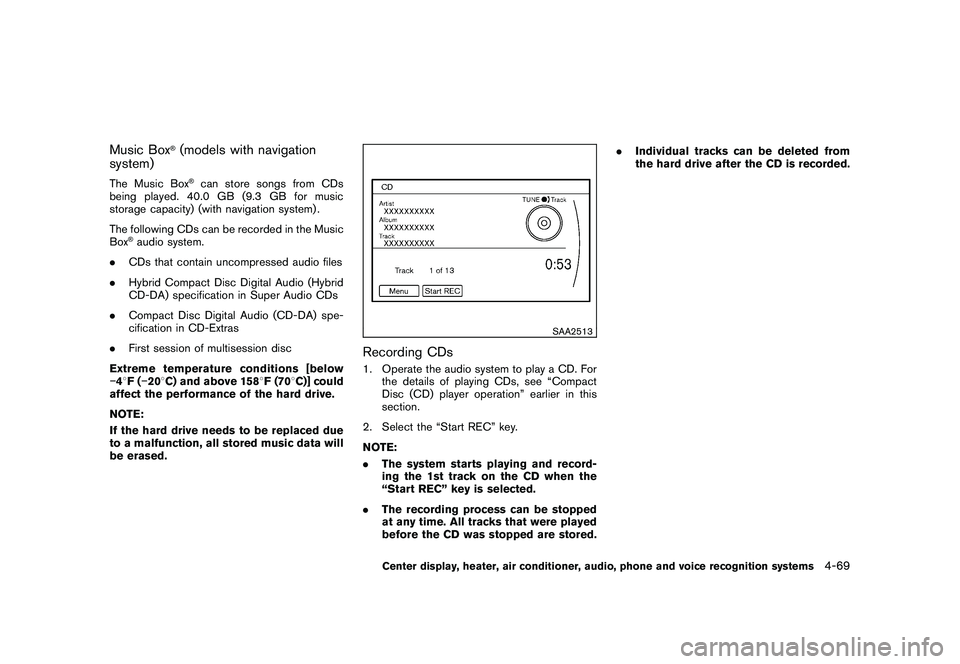
SAA2513
Recording CDs1. Operate the audio system to play a CD. For the details of playing CDs, see “Compact
Disc (CD) player operation” earlier in this
section.
2. Select the “Start REC” key.
NOTE:
. The system starts playing and record-
ing the 1st track on the CD when the
“Start REC” key is selected.
. The recording process can be stopped
at any time. All tracks that were played
before the CD was stopped are stored. .
Individual tracks can be deleted from
the hard drive after the CD is recorded.
Center display, heater, air conditioner, audio, phone and voice recognition systems
4-69
Page 224 of 419
Black plate (220,1)
Model "Z34-D" EDITED: 2010/ 7/ 27
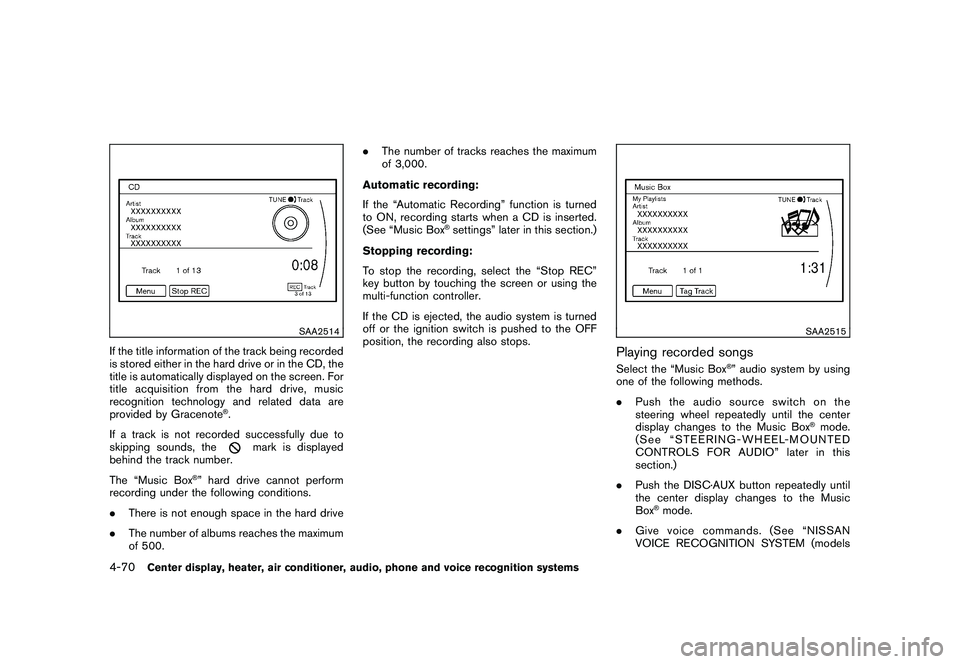
SAA2514
If the title information of the track being recorded
is stored either in the hard drive or in the CD, the
title is automatically displayed on the screen. For
title acquisition from the hard drive, music
recognition technology and related data are
provided by Gracenote
®.
If a track is not recorded successfully due to
skipping sounds, the
mark is displayed
behind the track number.
The “Music Box
®” hard drive cannot perform
recording under the following conditions.
. There is not enough space in the hard drive
. The number of albums reaches the maximum
of 500. .
The number of tracks reaches the maximum
of 3,000.
Automatic recording:
If the “Automatic Recording” function is turned
to ON, recording starts when a CD is inserted.
(See “Music Box
®settings” later in this section.)
Stopping recording:
To stop the recording, select the “Stop REC”
key button by touching the screen or using the
multi-function controller.
If the CD is ejected, the audio system is turned
off or the ignition switch is pushed to the OFF
position, the recording also stops.
SAA2515
Playing recorded songsSelect the “Music Box
®” audio system by using
one of the following methods.
. Push the audio source switch on the
steering wheel repeatedly until the center
display changes to the Music Box
®mode.
(See “STEERING-WHEEL-MOUNTED
CONTROLS FOR AUDIO” later in this
section.)
. Push the DISC·AUX button repeatedly until
the center display changes to the Music
Box
®mode.
. Give voice commands. (See “NISSAN
VOICE RECOGNITION SYSTEM (models
4-70
Center display, heater, air conditioner, audio, phone and voice recognition systems
Page 227 of 419
Black plate (223,1)
Model "Z34-D" EDITED: 2010/ 7/ 27
.Transfer Missing Titles to USB
Transfer the information of an album re-
corded without titles to a USB memory. Visit
www.nissanusa.com/gracenote/ for details.
. Update Gracenote from HDD
Search the title using the database in the
hard drive.
SAA2517
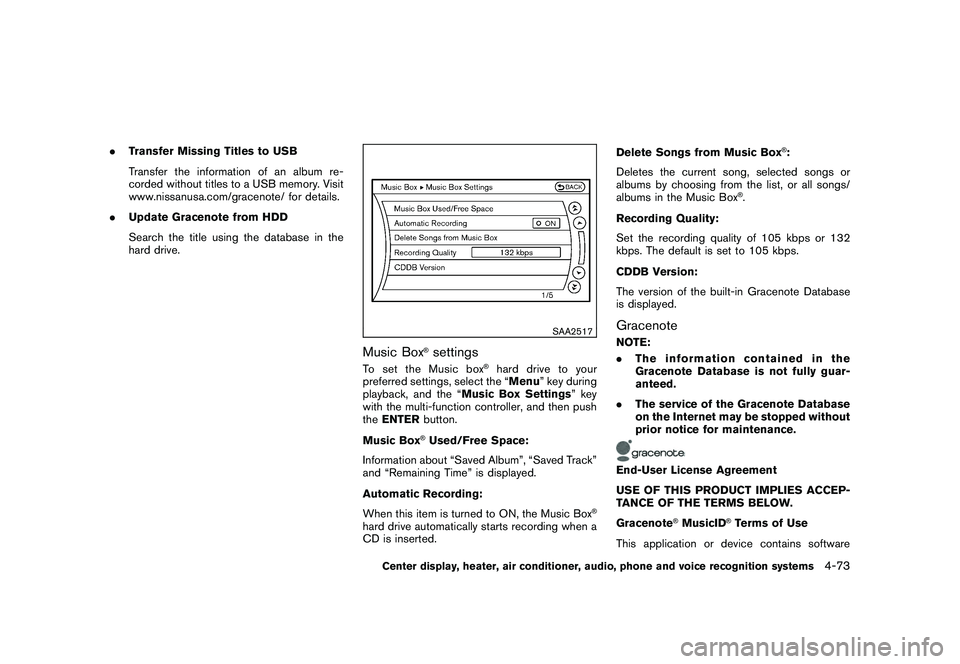
Music Box
®settings
To s e t t h e M u s i c b o x
®hard drive to your
preferred settings, select the “Menu ” key during
playback, and the “Music Box Settings ” key
with the multi-function controller, and then push
the ENTER button.
Music Box
®Used/Free Space:
Information about “Saved Album”, “Saved Track”
and “Remaining Time” is displayed.
Automatic Recording:
When this item is turned to ON, the Music Box
®
hard drive automatically starts recording when a
CD is inserted. Delete Songs from Music Box
®:
Deletes the current song, selected songs or
albums by choosing from the list, or all songs/
albums in the Music Box
®.
Recording Quality:
Set the recording quality of 105 kbps or 132
kbps. The default is set to 105 kbps.
CDDB Version:
The version of the built-in Gracenote Database
is displayed.
GracenoteNOTE:
. The information contained in the
Gracenote Database is not fully guar-
anteed.
. The service of the Gracenote Database
on the Internet may be stopped without
prior notice for maintenance.End-User License Agreement
USE OF THIS PRODUCT IMPLIES ACCEP-
TANCE OF THE TERMS BELOW.
Gracenote
®MusicID
®Terms of Use
This application or device contains software
Center display, heater, air conditioner, audio, phone and voice recognition systems
4-73
Page 234 of 419
Black plate (230,1)
Model "Z34-D" EDITED: 2010/ 7/ 27
When installing a car phone or a CB radio in
your NISSAN, be sure to observe the following
cautions, otherwise the new equipment may
adversely affect the electronic control modules
and electronic control system harness.
WARNING
.A cellular telephone should not be
used while driving so full attention
may be given to vehicle operation.
Some jurisdictions prohibit the use
of cellular telephones while driving.
. If you must make a call while your
vehicle is in motion, the hands-free
cellular phone operational mode (if
so equipped) is highly recom-
mended. Exercise extreme caution
at all times so full attention may be
given to vehicle operation.
. If a conversation in a moving vehicle
requires you to take notes, pull off
the road to a safe location and stop
your vehicle before doing so.
CAUTION
.Keep the antenna as far away as
possible from the electronic control
modules.
. Keep the antenna wire more than 8
in (20 cm) away from the electronic
control system harness. Do not
route the antenna wire next to any
harness.
. Adjust the antenna standing-wave
ratio as recommended by the man-
ufacturer.
. Connect the ground wire from the
CB radio chassis to the body.
. For details, consult a NISSAN deal-
er.
WARNING
.Use a phone after stopping your
vehicle in a safe location. If you
have to use a phone while driving,
exercise extreme caution at all
times so full attention may be given
to vehicle operation.
. If you find yourself unable to devote
full attention to vehicle operation
while talking on the phone, pull off
the road to a safe location and stop
your vehicle before doing so.
CAUTION
To avoid draining the vehicle battery,
use a phone after starting the engine.
Your NISSAN is equipped with Bluetooth
®
Hands-Free Phone System. If you are an owner
of a compatible Bluetooth
®enabled cellular
phone, you can set up the wireless connection
between your cellular phone and the in-vehicle
phone module. With Bluetooth®wireless tech-
nology, you can make or receive a telephone call
with your cellular phone in your pocket.
Once a cellular phone is connected to the in-
vehicle phone module, no phone connecting
CAR PHONE OR CB RADIO BLUETOOTH
®HANDS-FREE PHONE
SYSTEM (models with navigation
system)
4-80
Center display, heater, air conditioner, audio, phone and voice recognition systems