audio NISSAN 370Z COUPE 2012 Owners Manual
[x] Cancel search | Manufacturer: NISSAN, Model Year: 2012, Model line: 370Z COUPE, Model: NISSAN 370Z COUPE 2012Pages: 427, PDF Size: 3.25 MB
Page 7 of 427
Illustrated table of contents0
Safety — Seats, seat belts and supplemental
restraint system1
Instruments and controls
Pre-driving checks and adjustments
Center display, heater, air conditioner, audio, phone
and voice recognition systems
Starting and driving
In case of emergency
Appearance and care
Maintenance and do-it-yourself
Technical and consumer information
Index
2
3
4
5
6
7
8
9
10
Table of
Contents
Page 19 of 427
SSI0653
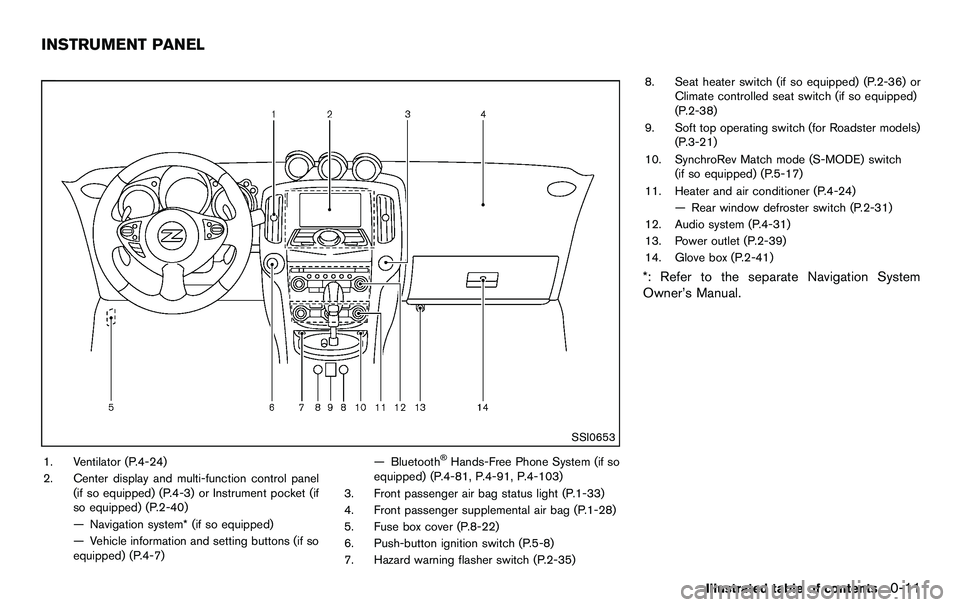
1. Ventilator (P.4-24)
2. Center display and multi-function control panel(if so equipped) (P.4-3) or Instrument pocket (if
so equipped) (P.2-40)
— Navigation system* (if so equipped)
— Vehicle information and setting buttons (if so
equipped) (P.4-7) — Bluetooth®Hands-Free Phone System (if so
equipped) (P.4-81, P.4-91, P.4-103)
3. Front passenger air bag status light (P.1-33)
4. Front passenger supplemental air bag (P.1-28)
5. Fuse box cover (P.8-22)
6. Push-button ignition switch (P.5-8)
7. Hazard warning flasher switch (P.2-35) 8. Seat heater switch (if so equipped) (P.2-36) or
Climate controlled seat switch (if so equipped)
(P.2-38)
9. Soft top operating switch (for Roadster models) (P.3-21)
10. SynchroRev Match mode (S-MODE) switch (if so equipped) (P.5-17)
11. Heater and air conditioner (P.4-24) — Rear window defroster switch (P.2-31)
12. Audio system (P.4-31)
13. Power outlet (P.2-39)
14. Glove box (P.2-41)
*: Refer to the separate Navigation System
Owner’s Manual.
Illustrated table of contents0-11
INSTRUMENT PANEL
Page 68 of 427
2-4Instruments and controls
SSI0653
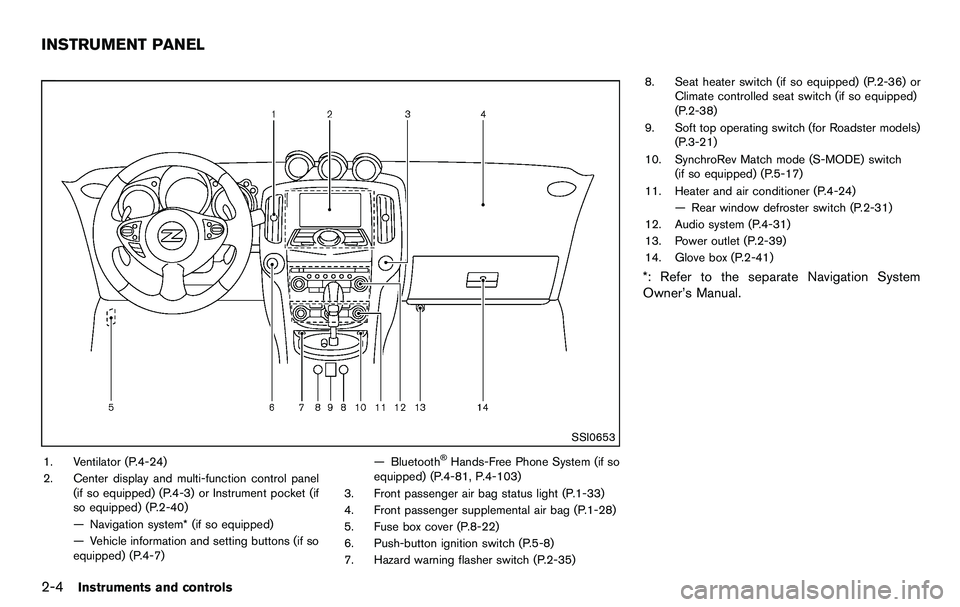
1. Ventilator (P.4-24)
2. Center display and multi-function control panel(if so equipped) (P.4-3) or Instrument pocket (if
so equipped) (P.2-40)
— Navigation system* (if so equipped)
— Vehicle information and setting buttons (if so
equipped) (P.4-7) — Bluetooth®Hands-Free Phone System (if so
equipped) (P.4-81, P.4-103)
3. Front passenger air bag status light (P.1-33)
4. Front passenger supplemental air bag (P.1-28)
5. Fuse box cover (P.8-22)
6. Push-button ignition switch (P.5-8)
7. Hazard warning flasher switch (P.2-35) 8. Seat heater switch (if so equipped) (P.2-36) or
Climate controlled seat switch (if so equipped)
(P.2-38)
9. Soft top operating switch (for Roadster models) (P.3-21)
10. SynchroRev Match mode (S-MODE) switch (if so equipped) (P.5-17)
11. Heater and air conditioner (P.4-24) — Rear window defroster switch (P.2-31)
12. Audio system (P.4-31)
13. Power outlet (P.2-39)
14. Glove box (P.2-41)
*: Refer to the separate Navigation System
Owner’s Manual.
INSTRUMENT PANEL
Page 91 of 427
SIC2132
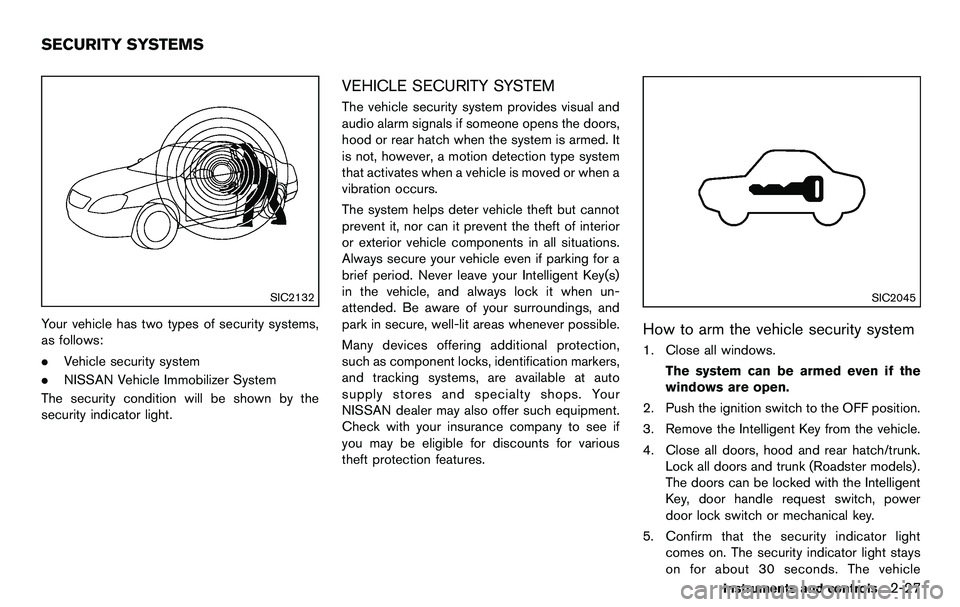
Your vehicle has two types of security systems,
as follows:
.Vehicle security system
. NISSAN Vehicle Immobilizer System
The security condition will be shown by the
security indicator light.
VEHICLE SECURITY SYSTEM
The vehicle security system provides visual and
audio alarm signals if someone opens the doors,
hood or rear hatch when the system is armed. It
is not, however, a motion detection type system
that activates when a vehicle is moved or when a
vibration occurs.
The system helps deter vehicle theft but cannot
prevent it, nor can it prevent the theft of interior
or exterior vehicle components in all situations.
Always secure your vehicle even if parking for a
brief period. Never leave your Intelligent Key(s)
in the vehicle, and always lock it when un-
attended. Be aware of your surroundings, and
park in secure, well-lit areas whenever possible.
Many devices offering additional protection,
such as component locks, identification markers,
and tracking systems, are available at auto
supply stores and specialty shops. Your
NISSAN dealer may also offer such equipment.
Check with your insurance company to see if
you may be eligible for discounts for various
theft protection features.
SIC2045
How to arm the vehicle security system
1. Close all windows.
The system can be armed even if the
windows are open.
2. Push the ignition switch to the OFF position.
3. Remove the Intelligent Key from the vehicle.
4. Close all doors, hood and rear hatch/trunk. Lock all doors and trunk (Roadster models) .
The doors can be locked with the Intelligent
Key, door handle request switch, power
door lock switch or mechanical key.
5. Confirm that the security indicator light comes on. The security indicator light stays
on for about 30 seconds. The vehicle
Instruments and controls2-27
SECURITY SYSTEMS
Page 123 of 427
computer.
. When the vehicle is parked near a parking
meter.
In such cases, correct the operating conditions
before using the Intelligent Key function or use
the mechanical key.
Although the life of the battery varies depending
on the operating conditions, the battery’s life is
approximately 2 years. If the battery is dis-
charged, replace it with a new one.
When the Intelligent Key battery is almost
discharged, insert the Intelligent Key into the
Intelligent Key port to start the engine. Replace
the discharged battery with a new one as soon
as possible. For more details, see “Push-button
ignition switch” (P.5-8) .
Since the Intelligent Key is continuously receiv-
ing radio waves, if the key is left near equipment
which transmits strong radio waves, such as
signals from a TV and personal computer, the
battery life may become shorter.
For information regarding replacement of a
battery, see “Intelligent Key battery replacement”
(P.8-25) .
As many as 4 Intelligent Keys can be registered
and used with one vehicle. For information about
the purchase and use of additional Intelligent
Keys, contact a NISSAN dealer.
CAUTION
. Do not allow the Intelligent Key,
which contains electrical compo-
nents, to come into contact with
water or salt water. This could affect
the system function.
. Do not drop the Intelligent Key.
. Do not strike the Intelligent Key
sharply against another object.
. Do not change or modify the Intel-
ligent Key.
. Wetting may damage the Intelligent
Key. If the Intelligent Key gets wet,
immediately wipe until it is comple-
tely dry.
. If the outside temperature is below
148F( −108 C) , the battery of the
Intelligent Key may not function
properly.
. Do not place the Intelligent Key for
an extended period in an area where
temperatures exceed 1408F (608C) .
. Do not attach the Intelligent Key
with a key holder that contains a
magnet. .
Do not place the Intelligent Key near
equipment that produces a mag-
netic field, such as a TV, audio
equipment, personal computer or
cellular phone.
If an Intelligent Key is lost or stolen, NISSAN
recommends erasing the ID code of that
Intelligent Key from the vehicle. This may prevent
the unauthorized use of the Intelligent Key to
operate the vehicle. For information regarding
the erasing procedure, contact a NISSAN deal-
er.
The Intelligent Key function can be disabled. For
information about disabling the Intelligent Key
function, contact a NISSAN dealer.
Pre-driving checks and adjustments3-7
Page 157 of 427

4 Center display, heater, air conditioner, audio,phone and voice recognition systems
Safety note ........................................................................\
.......... 4-3
Center multi-function control panel (models with
navigation system) .................................................................... 4-3
How to use multi-function controller .............................. 4-4
How to use touch screen ................................................. 4-4
Menu options ........................................................................\
4-6
How to select menus on the screen .............................. 4-7
Vehicle information and settings (models with
navigation system) .................................................................... 4-7 How to use STATUS button ............................................. 4-7
How to use brightness control and display
ON/OFF button ................................................................... 4-7
How to use INFO button .................................................. 4-8
How to use SETTING button ....................................... 4-11
RearView monitor (models with navigation system) ..... 4-18 How to read displayed lines .......................................... 4-18
How to park with predicted course lines ................... 4-19
Difference between predicted and
actual distances ................................................................ 4-20
How to adjust screen ...................................................... 4-23
Operating tips ................................................................... 4-23
Ventilators ........................................................................\
......... 4-24 Center ventilators ............................................................. 4-24
Side ventilators ................................................................. 4-24 Heater and air conditioner .................................................. 4-24
Automatic air conditioner (Type A) ............................ 4-25
Automatic air conditioner (Type B) ........................... 4-28
Operating tips ................................................................. 4-30
In-cabin microfilter ......................................................... 4-30
Servicing air conditioner .............................................. 4-30
Audio system ........................................................................\
.. 4-31 Audio operation precautions ....................................... 4-31
FM-AM radio with Compact Disc (CD) player ....... 4-43
FM-AM-SAT radio with Compact Disc (CD)
changer (models without navigation system) ......... 4-47
FM-AM-SAT radio with Compact Disc (CD) player
(models with navigation system) ................................ 4-52
DVD (Digital Versatile Disc) player operation
(models with navigation system) ................................ 4-56
USB memory operation (models with
navigation system) ......................................................... 4-59
Bluetooth
®streaming audio (models with
navigation system) ......................................................... 4-63
iPod
®player operation (models with
navigation system) ......................................................... 4-68
Music Box
®(if so equipped) ...................................... 4-69
Auxiliary input jacks (models with
navigation system) ......................................................... 4-75
CD/DVD/USB memory care and cleaning .............. 4-76
Page 158 of 427

Steering-wheel-mounted controls for audio .............. 4-77
Antenna ........................................................................\
....... 4-79
Car phone or CB radio ........................................................ 4-80
Bluetooth
®hands-free phone system (models with
navigation system) ................................................................. 4-81
Regulatory information .................................................... 4-82
Voice commands .............................................................. 4-82
Control buttons ................................................................. 4-83
Connecting procedure .................................................... 4-83
Phone selection ................................................................ 4-84
Vehicle phonebook .......................................................... 4-84
Making a call ..................................................................... 4-86
Receiving a call ................................................................. 4-87
During a call ...................................................................... 4-88
Phone setting .................................................................... 4-89
Troubleshooting guide ..................................................... 4-90 Bluetooth
®hands-free phone system (models without
navigation system) (if so equipped) ................................. 4-91
Regulatory information .................................................. 4-92
Using the system ........................................................... 4-93
Control buttons ............................................................... 4-95
Getting started ............................................................... 4-95
List of voice commands ............................................... 4-97
Speaker Adaptation (SA) mode .............................. 4-100
Troubleshooting guide ............................................... 4-102
NISSAN Voice Recognition System (models with
navigation system) ............................................................. 4-103
NISSAN voice recognition Standard Mode ......... 4-103
Using the system ........................................................ 4-106
NISSAN voice recognition Alternate
Command Mode ......................................................... 4-114
Using the system ........................................................ 4-123
Troubleshooting guide ............................................... 4-128
Page 159 of 427
WARNING
.Do not disassemble or modify this
system. If you do, it may result in
accidents, fire, or electric shock.
. Do not use this system if you notice
any abnormality, such as a frozen
screen or lack of sound. Continued
use of the system may result in
accident, fire or electric shock.
. In case you notice any foreign
object in the system hardware, spill
liquid on it, or notice smoke or smell
coming from it, stop using the
system immediately and contact
your nearest NISSAN dealer. Ignor-
ing such conditions may lead to
accidents, fire, or electric shock.
. Park the vehicle in a safe location
and apply the parking brake to view
the images on the front center dis-
play screen.
Do not attempt to operate the system in
extreme temperature conditions [below
− 48F( −208 C) and above 1588 F (708C)].
Operating this system under these condi-
tions may result in system malfunctions.
SAA2273
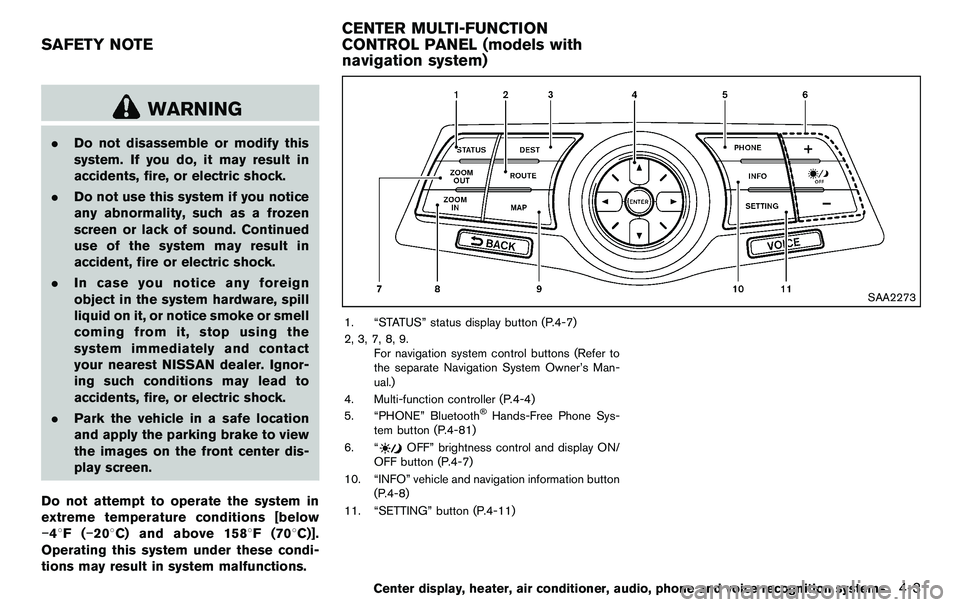
1. “STATUS” status display button (P.4-7)
2, 3, 7, 8, 9. For navigation system control buttons (Refer to
the separate Navigation System Owner’s Man-
ual.)
4. Multi-function controller (P.4-4)
5. “PHONE” Bluetooth
®Hands-Free Phone Sys-
tem button (P.4-81)
6. “
OFF” brightness control and display ON/
OFF button (P.4-7)
10. “INFO” vehicle and navigation information button (P.4-8)
11. “SETTING” button (P.4-11)
Center display, heater, air conditioner, audio, phone and voice recognition systems4-3
SAFETY NOTE CENTER MULTI-FUNCTION
CONTROL PANEL (models with
navigation system)
Page 160 of 427
4-4Center display, heater, air conditioner, audio, phone and voice recognition systems
SAA2274
HOW TO USE MULTI-FUNCTION
CONTROLLER
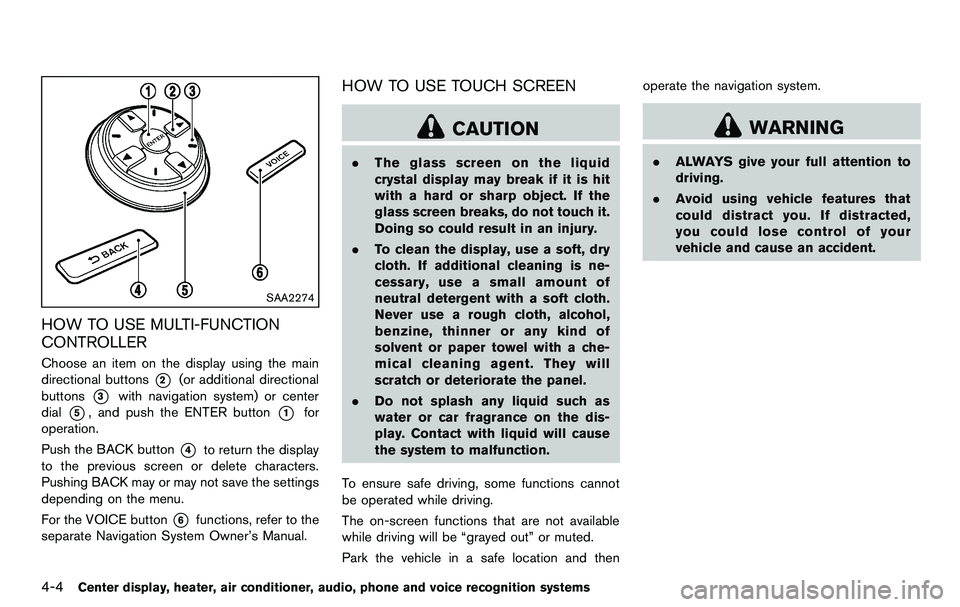
Choose an item on the display using the main
directional buttons
*2(or additional directional
buttons
*3with navigation system) or center
dial
*5, and push the ENTER button*1for
operation.
Push the BACK button
*4to return the display
to the previous screen or delete characters.
Pushing BACK may or may not save the settings
depending on the menu.
For the VOICE button
*6functions, refer to the
separate Navigation System Owner’s Manual.
HOW TO USE TOUCH SCREEN
CAUTION
. The glass screen on the liquid
crystal display may break if it is hit
with a hard or sharp object. If the
glass screen breaks, do not touch it.
Doing so could result in an injury.
. To clean the display, use a soft, dry
cloth. If additional cleaning is ne-
cessary, use a small amount of
neutral detergent with a soft cloth.
Never use a rough cloth, alcohol,
benzine, thinner or any kind of
solvent or paper towel with a che-
mical cleaning agent. They will
scratch or deteriorate the panel.
. Do not splash any liquid such as
water or car fragrance on the dis-
play. Contact with liquid will cause
the system to malfunction.
To ensure safe driving, some functions cannot
be operated while driving.
The on-screen functions that are not available
while driving will be “grayed out” or muted.
Park the vehicle in a safe location and then operate the navigation system.
WARNING
.
ALWAYS give your full attention to
driving.
. Avoid using vehicle features that
could distract you. If distracted,
you could lose control of your
vehicle and cause an accident.
Page 161 of 427
SAA2473
Touch screen operation
With this system, the same operations as those
for the multi-function controller are possible
using the touch screen operation.
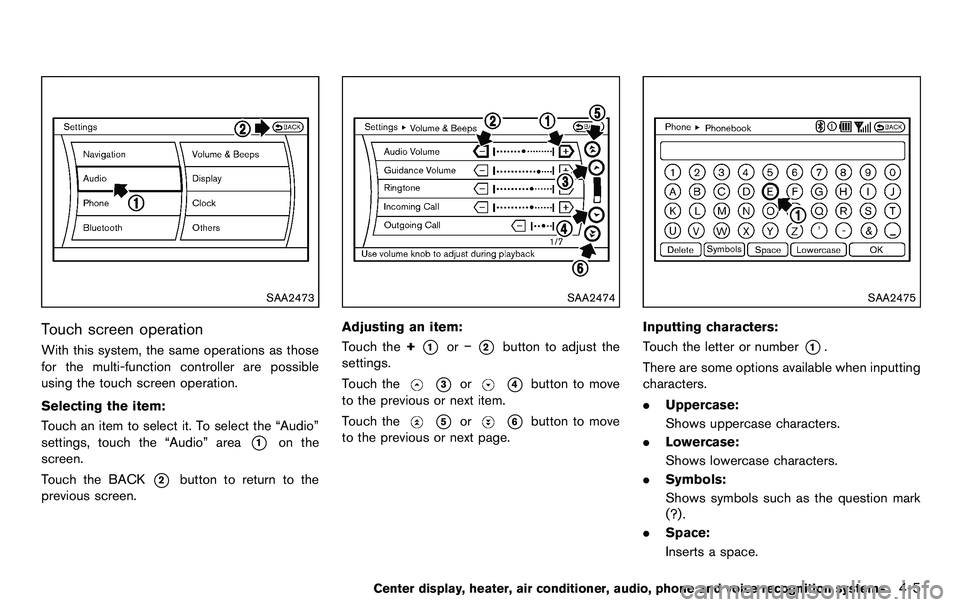
Selecting the item:
Touch an item to select it. To select the “Audio”
settings, touch the “Audio” area
*1on the
screen.
Touch the BACK
*2button to return to the
previous screen.
SAA2474
Adjusting an item:
Touch the +
*1or−*2button to adjust the
settings.
Touch the
*3or*4button to move
to the previous or next item.
Touch the
*5or*6button to move
to the previous or next page.
SAA2475
Inputting characters:
Touch the letter or number
*1.
There are some options available when inputting
characters.
. Uppercase:
Shows uppercase characters.
. Lowercase:
Shows lowercase characters.
. Symbols:
Shows symbols such as the question mark
(?) .
. Space:
Inserts a space.
Center display, heater, air conditioner, audio, phone and voice recognition systems4-5