light NISSAN 370Z ROADSTER 2017 Z34 Quick Reference Guide
[x] Cancel search | Manufacturer: NISSAN, Model Year: 2017, Model line: 370Z ROADSTER, Model: NISSAN 370Z ROADSTER 2017 Z34Pages: 28, PDF Size: 1.59 MB
Page 17 of 28
15
CRUISE CONTROL
The cruise control system enables you to set a constant cruising speed once the
vehicle has reached 25 mph (40 km/h).
The system wil l automatically maintain the set speed until you tap the brake
pedal, accelerate, cancel or turn the system off.
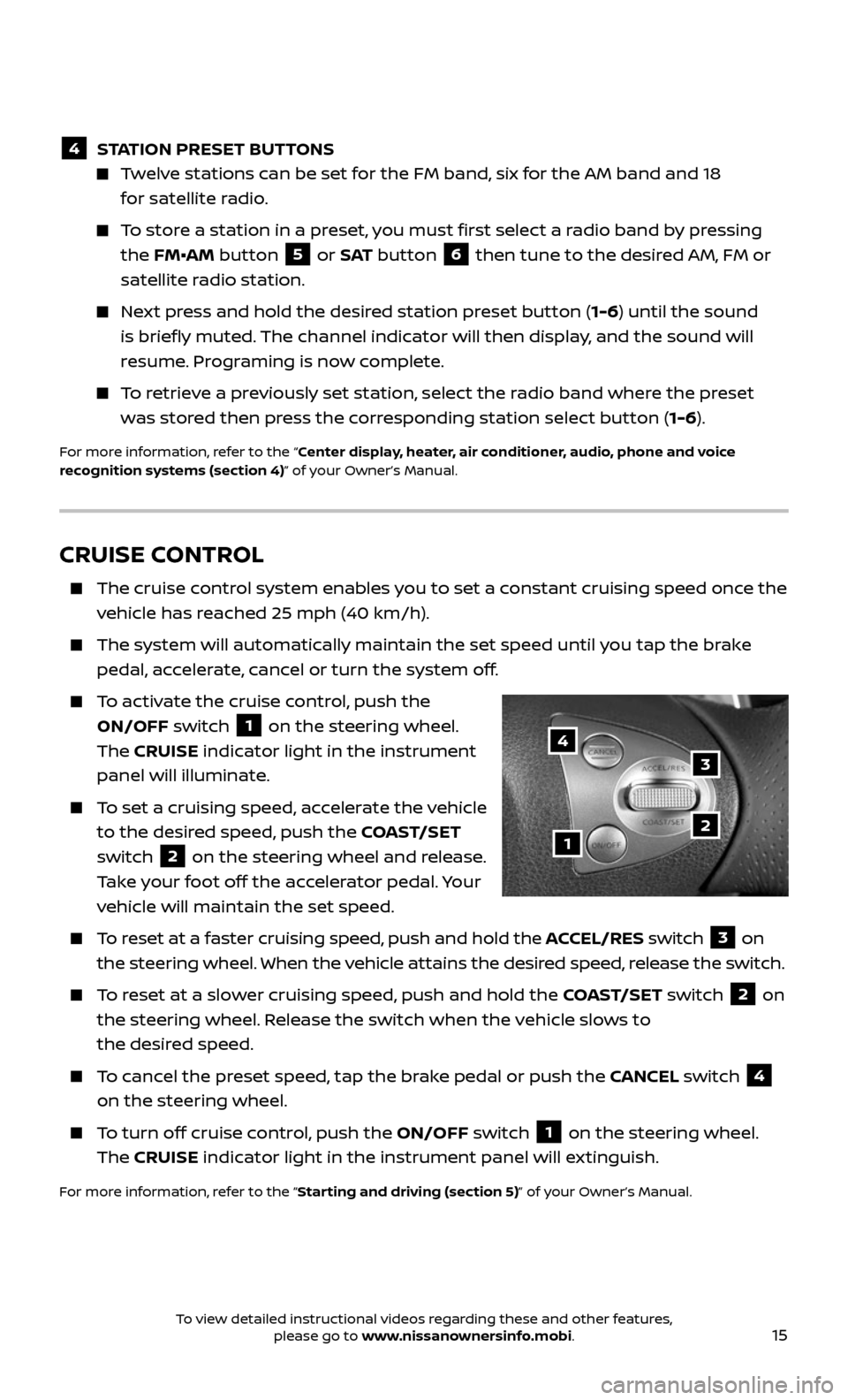
To activate the cruise control, push the
ON/OFF switch
1 on the steering wheel.
The CRUISE indicator light in the instrument
panel will illuminate.
To set a cruising speed, accelerate the vehicle
to the desired speed, push the COAST/SET
switch
2 on the steering wheel and release.
Take your foot off the accelerator pedal. Your
vehicle will maintain the set speed.
To reset at a faster cruising speed, push and hold the ACCEL/RES switch 3 on
the steering wheel. When the vehicle attains the desired speed, release the switch.
To reset at a slower cruising speed, push and hold the COAST/SET switch 2 on
the steering wheel. Release the switch when the vehicle slows to
the desired speed.
To cancel the preset speed, tap the brake pedal or push the CANCEL switch 4
on the steering wheel.
To turn off cruise control, push the ON/OFF switch 1 on the steering wheel.
The CRUISE indicator light in the instrument panel will extinguish.
For more information, refer to the “Starting and driving (section 5)” of your Owner’s Manual.
1
3
2
4
4 STATION PRESET BUTTONS
Twelve stations can be set for the FM band, six for the AM band and 18
for satellite radio.
To store a station in a preset, you must first select a radio band by pressing
the FM•AM button 5 or S AT button 6 then tune to the desired AM, FM or
satellite radio station.
Next press and hold the desired station preset button (1-6) until the sound
is briefly muted. The channel indicator will then display, and the sound will
resume. Programing is now complete.
To retrieve a previously set station, select the radio band where the preset
was stored then press the corresponding station select button ( 1-6).
For more information, refer to the “Center display, heater, air conditioner, audio, phone and voice
recognition systems (section 4)” of your Owner’s Manual.
To view detailed instructional videos regarding these and other features, please go to www.nissanownersinfo.mobi.
Page 24 of 28
22
1
23
4567
891011
1213
NAVIGATION SYSTEM (if so equipped)
Your Navigation System can calculate a route from your current location to a
preferred destination. The real-time map display and turn-by-turn voice guidance
will lead you along the route.
The Navigation System will continually update your vehicle’s position.
If you have deviated from the original route, it will recalculate the route from
your current location.
To help promote safe driving, some functions cannot be operated or have
limited operation when the vehicle speed is above 5 mph (8 km/h). The
on-screen text and keys for these restricted functions will be grayed-out or
muted and cannot be selected while driving. These functions will become
available again when the vehicle speed is reduced to 5 mph (8 km/h). Voice
commands may be available for some of the restricted functions. For more
information, refer to the “Center display, heater, air conditioner, audio, phone
and voice recognition systems (section 4)” of your Owner’s Manual.
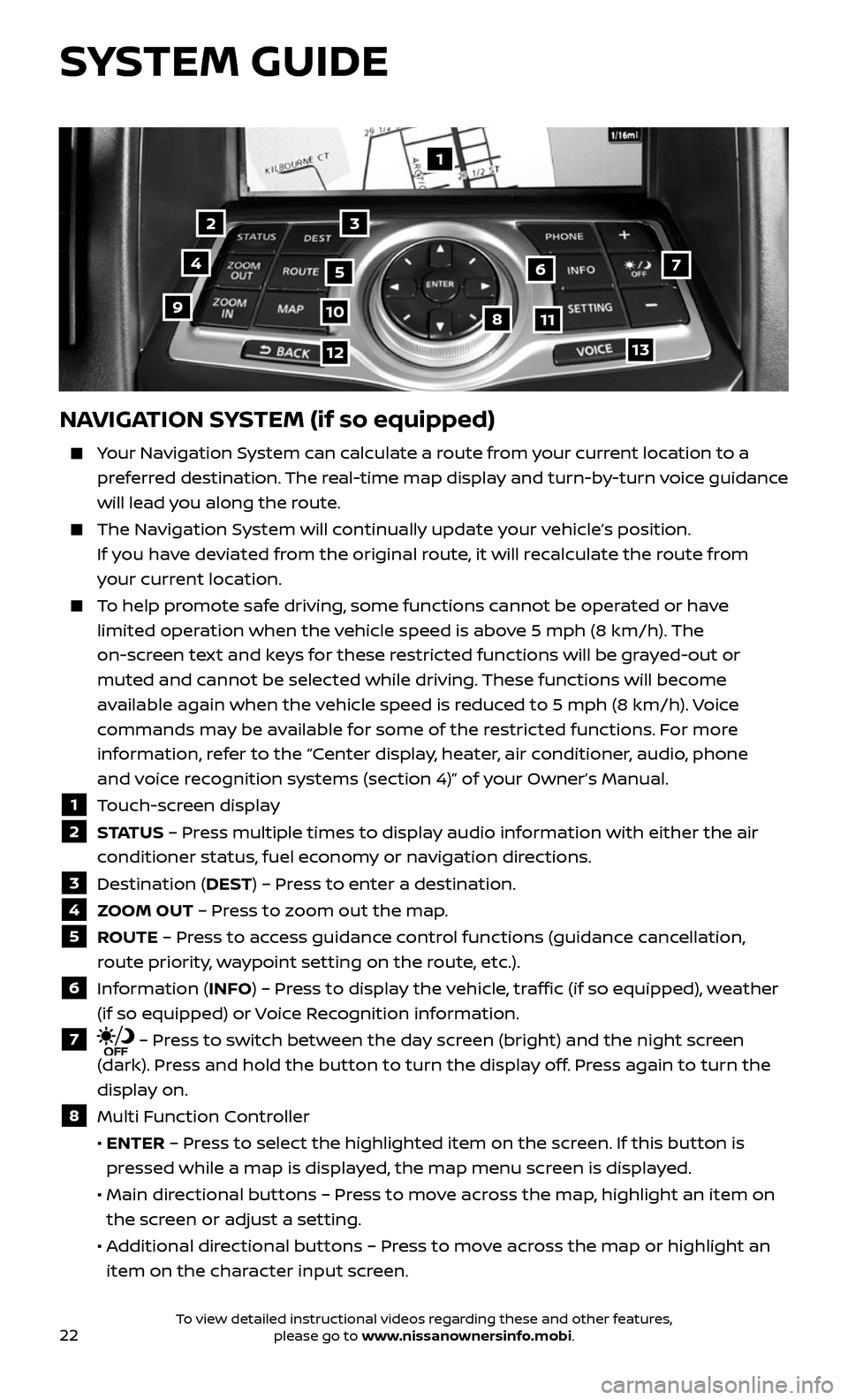
1 Touch-screen display
2 S TAT U S – Press multiple times to display audio information with either the air
conditioner status, fuel economy or navigation directions.
3 Destination (DEST) – Press to enter a destination.
4 ZOOM OUT – Press to zoom out the map.
5 ROUTE – Press to access guidance control functions (guidance cancellation,
route priority, waypoint setting on the route, etc.).
6 Information (INFO) – Press to display the vehicle, traffic (if so equipped), weather
(if so equipped) or Voice Recognition information.
7 – Press to switch between the day screen (bright) and the night screen
(dark). Press and hold the button to turn the display off. Press again to turn the
display on.
8 Multi Function Controller
• ENTER – Press to select the highlighted item on the screen. If this button is
pressed while a map is displayed, the map menu screen is displayed.
• Main dir ectional buttons – Press to move across the map, highlight an item on
the screen or adjust a setting.
• Additional directional buttons – Press to move across the map or highlight an
item on the character input screen.
SYSTEM GUIDE
To view detailed instructional videos regarding these and other features, please go to www.nissanownersinfo.mobi.
Page 25 of 28
23
• Center dial – Turn the dial to highlight an item on the screen, adjust a setting or
adjust the map scale.
9 ZOOM IN – Press to zoom in the map.
10 MAP – Press to display the map. While following a programed route, press
multiple times to change the type of route information.
11 SETTING – Press to access the system settings.
12 BACK – Press to return to the previous screen. In a settings screen, this
button can also be used to apply the setting. In a character input screen, this
button can also delete the characters that have been entered.
13 VOICE – Press to hear the current voice guidance for a programed route.
For more information, refer to the “Navigation (section 2)” of your Multi Function Display Owner’s Manual.
HOMELINK® UNIVERSAL TRANSCEIVER
(if so equipped)
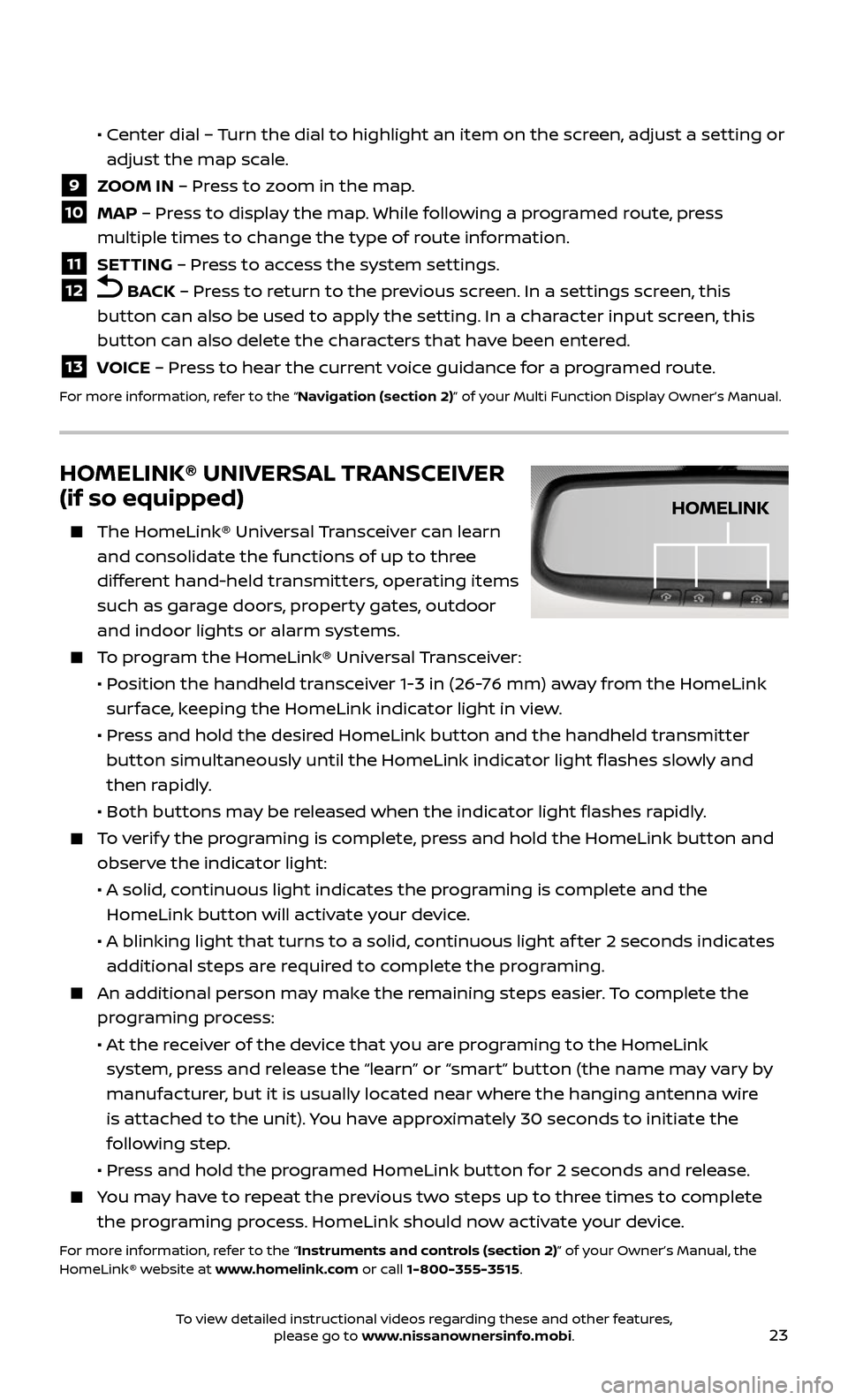
The HomeLink® Univ ersal Transceiver can learn
and consolidate the functions of up to three
different hand-held transmitters, operating items
such as garage doors, property gates, outdoor
and indoor lights or alarm systems.
To program the HomeLink® Universal Transceiver:
• Position the handheld transceiver 1-3 in (26-76 mm) away from the HomeLink
surface, keeping the HomeLink indicator light in view.
• Press and hold the desired HomeLink button and the handheld transmitter
button simultaneously until the HomeLink indicator light flashes slowly and
then rapidly.
• Both but tons may be released when the indicator light flashes rapidly.
To verify the programing is complete, press and hold the HomeLink button and
observe the indicator light:
• A solid , continuous light indicates the programing is complete and the
HomeLink button will activate your device.
• A blinking light that turns to a solid , continuous light af ter 2 seconds indicates
additional steps are required to complete the programing.
An additional person may make the remaining steps easier. To complete the
programing process:
• At the receiver of the device that you are programing to the HomeLink
system, press and release the “learn” or “smart” button (the name may vary by
manufacturer, but it is usually located near where the hanging antenna wire
is attached to the unit). You have approximately 30 seconds to initiate the
following step.
• Press and hold the programed HomeLink button for 2 seconds and release.
You may have to repeat the previous two steps up to three times to complete
the programing process. HomeLink should now activate your device.
For more information, refer to the “Instruments and controls (section 2)” of your Owner’s Manual, the
HomeLink® website at www.homelink.com or call 1-800-355-3515.
HOMELINK
To view detailed instructional videos regarding these and other features, please go to www.nissanownersinfo.mobi.