climate settings NISSAN ALTIMA 2023 User Guide
[x] Cancel search | Manufacturer: NISSAN, Model Year: 2023, Model line: ALTIMA, Model: NISSAN ALTIMA 2023Pages: 644, PDF Size: 4.12 MB
Page 260 of 644
Audio main operation
VOL (volume) knob / PUSH(power) button
Place the ignition switch in the ON position
and press the PUSH(power) button
while the system is off to call up the mode
(radio, AUX, Bluetooth® audio, USB or iPod®)
that was playing immediately before the
system was turned off. To turn the system off, press the PUSH
(power) button.
Turn the VOL (volume) knob to adjust the
volume.
This vehicle may be equipped with Speed
Sensitive Volume. When this feature is ac-
tive, the audio volume changes as the driv-
ing speed changes.MENU button
Press theMENU button to show the
Menu screen. Touch the “Settings” key on
the display, then touch the “Sound” key.
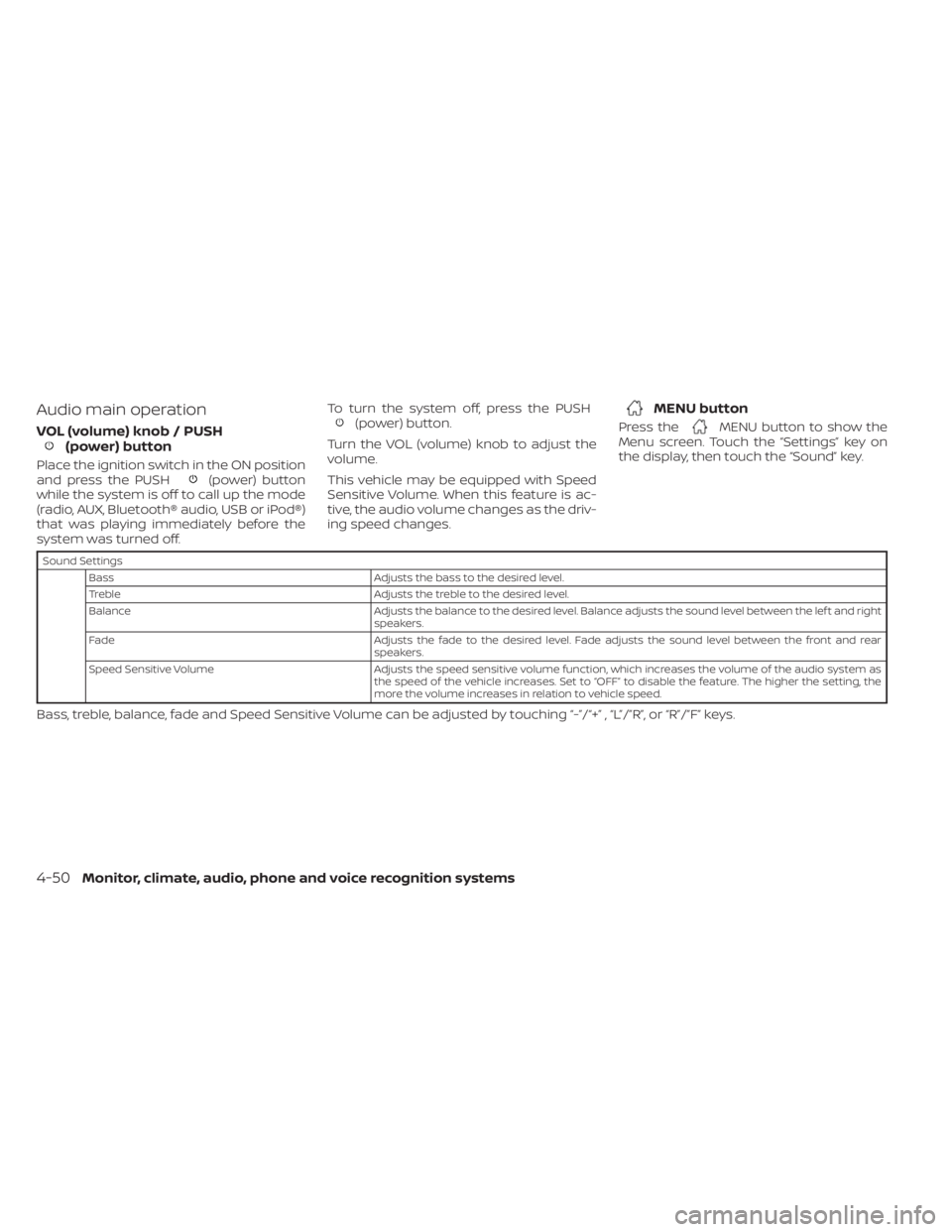
Sound Settings
Bass Adjusts the bass to the desired level.
Treble Adjusts the treble to the desired level.
Balance Adjusts the balance to the desired level. Balance adjusts the sound level between the lef t and right
speakers.
Fade Adjusts the fade to the desired level. Fade adjusts the sound level between the front and rear
speakers.
Speed Sensitive Volume Adjusts the speed sensitive volume function, which increases the volume of the audio system as
the speed of the vehicle increases. Set to “OFF” to disable the feature. The higher the setting, the
more the volume increases in relation to vehicle speed.
Bass, treble, balance, fade and Speed Sensitive Volume can be adjusted by touching “-”/“+” , “L”/”R”, or “R”/”F” keys.
4-50Monitor, climate, audio, phone and voice recognition systems
Page 265 of 644
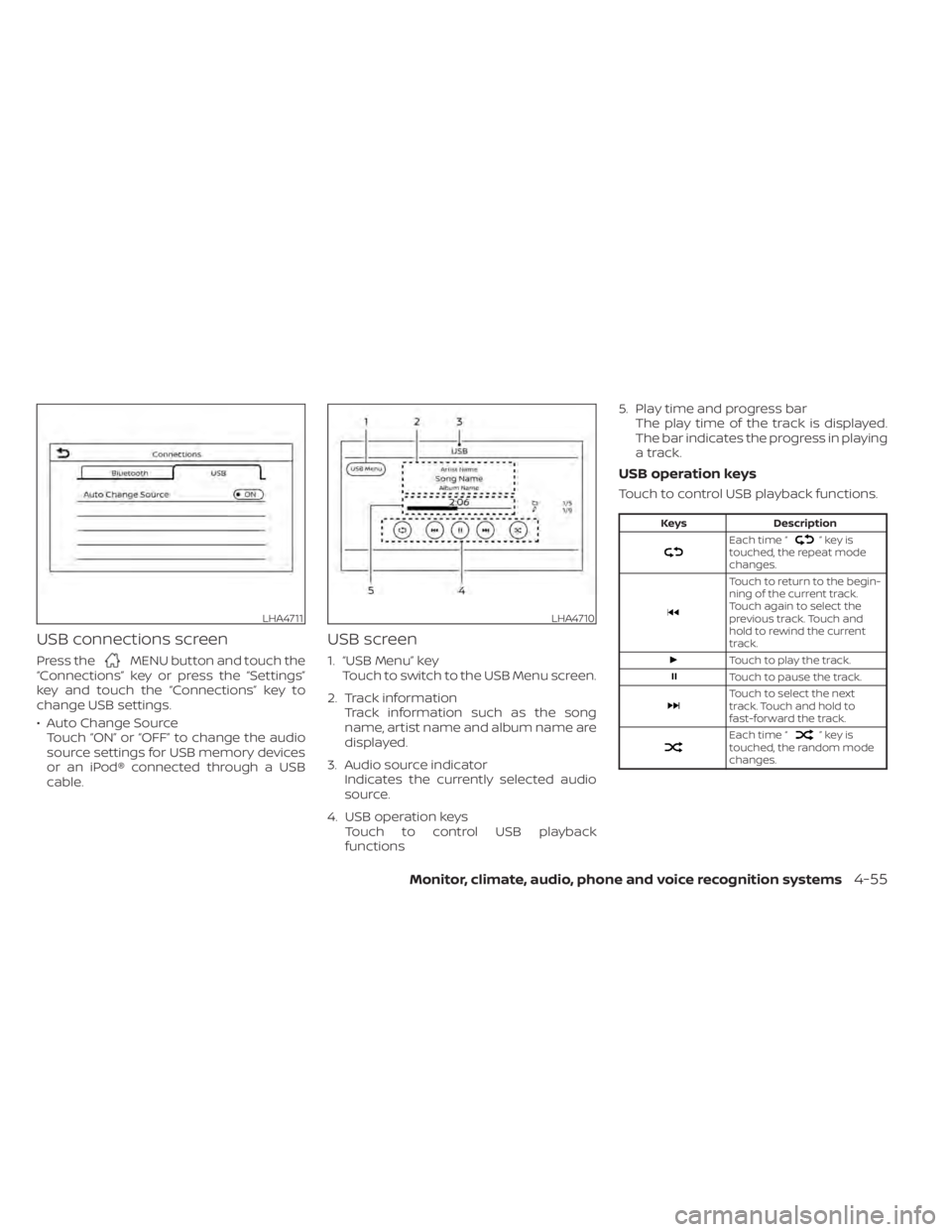
USB connections screen
Press theMENU button and touch the
“Connections” key or press the “Settings”
key and touch the “Connections” key to
change USB settings.
• Auto Change Source Touch “ON” or “OFF” to change the audio
source settings for USB memory devices
or an iPod® connected through a USB
cable.
USB screen
1. “USB Menu” key Touch to switch to the USB Menu screen.
2. Track information Track information such as the song
name, artist name and album name are
displayed.
3. Audio source indicator Indicates the currently selected audio
source.
4. USB operation keys Touch to control USB playback
functions 5. Play time and progress bar
The play time of the track is displayed.
The bar indicates the progress in playing
a track.
USB operation keys
Touch to control USB playback functions.
Keys Description
Each time “”keyis
touched, the repeat mode
changes.
Touch to return to the begin-
ning of the current track.
Touch again to select the
previous track. Touch and
hold to rewind the current
track.
Touch to play the track.
Touch to pause the track.
Touch to select the next
track. Touch and hold to
fast-forward the track.
Each time “”keyis
touched, the random mode
changes.
LHA4711LHA4710
Monitor, climate, audio, phone and voice recognition systems4-55
Page 270 of 644
BLUETOOTH® STREAMING AUDIO
If you have a compatible Bluetooth® audio
device that is capable of playing audio files,
the device can be connected to the vehi-
cle's audio system so that the audio files on
the device play through the vehicle's
speakers. For additional information, see
“FM/AM radio” (P. 4-49).
NOTE:
For additional information, refer to the
cellular phone owner’s manual.
Connecting procedure
NOTE:
The connecting procedure must be per-
formed when the vehicle is stationary. If
the vehicle starts moving during the pro-
cedure, the procedure will be canceled.To connect a phone to the Bluetooth®
Hands-Free Phone System:
Manual Connecting Procedure
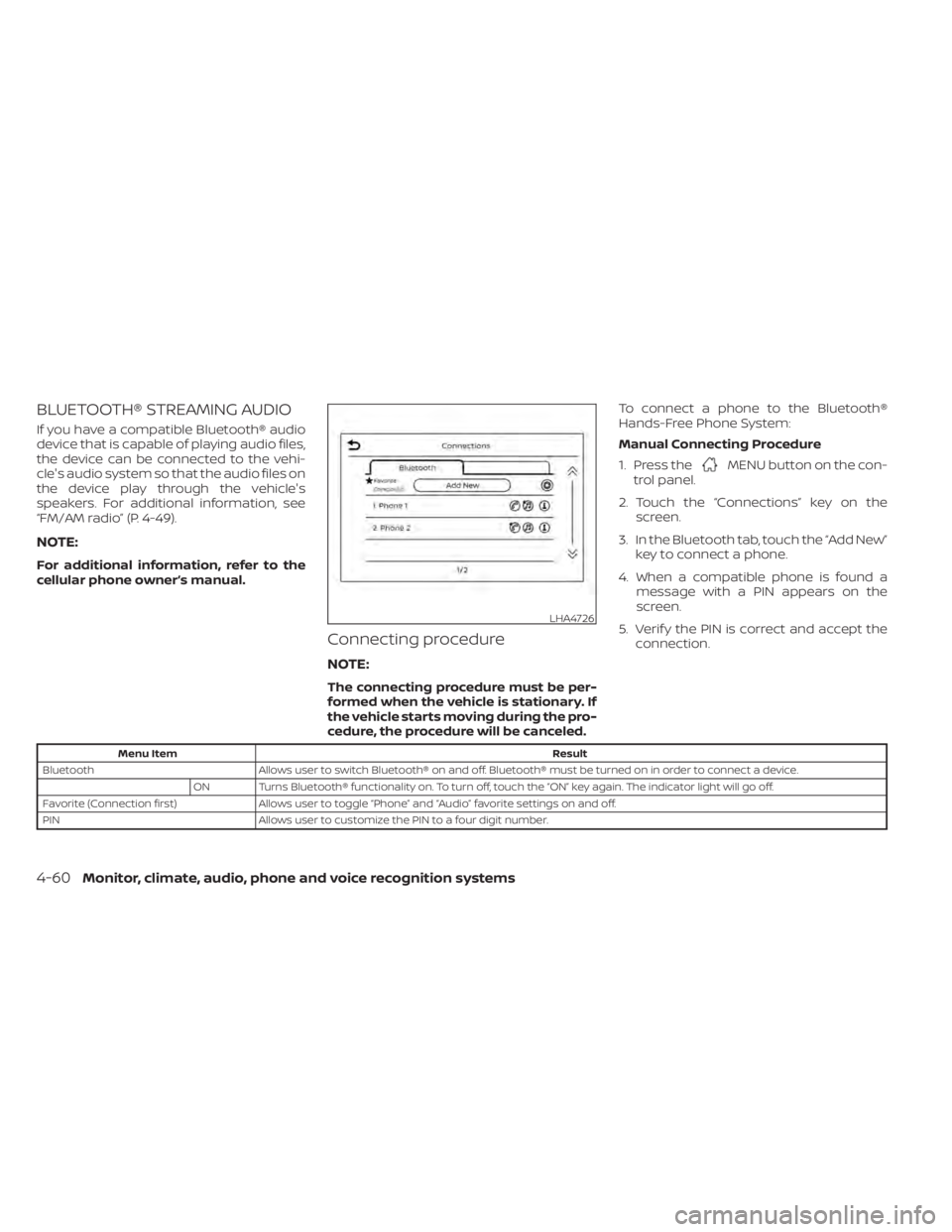
1. Press the
MENU button on the con-
trol panel.
2. Touch the “Connections” key on the screen.
3. In the Bluetooth tab, touch the “Add New” key to connect a phone.
4. When a compatible phone is found a message with a PIN appears on the
screen.
5. Verif y the PIN is correct and accept the connection.
Menu Item Result
Bluetooth Allows user to switch Bluetooth® on and off. Bluetooth® must be turned on in order to connect a device.
ON Turns Bluetooth® functionality on. To turn off, touch the “ON” key again. The indicator light will go off.
Favorite (Connection first) Allows user to toggle “Phone” and “Audio” favorite settings on and off.
PIN Allows user to customize the PIN to a four digit number.
LHA4726
4-60Monitor, climate, audio, phone and voice recognition systems
Page 271 of 644
Automatic Connecting Procedure
If no phone is connected to the system,
press and hold the
button on the
steering wheel for less than 1.5 seconds.
Af ter the prompt, speak “Add Phone”, the
system will announce “transferring to the
add phone settings menu”. The system will
start the pairing procedure. When a com-
patible phone is found, a message with a
PIN appears on the screen. Operate the
Bluetooth® phone to complete the con-
nection process. For additional informa-
tion, see “Bluetooth® connections screen”
(P. 4-81).
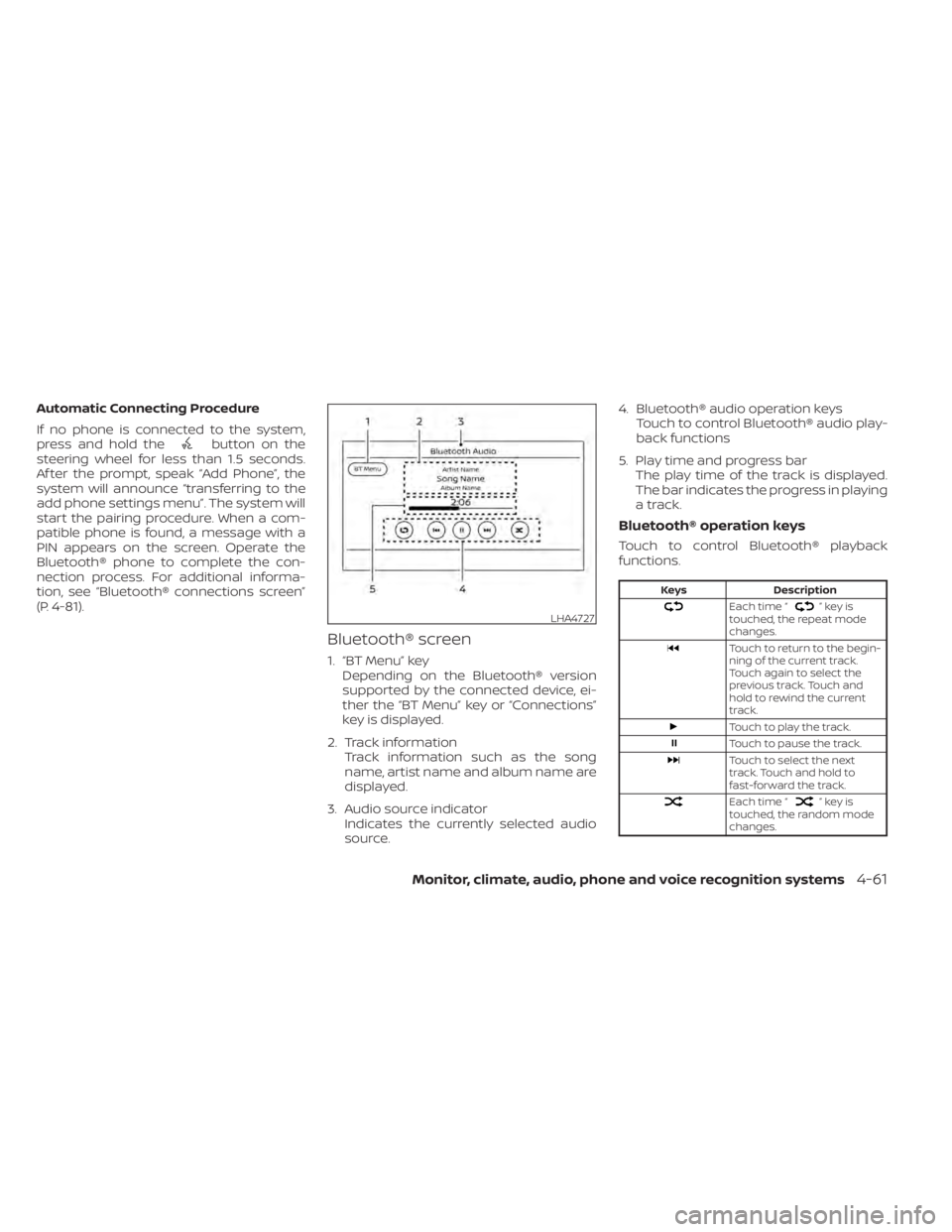
Bluetooth® screen
1. “BT Menu” key Depending on the Bluetooth® version
supported by the connected device, ei-
ther the “BT Menu” key or “Connections”
key is displayed.
2. Track information Track information such as the song
name, artist name and album name are
displayed.
3. Audio source indicator Indicates the currently selected audio
source. 4. Bluetooth® audio operation keys
Touch to control Bluetooth® audio play-
back functions
5. Play time and progress bar The play time of the track is displayed.
The bar indicates the progress in playing
a track.
Bluetooth® operation keys
Touch to control Bluetooth® playback
functions.
Keys Description
Each time “”keyis
touched, the repeat mode
changes.
Touch to return to the begin-
ning of the current track.
Touch again to select the
previous track. Touch and
hold to rewind the current
track.
Touch to play the track.
Touch to pause the track.
Touch to select the next
track. Touch and hold to
fast-forward the track.
Each time “”keyis
touched, the random mode
changes.
LHA4727
Monitor, climate, audio, phone and voice recognition systems4-61
Page 274 of 644
The antenna pattern is printed inside the
rear window.
CAUTION
• Do not place metalized film near the
rear window glass or attach any
metal parts to it. This may cause poor
reception or noise
• When cleaning the inside of the rear
window, be careful not to scratch or
damage the rear window antenna.
Lightly wipe along the antenna with a
dampened sof t cloth. Apple Siri® Eyes Free personal assistant
can be accessed from the vehicle. Siri Eyes
Free can be accessed in Siri Eyes Free
mode to reduce user distraction. In this
mode, Siri Eyes Free is available for interac-
tion by voice control. Af ter connecting a
compatible Apple device by using
Bluetooth®, Siri Eyes Free can be activated
from the
button on the steering
wheel.
Siri® is a trademark of Apple Inc., registered
in the U.S. and other countries.
• Some Siri Eyes Free functions, such as displaying pictures or opening apps, may
not be available while driving.
• For getting best results, always update your device to the latest sof tware version.
• Keep the interior of the vehicle as quiet as possible. Close the windows to eliminate
the surrounding noises (traffic noises, vi-
bration sounds, etc.), which may prevent
the system from recognizing the voice
commands correctly.
• For functions that can be used in Siri Eyes Free, please refer to the Apple website.
REQUIREMENTS
Siri® is only available on the iPhone® 4S or
later. Devices released before iPhone® 4S
are not supported by the Siri® Eyes Free
system. Visit www.apple.com/ios/siri for
details about device compatibility.
Siri must be enabled on the phone. Please
check phone settings.
If the device has a lock screen, Siri must be
accessible from the lock screen. Please
check phone settings.
For best results, always update your device
to the latest sof tware version.
ANTENNA SIRI® EYES FREE (if so equipped)
4-64Monitor, climate, audio, phone and voice recognition systems
Page 275 of 644
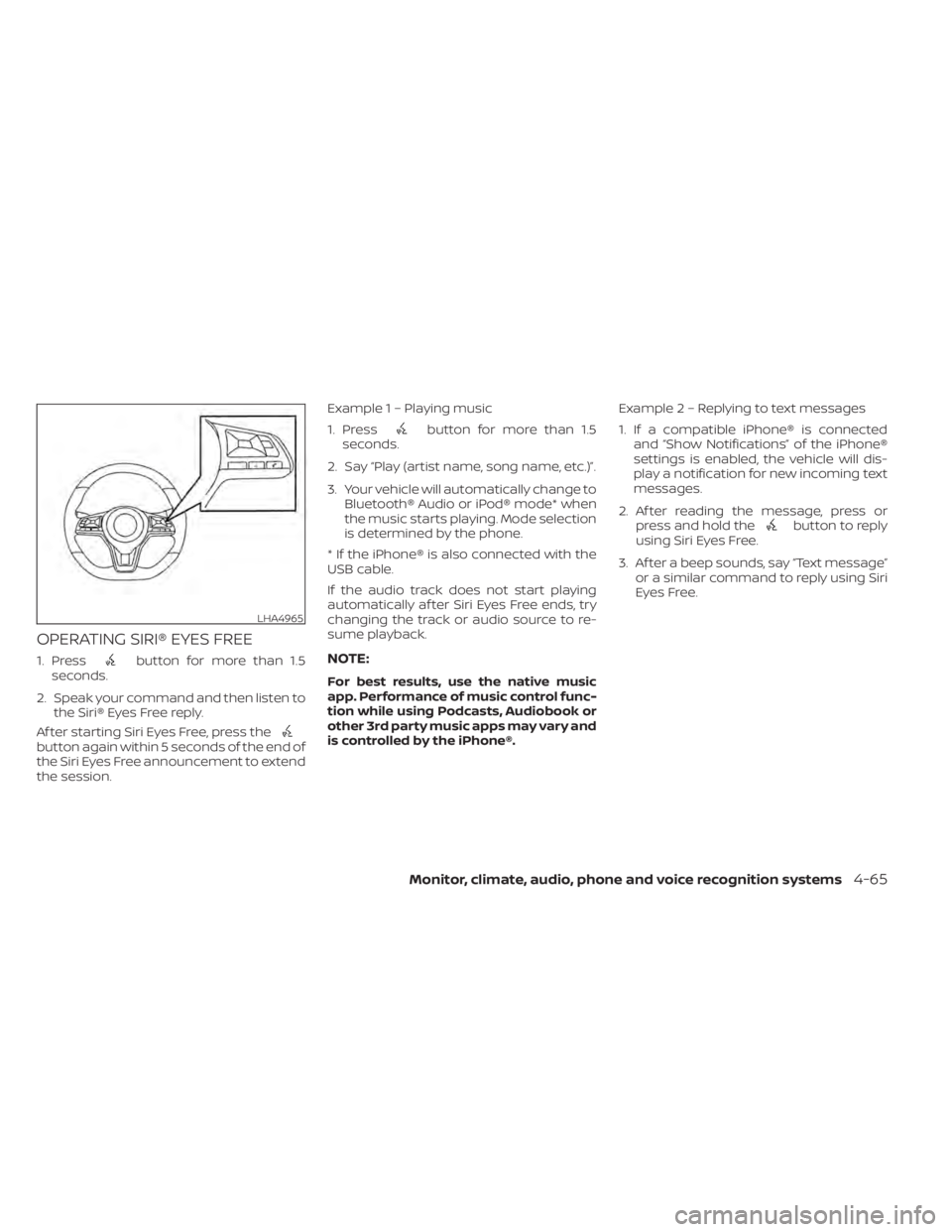
OPERATING SIRI® EYES FREE
1. Pressbutton for more than 1.5
seconds.
2. Speak your command and then listen to the Siri® Eyes Free reply.
Af ter starting Siri Eyes Free, press the
button again within 5 seconds of the end of
the Siri Eyes Free announcement to extend
the session. Example 1 – Playing music
1. Press
button for more than 1.5
seconds.
2. Say “Play (artist name, song name, etc.)”.
3. Your vehicle will automatically change to Bluetooth® Audio or iPod® mode* when
the music starts playing. Mode selection
is determined by the phone.
* If the iPhone® is also connected with the
USB cable.
If the audio track does not start playing
automatically af ter Siri Eyes Free ends, try
changing the track or audio source to re-
sume playback.
NOTE:
For best results, use the native music
app. Performance of music control func-
tion while using Podcasts, Audiobook or
other 3rd party music apps may vary and
is controlled by the iPhone®. Example2–Repl
ying to text messages
1. If a compatible iPhone® is connected and “Show Notifications” of the iPhone®
settings is enabled, the vehicle will dis-
play a notification for new incoming text
messages.
2. Af ter reading the message, press or press and hold the
button to reply
using Siri Eyes Free.
3. Af ter a beep sounds, say “Text message” or a similar command to reply using Siri
Eyes Free.
LHA4965
Monitor, climate, audio, phone and voice recognition systems4-65
Page 276 of 644
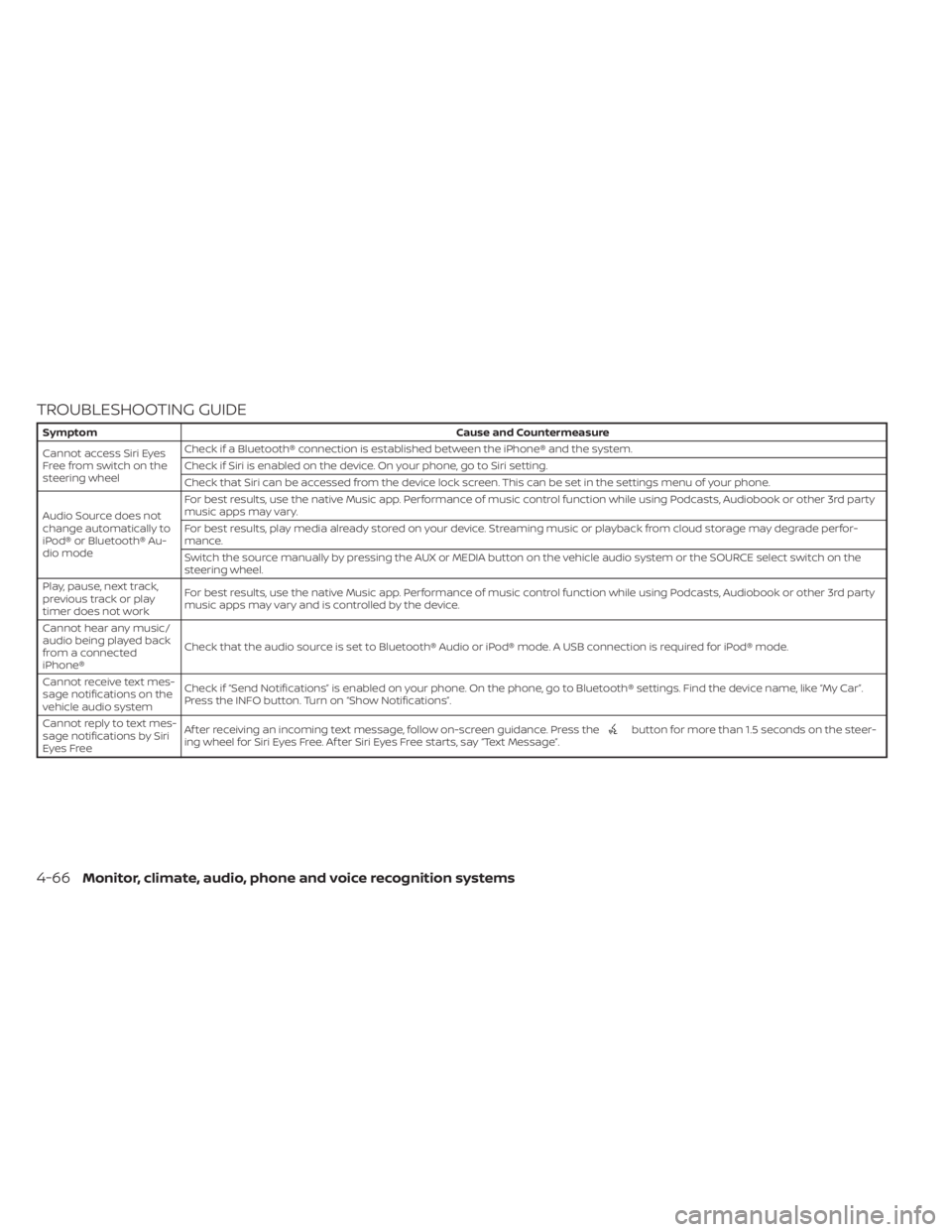
TROUBLESHOOTING GUIDE
SymptomCause and Countermeasure
Cannot access Siri Eyes
Freefromswitchonthe
steering wheel Check if a Bluetooth® connection is established between the iPhone® and the system.
Check if Siri is enabled on the device. On your phone, go to Siri setting.
Check that Siri can be accessed from the device lock screen. This can be set in the settings menu of your phone.
Audio Source does not
change automatically to
iPod® or Bluetooth® Au-
dio mode For best results, use the native Music app. Performance of music control function while using Podcasts, Audiobook or other 3rd party
music apps may vary.
For best results, play media already stored on your device. Streaming music or playback from cloud storage may degrade perfor-
mance.
Switch the source manually by pressing the AUX or MEDIA button on the vehicle audio system or the SOURCE select switch on the
steering wheel.
Play, pause, next track,
previous track or play
timer does not work For best results, use the native Music app. Performance of music control function while using Podcasts, Audiobook or other 3rd party
music apps may vary and is controlled by the device.
Cannot hear any music/
audio being played back
from a connected
iPhone® Check that the audio source is set to Bluetooth® Audio or iPod® mode. A USB connection is required for iPod® mode.
Cannot receive text mes-
sage notifications on the
vehicle audio system Check if “Send Notifications” is enabled on your phone. On the phone, go to Bluetooth® settings. Find the device name, like “My Car”.
Press the INFO button. Turn on “Show Notifications”.
Cannot reply to text mes-
sage notifications by Siri
Eyes Free Af ter receiving an incoming text message, follow on-screen guidance. Press the
button for more than 1.5 seconds on the steer-
ing wheel for Siri Eyes Free. Af ter Siri Eyes Free starts, say “Text Message”.
4-66Monitor, climate, audio, phone and voice recognition systems
Page 282 of 644
You can use thebutton to
interrupt the system feedback
and give a command at once.
If an iPhone® is connected, Siri®
can be accessed by pressing the
button for less than 1.5 sec-
onds. For additional information,
see “Siri® Eyes Free” (P. 4-64).
PHONE BUTTON
To answer an incoming call or to
end a call press the
button.
To reject a call press and hold the
button.BLUETOOTH® CONNECTING
PROCEDURE
NOTE:
The connecting procedure must be per-
formed when the vehicle is stationary. If
the vehicle starts moving during the pro-
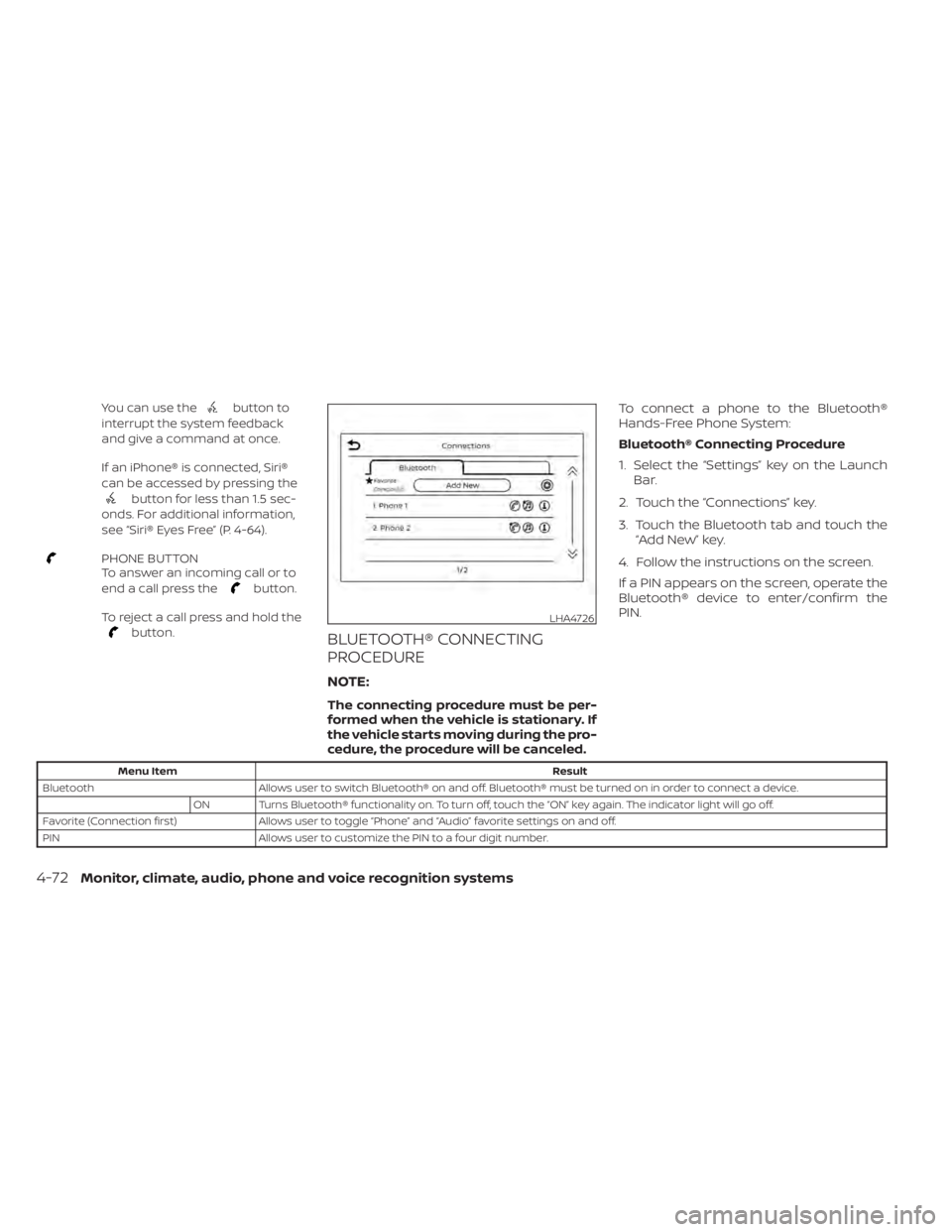
cedure, the procedure will be canceled. To connect a phone to the Bluetooth®
Hands-Free Phone System:
Bluetooth® Connecting Procedure
1. Select the “Settings” key on the Launch
Bar.
2. Touch the “Connections” key.
3. Touch the Bluetooth tab and touch the “Add New” key.
4. Follow the instructions on the screen.
If a PIN appears on the screen, operate the
Bluetooth® device to enter/confirm the
PIN.
Menu Item Result
Bluetooth Allows user to switch Bluetooth® on and off. Bluetooth® must be turned on in order to connect a device.
ON Turns Bluetooth® functionality on. To turn off, touch the “ON” key again. The indicator light will go off.
Favorite (Connection first) Allows user to toggle “Phone” and “Audio” favorite settings on and off.
PIN Allows user to customize the PIN to a four digit number.
LHA4726
4-72Monitor, climate, audio, phone and voice recognition systems
Page 283 of 644

NOTE:
Some cellular phones may require you to
accept certain permissions in order to
enable features on your Bluetooth® sys-
tem. During the Bluetooth® pairing pro-
cess, please check your cellular phone’s
display for a pop-up with the request to
grant phonebook access.
Granting phonebook access permission
will allow your contacts to be down-
loaded to the vehicle’s Bluetooth® sys-
tem. A pop-up may display on your cellu-
lar phone stating that the Bluetooth®
system would like to access your con-
tacts and call history. Please select “Al-
low” or Yes” to grant this permission.
Automatic Connecting Procedure
If no phone is connected to the system,
press and hold the
button on the
steering wheel for less than 1.5 seconds.
Af ter the prompt, speak “Add Phone”, the
system will announce “transferring to the
add phone settings menu”. The system will
start the pairing procedure. When a com-
patible phone is found, a message with a
PIN appears on the screen. Operate the
Bluetooth® phone to complete the con-
nection process. For additional informa-
tion, see “Bluetooth® connections screen”
(P. 4-81).
VOICE COMMANDS
Voice commands can be used to operate
the Bluetooth® Hands-Free Phone System.
Press and hold the
button for less
than 1.5 seconds to bring up the phone
command menu. The commands avail-
able are:
• Call
• Dial
• Recent Calls
• Read/Send Text (if so equipped)
• Siri® (if so equipped)
• Voice Assistant (if so equipped)
• Phonebook
• Quick Dial
• Redial
• Select Phone
• Add Phone
• Call
• Call
• Call
• Call
• Call
• Settings
“Call
Speak this command to make a call to a
contact that is stored in the phonebook.
Say “Call” followed by a phonebook name to
initiate a call. If the system does not recog-
nize the name it will display a list of similar
names. Af ter the prompt, speak or touch
an item number from the displayed list to
place the call.
“Dial
Speak this command to make a call with a
spoken phone number. Af ter the prompt,
say “Dial” followed b ya7to10digit phone
number. The system will repeat the num-
ber back. Say “Dial” to initiate the call or
“Correction” to re-enter the phone number.
Monitor, climate, audio, phone and voice recognition systems4-73
Page 285 of 644
“Select Phone”
Speak this command to access the Con-
nections menu. For additional information,
see “Bluetooth® connections screen”
(P. 4-81).
“Add Phone”
Speak this command to access the Con-
nections menu. For additional information,
see “Bluetooth® connections screen”
(P. 4-81).
“Settings”
Speak this command to access the Sys-
tem Voice settings menu. The system will
exit Voice Recognition mode. Touch one of
the following options on the screen to
change the settings.
• Beep Only for Opening PromptBy touching the “ON” key, the indicator
light will illuminate, the system voice will
turn off and only a tone will sound when
the Bluetooth® Hands-Free Phone Sys-
tem is activated. To turn the system voice
back on, touch the “ON” key again, the
indicator light will turn off. • Best Match List
When the system doesn't recognize a
phonebook name or dial number, it will
provide a list of similar sounding results.
To turn this off, touch the “ON” key, the
indicator light will turn off. To turn on,
touch the “ON” key again, the indicator
light will turn on.
PHONE DISPLAY SCREEN
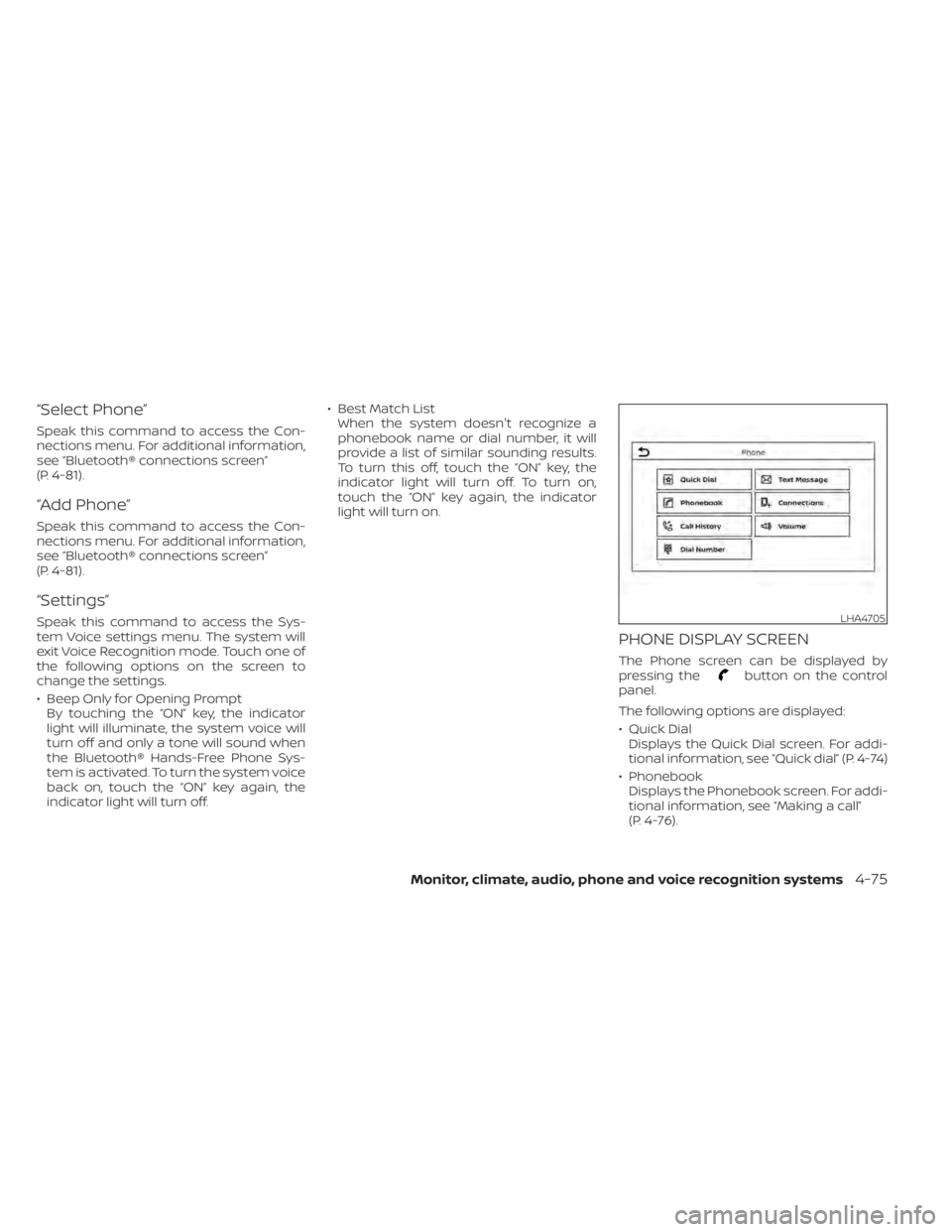
The Phone screen can be displayed by
pressing thebutton on the control
panel.
The following options are displayed:
• Quick Dial Displays the Quick Dial screen. For addi-
tional information, see “Quick dial” (P. 4-74)
• Phonebook Displays the Phonebook screen. For addi-
tional information, see “Making a call”
(P. 4-76).
LHA4705
Monitor, climate, audio, phone and voice recognition systems4-75