key NISSAN ALTIMA HYBRID 2007 L32A / 4.G Quick Reference Guide
[x] Cancel search | Manufacturer: NISSAN, Model Year: 2007, Model line: ALTIMA HYBRID, Model: NISSAN ALTIMA HYBRID 2007 L32A / 4.GPages: 28, PDF Size: 5.15 MB
Page 18 of 28
1617
3. The system will direct you to SETUP –> Phone –> Bluetooth Setup –>
Pair Phone Menu.
4. Touch one of the “None (Add New)” keys.
5. Initiate pairing from the phone.
The pairing procedure varies according to each cellular phone model. For
detailed pairing instructions and compatible phones, please visit
www.nissanusa.com/bluetooth.
The PIN code will appear on the screen, enter “1234” from the handset. (The PIN
code is assigned by NISSAN and cannot be changed.)
6. When the pairing is complete, the screen will show the phone’s listed name on the
paired phone list screen.
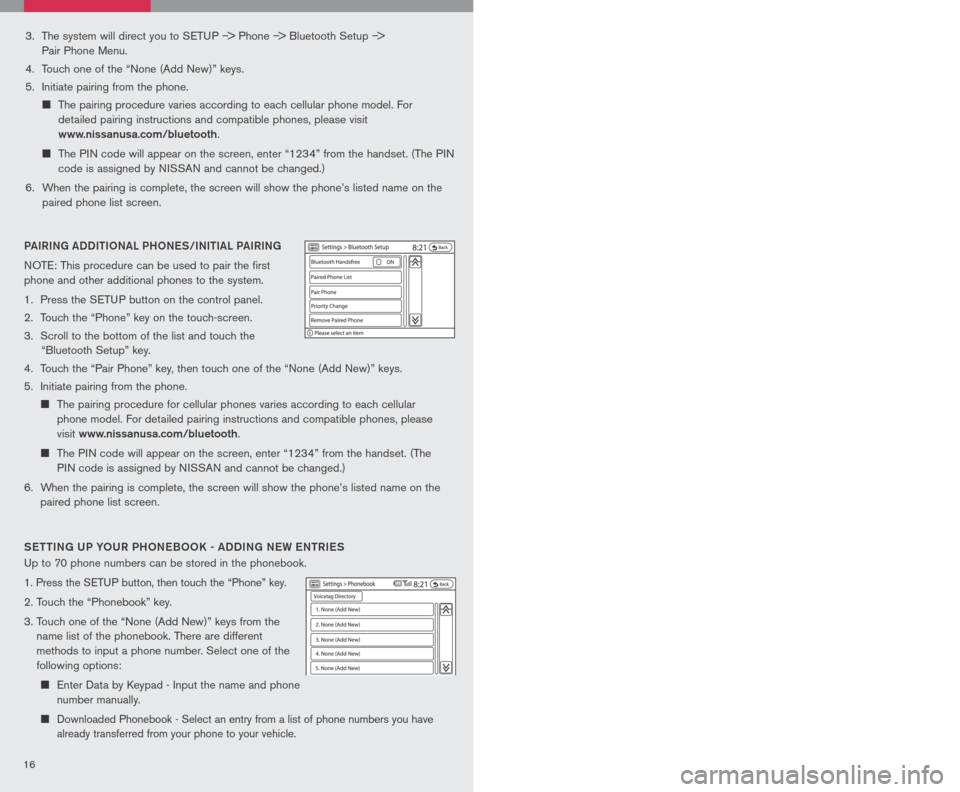
PAIRING ADDI tIo NAL PH oNeS/INI tIAL PAIRING
NOTE: This procedure can be used to pair the first
phone and other additional phones to the system.
1. Press the SETUP button on the control panel.
2. Touch the “Phone” key on the touch-screen.
3. Scroll to the bottom of the list and touch the
“Bluetooth Setup” key.
4. Touch the “Pair Phone” key, then touch one of the “None (Add New)” keys.
5. Initiate pairing from the phone.
The pairing procedure for cellular phones varies according to each cellular
phone model. For detailed pairing instructions and compatible phones, please
visit
www.nissanusa.com/bluetooth.
The PIN code will appear on the screen, enter “1234” from the handset. (The
PIN code is assigned by NISSAN and cannot be changed.)
6. When the pairing is complete, the screen will show the phone’s listed name on the
paired phone list screen.
S ett ING UP Y oUR PH oNeB oo K - ADDING N eW eN tRI eS
Up to 70 phone numbers can be stored in the phonebook.
1. Press the SETUP button, then touch the “Phone” key.
2. Touch the “Phonebook” key.
3. Touch one of the “None (Add New)” keys from the
name list of the phonebook. There are different
methods to input a phone number. Select one of the
following options:
Enter Data by Keypad - Input the name and phone
number manually.
Downloaded Phonebook - Select an entry from a list of phone numbers you have
already transferred from your phone to your vehicle.
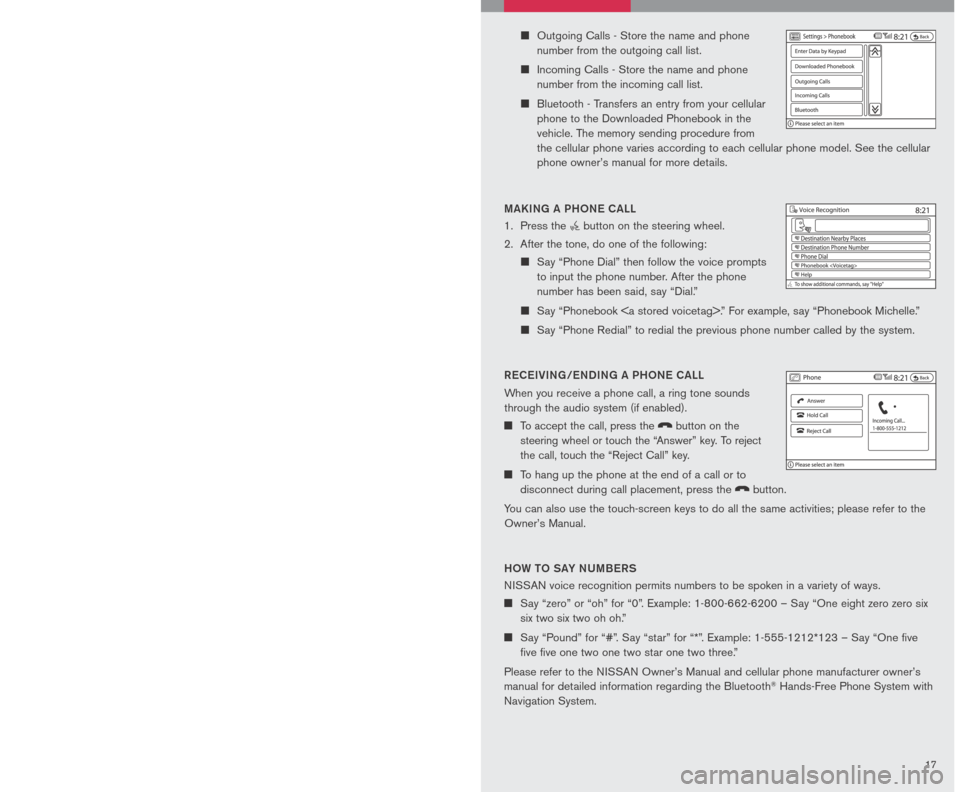
MAKING A PH oNe CALL
1. Press the
button on the steering wheel.
2. After the tone, do one of the following:
Say “Phone Dial” then follow the voice prompts
to input the phone number. After the phone
number has been said, say “Dial.”
Say “Phonebook .” For example, say “Phonebook Michelle.”
Say “Phone Redial” to redial the previous phone number called by the system.
R eC eIVING/ eNDING A PH oNe CALL
When you receive a phone call, a ring tone sounds
through the audio system (if enabled).
To accept the call, press the
LCN0090
button on the
steering wheel or touch the “Answer” key. To reject
the call, touch the “Reject Call” key.
To hang up the phone at the end of a call or to
disconnect during call placement, press the
LCN0090
button.
You can also use the touch-screen keys to do all the same activities; please refer to the
Owner’s Manual.
H o W to SAY NUMB eRS
NISSAN voice recognition permits numbers to be spoken in a variety of ways.
Say “zero” or “oh” for “0”. Example: 1-800-662-6200 – Say “One eight zero zero six
six two six two oh oh.”
Say “Pound” for “#”. Say “star” for “*”. Example: 1-555-1212*123 – Say “One five
five five one two one two star one two three.”
Please refer to the NISSAN Owner’s Manual and cellular phone manufacturer owner’s
manual for detailed information regarding the Bluetooth® Hands-Free Phone System with
Navigation System.
Outgoing Calls - Store the name and phone
number from the outgoing call list.
Incoming Calls - Store the name and phone
number from the incoming call list.
Bluetooth - Transfers an entry from your cellular
phone to the Downloaded Phonebook in the
vehicle. The memory sending procedure from
the cellular phone varies according to each cellular phone model. See the cellular
phone owner’s manual for more details.
Page 19 of 28
1617
3. The system will direct you to SETUP –> Phone –> Bluetooth Setup –>
Pair Phone Menu.
4. Touch one of the “None (Add New)” keys.
5. Initiate pairing from the phone.
The pairing procedure varies according to each cellular phone model. For
detailed pairing instructions and compatible phones, please visit
www.nissanusa.com/bluetooth.
The PIN code will appear on the screen, enter “1234” from the handset. (The PIN
code is assigned by NISSAN and cannot be changed.)
6. When the pairing is complete, the screen will show the phone’s listed name on the
paired phone list screen.
PAIRING ADDI tIo NAL PH oNeS/INI tIAL PAIRING
NOTE: This procedure can be used to pair the first
phone and other additional phones to the system.
1. Press the SETUP button on the control panel.
2. Touch the “Phone” key on the touch-screen.
3. Scroll to the bottom of the list and touch the
“Bluetooth Setup” key.
4. Touch the “Pair Phone” key, then touch one of the “None (Add New)” keys.
5. Initiate pairing from the phone.
The pairing procedure for cellular phones varies according to each cellular
phone model. For detailed pairing instructions and compatible phones, please
visit
www.nissanusa.com/bluetooth.
The PIN code will appear on the screen, enter “1234” from the handset. (The
PIN code is assigned by NISSAN and cannot be changed.)
6. When the pairing is complete, the screen will show the phone’s listed name on the
paired phone list screen.
S ett ING UP Y oUR PH oNeB oo K - ADDING N eW eN tRI eS
Up to 70 phone numbers can be stored in the phonebook.
1. Press the SETUP button, then touch the “Phone” key.
2. Touch the “Phonebook” key.
3. Touch one of the “None (Add New)” keys from the
name list of the phonebook. There are different
methods to input a phone number. Select one of the
following options:
Enter Data by Keypad - Input the name and phone
number manually.
Downloaded Phonebook - Select an entry from a list of phone numbers you have
already transferred from your phone to your vehicle.
MAKING A PH oNe CALL
1. Press the
button on the steering wheel.
2. After the tone, do one of the following:
Say “Phone Dial” then follow the voice prompts
to input the phone number. After the phone
number has been said, say “Dial.”
Say “Phonebook .” For example, say “Phonebook Michelle.”
Say “Phone Redial” to redial the previous phone number called by the system.
R eC eIVING/ eNDING A PH oNe CALL
When you receive a phone call, a ring tone sounds
through the audio system (if enabled).
To accept the call, press the
LCN0090
button on the
steering wheel or touch the “Answer” key. To reject
the call, touch the “Reject Call” key.
To hang up the phone at the end of a call or to
disconnect during call placement, press the
LCN0090
button.
You can also use the touch-screen keys to do all the same activities; please refer to the
Owner’s Manual.
H o W to SAY NUMB eRS
NISSAN voice recognition permits numbers to be spoken in a variety of ways.
Say “zero” or “oh” for “0”. Example: 1-800-662-6200 – Say “One eight zero zero six
six two six two oh oh.”
Say “Pound” for “#”. Say “star” for “*”. Example: 1-555-1212*123 – Say “One five
five five one two one two star one two three.”
Please refer to the NISSAN Owner’s Manual and cellular phone manufacturer owner’s
manual for detailed information regarding the Bluetooth® Hands-Free Phone System with
Navigation System.
Outgoing Calls - Store the name and phone
number from the outgoing call list.
Incoming Calls - Store the name and phone
number from the incoming call list.
Bluetooth - Transfers an entry from your cellular
phone to the Downloaded Phonebook in the
vehicle. The memory sending procedure from
the cellular phone varies according to each cellular phone model. See the cellular
phone owner’s manual for more details.
Page 20 of 28
1819
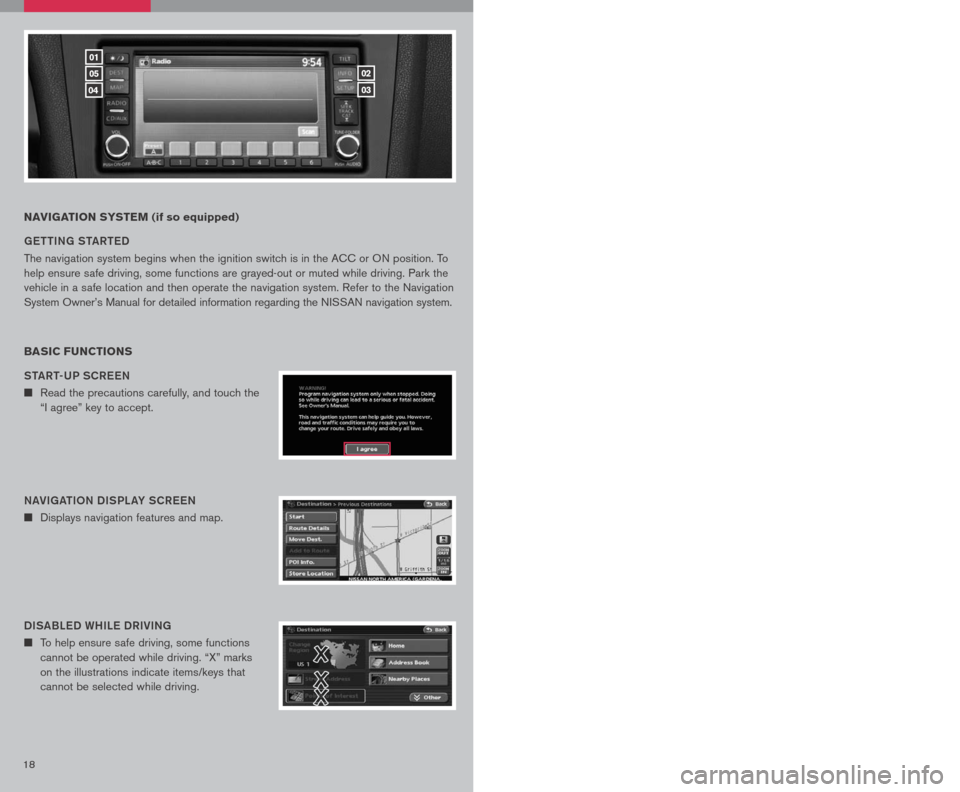
NAVIGATION SYSTEM (if so equipped)
G ett ING S tAR teD
The navigation system begins when the ignition switch is in the ACC or ON position. To
help ensure safe driving, some functions are grayed-out or muted while driving. Park the
vehicle in a safe location and then operate the navigation system. Refer to the Navigation
System Owner’s Manual for detailed information regarding the NISSAN navigation system.
BASIC FUNCTIONS
StAR t-UP SCR eeN
n Read the precautions carefully, and touch the
“I agree” key to accept.
NAVIGA tIo N DISPL AY SCR eeN
n Displays navigation features and map.
DISABL eD WHIL e DRIVING
n To help ensure safe driving, some functions
cannot be operated while driving. “X” marks
on the illustrations indicate items/keys that
cannot be selected while driving.
DAY/NIGH t BU tto N
n Press the button 01 to switch between
the day screen (bright) and the night screen
(dark). Within 10 seconds of pressing the
button 01, you can adjust the brightness
of the map display screen by touching the
key or the key.
01
05
04
02
03
USING tH e to UCH-SCR eeN
n To maneuver around the navigation display
screen, touch the screen to select the item
or key displayed. To move around the map
screen touch and hold to scroll around.
Set UP BU ttoN
n Press the SetUP button 03 to change or set
navigation preferences.
D eS t ( D eS tINA tIo N ) BU ttoN
n Press the DeSt button 05 to display
the address book and alternative ways of
programming a destination.
MAP BU ttoN
n Press the MAP button 04 to display the
current location map screen.
INFo BU tto N
n Press the INFo button 02 to set or view
various information that is helpful for using the
vehicle safely and comfortably.
Page 21 of 28
1819
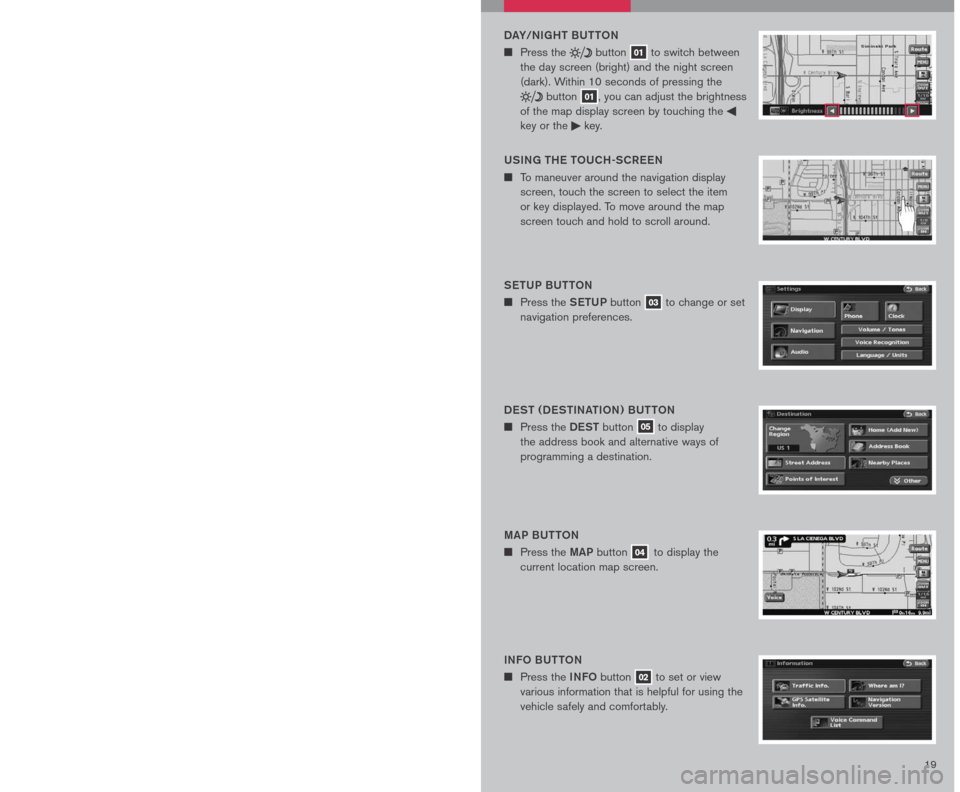
NAVIGATION SYSTEM (if so equipped)
G ett ING S tAR teD
The navigation system begins when the ignition switch is in the ACC or ON position. To
help ensure safe driving, some functions are grayed-out or muted while driving. Park the
vehicle in a safe location and then operate the navigation system. Refer to the Navigation
System Owner’s Manual for detailed information regarding the NISSAN navigation system.
BASIC FUNCTIONS
StAR t-UP SCR eeN
n Read the precautions carefully, and touch the
“I agree” key to accept.
NAVIGA tIo N DISPL AY SCR eeN
n Displays navigation features and map.
DISABL eD WHIL e DRIVING
n To help ensure safe driving, some functions
cannot be operated while driving. “X” marks
on the illustrations indicate items/keys that
cannot be selected while driving.
DAY/NIGH t BU tto N
n Press the button 01 to switch between
the day screen (bright) and the night screen
(dark). Within 10 seconds of pressing the
button 01, you can adjust the brightness
of the map display screen by touching the
key or the key.
01
05
04
02
03
USING tH e to UCH-SCR eeN
n To maneuver around the navigation display
screen, touch the screen to select the item
or key displayed. To move around the map
screen touch and hold to scroll around.
Set UP BU ttoN
n Press the SetUP button 03 to change or set
navigation preferences.
D eS t ( D eS tINA tIo N ) BU ttoN
n Press the DeSt button 05 to display
the address book and alternative ways of
programming a destination.
MAP BU ttoN
n Press the MAP button 04 to display the
current location map screen.
INFo BU tto N
n Press the INFo button 02 to set or view
various information that is helpful for using the
vehicle safely and comfortably.
Page 22 of 28
2021
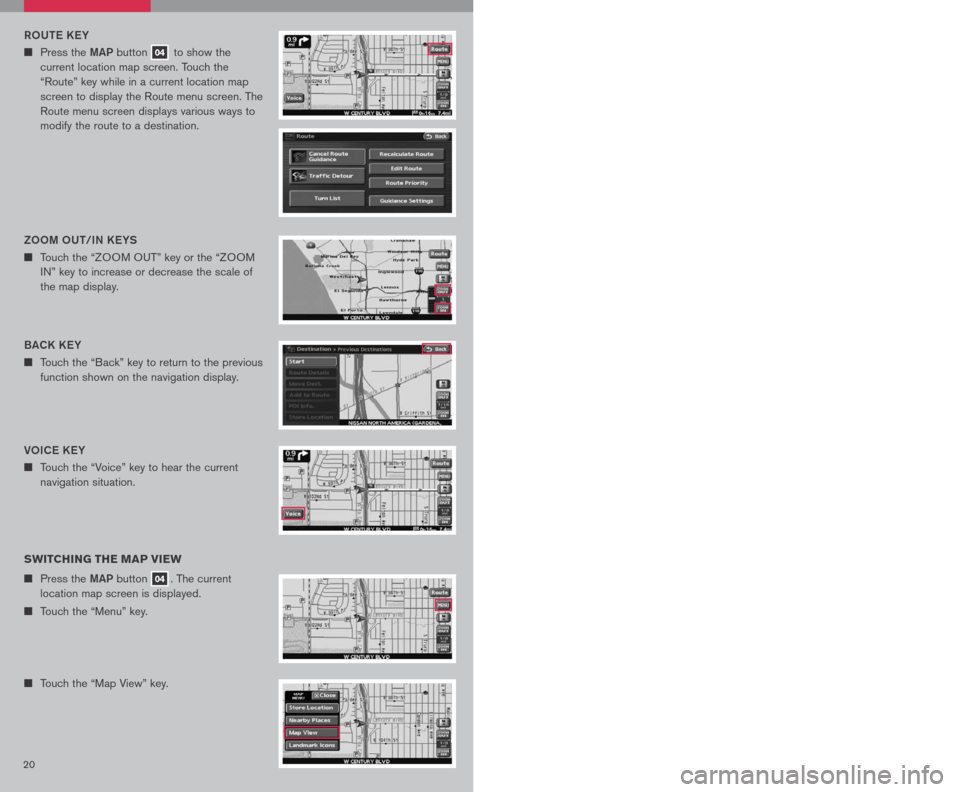
Vo IC e K eY
n Touch the “Voice” key to hear the current
navigation situation.
R o Ute KeY
n Press the MAP button 04 to show the
current location map screen. Touch the
“Route” key while in a current location map
screen to display the Route menu screen. The
Route menu screen displays various ways to
modify the route to a destination.
SWITCHING THE MAP VIEW
n Press the MAP button 04. The current
location map screen is displayed.
n Touch the “Menu” key.
n Touch the “Map View” key.
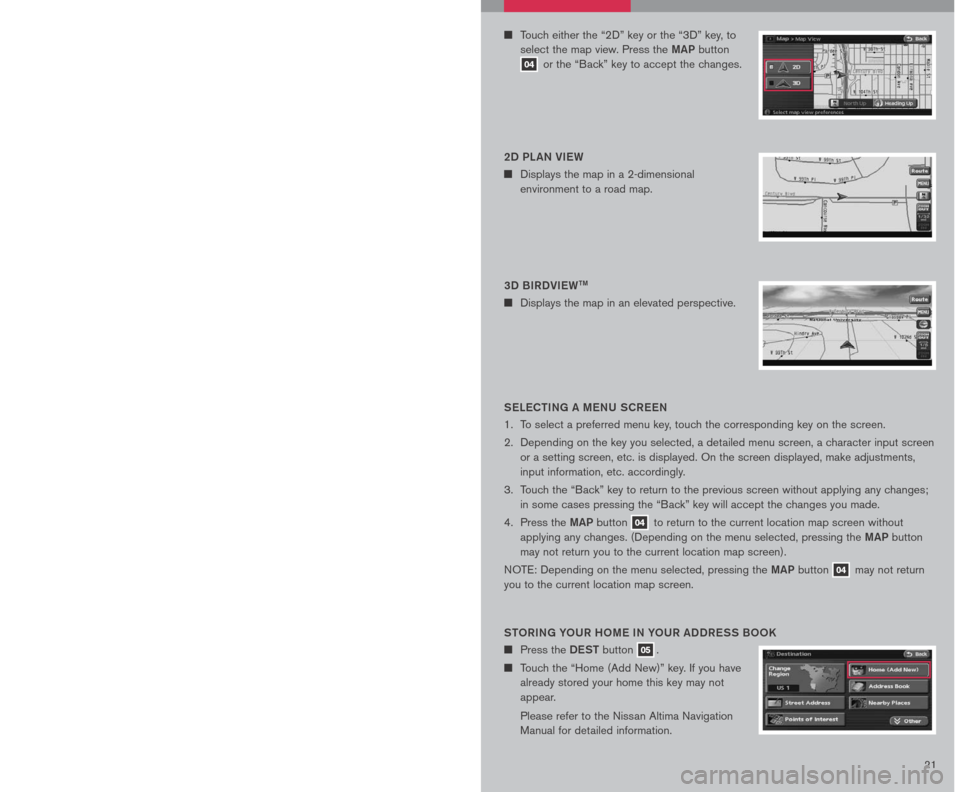
n Touch either the “2D” key or the “3D” key, to
select the map view. Press the MAP button
04 or the “Back” key to accept the changes.
SeLe C tING A M eNU SCR eeN
1. To select a preferred menu key, touch the corresponding key on the screen.
2. Depending on the key you selected, a detailed menu screen, a character input screen
or a setting screen, etc. is displayed. On the screen displayed, make adjustments,
input information, etc. accordingly.
3. Touch the “Back” key to return to the previous screen without applying any changes;
in some cases pressing the “Back” key will accept the changes you made.
4. Press the
MAP button 04 to return to the current location map screen without
applying any changes. (Depending on the menu selected, pressing the MAP button
may not return you to the current location map screen).
NOTE: Depending on the menu selected, pressing the MAP button 04 may not return
you to the current location map screen.
S to RING Y oUR H oM e IN Y oUR ADDR eSS B ooK
n Press the DeSt button 05.
n Touch the “Home (Add New)” key. If you have
already stored your home this key may not
appear.
Please refer to the Nissan Altima Navigation
Manual for detailed information.
BACK K eY
n Touch the “Back” key to return to the previous
function shown on the navigation display.
Zoo M oUt/IN K eYS
n Touch the “ZOOM OUT” key or the “ZOOM
IN” key to increase or decrease the scale of
the map display.3D BIRDVI eWtM
n Displays the map in an elevated perspective.
2D PL AN VI
eW
n Displays the map in a 2-dimensional
environment to a road map.
Page 23 of 28
2021
Vo IC e K eY
n Touch the “Voice” key to hear the current
navigation situation.
R o Ute KeY
n Press the MAP button 04 to show the
current location map screen. Touch the
“Route” key while in a current location map
screen to display the Route menu screen. The
Route menu screen displays various ways to
modify the route to a destination.
SWITCHING THE MAP VIEW
n Press the MAP button 04. The current
location map screen is displayed.
n Touch the “Menu” key.
n Touch the “Map View” key.
n Touch either the “2D” key or the “3D” key, to
select the map view. Press the MAP button
04 or the “Back” key to accept the changes.
SeLe C tING A M eNU SCR eeN
1. To select a preferred menu key, touch the corresponding key on the screen.
2. Depending on the key you selected, a detailed menu screen, a character input screen
or a setting screen, etc. is displayed. On the screen displayed, make adjustments,
input information, etc. accordingly.
3. Touch the “Back” key to return to the previous screen without applying any changes;
in some cases pressing the “Back” key will accept the changes you made.
4. Press the
MAP button 04 to return to the current location map screen without
applying any changes. (Depending on the menu selected, pressing the MAP button
may not return you to the current location map screen).
NOTE: Depending on the menu selected, pressing the MAP button 04 may not return
you to the current location map screen.
S to RING Y oUR H oM e IN Y oUR ADDR eSS B ooK
n Press the DeSt button 05.
n Touch the “Home (Add New)” key. If you have
already stored your home this key may not
appear.
Please refer to the Nissan Altima Navigation
Manual for detailed information.
BACK K eY
n Touch the “Back” key to return to the previous
function shown on the navigation display.
Zoo M oUt/IN K eYS
n Touch the “ZOOM OUT” key or the “ZOOM
IN” key to increase or decrease the scale of
the map display.3D BIRDVI eWtM
n Displays the map in an elevated perspective.
2D PL AN VI
eW
n Displays the map in a 2-dimensional
environment to a road map.
Page 24 of 28
2223
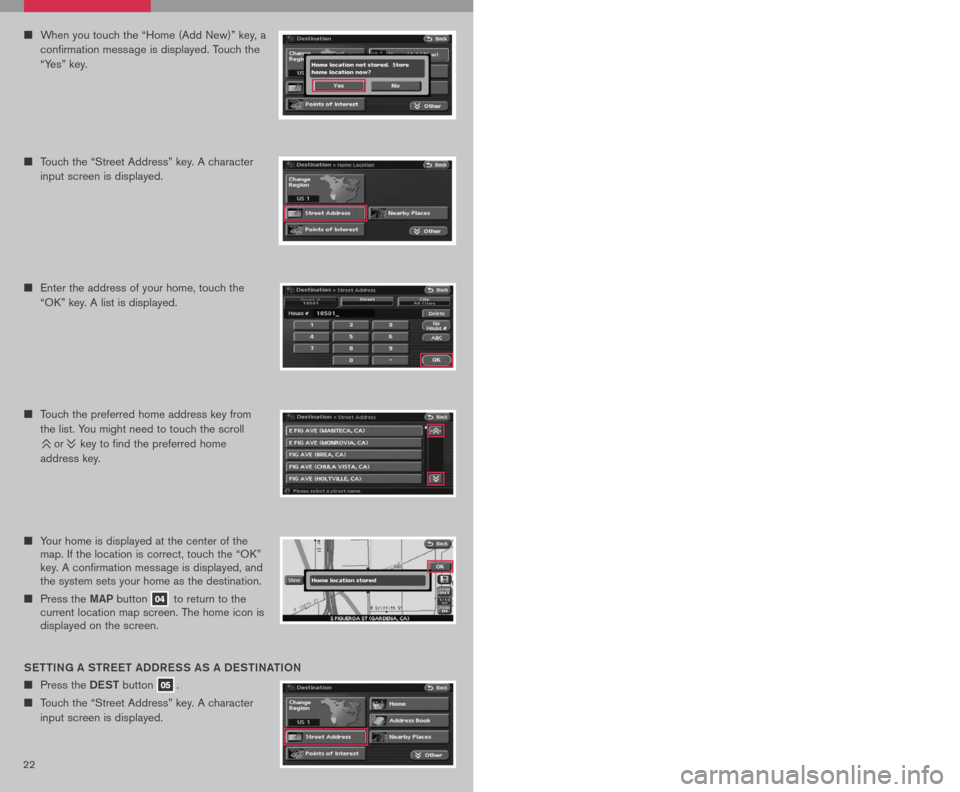
n Your home is displayed at the center of the map. If the location is correct, touch the “OK” key. A confirmation message is displayed, and the system sets your home as the destination.
n Press the MAP button 04 to return to the current location map screen. The home icon is displayed on the screen.
Sett ING A S tR eet ADDR eSS AS A D eS tINA tIo N
n Press the DeSt button 05.
n Touch the “Street Address” key. A character
input screen is displayed.
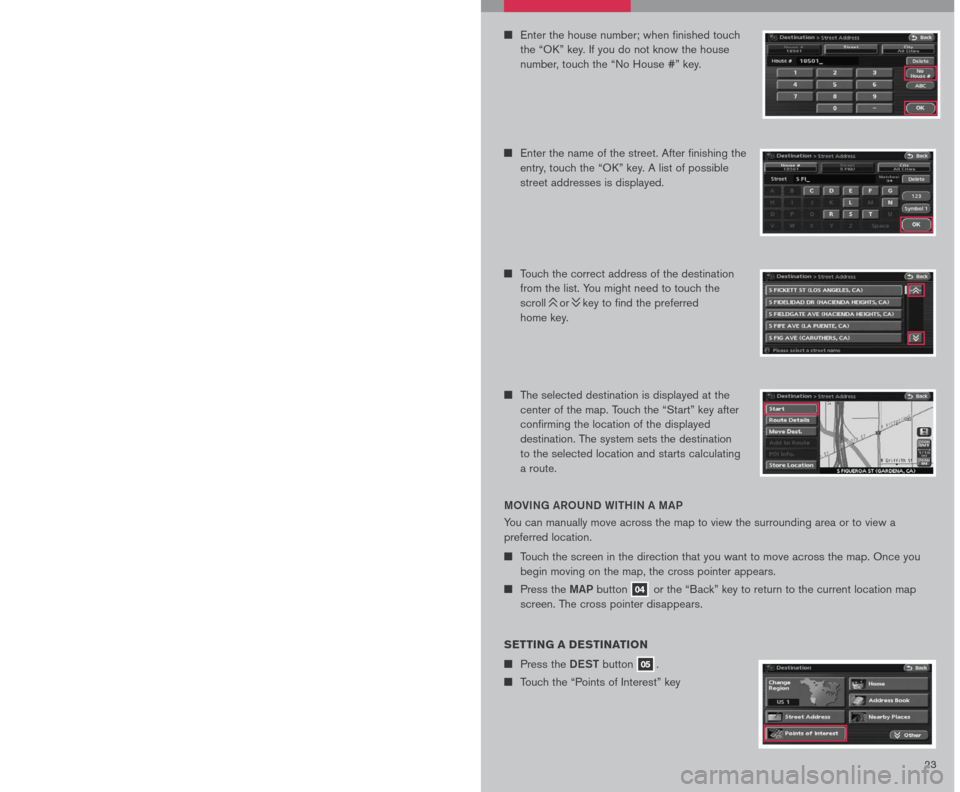
n Enter the house number; when finished touch
the “OK” key. If you do not know the house
number, touch the “No House #” key.
n Enter the name of the street. After finishing the
entry, touch the “OK” key. A list of possible
street addresses is displayed.
n Touch the correct address of the destination
from the list. You might need to touch the
scroll or key to find the preferred
home key.
n Touch the preferred home address key from
the list. You might need to touch the scroll
or key to find the preferred home
address key.
n Enter the address of your home, touch the
“OK” key. A list is displayed.
MoVING AR oUND WI tHIN A MAP
You can manually move across the map to view the surrounding area or to view a
preferred location.
n Touch the screen in the direction that you want to move across the map. Once you
begin moving on the map, the cross pointer appears.
n Press the MAP button 04 or the “Back” key to return to the current location map
screen. The cross pointer disappears.
SETTING A DESTINATION
n Press the DeSt button 05.
n Touch the “Points of Interest” key
n When you touch the “Home (Add New)” key, a
confirmation message is displayed. Touch the
“Yes” key.
n Touch the “Street Address” key. A character
input screen is displayed.
n The selected destination is displayed at the
center of the map. Touch the “Start” key after
confirming the location of the displayed
destination. The system sets the destination
to the selected location and starts calculating
a route.
Page 25 of 28
2223
n Your home is displayed at the center of the map. If the location is correct, touch the “OK” key. A confirmation message is displayed, and the system sets your home as the destination.
n Press the MAP button 04 to return to the current location map screen. The home icon is displayed on the screen.
Sett ING A S tR eet ADDR eSS AS A D eS tINA tIo N
n Press the DeSt button 05.
n Touch the “Street Address” key. A character
input screen is displayed.
n Enter the house number; when finished touch
the “OK” key. If you do not know the house
number, touch the “No House #” key.
n Enter the name of the street. After finishing the
entry, touch the “OK” key. A list of possible
street addresses is displayed.
n Touch the correct address of the destination
from the list. You might need to touch the
scroll or key to find the preferred
home key.
n Touch the preferred home address key from
the list. You might need to touch the scroll
or key to find the preferred home
address key.
n Enter the address of your home, touch the
“OK” key. A list is displayed.
MoVING AR oUND WI tHIN A MAP
You can manually move across the map to view the surrounding area or to view a
preferred location.
n Touch the screen in the direction that you want to move across the map. Once you
begin moving on the map, the cross pointer appears.
n Press the MAP button 04 or the “Back” key to return to the current location map
screen. The cross pointer disappears.
SETTING A DESTINATION
n Press the DeSt button 05.
n Touch the “Points of Interest” key
n When you touch the “Home (Add New)” key, a
confirmation message is displayed. Touch the
“Yes” key.
n Touch the “Street Address” key. A character
input screen is displayed.
n The selected destination is displayed at the
center of the map. Touch the “Start” key after
confirming the location of the displayed
destination. The system sets the destination
to the selected location and starts calculating
a route.
Page 26 of 28
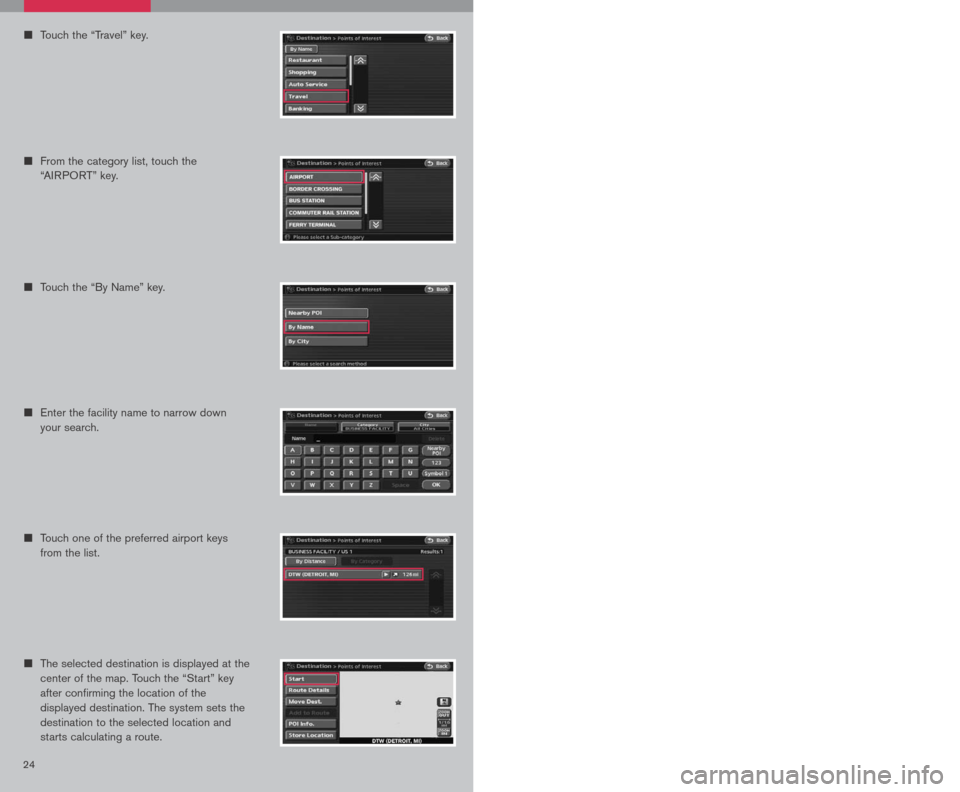
24
n Touch one of the preferred airport keys
from the list.
n The selected destination is displayed at the
center of the map. Touch the “Start” key
after confirming the location of the
displayed destination. The system sets the
destination to the selected location and
starts calculating a route.
BEGINNING ROUTE GUIDANCE
After setting a destination and performing route calculation, the suggested route
is displayed.
n
Touch the “Start” key. The system will
navigate you through the guide points
using visual and voice guidance.
n When approaching a guide point, the
system automatically changes to the split
screen and shows an enlarged view of the
intersection in the right screen.
n When arriving at the destination, the route
guidance automatically ends.
n
Enter the facility name to narrow down
your search.
n Touch the “By Name” key.
n Touch the “Travel” key.
25
n From the category list, touch the
“AIRPORT” key.
Page 27 of 28
24
n Touch one of the preferred airport keys
from the list.
n The selected destination is displayed at the
center of the map. Touch the “Start” key
after confirming the location of the
displayed destination. The system sets the
destination to the selected location and
starts calculating a route.
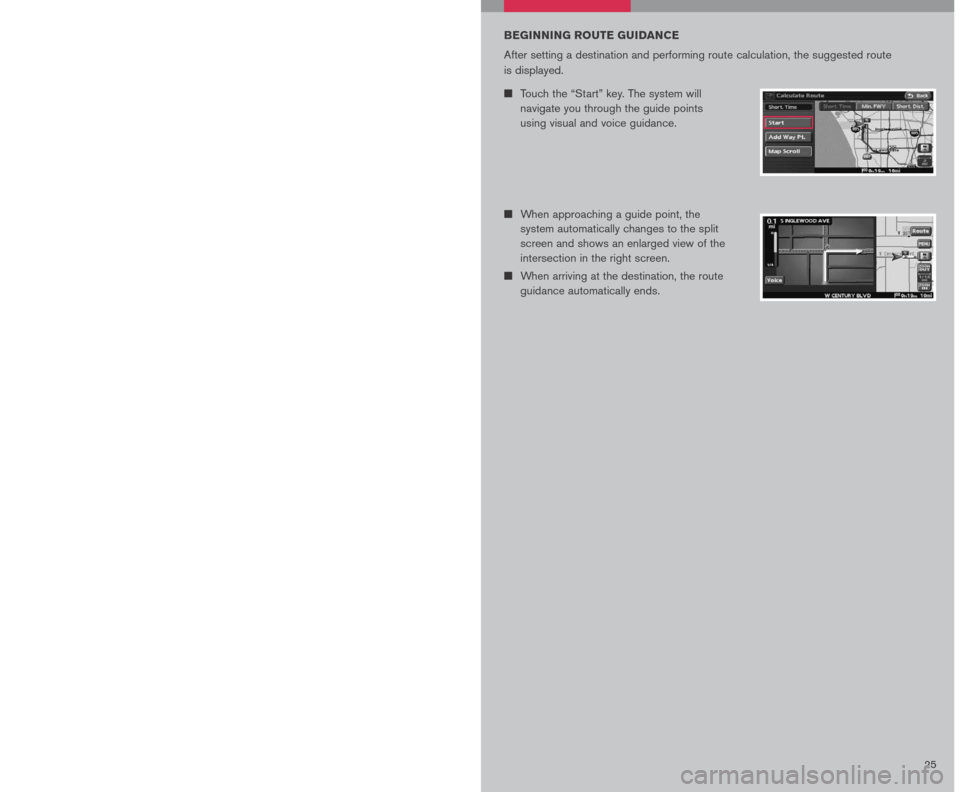
BEGINNING ROUTE GUIDANCE
After setting a destination and performing route calculation, the suggested route
is displayed.
n
Touch the “Start” key. The system will
navigate you through the guide points
using visual and voice guidance.
n When approaching a guide point, the
system automatically changes to the split
screen and shows an enlarged view of the
intersection in the right screen.
n When arriving at the destination, the route
guidance automatically ends.
n
Enter the facility name to narrow down
your search.
n Touch the “By Name” key.
n Touch the “Travel” key.
25
n From the category list, touch the
“AIRPORT” key.