display NISSAN ARMADA 2008 1.G Owners Manual
[x] Cancel search | Manufacturer: NISSAN, Model Year: 2008, Model line: ARMADA, Model: NISSAN ARMADA 2008 1.GPages: 456, PDF Size: 5.89 MB
Page 293 of 456

6. After the download is registered in the
phonebook, the system will ask if you want to
add a voice tag for it. The Voice Tag screen
will be displayed.
If you want to add a voice tag select the
“Yes” key and press the ENTER button. For
example, if the person’s name is David,
speak “David” while the Store voice tag
screen is on the display. The David voice tag
is stored in the phonebook. Voice tag is a
useful function for easy dialing supported by
the voice recognition system. For more infor-
mation, see “NISSAN Voice Recognition
System” later in this section.7. When the phonebook download is com-
pleted, the screen will return to the name list
of the phonebook.
There are different methods to input a phone
number. Select one of the following options in-
stead of the “Transfer via Bluetooth” key in step 4
above.
Enter Data by Keypad:
Input the name and phone number manually us-
ing the keypad displayed on the screen. For in-
formation on how to use the touch screen, see
“How to use the touch screen” earlier in this
section.Copy from Downloaded Phonebook:
Copy a phonebook from the BluetoothTcellular
phone. The availability of this function depends
on each cellular phone. The copying procedure
from the cellular phone also varies according to
each cellular phone. See the cellular phone own-
er’s manual for more details.
Copy from Outgoing Call Logs:
Store the name and phone number from the
outgoing call list.
Copy from Incoming Call Logs:
Store the name and phone number from the
incoming call list.
Transfer via Bluetooth:
Transfer a contact from the BluetoothTcellular
phone. Availability of this function depends on
each cellular phone. The transferring procedure
from the cellular phone also varies according to
each cellular phone. See the cellular phone own-
er’s manual for more details.
Delete:
Delete a contact that is registered in the phone-
book.
LHA0984LHA0985
Monitor, climate, audio, phone and voice recognition systems4-113
ZREVIEW COPYÐ2008 Armada(wzw)
Owners ManualÐUSA_English(nna)
03/05/07Ðarosenma
X
Page 294 of 456

MAKING A CALL
To make a call, follow the procedures below.
1. Press the PHONE button on the instrument
panel.
2. Touch the “Call (Phonebook)” key.
3. Touch one of the downloaded person’s key
from the list. Dialing will start.
4. After the call is over, perform one of the
following to finish the call.
a. Touch the “Hang Up” key.
b. Press and hold the phone
button on the
steering wheel switches.c. Press the PHONE button on the instrument
panel.
There are different methods to make a call. Select
one of the following options instead of the “Call
(Phonebook)” key in step 2 above.
Redial:
Dial the previously dialed number again.
Call (Call Logs):
Select the name or phone number from the in-
coming or outgoing call logs.
Call (Downloaded):
Select the name or phone number from the
downloaded call list.
Dial (Keypad):
Input the phone number manually using the key-
pad displayed on the screen. For information on
how to use the touch screen, see “How to use the
touch screen” earlier in this section.
RECEIVING A CALL
When you hear a phone ring, the display will
change to phone mode. To receive a call, follow
the one of the procedures listed below.
a. Touch the “Answer” key on the display.
b. Press the PHONE button on the instrument
panel.
c. Press the phone
button on the steering
wheel switches.
There are some options available when receiving
a call. Select one of the following displayed on
the screen.
LHA0986LHA0987
4-114Monitor, climate, audio, phone and voice recognition systems
ZREVIEW COPYÐ2008 Armada(wzw)
Owners ManualÐUSA_English(nna)
03/05/07Ðarosenma
X
Page 295 of 456

Answer:
Accept an incoming call to talk.
On Hold:
Put an incoming call on hold.
Reject Call:
Reject an incoming call.
To finish the call, follow one of the procedures
listed below.
a. Touch the “Reject Call” key on the display.
b. Press the PHONE button on the instrument
panel.
c. Press and hold the phone
button on the
steering wheel switches.
DURING A CALL
There are some options available during a call.
Select one of the following displayed on the
screen if necessary.
Hang up:
Finish the call.
Use Handset:
Transfer the call to the cellular phone.
Mute:
Mute your voice to the person.Keypad:
Brings up a keypad; enter digits when needed.
For example, entering your PIN number for voice-
mail.
Cancel Mute:
This will appear after the “Mute” key is touched.
Mute will be cancelled.
To adjust the person’s voice to be louder or
quieter, press the volume control switch located
on the steering wheel switches or turn the volume
control knob on the instrument panel while talking
on the phone. This adjustment is also available in
the SETTING mode.
LHA0988
Monitor, climate, audio, phone and voice recognition systems4-115
ZREVIEW COPYÐ2008 Armada(wzw)
Owners ManualÐUSA_English(nna)
03/05/07Ðarosenma
X
Page 296 of 456

PHONE SETTING
To set up the hands-free phone system to your
preferred settings, press the SETTING button,
then touch the “Phone” key on the display.
Phonebook:
See “Phonebook” earlier in this section for add-
ing, editing and deleting a contact.Downloaded Phonebook:
See the following information for each item.
cDownload All:
Transfer phonebook entries from your cellu-
lar phone to the vehicle’s phonebook. For
more information, see “Phonebook down-
load” earlier in this section.
cDelete Downloaded Phonebook:
Delete all of the downloaded phonebook
entries.cDelete an Entry of Downloaded Phone-
book:
Delete a single entry from the downloaded
phonebook. Touch the corresponding letter
key, then touch on the name key you wish to
delete. Touch the “Yes” key to delete the
entry.
Automatic Hold:
If this item is turned on, an incoming call will be
placed on hold automatically after several rings.
Use Vehicle Ringtone:
If this item is turned on, a specific ringtone that is
different from the cellular phone’s will sound
when receiving a call.
Delete Call Logs:
Delete all the outgoing or incoming call logs from
the list.
Bluetooth Setup:
See the following information for each item.
LHA0978LHA0979
4-116Monitor, climate, audio, phone and voice recognition systems
ZREVIEW COPYÐ2008 Armada(wzw)
Owners ManualÐUSA_English(nna)
03/05/07Ðarosenma
X
Page 297 of 456

cBluetooth:
If this item is turned off, the connection be-
tween the cellular phone and the in-vehicle
phone module will be canceled.
cBluetooth Info:
Check information about the device name,
vehicle name, device address device PIN
and connection status.
cPair Phone:
See “Pairing Procedure” in this section.
cPriority Change
If multiple phones are registered to the sys-
tem, you can change the priority of the
phones on the shown list.cRemove Paired Phone:
Delete a registered cellular phone from the
paired list.
cPaired Phone List:
Up to 5 registered cellular phones are
shown on the list.
cEdit Phone Name:
If you would like to change the way your
phone’s name is displayed, select this key; a
character input screen will be displayed.The NISSAN Voice Recognition system allows
hands-free operation of the systems equipped on
this vehicle, such as the display, audio, climate
control, DVD, phone and navigation systems.
To operate NISSAN Voice Recognition, press
the
button located on the steering wheel.
Then speak the command for the system you
wish to activate. The command given is picked up
by the microphone, and it is performed when it is
properly recognized. At this time NISSAN Voice
Recognition will provide a voice and message (in
the center display) to inform you of the command
results.
COMMAND LIST
Displaying command list
If you are controlling the system by voice com-
mands for the first time or do not know the
appropriate voice command, perform the follow-
ing procedure for displaying the voice command
list and help list.
LHA0980LHA0989
NISSAN VOICE RECOGNITION
SYSTEM (if so equipped)
Monitor, climate, audio, phone and voice recognition systems4-117
ZREVIEW COPYÐ2008 Armada(wzw)
Owners ManualÐUSA_English(nna)
03/05/07Ðarosenma
X
Page 301 of 456

cRadio
– Radio
COMMANDACTION
Radio Play Turns the radio on, selecting the station and band last played.
Radio AM Turns to the AM band, selecting the station last played.
Radio FM Turns to the FM band, selecting the station last played.
Tune <87.7 - 107.9> Tunes to the specified FM frequency.
Tune <530 - 1710> Tunes to the specified AM frequency.
Preset <1 - 6> Switches directly to the specified preset station in the specified preset bank.
Preset Switches directly to the specified preset station in the specified preset bank.
Preset <1 - 6> Switches directly to the specified preset bank.
Radio OFF Turns the radio off.
Radio Menu Displays the radio menu.
– Satellite (if so equipped)
COMMANDACTION
Satellite Radio Turns the SAT radio on, selecting the station and band last played.
Satellite Radio Channel <1 - 255> Tunes to the specified SAT frequency.
Preset <1 - 6> Switches directly to the specified preset station in the specified preset bank.
Preset Switches directly to the specified preset station in the specified preset bank.
Preset <1 - 6> Switches directly to the specified preset bank.
Radio OFF Turns the radio off.
Radio Menu Displays the radio menu.
Monitor, climate, audio, phone and voice recognition systems4-121
ZREVIEW COPYÐ2008 Armada(wzw)
Owners ManualÐUSA_English(nna)
03/05/07Ðarosenma
X
Page 303 of 456
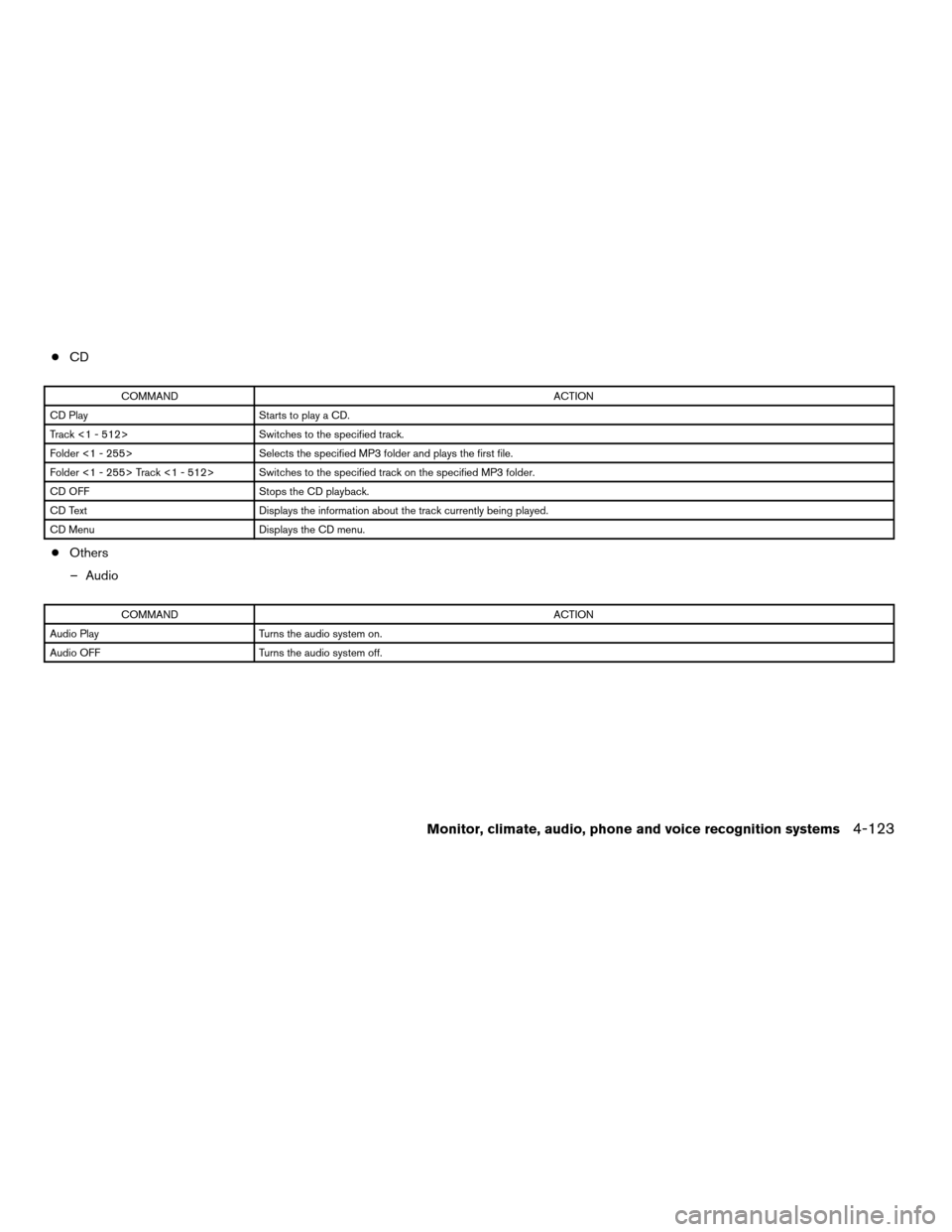
cCD
COMMANDACTION
CD Play Starts to play a CD.
Track <1 - 512> Switches to the specified track.
Folder <1 - 255> Selects the specified MP3 folder and plays the first file.
Folder <1 - 255> Track <1 - 512> Switches to the specified track on the specified MP3 folder.
CD OFF Stops the CD playback.
CD Text Displays the information about the track currently being played.
CD Menu Displays the CD menu.
cOthers
– Audio
COMMANDACTION
Audio Play Turns the audio system on.
Audio OFF Turns the audio system off.
Monitor, climate, audio, phone and voice recognition systems4-123
ZREVIEW COPYÐ2008 Armada(wzw)
Owners ManualÐUSA_English(nna)
03/05/07Ðarosenma
X
Page 304 of 456
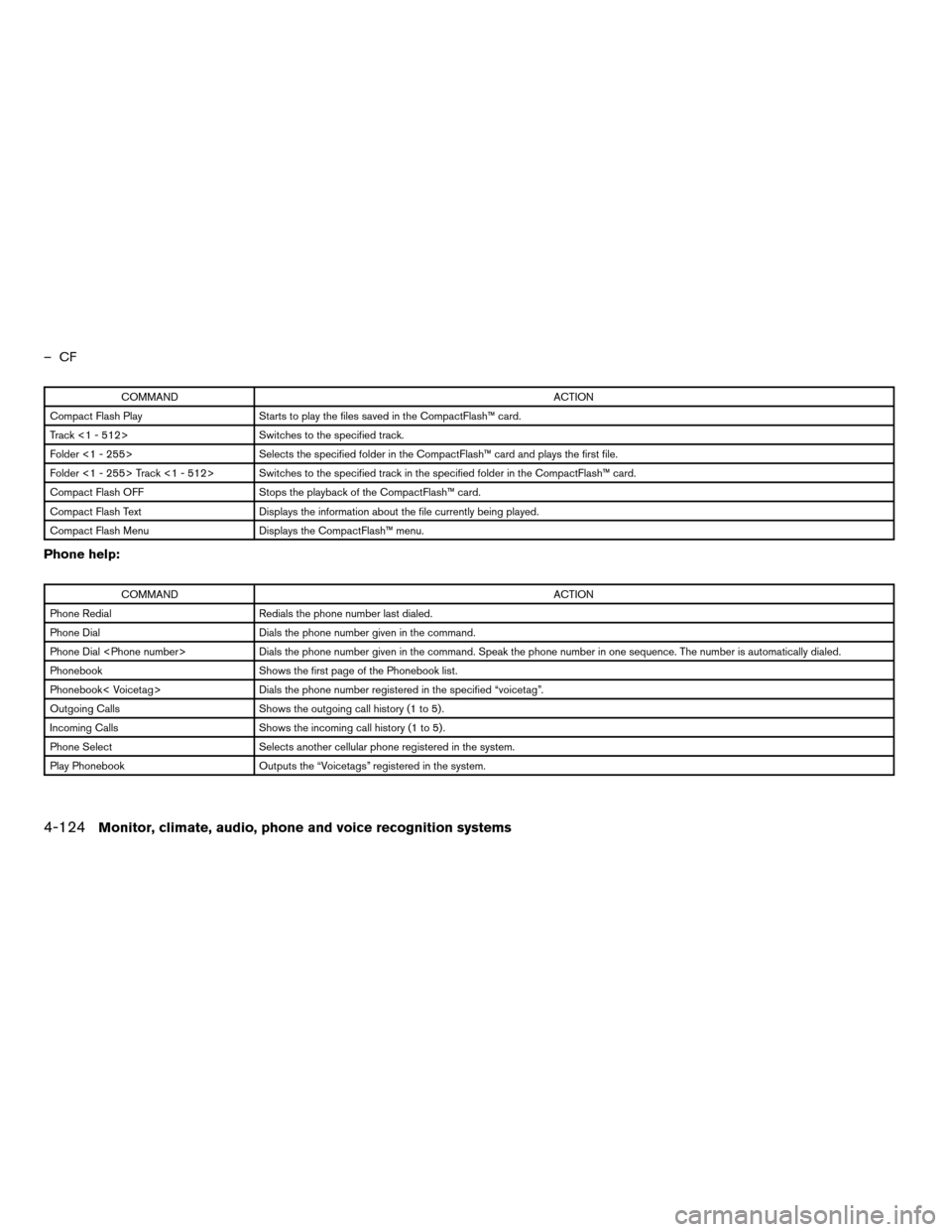
–CF
COMMANDACTION
Compact Flash Play Starts to play the files saved in the CompactFlash™ card.
Track <1 - 512> Switches to the specified track.
Folder <1 - 255> Selects the specified folder in the CompactFlash™ card and plays the first file.
Folder <1 - 255> Track <1 - 512> Switches to the specified track in the specified folder in the CompactFlash™ card.
Compact Flash OFF Stops the playback of the CompactFlash™ card.
Compact Flash Text Displays the information about the file currently being played.
Compact Flash Menu Displays the CompactFlash™ menu.
Phone help:
COMMANDACTION
Phone Redial Redials the phone number last dialed.
Phone Dial Dials the phone number given in the command.
Phone Dial
Phonebook Shows the first page of the Phonebook list.
Phonebook< Voicetag> Dials the phone number registered in the specified “voicetag”.
Outgoing Calls Shows the outgoing call history (1 to 5) .
Incoming Calls Shows the incoming call history (1 to 5) .
Phone Select Selects another cellular phone registered in the system.
Play Phonebook Outputs the “Voicetags” registered in the system.
4-124Monitor, climate, audio, phone and voice recognition systems
ZREVIEW COPYÐ2008 Armada(wzw)
Owners ManualÐUSA_English(nna)
03/05/07Ðarosenma
X
Page 305 of 456
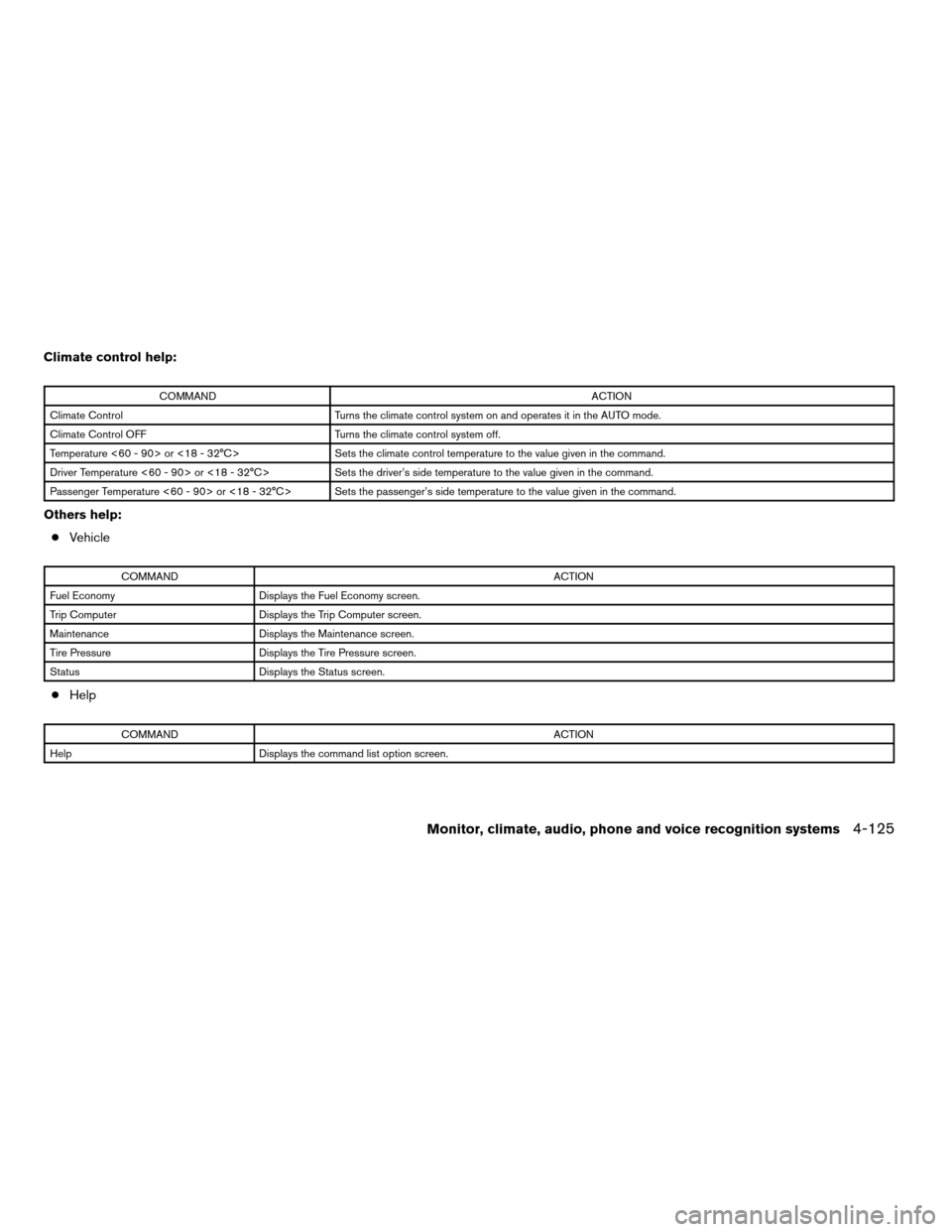
Climate control help:
COMMANDACTION
Climate Control Turns the climate control system on and operates it in the AUTO mode.
Climate Control OFF Turns the climate control system off.
Temperature <60 - 90> or <18 - 32°C> Sets the climate control temperature to the value given in the command.
Driver Temperature <60 - 90> or <18 - 32°C> Sets the driver’s side temperature to the value given in the command.
Passenger Temperature <60 - 90> or <18 - 32°C> Sets the passenger’s side temperature to the value given in the command.
Others help:
cVehicle
COMMANDACTION
Fuel Economy Displays the Fuel Economy screen.
Trip Computer Displays the Trip Computer screen.
Maintenance Displays the Maintenance screen.
Tire Pressure Displays the Tire Pressure screen.
Status Displays the Status screen.
cHelp
COMMANDACTION
Help Displays the command list option screen.
Monitor, climate, audio, phone and voice recognition systems4-125
ZREVIEW COPYÐ2008 Armada(wzw)
Owners ManualÐUSA_English(nna)
03/05/07Ðarosenma
X
Page 306 of 456

Displaying the user guide
You can confirm how to use voice commands by
displaying a simplified User Guide or by display-
ing simulated voice command operations.
1. Press the INFO button on the instrument
panel.
2. Touch the “Others” key, then touch the
“Voice Recognition” key.
3. Touch the “User Guide” key.Available items:
cGetting Started
Displays the simplified User Guide describ-
ing how to operate the voice recognition
system.
cPlacing Calls
Simulates voice commands to make a phone
call by voice command operation.
cHelp on Speaking
Displays useful tips for how to correctly
speak commands in order for them to be
properly recognized by the system.cVoice Recognition Settings
Displays the description of voice recognition
settings.
cAdapting the System to Your Voice
Simulates an example of the operation to
adapt the system to your voice.
For the items “Using the Address Book” and
“Finding a Street Address”, refer to the separate
Navigation System Owner’s Manual for details.
For information on how to use the touch screen,
see “How to use the touch screen” earlier in this
section.
USING THE SYSTEM
Initialization
When the ignition switch is in the ON position,
NISSAN Voice Recognition is initialized, which
takes a few seconds. When completed, the sys-
tem is ready to accept voice commands. If
the
button is pressed before the initializa-
tion completes, the display will show the mes-
sage: “Phonetic data downloaded. Please wait.”
LHA0993LHA0994
4-126Monitor, climate, audio, phone and voice recognition systems
ZREVIEW COPYÐ2008 Armada(wzw)
Owners ManualÐUSA_English(nna)
03/05/07Ðarosenma
X