reset NISSAN ARMADA 2008 1.G Owner's Manual
[x] Cancel search | Manufacturer: NISSAN, Model Year: 2008, Model line: ARMADA, Model: NISSAN ARMADA 2008 1.GPages: 456, PDF Size: 5.89 MB
Page 232 of 456

The FM stereo indicator ST will illuminate during
FM stereo reception. When the stereo broadcast
signal is weak, the radio will automatically change
from stereo to monaural reception.
TUNE/FLDR (Tuning) knob:
To manually tune the radio, turn the TUNE/FLDR
knob to the right or left.
SEEK/CAT and TRACK
tuning buttons:
Press the SEEK/CAT
button or the
TRACKbutton for less than 1.5 seconds
to tune from high to low or low to high frequen-
cies and stop at the next broadcasting station.
SCAN tuning:
Press the SCAN button to stop at each broad-
casting station for 5 seconds. Pressing the
SCAN button again during this 5 second period
will stop scan tuning and the radio will remain
tuned to that station. If the SCAN button is not
pressed within 5 seconds, scan tuning moves to
the next station.
PRESET A·B·C (Station memory opera-
tions):
18 stations can be set for the FM, AM and SAT
(satellite, if so equipped) radio to the A, B and C
preset button in any combination of FM, AM or
SAT stations.1. Choose preset bank A, B or C using the
PRESET A·B·C select button.
2. Select the desired FM, AM or SAT station
band.
3. Tune to the desired station using manual,
SEEK or SCAN tuning. Press and hold any
of the desired station memory buttons (1 –
6) until a beep sound is heard.
4. The channel indicator will then come on and
the sound will resume. Programming is now
complete.
5. Other buttons can be set in the same man-
ner.
If the battery cable is disconnected, or if the fuse
opens, the radio memory will be canceled. In that
case, reset the desired stations.
Radio data system (RDS):
RDS stands for Radio Data System, and is a data
information service transmitted by some radio
stations on the FM band (not AM band) . Cur-
rently, most RDS stations are in large cities, but
many stations are now considering broadcasting
RDS data.
RDS can display:
cStation call sign, such as “WHFR 98.3”.
cStation name, such as “The Groove”.cMusic or programming type such as “Clas-
sical”, “Country”, or “Rock”.
cArtist and song information.
If the station broadcasts RDS information, the
RDS icon is displayed.
Compact disc (CD) changer operation
Turn the ignition key to the ACC or ON position
and press thebutton, then press one of
the CD insert (1–6) slots. Insert the compact disc
into the slot with the label side facing up. The
compact disc will be guided automatically into
the slot and start playing.
If the radio is already operating, it will automati-
cally turn off and the compact disc will play.
If the system has been turned off while the com-
pact disc was playing, pressing the
VOL/ON·OFF control knob will start the compact
disc.
button:
To insert a CD in the CD changer, press
the
button for less than 1.5 seconds. Se-
lect the loading slot by pressing the CD insert
select button (1 – 6) , then insert the CD.
To insert 6 CDs to the CD changer, press and
hold the
button for more than 1.5 seconds.
4-52Monitor, climate, audio, phone and voice recognition systems
ZREVIEW COPYÐ2008 Armada(wzw)
Owners ManualÐUSA_English(nna)
03/05/07Ðarosenma
X
Page 236 of 456

1. PRESET A·B·C button
2. DISC/AUX button
3.
speaker control button
4. REAR CTRL button
5. SCAN·RPT button
6. TRACK button7. SEEK/CAT button
8. TUNE/FLDR and AUDIO control knob
9. CompactFlash insert slot
10. Station select (1 - 6) buttons
11.
CD eject button
12. VOL/ON·OFF control knob13. AM·FM/SAT button*
14. MUSIC BOX button
WHA0945
4-56Monitor, climate, audio, phone and voice recognition systems
ZREVIEW COPYÐ2008 Armada(wzw)
Owners ManualÐUSA_English(nna)
03/05/07Ðarosenma
X
Page 240 of 456

TUNE/FLDR (Tuning) knob:
To manually tune the radio, turn the TUNE/FLDR
knob to the right or left.
SEEK/CAT and TRACK
tuning buttons:
Press the SEEK/CAT
button or the
TRACKbutton for less than 1.5 seconds
to tune from high to low or low to high frequen-
cies and stop at the next broadcasting station.
SCAN·RPT (SCAN tuning) button:
Press the SCAN·RPT button to initiate scan tun-
ing. Scan tuning will stop at each broadcasting
station for 5 seconds. Press the SCAN·RPT but-
ton again during this 5 second period to stop
scan tuning; the radio will remain tuned to that
station. If the SCAN·RPT button is not pressed
within 5 seconds, scan tuning moves to the next
station.
PRESET A·B·C (Station memory opera-
tions):
18 stations can be set for the FM, AM and SAT
(satellite, if so equipped) radio to the A, B and C
preset button in any combination of FM, AM or
SAT stations.
1. Choose preset bank A, B or C using the
PRESET A·B·C select button.2. Select the desired FM, AM or SAT station
band.
3. Tune to the desired station using manual,
SEEK or SCAN tuning. Press and hold any
of the desired station memory buttons (1 –
6) until a beep sound is heard.
4. The channel indicator will then come on and
the sound will resume. Programming is now
complete.
5. Other buttons can be set in the same man-
ner.
If the battery cable is disconnected, or if the fuse
opens, the radio memory will be canceled. In that
case, reset the desired stations.
Radio data system (RDS):
RDS stands for Radio Data System, and is a data
information service transmitted by some radio
stations on the FM band (not AM band) . Cur-
rently, most RDS stations are in large cities, but
many stations are now considering broadcasting
RDS data.
RDS can display:
cStation call sign, such as “WHFR 98.3”.
cStation name, such as “The Groove”.
cMusic or programming type such as “Clas-
sical”, “Country”, or “Rock”.cArtist and song information.
If the station broadcasts RDS information, the
RDS icon is displayed.
Compact disc (CD) player operation
Turn the ignition key to the ACC or ON position
and insert the compact disc into the slot with the
label side facing up. The compact disc will be
guided automatically into the slot and start play-
ing.
If the radio is already operating, it will automati-
cally turn off and the compact disc will play.
If the system has been turned off while the com-
pact disc was playing, pressing the
VOL/ON·OFF control knob will start the compact
disc.
DISC/AUX button:
When the DISC/AUX button is pressed with the
system off and the compact disc loaded, the
system will turn on and the compact disc will start
to play.
When the DISC/AUX button is pressed with the
compact disc loaded but the radio playing, the
radio will automatically be turned off and the
compact disc will start to play.
4-60Monitor, climate, audio, phone and voice recognition systems
ZREVIEW COPYÐ2008 Armada(wzw)
Owners ManualÐUSA_English(nna)
03/05/07Ðarosenma
X
Page 250 of 456

cEdit Info.
Edit the name of the track being played and
its artist using the keypad displayed on the
screen.
For information, see “How to use the touch
screen” earlier in this section.
The category of the track can also be set to
Rock, Pop, Latin, Jazz, R&B, Hip Hop,
Club/Dance, Punk, Reggae, Folk, Blues,
Country, Metal, Easy Listening, New Age,
Soundtrack, Gospel & Religious, World,
Classical, Children’s and Others.
cRemove Track
Reset the mood setting of a track.
Restoring deleted data
Deleted music data can be restored by perform-
ing the following:
1. Touch the “Menu” key and then the touch the
“Music Box System Info.” key on the screen.
2. Touch the “Deleted Items” key and then the
“Album/Track” key.
3. Touch the “Restore Album/Track” key to re-
store the deleted music data.You can also listen to the beginning of each track
that has been deleted by performing the follow-
ing:
1. Touch the “Menu” key and then the “Music
Box System Info.” key on the screen.
2. Touch the “Deleted Items” key and then the
“Play Sample” key.
LHA0962LHA0964
4-70Monitor, climate, audio, phone and voice recognition systems
ZREVIEW COPYÐ2008 Armada(wzw)
Owners ManualÐUSA_English(nna)
03/05/07Ðarosenma
X
Page 255 of 456

1. Volume control switch
2. Phone operation switch
3. POWER on and MODE select switch
4. Tuning switch
STEERING WHEEL SWITCH FOR
AUDIO CONTROL
The audio system can be operated using the
controls on the steering wheel.
POWER on/off switch
With the ignition key turned to the ACC or ON
position, push the POWER switch to turn the
audio system on or off.If you have the Type B switch, with the ignition key
turned to the ACC or ON position push the
MODE switch to turn the audio system on.
MODE select switch
Push the mode select switch to change the mode
in the following sequence: PRESET A!PRE-
SET B!PRESET C!Music Box** (if so
equipped)!CD*!CompactFlash™* (if so
equipped)!DVD* (if so equipped)!AUX***.
*These modes are only available when compat-
ible media storage is inserted into the device.
**This mode is only available when music has
been downloaded into the Music Box hard-disk
drive audio system.
***This mode is only available when a compatible
auxiliary device is plugged into the AUX jack.
Volume control switch
Push the volume control switch up or down to
increase or decrease the volume.
Tuning
Memory change (radio):
While in one of the preset radio station banks (A,
B or C) , push the tuning switch
orfor less than 1.5 seconds to change to the next
preset station in memory.Seek tuning (radio):
Push the tuning switch
orfor more
than 1.5 seconds to seek the next or previous
radio station.
Next/Previous track (CD/CF):
Push the tuning switch
orfor less
than 1.5 seconds to return to the beginning of the
present track or skip to the next track. Push
several times to skip back or skip through tracks.
This system searches for the blank intervals be-
tween selections. If there is a blank interval within
1 program or there is no interval between pro-
grams, the system may not stop in the desired or
expected location.
Next/Previous track (Music Box):
Push the tuning switch
orfor less
than 1.5 seconds to return to the beginning of the
present track or skip to the next track. Push
several times to skip back or skip through tracks.
Push and hold the tuning switch
orfor more than 1.5 seconds to change playlists.
When the last playlist is playing, the next playlist
will be selected.
Type B
WHA0612
Monitor, climate, audio, phone and voice recognition systems4-75
ZREVIEW COPYÐ2008 Armada(wzw)
Owners ManualÐUSA_English(nna)
03/05/07Ðarosenma
X
Page 257 of 456
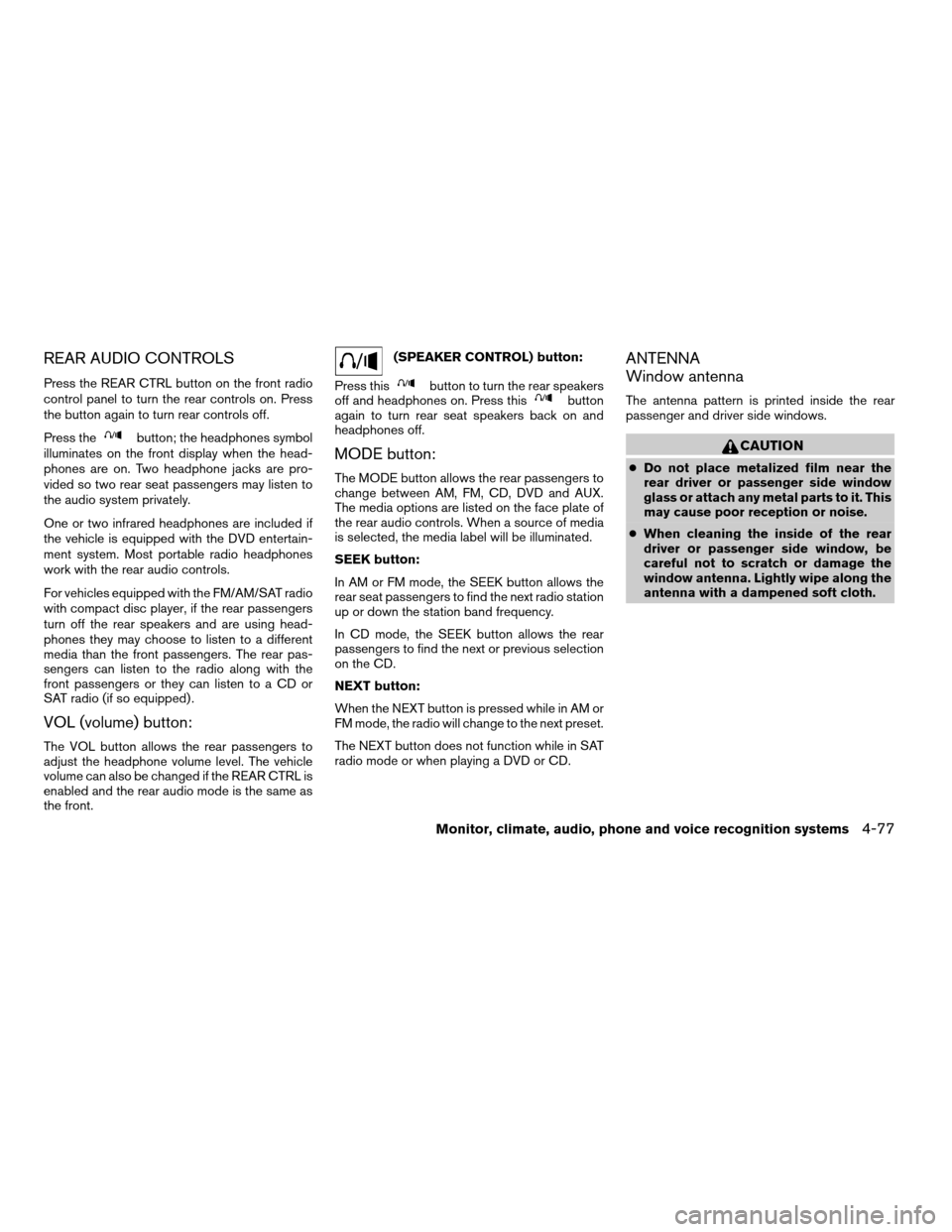
REAR AUDIO CONTROLS
Press the REAR CTRL button on the front radio
control panel to turn the rear controls on. Press
the button again to turn rear controls off.
Press the
button; the headphones symbol
illuminates on the front display when the head-
phones are on. Two headphone jacks are pro-
vided so two rear seat passengers may listen to
the audio system privately.
One or two infrared headphones are included if
the vehicle is equipped with the DVD entertain-
ment system. Most portable radio headphones
work with the rear audio controls.
For vehicles equipped with the FM/AM/SAT radio
with compact disc player, if the rear passengers
turn off the rear speakers and are using head-
phones they may choose to listen to a different
media than the front passengers. The rear pas-
sengers can listen to the radio along with the
front passengers or they can listen to a CD or
SAT radio (if so equipped) .
VOL (volume) button:
The VOL button allows the rear passengers to
adjust the headphone volume level. The vehicle
volume can also be changed if the REAR CTRL is
enabled and the rear audio mode is the same as
the front.
(SPEAKER CONTROL) button:
Press this
button to turn the rear speakers
off and headphones on. Press thisbutton
again to turn rear seat speakers back on and
headphones off.
MODE button:
The MODE button allows the rear passengers to
change between AM, FM, CD, DVD and AUX.
The media options are listed on the face plate of
the rear audio controls. When a source of media
is selected, the media label will be illuminated.
SEEK button:
In AM or FM mode, the SEEK button allows the
rear seat passengers to find the next radio station
up or down the station band frequency.
In CD mode, the SEEK button allows the rear
passengers to find the next or previous selection
on the CD.
NEXT button:
When the NEXT button is pressed while in AM or
FM mode, the radio will change to the next preset.
The NEXT button does not function while in SAT
radio mode or when playing a DVD or CD.
ANTENNA
Window antenna
The antenna pattern is printed inside the rear
passenger and driver side windows.
CAUTION
cDo not place metalized film near the
rear driver or passenger side window
glass or attach any metal parts to it. This
may cause poor reception or noise.
cWhen cleaning the inside of the rear
driver or passenger side window, be
careful not to scratch or damage the
window antenna. Lightly wipe along the
antenna with a dampened soft cloth.
Monitor, climate, audio, phone and voice recognition systems4-77
ZREVIEW COPYÐ2008 Armada(wzw)
Owners ManualÐUSA_English(nna)
03/05/07Ðarosenma
X
Page 272 of 456

cDVDs with a region code other than
“1”. The region code
sAis displayed in
a small symbol printed on the top of
the DVD
sB
cDVDs that are not round
cDVDs with a paper label
cDVDs that are warped, scratched, or
have unequal edges
cRecordable digital video discs
(DVD+R)
cRewritable digital video discs
(DVD+RW)
If a DVD with a paper label is used and
becomes jammed you may be able to reset
the unit and eject the jammed disc with the
following procedure:
1.Record the radio presets.
2.Disconnect the negative terminal from
the battery for five minutes.
3.Reconnect the negative battery termi-
nal.
4.Check to see if the jammed DVD has
been ejected. If it has not, try to eject
the DVD by pushing the eject button.5.If the disc cannot be ejected see your
NISSAN dealer for further assistance.
6.Re-program the radio presets.
Remote control and headphones
battery replacement
Replace the battery as follows:
1. Open the lid.
2. Replace batteries with new ones.
cSize AA (remote control)
cSize AAA (headphones)
Make sure that the
andends on
the batteries match the markings inside the
compartment.
3. Close the lid securely.
LHA0318
4-92Monitor, climate, audio, phone and voice recognition systems
ZREVIEW COPYÐ2008 Armada(wzw)
Owners ManualÐUSA_English(nna)
03/05/07Ðarosenma
X
Page 281 of 456

When prompted by the system, say the name of
the phone book entry you wish to call. The system
acknowledges the name.
If there are multiple locations associated with the
name, the system asks you to choose the loca-
tion.
Once you have confirmed the name and location,
the system begins the call.
Number (speak digits)
sB
When prompted by the system, say the number
you wish to call. Refer to “How to say numbers”
and “Making a call by entering a phone number”
earlier in this section for more details.
“Redial”
sC
Use the Redial command to call the last number
that was dialed within the vehicle.
NOTE:
The system will not redial the last number
dialed by the handset keypad.
The system acknowledges the command, re-
peats the number and begins dialing.
If a redial number does not exist, the system
announces, “There is no number to redial” and
ends the VR session.“Call back”
sD
Use the Call Back command to dial the number of
the last incoming call within the vehicle.
The system acknowledges the command, re-
peats the number and begins dialing.
If a call back number does not exist, the system
announces, “There is no number to call back” and
ends the VR session.
During a call
During a call there are several command options
available. Press the
button on the steering
wheel to mute the receiving voice and enter com-
mands.
c“Help” — The system announces the avail-
able commands.
c“Go back/Correction” — The system an-
nounces “Go back,” ends the VR session
and returns to the call.
c“Cancel/Quit” — The system announces
“Cancel,” ends the VR session and returns
to the call.
c“Send/Enter/Call/Dial” — Use the Send
command to enter numbers during a call. For
example, if you were directed to dial an ex-
tension by an automated system:
Say: “Send one two three four.”The system acknowledges the command
and sends the tones associated with the
numbers. The system then ends the VR ses-
sion and returns to the call.
c“Transfer call” — Use the Transfer Call com-
mand to transfer the call from the BluetoothT
Hands-Free Phone System to the cellular
phone when privacy is desired.
The system announces, “Transfer call. Call
transferred to privacy mode.” The system
then ends the VR session.
You can also issue the Transfer Call com-
mand again to return to a hands-free call
through the vehicle.
c“Mute” — Use the Mute command to mute
your voice so the other party cannot hear it.
Use the mute command again to unmute
your voice.
NOTE:
If a call is ended or the cellular phone
network connection is lost while the Mute
feature is on, the Mute feature will be reset
to “off” for the next call so the other party
can hear your voice.
Monitor, climate, audio, phone and voice recognition systems4-101
ZREVIEW COPYÐ2008 Armada(wzw)
Owners ManualÐUSA_English(nna)
03/05/07Ðarosenma
X
Page 301 of 456
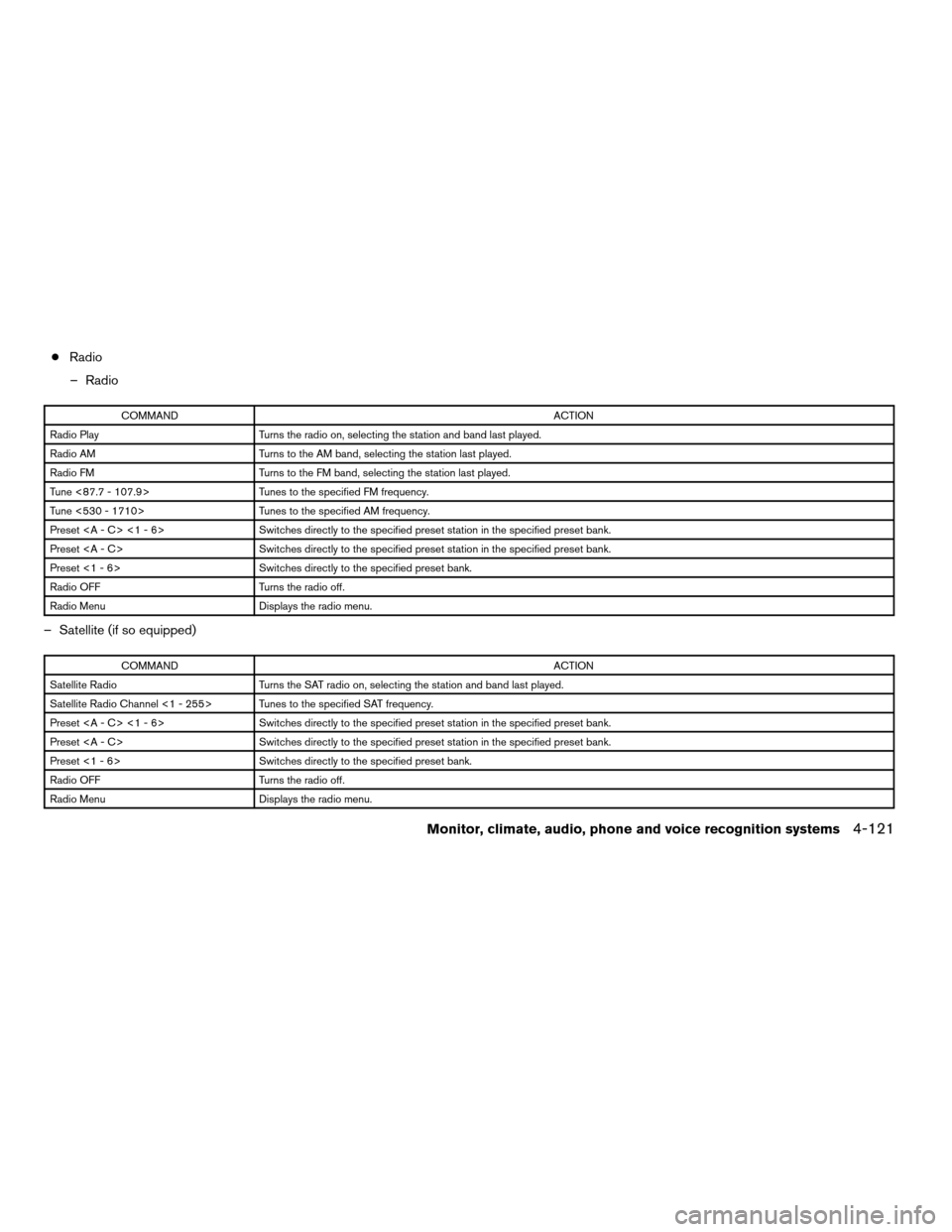
cRadio
– Radio
COMMANDACTION
Radio Play Turns the radio on, selecting the station and band last played.
Radio AM Turns to the AM band, selecting the station last played.
Radio FM Turns to the FM band, selecting the station last played.
Tune <87.7 - 107.9> Tunes to the specified FM frequency.
Tune <530 - 1710> Tunes to the specified AM frequency.
Preset <1 - 6> Switches directly to the specified preset station in the specified preset bank.
Preset Switches directly to the specified preset station in the specified preset bank.
Preset <1 - 6> Switches directly to the specified preset bank.
Radio OFF Turns the radio off.
Radio Menu Displays the radio menu.
– Satellite (if so equipped)
COMMANDACTION
Satellite Radio Turns the SAT radio on, selecting the station and band last played.
Satellite Radio Channel <1 - 255> Tunes to the specified SAT frequency.
Preset <1 - 6> Switches directly to the specified preset station in the specified preset bank.
Preset Switches directly to the specified preset station in the specified preset bank.
Preset <1 - 6> Switches directly to the specified preset bank.
Radio OFF Turns the radio off.
Radio Menu Displays the radio menu.
Monitor, climate, audio, phone and voice recognition systems4-121
ZREVIEW COPYÐ2008 Armada(wzw)
Owners ManualÐUSA_English(nna)
03/05/07Ðarosenma
X
Page 312 of 456

Learning function settings
While inside the Voice Command Learning
screen, touch the “Setting” key to enable the
following items:
cEdit Name:
Edit the user name using the keypad dis-
played on the screen.
cStore Result:
When this item is turned to ON, the voice
recognition system can easily recognize the
user’s voice that it has learned.cReset Result:
Resets the user’s voice that the voice recog-
nition system has learned.
cContinuous Learning:
When this item is turned to ON, you can
have the system learn the voice commands
in succession, without selecting commands
one by one.
VOICE RECOGNITION SETTINGS
Press the SETTING button, then touch the “Oth-
ers” key, then touch the “Voice Recognition” key;
the voice recognition settings screen will appear.
Command List:
For information, see “List of help commands”
earlier in this section.
Minimize Voice Feedback:
When this item is enabled (indicator is illumi-
nated) , vocal feedback during voice recognition
is reduced when the system is activated.
LHA1001LHA0884
4-132Monitor, climate, audio, phone and voice recognition systems
ZREVIEW COPYÐ2008 Armada(wzw)
Owners ManualÐUSA_English(nna)
03/05/07Ðarosenma
X