stop start NISSAN ARMADA 2015 1.G User Guide
[x] Cancel search | Manufacturer: NISSAN, Model Year: 2015, Model line: ARMADA, Model: NISSAN ARMADA 2015 1.GPages: 510, PDF Size: 4.18 MB
Page 173 of 510
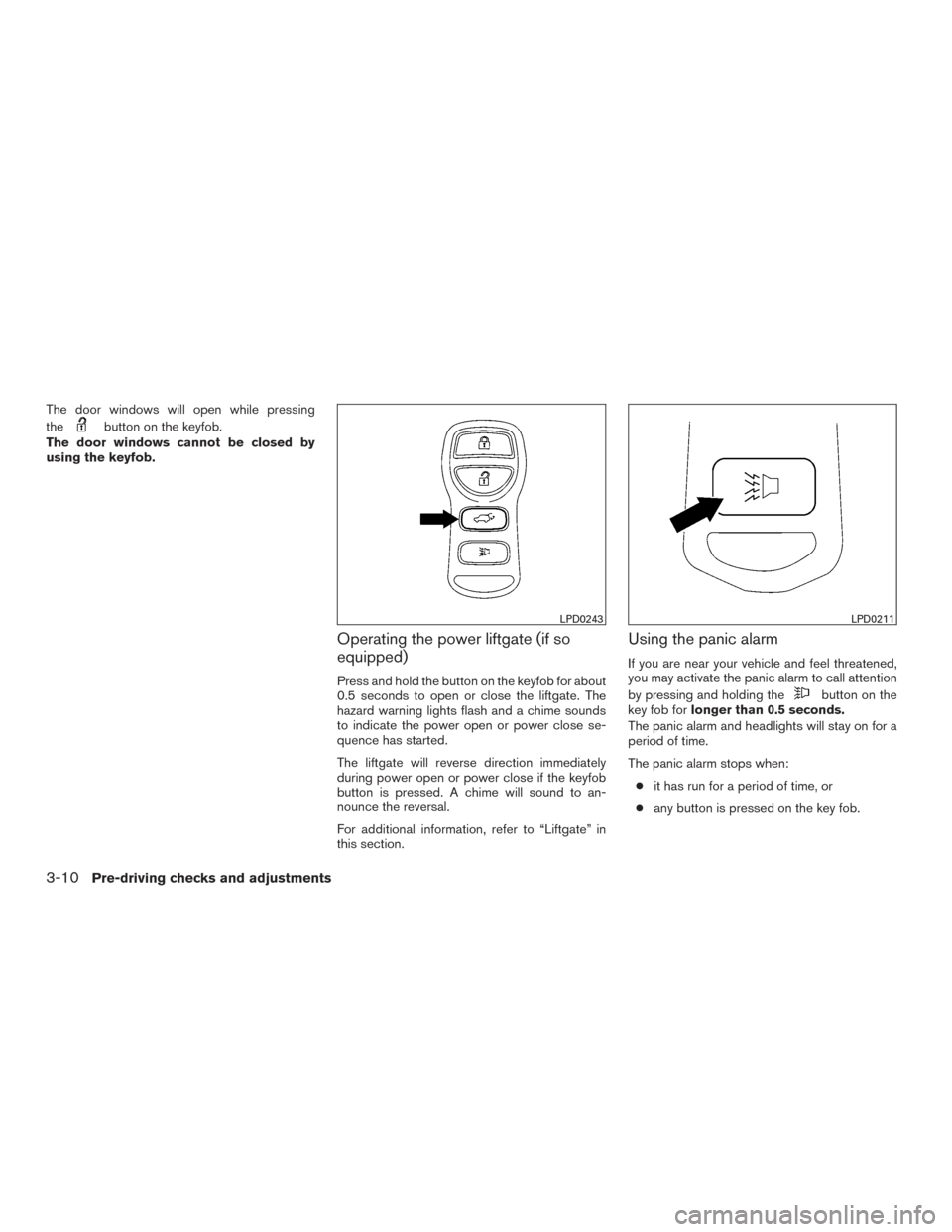
The door windows will open while pressing
the
button on the keyfob.
The door windows cannot be closed by
using the keyfob.
Operating the power liftgate (if so
equipped)
Press and hold the button on the keyfob for about
0.5 seconds to open or close the liftgate. The
hazard warning lights flash and a chime sounds
to indicate the power open or power close se-
quence has started.
The liftgate will reverse direction immediately
during power open or power close if the keyfob
button is pressed. A chime will sound to an-
nounce the reversal.
For additional information, refer to “Liftgate” in
this section.
Using the panic alarm
If you are near your vehicle and feel threatened,
you may activate the panic alarm to call attention
by pressing and holding the
button on the
key fob for longer than 0.5 seconds.
The panic alarm and headlights will stay on for a
period of time.
The panic alarm stops when:
● it has run for a period of time, or
● any button is pressed on the key fob.
LPD0243LPD0211
3-10Pre-driving checks and adjustments
Page 188 of 510
●The keyfob button must be held for 0.5 sec-
onds before the liftgate opens.
● The liftgate must be unlocked to open it with
the outside opener handle.
● The switch on the rear pillar cannot be used
to open the liftgate.
A warning chime will sound if the shift lever is
moved out of P (Park) during a power open
operation.
Power Close:
The power liftgate automatically moves from the
fully open position to the secondary position.
When the liftgate reaches the secondary posi-
tion, the cinching motor engages and pulls the
liftgate to its primary latch position. Power close
takes approximately seven to ten seconds. The
power close feature can be activated by the
switch on the keyfob, the instrument panel and
the rear pillar. The hazard lights flash and a chime
sounds to indicate the power close sequence
has been started. ● If the outside opener handle is activated
while the cinching motor is engaged, the
cinching motor will disengage and release
the latch. ●
The keyfob button must be held for 0.5 sec-
onds before the liftgate closes.
● The switch on the rear pillar can only be used
to close the liftgate if the cancel switch is not
in the on position.
Reverse:
The power liftgate will reverse direction immedi-
ately during power open or power close if the
keyfob, instrument panel or rear pillar switch is
pushed or if the outside handle is lifted. A chime
will sound to announce the reversal.
Auto Reverse:
If an obstacle is detected during power open or
power close, a warning chime will sound and the
liftgate will reverse direction and return to the full
open or full close position. If a second obstacle is
detected, the liftgate motion will stop and the
drive motor will disengage. The liftgate will enter
manual mode.
A pinch strip is mounted on each side of the
liftgate. If an obstacle is detected by a pinch strip
during power close, the liftgate will reverse direc-
tion and return to the full open position. NOTE:
If the pinch strip is damaged or removed,
the power close function will not operate.
WARNING
There are some small distances immedi-
ately before the closed position which
cannot be detected. Make sure that all
passengers have their hands, etc., inside
the vehicle before closing the liftgate.
Manual Mode:
If power operation is not available, the liftgate
may be operated manually. Power operation may
not be available if the cancel switch is in the on
position, if multiple obstacles are detected in a
single power cycle, or if battery voltage is low.
Pre-driving checks and adjustments3-25
Page 191 of 510
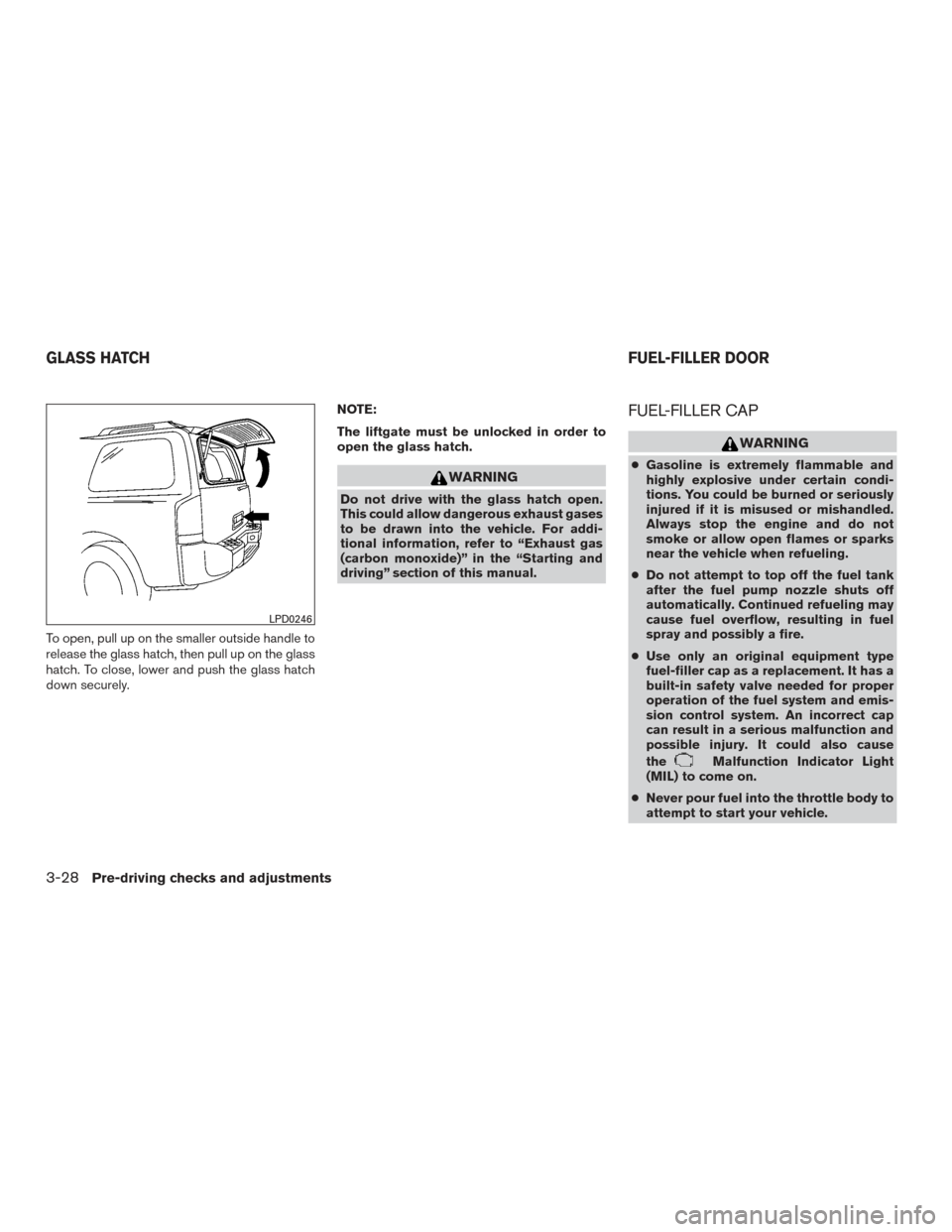
To open, pull up on the smaller outside handle to
release the glass hatch, then pull up on the glass
hatch. To close, lower and push the glass hatch
down securely.NOTE:
The liftgate must be unlocked in order to
open the glass hatch.
WARNING
Do not drive with the glass hatch open.
This could allow dangerous exhaust gases
to be drawn into the vehicle. For addi-
tional information, refer to “Exhaust gas
(carbon monoxide)” in the “Starting and
driving” section of this manual.
FUEL-FILLER CAP
WARNING
●
Gasoline is extremely flammable and
highly explosive under certain condi-
tions. You could be burned or seriously
injured if it is misused or mishandled.
Always stop the engine and do not
smoke or allow open flames or sparks
near the vehicle when refueling.
● Do not attempt to top off the fuel tank
after the fuel pump nozzle shuts off
automatically. Continued refueling may
cause fuel overflow, resulting in fuel
spray and possibly a fire.
● Use only an original equipment type
fuel-filler cap as a replacement. It has a
built-in safety valve needed for proper
operation of the fuel system and emis-
sion control system. An incorrect cap
can result in a serious malfunction and
possible injury. It could also cause
the
Malfunction Indicator Light
(MIL) to come on.
● Never pour fuel into the throttle body to
attempt to start your vehicle.
LPD0246
GLASS HATCH FUEL-FILLER DOOR
3-28Pre-driving checks and adjustments
Page 201 of 510
Restarting the entry/exit function
If the battery cable is disconnected or if the fuse
opens, the entry/exit function will be disabled.
Drive the vehicle over 25 mph (40 km/h) to restart
the entry/exit function. You can also restart the
entry/exit function using the following procedure.1. Connect the battery cable or replace the fuse.
2. Open and close the driver’s door more than two times with the ignition switch in the
LOCK position.
The entry/exit function should now work properly.
SYSTEM OPERATION
The automatic drive positioner system will not
work or will stop operating under the following
conditions: ● When the vehicle speed is above 4 MPH
(7 km/h).
● When any of the memory switches are
pushed while the automatic drive positioner
is operating.
● When the adjusting switch for the driver’s
seat is turned on while the automatic drive
positioner is operating. ●
When the seat has been already moved to
the memorized position.
● When no seat position is stored in the
memory switch.
● When the shift lever is moved from P (Park)
to any other position.
● When the driver’s door remains open more
than 45 seconds and the ignition switch is
not in the ON position.
The automatic drive positioner system can be
adjusted and canceled. For vehicles with naviga-
tion system, refer to “Navigation system” in the
“Monitor, climate, audio, phone and voice recog-
nition systems” section of this manual. For ve-
hicles without navigation system, see your
NISSAN dealer.
3-38Pre-driving checks and adjustments
Page 264 of 510
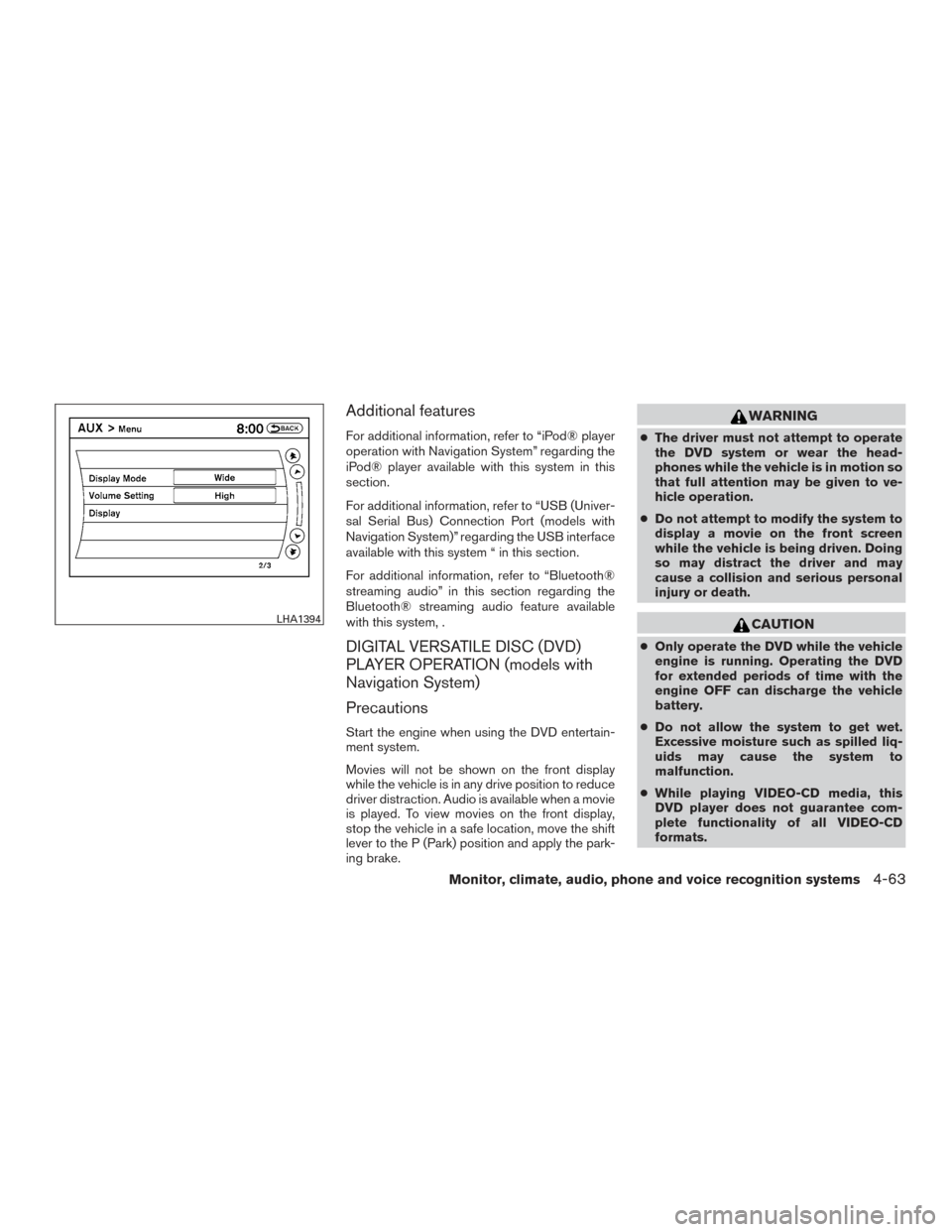
Additional features
For additional information, refer to “iPod® player
operation with Navigation System” regarding the
iPod® player available with this system in this
section.
For additional information, refer to “USB (Univer-
sal Serial Bus) Connection Port (models with
Navigation System)” regarding the USB interface
available with this system “ in this section.
For additional information, refer to “Bluetooth®
streaming audio” in this section regarding the
Bluetooth® streaming audio feature available
with this system, .
DIGITAL VERSATILE DISC (DVD)
PLAYER OPERATION (models with
Navigation System)
Precautions
Start the engine when using the DVD entertain-
ment system.
Movies will not be shown on the front display
while the vehicle is in any drive position to reduce
driver distraction. Audio is available when a movie
is played. To view movies on the front display,
stop the vehicle in a safe location, move the shift
lever to the P (Park) position and apply the park-
ing brake.
WARNING
●The driver must not attempt to operate
the DVD system or wear the head-
phones while the vehicle is in motion so
that full attention may be given to ve-
hicle operation.
● Do not attempt to modify the system to
display a movie on the front screen
while the vehicle is being driven. Doing
so may distract the driver and may
cause a collision and serious personal
injury or death.
CAUTION
● Only operate the DVD while the vehicle
engine is running. Operating the DVD
for extended periods of time with the
engine OFF can discharge the vehicle
battery.
● Do not allow the system to get wet.
Excessive moisture such as spilled liq-
uids may cause the system to
malfunction.
● While playing VIDEO-CD media, this
DVD player does not guarantee com-
plete functionality of all VIDEO-CD
formats.
LHA1394
Monitor, climate, audio, phone and voice recognition systems4-63
Page 265 of 510
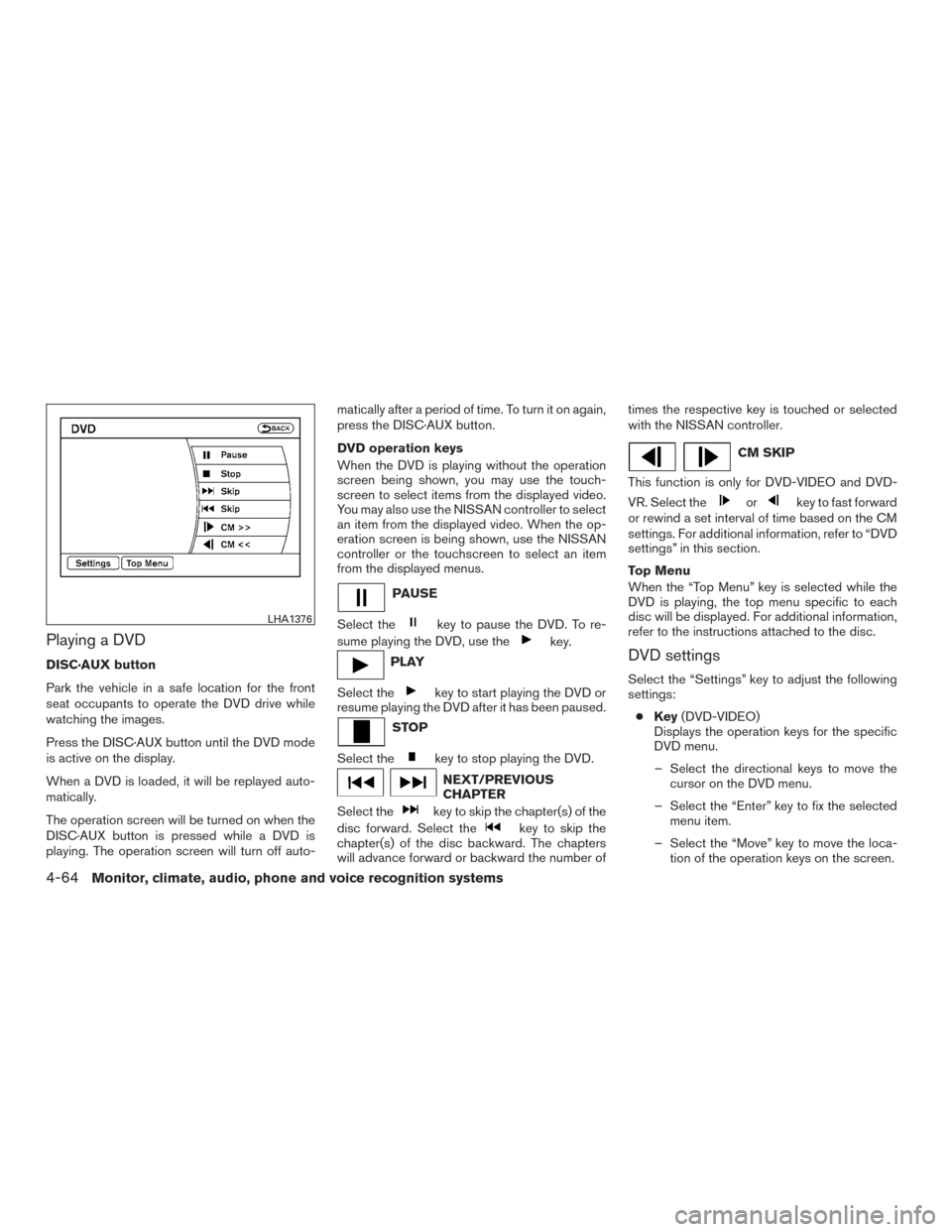
Playing a DVD
DISC·AUX button
Park the vehicle in a safe location for the front
seat occupants to operate the DVD drive while
watching the images.
Press the DISC·AUX button until the DVD mode
is active on the display.
When a DVD is loaded, it will be replayed auto-
matically.
The operation screen will be turned on when the
DISC·AUX button is pressed while a DVD is
playing. The operation screen will turn off auto-matically after a period of time. To turn it on again,
press the DISC·AUX button.
DVD operation keys
When the DVD is playing without the operation
screen being shown, you may use the touch-
screen to select items from the displayed video.
You may also use the NISSAN controller to select
an item from the displayed video. When the op-
eration screen is being shown, use the NISSAN
controller or the touchscreen to select an item
from the displayed menus.
PAUSE
Select the
key to pause the DVD. To re-
sume playing the DVD, use the
key.
PLAY
Select the
key to start playing the DVD or
resume playing the DVD after it has been paused.
STOP
Select the
key to stop playing the DVD.
NEXT/PREVIOUS
CHAPTER
Select the
key to skip the chapter(s) of the
disc forward. Select the
key to skip the
chapter(s) of the disc backward. The chapters
will advance forward or backward the number of times the respective key is touched or selected
with the NISSAN controller.
CM SKIP
This function is only for DVD-VIDEO and DVD-
VR. Select the
orkey to fast forward
or rewind a set interval of time based on the CM
settings. For additional information, refer to “DVD
settings” in this section.
Top Menu
When the “Top Menu” key is selected while the
DVD is playing, the top menu specific to each
disc will be displayed. For additional information,
refer to the instructions attached to the disc.
DVD settings
Select the “Settings” key to adjust the following
settings:
● Key (DVD-VIDEO)
Displays the operation keys for the specific
DVD menu.
– Select the directional keys to move the cursor on the DVD menu.
– Select the “Enter” key to fix the selected menu item.
– Select the “Move” key to move the loca- tion of the operation keys on the screen.
LHA1376
4-64Monitor, climate, audio, phone and voice recognition systems
Page 271 of 510
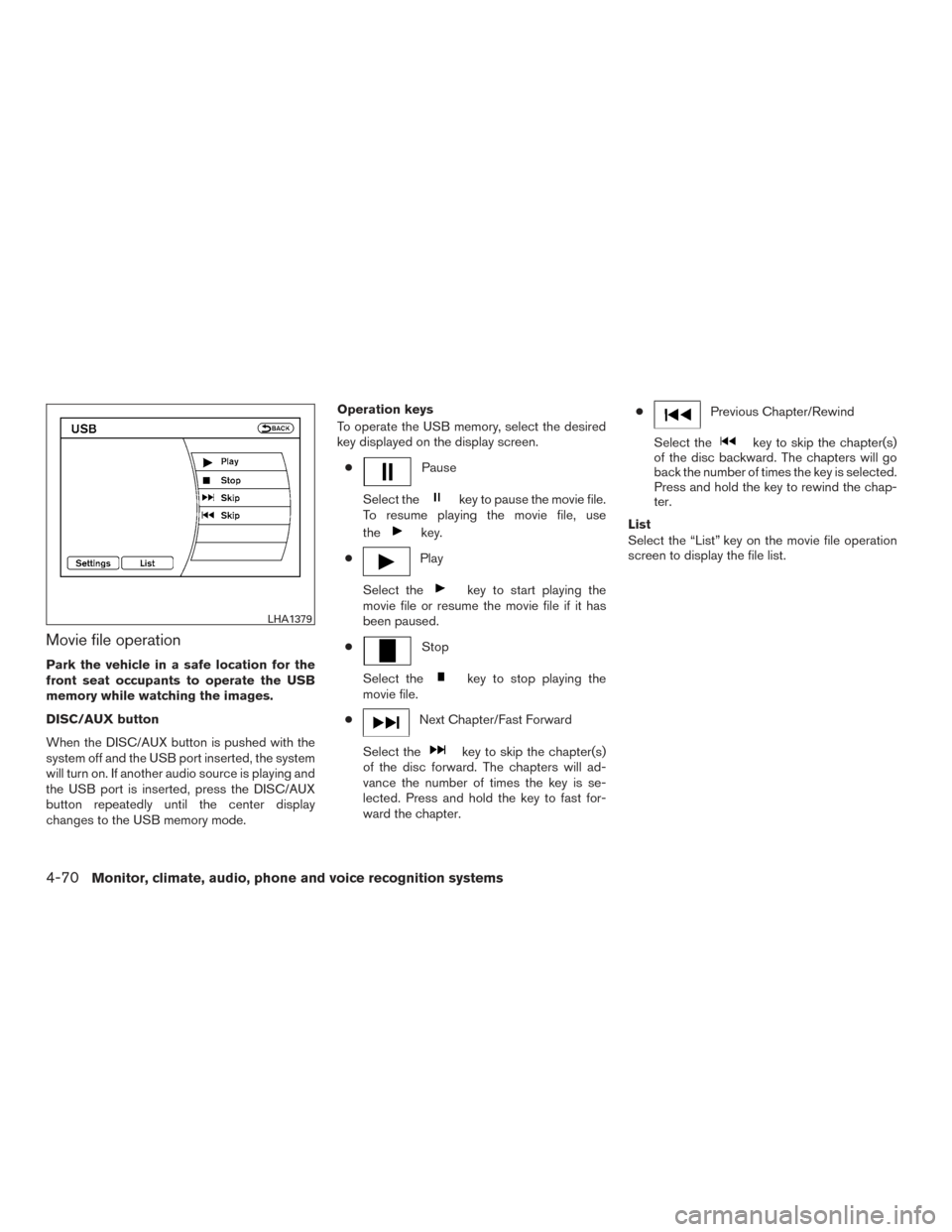
Movie file operation
Park the vehicle in a safe location for the
front seat occupants to operate the USB
memory while watching the images.
DISC/AUX button
When the DISC/AUX button is pushed with the
system off and the USB port inserted, the system
will turn on. If another audio source is playing and
the USB port is inserted, press the DISC/AUX
button repeatedly until the center display
changes to the USB memory mode.Operation keys
To operate the USB memory, select the desired
key displayed on the display screen.
●
Pause
Select the
key to pause the movie file.
To resume playing the movie file, use
the
key.
●
Play
Select the
key to start playing the
movie file or resume the movie file if it has
been paused.
●
Stop
Select the
key to stop playing the
movie file.
●
Next Chapter/Fast Forward
Select the
key to skip the chapter(s)
of the disc forward. The chapters will ad-
vance the number of times the key is se-
lected. Press and hold the key to fast for-
ward the chapter. ●
Previous Chapter/Rewind
Select the
key to skip the chapter(s)
of the disc backward. The chapters will go
back the number of times the key is selected.
Press and hold the key to rewind the chap-
ter.
List
Select the “List” key on the movie file operation
screen to display the file list.
LHA1379
4-70Monitor, climate, audio, phone and voice recognition systems
Page 292 of 510
PREV button
Press this button to select the previous chapter,
track, or file.
FF (Fast foward) button
Press this button to search media forwards.
FR (Fast rewind) button
Press this button to search media backwards.
STOP button
Press this button once to stop playback (press
play to resume playback) . Press this button twice
to perform a full stop (press play to start playback
from the beginning) .
PLAY/PAUSE button
Press this button to begin media playback. Press
this button again to pause media playback.
Number Keys
0—9
SUBTITLE button
Press this button to select and display subtitles
(this function only applies to DVD titles that sup-
port subtitles) .
TITLE button
Press this button to navigate the title menu if
included on the disc.
DOWN button
Press this button to navigate down when display-
ing a menu or file list.
RETURN button
Press this button to return to a previous menu
screen.
ENTER button
Press this button to make a selection or begin
playback of the media.
LEFT button
Press this button to navigate left when displaying
a menu or file list.
UP button
Press this button to navigate up when displaying
a menu or file list.
MENU button
Press this button to go to the root menu if in-
cluded on the disc.
MUTE button
Press this button to mute the audio when playing
discs or playing files from a USB device. Press
this button again to resume audio.
DVD–A button
Press this button to transmit the remote control
codes and functions to operate monitor A.
POWER button
Press this button to turn the monitor on. Press
this button again to turn the monitor off.
GENERAL OPERATING
INSTRUCTIONS
Turning the monitor ON or OFF
1. Press the POWER button on the front panelor the remote control to turn the monitor on
or off. When powered on, the front panel
controls will illuminate.
2. After the monitor has been turned on and is displaying a picture, adjust the viewing angle
by pivoting the screen to optimize the picture
quality.
3. Remember to turn the monitor off and return the LCD monitor to the fully closed (upright)
position when not in use.
Monitor, climate, audio, phone and voice recognition systems4-91
Page 309 of 510
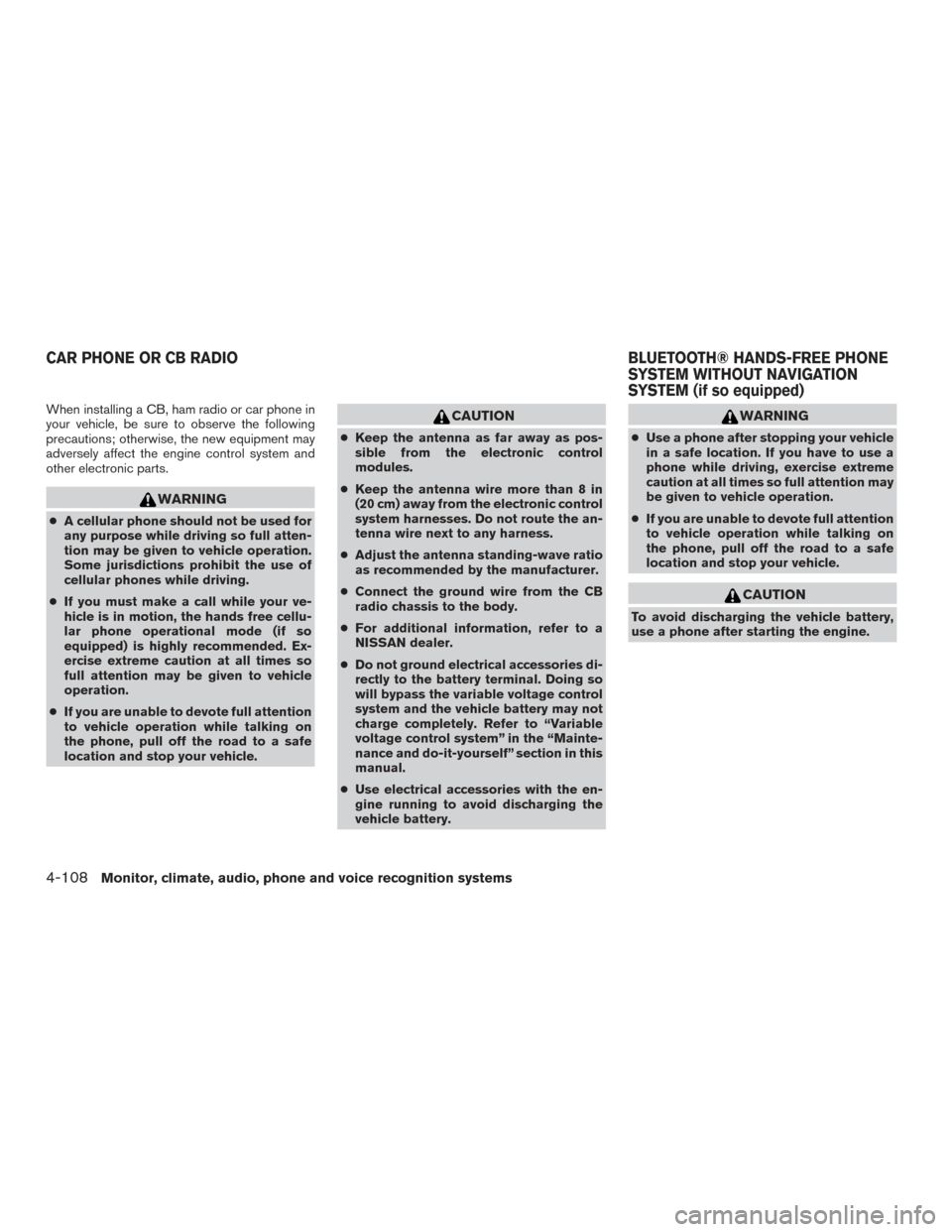
When installing a CB, ham radio or car phone in
your vehicle, be sure to observe the following
precautions; otherwise, the new equipment may
adversely affect the engine control system and
other electronic parts.
WARNING
●A cellular phone should not be used for
any purpose while driving so full atten-
tion may be given to vehicle operation.
Some jurisdictions prohibit the use of
cellular phones while driving.
● If you must make a call while your ve-
hicle is in motion, the hands free cellu-
lar phone operational mode (if so
equipped) is highly recommended. Ex-
ercise extreme caution at all times so
full attention may be given to vehicle
operation.
● If you are unable to devote full attention
to vehicle operation while talking on
the phone, pull off the road to a safe
location and stop your vehicle.
CAUTION
● Keep the antenna as far away as pos-
sible from the electronic control
modules.
● Keep the antenna wire more than 8 in
(20 cm) away from the electronic control
system harnesses. Do not route the an-
tenna wire next to any harness.
● Adjust the antenna standing-wave ratio
as recommended by the manufacturer.
● Connect the ground wire from the CB
radio chassis to the body.
● For additional information, refer to a
NISSAN dealer.
● Do not ground electrical accessories di-
rectly to the battery terminal. Doing so
will bypass the variable voltage control
system and the vehicle battery may not
charge completely. Refer to “Variable
voltage control system” in the “Mainte-
nance and do-it-yourself” section in this
manual.
● Use electrical accessories with the en-
gine running to avoid discharging the
vehicle battery.
WARNING
● Use a phone after stopping your vehicle
in a safe location. If you have to use a
phone while driving, exercise extreme
caution at all times so full attention may
be given to vehicle operation.
● If you are unable to devote full attention
to vehicle operation while talking on
the phone, pull off the road to a safe
location and stop your vehicle.
CAUTION
To avoid discharging the vehicle battery,
use a phone after starting the engine.
CAR PHONE OR CB RADIO BLUETOOTH® HANDS-FREE PHONE
SYSTEM WITHOUT NAVIGATION
SYSTEM (if so equipped)
4-108Monitor, climate, audio, phone and voice recognition systems
Page 323 of 510
WARNING
●Use a phone after stopping your vehicle
in a safe location. If you have to use a
phone while driving, exercise extreme
caution at all times so full attention may
be given to vehicle operation.
● If you are unable to devote full attention
to vehicle operation while talking on
the phone, pull off the road to a safe
location and stop your vehicle.
CAUTION
To avoid discharging the vehicle battery,
use a phone after starting the engine.
Your NISSAN is equipped with the Bluetooth®
Hands-Free Phone System. If you have a com-
patible Bluetooth® enabled cellular phone, you
can set up the wireless connection between your
cellular phone and the in-vehicle phone module.
With Bluetooth® wireless technology, you can make or receive a hands-free telephone call with
your cellular phone in the vehicle.
Once your cellular phone is connected to the
in-vehicle phone module, no other phone con-
necting procedure is required. Your phone is
automatically connected with the in-vehicle
LHA3159
BLUETOOTH® HANDS-FREE PHONE
SYSTEM WITH NAVIGATION SYSTEM
(if so equipped)
4-122Monitor, climate, audio, phone and voice recognition systems