light NISSAN ARMADA 2017 2.G Owners Manual
[x] Cancel search | Manufacturer: NISSAN, Model Year: 2017, Model line: ARMADA, Model: NISSAN ARMADA 2017 2.GPages: 614, PDF Size: 2.87 MB
Page 196 of 614
.If optional Intelligent Keys are added to your
vehicle, the memory storage procedure to
switch 1 or 2 and linking Intelligent Key
procedure to a stored memory position
should be performed again for each Intelli-
gent Key. For additional Intelligent Key
information, see “Keys” (P.3-2) .
Selecting the memorized position
1. Move the shift lever to the P (Park) position.
2. Use one of the following methods to move
the driver’s seat, the outside mirrors and the
steering wheel.
.Within 45 seconds of opening thedriver’s door, push the memory switch
(1 or 2) fully for at least 1 second.
The driver’s seat, steering column and
outside mirrors will move to the memorized
position or to the exit position when the
entry/exit function is set to active with the
indicator light flashing, and then the light will
stay on for approximately 5 seconds.
SETTING MEMORY FUNCTION
The status of the following settings can be linked
to the Intelligent Key and the memorized settings
can be available for each Intelligent Key.
. Air conditioner system .
Navigation system
. Audio system
To use the memory function, lock the doors with
the Intelligent Key that is linked to the settings.
To enable the memorized settings:
1. Carry the Intelligent Key that is linked to the settings, and unlock the doors by pushing
the driver’s door handle request switch or
“UNLOCK”
button on the Intelligent
Key.
2. Place the ignition switch in the ON position. “Connection with the key has been done”
will be displayed on the screen and the
memorized settings are available (only when
a new Intelligent Key is used) .
SYSTEM OPERATION
The automatic drive positioner system will not
work or will stop operating under the following
conditions:
.When the vehicle speed is above 4 MPH (7
km/h) .
. When the adjusting switch for the driver’s
seat and steering column is turned on while
the automatic drive positioner is operating.
. When the memory switch 1 or 2 is not
pushed for at least 1 second. .
When the seat, steering column and outside
mirrors have already been moved to the
memorized position.
. When no position is stored in the memory
switch.
. When the engine is started while moving the
automatic drive positioner.
. When the AT shift lever is moved from the P
(Park) position to any other position. (How-
ever, it will not be canceled if the switch is
pushed while the seat and steering column
are returning to the previous positions
(entry/exit function) .)
. When the driver’s door remains open for
more than 45 seconds and the ignition
switch is not in the ON position.
Pre-driving checks and adjustments3-35
Page 204 of 614
.Delete:
Deletes the last character that has been
input with one touch. Push and hold the
button to delete all of the characters.
. OK:
Completes character inputs.
Touch screen maintenance
If you clean the display screen, use a dry, soft
cloth. If additional cleaning is necessary, use a
small amount of neutral detergent with a soft
cloth. Never spray the screen with water or
detergent. Dampen the cloth first, and then wipe
the screen.
JVH1394X
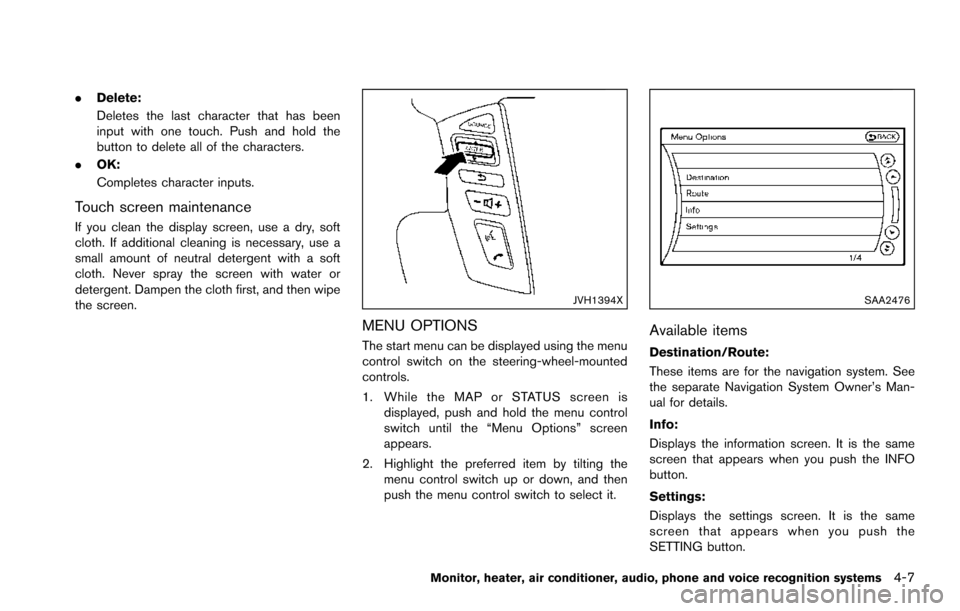
MENU OPTIONS
The start menu can be displayed using the menu
control switch on the steering-wheel-mounted
controls.
1. While the MAP or STATUS screen is
displayed, push and hold the menu control
switch until the “Menu Options” screen
appears.
2. Highlight the preferred item by tilting the menu control switch up or down, and then
push the menu control switch to select it.
SAA2476
Available items
Destination/Route:
These items are for the navigation system. See
the separate Navigation System Owner’s Man-
ual for details.
Info:
Displays the information screen. It is the same
screen that appears when you push the INFO
button.
Settings:
Displays the settings screen. It is the same
screen that appears when you push the
SETTING button.
Monitor, heater, air conditioner, audio, phone and voice recognition systems4-7
Page 205 of 614
4-8Monitor, heater, air conditioner, audio, phone and voice recognition systems
SAA2477
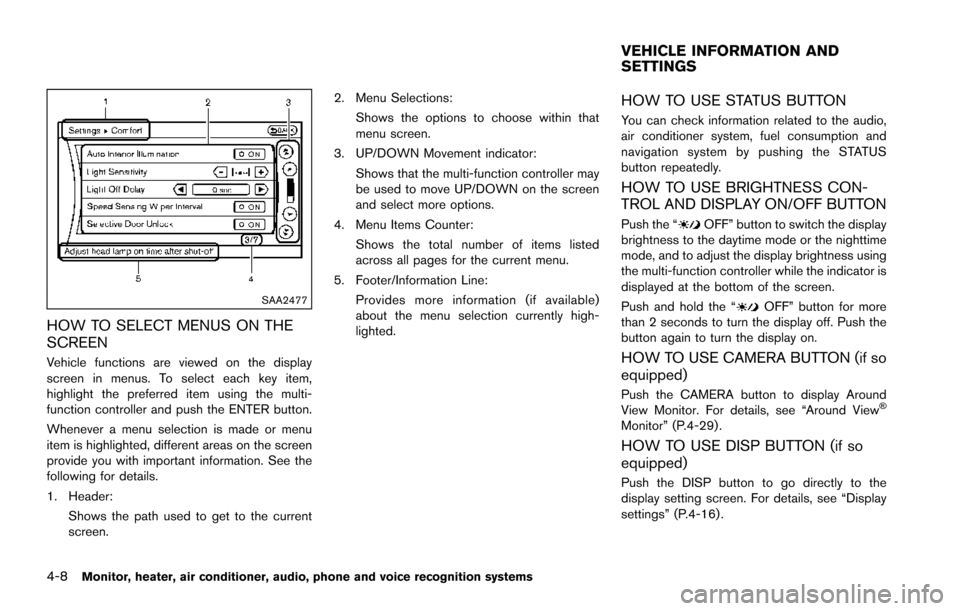
HOW TO SELECT MENUS ON THE
SCREEN
Vehicle functions are viewed on the display
screen in menus. To select each key item,
highlight the preferred item using the multi-
function controller and push the ENTER button.
Whenever a menu selection is made or menu
item is highlighted, different areas on the screen
provide you with important information. See the
following for details.
1. Header:Shows the path used to get to the current
screen. 2. Menu Selections:
Shows the options to choose within that
menu screen.
3. UP/DOWN Movement indicator: Shows that the multi-function controller may
be used to move UP/DOWN on the screen
and select more options.
4. Menu Items Counter: Shows the total number of items listed
across all pages for the current menu.
5. Footer/Information Line: Provides more information (if available)
about the menu selection currently high-
lighted.
HOW TO USE STATUS BUTTON
You can check information related to the audio,
air conditioner system, fuel consumption and
navigation system by pushing the STATUS
button repeatedly.
HOW TO USE BRIGHTNESS CON-
TROL AND DISPLAY ON/OFF BUTTON
Push the “OFF” button to switch the display
brightness to the daytime mode or the nighttime
mode, and to adjust the display brightness using
the multi-function controller while the indicator is
displayed at the bottom of the screen.
Push and hold the “
OFF” button for more
than 2 seconds to turn the display off. Push the
button again to turn the display on.
HOW TO USE CAMERA BUTTON (if so
equipped)
Push the CAMERA button to display Around
View Monitor. For details, see “Around ViewŠ
Monitor” (P.4-29) .
HOW TO USE DISP BUTTON (if so
equipped)
Push the DISP button to go directly to the
display setting screen. For details, see “Display
settings” (P.4-16) .
VEHICLE INFORMATION AND
SETTINGS
Page 207 of 614
4-10Monitor, heater, air conditioner, audio, phone and voice recognition systems
SAA2479
SAA2480
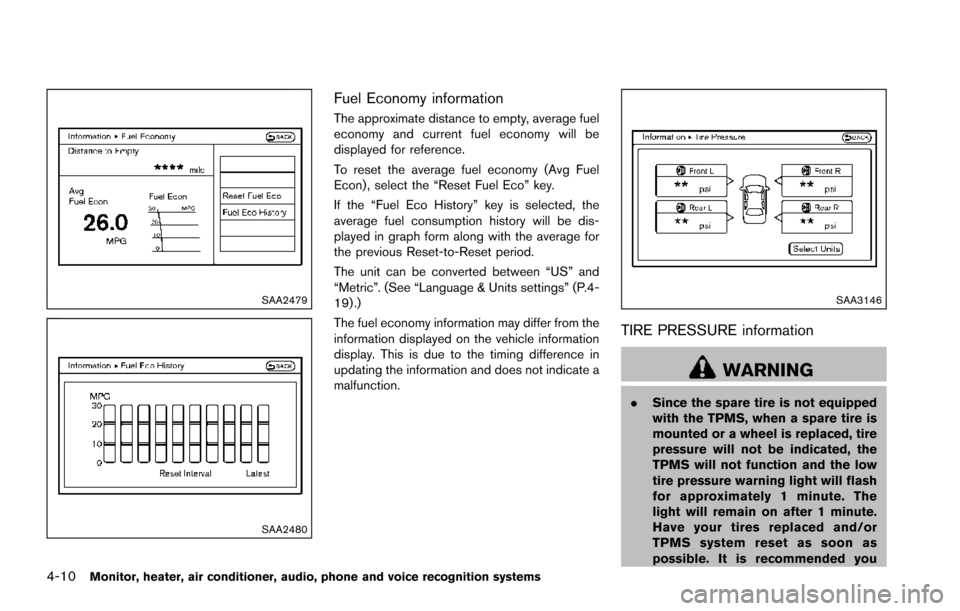
Fuel Economy information
The approximate distance to empty, average fuel
economy and current fuel economy will be
displayed for reference.
To reset the average fuel economy (Avg Fuel
Econ) , select the “Reset Fuel Eco” key.
If the “Fuel Eco History” key is selected, the
average fuel consumption history will be dis-
played in graph form along with the average for
the previous Reset-to-Reset period.
The unit can be converted between “US” and
“Metric”. (See “Language & Units settings” (P.4-
19) .)
The fuel economy information may differ from the
information displayed on the vehicle information
display. This is due to the timing difference in
updating the information and does not indicate a
malfunction.
SAA3146
TIRE PRESSURE information
WARNING
.Since the spare tire is not equipped
with the TPMS, when a spare tire is
mounted or a wheel is replaced, tire
pressure will not be indicated, the
TPMS will not function and the low
tire pressure warning light will flash
for approximately 1 minute. The
light will remain on after 1 minute.
Have your tires replaced and/or
TPMS system reset as soon as
possible. It is recommended you
Page 214 of 614
When any mode button is pushed with the
screen off, the screen turns on for further
operation. The screen will turn off automatically
5 seconds after the operation is finished.
To turn on the screen, set this item to the ON
position, or push the
OFF button.
. Brightness/Contrast/Background Color
To adjust the brightness and contrast of the
screen, select the “Brightness” or “Contrast”
key.
Then, you can adjust the brightness and the
contrast using the multi-function controller.
For information on the “Background Color” key,
refer to the separate Navigation System Own-
er’s Manual.
Color Theme:
Choose the theme color of the menu screen.
SAA3151
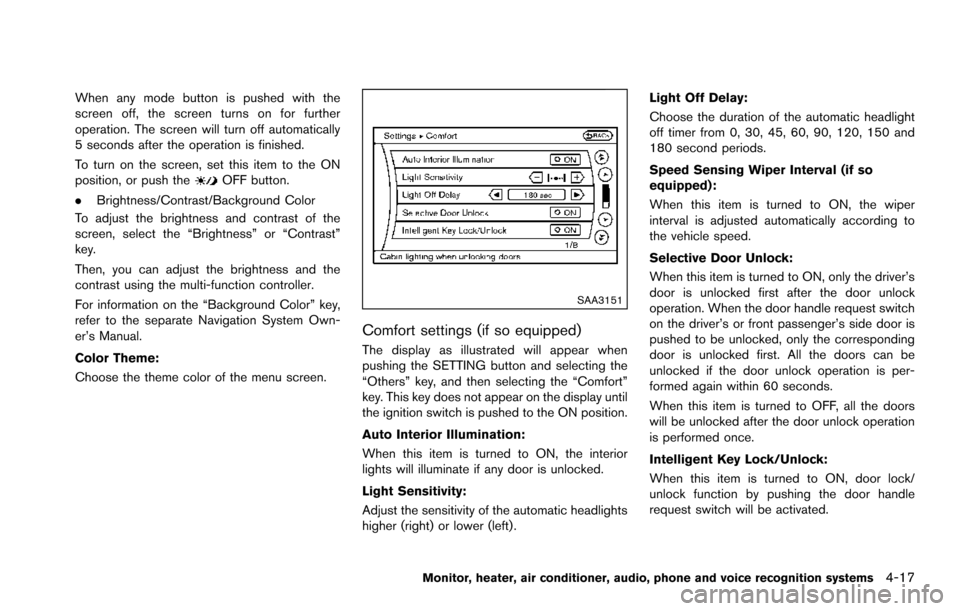
Comfort settings (if so equipped)
The display as illustrated will appear when
pushing the SETTING button and selecting the
“Others” key, and then selecting the “Comfort”
key. This key does not appear on the display until
the ignition switch is pushed to the ON position.
Auto Interior Illumination:
When this item is turned to ON, the interior
lights will illuminate if any door is unlocked.
Light Sensitivity:
Adjust the sensitivity of the automatic headlights
higher (right) or lower (left) . Light Off Delay:
Choose the duration of the automatic headlight
off timer from 0, 30, 45, 60, 90, 120, 150 and
180 second periods.
Speed Sensing Wiper Interval (if so
equipped):
When this item is turned to ON, the wiper
interval is adjusted automatically according to
the vehicle speed.
Selective Door Unlock:
When this item is turned to ON, only the driver’s
door is unlocked first after the door unlock
operation. When the door handle request switch
on the driver’s or front passenger’s side door is
pushed to be unlocked, only the corresponding
door is unlocked first. All the doors can be
unlocked if the door unlock operation is per-
formed again within 60 seconds.
When this item is turned to OFF, all the doors
will be unlocked after the door unlock operation
is performed once.
Intelligent Key Lock/Unlock:
When this item is turned to ON, door lock/
unlock function by pushing the door handle
request switch will be activated.
Monitor, heater, air conditioner, audio, phone and voice recognition systems4-17
Page 215 of 614
4-18Monitor, heater, air conditioner, audio, phone and voice recognition systems
Lift Steering Wheel on Exit (if so
equipped):
When this item is turned to ON, the steering
wheel moves upward for easy exit if the ignition
switch is in the LOCK position and the driver’s
door is opened. After getting into the vehicle and
pushing the ignition switch to the ACC position,
the steering wheel moves to the previous
position.
Slide Driver Seat Back on Exit (if so
equipped):
When this item is turned to ON, the driver’s seat
moves backward for easy exit if the ignition
switch is in the OFF position and the driver’s
door is opened. After getting into the vehicle and
pushing the ignition switch to the ACC position,
the driver’s seat moves to the previous position.
Return All Settings to Default:
Select this item and then select “YES” to return
all settings to the default.
SAA2487
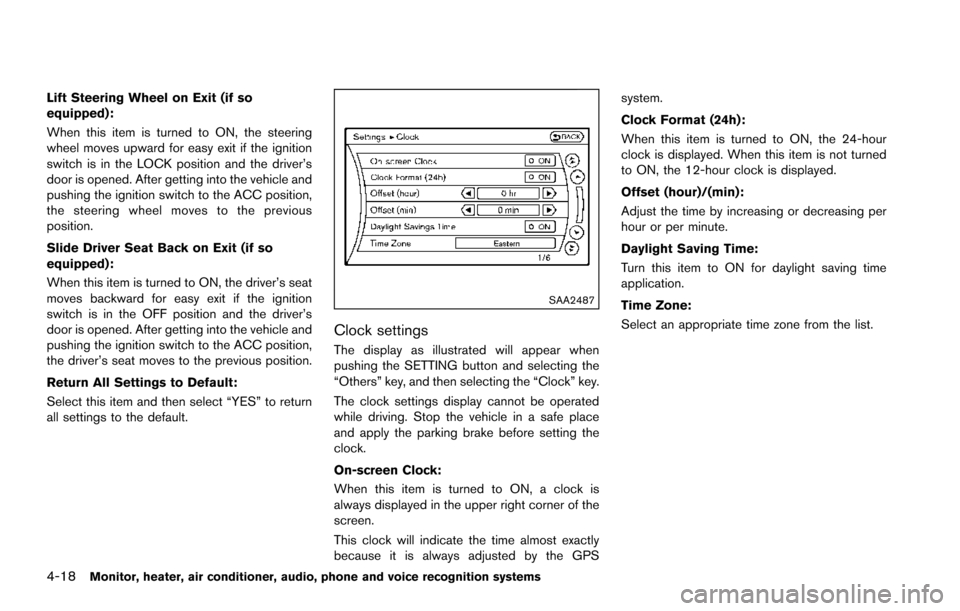
Clock settings
The display as illustrated will appear when
pushing the SETTING button and selecting the
“Others” key, and then selecting the “Clock” key.
The clock settings display cannot be operated
while driving. Stop the vehicle in a safe place
and apply the parking brake before setting the
clock.
On-screen Clock:
When this item is turned to ON, a clock is
always displayed in the upper right corner of the
screen.
This clock will indicate the time almost exactly
because it is always adjusted by the GPSsystem.
Clock Format (24h):
When this item is turned to ON, the 24-hour
clock is displayed. When this item is not turned
to ON, the 12-hour clock is displayed.
Offset (hour)/(min):
Adjust the time by increasing or decreasing per
hour or per minute.
Daylight Saving Time:
Turn this item to ON for daylight saving time
application.
Time Zone:
Select an appropriate time zone from the list.
Page 220 of 614
Predictive course lines*6:
Indicate the predictive course when backing up.
The predictive course lines will be displayed on
the monitor when the shift lever is in the R
(Reverse) position and the steering wheel is
turned. The predictive course lines will move
depending on how much the steering wheel is
turned and will not be displayed while the
steering wheel is in the neutral position.
The vehicle width guide lines and the width of
the predictive course lines are wider than the
actual width and course.
HOW TO PARK WITH PREDICTIVE
COURSE LINES
WARNING
. If the tires are replaced with differ-
ent sized tires, the predictive course
line may not be displayed correctly.
. On a snow-covered or slippery road,
there may be a difference between
the predictive course line and the
actual course line.
. The displayed lines will appear
slightly off to the right because the
rearview camera is not installed in
the rear center of the vehicle.
SAA1897
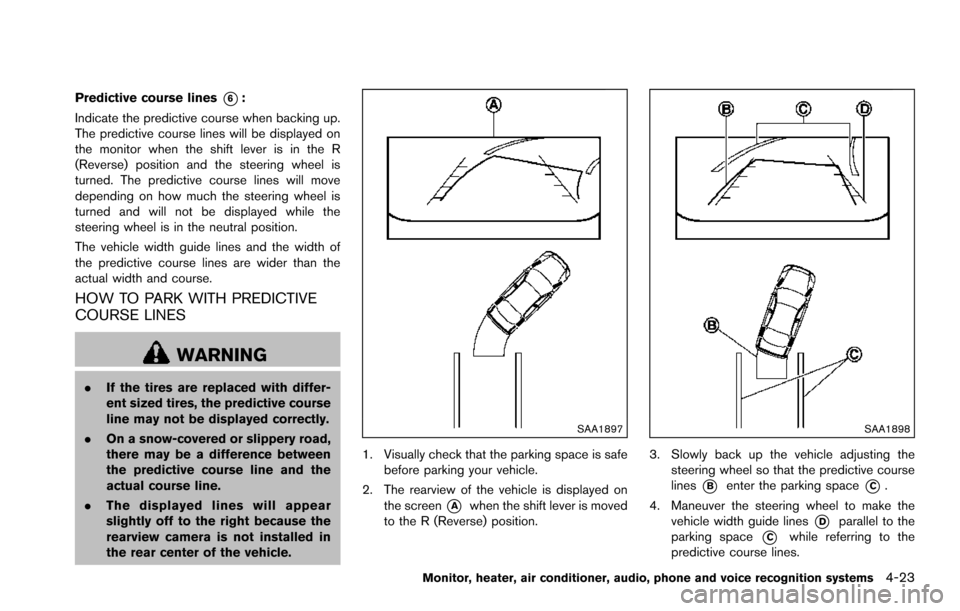
1. Visually check that the parking space is safe
before parking your vehicle.
2. The rearview of the vehicle is displayed on the screen
*Awhen the shift lever is moved
to the R (Reverse) position.
SAA1898
3. Slowly back up the vehicle adjusting the steering wheel so that the predictive course
lines
*Benter the parking space*C.
4. Maneuver the steering wheel to make the vehicle width guide lines
*Dparallel to the
parking space
*Cwhile referring to the
predictive course lines.
Monitor, heater, air conditioner, audio, phone and voice recognition systems4-23
Page 224 of 614
.When strong light is directly coming on the
camera, objects may not be displayed
clearly.
. Vertical lines may be seen in objects on the
screen. This is due to strong reflected light
from the bumper.
. The screen may flicker under fluorescent
light.
. The colors of objects on the RearView
Monitor may differ somewhat from the actual
color of objects.
. Objects on the monitor may not be clear in a
dark environment.
. There may be a delay when switching to the
RearView Monitor.
. If dirt, rain or snow accumulates on the
camera, the RearView Monitor may not
display object clearly. Clean the camera.
. Do not use wax on the camera window.
Wipe off any wax with a clean cloth
dampened with mild detergent diluted with
water.
JVH1497X
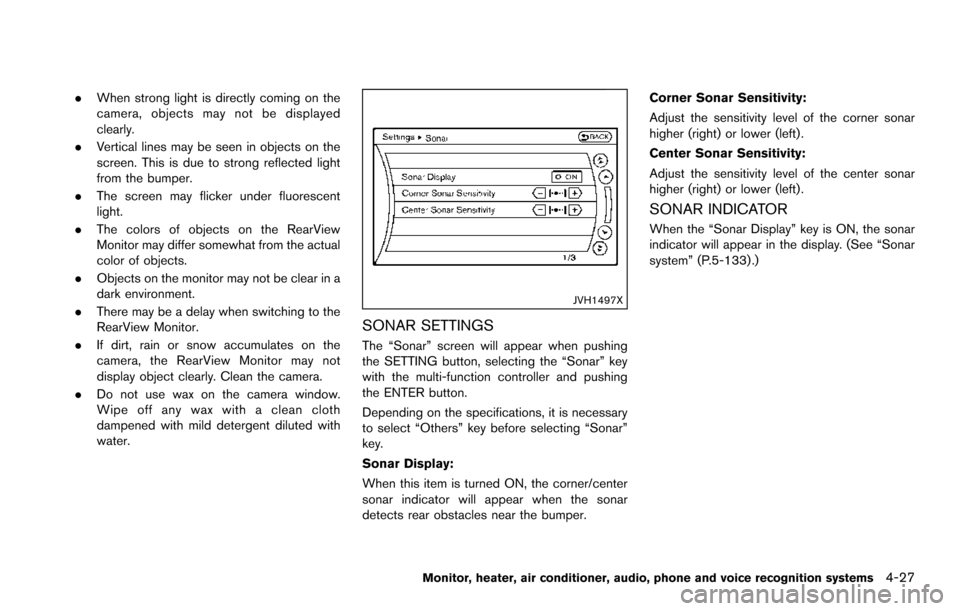
SONAR SETTINGS
The “Sonar” screen will appear when pushing
the SETTING button, selecting the “Sonar” key
with the multi-function controller and pushing
the ENTER button.
Depending on the specifications, it is necessary
to select “Others” key before selecting “Sonar”
key.
Sonar Display:
When this item is turned ON, the corner/center
sonar indicator will appear when the sonar
detects rear obstacles near the bumper. Corner Sonar Sensitivity:
Adjust the sensitivity level of the corner sonar
higher (right) or lower (left) .
Center Sonar Sensitivity:
Adjust the sensitivity level of the center sonar
higher (right) or lower (left) .
SONAR INDICATOR
When the “Sonar Display” key is ON, the sonar
indicator will appear in the display. (See “Sonar
system” (P.5-133) .)
Monitor, heater, air conditioner, audio, phone and voice recognition systems4-27
Page 228 of 614
.Objects in the monitor will appear
visually opposite compared to when
viewed in the rearview and outside
mirrors.
. Use the mirrors or actually look to
properly judge distances to other
objects.
. The distance between objects
viewed in the rear view differs from
actual distance because a wide-
angle lens is used.
. On a snow-covered or slippery road,
there may be a difference between
the predictive course line and the
actual course line.
. The vehicle width and predictive
course lines are wider than the
actual width and course.
. The displayed lines on the rear view
will appear slightly off to the right
because the rearview camera is not
installed in the rear center of the
vehicle.
SAA1840Front view
SAA1896Rear view
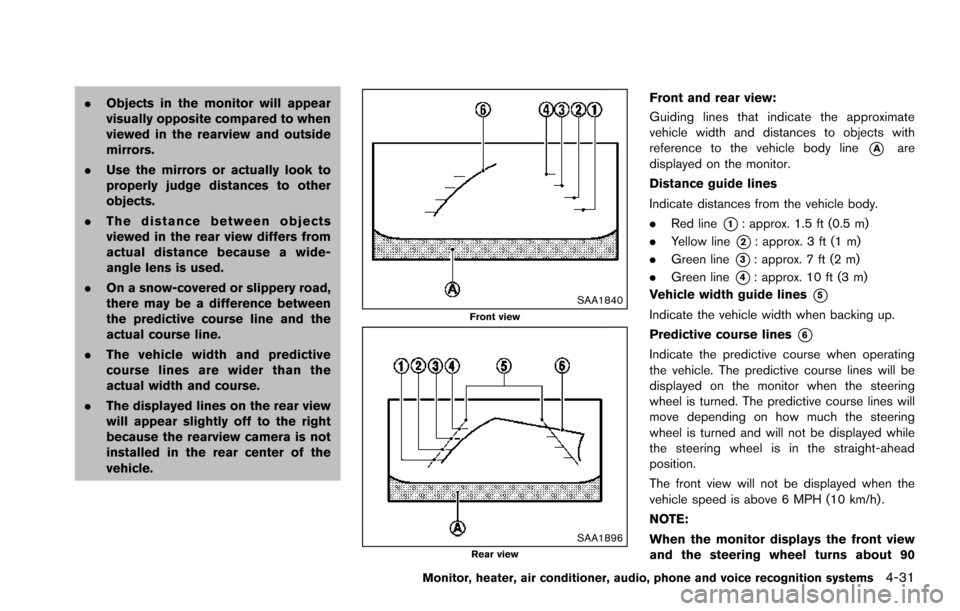
Front and rear view:
Guiding lines that indicate the approximate
vehicle width and distances to objects with
reference to the vehicle body line
*Aare
displayed on the monitor.
Distance guide lines
Indicate distances from the vehicle body.
. Red line
*1: approx. 1.5 ft (0.5 m)
. Yellow line
*2: approx. 3 ft (1 m)
. Green line
*3: approx. 7 ft (2 m)
. Green line
*4: approx. 10 ft (3 m)
Vehicle width guide lines
*5
Indicate the vehicle width when backing up.
Predictive course lines
*6
Indicate the predictive course when operating
the vehicle. The predictive course lines will be
displayed on the monitor when the steering
wheel is turned. The predictive course lines will
move depending on how much the steering
wheel is turned and will not be displayed while
the steering wheel is in the straight-ahead
position.
The front view will not be displayed when the
vehicle speed is above 6 MPH (10 km/h) .
NOTE:
When the monitor displays the front view
and the steering wheel turns about 90
Monitor, heater, air conditioner, audio, phone and voice recognition systems4-31
Page 229 of 614
4-32Monitor, heater, air conditioner, audio, phone and voice recognition systems
degrees or less from the straight ahead
position, both the right and left predictive
course lines
*6are displayed. When the
steering wheel turns about 90 degrees or
more, a line is displayed only on the
opposite side of the turn.
JVH1140X
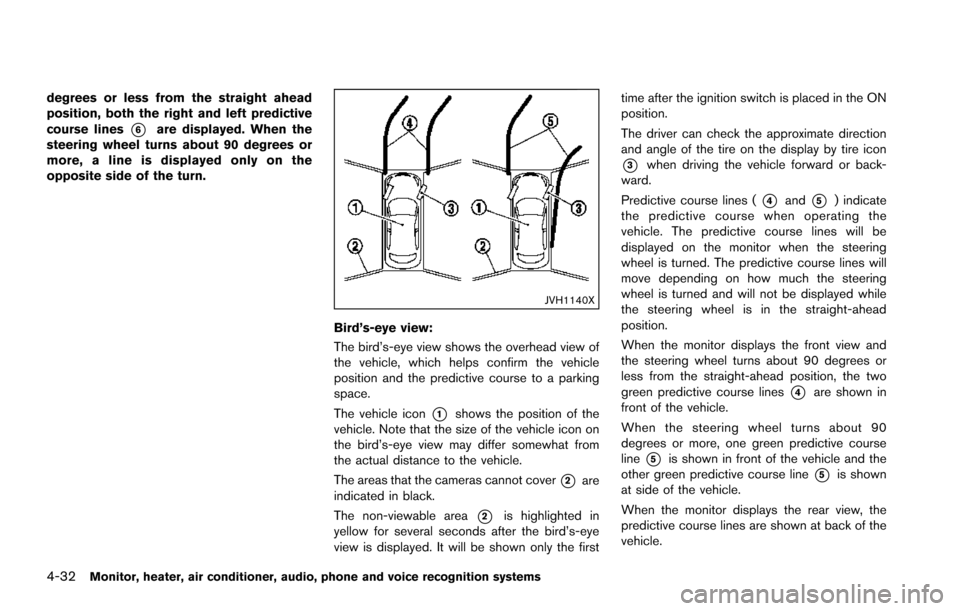
Bird’s-eye view:
The bird’s-eye view shows the overhead view of
the vehicle, which helps confirm the vehicle
position and the predictive course to a parking
space.
The vehicle icon
*1shows the position of the
vehicle. Note that the size of the vehicle icon on
the bird’s-eye view may differ somewhat from
the actual distance to the vehicle.
The areas that the cameras cannot cover
*2are
indicated in black.
The non-viewable area
*2is highlighted in
yellow for several seconds after the bird’s-eye
view is displayed. It will be shown only the first time after the ignition switch is placed in the ON
position.
The driver can check the approximate direction
and angle of the tire on the display by tire icon
*3when driving the vehicle forward or back-
ward.
Predictive course lines (
*4and*5) indicate
the predictive course when operating the
vehicle. The predictive course lines will be
displayed on the monitor when the steering
wheel is turned. The predictive course lines will
move depending on how much the steering
wheel is turned and will not be displayed while
the steering wheel is in the straight-ahead
position.
When the monitor displays the front view and
the steering wheel turns about 90 degrees or
less from the straight-ahead position, the two
green predictive course lines
*4are shown in
front of the vehicle.
When the steering wheel turns about 90
degrees or more, one green predictive course
line
*5is shown in front of the vehicle and the
other green predictive course line
*5is shown
at side of the vehicle.
When the monitor displays the rear view, the
predictive course lines are shown at back of the
vehicle.