warning NISSAN ARMADA 2017 2.G Owners Manual
[x] Cancel search | Manufacturer: NISSAN, Model Year: 2017, Model line: ARMADA, Model: NISSAN ARMADA 2017 2.GPages: 614, PDF Size: 2.87 MB
Page 218 of 614
.(Previous)
Select the “
” key to display the previous
file.
Setting the Image Viewer:
The Image Viewer setting display will appear
when selecting the “Settings” key on the full
screen display. The following settings are
available for the full screen display.
. Slideshow Speed
Select the “Slideshow Speed” key. From the
following display, select the changing time
from 5, 10, 30, 60 seconds or “No Auto
Change”.
. Slideshow Order
Select the “Slideshow Order” key. From the
following display, select “Random” or “Order
List”. For “Order List”, the image order is the
order of the files as stored on the USB
memory.
Operating tips:
. Only files that meet the following conditions
will be displayed.
— Image type: JPEG
— File Extensions: *.jpg, *jpeg
— Maximum Resolution: 2048 61536
pixels — Maximum Size: 2 MB
— Colors: 32768 (15 bit)
— Maximum File Name lengths: 253 Bytes
— Maximum Folders: 500
— Maximum Images per Folder: 1024
. If an electronic device (such as a digital
camera) is directly connected to the vehicle
using a USB cable, no image will be
displayed on the screen.
. If the file name is too long, some file names
may not be entirely displayed.
. When the total number of characters in the
file name exceeds 100 or if 1 file name in a
directory exceeds 100 characters, all files
will show a shortened 8-character version.
The image will still be displayed when
selected.WARNING
Failure to follow the warnings and
instructions for proper use of the Rear-
View Monitor system could result in
serious injury or death.
.The RearView Monitor is a conve-
nience but it is not a substitute for
proper backing. Always turn and
look out the windows, and check
mirrors to be sure that it is safe to
move before operating the vehicle.
Always back up slowly.
. The system is designed as an aid to
the driver in showing large station-
ary objects directly behind the vehi-
cle, to help avoid damaging the
vehicle.
. The distance guide line and the
vehicle width line should be used
as a reference only when the vehicle
is on a level paved surface. The
distance viewed on the monitor is
for reference only and may be
different than the actual distance
between the vehicle and displayed
objects.
Monitor, heater, air conditioner, audio, phone and voice recognition systems4-21
REARVIEW MONITOR (if so
equipped)
Page 220 of 614
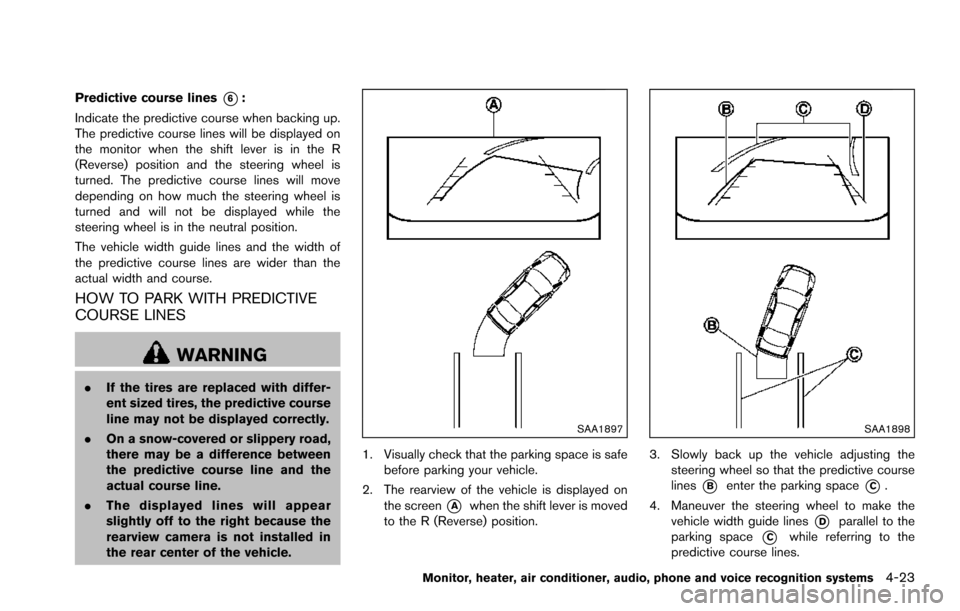
Predictive course lines*6:
Indicate the predictive course when backing up.
The predictive course lines will be displayed on
the monitor when the shift lever is in the R
(Reverse) position and the steering wheel is
turned. The predictive course lines will move
depending on how much the steering wheel is
turned and will not be displayed while the
steering wheel is in the neutral position.
The vehicle width guide lines and the width of
the predictive course lines are wider than the
actual width and course.
HOW TO PARK WITH PREDICTIVE
COURSE LINES
WARNING
. If the tires are replaced with differ-
ent sized tires, the predictive course
line may not be displayed correctly.
. On a snow-covered or slippery road,
there may be a difference between
the predictive course line and the
actual course line.
. The displayed lines will appear
slightly off to the right because the
rearview camera is not installed in
the rear center of the vehicle.
SAA1897
1. Visually check that the parking space is safe
before parking your vehicle.
2. The rearview of the vehicle is displayed on the screen
*Awhen the shift lever is moved
to the R (Reverse) position.
SAA1898
3. Slowly back up the vehicle adjusting the steering wheel so that the predictive course
lines
*Benter the parking space*C.
4. Maneuver the steering wheel to make the vehicle width guide lines
*Dparallel to the
parking space
*Cwhile referring to the
predictive course lines.
Monitor, heater, air conditioner, audio, phone and voice recognition systems4-23
Page 223 of 614
4-26Monitor, heater, air conditioner, audio, phone and voice recognition systems
SAA2404
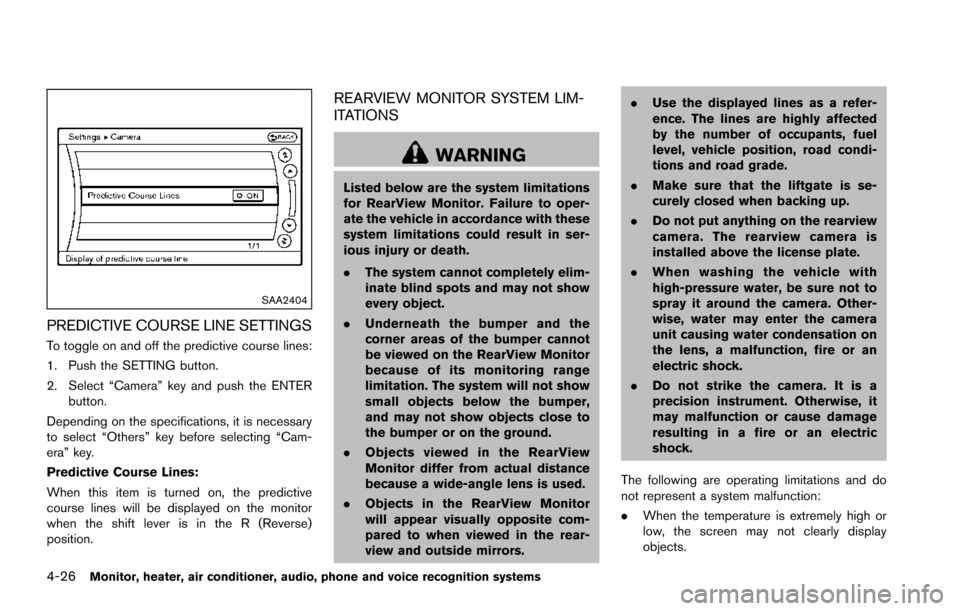
PREDICTIVE COURSE LINE SETTINGS
To toggle on and off the predictive course lines:
1. Push the SETTING button.
2. Select “Camera” key and push the ENTERbutton.
Depending on the specifications, it is necessary
to select “Others” key before selecting “Cam-
era” key.
Predictive Course Lines:
When this item is turned on, the predictive
course lines will be displayed on the monitor
when the shift lever is in the R (Reverse)
position.
REARVIEW MONITOR SYSTEM LIM-
ITATIONS
WARNING
Listed below are the system limitations
for RearView Monitor. Failure to oper-
ate the vehicle in accordance with these
system limitations could result in ser-
ious injury or death.
. The system cannot completely elim-
inate blind spots and may not show
every object.
. Underneath the bumper and the
corner areas of the bumper cannot
be viewed on the RearView Monitor
because of its monitoring range
limitation. The system will not show
small objects below the bumper,
and may not show objects close to
the bumper or on the ground.
. Objects viewed in the RearView
Monitor differ from actual distance
because a wide-angle lens is used.
. Objects in the RearView Monitor
will appear visually opposite com-
pared to when viewed in the rear-
view and outside mirrors. .
Use the displayed lines as a refer-
ence. The lines are highly affected
by the number of occupants, fuel
level, vehicle position, road condi-
tions and road grade.
. Make sure that the liftgate is se-
curely closed when backing up.
. Do not put anything on the rearview
camera. The rearview camera is
installed above the license plate.
. When washing the vehicle with
high-pressure water, be sure not to
spray it around the camera. Other-
wise, water may enter the camera
unit causing water condensation on
the lens, a malfunction, fire or an
electric shock.
. Do not strike the camera. It is a
precision instrument. Otherwise, it
may malfunction or cause damage
resulting in a fire or an electric
shock.
The following are operating limitations and do
not represent a system malfunction:
. When the temperature is extremely high or
low, the screen may not clearly display
objects.
Page 226 of 614
JVH1396X
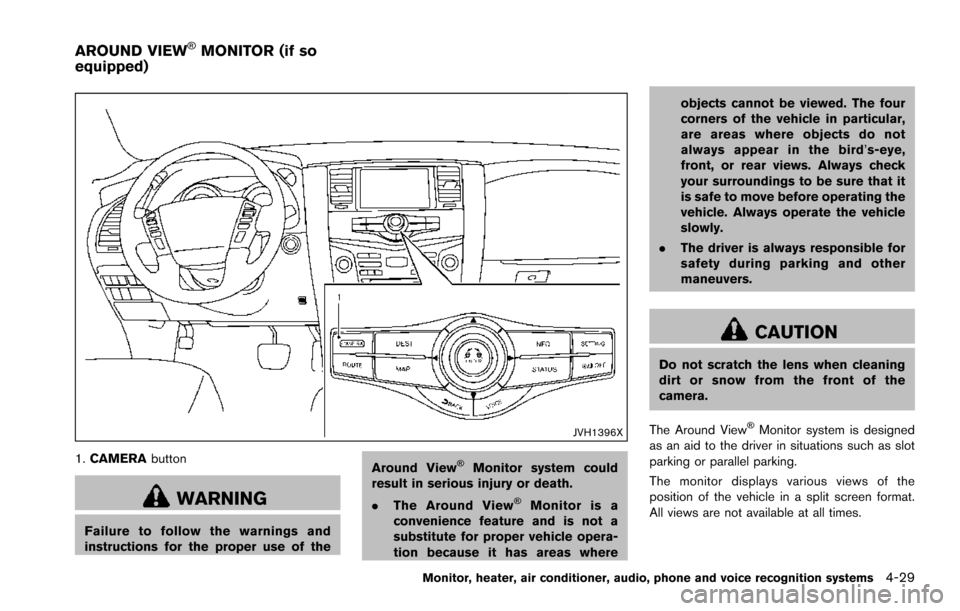
1.CAMERA button
WARNING
Failure to follow the warnings and
instructions for the proper use of the Around View
ŠMonitor system could
result in serious injury or death.
. The Around View
ŠMonitor is a
convenience feature and is not a
substitute for proper vehicle opera-
tion because it has areas where objects cannot be viewed. The four
corners of the vehicle in particular,
are areas where objects do not
always appear in the bird’
s-eye,
front, or rear views. Always check
your surroundings to be sure that it
is safe to move before operating the
vehicle. Always operate the vehicle
slowly.
. The driver is always responsible for
safety during parking and other
maneuvers.
CAUTION
Do not scratch the lens when cleaning
dirt or snow from the front of the
camera.
The Around View
ŠMonitor system is designed
as an aid to the driver in situations such as slot
parking or parallel parking.
The monitor displays various views of the
position of the vehicle in a split screen format.
All views are not available at all times.
Monitor, heater, air conditioner, audio, phone and voice recognition systems4-29
AROUND VIEWŠMONITOR (if so
equipped)
Page 227 of 614
4-30Monitor, heater, air conditioner, audio, phone and voice recognition systems
Available views:
.Front view
An approximately 150-degree view of the
front of the vehicle.
. Rear view
An approximately 150-degree view of the
rear of the vehicle.
. Bird’s-eye view
The surrounding view of the vehicle from
above.
. Front-side view
The view around and ahead of the front
passenger’s side wheel.
. Front-wide view
An approximately 180-degree view of the
front of the vehicle.
. Rear-wide view
An approximately 180-degree view of the
rear of the vehicle.
JVH1397X
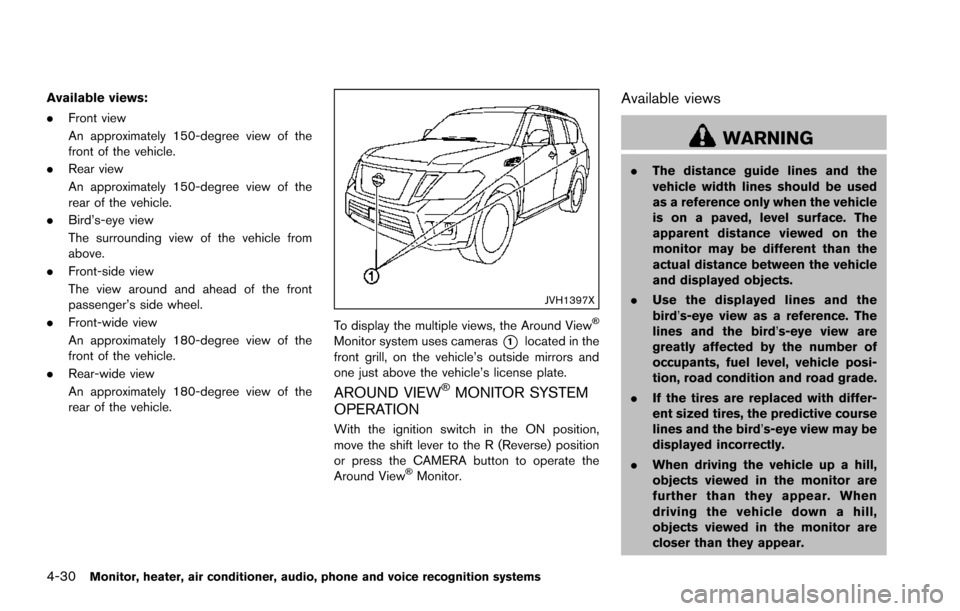
To display the multiple views, the Around ViewŠ
Monitor system uses cameras*1located in the
front grill, on the vehicle’s outside mirrors and
one just above the vehicle’s license plate.
AROUND VIEWŠMONITOR SYSTEM
OPERATION
With the ignition switch in the ON position,
move the shift lever to the R (Reverse) position
or press the CAMERA button to operate the
Around View
ŠMonitor.
Available views
WARNING
. The distance guide lines and the
vehicle width lines should be used
as a reference only when the vehicle
is on a paved, level surface. The
apparent distance viewed on the
monitor may be different than the
actual distance between the vehicle
and displayed objects.
. Use the displayed lines and the
bird’s-eye view as a reference. The
lines and the bird’s-eye view are
greatly affected by the number of
occupants, fuel level, vehicle posi-
tion, road condition and road grade.
. If the tires are replaced with differ-
ent sized tires, the predictive course
lines and the bird’s-eye view may be
displayed incorrectly.
. When driving the vehicle up a hill,
objects viewed in the monitor are
further than they appear. When
driving the vehicle down a hill,
objects viewed in the monitor are
closer than they appear.
Page 230 of 614
WARNING
.Objects in the bird’s-eye view will
appear further than the actual dis-
tance.
. Tall objects, such as a curb or
vehicle, may be misaligned or not
displayed at the seam of the views.
. Objects that are above the camera
cannot be displayed.
. The view for the bird’s-eye view may
be misaligned when the camera
position alters.
. A line on the ground may be mis-
aligned and is not seen as being
straight at the seam of the views.
The misalignment will increase as
the line proceeds away from the
vehicle.
. Tire angle display does not indicate
the actual tire angle.
JVH1141X
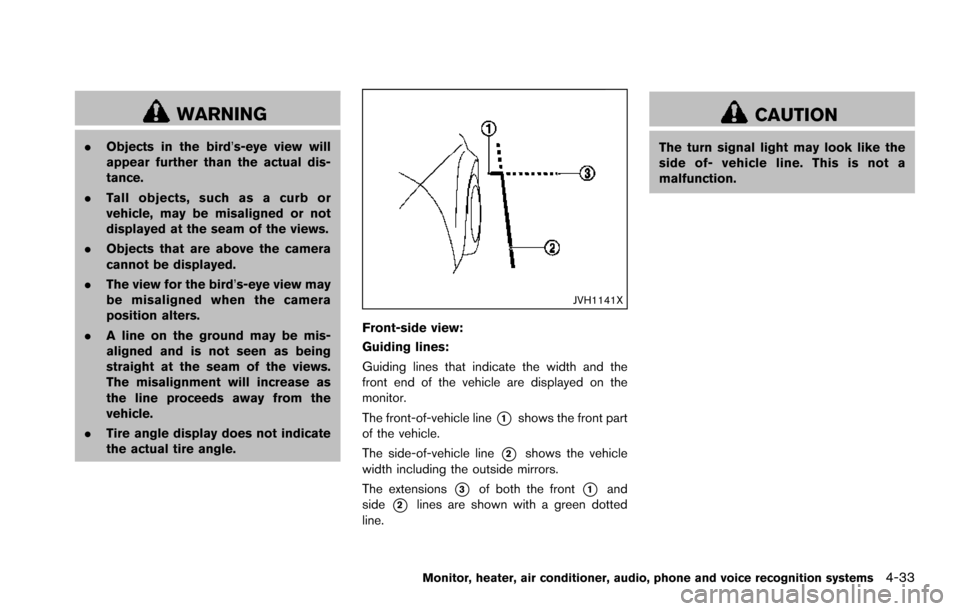
Front-side view:
Guiding lines:
Guiding lines that indicate the width and the
front end of the vehicle are displayed on the
monitor.
The front-of-vehicle line
*1shows the front part
of the vehicle.
The side-of-vehicle line
*2shows the vehicle
width including the outside mirrors.
The extensions
*3of both the front*1and
side
*2lines are shown with a green dotted
line.
CAUTION
The turn signal light may look like the
side of- vehicle line. This is not a
malfunction.
Monitor, heater, air conditioner, audio, phone and voice recognition systems4-33
Page 233 of 614
4-36Monitor, heater, air conditioner, audio, phone and voice recognition systems
JVH1216X
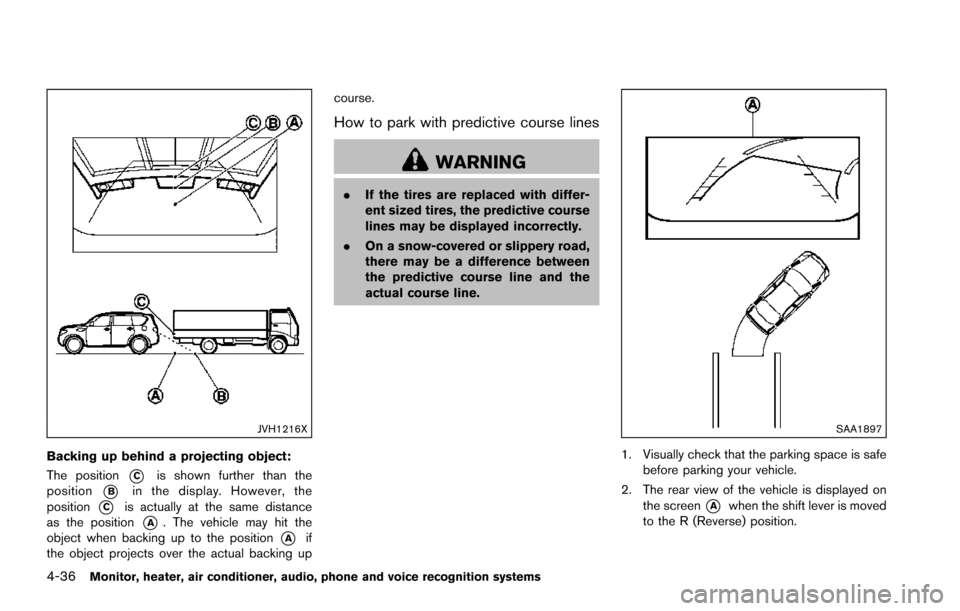
Backing up behind a projecting object:
The position
*Cis shown further than the
position
*Bin the display. However, the
position
*Cis actually at the same distance
as the position
*A. The vehicle may hit the
object when backing up to the position
*Aif
the object projects over the actual backing up course.
How to park with predictive course lines
WARNING
.
If the tires are replaced with differ-
ent sized tires, the predictive course
lines may be displayed incorrectly.
. On a snow-covered or slippery road,
there may be a difference between
the predictive course line and the
actual course line.
SAA1897
1. Visually check that the parking space is safe
before parking your vehicle.
2. The rear view of the vehicle is displayed on the screen
*Awhen the shift lever is moved
to the R (Reverse) position.
Page 235 of 614
4-38Monitor, heater, air conditioner, audio, phone and voice recognition systems
2. Select the “Display” key.
3. Select an item you wish to adjust.
4. Adjust the level of the setting item using themulti-function controller.
NOTE:
Do not adjust any of the display settings of
the Around View
ŠMonitor while the vehi-
cle is moving. Make sure the parking brake
is firmly applied.
JVH1303X
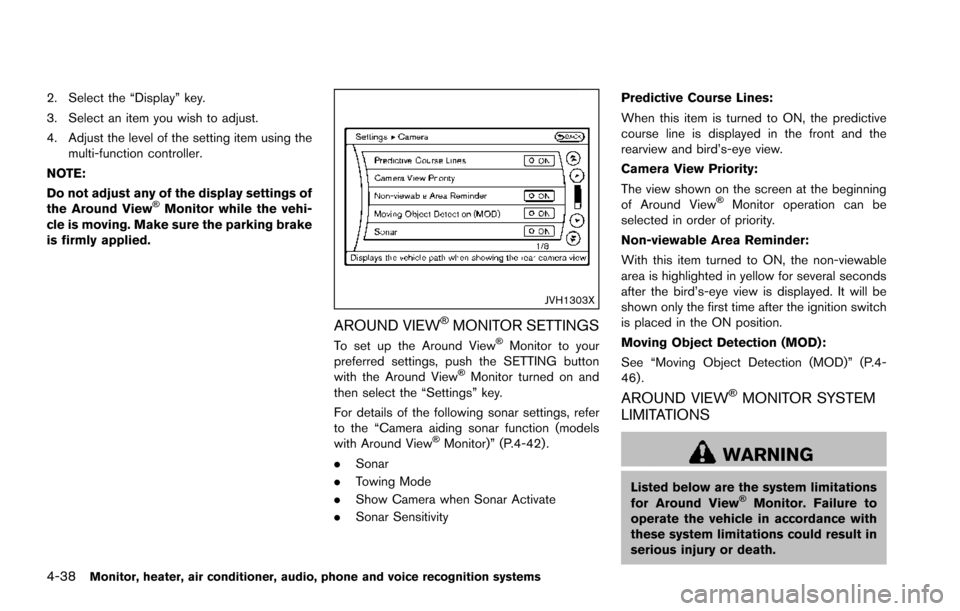
AROUND VIEWŠMONITOR SETTINGS
To set up the Around ViewŠMonitor to your
preferred settings, push the SETTING button
with the Around View
ŠMonitor turned on and
then select the “Settings” key.
For details of the following sonar settings, refer
to the “Camera aiding sonar function (models
with Around View
ŠMonitor)” (P.4-42) .
. Sonar
. Towing Mode
. Show Camera when Sonar Activate
. Sonar Sensitivity Predictive Course Lines:
When this item is turned to ON, the predictive
course line is displayed in the front and the
rearview and bird’s-eye view.
Camera View Priority:
The view shown on the screen at the beginning
of Around View
ŠMonitor operation can be
selected in order of priority.
Non-viewable Area Reminder:
With this item turned to ON, the non-viewable
area is highlighted in yellow for several seconds
after the bird’s-eye view is displayed. It will be
shown only the first time after the ignition switch
is placed in the ON position.
Moving Object Detection (MOD):
See “Moving Object Detection (MOD)” (P.4-
46) .
AROUND VIEWŠMONITOR SYSTEM
LIMITATIONS
WARNING
Listed below are the system limitations
for Around ViewŠMonitor. Failure to
operate the vehicle in accordance with
these system limitations could result in
serious injury or death.
Page 239 of 614
4-42Monitor, heater, air conditioner, audio, phone and voice recognition systems
WARNING
Failure to follow the warnings and
instructions for proper use of the sonar
function as outlined in this section
could result in serious injury or death.
.The sonar is a convenience feature.
It is not a substitute for proper
parking.
. This function is designed as an aid
to the driver in detecting large
stationary objects to help avoid
damaging the vehicle.
. The driver is always responsible for
safety during parking and other
maneuvers.
. Always look around and check that
it is safe to move before parking.
. Read and understand the limita-
tions of the sonar as contained in
this section.
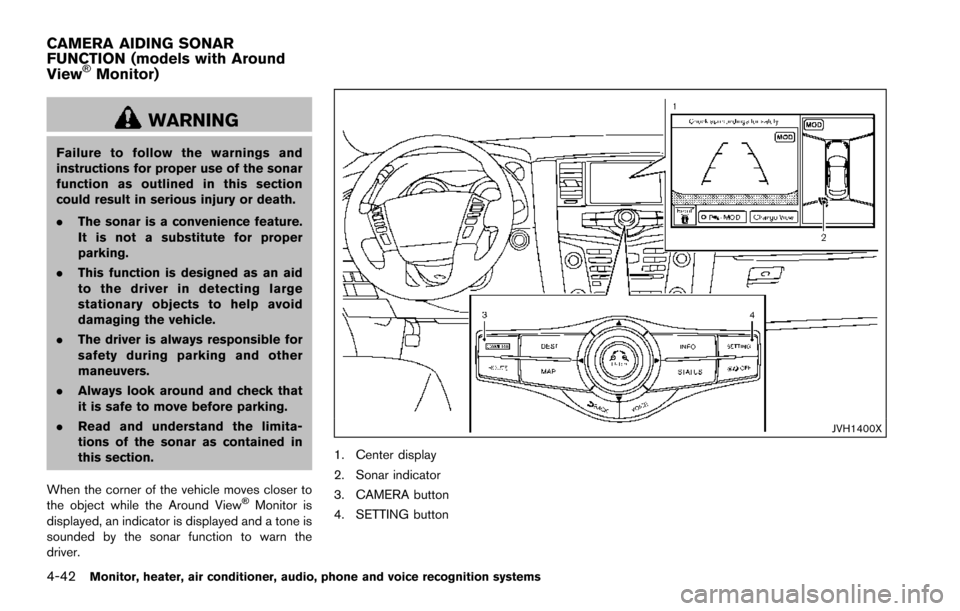
When the corner of the vehicle moves closer to
the object while the Around View
ŠMonitor is
displayed, an indicator is displayed and a tone is
sounded by the sonar function to warn the
driver.
JVH1400X
1. Center display
2. Sonar indicator
3. CAMERA button
4. SETTING button
CAMERA AIDING SONAR
FUNCTION (models with Around
View
ŠMonitor)
Page 242 of 614
the ignition switch is placed in the ON position,
“Sonar is OFF” is displayed briefly.
Towing Mode:
When this item is turned ON, only the rear sonar
is OFF. The amber markers are displayed at the
rear corners of the vehicle icon.
Show Camera when Sonar Activate:
When this item is turned ON, the camera view is
automatically shown on the display in the case
that the distance to the objects measured by the
sonar is becoming short.
Sonar Sensitivity:
Adjust the sensitivity level of the sensor higher
(right) or lower (left) .
SONAR SYSTEM LIMITATIONS
WARNING
Listed below are the system limitations
for the sonar function. Failure to oper-
ate the vehicle in accordance with these
system limitations could result in ser-
ious injury or death.
.Inclement weather or ultrasonic
sources such as an automatic car
wash, a truck’ s compressed-air
brakes or a pneumatic drill may affect the function of the system,
including reduced performance or a
false activation.
. This function is designed as an aid
to the driver in detecting large
stationary objects to help avoid
damaging the vehicle.
. The system is not designed to pre-
vent contact with small or moving
objects.
. The system will not detect small
objects below the bumper, and may
not detect objects close to the
bumper or on the ground.
. The system may not detect the
following objects:
— Fluffy objects such as snow,
cloth, cotton, grass or wool.
— Thin objects such as rope, wire or chain.
— Wedge-shaped objects.
. If your vehicle sustains damage to
the bumper fascia, leaving it mis-
aligned or bent, the sensing zone
may be altered causing inaccurate
measurement of objects or false
alarms.
CAUTION
Excessive noise (such as audio system
volume or an open vehicle window) will
interfere with the tone and it may not be
heard.
SYSTEM TEMPORARILY UNAVAIL-
ABLE
When the amber markers are displayed at the
corners of the vehicle icon and the function
cannot be activated from the Camera setting
menu (the setting items are grayed out) , the
sonar system may be malfunctioning.
SYSTEM MAINTENANCE
CAUTION
Keep the surface of the sonar sensors
(located on the front and rear bumper
fascia) free from accumulations of
snow, ice and dirt. Do not scratch the
surface of the sonar sensors when
cleaning. If the sensors are covered,
the accuracy of the sonar function will
be diminished.
Monitor, heater, air conditioner, audio, phone and voice recognition systems4-45