ECO mode NISSAN ARMADA 2017 2.G Owner's Manual
[x] Cancel search | Manufacturer: NISSAN, Model Year: 2017, Model line: ARMADA, Model: NISSAN ARMADA 2017 2.GPages: 614, PDF Size: 2.87 MB
Page 179 of 614
3-18Pre-driving checks and adjustments
Hazard indicator and horn mode:
DOOR LOCKDOOR UNLOCK
Intelligent Key system
(Using door handle request switch) HAZARD -
twice
OUTSIDE CHIME - twiceHAZARD -
once
OUTSIDE CHIME - once
Remote keyless entry system (Using
orbutton) HAZARD -
twice
HORN - once HAZARD -
once
HORN - none
Hazard indicator mode:
DOOR LOCK DOOR UNLOCK
Intelligent Key system
(Using door handle request switch) HAZARD -
twice HAZARD - none
Remote keyless entry system (Using
orbutton) HAZARD -
twice HAZARD - none
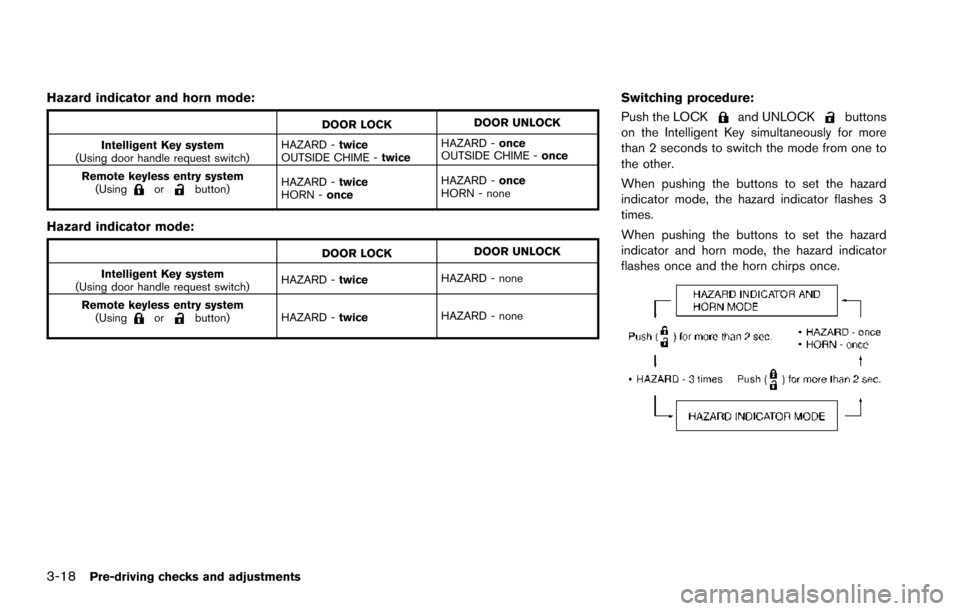
Switching procedure:
Push the LOCK
and UNLOCKbuttons
on the Intelligent Key simultaneously for more
than 2 seconds to switch the mode from one to
the other.
When pushing the buttons to set the hazard
indicator mode, the hazard indicator flashes 3
times.
When pushing the buttons to set the hazard
indicator and horn mode, the hazard indicator
flashes once and the horn chirps once.
Page 185 of 614
3-24Pre-driving checks and adjustments
Power open
When the liftgate is fully closed, the liftgate will
fully open automatically by:
.pushing the power liftgate switch
*Aon the
instrument panel
. pushing the liftgate opener switch
*B
.pushing the power liftgate button*Con the
Intelligent Key for more than 1 second
The hazard flashes 4 times and the outside
chime sounds when the liftgate starts opening.
NOTE:
The liftgate can be opened by the power
liftgate switch
*A, the liftgate opener
switch
*Bor the power liftgate button
*Ceven if the liftgate is locked. The
liftgate will individually unlock and open.
Power close
When the liftgate is fully opened, the liftgate will
fully close automatically by:
. pushing the power liftgate switch
*Aon the
instrument panel
. pushing the power liftgate button
*Con the
Intelligent Key for more than 1 second
. pushing the power liftgate switch
*Don the
lower part of the liftgate
The hazard flashes 4 times and the outside
chime sounds when the liftgate starts closing. NOTE:
When the liftgate is closed, it remains
unlocked. Manually lock the liftgate.
Reverse function
The power liftgate will reverse immediately if one
of the following actions is performed during
power open or power close.
.
pushing the power liftgate switch
*Aon the
instrument panel
. pushing the power liftgate button
*Con the Intelligent Key.
. pushing the liftgate switch
*Don the lower
part of the liftgate
The outside chime sounds when the liftgate
starts to reverse.
Auto reverse function
The auto-reverse function enables the liftgate to
automatically reverse when something is caught
in the liftgate as it is opening or closing. When
the control unit detects an obstacle, the liftgate
will reverse and return to the full open or full
close position.
If a second obstacle is detected, the liftgate
motion will stop and the drive motor will
disengage. The liftgate will enter the manual
mode.
A pinch sensor is mounted on each side of the
liftgate. If an obstacle is detected by the pinch sensor during power close, the liftgate will
reverse and return to the full open position
immediately.
NOTE:
If the pinch sensor is damaged or removed,
the power close function will not operate.
WARNING
There is a small distance immediately
before the closed position that cannot
be detected. Make sure that all passen-
gers keep their hands, etc., clear from
the liftgate opening before closing the
liftgate.
Manual mode
If power operation is not available, the liftgate
can be operated manually. Power operation may
not be available if multiple obstacles have been
detected in a single power cycle or if the battery
voltage is low. When the power liftgate main
switch is in the OFF position, the liftgate can be
opened manually by pushing the liftgate opener
switch. If the power liftgate opener switch is
pushed during power open or close, the power
operation will be canceled and the liftgate can
be operated manually.
Page 186 of 614
JVP0466X
Safe Mode
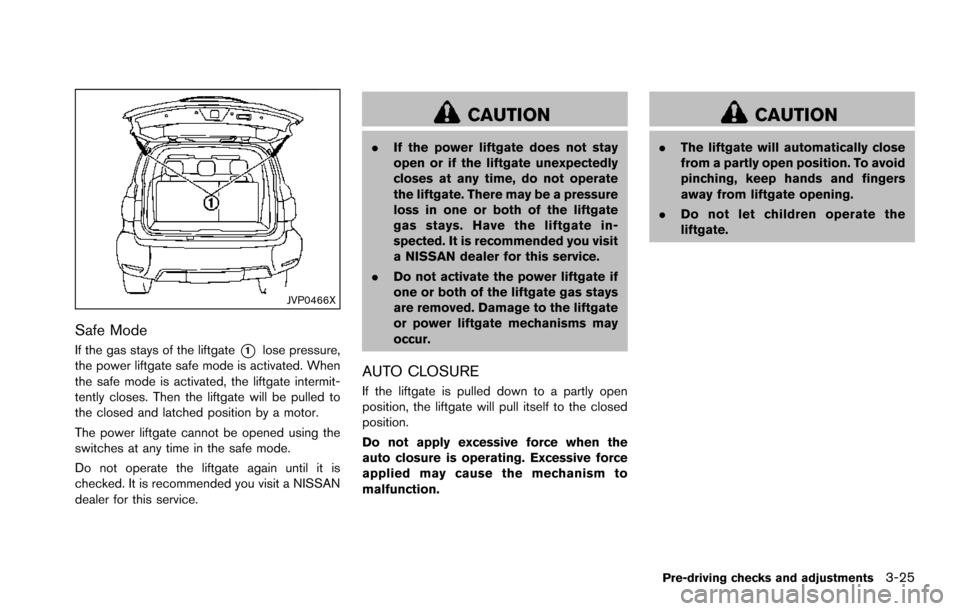
If the gas stays of the liftgate*1lose pressure,
the power liftgate safe mode is activated. When
the safe mode is activated, the liftgate intermit-
tently closes. Then the liftgate will be pulled to
the closed and latched position by a motor.
The power liftgate cannot be opened using the
switches at any time in the safe mode.
Do not operate the liftgate again until it is
checked. It is recommended you visit a NISSAN
dealer for this service.
CAUTION
. If the power liftgate does not stay
open or if the liftgate unexpectedly
closes at any time, do not operate
the liftgate. There may be a pressure
loss in one or both of the liftgate
gas stays. Have the liftgate in-
spected. It is recommended you visit
a NISSAN dealer for this service.
. Do not activate the power liftgate if
one or both of the liftgate gas stays
are removed. Damage to the liftgate
or power liftgate mechanisms may
occur.
AUTO CLOSURE
If the liftgate is pulled down to a partly open
position, the liftgate will pull itself to the closed
position.
Do not apply excessive force when the
auto closure is operating. Excessive force
applied may cause the mechanism to
malfunction.
CAUTION
. The liftgate will automatically close
from a partly open position. To avoid
pinching, keep hands and fingers
away from liftgate opening.
. Do not let children operate the
liftgate.
Pre-driving checks and adjustments3-25
Page 198 of 614

4 Monitor, heater, air conditioner, audio, phoneand voice recognition systems
Safety note ........................................................................\
.......... 4-3
Center multi-function control panel ...................................... 4-4
How to use multi-function controller .............................. 4-5
How to use touch screen ................................................. 4-5
Menu options ........................................................................\
4-7
How to select menus on the screen .............................. 4-8
Vehicle information and settings ........................................... 4-8 How to use STATUS button ............................................. 4-8
How to use brightness control and display
ON/OFF button ................................................................... 4-8
How to use CAMERA button (if so equipped) ........... 4-8
How to use DISP button (if so equipped) ................... 4-8
How to use INFO button .................................................. 4-9
How to use SETTING button ....................................... 4-13
RearView Monitor (if so equipped) ................................... 4-21 RearView Monitor system operation ........................... 4-22
How to read the displayed lines .................................. 4-22
How to park with predictive course lines .................. 4-23
Adjusting the screen ....................................................... 4-25
Predictive course line settings ...................................... 4-26
RearView Monitor system limitations .......................... 4-26
Sonar settings ................................................................... 4-27
Sonar indicator .................................................................. 4-27
System maintenance ....................................................... 4-28 Around ViewŠMonitor (if so equipped) .......................... 4-29
Around ViewŠMonitor system operation ................. 4-30
How to adjust the screen view ................................... 4-37
Around View
ŠMonitor settings .................................. 4-38
Around ViewŠMonitor system limitations ................ 4-38
System maintenance ..................................................... 4-41
Camera aiding sonar function (models with Around
View
ŠMonitor) ....................................................................... 4-42
Sonar system operation ............................................... 4-43
Turning on and off the sonar function ...................... 4-43
Sonar system limitations .............................................. 4-45
System temporarily unavailable .................................. 4-45
System maintenance ..................................................... 4-45
Moving Object Detection (MOD) ..................................... 4-46 MOD system operation ................................................ 4-47
Turning on and off the MOD system ........................ 4-48
MOD system limitations ............................................... 4-49
System maintenance ..................................................... 4-50
Ventilators ........................................................................\
........ 4-51
Center ventilators ........................................................... 4-51
Side ventilators ............................................................... 4-51
Rear ventilators ............................................................... 4-52
Heater and air conditioner .................................................. 4-52
Automatic air conditioner ............................................. 4-54
Operating tips ................................................................. 4-58
Page 199 of 614
Linking Intelligent Key (if so equipped) ...................... 4-58
In-cabin microfilter ........................................................... 4-58
Servicing air conditioner ................................................. 4-58
Audio system ........................................................................\
... 4-59
Audio operation precautions ......................................... 4-59
FM-AM-SAT radio with Compact Disc
(CD) player ........................................................................\
4-70
DVD (Digital Versatile Disc) player operation ........... 4-74
USB (Universal Serial Bus) connection port ............ 4-77
Bluetooth
Šstreaming audio .......................................... 4-81
iPodŠplayer operation .................................................... 4-86
Front auxiliary input jacks (if so equipped) ................ 4-88
CD/DVD/USB memory care and cleaning ................ 4-90
Steering-wheel-mounted controls for audio .............. 4-91
Antenna ........................................................................\
....... 4-92
DVD Entertainment System (if so equipped) ................. 4-92 Licenses ........................................................................\
...... 4-93
System components ........................................................ 4-93
Before operating DVD Entertainment System .......... 4-99
Playing Digital Versatile Disc (DVD)/USB .............. 4-100
Operating tips ................................................................ 4-105
Care and maintenance ................................................. 4-105 Car phone or CB radio ..................................................... 4-106
Bluetooth
ŠHands-Free Phone System ........................ 4-106
Regulatory information ............................................... 4-108
Voice commands ......................................................... 4-108
Control buttons ............................................................ 4-108
Connecting procedure ............................................... 4-109
Phone selection ........................................................... 4-109
Quick Dial ..................................................................... 4-109
Making a call ................................................................ 4-112
Receiving a call ........................................................... 4-113
During a call ................................................................. 4-113
Phone setting ............................................................... 4-114
Troubleshooting guide ............................................... 4-116
NISSAN Voice Recognition system .............................. 4-117
NISSAN Voice Recognition Standard Mode ....... 4-117
Using the system ........................................................ 4-120
NISSAN Voice Recognition Alternate
Command Mode ......................................................... 4-130
Using the system ........................................................ 4-138
Troubleshooting guide ............................................... 4-143
Page 205 of 614
4-8Monitor, heater, air conditioner, audio, phone and voice recognition systems
SAA2477
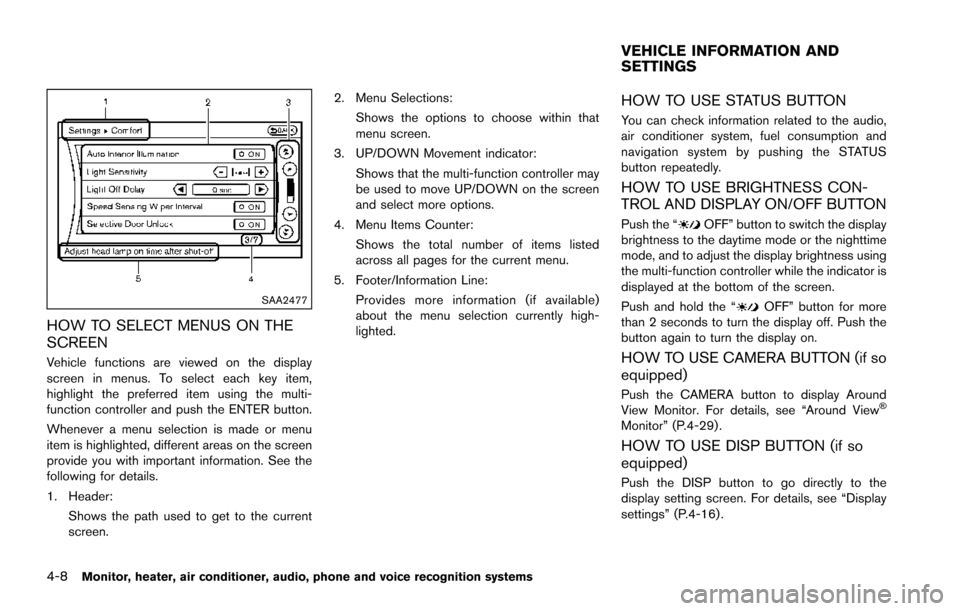
HOW TO SELECT MENUS ON THE
SCREEN
Vehicle functions are viewed on the display
screen in menus. To select each key item,
highlight the preferred item using the multi-
function controller and push the ENTER button.
Whenever a menu selection is made or menu
item is highlighted, different areas on the screen
provide you with important information. See the
following for details.
1. Header:Shows the path used to get to the current
screen. 2. Menu Selections:
Shows the options to choose within that
menu screen.
3. UP/DOWN Movement indicator: Shows that the multi-function controller may
be used to move UP/DOWN on the screen
and select more options.
4. Menu Items Counter: Shows the total number of items listed
across all pages for the current menu.
5. Footer/Information Line: Provides more information (if available)
about the menu selection currently high-
lighted.
HOW TO USE STATUS BUTTON
You can check information related to the audio,
air conditioner system, fuel consumption and
navigation system by pushing the STATUS
button repeatedly.
HOW TO USE BRIGHTNESS CON-
TROL AND DISPLAY ON/OFF BUTTON
Push the “OFF” button to switch the display
brightness to the daytime mode or the nighttime
mode, and to adjust the display brightness using
the multi-function controller while the indicator is
displayed at the bottom of the screen.
Push and hold the “
OFF” button for more
than 2 seconds to turn the display off. Push the
button again to turn the display on.
HOW TO USE CAMERA BUTTON (if so
equipped)
Push the CAMERA button to display Around
View Monitor. For details, see “Around ViewŠ
Monitor” (P.4-29) .
HOW TO USE DISP BUTTON (if so
equipped)
Push the DISP button to go directly to the
display setting screen. For details, see “Display
settings” (P.4-16) .
VEHICLE INFORMATION AND
SETTINGS
Page 213 of 614
4-16Monitor, heater, air conditioner, audio, phone and voice recognition systems
SAA3008
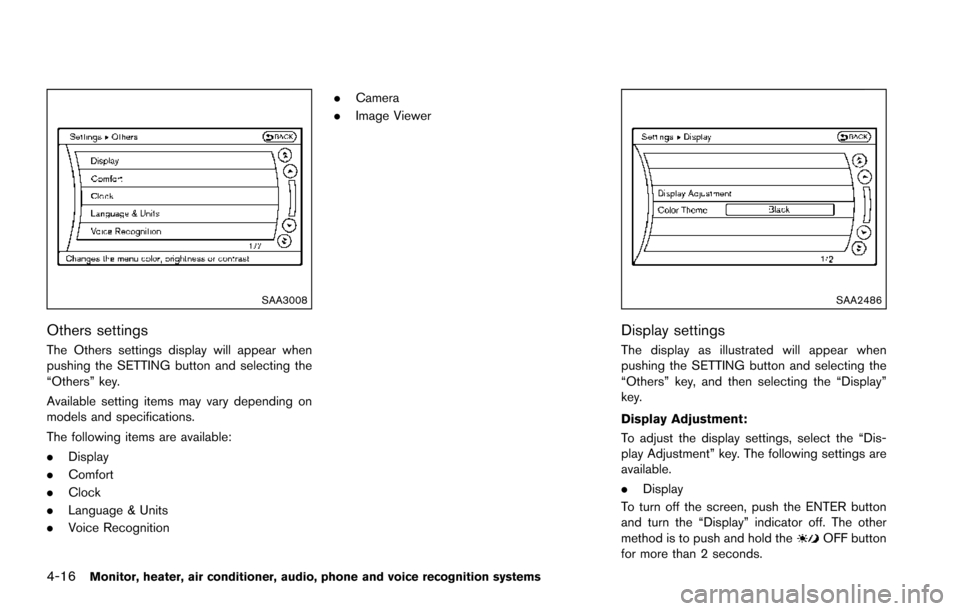
Others settings
The Others settings display will appear when
pushing the SETTING button and selecting the
“Others” key.
Available setting items may vary depending on
models and specifications.
The following items are available:
.Display
. Comfort
. Clock
. Language & Units
. Voice Recognition .
Camera
. Image Viewer
SAA2486
Display settings
The display as illustrated will appear when
pushing the SETTING button and selecting the
“Others” key, and then selecting the “Display”
key.
Display Adjustment:
To adjust the display settings, select the “Dis-
play Adjustment” key. The following settings are
available.
.Display
To turn off the screen, push the ENTER button
and turn the “Display” indicator off. The other
method is to push and hold the
OFF button
for more than 2 seconds.
Page 214 of 614
When any mode button is pushed with the
screen off, the screen turns on for further
operation. The screen will turn off automatically
5 seconds after the operation is finished.
To turn on the screen, set this item to the ON
position, or push the
OFF button.
. Brightness/Contrast/Background Color
To adjust the brightness and contrast of the
screen, select the “Brightness” or “Contrast”
key.
Then, you can adjust the brightness and the
contrast using the multi-function controller.
For information on the “Background Color” key,
refer to the separate Navigation System Own-
er’s Manual.
Color Theme:
Choose the theme color of the menu screen.
SAA3151
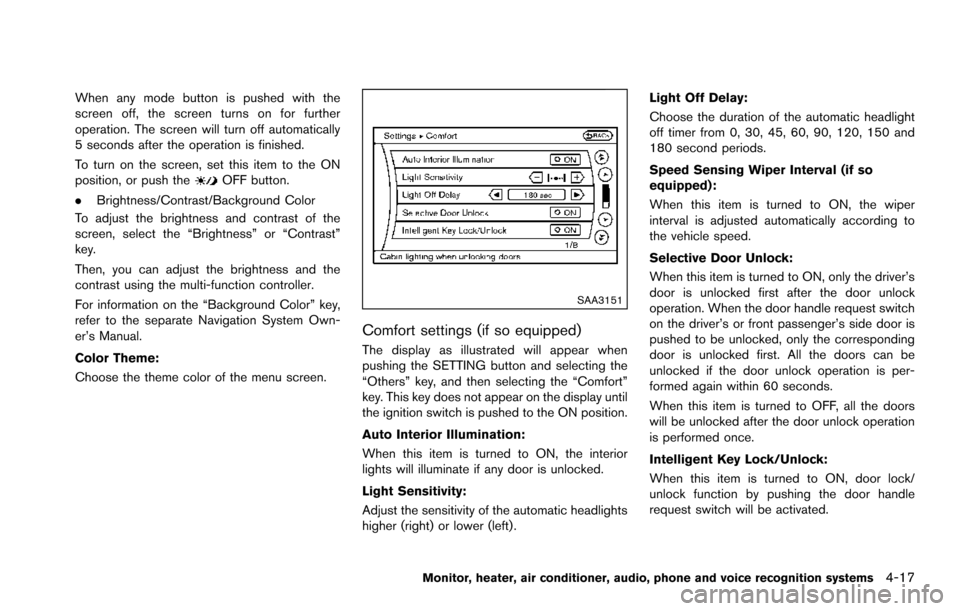
Comfort settings (if so equipped)
The display as illustrated will appear when
pushing the SETTING button and selecting the
“Others” key, and then selecting the “Comfort”
key. This key does not appear on the display until
the ignition switch is pushed to the ON position.
Auto Interior Illumination:
When this item is turned to ON, the interior
lights will illuminate if any door is unlocked.
Light Sensitivity:
Adjust the sensitivity of the automatic headlights
higher (right) or lower (left) . Light Off Delay:
Choose the duration of the automatic headlight
off timer from 0, 30, 45, 60, 90, 120, 150 and
180 second periods.
Speed Sensing Wiper Interval (if so
equipped):
When this item is turned to ON, the wiper
interval is adjusted automatically according to
the vehicle speed.
Selective Door Unlock:
When this item is turned to ON, only the driver’s
door is unlocked first after the door unlock
operation. When the door handle request switch
on the driver’s or front passenger’s side door is
pushed to be unlocked, only the corresponding
door is unlocked first. All the doors can be
unlocked if the door unlock operation is per-
formed again within 60 seconds.
When this item is turned to OFF, all the doors
will be unlocked after the door unlock operation
is performed once.
Intelligent Key Lock/Unlock:
When this item is turned to ON, door lock/
unlock function by pushing the door handle
request switch will be activated.
Monitor, heater, air conditioner, audio, phone and voice recognition systems4-17
Page 216 of 614
SAA3007
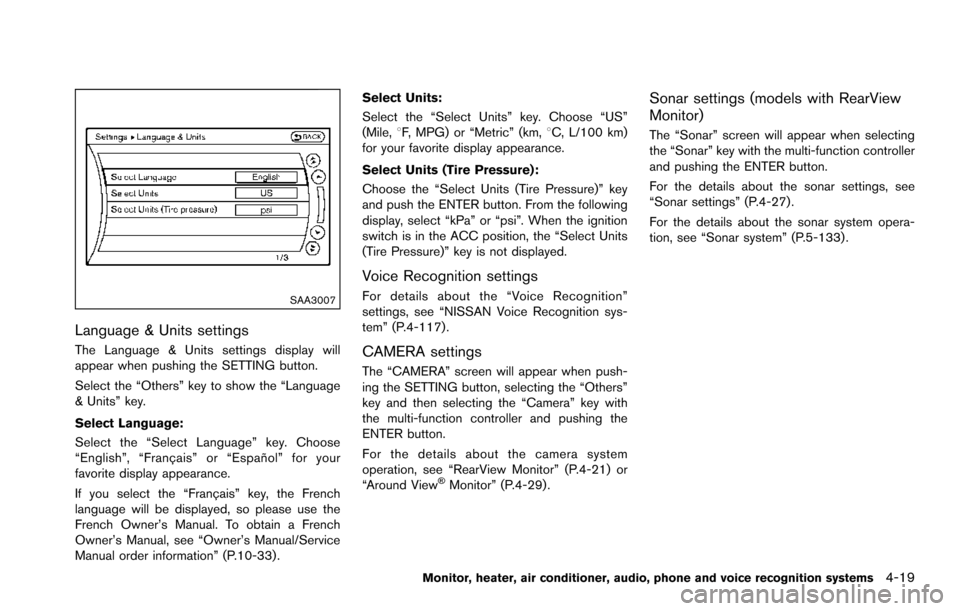
Language & Units settings
The Language & Units settings display will
appear when pushing the SETTING button.
Select the “Others” key to show the “Language
& Units” key.
Select Language:
Select the “Select Language” key. Choose
“English”, “Franc¸ ais” or “Espan˜
ol” for your
favorite display appearance.
If you select the “Franc¸ ais” key, the French
language will be displayed, so please use the
French Owner’s Manual. To obtain a French
Owner’s Manual, see “Owner’s Manual/Service
Manual order information” (P.10-33) . Select Units:
Select the “Select Units” key. Choose “US”
(Mile,
8F, MPG) or “Metric” (km, 8C, L/100 km)
for your favorite display appearance.
Select Units (Tire Pressure):
Choose the “Select Units (Tire Pressure)” key
and push the ENTER button. From the following
display, select “kPa” or “psi”. When the ignition
switch is in the ACC position, the “Select Units
(Tire Pressure)” key is not displayed.
Voice Recognition settings
For details about the “Voice Recognition”
settings, see “NISSAN Voice Recognition sys-
tem” (P.4-117).
CAMERA settings
The “CAMERA” screen will appear when push-
ing the SETTING button, selecting the “Others”
key and then selecting the “Camera” key with
the multi-function controller and pushing the
ENTER button.
For the details about the camera system
operation, see “RearView Monitor” (P.4-21) or
“Around View
ŠMonitor” (P.4-29).
Sonar settings (models with RearView
Monitor)
The “Sonar” screen will appear when selecting
the “Sonar” key with the multi-function controller
and pushing the ENTER button.
For the details about the sonar settings, see
“Sonar settings” (P.4-27).
For the details about the sonar system opera-
tion, see “Sonar system” (P.5-133) .
Monitor, heater, air conditioner, audio, phone and voice recognition systems4-19
Page 235 of 614
4-38Monitor, heater, air conditioner, audio, phone and voice recognition systems
2. Select the “Display” key.
3. Select an item you wish to adjust.
4. Adjust the level of the setting item using themulti-function controller.
NOTE:
Do not adjust any of the display settings of
the Around View
ŠMonitor while the vehi-
cle is moving. Make sure the parking brake
is firmly applied.
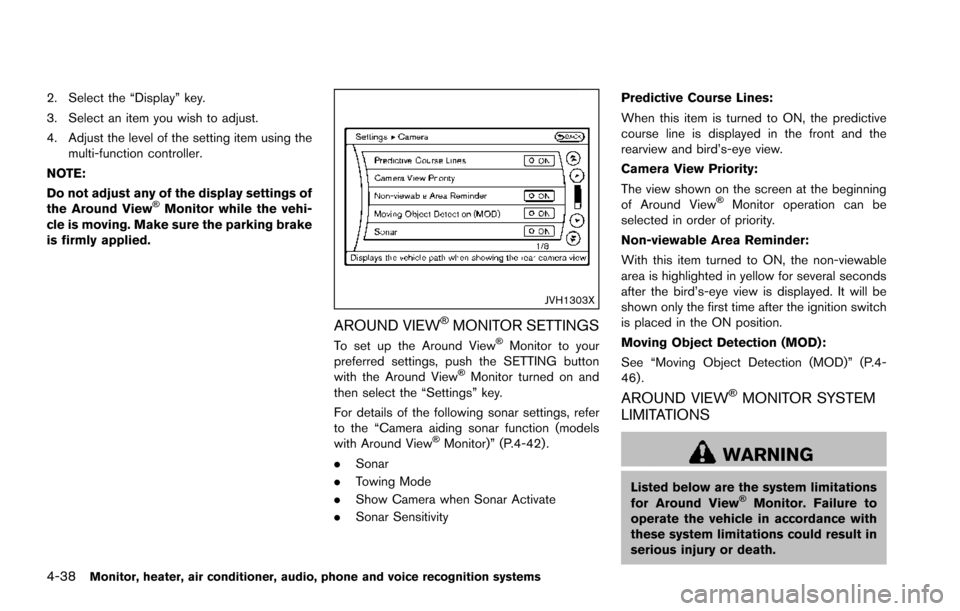
JVH1303X
AROUND VIEWŠMONITOR SETTINGS
To set up the Around ViewŠMonitor to your
preferred settings, push the SETTING button
with the Around View
ŠMonitor turned on and
then select the “Settings” key.
For details of the following sonar settings, refer
to the “Camera aiding sonar function (models
with Around View
ŠMonitor)” (P.4-42) .
. Sonar
. Towing Mode
. Show Camera when Sonar Activate
. Sonar Sensitivity Predictive Course Lines:
When this item is turned to ON, the predictive
course line is displayed in the front and the
rearview and bird’s-eye view.
Camera View Priority:
The view shown on the screen at the beginning
of Around View
ŠMonitor operation can be
selected in order of priority.
Non-viewable Area Reminder:
With this item turned to ON, the non-viewable
area is highlighted in yellow for several seconds
after the bird’s-eye view is displayed. It will be
shown only the first time after the ignition switch
is placed in the ON position.
Moving Object Detection (MOD):
See “Moving Object Detection (MOD)” (P.4-
46) .
AROUND VIEWŠMONITOR SYSTEM
LIMITATIONS
WARNING
Listed below are the system limitations
for Around ViewŠMonitor. Failure to
operate the vehicle in accordance with
these system limitations could result in
serious injury or death.