vent NISSAN ARMADA 2019 Owner´s Manual
[x] Cancel search | Manufacturer: NISSAN, Model Year: 2019, Model line: ARMADA, Model: NISSAN ARMADA 2019Pages: 536, PDF Size: 2.56 MB
Page 200 of 536
3-26Pre-driving checks and adjustments
CAUTION
.The liftgate will automatically
close from a partly open position.
To avoid pinching, keep hands
and fingers away from liftgate
opening.
. Do not let children operate the
liftgate.
SPA2751
LIFTGATE RELEASE LEVER
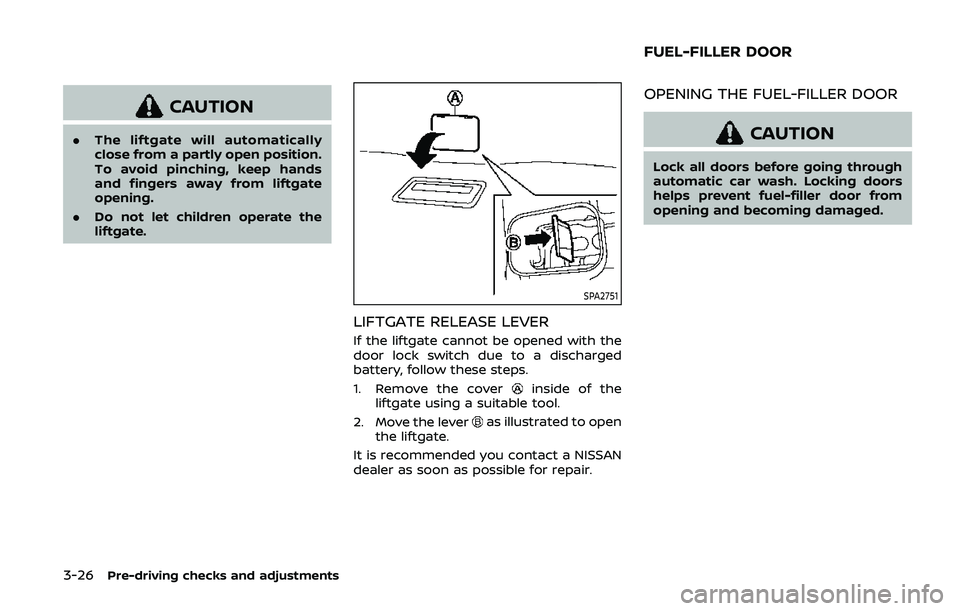
If the liftgate cannot be opened with the
door lock switch due to a discharged
battery, follow these steps.
1. Remove the cover
inside of the
liftgate using a suitable tool.
2. Move the lever
as illustrated to open
the liftgate.
It is recommended you contact a NISSAN
dealer as soon as possible for repair.
OPENING THE FUEL-FILLER DOOR
CAUTION
Lock all doors before going through
automatic car wash. Locking doors
helps prevent fuel-filler door from
opening and becoming damaged.
FUEL-FILLER DOOR
Page 206 of 536
3-32Pre-driving checks and adjustments
indicator light will turn off. Push the “I”
switchto turn the system on.
Do not allow any object to cover the
sensors
or apply glass cleaner on
them. Doing so will reduce the sensitiv-
ity of the sensor, resulting in improper
operation.
For the HomeLink® Universal Transceiver
operation, see “HomeLink® Universal
Transceiver (Type A)” (P.2-71).
Intelligent Rear View Mirror (if so
equipped)
WARNING
Failure to follow the warnings and
instructions for proper use of the
Intelligent Rear View Mirror could
result in serious injury or death.
. The Intelligent Rear View Mirror is
a convenience feature but it is not
a substitute for proper vehicle
operation. The system has areas
where objects cannot be viewed.
Check the blind spot of the In-
telligent Rear View Mirror before
vehicle operation. The driver is
always responsible for safe driv-
ing. .
Do not disassemble or modify the
Intelligent Rear View Mirror, the
camera unit or wirings. If you do,
it may result in accidents or fire.
In case you notice smoke or smell
coming from the Intelligent Rear
View Mirror, stop using the sys-
tem immediately. It is recom-
mended that you see a NISSAN
dealer for servicing.
. Do not operate the Intelligent
Rear View Mirror while driving.
Doing so can be a distraction
and it could lose control of your
vehicle and cause an accident or
serious injury.
. Do not gaze into the Intelligent
Rear View Mirror display during
driving. It may cause a distraction
and it could lose control of your
vehicle and cause an accident or
serious injury.
. Do not put a cigarette or flames
to the Intelligent Rear View Mir-
ror, the camera unit or wirings. It
may cause a fire.
. Be sure to adjust the Intelligent
Rear View Mirror before driving.
Switch the system to the conven-
tional rearview mirror mode and
be properly seated on the driver’s seat. Then adjust the mirror so as
to see the rear window properly.
Driving without adjusting the mir-
ror may cause difficulty in watch-
ing the display at Intelligent Rear
View Mirror mode (camera view
mode) due to the reflection from
the surface of the mirror.
. If the Intelligent Rear View Mirror
malfunctions, immediately switch
the system to the conventional
rearview mirror mode.
. When strong light (for example,
sunlight or high beams from fol-
lowing vehicles) enters the cam-
era, a light beam or a glaring light
may appear on the monitor
screen of the Intelligent Rear
View Mirror. In that case, switch
the system to the conventional
rearview mirror mode appropri-
ately.
. If dirt, rain or snow accumulates
on the exterior glass surface cov-
ering the camera, the Intelligent
Rear View Mirror may not display
objects clearly. Use of the rear
window wiper/washer may im-
prove visibility, but if not, switch
the Intelligent Rear View Mirror to
the conventional rearview mirror
mode until a time the glass cov-
Page 207 of 536
ering the camera can be cleaned.
JVP0515X
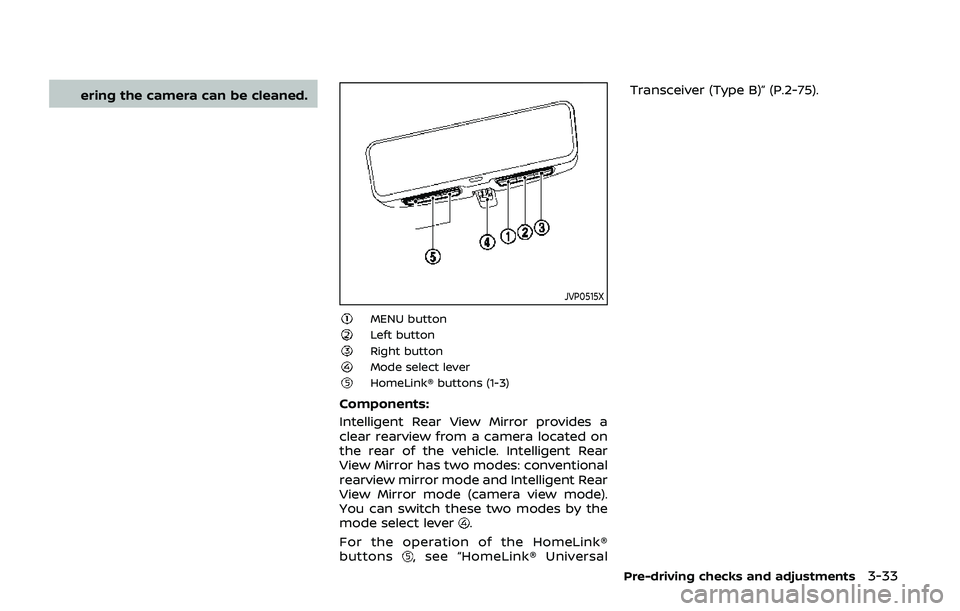
MENU buttonLeft buttonRight buttonMode select leverHomeLink® buttons (1-3)
Components:
Intelligent Rear View Mirror provides a
clear rearview from a camera located on
the rear of the vehicle. Intelligent Rear
View Mirror has two modes: conventional
rearview mirror mode and Intelligent Rear
View Mirror mode (camera view mode).
You can switch these two modes by the
mode select lever
.
For the operation of the HomeLink®
buttons
, see “HomeLink® Universal Transceiver (Type B)” (P.2-75).
Pre-driving checks and adjustments3-33
Page 208 of 536
3-34Pre-driving checks and adjustments
JVP0489X
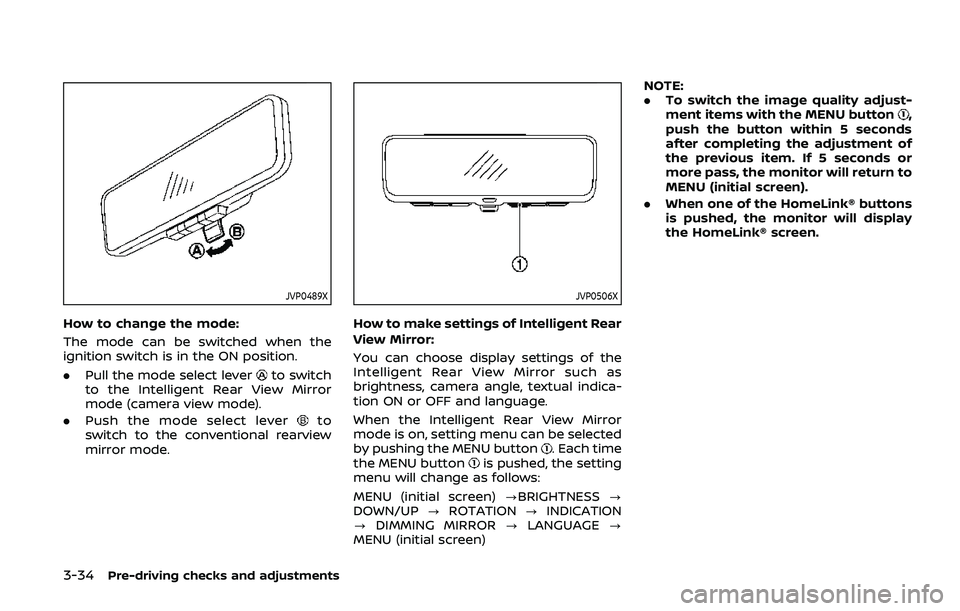
How to change the mode:
The mode can be switched when the
ignition switch is in the ON position.
.Pull the mode select lever
to switch
to the Intelligent Rear View Mirror
mode (camera view mode).
. Push the mode select lever
to
switch to the conventional rearview
mirror mode.
JVP0506X
How to make settings of Intelligent Rear
View Mirror:
You can choose display settings of the
Intelligent Rear View Mirror such as
brightness, camera angle, textual indica-
tion ON or OFF and language.
When the Intelligent Rear View Mirror
mode is on, setting menu can be selected
by pushing the MENU button
. Each time
the MENU buttonis pushed, the setting
menu will change as follows:
MENU (initial screen) ?BRIGHTNESS ?
DOWN/UP ?ROTATION ?INDICATION
? DIMMING MIRROR ?LANGUAGE ?
MENU (initial screen) NOTE:
.
To switch the image quality adjust-
ment items with the MENU button
,
push the button within 5 seconds
after completing the adjustment of
the previous item. If 5 seconds or
more pass, the monitor will return to
MENU (initial screen).
. When one of the HomeLink® buttons
is pushed, the monitor will display
the HomeLink® screen.
Page 211 of 536
.Do not attach an antenna of wireless
device near the Intelligent Rear View
Mirror. Electric wave from wireless
device may cause disturbed image
in Intelligent Rear View Mirror.
. Do not push buttons excessively or
operating the lever roughly may
cause a system failure or the Intelli-
gent Rear View Mirror itself to drop.
. Never turn the body of Intelligent
Rear View Mirror by 90° or more. It
may damage the Intelligent Rear
View Mirror.
. Do not apply strong shocks to the
body of Intelligent Rear View Mirror.
It may cause a system failure.
. Do not apply heavy load to the
camera and camera-cover on the
rear of the vehicle. It may cause the
camera to be removed or may cause
a system failure.
. If it is difficult to see the Intelligent
Rear View Mirror display screen be-
cause of a strong external light,
switch the mode to the conventional
rearview mirror mode for better use.
. Close the sunshade (if so equipped)
when the Intelligent Rear View Mir-
ror display screen is unclear due to
strong external light.
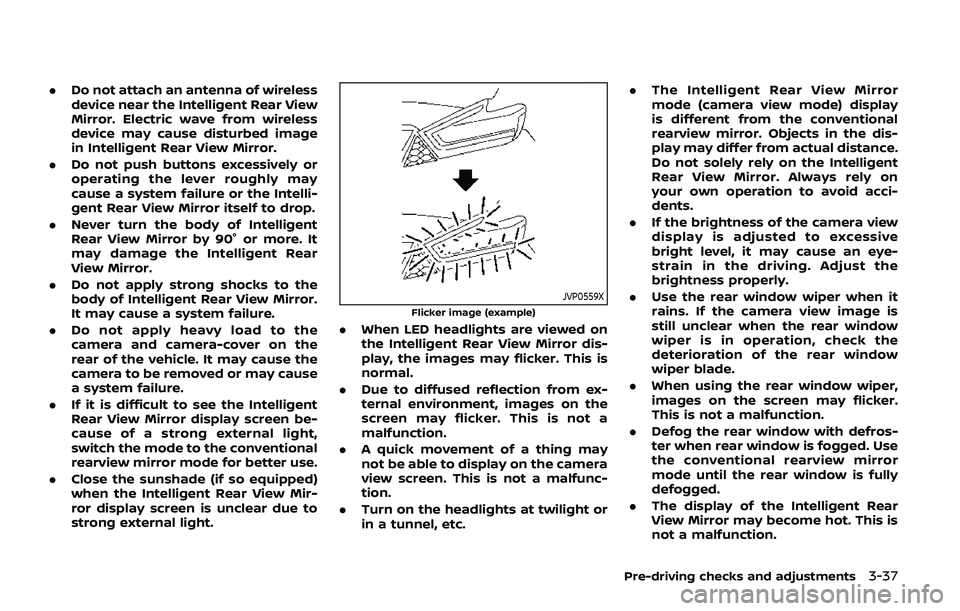
JVP0559X
Flicker image (example)
.When LED headlights are viewed on
the Intelligent Rear View Mirror dis-
play, the images may flicker. This is
normal.
. Due to diffused reflection from ex-
ternal environment, images on the
screen may flicker. This is not a
malfunction.
. A quick movement of a thing may
not be able to display on the camera
view screen. This is not a malfunc-
tion.
. Turn on the headlights at twilight or
in a tunnel, etc. .
The Intelligent Rear View Mirror
mode (camera view mode) display
is different from the conventional
rearview mirror. Objects in the dis-
play may differ from actual distance.
Do not solely rely on the Intelligent
Rear View Mirror. Always rely on
your own operation to avoid acci-
dents.
. If the brightness of the camera view
display is adjusted to excessive
bright level, it may cause an eye-
strain in the driving. Adjust the
brightness properly.
. Use the rear window wiper when it
rains. If the camera view image is
still unclear when the rear window
wiper is in operation, check the
deterioration of the rear window
wiper blade.
. When using the rear window wiper,
images on the screen may flicker.
This is not a malfunction.
. Defog the rear window with defros-
ter when rear window is fogged. Use
the conventional rearview mirror
mode until the rear window is fully
defogged.
. The display of the Intelligent Rear
View Mirror may become hot. This is
not a malfunction.
Pre-driving checks and adjustments3-37
Page 217 of 536
4 Monitor, heater, air conditioner, audio,phone and voice recognition systems
NissanConnect® Owner’s Manual .................................... 4-2
Safety note ........................................................................\
................ 4-2
RearView Monitor (if so equipped) ................................. 4-3
RearView Monitor system operation ..................... 4-4
How to read the displayed lines ................................ 4-4
Difference between predictive and
actual distances ...................................................................... 4-4
How to park with predictive course lines .......... 4-6
Sonar indicator ........................................................................\
4-7
Adjusting the screen ........................................................... 4-7
Predictive course line settings .................................... 4-8
RearView Monitor system limitations .................... 4-8
System maintenance .......................................................... 4-9
Intelligent Around View Monitor (if
so equipped) ........................................................................\
.......... 4-10 Intelligent Around View Monitor
system operation ................................................................ 4-11
How to adjust the screen view ................................ 4-19
Intelligent Around View Monitor settings ....... 4-19
Intelligent Around View Monitor
system limitations .............................................................. 4-21
System maintenance ....................................................... 4-23
Camera aiding sonar function (models with
Intelligent Around View Monitor) .................................. 4-24 Sonar system operation ................................................ 4-25 Turning on and off the sonar function .......... 4-25
Sonar system limitations ........................................... 4-26
System temporarily unavailable ........................... 4-27
System maintenance .................................................... 4-27
Moving Object Detection (MOD) ................................... 4-28 MOD system operation ................................................ 4-29
Turning on and off the MOD system ............... 4-30
MOD system limitations .............................................. 4-31
System maintenance .................................................... 4-32
Ventilators ........................................................................\
.............. 4-33
Center ventilators ............................................................ 4-33
Side ventilators .................................................................. 4-33
Rear ventilators .................................................................. 4-33
Heater and air conditioner ................................................ 4-34 Automatic air conditioner ......................................... 4-35
Rear automatic air conditioning system ....... 4-38
Operating tips ..................................................................... 4-42
Linking Intelligent Key (if so equipped) ........... 4-42
In-cabin microfilter .......................................................... 4-42
Servicing air conditioner ............................................. 4-42
Antenna ........................................................................\
.................... 4-42 Window antenna ............................................................... 4-42
Satellite antenna ............................................................... 4-43
Car phone or CB radio ......................................................... 4-43
Page 218 of 536
4-2Monitor, heater, air conditioner, audio, phone and voice recognition systems
For models with NissanConnect® with
Navigation (if so equipped) and Services
(if so equipped), refer to the NissanCon-
nect® Owner’s Manual regarding the fol-
lowing information.
.Audio system
. Bluetooth® Hands-Free Phone
. NissanConnect® Services
. SiriusXM Traffic
TM
.SiriusXM® Travel Link
. SiriusXM® Satellite Radio
. Navigation system
. Voice Recognition System
. Information and settings viewable on
NissanConnect®
WARNING
.Do not disassemble or modify
this system. If you do, it may
result in accidents, fire, or electric
shock.
. Do not use this system if you
notice any abnormality, such as
a frozen screen or lack of sound.
Continued use of the system may
result in accident, fire or electric
shock.
. In case you notice any foreign
object in the system hardware,
spill liquid on it, or notice smoke
or smell coming from it, stop
using the system immediately. It
is recommended you visit a
NISSAN dealer for servicing.
Ignoring such conditions may
lead to accidents, fire, or electric
shock.
. Park the vehicle in a safe location
and apply the parking brake to
view the images on the front
center display screen.
CAUTION
Do not use the system when the
engine is not running for extended
periods of time to prevent battery
discharge.
Do not attempt to operate the system in
extreme temperature conditions [below
−4°F (−20°C) and above 158°F (70°C)].
Operating this system under these con-
ditions may result in system malfunc-
tions.
NISSANCONNECT® OWNER’S MANUALSAFETY NOTE
Page 235 of 536
JVH1691X
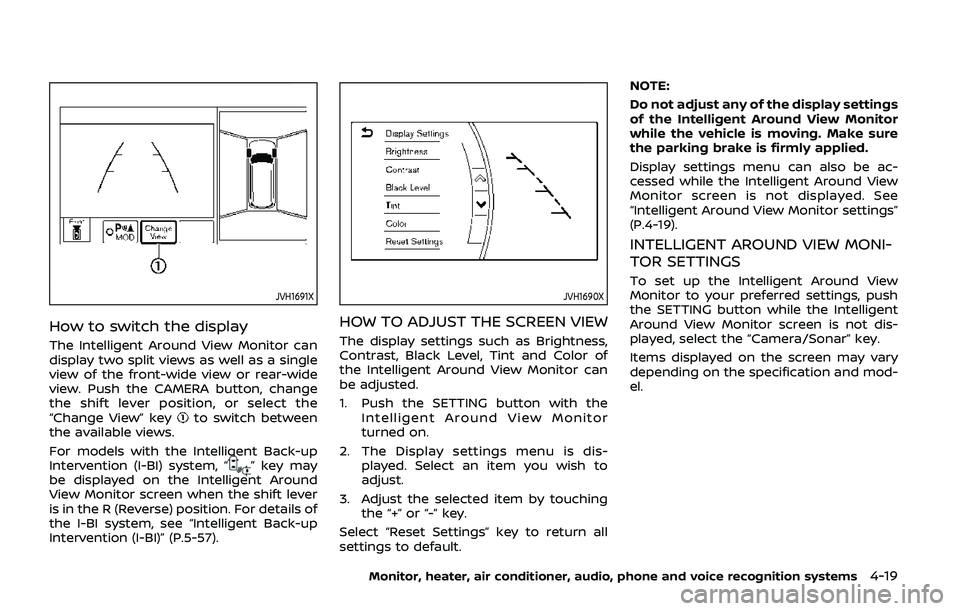
How to switch the display
The Intelligent Around View Monitor can
display two split views as well as a single
view of the front-wide view or rear-wide
view. Push the CAMERA button, change
the shift lever position, or select the
“Change View” key
to switch between
the available views.
For models with the Intelligent Back-up
Intervention (I-BI) system, “
” key may
be displayed on the Intelligent Around
View Monitor screen when the shift lever
is in the R (Reverse) position. For details of
the I-BI system, see “Intelligent Back-up
Intervention (I-BI)” (P.5-57).
JVH1690X
HOW TO ADJUST THE SCREEN VIEW
The display settings such as Brightness,
Contrast, Black Level, Tint and Color of
the Intelligent Around View Monitor can
be adjusted.
1. Push the SETTING button with the Intelligent Around View Monitor
turned on.
2. The Display settings menu is dis- played. Select an item you wish to
adjust.
3. Adjust the selected item by touching the “+” or “-” key.
Select “Reset Settings” key to return all
settings to default. NOTE:
Do not adjust any of the display settings
of the Intelligent Around View Monitor
while the vehicle is moving. Make sure
the parking brake is firmly applied.
Display settings menu can also be ac-
cessed while the Intelligent Around View
Monitor screen is not displayed. See
“Intelligent Around View Monitor settings”
(P.4-19).
INTELLIGENT AROUND VIEW MONI-
TOR SETTINGS
To set up the Intelligent Around View
Monitor to your preferred settings, push
the SETTING button while the Intelligent
Around View Monitor screen is not dis-
played, select the “Camera/Sonar” key.
Items displayed on the screen may vary
depending on the specification and mod-
el.
Monitor, heater, air conditioner, audio, phone and voice recognition systems4-19
Page 236 of 536
4-20Monitor, heater, air conditioner, audio, phone and voice recognition systems
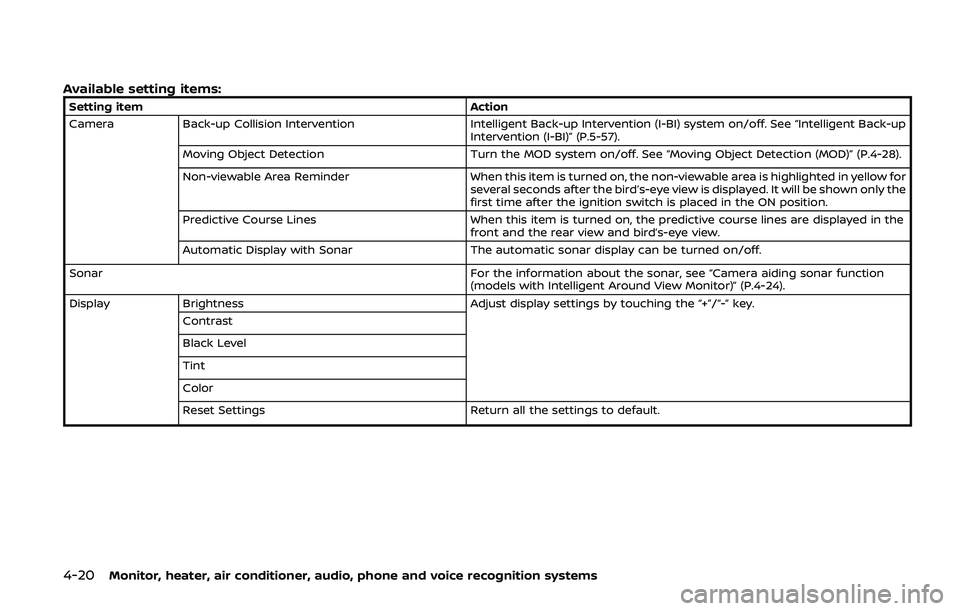
Available setting items:
Setting itemAction
Camera Back-up Collision Intervention Intelligent Back-up Intervention (I-BI) system on/off. See “Intelligent Back-up
Intervention (I-BI)” (P.5-57).
Moving Object Detection Turn the MOD system on/off. See “Moving Object Detection (MOD)” (P.4-28).
Non-viewable Area Reminder When this item is turned on, the non-viewable area is highlighted in yellow for
several seconds after the bird’s-eye view is displayed. It will be shown only the
first time after the ignition switch is placed in the ON position.
Predictive Course Lines When this item is turned on, the predictive course lines are displayed in the
front and the rear view and bird’s-eye view.
Automatic Display with Sonar The automatic sonar display can be turned on/off.
Sonar For the information about the sonar, see “Camera aiding sonar function
(models with Intelligent Around View Monitor)” (P.4-24).
Display Brightness Adjust display settings by touching the “+”/“-” key.
Contrast
Black Level
Tint
Color
Reset Settings Return all the settings to default.
Page 243 of 536
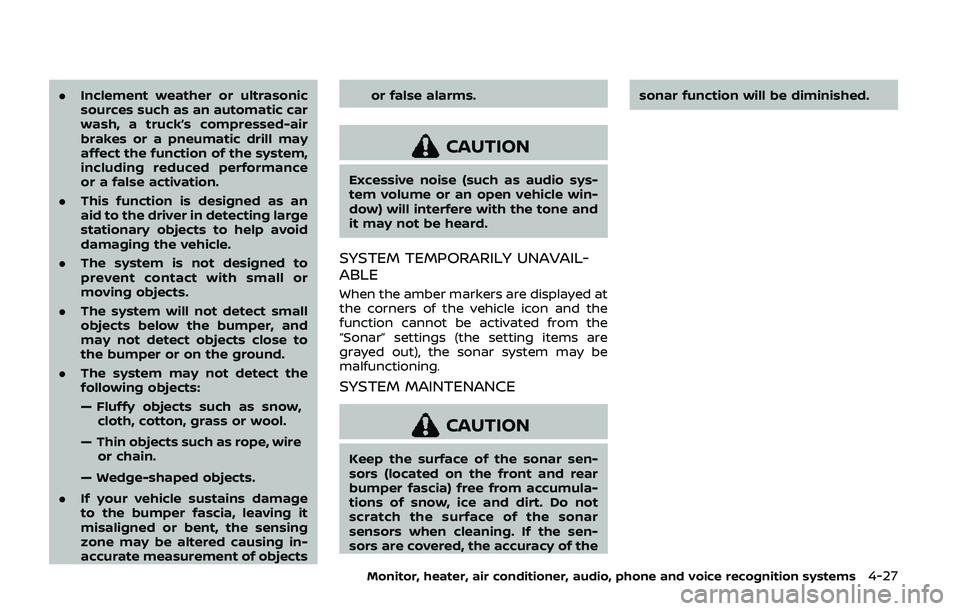
.Inclement weather or ultrasonic
sources such as an automatic car
wash, a truck’s compressed-air
brakes or a pneumatic drill may
affect the function of the system,
including reduced performance
or a false activation.
. This function is designed as an
aid to the driver in detecting large
stationary objects to help avoid
damaging the vehicle.
. The system is not designed to
prevent contact with small or
moving objects.
. The system will not detect small
objects below the bumper, and
may not detect objects close to
the bumper or on the ground.
. The system may not detect the
following objects:
— Fluffy objects such as snow,
cloth, cotton, grass or wool.
— Thin objects such as rope, wire or chain.
— Wedge-shaped objects.
. If your vehicle sustains damage
to the bumper fascia, leaving it
misaligned or bent, the sensing
zone may be altered causing in-
accurate measurement of objects or false alarms.
CAUTION
Excessive noise (such as audio sys-
tem volume or an open vehicle win-
dow) will interfere with the tone and
it may not be heard.
SYSTEM TEMPORARILY UNAVAIL-
ABLE
When the amber markers are displayed at
the corners of the vehicle icon and the
function cannot be activated from the
“Sonar” settings (the setting items are
grayed out), the sonar system may be
malfunctioning.
SYSTEM MAINTENANCE
CAUTION
Keep the surface of the sonar sen-
sors (located on the front and rear
bumper fascia) free from accumula-
tions of snow, ice and dirt. Do not
scratch the surface of the sonar
sensors when cleaning. If the sen-
sors are covered, the accuracy of the
sonar function will be diminished.
Monitor, heater, air conditioner, audio, phone and voice recognition systems4-27