display NISSAN ARMADA 2021 Owner´s Manual
[x] Cancel search | Manufacturer: NISSAN, Model Year: 2021, Model line: ARMADA, Model: NISSAN ARMADA 2021Pages: 603, PDF Size: 3.16 MB
Page 595 of 603
Once enabled, the RSI will automatically
search for available devices in pairing
mode. Using the directional pad on the re-
mote, select "Device name" then “Connect”
to pair. Input the PIN from connecting de-
vice (if prompted). Device name will display
"Connected" once paired properly. Select
“OK” to confirm changes and close the win-
dow. To unpair a Bluetooth® device, select
Device name then Unpair.
If the device is not listed, select Refresh
Symbol and the device will appear in Avail-
able device list. If device does not appear,
double check that the device is in pairing
mode (refer to the device’s manual for in-
structions).
Bluetooth® equipped vehicles can stream
audio from the display through vehicle’s
sound system once paired. For additional
information, refer to the separate
NissanConnect® Owner’s Manual.
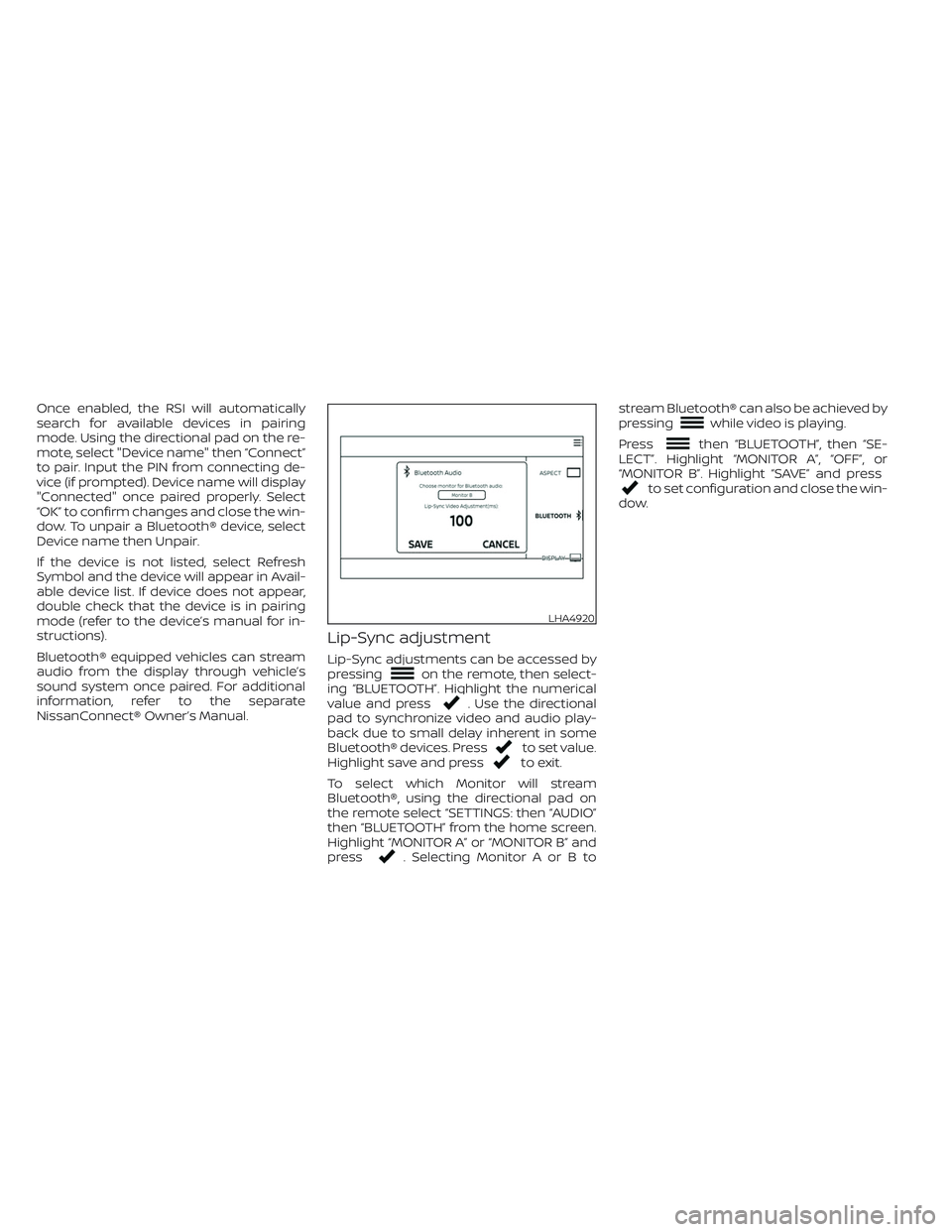
Lip-Sync adjustment
Lip-Sync adjustments can be accessed by
pressingon the remote, then select-
ing “BLUETOOTH”. Highlight the numerical
value and press
. Use the directional
pad to synchronize video and audio play-
back due to small delay inherent in some
Bluetooth® devices. Press
to set value.
Highlight save and pressto exit.
To select which Monitor will stream
Bluetooth®, using the directional pad on
the remote select “SETTINGS: then “AUDIO”
then “BLUETOOTH” from the home screen.
Highlight “MONITOR A” or “MONITOR B” and
press
. Selecting Monitor A or B tostream Bluetooth® can also be achieved by
pressing
while video is playing.
Press
then “BLUETOOTH”, then “SE-
LECT”. Highlight “MONITOR A”, “OFF”, or
“MONITOR B”. Highlight “SAVE” and press
to set configuration and close the win-
dow.
LHA4920
Page 598 of 603
SymptomRemedy
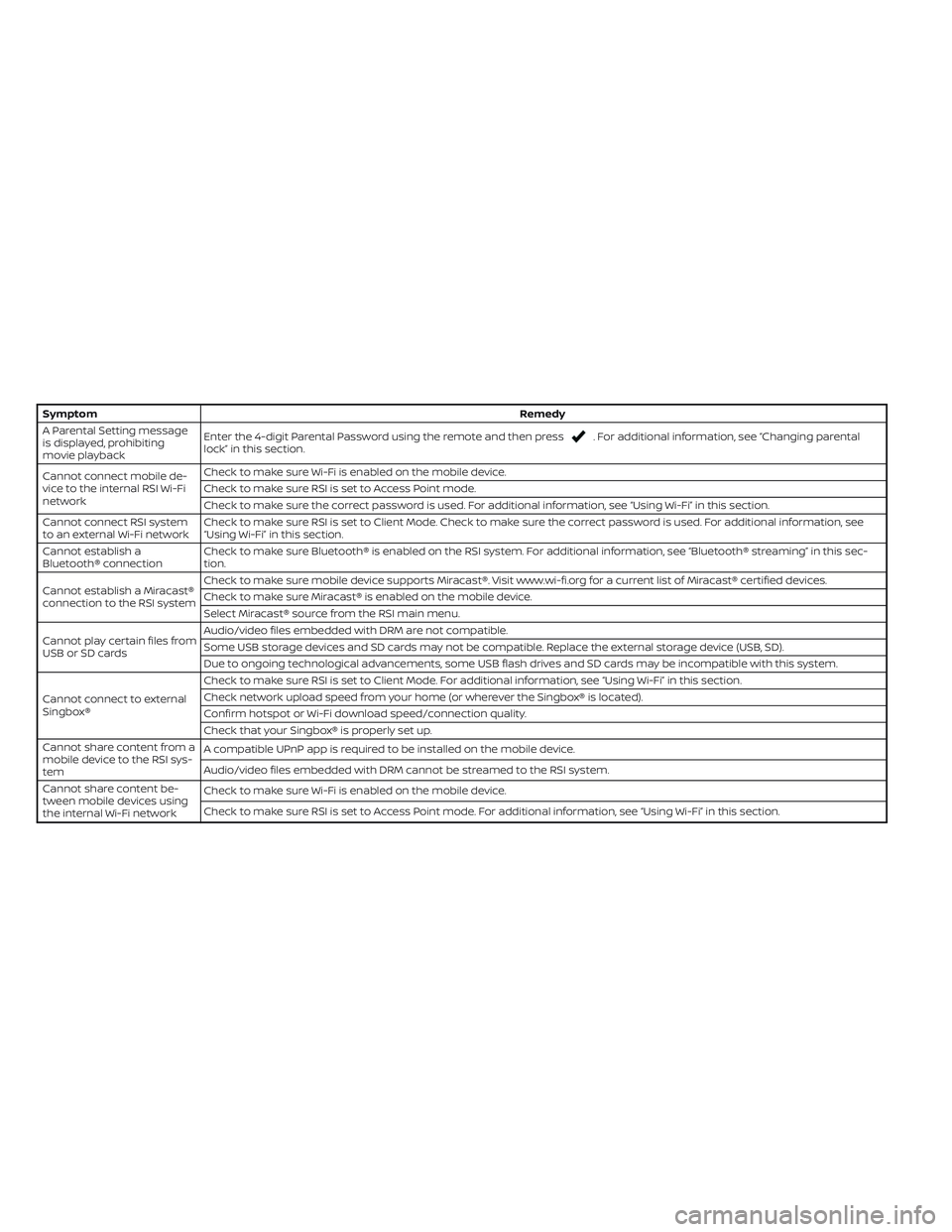
A Parental Setting message
is displayed, prohibiting
movie playbackEnter the 4-digit Parental Password using the remote and then press
. For additional information, see “Changing parental
lock” in this section.
Cannot connect mobile de-
vice to the internal RSI Wi-Fi
networkCheck to make sure Wi-Fi is enabled on the mobile device.
Check to make sure RSI is set to Access Point mode.
Check to make sure the correct password is used. For additional information, see “Using Wi-Fi” in this section.
Cannot connect RSI system
to an external Wi-Fi networkCheck to make sure RSI is set to Client Mode. Check to make sure the correct password is used. For additional information, see
“Using Wi-Fi” in this section.
Cannot establish a
Bluetooth® connectionCheck to make sure Bluetooth® is enabled on the RSI system. For additional information, see “Bluetooth® streaming” in this sec-
tion.
Cannot establish a Miracast®
connection to the RSI systemCheck to make sure mobile device supports Miracast®. Visit www.wi-fi.org for a current list of Miracast® certified devices.
Check to make sure Miracast® is enabled on the mobile device.
Select Miracast® source from the RSI main menu.
Cannot play certain files from
USB or SD cardsAudio/video files embedded with DRM are not compatible.
Some USB storage devices and SD cards may not be compatible. Replace the external storage device (USB, SD).
Due to ongoing technological advancements, some USB flash drives and SD cards may be incompatible with this system.
Cannot connect to external
Singbox®Check to make sure RSI is set to Client Mode. For additional information, see “Using Wi-Fi” in this section.
Check network upload speed from your home (or wherever the Singbox® is located).
Confirm hotspot or Wi-Fi download speed/connection quality.
Check that your Singbox® is properly set up.
Cannot share content from a
mobile device to the RSI sys-
temA compatible UPnP app is required to be installed on the mobile device.
Audio/video files embedded with DRM cannot be streamed to the RSI system.
Cannot share content be-
tween mobile devices using
the internal Wi-Fi networkCheck to make sure Wi-Fi is enabled on the mobile device.
Check to make sure RSI is set to Access Point mode. For additional information, see “Using Wi-Fi” in this section.
Page 599 of 603
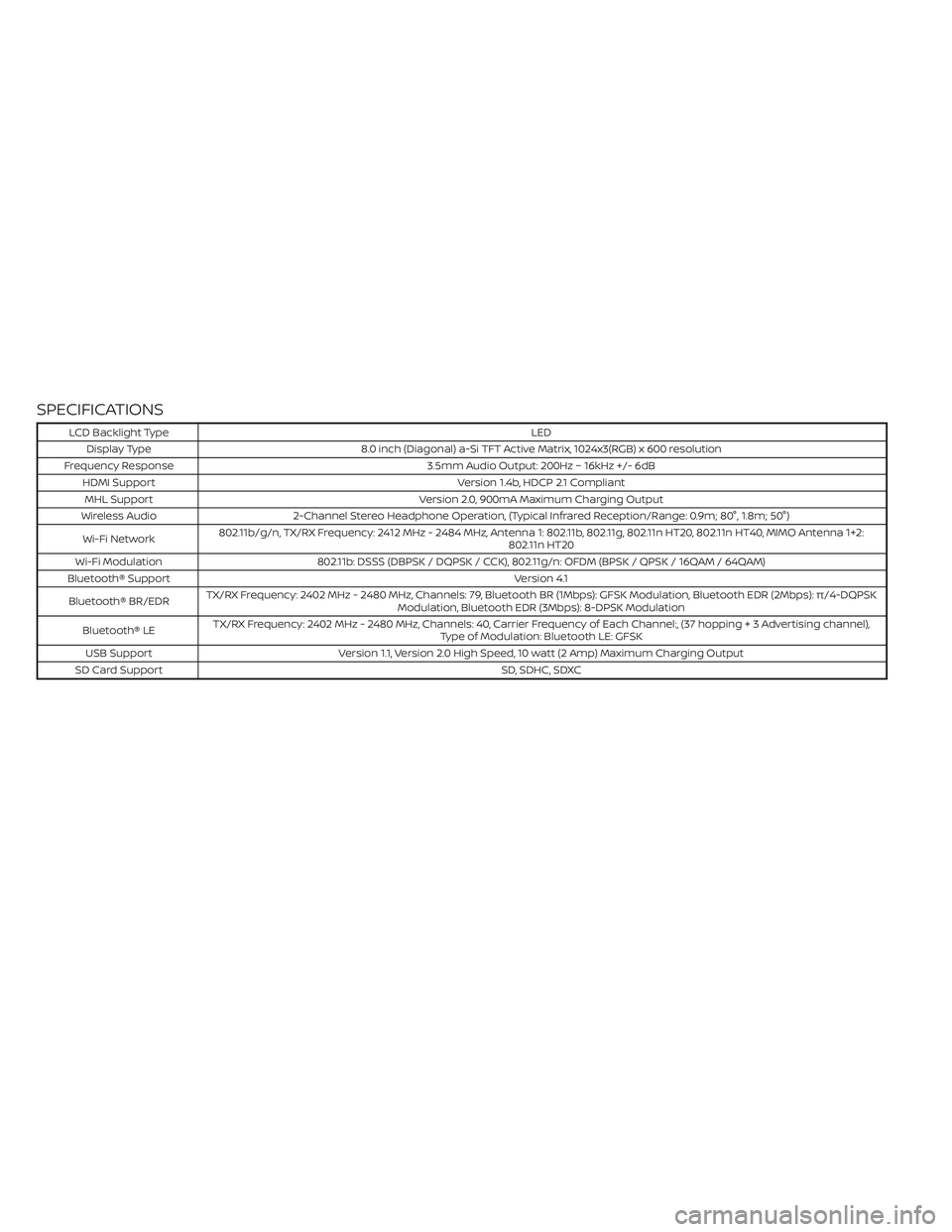
SPECIFICATIONS
LCD Backlight TypeLED
Display Type 8.0 inch (Diagonal) a-Si TFT Active Matrix, 1024x3(RGB) x 600 resolution
Frequency Response 3.5mm Audio Output: 200Hz ~ 16kHz +/- 6dB
HDMI Support Version 1.4b, HDCP 2.1 Compliant
MHL Support Version 2.0, 900mA Maximum Charging Output
Wireless Audio 2-Channel Stereo Headphone Operation, (Typical Infrared Reception/Range: 0.9m; 80°, 1.8m; 50°)
Wi-Fi Network802.11b/g/n, TX/RX Frequency: 2412 MHz - 2484 MHz, Antenna 1: 802.11b, 802.11g, 802.11n HT20, 802.11n HT40, MIMO Antenna 1+2:
802.11n HT20
Wi-Fi Modulation 802.11b: DSSS (DBPSK / DQPSK / CCK), 802.11g/n: OFDM (BPSK / QPSK / 16QAM / 64QAM)
Bluetooth® Support Version 4.1
Bluetooth® BR/EDRTX/RX Frequency: 2402 MHz - 2480 MHz, Channels: 79, Bluetooth BR (1Mbps): GFSK Modulation, Bluetooth EDR (2Mbps): π/4-DQPSK
Modulation, Bluetooth EDR (3Mbps): 8-DPSK Modulation
Bluetooth® LETX/RX Frequency: 2402 MHz - 2480 MHz, Channels: 40, Carrier Frequency of Each Channel:, (37 hopping+3Advertisingchannel),
Type of Modulation: Bluetooth LE: GFSK
USB Support Version 1.1, Version 2.0 High Speed, 10 watt (2 Amp) Maximum Charging Output
SD Card Support SD, SDHC, SDXC