remote control NISSAN ARMADA 2021 Owner´s Manual
[x] Cancel search | Manufacturer: NISSAN, Model Year: 2021, Model line: ARMADA, Model: NISSAN ARMADA 2021Pages: 603, PDF Size: 3.16 MB
Page 567 of 603
• Full-Function Slimline Remote Control
• Monitor Screen Sharing
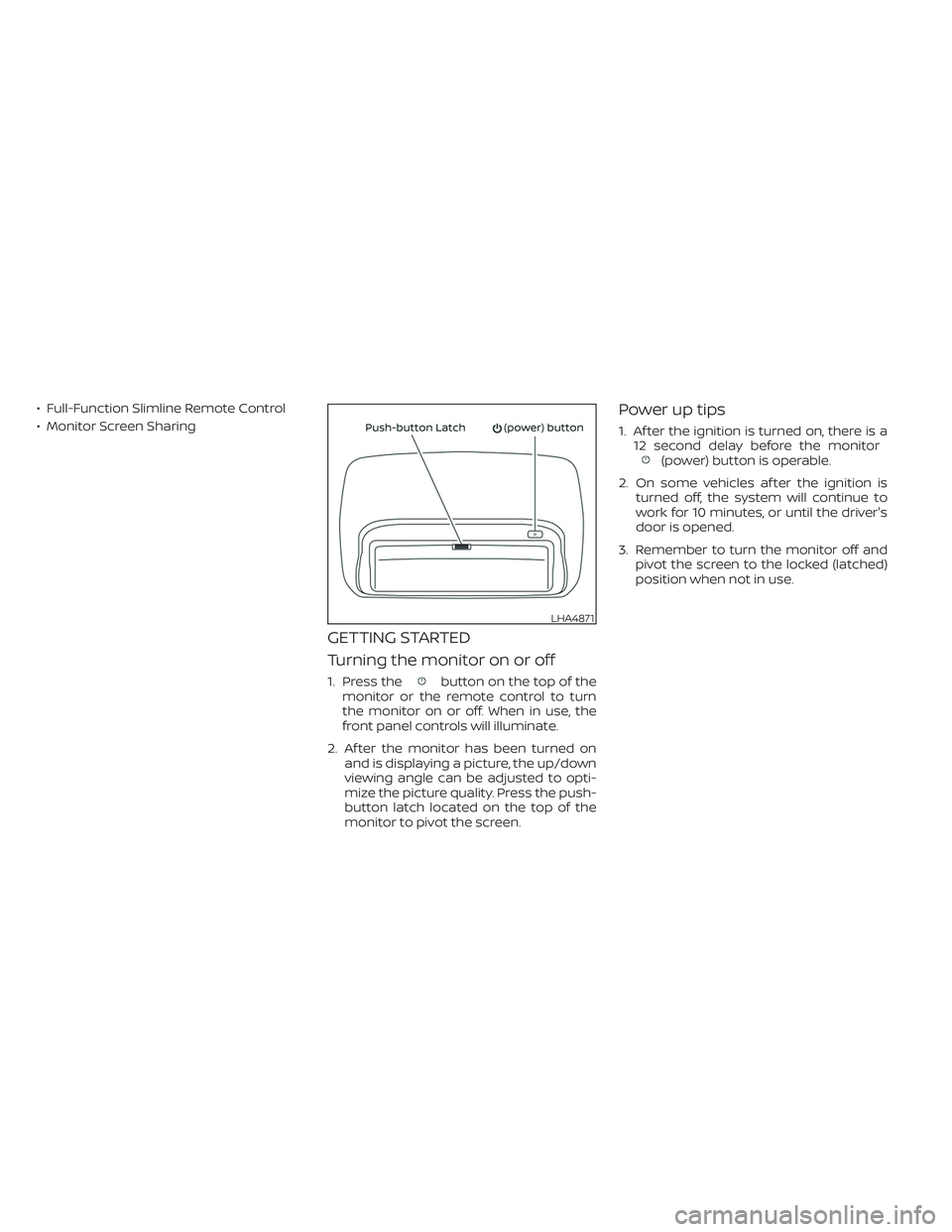
GETTING STARTED
Turning the monitor on or off
1. Press thebutton on the top of the
monitor or the remote control to turn
the monitor on or off. When in use, the
front panel controls will illuminate.
2. Af ter the monitor has been turned on
and is displaying a picture, the up/down
viewing angle can be adjusted to opti-
mize the picture quality. Press the push-
button latch located on the top of the
monitor to pivot the screen.
Power up tips
1. Af ter the ignition is turned on, there is a
12 second delay before the monitor
(power) button is operable.
2. On some vehicles af ter the ignition is
turned off, the system will continue to
work for 10 minutes, or until the driver's
door is opened.
3. Remember to turn the monitor off and
pivot the screen to the locked (latched)
position when not in use.
LHA4871
Page 568 of 603
Audio options
Wireless headphones
Each monitor includes a built-in dual chan-
nel infrared transmitter for use with wire-
less headphones. The wireless head-
phones must be used within a line of sight
from the transmitter as infrared signals, like
visible light, travel only in a straight line.
How to use the wireless headphones
When placing the headphones on your
head, make sure to observe the lef t and
right orientation. The headphones must be
oriented correctly (facing forward) to re-
ceive the audio signal. Press the
(power) button on the headphones,
then select channel “A” to listen to monitor
A, or channel “B” to listen to monitor B. Ad-
just the audio level using the volume con-
trol on each headphone.
Wired headphones
There is a 3.5mm stereo headphone out-
put on each monitor which can be used
with most standard stereo headphones
(wired headphones sold separately).
Bluetooth® streaming audio
To listen to audio throughout the entire ve-
hicle, the system includes the ability tostream audio over a Bluetooth® connec-
tion to the vehicle’s stereo system.
When monitor A is selected as the source
to stream from, the audio output to the
wireless and wired headphones will be dis-
abled (only on monitor A). To use the wire-
less or wired headphones with monitor A,
you must turn off the Bluetooth® stream-
ing feature. To enable/disable Bluetooth®
streaming, navigate to the “SETTINGS”
menu, or press
on the remote control
during content playback. For additional in-
formation, see “Settings” in this section.
Media compatibility
For a list of compatible media formats for
this system, see “Storage device format-
ting” in this section.
• The metadata or file information of some
audio and video files may not be correctly
displayed.
• It is not possible to play content that is
protected by DRM (Digital Rights Manage-
ment).
• There may be a delay before playback
begins when using USB flash drives or SD
cards with complex folder hierarchies or
many files.• Some audio, video, and image files may
be incompatible with this system due to
file characteristics, file format, recording
sof tware used, directory structure,
and/or the type of audio/video encoding
used.
Storage device formatting
This system is compatible with several
types of formatting for USB flash drives and
SD cards. Refer to the documentation that
comes with your storage device for more
details on how to format.
FAT32 - USB and SDHC
Good for smaller capacity storage devices,
but individual files on the drive must be
<4GB. This format is good for music and
images.
EX-FAT - USB and SDXC
Better choice for larger capacity storage
devices with files that are >4GB. This format
is better for larger files such as full-length
movies.
NTFS - USB and SDXC
Best choice for very large capacity storage
devices - with no limitations on file size. This
format can be used for all file sizes.
Page 572 of 603
REMOTE CONTROL OPERATION
Before use
Before attempting to operate your remote
control, turn the remote control face down
and remove the battery insulator by pulling
the clear plastic tab away from the remote
control.
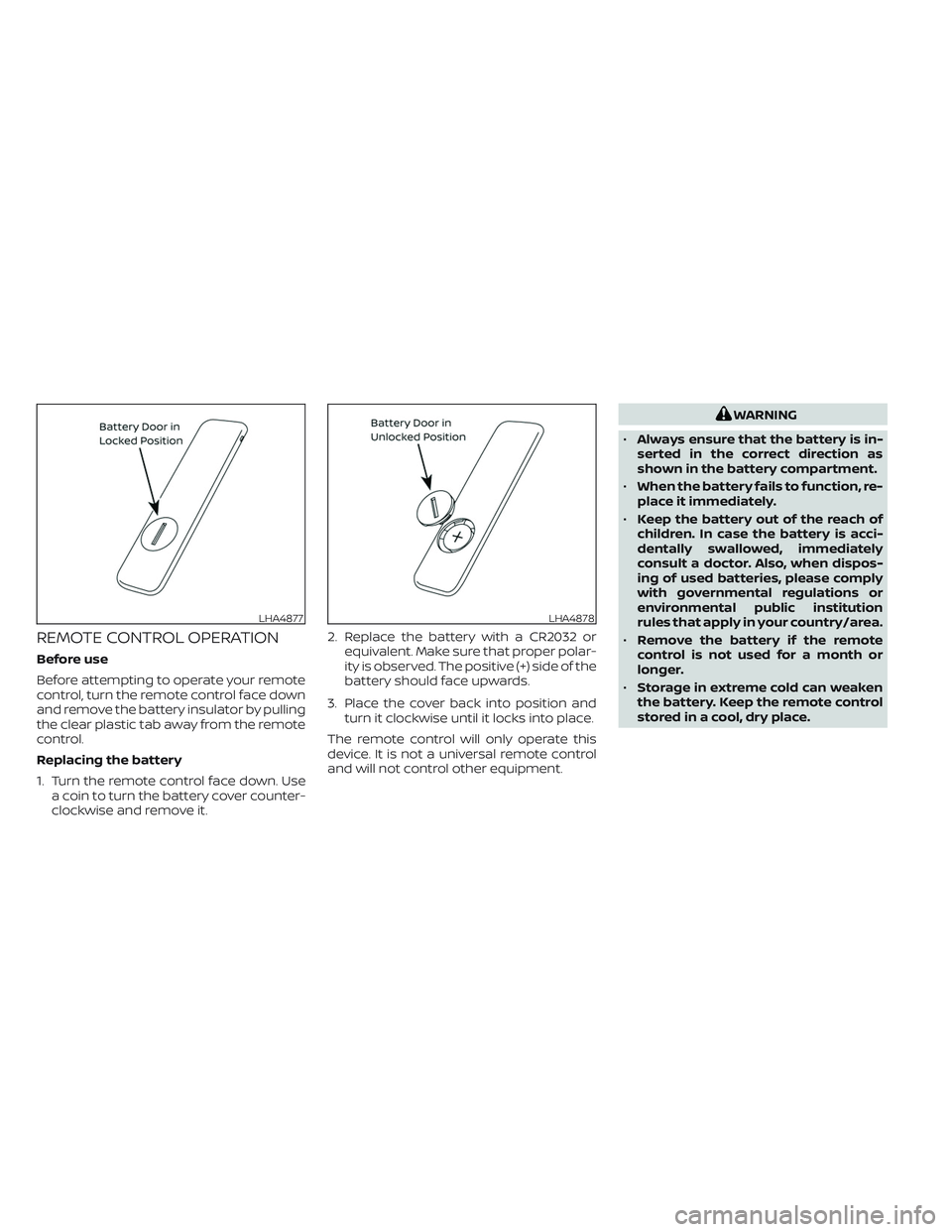
Replacing the battery
1. Turn the remote control face down. Use
a coin to turn the battery cover counter-
clockwise and remove it.2. Replace the battery with a CR2032 or
equivalent. Make sure that proper polar-
ity is observed. The positive (+) side of the
battery should face upwards.
3. Place the cover back into position and
turn it clockwise until it locks into place.
The remote control will only operate this
device. It is not a universal remote control
and will not control other equipment.
WARNING
•Always ensure that the battery is in-
serted in the correct direction as
shown in the battery compartment.
•When the battery fails to function, re-
place it immediately.
•Keep the battery out of the reach of
children. In case the battery is acci-
dentally swallowed, immediately
consult a doctor. Also, when dispos-
ing of used batteries, please comply
with governmental regulations or
environmental public institution
rules that apply in your country/area.
•Remove the battery if the remote
control is not used for a month or
longer.
•Storage in extreme cold can weaken
the battery. Keep the remote control
stored in a cool, dry place.
LHA4877LHA4878
Page 573 of 603
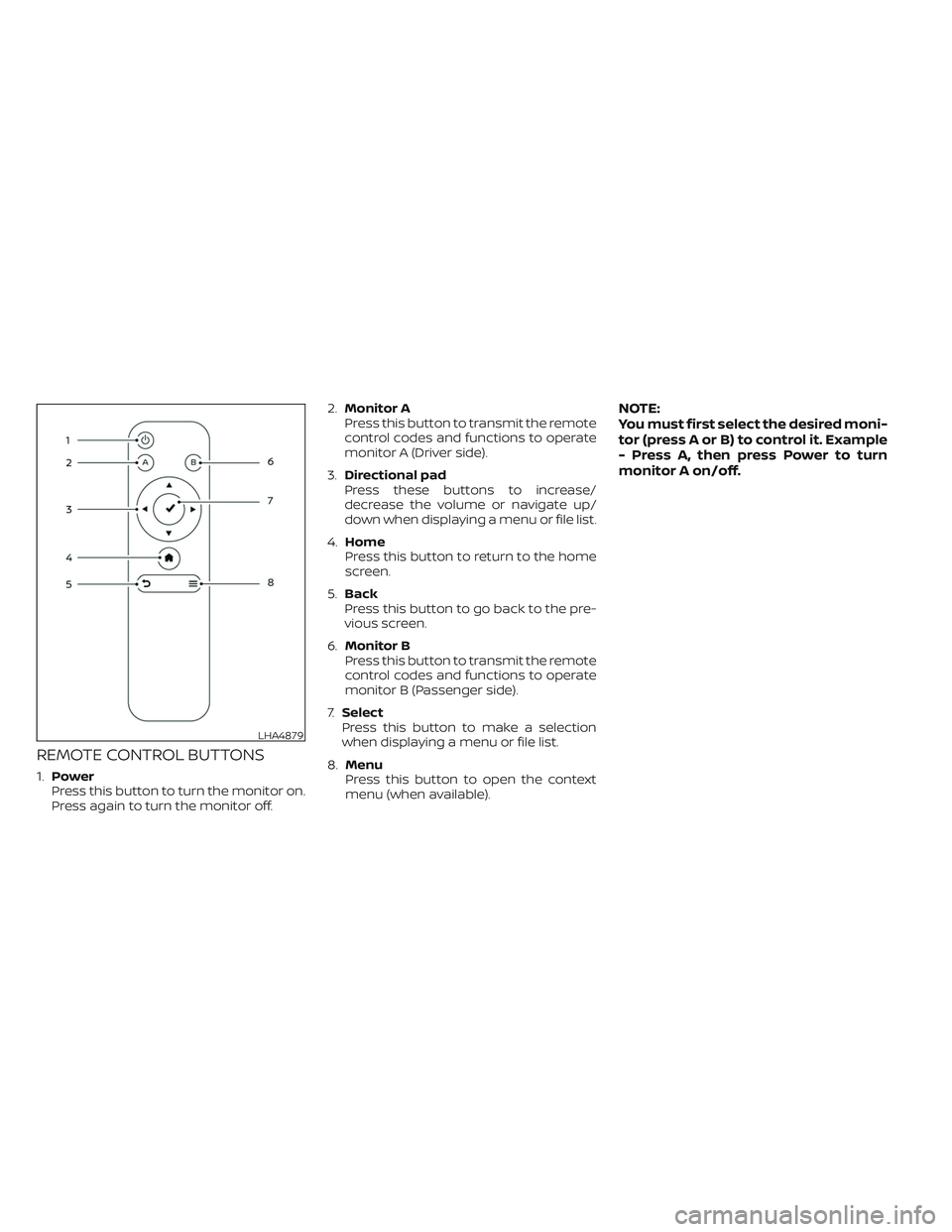
REMOTE CONTROL BUTTONS
1.Power
Press this button to turn the monitor on.
Press again to turn the monitor off.2.Monitor A
Press this button to transmit the remote
control codes and functions to operate
monitor A (Driver side).
3.Directional pad
Press these buttons to increase/
decrease the volume or navigate up/
down when displaying a menu or file list.
4.Home
Press this button to return to the home
screen.
5.Back
Press this button to go back to the pre-
vious screen.
6.Monitor B
Press this button to transmit the remote
control codes and functions to operate
monitor B (Passenger side).
7.Select
Press this button to make a selection
when displaying a menu or file list.
8.Menu
Press this button to open the context
menu (when available).
NOTE:
You must first select the desired moni-
tor (press A or B) to control it. Example
- Press A, then press Power to turn
monitor A on/off.
LHA4879
Page 575 of 603
CAUTION
•Always ensure that the batteries are
inserted with the positive and nega-
tive terminals in the correct direction
as shown in the battery
compartment.
•Different types of batteries have dif-
ferent characteristics. Do not mix dif-
ferent types.
•Do not mix old and new batteries.
Mixing old and new batteries will
shorten battery life and/or cause
chemical leaks from the old
batteries.
•When batteries fail to function, re-
place them immediately.
•Keep the batteries out of the reach of
children. In case the batteries are ac-
cidentally swallowed, immediately
consult a doctor. Also, when dispos-
ing of used batteries, please comply
with governmental regulations or
environmental public institution
rules that apply in your country/area.
•Remove the batteries if the head-
phones are not used for a month or
longer.
GENERAL OPERATION
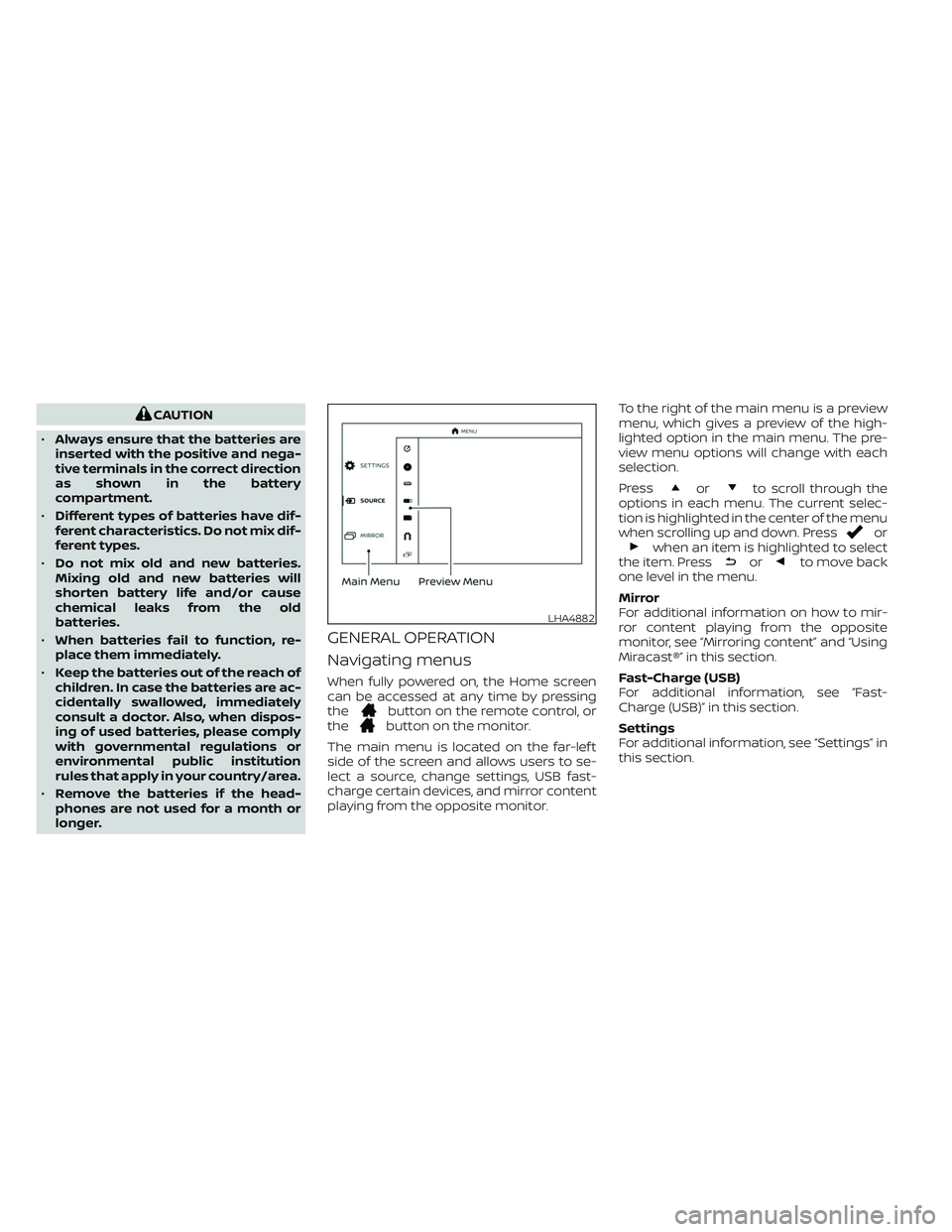
Navigating menus
When fully powered on, the Home screen
can be accessed at any time by pressing
the
button on the remote control, or
thebutton on the monitor.
The main menu is located on the far-lef t
side of the screen and allows users to se-
lect a source, change settings, USB fast-
charge certain devices, and mirror content
playing from the opposite monitor.To the right of the main menu is a preview
menu, which gives a preview of the high-
lighted option in the main menu. The pre-
view menu options will change with each
selection.
Press
orto scroll through the
options in each menu. The current selec-
tion is highlighted in the center of the menu
when scrolling up and down. Press
orwhen an item is highlighted to select
the item. Pressorto move back
one level in the menu.
Mirror
For additional information on how to mir-
ror content playing from the opposite
monitor, see “Mirroring content” and “Using
Miracast®” in this section.
Fast-Charge (USB)
For additional information, see “Fast-
Charge (USB)” in this section.
Settings
For additional information, see “Settings” in
this section.
LHA4882
Page 578 of 603
NOTE:
HDMI connected devices are indepen-
dent and must be controlled directly
from the source device.
MHL connection
The system also allows mobile devices
supporting Mobile High-Definition Link
(MHL) to be connected. An MHL-to-HDMI
cable is required (sold separately).
Mobile High-Definition Link (MHL) is an in-
dustry standard mobile audio/ video inter-
face that allows connection of smart-
phones, tablets, and other portable
consumer electronics devices to the sys-
tem. MHL transports high-quality uncom-
pressed audio and video from a mobile
source device to the system and at the
same time provides power to recharge the
device.
NOTE:
MHL connected devices are independent
and must be controlled directly from the
source device.
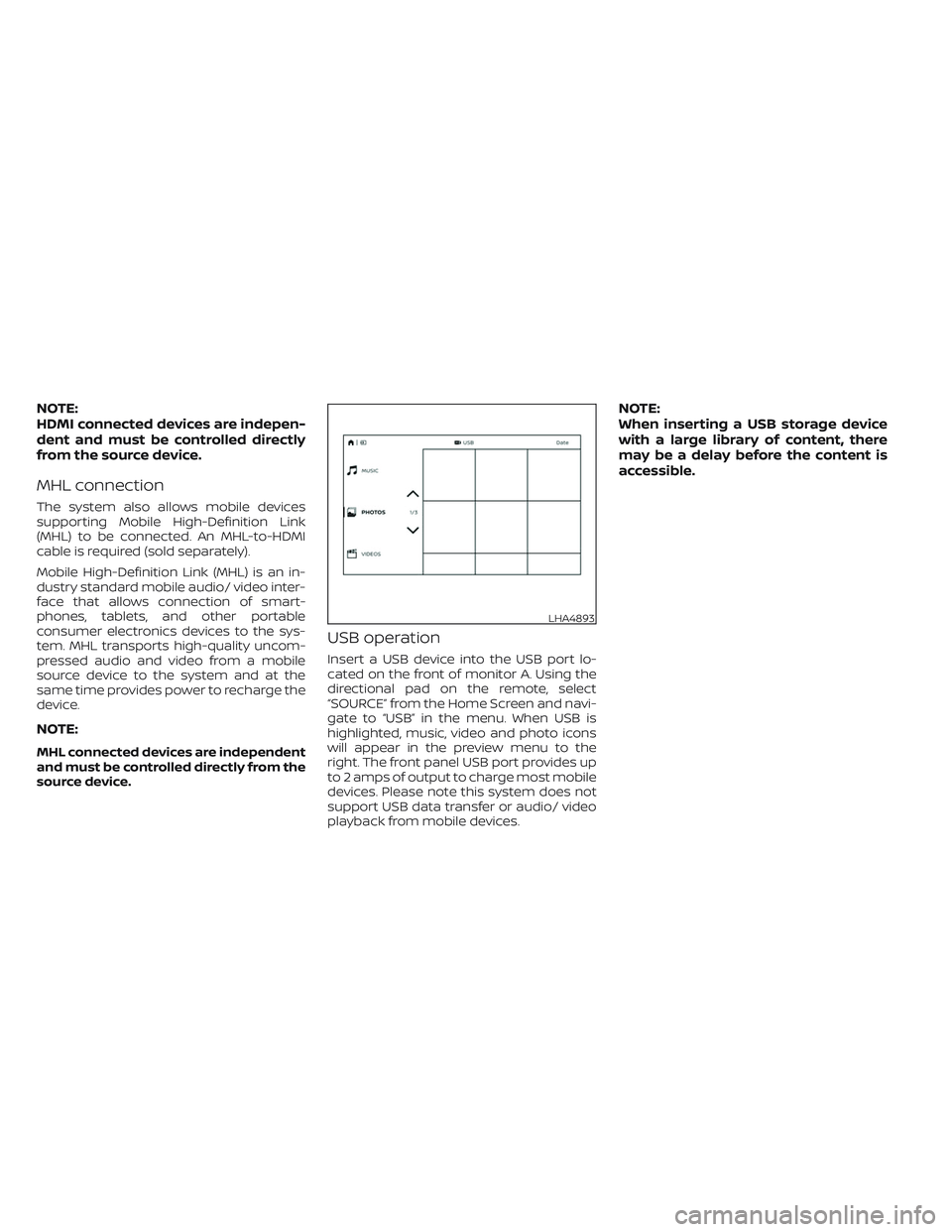
USB operation
Insert a USB device into the USB port lo-
cated on the front of monitor A. Using the
directional pad on the remote, select
“SOURCE” from the Home Screen and navi-
gate to “USB” in the menu. When USB is
highlighted, music, video and photo icons
will appear in the preview menu to the
right. The front panel USB port provides up
to 2 amps of output to charge most mobile
devices. Please note this system does not
support USB data transfer or audio/ video
playback from mobile devices.
NOTE:
When inserting a USB storage device
with a large library of content, there
may be a delay before the content is
accessible.
LHA4893
Page 581 of 603
Sorting — videos
Using the directional pad on the remote,
select “SORTING” to select between Title,
Rating, Year, Filename, or Genre.
Sorting — music
Using the directional pad on the remote,
select “SORTING” to select between Artist,
Album, Year, Filename, Song, or Genre.
Sorting — photos
Using the directional pad on the remote,
select “SORTING” to select between Date or
Filename.
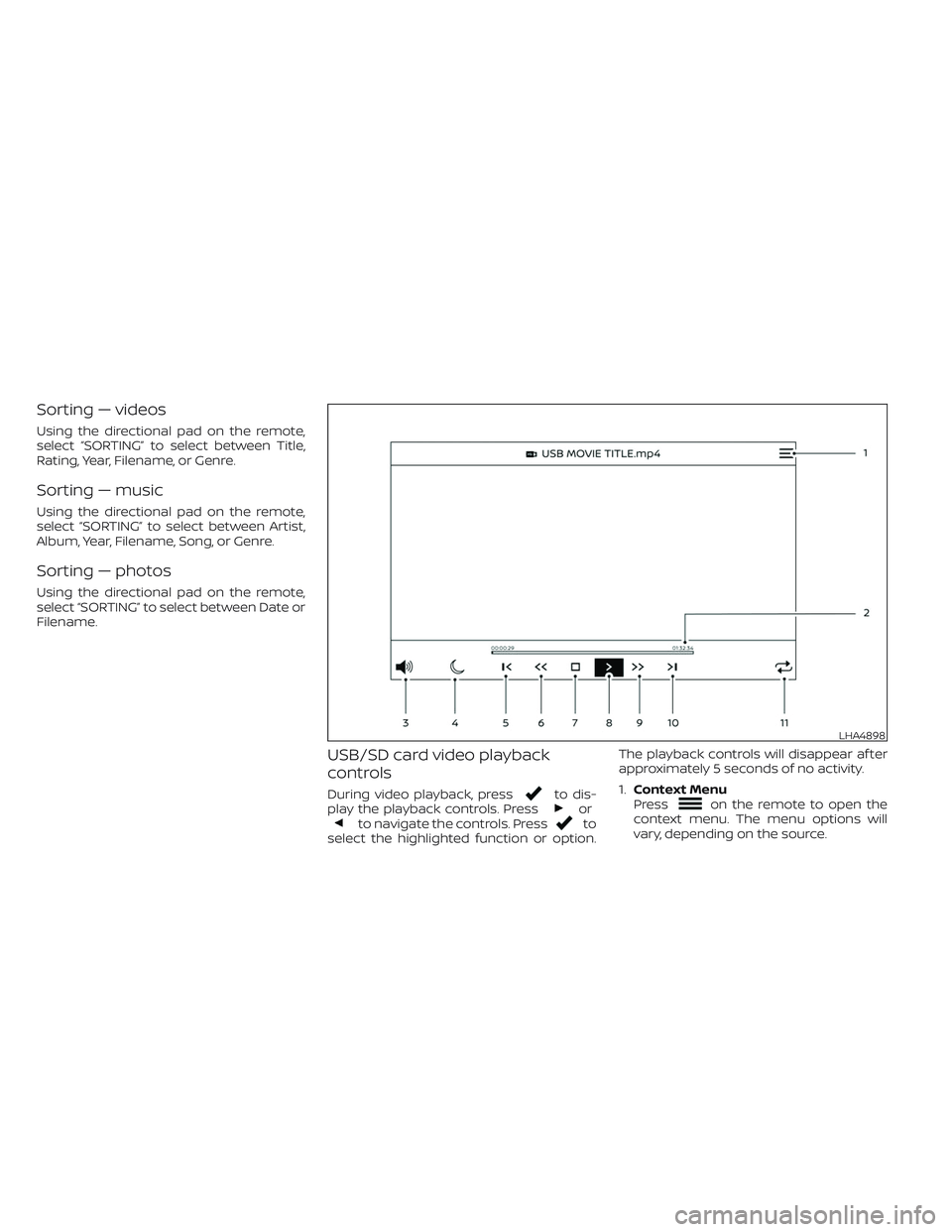
USB/SD card video playback
controls
During video playback, pressto dis-
play the playback controls. Pressorto navigate the controls. Pressto
select the highlighted function or option.The playback controls will disappear af ter
approximately 5 seconds of no activity.
1.Context Menu
Press
on the remote to open the
context menu. The menu options will
vary, depending on the source.
LHA4898
Page 583 of 603
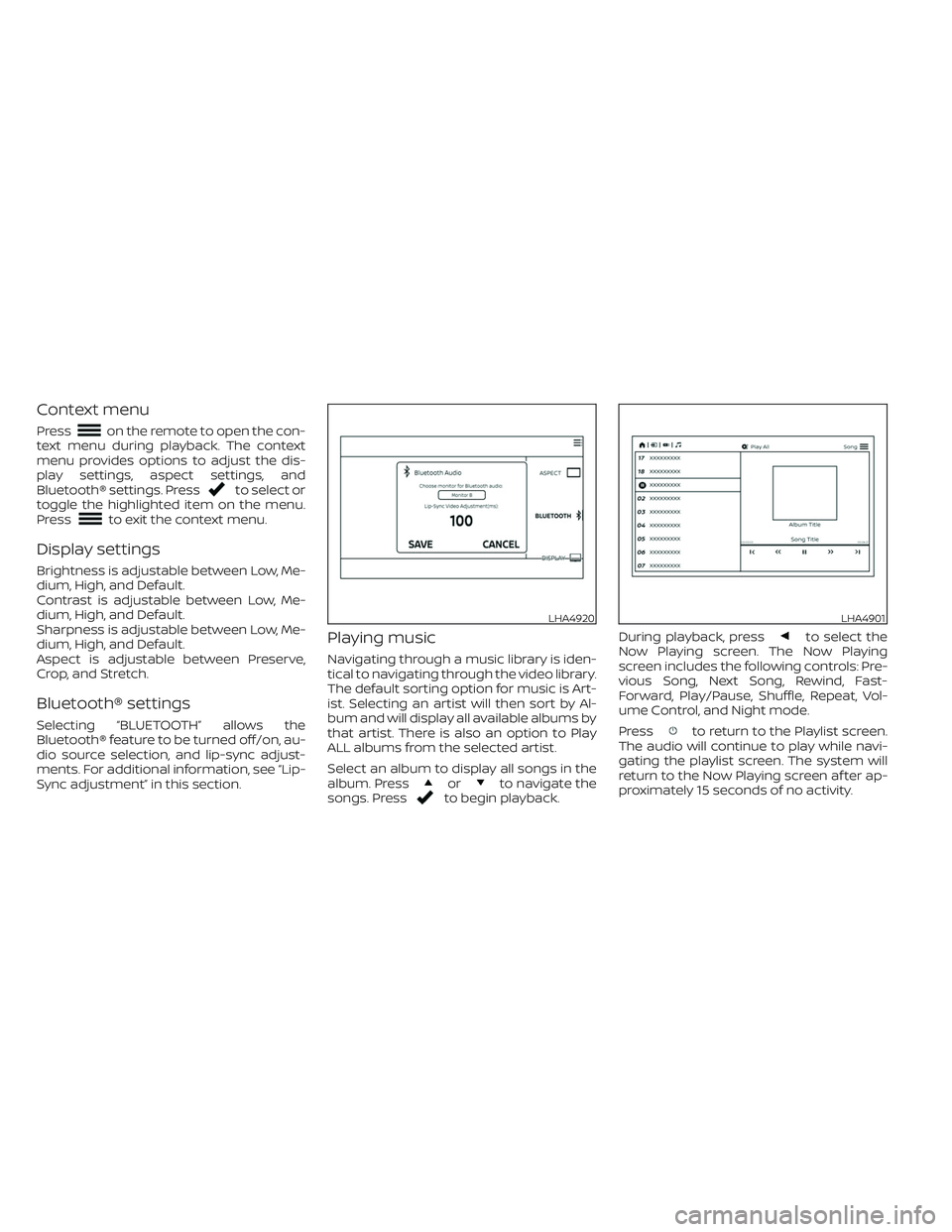
Context menu
Presson the remote to open the con-
text menu during playback. The context
menu provides options to adjust the dis-
play settings, aspect settings, and
Bluetooth® settings. Press
to select or
toggle the highlighted item on the menu.
Press
to exit the context menu.
Display settings
Brightness is adjustable between Low, Me-
dium, High, and Default.
Contrast is adjustable between Low, Me-
dium, High, and Default.
Sharpness is adjustable between Low, Me-
dium, High, and Default.
Aspect is adjustable between Preserve,
Crop, and Stretch.
Bluetooth® settings
Selecting “BLUETOOTH” allows the
Bluetooth® feature to be turned off/on, au-
dio source selection, and lip-sync adjust-
ments. For additional information, see “Lip-
Sync adjustment” in this section.
Playing music
Navigating through a music library is iden-
tical to navigating through the video library.
The default sorting option for music is Art-
ist. Selecting an artist will then sort by Al-
bum and will display all available albums by
that artist. There is also an option to Play
ALL albums from the selected artist.
Select an album to display all songs in the
album. Press
orto navigate the
songs. Pressto begin playback.During playback, press
to select the
Now Playing screen. The Now Playing
screen includes the following controls: Pre-
vious Song, Next Song, Rewind, Fast-
Forward, Play/Pause, Shuffle, Repeat, Vol-
ume Control, and Night mode.
Press
to return to the Playlist screen.
The audio will continue to play while navi-
gating the playlist screen. The system will
return to the Now Playing screen af ter ap-
proximately 15 seconds of no activity.
LHA4920LHA4901
Page 585 of 603
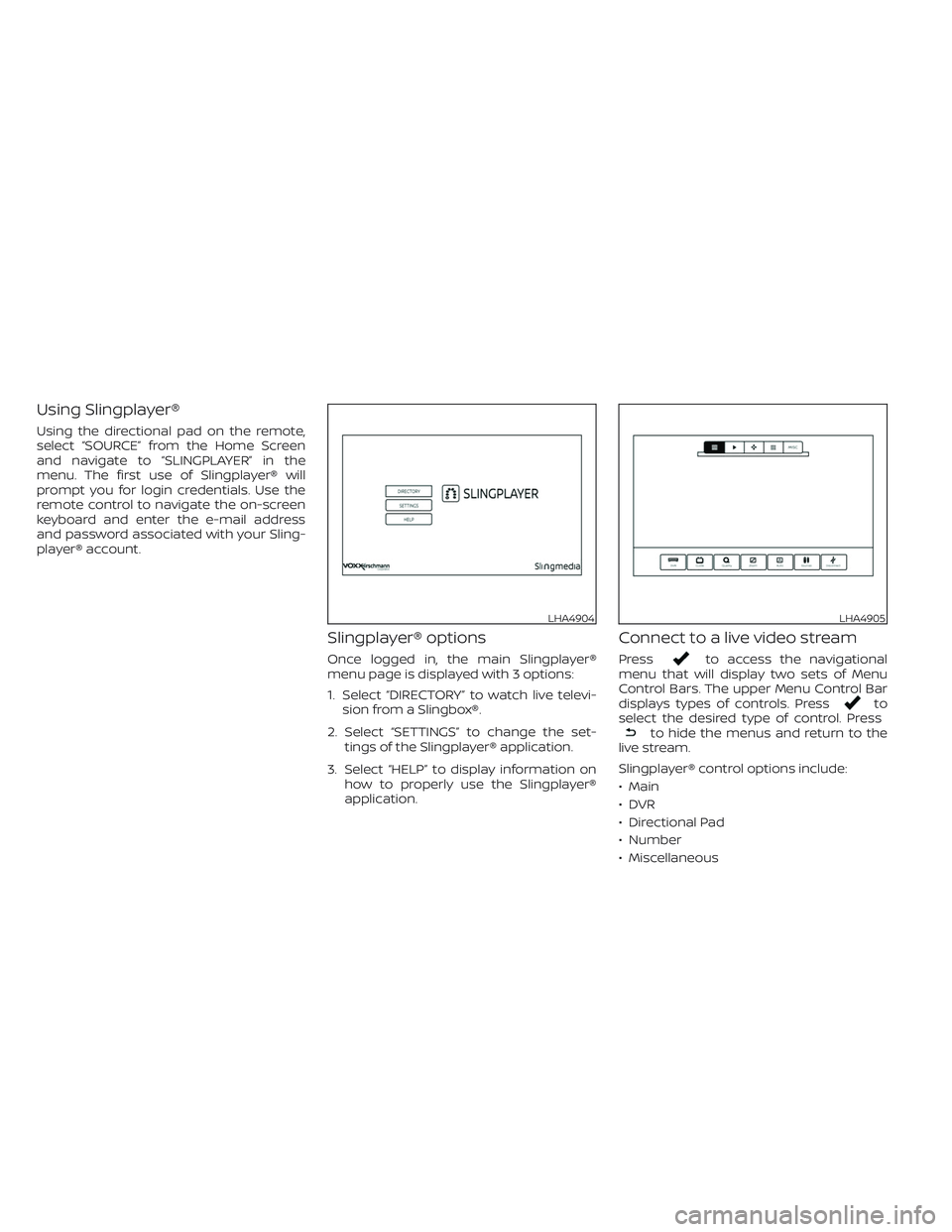
Using Slingplayer®
Using the directional pad on the remote,
select “SOURCE” from the Home Screen
and navigate to “SLINGPLAYER” in the
menu. The first use of Slingplayer® will
prompt you for login credentials. Use the
remote control to navigate the on-screen
keyboard and enter the e-mail address
and password associated with your Sling-
player® account.
Slingplayer® options
Once logged in, the main Slingplayer®
menu page is displayed with 3 options:
1. Select “DIRECTORY” to watch live televi-
sion from a Slingbox®.
2. Select “SETTINGS” to change the set-
tings of the Slingplayer® application.
3. Select “HELP” to display information on
how to properly use the Slingplayer®
application.
Connect to a live video stream
Pressto access the navigational
menu that will display two sets of Menu
Control Bars. The upper Menu Control Bar
displays types of controls. Press
to
select the desired type of control. Press
to hide the menus and return to the
live stream.
Slingplayer® control options include:
• Main
•DVR
• Directional Pad
• Number
• Miscellaneous
LHA4904LHA4905
Page 597 of 603
For example, to set the ratings limit for PG
and below, select “RATINGS” then “3” using
the directional pad and press
, based
on the rating levels. For additional informa-
tion, see “About parental lock” in this sec-
tion.To change password, select “SETTINGS”
then “PARENTAL” from the home screen.
Enter the current password, select “PASS-
WORD” then “MODIFY” to set new password,
press
once to enter, and select again
to confirm. To exit “PARENTAL” menu press
.To remove the parental lock password, se-
lect “SETTINGS” then “PARENTAL” from the
home screen. Enter the current password.
Select “PASSWORD” then “REMOVE”, press
to enter, and select again to confirm.
To exit Parental menu press.
TROUBLESHOOTING
SymptomRemedy
Monitor does not power onVerif y the vehicle is in the ON or ACC position.
Verif y the battery is installed correctly in the remote control.
Verif y the in-line fuse protection is good. Refer to the RSI system installation instructions for vehicle-specific fuse location.
Monitor front panel controls
flash redFor further diagnosis, it is recommended that you visit a NISSAN dealer.
System frozen - will not re-
spondSof t reset the system by pressing and holding the power button on the top of the driver side monitor for 5 seconds.
Hard reset the system by turning the ignition off, then back on.
No pictureCheck that the signal source is connected.
Check the menu source setting. Match your monitor mode with the source correctly.
No sound or distorted soundMake sure that the external media device is connected properly, and all cables are securely inserted into the appropriate jacks.
Verif y that the batteries in the headphones are fresh.
If you are using the wireless headphones, make sure you turn on the power and select the correct monitor (A or B).
Verif y the volume is turned up on headphones and the system.
Verif y nothing is blocking the path between the monitor IR sensor and headphones.
When placing the headphones on your head, make sure to observe the Lef t and Right orientation. The headphones must be ori-
ented correctly (facing forward) to receive the audio signal.
Monitor feels warm When the monitor is in use for a long period of time, the surface will be warm. This is normal.