light NISSAN ARMADA 2022 Owner´s Manual
[x] Cancel search | Manufacturer: NISSAN, Model Year: 2022, Model line: ARMADA, Model: NISSAN ARMADA 2022Pages: 604, PDF Size: 2.97 MB
Page 224 of 604
3-36Pre-driving checks and adjustments
WAD0197X
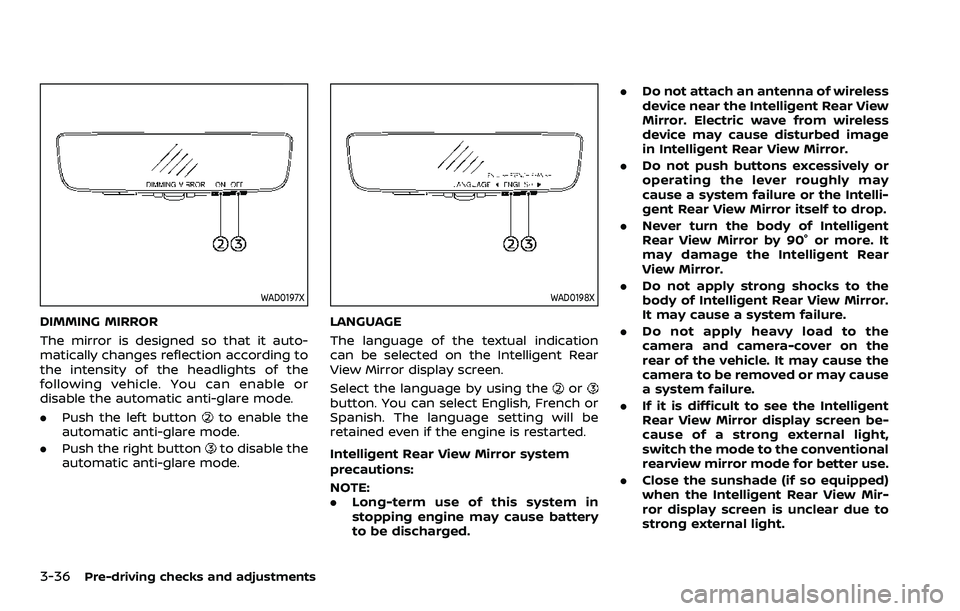
DIMMING MIRROR
The mirror is designed so that it auto-
matically changes reflection according to
the intensity of the headlights of the
following vehicle. You can enable or
disable the automatic anti-glare mode.
.Push the left button
to enable the
automatic anti-glare mode.
. Push the right button
to disable the
automatic anti-glare mode.
WAD0198X
LANGUAGE
The language of the textual indication
can be selected on the Intelligent Rear
View Mirror display screen.
Select the language by using the
orbutton. You can select English, French or
Spanish. The language setting will be
retained even if the engine is restarted.
Intelligent Rear View Mirror system
precautions:
NOTE:
. Long-term use of this system in
stopping engine may cause battery
to be discharged. .
Do not attach an antenna of wireless
device near the Intelligent Rear View
Mirror. Electric wave from wireless
device may cause disturbed image
in Intelligent Rear View Mirror.
. Do not push buttons excessively or
operating the lever roughly may
cause a system failure or the Intelli-
gent Rear View Mirror itself to drop.
. Never turn the body of Intelligent
Rear View Mirror by 90° or more. It
may damage the Intelligent Rear
View Mirror.
. Do not apply strong shocks to the
body of Intelligent Rear View Mirror.
It may cause a system failure.
. Do not apply heavy load to the
camera and camera-cover on the
rear of the vehicle. It may cause the
camera to be removed or may cause
a system failure.
. If it is difficult to see the Intelligent
Rear View Mirror display screen be-
cause of a strong external light,
switch the mode to the conventional
rearview mirror mode for better use.
. Close the sunshade (if so equipped)
when the Intelligent Rear View Mir-
ror display screen is unclear due to
strong external light.
Page 225 of 604
JVP0559X
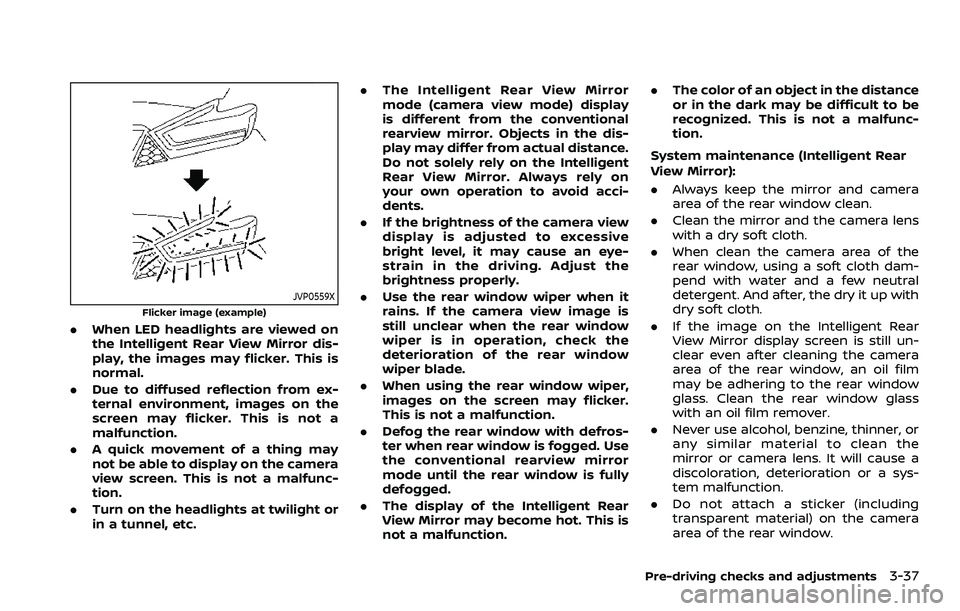
Flicker image (example)
.When LED headlights are viewed on
the Intelligent Rear View Mirror dis-
play, the images may flicker. This is
normal.
. Due to diffused reflection from ex-
ternal environment, images on the
screen may flicker. This is not a
malfunction.
. A quick movement of a thing may
not be able to display on the camera
view screen. This is not a malfunc-
tion.
. Turn on the headlights at twilight or
in a tunnel, etc. .
The Intelligent Rear View Mirror
mode (camera view mode) display
is different from the conventional
rearview mirror. Objects in the dis-
play may differ from actual distance.
Do not solely rely on the Intelligent
Rear View Mirror. Always rely on
your own operation to avoid acci-
dents.
. If the brightness of the camera view
display is adjusted to excessive
bright level, it may cause an eye-
strain in the driving. Adjust the
brightness properly.
. Use the rear window wiper when it
rains. If the camera view image is
still unclear when the rear window
wiper is in operation, check the
deterioration of the rear window
wiper blade.
. When using the rear window wiper,
images on the screen may flicker.
This is not a malfunction.
. Defog the rear window with defros-
ter when rear window is fogged. Use
the conventional rearview mirror
mode until the rear window is fully
defogged.
. The display of the Intelligent Rear
View Mirror may become hot. This is
not a malfunction. .
The color of an object in the distance
or in the dark may be difficult to be
recognized. This is not a malfunc-
tion.
System maintenance (Intelligent Rear
View Mirror):
. Always keep the mirror and camera
area of the rear window clean.
. Clean the mirror and the camera lens
with a dry soft cloth.
. When clean the camera area of the
rear window, using a soft cloth dam-
pend with water and a few neutral
detergent. And after, the dry it up with
dry soft cloth.
. If the image on the Intelligent Rear
View Mirror display screen is still un-
clear even after cleaning the camera
area of the rear window, an oil film
may be adhering to the rear window
glass. Clean the rear window glass
with an oil film remover.
. Never use alcohol, benzine, thinner, or
any similar material to clean the
mirror or camera lens. It will cause a
discoloration, deterioration or a sys-
tem malfunction.
. Do not attach a sticker (including
transparent material) on the camera
area of the rear window.
Pre-driving checks and adjustments3-37
Page 227 of 604
SPA2738
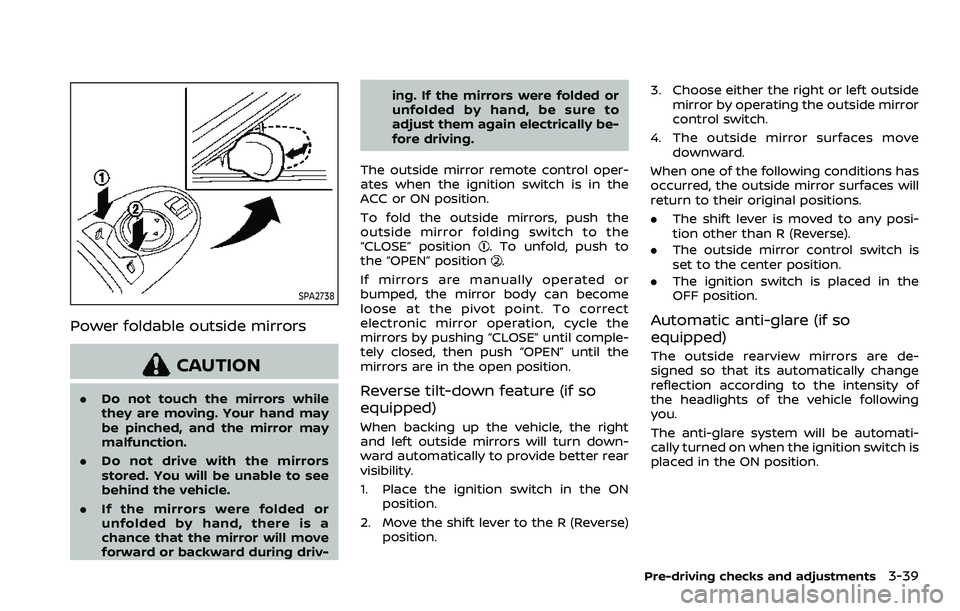
Power foldable outside mirrors
CAUTION
.Do not touch the mirrors while
they are moving. Your hand may
be pinched, and the mirror may
malfunction.
. Do not drive with the mirrors
stored. You will be unable to see
behind the vehicle.
. If the mirrors were folded or
unfolded by hand, there is a
chance that the mirror will move
forward or backward during driv- ing. If the mirrors were folded or
unfolded by hand, be sure to
adjust them again electrically be-
fore driving.
The outside mirror remote control oper-
ates when the ignition switch is in the
ACC or ON position.
To fold the outside mirrors, push the
outside mirror folding switch to the
“CLOSE” position
. To unfold, push to
the “OPEN” position.
If mirrors are manually operated or
bumped, the mirror body can become
loose at the pivot point. To correct
electronic mirror operation, cycle the
mirrors by pushing “CLOSE” until comple-
tely closed, then push “OPEN” until the
mirrors are in the open position.
Reverse tilt-down feature (if so
equipped)
When backing up the vehicle, the right
and left outside mirrors will turn down-
ward automatically to provide better rear
visibility.
1. Place the ignition switch in the ON position.
2. Move the shift lever to the R (Reverse) position. 3. Choose either the right or left outside
mirror by operating the outside mirror
control switch.
4. The outside mirror surfaces move downward.
When one of the following conditions has
occurred, the outside mirror surfaces will
return to their original positions.
. The shift lever is moved to any posi-
tion other than R (Reverse).
. The outside mirror control switch is
set to the center position.
. The ignition switch is placed in the
OFF position.
Automatic anti-glare (if so
equipped)
The outside rearview mirrors are de-
signed so that its automatically change
reflection according to the intensity of
the headlights of the vehicle following
you.
The anti-glare system will be automati-
cally turned on when the ignition switch is
placed in the ON position.
Pre-driving checks and adjustments3-39
Page 229 of 604
Initialize entry/exit function
If the battery cable is disconnected, or if
the fuse opens, the entry/exit function
will not work though this function was set
on before. In such a case, after connect-
ing the battery or replacing with a new
fuse, open and close the driver’s door
more than two times after the ignition
switch is turned from the ON position to
the LOCK position. The entry/exit func-
tion will be activated.
MEMORY STORAGE
Two positions for the driver’s seat, steer-
ing column and outside mirrors can be
stored in the memory switch. Follow
these procedures to use the memory
system.
1. Move the shift lever to the P (Park)position.
2. Adjust the driver’s seat, steering col- umn and outside mirrors to the de-
sired positions by manually operating
each adjusting switch. For additional
information, see “Seats” (P.1-3) and
“Tilt/telescopic steering” (P.3-29) and
“Outside mirrors” (P.3-38).
3. Push the SET switch and, within 5 seconds, push the memory switch (1
or 2) fully for at least 1 second.
The indicator light for the pushed
memory switch will stay on for ap- proximately 5 seconds after pushing
the switch.
When the memory is stored in the
memory switch (1 or 2), a buzzer will
sound.
If memory is stored in the same
memory switch, the previous memory
will be deleted.
Linking Intelligent Key to a stored
memory position
The Intelligent Key can be linked to a
stored memory position with the follow-
ing procedure.
1. Follow the steps for storing a memory
position.
2. While the indicator light for the mem- ory switch being set is illuminated for
5 seconds, push the
button on the
Intelligent Key. If the indicator light
blinks, the Intelligent Key is linked to
that memory setting.
Push the ignition switch to the OFF
position, and then push the
button
on the Intelligent Key. The driver’s seat,
steering wheel and outside mirrors will
move to the memorized position.
Confirming memory storage
. Push the ignition switch to the ON
position and push the SET switch. If
the main memory has not been
stored, the indicator light will come
on for approximately 0.5 second.
When the memory has stored in posi-
tion, the indicator light will stay on for
approximately 5 seconds.
. If the battery cable is disconnected, or
if the fuse opens, the memory will be
canceled. In this case, reset the de-
sired position using the previous pro-
cedure.
. If optional Intelligent Keys are added
to your vehicle, the memory storage
procedure to switch 1 or 2 and linking
Intelligent Key procedure to a stored
memory position should be per-
formed again for each Intelligent Key.
For additional Intelligent Key informa-
tion, see “Keys” (P.3-2).
Selecting the memorized position
1. Move the shift lever to the P (Park)
position.
2. Use one of the following methods to move the driver’s seat, the outside
mirrors and the steering wheel.
.Push the memory switch (1 or 2)fully for at least 1 second.
Pre-driving checks and adjustments3-41
Page 230 of 604
3-42Pre-driving checks and adjustments
The driver’s seat, steering column and
outside mirrors will move to the
memorized position or to the exit
position when the entry/exit function
is set to active with the indicator light
flashing, and then the light will stay on
for approximately 5 seconds.
SETTING MEMORY FUNCTION
The status of the following settings can
be linked to the Intelligent Key and the
memorized settings can be available for
each Intelligent Key.
.Air conditioner system
. Navigation system (if so equipped)
. Audio system
To use the memory function, lock the
doors with the Intelligent Key that is
linked to the settings.
To enable the memorized settings:
1. Carry the Intelligent Key that is linked to the settings, and unlock the doors
by pushing the driver’s door handle
request switch or “UNLOCK”
but-
ton on the Intelligent Key.
2. Place the ignition switch in the ON position. “Connection with the key has
been done” will be displayed on the
screen and the memorized settings
are available (only when a new Intel-
ligent Key is used).
SYSTEM OPERATION
The memory seat system will not work or
will stop operating under the following
conditions:
.When the vehicle speed is above 0
MPH (0 km/h) or 4 MPH (7 km/h) for
some limited functions such linking an
Intelligent Key to the vehicle when the
power source is turned on from off or
during the Exit function.
. When any of the memory switches are
pushed while the memory seat is
operating.
. When the adjusting switch for the
driver’s seat and steering column is
turned on while the memory seat is
operating.
. When the seat has already been
moved to the memorized position.
. When no seat position is stored in the
memory switch.
. When the shift lever is moved from the
P (Park) position to any other position.
Page 240 of 604
4-10Monitor, heater, air conditioner, audio, phone and voice recognition systems
REARVIEW MONITOR SYSTEM LIM-
ITATIONS
WARNING
Listed below are the system limita-
tions for RearView Monitor. Failure to
operate the vehicle in accordance
with these system limitations could
result in serious injury or death.
.The system cannot completely
eliminate blind spots and may
not show every object.
. Underneath the bumper and the
corner areas of the bumper can-
not be viewed on the RearView
Monitor because of its monitoring
range limitation. The system will
not show small objects below the
bumper, and may not show ob-
jects close to the bumper or on
the ground.
. Objects viewed in the RearView
Monitor differ from actual dis-
tance because a wide-angle lens
is used.
. Objects in the RearView Monitor
will appear visually opposite
compared to when viewed in the
rearview and outside mirrors. .
Use the displayed lines as a re-
ference. The lines are highly af-
fected by the number of
occupants, fuel level, vehicle po-
sition, road conditions and road
grade.
. Make sure that the liftgate is
securely closed when backing up.
. Do not put anything on the rear-
view camera. The rearview cam-
era is installed above the license
plate.
. When washing the vehicle with
high-pressure water, be sure not
to spray it around the camera.
Otherwise, water may enter the
camera unit causing water con-
densation on the lens, a malfunc-
tion, fire or an electric shock.
. Do not strike the camera. It is a
precision instrument. Otherwise,
it may malfunction or cause da-
mage resulting in a fire or an
electric shock.
The following are operating limitations
and do not represent a system malfunc-
tion:
. When the temperature is extremely
high or low, the screen may not clearly
display objects. .
When strong light directly shines on
the camera, objects may not be dis-
played clearly.
. Vertical lines may be seen in objects
on the screen. This is due to strong
reflected light from the bumper.
. The screen may flicker under fluores-
cent light.
. The colors of objects on the RearView
Monitor may differ somewhat from
the actual color of objects.
. Objects on the monitor may not be
clear in a dark environment.
. There may be a delay when switching
between views.
. If dirt, rain or snow accumulates on
the camera, the RearView Monitor
may not display objects clearly. Clean
the camera.
. Do not use wax on the camera lens.
Wipe off any wax with a clean cloth
dampened with a diluted mild clean-
ing agent, then wipe with a dry cloth.
Page 244 of 604
4-14Monitor, heater, air conditioner, audio, phone and voice recognition systems
ber of occupants, fuel level, vehi-
cle position, road condition and
road grade.
. If the tires are replaced with
different sized tires, the predic-
tive course lines and the bird’s-
eye view may be displayed incor-
rectly.
. When driving the vehicle up a hill,
objects viewed in the monitor are
farther than they appear. When
driving the vehicle down a hill,
objects viewed in the monitor are
closer than they appear.
. Objects in the rear view will ap-
pear visually opposite compared
to when viewed in the rear view
and outside mirrors.
. Use the mirrors or actually look to
properly judge distances to other
objects.
. The distance between objects
viewed in the rear view differs
from actual distance because a
wide-angle lens is used.
. On a snow-covered or slippery
road, there may be a difference
between the predictive course
lines and the actual course line. .
The vehicle width and predictive
course lines are wider than the
actual width and course.
. The displayed lines on the rear
view will appear slightly off to the
right because the rearview cam-
era is not installed in the rear
center of the vehicle.
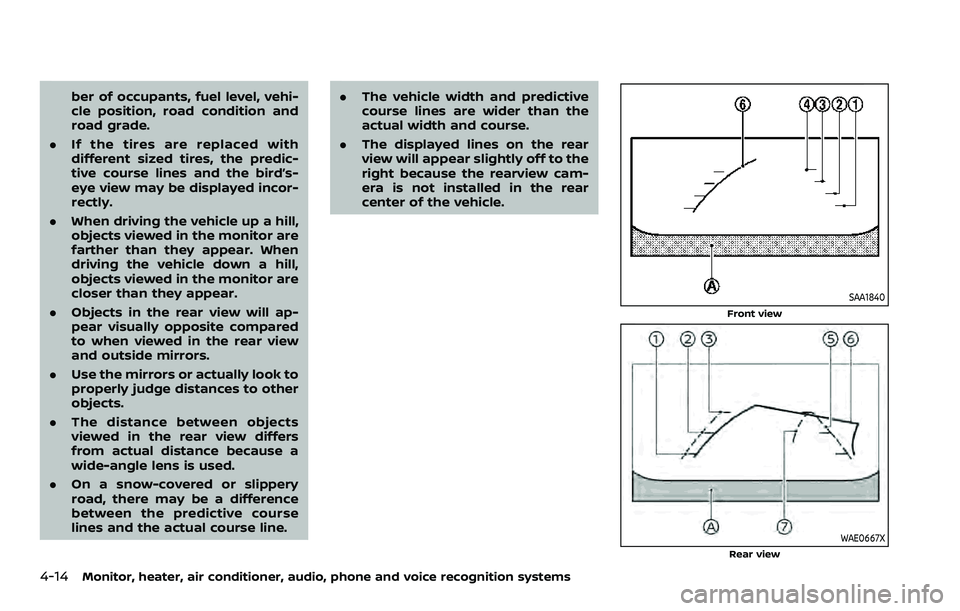
SAA1840
Front view
WAE0667XRear view
Page 245 of 604
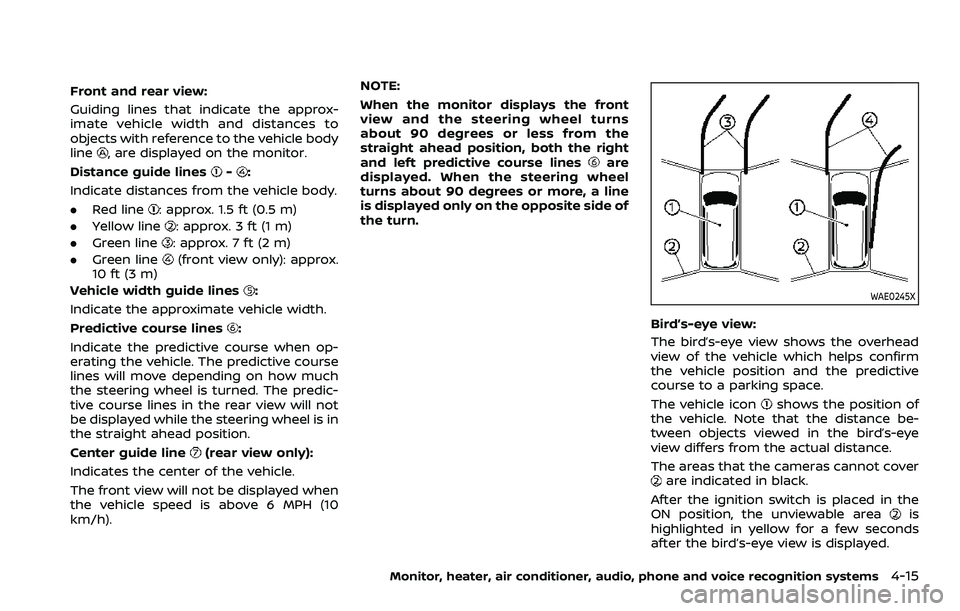
Front and rear view:
Guiding lines that indicate the approx-
imate vehicle width and distances to
objects with reference to the vehicle body
line
, are displayed on the monitor.
Distance guide lines
-:
Indicate distances from the vehicle body.
. Red line
: approx. 1.5 ft (0.5 m)
. Yellow line
: approx. 3 ft (1 m)
. Green line
: approx. 7 ft (2 m)
. Green line
(front view only): approx.
10 ft (3 m)
Vehicle width guide lines
:
Indicate the approximate vehicle width.
Predictive course lines
:
Indicate the predictive course when op-
erating the vehicle. The predictive course
lines will move depending on how much
the steering wheel is turned. The predic-
tive course lines in the rear view will not
be displayed while the steering wheel is in
the straight ahead position.
Center guide line
(rear view only):
Indicates the center of the vehicle.
The front view will not be displayed when
the vehicle speed is above 6 MPH (10
km/h). NOTE:
When the monitor displays the front
view and the steering wheel turns
about 90 degrees or less from the
straight ahead position, both the right
and left predictive course lines
are
displayed. When the steering wheel
turns about 90 degrees or more, a line
is displayed only on the opposite side of
the turn.
WAE0245X
Bird’s-eye view:
The bird’s-eye view shows the overhead
view of the vehicle which helps confirm
the vehicle position and the predictive
course to a parking space.
The vehicle icon
shows the position of
the vehicle. Note that the distance be-
tween objects viewed in the bird’s-eye
view differs from the actual distance.
The areas that the cameras cannot cover
are indicated in black.
After the ignition switch is placed in the
ON position, the unviewable area
is
highlighted in yellow for a few seconds
after the bird’s-eye view is displayed.
Monitor, heater, air conditioner, audio, phone and voice recognition systems4-15
Page 246 of 604
4-16Monitor, heater, air conditioner, audio, phone and voice recognition systems
Predictive course lines (and) indicate
the predictive course when operating the
vehicle. The predictive course lines (
and) will be displayed on the monitor when
the steering wheel is turned. The predic-
tive course lines (
and) will move
depending on how much the steering
wheel is turned.
WARNING
. Objects in the bird’s-eye view will
appear farther than the actual
distance.
. Tall objects, such as a curb or
vehicle, may be misaligned or not
displayed at the seam of the
views.
. Objects that are above the cam-
era cannot be displayed.
. The view for the bird’s-eye view
may be misaligned when the
camera position alters.
. A line on the ground may be
misaligned and is not seen as
being straight at the seam of the
views. The misalignment will in-
crease as the line proceeds away
from the vehicle.
JVH1141X
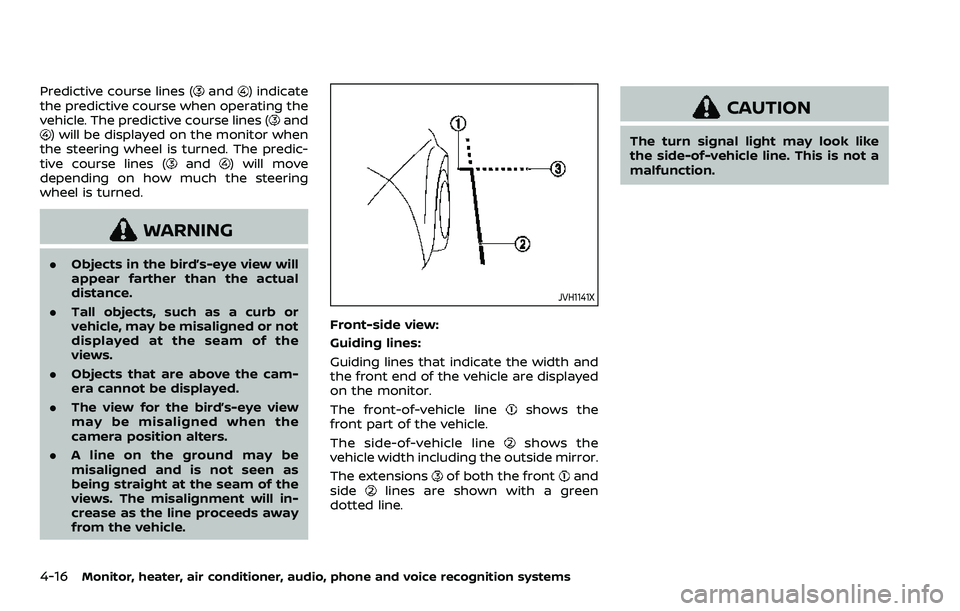
Front-side view:
Guiding lines:
Guiding lines that indicate the width and
the front end of the vehicle are displayed
on the monitor.
The front-of-vehicle line
shows the
front part of the vehicle.
The side-of-vehicle line
shows the
vehicle width including the outside mirror.
The extensions
of both the frontand
sidelines are shown with a green
dotted line.
CAUTION
The turn signal light may look like
the side-of-vehicle line. This is not a
malfunction.
Page 252 of 604
4-22Monitor, heater, air conditioner, audio, phone and voice recognition systems
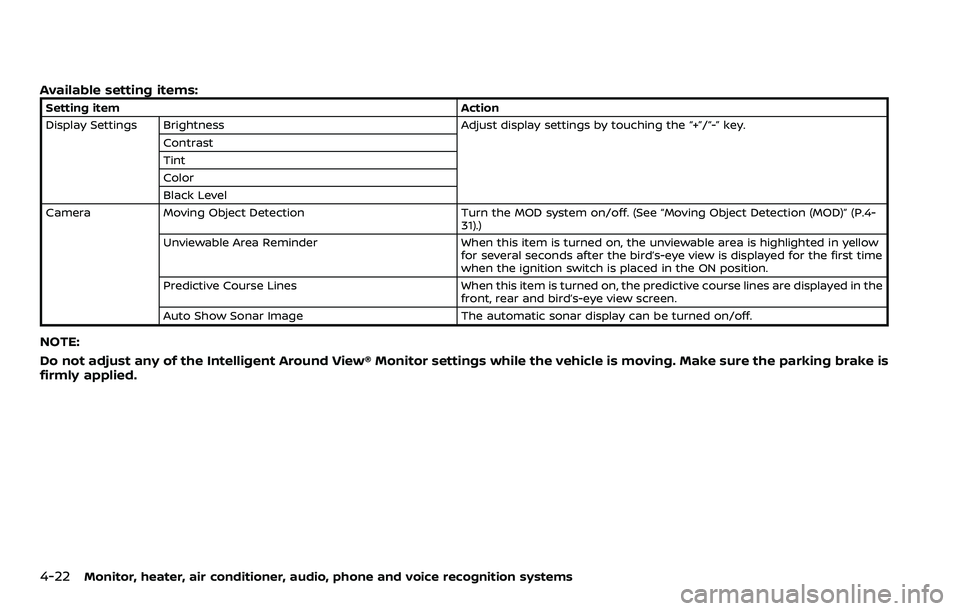
Available setting items:
Setting itemAction
Display Settings Brightness Adjust display settings by touching the “+”/“-” key.
Contrast
Tint
Color
Black Level
Camera Moving Object Detection Turn the MOD system on/off. (See “Moving Object Detection (MOD)” (P.4-
31).)
Unviewable Area Reminder When this item is turned on, the unviewable area is highlighted in yellow
for several seconds after the bird’s-eye view is displayed for the first time
when the ignition switch is placed in the ON position.
Predictive Course Lines When this item is turned on, the predictive course lines are displayed in the
front, rear and bird’s-eye view screen.
Auto Show Sonar Image The automatic sonar display can be turned on/off.
NOTE:
Do not adjust any of the Intelligent Around View® Monitor settings while the vehicle is moving. Make sure the parking brake is
firmly applied.