change time NISSAN ARMADA 2022 Owner´s Manual
[x] Cancel search | Manufacturer: NISSAN, Model Year: 2022, Model line: ARMADA, Model: NISSAN ARMADA 2022Pages: 604, PDF Size: 2.97 MB
Page 183 of 604
WAC0381X
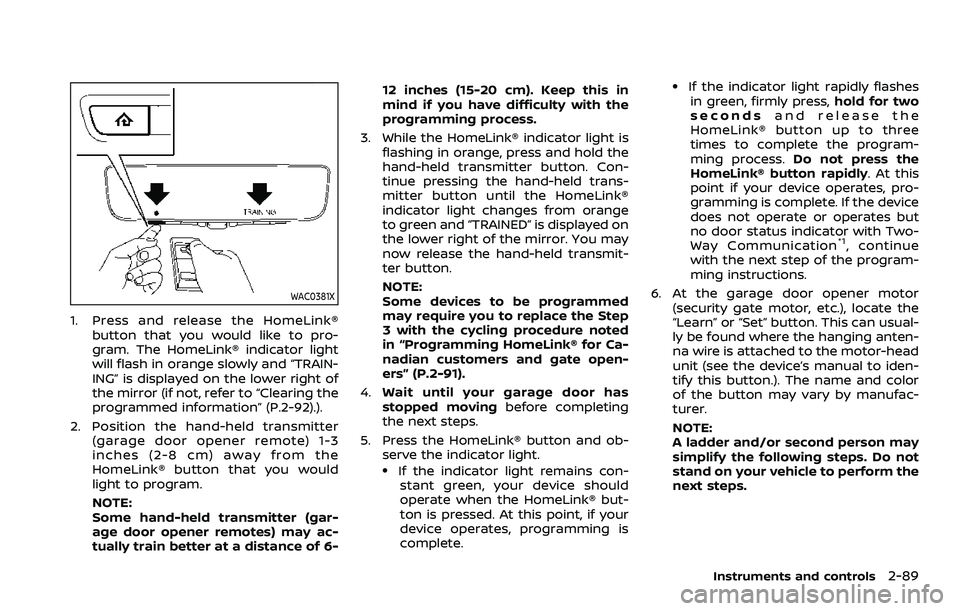
1. Press and release the HomeLink®button that you would like to pro-
gram. The HomeLink® indicator light
will flash in orange slowly and “TRAIN-
ING” is displayed on the lower right of
the mirror (if not, refer to “Clearing the
programmed information” (P.2-92).).
2. Position the hand-held transmitter (garage door opener remote) 1-3
inches (2-8 cm) away from the
HomeLink® button that you would
light to program.
NOTE:
Some hand-held transmitter (gar-
age door opener remotes) may ac-
tually train better at a distance of 6- 12 inches (15-20 cm). Keep this in
mind if you have difficulty with the
programming process.
3. While the HomeLink® indicator light is flashing in orange, press and hold the
hand-held transmitter button. Con-
tinue pressing the hand-held trans-
mitter button until the HomeLink®
indicator light changes from orange
to green and “TRAINED” is displayed on
the lower right of the mirror. You may
now release the hand-held transmit-
ter button.
NOTE:
Some devices to be programmed
may require you to replace the Step
3 with the cycling procedure noted
in “Programming HomeLink® for Ca-
nadian customers and gate open-
ers” (P.2-91).
4. Wait until your garage door has
stopped moving before completing
the next steps.
5. Press the HomeLink® button and ob- serve the indicator light.
.If the indicator light remains con-stant green, your device should
operate when the HomeLink® but-
ton is pressed. At this point, if your
device operates, programming is
complete.
.If the indicator light rapidly flashesin green, firmly press, hold for two
seconds and release the
HomeLink® button up to three
times to complete the program-
ming process. Do not press the
HomeLink® button rapidly. At this
point if your device operates, pro-
gramming is complete. If the device
does not operate or operates but
no door status indicator with Two-
Way Communication
*1, continue
with the next step of the program-
ming instructions.
6. At the garage door opener motor (security gate motor, etc.), locate the
“Learn” or “Set” button. This can usual-
ly be found where the hanging anten-
na wire is attached to the motor-head
unit (see the device’s manual to iden-
tify this button.). The name and color
of the button may vary by manufac-
turer.
NOTE:
A ladder and/or second person may
simplify the following steps. Do not
stand on your vehicle to perform the
next steps.
Instruments and controls2-89
Page 185 of 604
USING THE GARAGE DOOR TWO-
WAY COMMUNICATION
HomeLink® has the function of commu-
nicating with garage door opener sys-
tems. If your garage door openers are
compatible with HomeLink®, the
HomeLink® can:
.receive and display “closing” or “open-
ing” status from your garage door
opener.
. recall and display the garage door
being “closed” or “opened”.
HomeLink® can receive the status from a
garage door opener at a range up to 820
ft (250 m), but it varies depending on the
environment. You may need to reduce
vehicle speed to successfully receive the
garage door opener communication.
WAC0379X
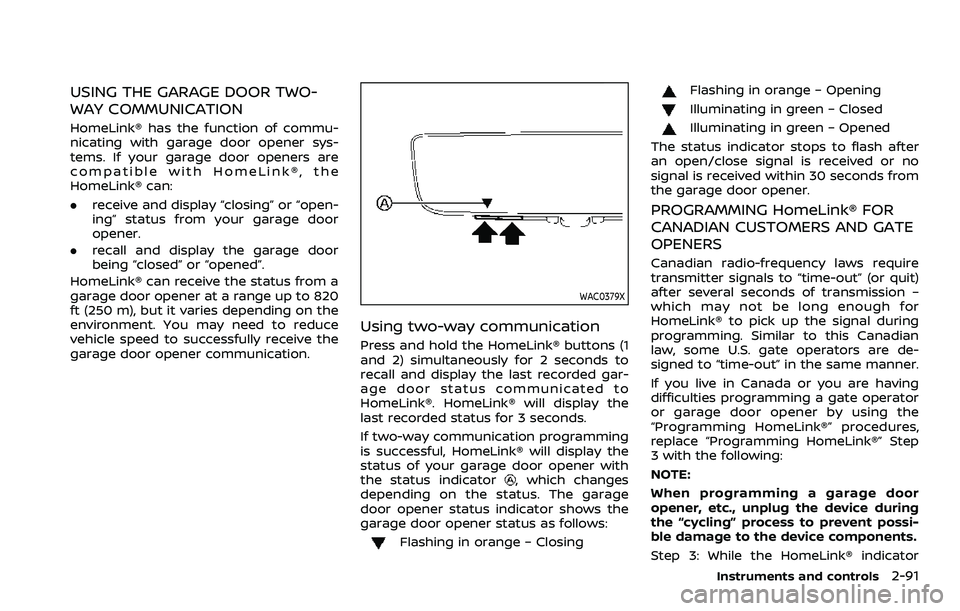
Using two-way communication
Press and hold the HomeLink® buttons (1
and 2) simultaneously for 2 seconds to
recall and display the last recorded gar-
age door status communicated to
HomeLink®. HomeLink® will display the
last recorded status for 3 seconds.
If two-way communication programming
is successful, HomeLink® will display the
status of your garage door opener with
the status indicator
, which changes
depending on the status. The garage
door opener status indicator shows the
garage door opener status as follows:
Flashing in orange – Closing
Flashing in orange – Opening
Illuminating in green – Closed
Illuminating in green – Opened
The status indicator stops to flash after
an open/close signal is received or no
signal is received within 30 seconds from
the garage door opener.
PROGRAMMING HomeLink® FOR
CANADIAN CUSTOMERS AND GATE
OPENERS
Canadian radio-frequency laws require
transmitter signals to “time-out” (or quit)
after several seconds of transmission –
which may not be long enough for
HomeLink® to pick up the signal during
programming. Similar to this Canadian
law, some U.S. gate operators are de-
signed to “time-out” in the same manner.
If you live in Canada or you are having
difficulties programming a gate operator
or garage door opener by using the
“Programming HomeLink®” procedures,
replace “Programming HomeLink®” Step
3 with the following:
NOTE:
When programming a garage door
opener, etc., unplug the device during
the “cycling” process to prevent possi-
ble damage to the device components.
Step 3: While the HomeLink® indicator
Instruments and controls2-91
Page 186 of 604
2-92Instruments and controls
light is flashing in orange, press and
release (“cycling”) the hand-held transmit-
ter button every 2 seconds. Continue to
press and release the hand-held trans-
mitter button until the HomeLink® indi-
cator light changes from orange to green.
When the indicator light illuminates in
green, hand-held transmitter button may
be released.
Proceed with “Programming HomeLink®”
step 4 to complete.
Remember to plug the device back in
when programming is completed.
OPERATING THE HomeLink® UNI-
VERSAL TRANSCEIVER
The HomeLink® Universal Transceiver,
after it is programmed, can be used to
activate the programmed device. To op-
erate, firmly press the appropriate pro-
grammed HomeLink® button. The
indicator light will illuminate in green with
three parenthesis
on the mirror
while the signal is being transmitted.
PROGRAMMING TROUBLESHOOT-
ING
If the HomeLink® does not quickly learn
the hand-held transmitter information:
. replace the hand-held transmitter
batteries with new batteries. .
position the hand-held transmitter
with its battery area facing away from
the HomeLink® button.
. press and hold the HomeLink® button
and hand-held transmitter button in
each step without interruption.
. position the hand-held transmitter 1
to 3 in (2 to 8 cm) away from the
HomeLink® button. Hold the transmit-
ter in that position for up to 15
seconds. If HomeLink® is not pro-
grammed within that time, try holding
the transmitter in another position -
for example, 6 to 12 in (15 to 30 cm)
away, keeping the HomeLink® button
in view at all times.
If you have any questions or are having
difficulty programming your HomeLink®
buttons, refer to the HomeLink® web site
at: www.homelink.com/nissan or 1-800-
355-3515.
CLEARING THE PROGRAMMED IN-
FORMATION
The following procedure clears the pro-
grammed information from three but-
tons. Individual buttons cannot be
cleared. However, individual buttons can
be reprogrammed, see “Reprogramming
a single HomeLink® button” (P.2-92).
To clear all programming
1. Press and hold the two outer HomeLink® buttons until the indicator
light begins to flash in green and
“CLEARED” is displayed on the mirror,
in approximately 10 seconds. Do not
hold for longer than 20 seconds.
2. Release both buttons.
HomeLink® is now in the programming
mode and can be programmed at any
time beginning with “Programming
HomeLink®” - Step 1.
REPROGRAMMING A SINGLE
HomeLink® BUTTON
To reprogram a HomeLink® button, com-
plete the following.
1. Press and hold the desired HomeLink® button. DO NOT release the button.
2. The indicator light will illuminate in green, and after 20 seconds it will
begin to flash in orange and “TRAIN-
ING” is displayed on the mirror.
3. Release the HomeLink® button and proceed with “Programming
HomeLink®” — Step 3.
For questions or comments, contact
HomeLink® at: www.homelink.com/
nissan or 1-800-355-3515.
The HomeLink® button has now been
reprogrammed. The new device can be
Page 221 of 604
displayed.
For the operation of the HomeLink®
buttons
, see “HomeLink® Universal
Transceiver (Type B)” (P.2-87).
WAD0191X
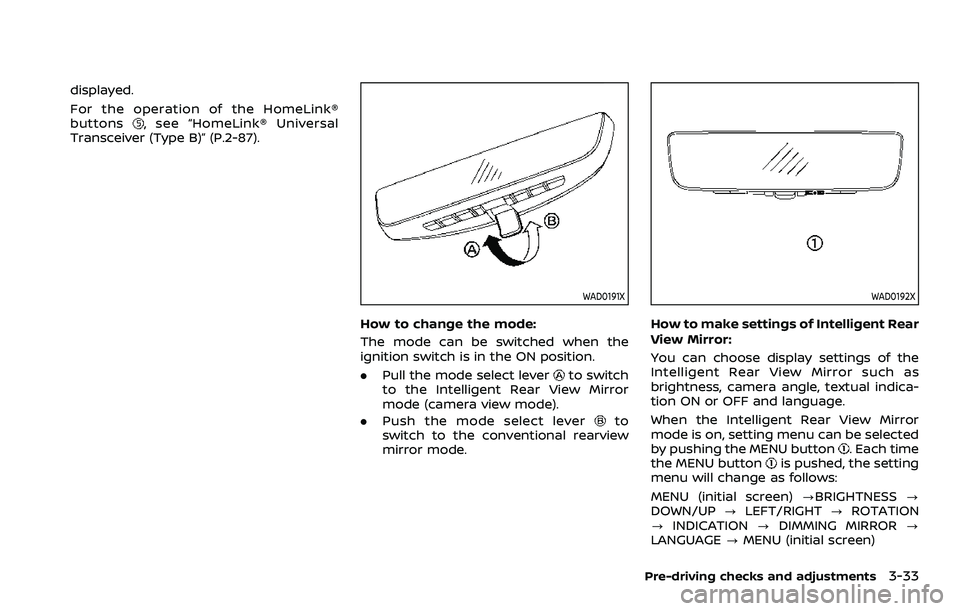
How to change the mode:
The mode can be switched when the
ignition switch is in the ON position.
. Pull the mode select lever
to switch
to the Intelligent Rear View Mirror
mode (camera view mode).
. Push the mode select lever
to
switch to the conventional rearview
mirror mode.
WAD0192X
How to make settings of Intelligent Rear
View Mirror:
You can choose display settings of the
Intelligent Rear View Mirror such as
brightness, camera angle, textual indica-
tion ON or OFF and language.
When the Intelligent Rear View Mirror
mode is on, setting menu can be selected
by pushing the MENU button
. Each time
the MENU buttonis pushed, the setting
menu will change as follows:
MENU (initial screen) ?BRIGHTNESS ?
DOWN/UP ?LEFT/RIGHT ?ROTATION
? INDICATION ?DIMMING MIRROR ?
LANGUAGE ?MENU (initial screen)
Pre-driving checks and adjustments3-33
Page 257 of 604
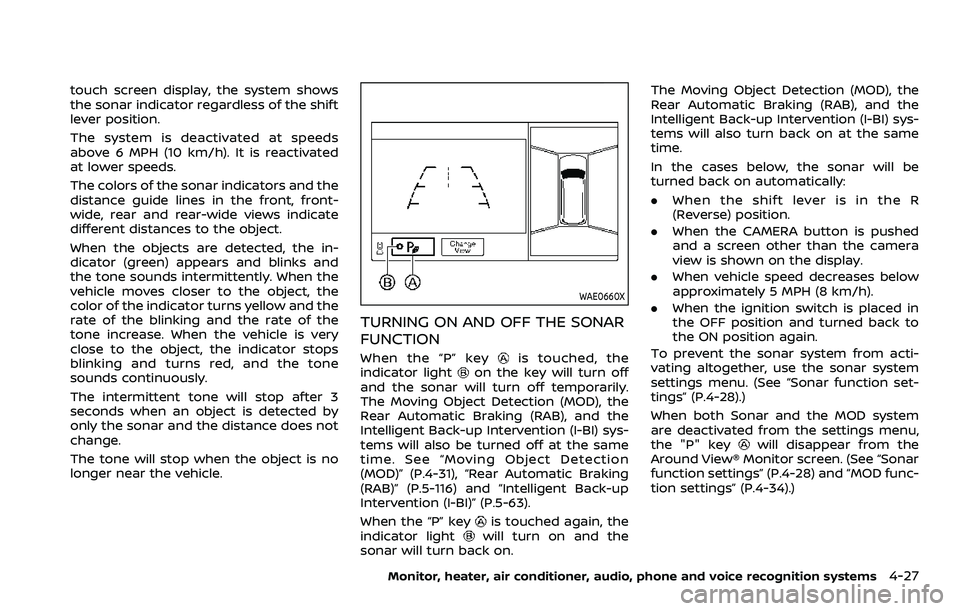
touch screen display, the system shows
the sonar indicator regardless of the shift
lever position.
The system is deactivated at speeds
above 6 MPH (10 km/h). It is reactivated
at lower speeds.
The colors of the sonar indicators and the
distance guide lines in the front, front-
wide, rear and rear-wide views indicate
different distances to the object.
When the objects are detected, the in-
dicator (green) appears and blinks and
the tone sounds intermittently. When the
vehicle moves closer to the object, the
color of the indicator turns yellow and the
rate of the blinking and the rate of the
tone increase. When the vehicle is very
close to the object, the indicator stops
blinking and turns red, and the tone
sounds continuously.
The intermittent tone will stop after 3
seconds when an object is detected by
only the sonar and the distance does not
change.
The tone will stop when the object is no
longer near the vehicle.
WAE0660X
TURNING ON AND OFF THE SONAR
FUNCTION
When the “P” keyis touched, the
indicator lighton the key will turn off
and the sonar will turn off temporarily.
The Moving Object Detection (MOD), the
Rear Automatic Braking (RAB), and the
Intelligent Back-up Intervention (I-BI) sys-
tems will also be turned off at the same
time. See “Moving Object Detection
(MOD)” (P.4-31), “Rear Automatic Braking
(RAB)” (P.5-116) and “Intelligent Back-up
Intervention (I-BI)” (P.5-63).
When the “P” key
is touched again, the
indicator lightwill turn on and the
sonar will turn back on. The Moving Object Detection (MOD), the
Rear Automatic Braking (RAB), and the
Intelligent Back-up Intervention (I-BI) sys-
tems will also turn back on at the same
time.
In the cases below, the sonar will be
turned back on automatically:
.
When the shift lever is in the R
(Reverse) position.
. When the CAMERA button is pushed
and a screen other than the camera
view is shown on the display.
. When vehicle speed decreases below
approximately 5 MPH (8 km/h).
. When the ignition switch is placed in
the OFF position and turned back to
the ON position again.
To prevent the sonar system from acti-
vating altogether, use the sonar system
settings menu. (See “Sonar function set-
tings” (P.4-28).)
When both Sonar and the MOD system
are deactivated from the settings menu,
the "P" key
will disappear from the
Around View® Monitor screen. (See “Sonar
function settings” (P.4-28) and “MOD func-
tion settings” (P.4-34).)
Monitor, heater, air conditioner, audio, phone and voice recognition systems4-27
Page 264 of 604
4-34Monitor, heater, air conditioner, audio, phone and voice recognition systems
system will turn back on.
The sonar, the Rear Automatic Braking
(RAB), and the Intelligent Back-up Inter-
vention (I-BI) systems will also turn back
on at the same time.
To enable or disable the MOD system, use
the camera settings menu. See “MOD
function settings” (P.4-34).
MOD FUNCTION SETTINGS
The MOD function settings can be chan-
ged using the following procedures.
1. Push the MENU button on the DisplayCommander.
2. Touch the “Settings” key on the touch screen display.
3. Touch the “Camera” key.
4. Touch the “Camera” key.
Available setting items:
Moving Object Detection:
When this item is turned on, the MOD
system is activated. When this item is
turned off (indicator turns off), the MOD
system is deactivated.
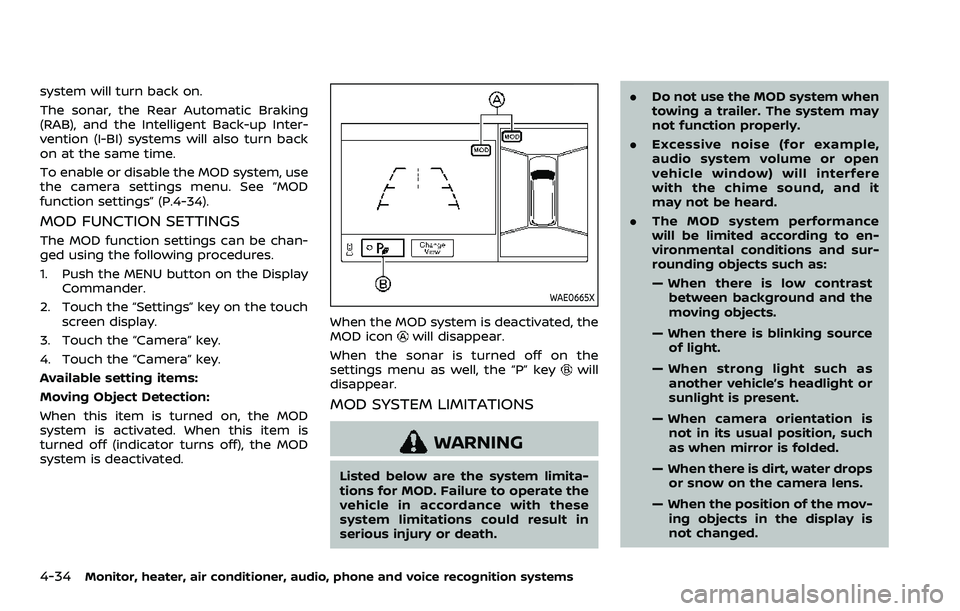
WAE0665X
When the MOD system is deactivated, the
MOD iconwill disappear.
When the sonar is turned off on the
settings menu as well, the “P” key
will
disappear.
MOD SYSTEM LIMITATIONS
WARNING
Listed below are the system limita-
tions for MOD. Failure to operate the
vehicle in accordance with these
system limitations could result in
serious injury or death. .
Do not use the MOD system when
towing a trailer. The system may
not function properly.
. Excessive noise (for example,
audio system volume or open
vehicle window) will interfere
with the chime sound, and it
may not be heard.
. The MOD system performance
will be limited according to en-
vironmental conditions and sur-
rounding objects such as:
— When there is low contrast
between background and the
moving objects.
— When there is blinking source of light.
— When strong light such as another vehicle’s headlight or
sunlight is present.
— When camera orientation is not in its usual position, such
as when mirror is folded.
— When there is dirt, water drops or snow on the camera lens.
— When the position of the mov- ing objects in the display is
not changed.
Page 275 of 604
WARNING
.It is unlawful in most jurisdictions
for a person to drive a motor
vehicle which is equipped with a
television monitor or screen that
is visible, directly or indirectly, to
the driver while operating the
vehicle. In the interest of safety,
the unit should never be installed
where it will be directly or indir-
ectly visible, by the operator of
the motor vehicle.
. For safety reasons when chan-
ging discs, it is recommended
that the vehicle is not in motion,
and that you do not allow chil-
dren to unfasten safety belts to
change discs or make any adjust-
ments to the system. System
adjustments can be accom-
plished using the remote control,
while safety belts remain fas-
tened.
. Enjoy your RSI system but re-
member that safety of all pas-
sengers remains the number one
priority. Devices installed in the
USB, HDMI, or headphone jack
may protrude and create a po-
tential eye impact hazard for un- belted passengers during a vehi-
cle accident. To reduce the risk of
injury, use only SD cards (hidden
on left side of driver side monitor)
or low-profile USB storage de-
vices.
CAUTION
.
If your vehicle is equipped with a
wireless rear seat audio system
or any other wireless infrared
device, make sure it is powered
off when operating the RSI sys-
tem. If both systems are powered
on at the same time, the two
systems may obstruct each other,
possibly creating undesirable
audio interference through the
wireless headphones.
. Do not touch the inner pins of the
jacks on the front panel. Electro-
static discharge may cause per-
manent damage to the device.
. The LCD display screen is not
touchscreen. Do not put pressure
or add suction cups on the
screen. .
Caution children to avoid touch-
ing or scratching the screen, as it
may become dirty or damaged.
. Be sure to run the vehicle engine
while using the system. Using this
system without running the en-
gine can result in battery drain.
To avoid the risk of battery drain,
please remember to turn off the
system when the vehicle is not in
use.
WELCOME
This Rear Seat Infotainment (RSI) system,
with built-in Wi-Fi, has some advanced
features. Before operating this system,
read this section thoroughly and retain it
for future reference.
System features
.Twin 8-inch Color TFT-LCD Panels
with 1024 x 600 Resolution
. Internal Wi-Fi Network
. Bluetooth® 4.1 Audio Streaming
. Miracast®/Smart View Capability
. SmartStream Content Sharing
. USB 2.0 Port, SDXC Card Input
. HDMI 1.4 Input with MHL 2.0 Support
. Exclusive Slingplayer® Application
Monitor, heater, air conditioner, audio, phone and voice recognition systems4-45
REAR SEAT INFOTAINMENT (RSI) (if
so equipped)
Page 285 of 604
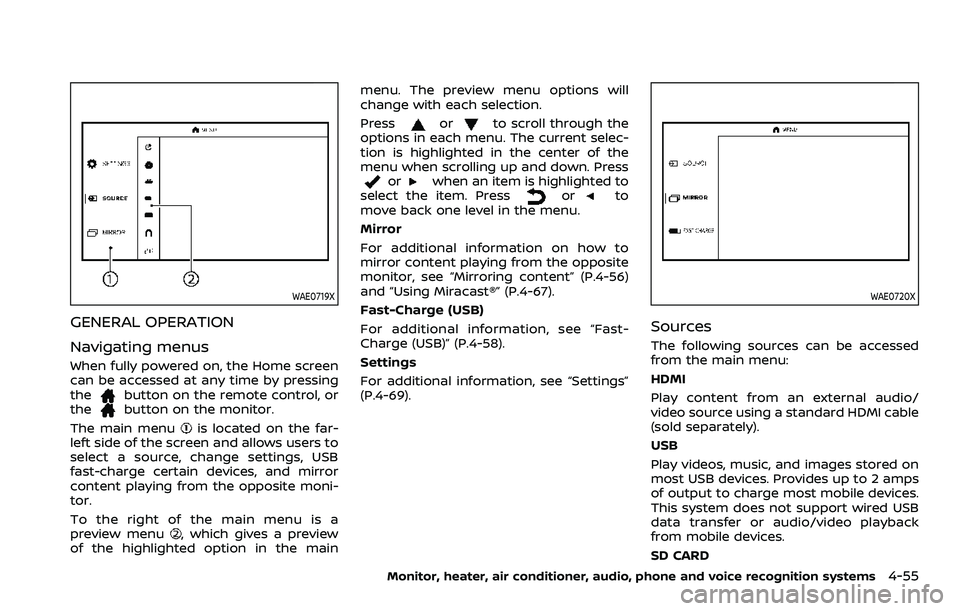
WAE0719X
GENERAL OPERATION
Navigating menus
When fully powered on, the Home screen
can be accessed at any time by pressing
the
button on the remote control, or
thebutton on the monitor.
The main menu
is located on the far-
left side of the screen and allows users to
select a source, change settings, USB
fast-charge certain devices, and mirror
content playing from the opposite moni-
tor.
To the right of the main menu is a
preview menu
, which gives a preview
of the highlighted option in the main menu. The preview menu options will
change with each selection.
Press
orto scroll through the
options in each menu. The current selec-
tion is highlighted in the center of the
menu when scrolling up and down. Press
orwhen an item is highlighted to
select the item. Pressorto
move back one level in the menu.
Mirror
For additional information on how to
mirror content playing from the opposite
monitor, see “Mirroring content” (P.4-56)
and “Using Miracast®” (P.4-67).
Fast-Charge (USB)
For additional information, see “Fast-
Charge (USB)” (P.4-58).
Settings
For additional information, see “Settings”
(P.4-69).
WAE0720X
Sources
The following sources can be accessed
from the main menu:
HDMI
Play content from an external audio/
video source using a standard HDMI cable
(sold separately).
USB
Play videos, music, and images stored on
most USB devices. Provides up to 2 amps
of output to charge most mobile devices.
This system does not support wired USB
data transfer or audio/video playback
from mobile devices.
SD CARD
Monitor, heater, air conditioner, audio, phone and voice recognition systems4-55
Page 295 of 604
WAE0733X
Slingplayer® options
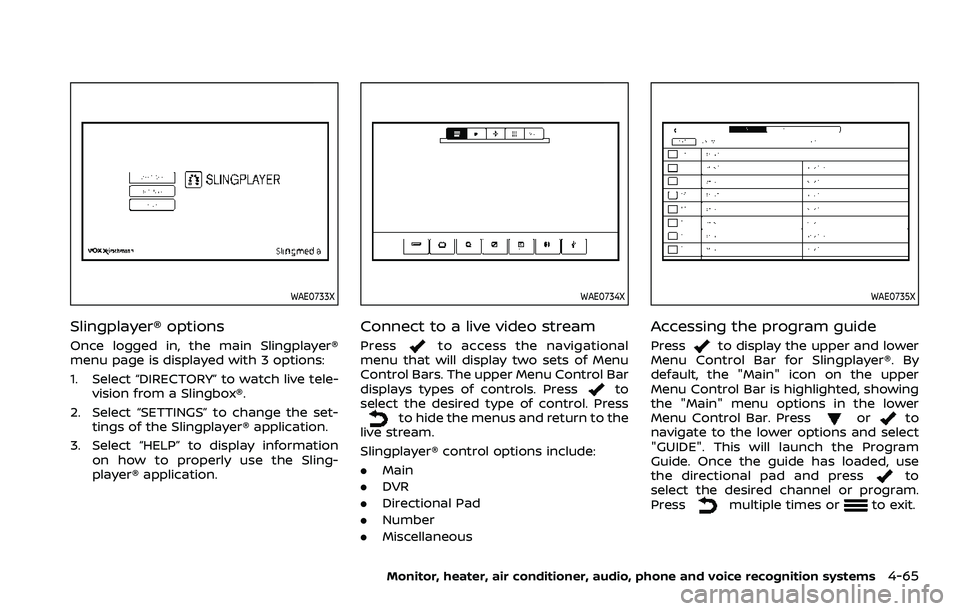
Once logged in, the main Slingplayer®
menu page is displayed with 3 options:
1. Select “DIRECTORY” to watch live tele-vision from a Slingbox®.
2. Select “SETTINGS” to change the set- tings of the Slingplayer® application.
3. Select “HELP” to display information on how to properly use the Sling-
player® application.
WAE0734X
Connect to a live video stream
Pressto access the navigational
menu that will display two sets of Menu
Control Bars. The upper Menu Control Bar
displays types of controls. Press
to
select the desired type of control. Press
to hide the menus and return to the
live stream.
Slingplayer® control options include:
. Main
. DVR
. Directional Pad
. Number
. Miscellaneous
WAE0735X
Accessing the program guide
Pressto display the upper and lower
Menu Control Bar for Slingplayer®. By
default, the "Main" icon on the upper
Menu Control Bar is highlighted, showing
the "Main" menu options in the lower
Menu Control Bar. Press
orto
navigate to the lower options and select
"GUIDE". This will launch the Program
Guide. Once the guide has loaded, use
the directional pad and press
to
select the desired channel or program.
Press
multiple times orto exit.
Monitor, heater, air conditioner, audio, phone and voice recognition systems4-65
Page 316 of 604
5-4Starting and driving
WARNING
.Do not leave children or adults
who would normally require the
support of others alone in your
vehicle. Pets should not be left
alone either. They could acciden-
tally injure themselves or others
through inadvertent operation of
the vehicle. Also, on hot, sunny
days, temperatures in a closed
vehicle could quickly become
high enough to cause severe or
possibly fatal injuries to people or
animals.
. Properly secure all cargo to help
prevent it from sliding or shifting.
Do not place cargo higher than
the seatbacks. In a sudden stop
or collision, unsecured cargo
could cause personal injury.
EXHAUST GAS (carbon monoxide)
WARNING
.Do not breathe exhaust gases;
they contain colorless and odor-
less carbon monoxide. Carbon
monoxide is dangerous. It can cause unconsciousness or death.
. If you suspect that exhaust fumes
are entering the vehicle, drive
with all windows fully open, and
have the vehicle inspected imme-
diately.
. Do not run the engine in closed
spaces such as a garage.
. Do not park the vehicle with the
engine running for any extended
length of time.
. Keep the liftgate closed while
driving, otherwise exhaust gases
could be drawn into the passen-
ger compartment. If you must
drive with the liftgate open, fol-
low these precautions:
1) Open all the windows.
2) Set the
air recirculation to
off and the fan control to high
to circulate the air.
. If electrical wiring or other cable
connections must pass to a trailer
through the seal on the liftgate or
the body, follow the manufac-
turer’s recommendation to pre-
vent carbon monoxide entry into
the vehicle.
. The exhaust system and body
should be inspected by a quali- fied mechanic whenever:
— The vehicle is raised for ser-
vice.
— You suspect that exhaust fumes are entering into the
passenger compartment.
— You notice a change in the sound of the exhaust system.
— You have had an accident involving damage to the ex-
haust system, underbody, or
rear of the vehicle.
THREE-WAY CATALYST
The three-way catalyst is an emission
control device installed in the exhaust
system. Exhaust gases in the three-way
catalyst are burned at high temperatures
to help reduce pollutants.
WARNING
. The exhaust gas and the exhaust
system are very hot. Keep people,
animals or flammable materials
away from the exhaust system
components.
. Do not stop or park the vehicle
over flammable materials such as
PRECAUTIONS WHEN STARTING
AND DRIVING