display NISSAN CUBE 2011 3.G User Guide
[x] Cancel search | Manufacturer: NISSAN, Model Year: 2011, Model line: CUBE, Model: NISSAN CUBE 2011 3.GPages: 345, PDF Size: 2.97 MB
Page 105 of 345
Black plate (103,1)
Model "Z12-D" EDITED: 2010/ 9/ 27
The digital clock (in the audio unit) displays time
when the ignition switch is in the ACC or ON
position.
The clock ON or OFF mode can be selected.
If the power supply is disconnected, the
clock will not indicate the correct time.
Readjust the time.
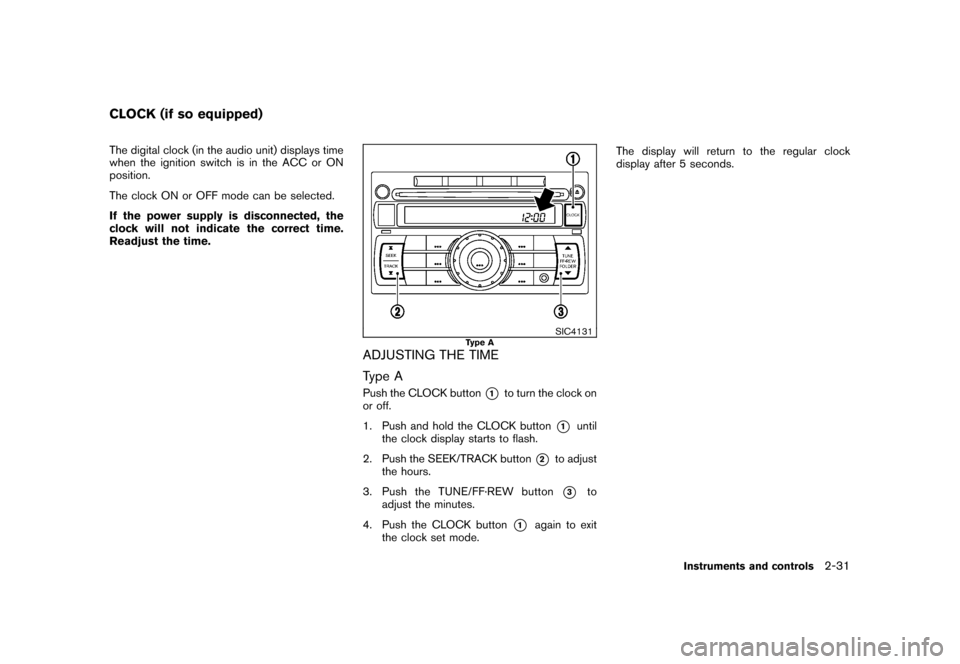
SIC4131
Type A
ADJUSTING THE TIME
Type APush the CLOCK button
*1
to turn the clock on
or off.
1. Push and hold the CLOCK button
*1
until
the clock display starts to flash.
2. Push the SEEK/TRACK button
*2
to adjust
the hours.
3. Push the TUNE/ FF·REW button*3
to
adjust the minutes.
4. Push the CLOCK button
*1
again to exit
the clock set mode. The display will return to the regular clock
display after 5 seconds.
CLOCK (if so equipped)
Instruments and controls
2-31
Page 106 of 345
Black plate (104,1)
Model "Z12-D" EDITED: 2010/ 9/ 27
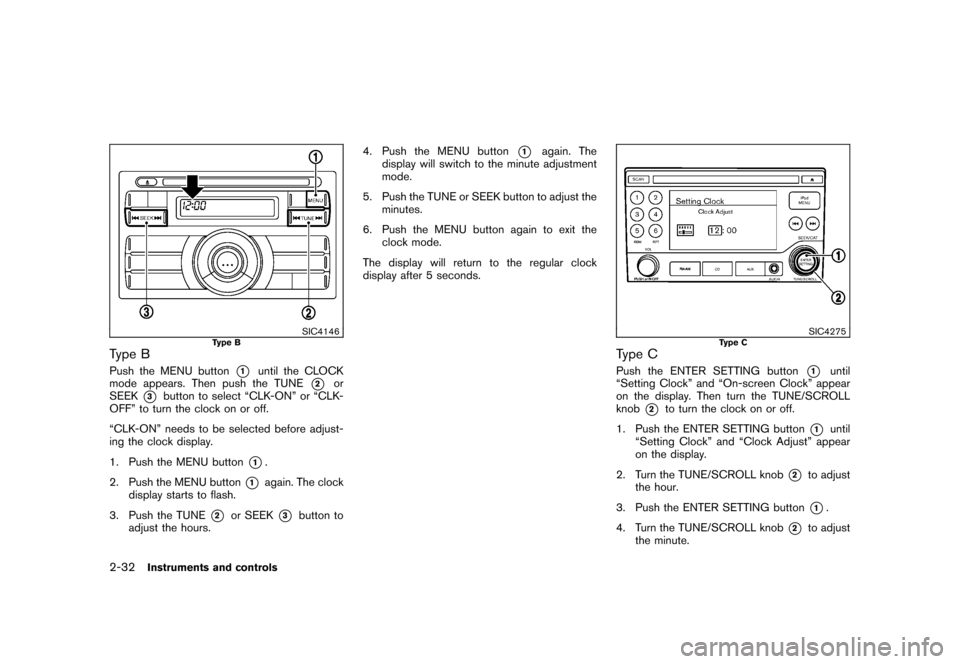
SIC4146
Type B
Type BPush the MENU button
*1
until the CLOCK
mode appears. Then push the TUNE
*2
or
SEEK
*3
button to select “CLK-ON” or “CLK-
OFF” to turn the clock on or off.
“CLK-ON” needs to be selected before adjust-
ing the clock display.
1. Push the MENU button
*1.
2. Push the MENU button
*1
again. The clock
display starts to flash.
3. Push the TUNE
*2
or SEEK
*3
button to
adjust the hours. 4. Push the MENU button
*1
again. The
display will switch to the minute adjustment
mode.
5. Push the TUNE or SEEK button to adjust the minutes.
6. Push the MENU button again to exit the clock mode.
The display will return to the regular clock
display after 5 seconds.
SIC4275
Type C
Type CPush the ENTER SETTING button
*1
until
“Setting Clock” and “On-screen Clock” appear
on the display. Then turn the TUNE/SCROLL
knob
*2
to turn the clock on or off.
1. Push the ENTER SETTING button
*1
until
“Setting Clock” and “Clock Adjust” appear
on the display.
2. Turn the TUNE/SCROLL knob
*2
to adjust
the hour.
3. Push the ENTER SETTING button*1.
4. Turn the TUNE/SCROLL knob
*2
to adjust
the minute.
2-32
Instruments and controls
Page 107 of 345
Black plate (105,1)
Model "Z12-D" EDITED: 2010/ 9/ 27
5. Push the ENTER SETTING button
*1.
The display will return to the regular clock
display after 5 seconds.
RESETTING THE TIME (Type B)By holding down the MENU button and then
pushing the TUNE or SEEK button, the time will
be reset as follows.
. In case the displayed minute is in the range
of 00 - 29, the hour will stay the same and
the minute will be reset to 00.
. In case the displayed minute is in the range
of 30 - 59, the hour will be advanced by one
hour and the minute will be reset to 00.
For example, if the MENU and TUNE buttons are
pushed while the time is between “8:00” and
“8:29”, the display will be reset to “8:00”. If
pushed while the time is between “8:30” and
“8:59”, the display will be reset to “9:00”. At the
same time the display will return to the previous
audio mode.
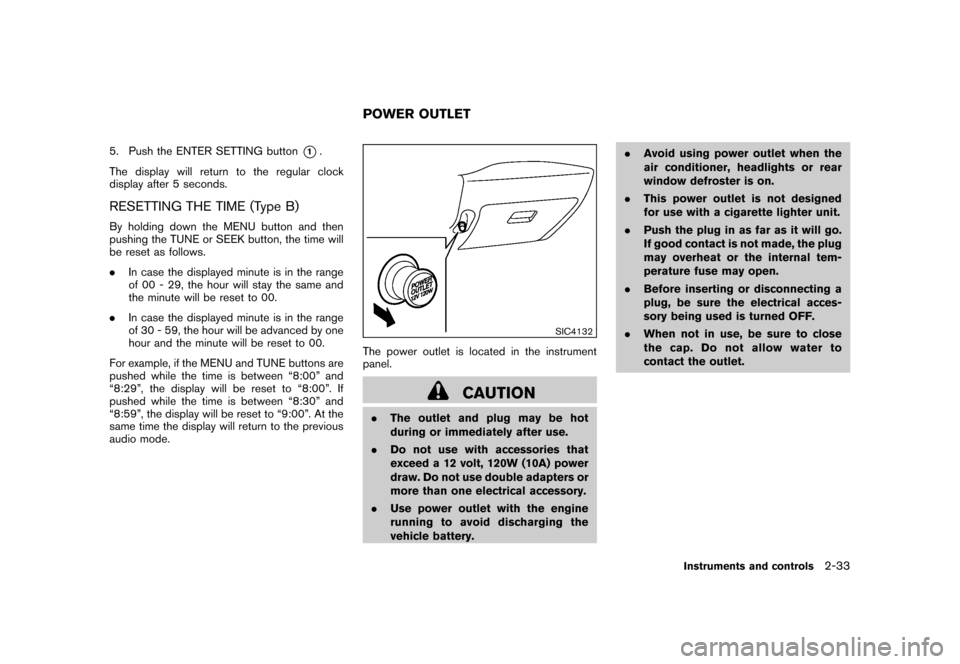
SIC4132
The power outlet is located in the instrument
panel.
CAUTION
. The outlet and plug may be hot
during or immediately after use.
. Do not use with accessories that
exceed a 12 volt, 120W (10A) power
draw. Do not use double adapters or
more than one electrical accessory.
. Use power outlet with the engine
running to avoid discharging the
vehicle battery. .
Avoid using power outlet when the
air conditioner, headlights or rear
window defroster is on.
. This power outlet is not designed
for use with a cigarette lighter unit.
. Push the plug in as far as it will go.
If good contact is not made, the plug
may overheat or the internal tem-
perature fuse may open.
. Before inserting or disconnecting a
plug, be sure the electrical acces-
sory being used is turned OFF.
. When not in use, be sure to close
the cap. Do not allow water to
contact the outlet.POWER OUTLET
Instruments and controls
2-33
Page 143 of 345
Black plate (141,1)
Model "Z12-D" EDITED: 2010/ 9/ 27
.Do not fill a portable fuel container
in the vehicle or trailer. Static elec-
tricity can cause an explosion of
flammable liquid, vapor or gas in
any vehicle or trailer. To reduce the
risk of serious injury or death when
filling portable fuel containers:
— Always place the container on
the ground when filling.
— Do not use electronic devices when filling.
— Keep the pump nozzle in contact with the container while you are
filling it.
— Use only approved portable fuel containers for flammable liquid.
CAUTION
. If fuel is spilled on the vehicle body,
flush it away with water to avoid
paint damage.
. Insert the cap straight into the fuel-
filler tube, then tighten until the
fuel-filler cap clicks. Failure to tight-
en the fuel-filler cap properly may
cause the
malfunction indicator
light (MIL) to illuminate. If the
light illuminates because the fuel-
filler cap is loose or missing, tighten
or install the cap and continue to
drive the vehicle. The
light
should turn off after a few driving
trips. If the
light does not turn
off after a few driving trips, have the
vehicle inspected by a NISSAN deal-
er.
For additional information, see
“Malfunction Indicator Light (MIL)”
in the “2. Instruments and controls”
section.
. The LOOSE FUEL CAP warning
message will be displayed if the
fuel-filler cap is not properly tigh-
tened. Failure to tighten the fuel-
filler cap properly after the LOOSE
FUEL CAP warning message is dis-
played may cause the
Malfunc-
tion Indicator Light (MIL) to
illuminate.
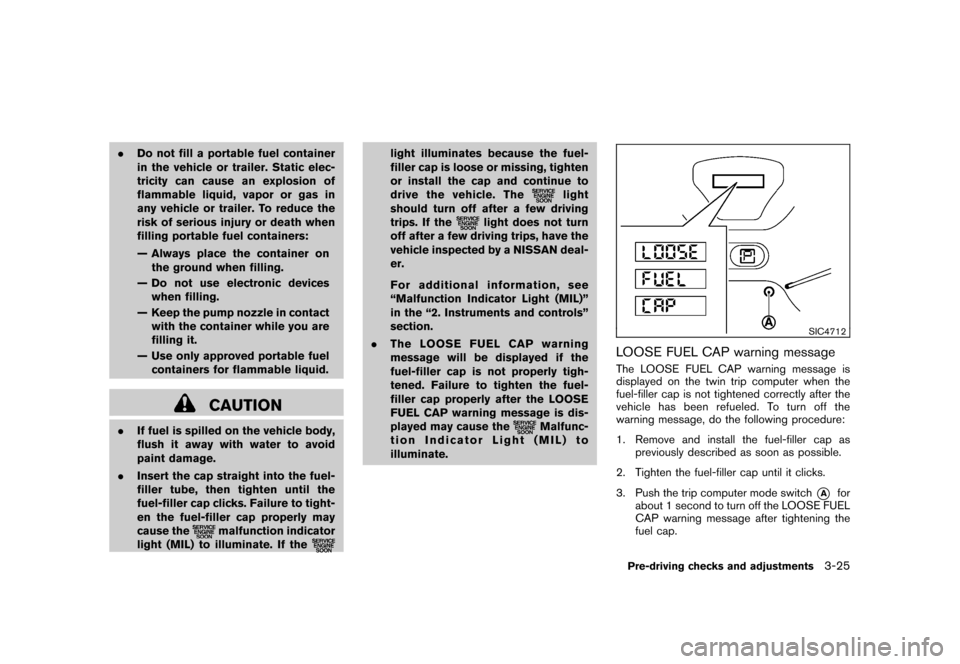
SIC4712
LOOSE FUEL CAP warning messageThe LOOSE FUEL CAP warning message is
displayed on the twin trip computer when the
fuel-filler cap is not tightened correctly after the
vehicle has been refueled. To turn off the
warning message, do the following procedure:
1. Remove and install the fuel-filler cap as previously described as soon as possible.
2. Tighten the fuel-filler cap until it clicks.
3. Push the trip computer mode switch
*A
for
about 1 second to turn off the LOOSE FUEL
CAP warning message after tightening the
fuel cap.
Pre-driving checks and adjustments
3-25
Page 149 of 345
Black plate (13,1)
4 Heater, air conditioner, audio and phonesystems
Model "Z12-D" EDITED: 2010/ 9/ 27
Safety note ....................................................... 4-2
Control panel buttons — color screen with
navigation system (if so equipped) ......................... 4-2
How to use touch screen ................................. 4-3
How to use the BACK button ........................... 4-5
How to use brightness control and display ON/
OFF button ................................................... 4-5
How to use the setup button ............................ 4-5
RearView monitor (if so equipped) ......................... 4-9
How to read the displayed lines ......................... 4-9
Difference between predicted and actual
distances ................................................... 4-10
How to adjust the screen ............................... 4-12
Operating tips ............................................. 4-12
Ventilators ...................................................... 4-13
Center ventilators ......................................... 4-13
Side ventilators ............................................ 4-13
Heater and air conditioner .................................. 4-13
Manual air conditioner ................................... 4-14
Automatic air conditioner (if so equipped) .......... 4-17
Operating tips ............................................. 4-19
In-cabin microfilter ........................................ 4-19
Servicing air conditioner ................................ 4-20 Audio system
.................................................. 4-20
Audio operation precautions ........................... 4-20
FM-AM radio with Compact Disc (CD) player
(Type A)..................................................... 4-34
FM-AM radio with Compact Disc (CD) player
(Type B)..................................................... 4-38
FM-AM-SAT radio with Compact Disc (CD)
player (Type C) ............................................ 4-45
CD care and cleaning ................................... 4-52
Steering wheel switch for audio control
(if so equipped) ........................................... 4-53
Antenna ..................................................... 4-54
Car phone or CB radio ...................................... 4-54
Bluetooth
®Hands-Free Phone System
(if so equipped) ............................................... 4-55
Regulatory information ................................... 4-57
Using the system ......................................... 4-57
Control buttons ........................................... 4-59
Getting started ............................................ 4-60
List of voice commands ................................. 4-61
Speaker Adaptation (SA) mode ....................... 4-65
Troubleshooting guide ................................... 4-67
Page 150 of 345
Black plate (148,1)
Model "Z12-D" EDITED: 2010/ 9/ 27
WARNING
.Do not disassemble or modify this
system. If you do, it may result in
accidents, fire, or electric shock.
. In case you notice any foreign
object in the system hardware, spill
liquid on it, or notice smoke or smell
coming from it, stop using the
system immediately and contact
your nearest NISSAN dealer. Ignor-
ing such conditions may lead to
accidents, fire, or electric shock.
CAUTION
Do not use this system if you notice any
abnormality, such as a frozen screen or
lack of sound. Continued use of the
system may result in an accident, fire or
electric shock.
Do not attempt to operate the system in
extreme temperature conditions [below
48F( 208 C) and above 158 8F(70 8C)].
Operating this system under these condi-
tions may result in system malfunctions.
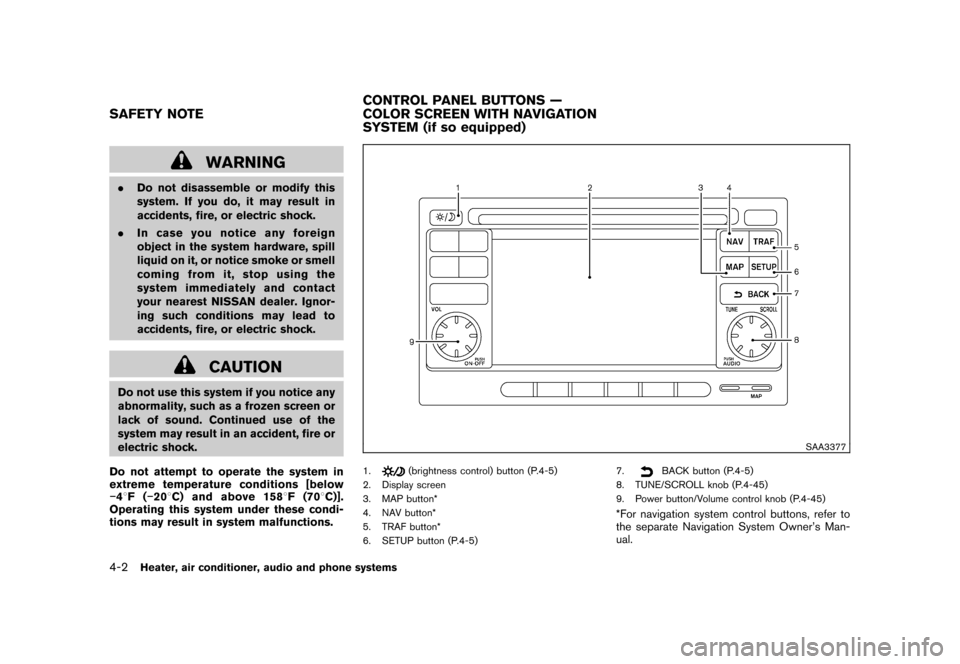
SAA3377
1.
(brightness control) button (P.4-5)
2. Display screen
3. MAP button*
4. NAV button*
5. TRAF button*
6. SETUP button (P.4-5) 7.
BACK button (P.4-5)
8. TUNE/SCROLL knob (P.4-45)
9. Power button/Volume control knob (P.4-45)
*For navigation system control buttons, refer to
the separate Navigation System Owner’s Man-
ual.
SAFETY NOTE CONTROL PANEL BUTTONS —
COLOR SCREEN WITH NAVIGATION
SYSTEM (if so equipped)4-2
Heater, air conditioner, audio and phone systems
Page 151 of 345
Black plate (149,1)
Model "Z12-D" EDITED: 2010/ 9/ 27
When you use this system, make sure the
engine is running.
If you use the system with the engine not
running (ignition ON or ACC) for a long
time, it will discharge the battery, and the
engine will not start.
Reference symbols:
“Example” — Words marked in quotes refer to a
key shown only on the display. These keys can
be selected by touching the screen.HOW TO USE TOUCH SCREEN
CAUTION
.The glass screen on the liquid
crystal display may break if it is hit
with a hard or sharp object. If the
glass screen breaks, do not touch it.
Doing so could result in an injury.
. To clean the display, never use a
rough cloth, alcohol, benzine, thin-
ner or any kind of solvent or paper
towel with a chemical cleaning
agent. They will scratch or deterio-
rate the panel.
. Do not splash any liquid such as
water or car fragrance on the dis- play. Contact with liquid will cause
the system to malfunction.
To help ensure safe driving, some functions
cannot be operated while driving.
The on-screen functions that are not available
while driving will be “grayed out” or muted.
Park the vehicle in a safe location and then
operate the navigation system.
WARNING
. ALWAYS give your full attention to
driving.
. Avoid using vehicle features that
coulddistractyou.Ifdistracted,
you could lose control of your
vehicle and cause an accident.
SAA3422
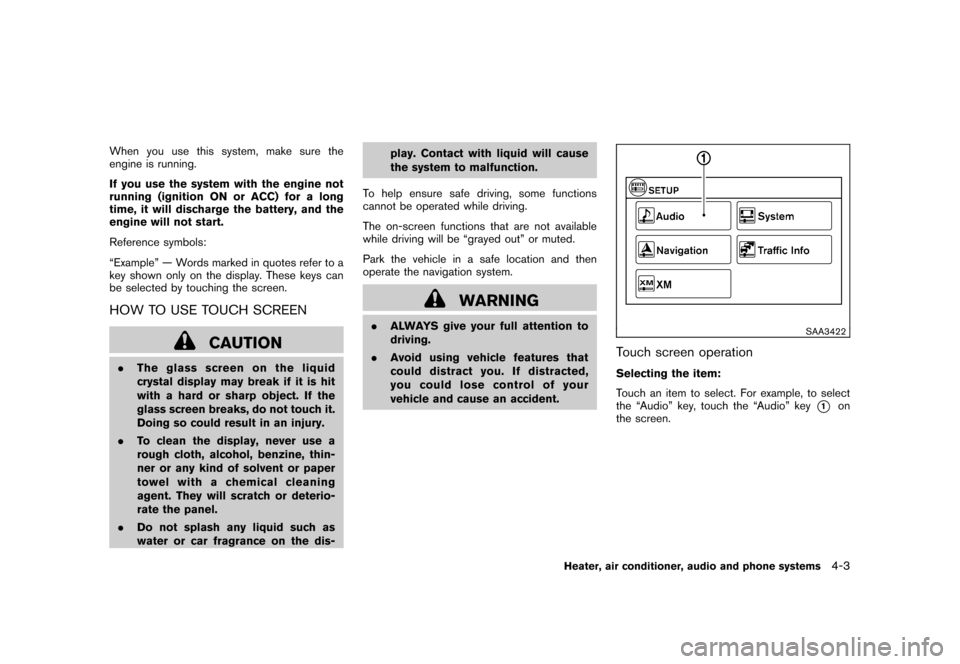
Touch screen operationSelecting the item:
Touch an item to select. For example, to select
the “Audio” key, touch the “Audio” key
*1
on
the screen.
Heater, air conditioner, audio and phone systems
4-3
Page 152 of 345
Black plate (150,1)
Model "Z12-D" EDITED: 2010/ 9/ 27
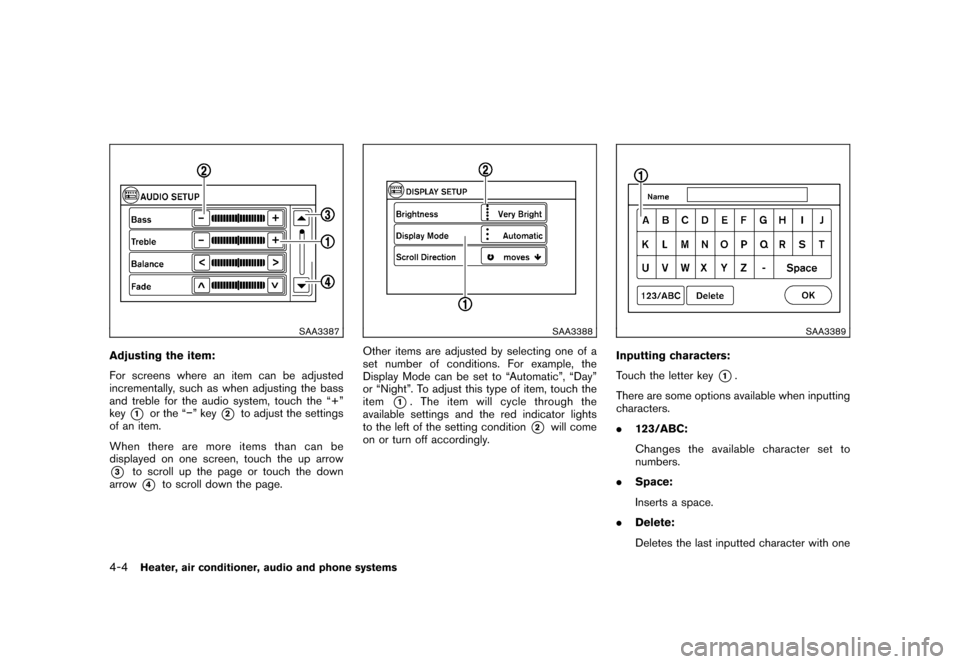
SAA3387
Adjusting the item:
For screens where an item can be adjusted
incrementally, such as when adjusting the bass
and treble for the audio system, touch the “+”
key
*1
or the “” key
*2
to adjust the settings
of an item.
When there are more items than can be
displayed on one screen, touch the up arrow
*3
to scroll up the page or touch the down
arrow*4
to scroll down the page.
SAA3388
Other items are adjusted by selecting one of a
set number of conditions. For example, the
Display Mode can be set to “Automatic”, “Day”
or “Night”. To adjust this type of item, touch the
item
*1. The item will cycle through the
available settings and the red indicator lights
to the left of the setting condition
*2
will come
on or turn off accordingly.
SAA3389
Inputting characters:
Touch the letter key
*1.
There are some options available when inputting
characters.
. 123/ABC:
Changes the available character set to
numbers.
. Space:
Inserts a space.
. Delete:
Deletes the last inputted character with one
4-4
Heater, air conditioner, audio and phone systems
Page 153 of 345
Black plate (151,1)
Model "Z12-D" EDITED: 2010/ 9/ 27
touch. Touch and hold the “Delete” key to
delete all of the characters.
. OK:
Completes the character input.
Touch screen maintenanceIf you clean the display screen, use a dry, soft
cloth. If additional cleaning is necessary, use a
small amount of neutral detergent with a soft
cloth. Never spray the screen with water or
detergent. Dampen the cloth first and then wipe
the screen.HOW TO USE THE BACK BUTTONPush the
BACK button to return to the
previous screen.
HOW TO USE BRIGHTNESS CON-
TROL AND DISPLAY ON/OFF BUTTONTo change the display brightness, push thebutton. Pushing the button again will change the
display to the day or the night display.
If no operation is performed within 5 seconds,
the display will return to the previous display.
Push and hold the
button for more than two
seconds to turn the display off. Push the button
again to turn the display on.
SAA3390
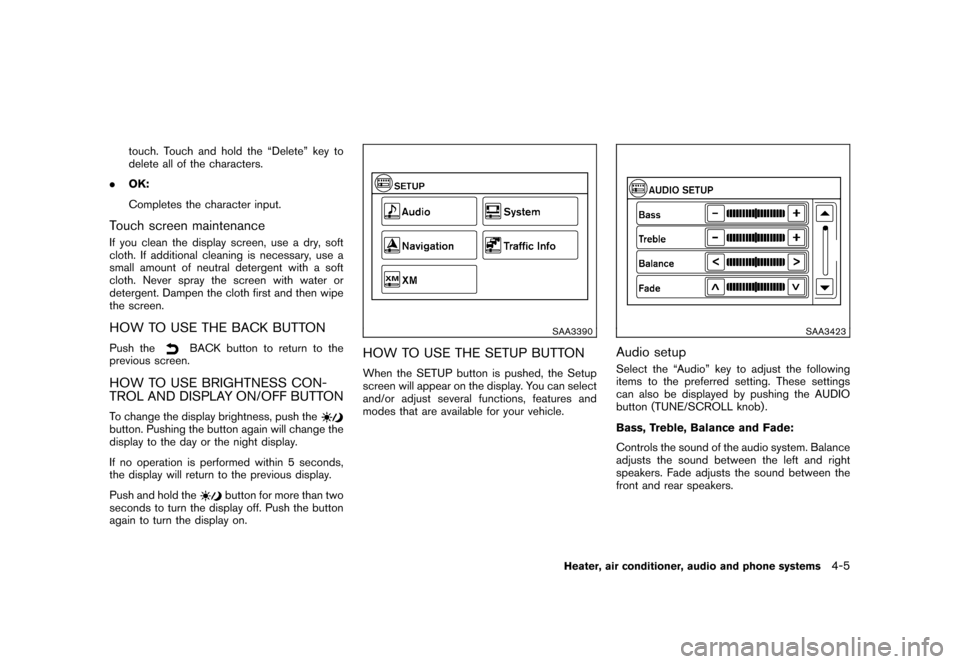
HOW TO USE THE SETUP BUTTONWhen the SETUP button is pushed, the Setup
screen will appear on the display. You can select
and/or adjust several functions, features and
modes that are available for your vehicle.
SAA3423
Audio setupSelect the “Audio” key to adjust the following
items to the preferred setting. These settings
can also be displayed by pushing the AUDIO
button (TUNE/SCROLL knob) .
Bass, Treble, Balance and Fade:
Controls the sound of the audio system. Balance
adjusts the sound between the left and right
speakers. Fade adjusts the sound between the
front and rear speakers.
Heater, air conditioner, audio and phone systems
4-5
Page 155 of 345
Black plate (153,1)
Model "Z12-D" EDITED: 2010/ 9/ 27
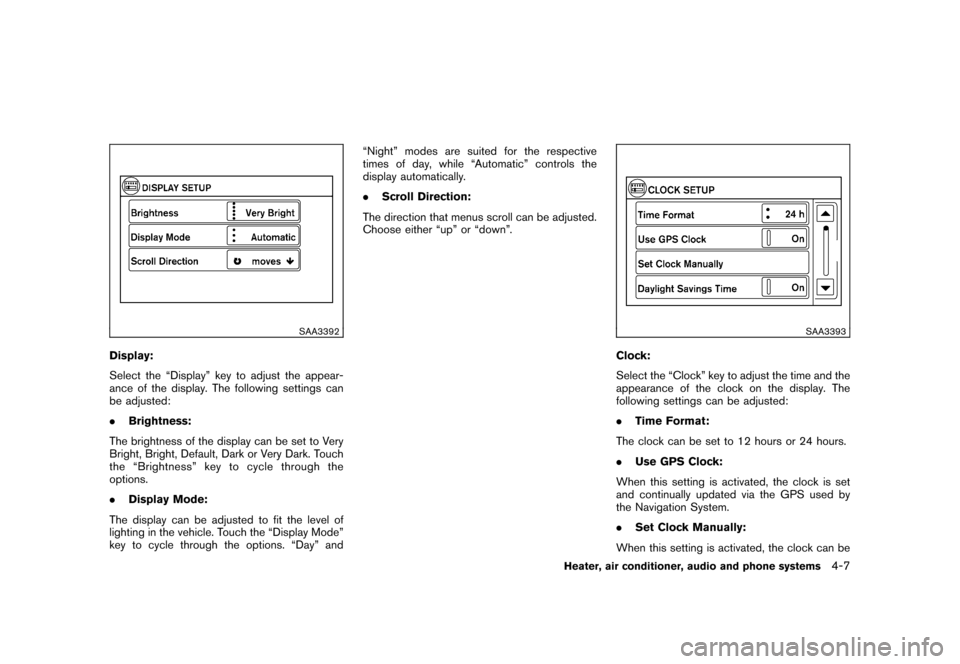
SAA3392
Display:
Select the “Display” key to adjust the appear-
ance of the display. The following settings can
be adjusted:
.Brightness:
The brightness of the display can be set to Very
Bright, Bright, Default, Dark or Very Dark. Touch
the “Brightness” key to cycle through the
options.
. Display Mode:
The display can be adjusted to fit the level of
lighting in the vehicle. Touch the “Display Mode”
key to cycle through the options. “Day” and “Night” modes are suited for the respective
times of day, while “Automatic” controls the
display automatically.
.
Scroll Direction:
The direction that menus scroll can be adjusted.
Choose either “up” or “down”.
SAA3393
Clock:
Select the “Clock” key to adjust the time and the
appearance of the clock on the display. The
following settings can be adjusted:
. Time Format:
The clock can be set to 12 hours or 24 hours.
. Use GPS Clock:
When this setting is activated, the clock is set
and continually updated via the GPS used by
the Navigation System.
. Set Clock Manually:
When this setting is activated, the clock can be
Heater, air conditioner, audio and phone systems
4-7