display NISSAN CUBE 2011 3.G Owner's Manual
[x] Cancel search | Manufacturer: NISSAN, Model Year: 2011, Model line: CUBE, Model: NISSAN CUBE 2011 3.GPages: 345, PDF Size: 2.97 MB
Page 157 of 345
Black plate (155,1)
Model "Z12-D" EDITED: 2010/ 9/ 27
When the selector lever is shifted into the R
(Reverse) position, the monitor display shows
the view to the rear of the vehicle.
The system is designed as an aid to the driver in
detecting large stationary objects to help avoid
damaging the vehicle. The system will not detect
small objects below the bumper and may not
detect objects close to the bumper or on the
ground.
WARNING
.The rear view camera is a conve-
nience but it is not a substitute for
proper backing up. Always turn and
check that it is safe to do so before
backing up. Always back up slowly.
. Objects viewed in the RearView
Monitor differ from actual distance
because a wide-angle lens is used.
Objects in the RearView Monitor
will appear visually opposite than
when viewed in the rear view and
outside mirrors.
. Make sure that the back door is
securely closed when backing up.
. Underneath the bumper and the
corner areas of the bumper cannot
be viewed on the RearView Monitor because of its monitoring range
limitation.
. Do not put anything on the rear view
camera.
. When washing the vehicle with
high-pressure water, be sure not to
spray it around the camera. Other-
wise, water may enter the camera
unit causing water condensation on
the lens, a malfunction, fire or an
electric shock.
. Do not strike the camera. It is a
precision instrument. Otherwise, it
may malfunction or cause damage
resulting in a fire or an electric
shock.
CAUTION
Do not scratch the camera lens when
cleaning dirt or snow from the lens.
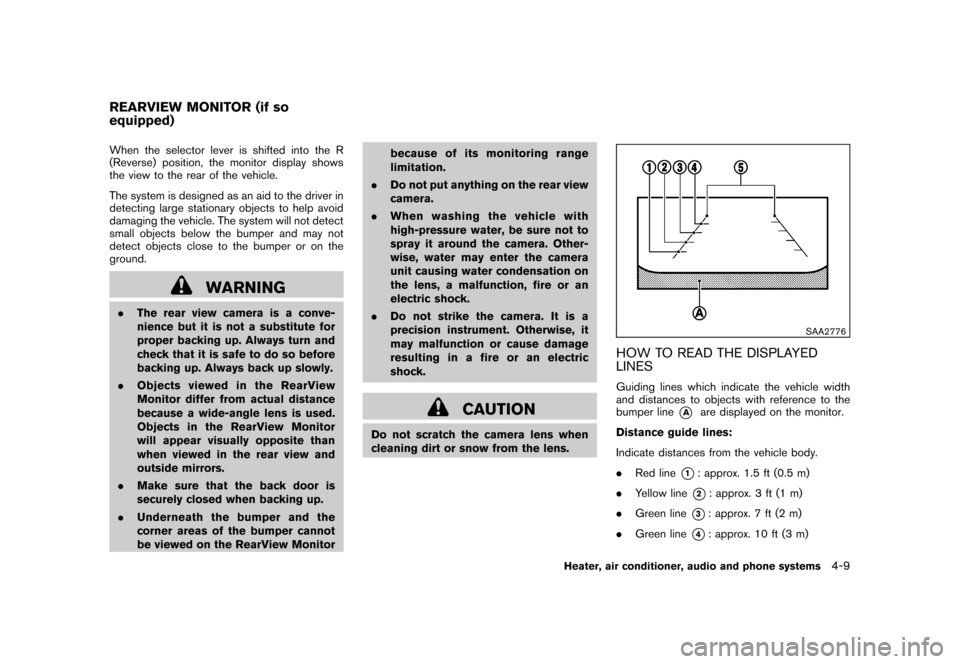
SAA2776
HOW TO READ THE DISPLAYED
LINESGuiding lines which indicate the vehicle width
and distances to objects with reference to the
bumper line
*A
are displayed on the monitor.
Distance guide lines:
Indicate distances from the vehicle body.
. Red line
*1: approx. 1.5 ft (0.5 m)
. Yellow line*2: approx. 3 ft (1 m)
. Green line
*3: approx. 7 ft (2 m)
. Green line
*4: approx. 10 ft (3 m)
REARVIEW MONITOR (if so
equipped)
Heater, air conditioner, audio and phone systems
4-9
Page 158 of 345
Black plate (156,1)
Model "Z12-D" EDITED: 2010/ 9/ 27
Vehicle width guide lines
*5:
Indicate the vehicle width when backing up.
DIFFERENCE BETWEEN PREDICTED
AND ACTUAL DISTANCESThe distance guide line and the vehicle width
guide line should be used as a reference only
when the vehicle is on a level, paved surface.
The distance viewed on the monitor is for
reference only and may be different than the
actual distance between the vehicle and dis-
played objects.
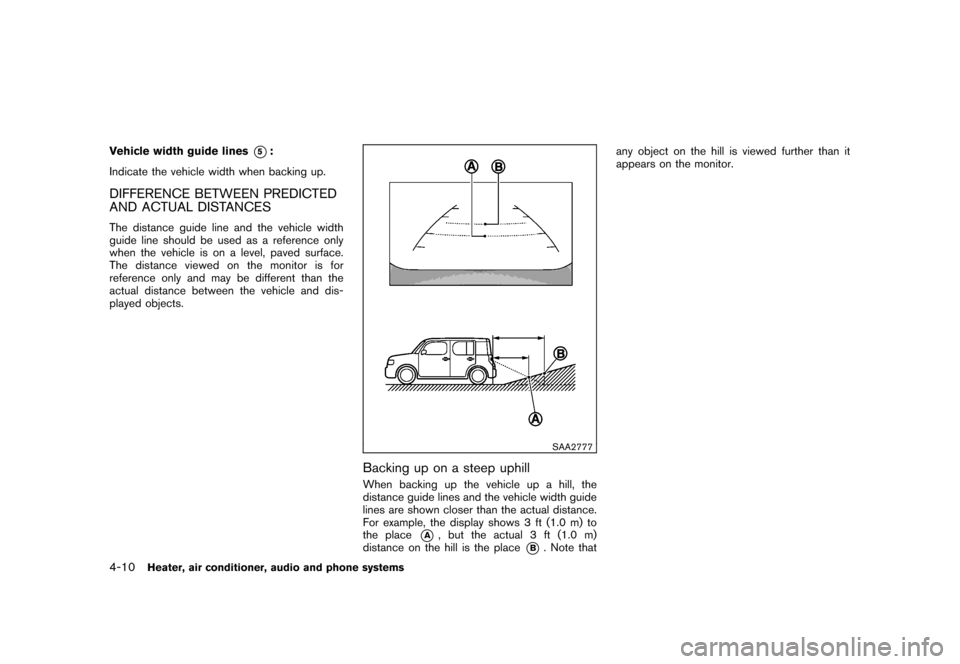
SAA2777
Backing up on a steep uphillWhen backing up the vehicle up a hill, the
distance guide lines and the vehicle width guide
lines are shown closer than the actual distance.
For example, the display shows 3 ft (1.0 m) to
the place
*A
, but the actual 3 ft (1.0 m)
distance on the hill is the place
*B. Note that any object on the hill is viewed further than it
appears on the monitor.
4-10
Heater, air conditioner, audio and phone systems
Page 159 of 345
Black plate (157,1)
Model "Z12-D" EDITED: 2010/ 9/ 27
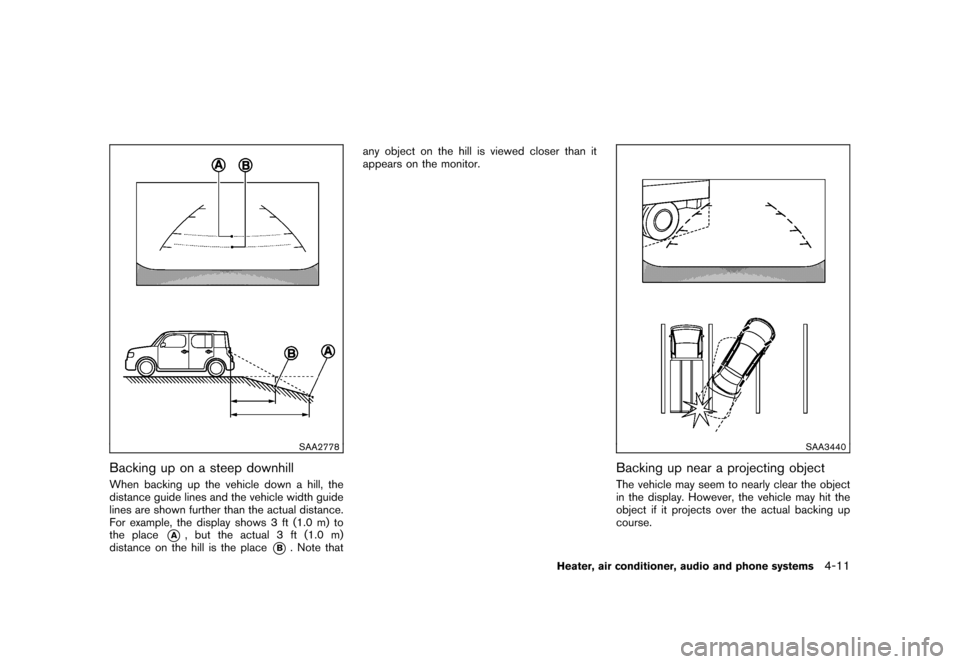
SAA2778
Backing up on a steep downhillWhen backing up the vehicle down a hill, the
distance guide lines and the vehicle width guide
lines are shown further than the actual distance.
For example, the display shows 3 ft (1.0 m) to
the place
*A
, but the actual 3 ft (1.0 m)
distance on the hill is the place
*B. Note that any object on the hill is viewed closer than it
appears on the monitor.
SAA3440
Backing up near a projecting objectThe vehicle may seem to nearly clear the object
in the display. However, the vehicle may hit the
object if it projects over the actual backing up
course.
Heater, air conditioner, audio and phone systems
4-11
Page 160 of 345
Black plate (158,1)
Model "Z12-D" EDITED: 2010/ 9/ 27
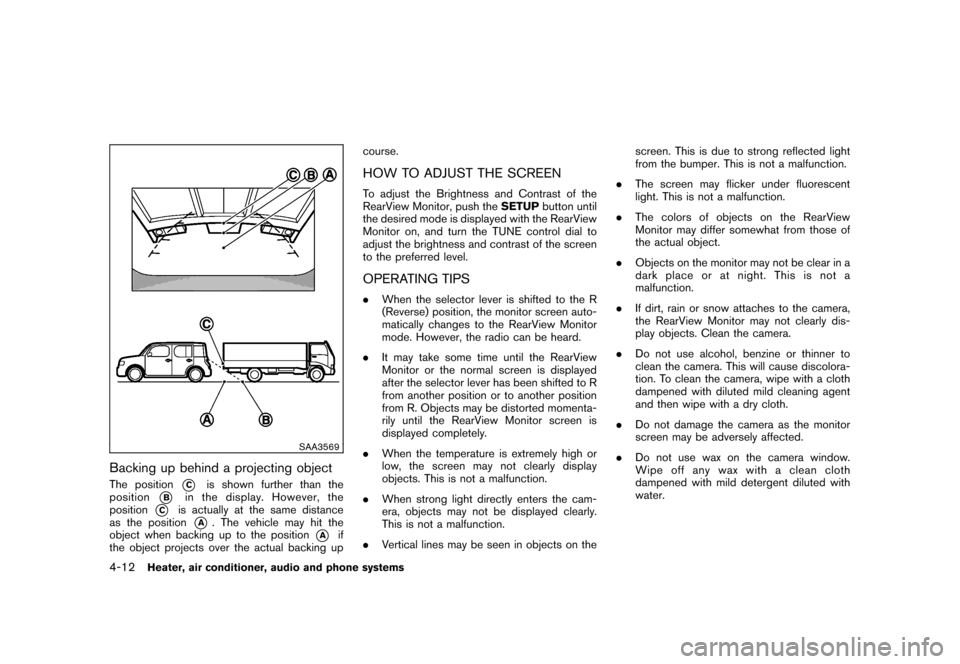
SAA3569
Backing up behind a projecting objectThe position
*C
is shown further than the
position
*B
in the display. However, the
position
*C
is actually at the same distance
as the position
*A
. The vehicle may hit the
object when backing up to the position
*A
if
the object projects over the actual backing up course.
HOW TO ADJUST THE SCREENTo adjust the Brightness and Contrast of the
RearView Monitor, push the
SETUPbutton until
the desired mode is displayed with the RearView
Monitor on, and turn the TUNE control dial to
adjust the brightness and contrast of the screen
to the preferred level.OPERATING TIPS. When the selector lever is shifted to the R
(Reverse) position, the monitor screen auto-
matically changes to the RearView Monitor
mode. However, the radio can be heard.
. It may take some time until the RearView
Monitor or the normal screen is displayed
after the selector lever has been shifted to R
from another position or to another position
from R. Objects may be distorted momenta-
rily until the RearView Monitor screen is
displayed completely.
. When the temperature is extremely high or
low, the screen may not clearly display
objects. This is not a malfunction.
. When strong light directly enters the cam-
era, objects may not be displayed clearly.
This is not a malfunction.
. Vertical lines may be seen in objects on the screen. This is due to strong reflected light
from the bumper. This is not a malfunction.
. The screen may flicker under fluorescent
light. This is not a malfunction.
. The colors of objects on the RearView
Monitor may differ somewhat from those of
the actual object.
. Objects on the monitor may not be clear in a
dark place or at night. This is not a
malfunction.
. If dirt, rain or snow attaches to the camera,
the RearView Monitor may not clearly dis-
play objects. Clean the camera.
. Do not use alcohol, benzine or thinner to
clean the camera. This will cause discolora-
tion. To clean the camera, wipe with a cloth
dampened with diluted mild cleaning agent
and then wipe with a dry cloth.
. Do not damage the camera as the monitor
screen may be adversely affected.
. Do not use wax on the camera window.
Wipe off any wax with a clean cloth
dampened with mild detergent diluted with
water.
4-12
Heater, air conditioner, audio and phone systems
Page 165 of 345
Black plate (163,1)
Model "Z12-D" EDITED: 2010/ 9/ 27
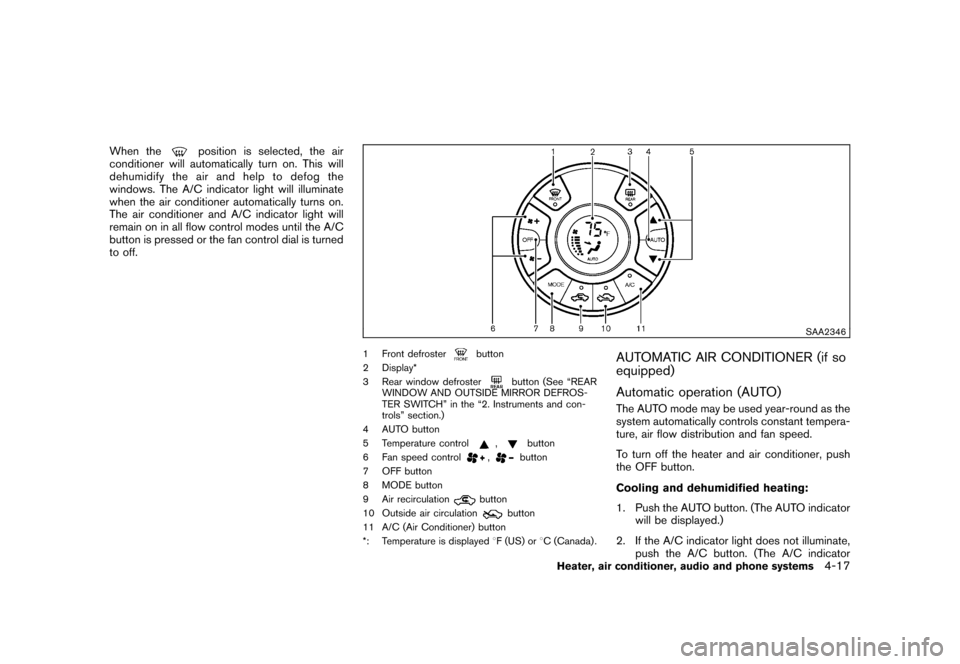
When the
position is selected, the air
conditioner will automatically turn on. This will
dehumidify the air and help to defog the
windows. The A/C indicator light will illuminate
when the air conditioner automatically turns on.
The air conditioner and A/C indicator light will
remain on in all flow control modes until the A/C
button is pressed or the fan control dial is turned
to off.
SAA2346
1 Front defroster
button
2 Display*
3 Rear window defroster
button (See “REAR
WINDOW AND OUTSIDE MIRROR DEFROS-
TER SWITCH” in the “2. Instruments and con-
trols” section.)
4 AUTO button
5 Temperature control
,
button
6 Fan speed control
,
button
7 OFF button
8 MODE button
9 Air recirculation
button
10 Outside air circulation
button
11 A/C (Air Conditioner) button
*: Temperature is displayed 8F (US) or 8C (Canada) .
AUTOMATIC AIR CONDITIONER (if so
equipped)
Automatic operation (AUTO)The AUTO mode may be used year-round as the
system automatically controls constant tempera-
ture, air flow distribution and fan speed.
To turn off the heater and air conditioner, push
the OFF button.
Cooling and dehumidified heating:
1. Push the AUTO button. (The AUTO indicator
will be displayed.)
2. If the A/C indicator light does not illuminate, push the A/C button. (The A/C indicator
Heater, air conditioner, audio and phone systems
4-17
Page 166 of 345
Black plate (164,1)
Model "Z12-D" EDITED: 2010/ 9/ 27
light will illuminate.)
3. Push the temperature control
,
button to set the desired temperature. The
temperature range is between 60 8F (18 8C)
and 90 8F (32 8C) .
4. To set the automatic control mode, perform one of the following operations.
— When the outside air circulation mode is
on, push and hold the outside air
circulation
button for more than
1.5 seconds.
— When the air recirculation mode is on, push and hold the air recirculation
button for more than 1.5 seconds.
When setting the automatic control mode,
both indicator lights will blink twice indicat-
ing that the system is in the automatic
control mode.
A visible mist may be seen coming from the
ventilators in hot, humid conditions as the air is
cooled rapidly. This does not indicate a mal-
function.
Heating (A/C off):
1. Push the AUTO button. (The AUTO indicator will be displayed.)
2. If the A/C indicator light illuminates, push the A/C button. (The A/C indicator light will turn off.)
3. Push the temperature control
,
button to set the desired temperature. The
temperature range is between 60 8F (18 8C)
and 90 8F (32 8C) .
— Do not set the temperature lower than the outside air temperature. Doing so
may cause the temperature to not be
controlled properly.
— If the windows fog up, use dehumidified heating instead of the A/C off heating.
Dehumidified defrosting/defogging:
1. Push the front defroster
button. (The
indicator light will illuminate.)
2. Turn the temperature control
,
button to set the desired temperature.
— To remove moisture or fog on the front window quickly, set the temperature to
the high temperature and the fan speed
to their maximum level.
— After the windshield is cleared, push the front defroster
button again. (The
indicator light will turn off.)
— When the front defroster
button is
pushed, the air conditioner will auto-
matically turn on to defog the wind-
shield. The outside air circulation mode will be selected to improve the defog-
ging performance.
Manual operationThe manual mode can be used to control the
heater and air conditioner to your desired
settings.
To turn off the heater and air conditioner, push
the OFF button.
Fan speed control:
Turn the fan speed control
,
dial to
adjust the fan speed.
Air flow control:
Push the MODE button to change the air flow
mode.
— Air flows from the center and side ventilators.— Air flows from the center and sideventilators and foot outlets.— Air flows mainly from the foot outlets.— Air flows from the defroster outlets andfoot outlets.
Temperature control:
Push the temperature control
,
button
to set the desired temperature.
4-18
Heater, air conditioner, audio and phone systems
Page 170 of 345
Black plate (168,1)
Model "Z12-D" EDITED: 2010/ 9/ 27
SAA0480
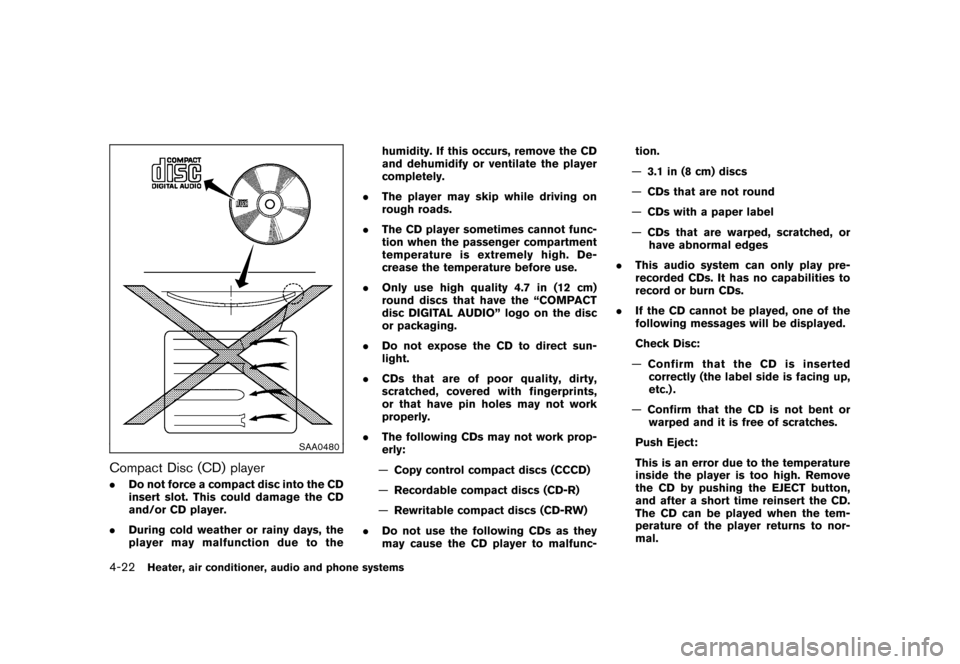
Compact Disc (CD) player.Do not force a compact disc into the CD
insert slot. This could damage the CD
and/or CD player.
. During cold weather or rainy days, the
player may malfunction due to the humidity. If this occurs, remove the CD
and dehumidify or ventilate the player
completely.
. The player may skip while driving on
rough roads.
. The CD player sometimes cannot func-
tion when the passenger compartment
temperature is extremely high. De-
crease the temperature before use.
. Only use high quality 4.7 in (12 cm)
round discs that have the “COMPACT
disc DIGITAL AUDIO” logo on the disc
or packaging.
. Do not expose the CD to direct sun-
light.
. CDs that are of poor quality, dirty,
scratched, covered with fingerprints,
or that have pin holes may not work
properly.
. The following CDs may not work prop-
erly:
— Copy control compact discs (CCCD)
— Recordable compact discs (CD-R)
— Rewritable compact discs (CD-RW)
. Do not use the following CDs as they
may cause the CD player to malfunc- tion.
— 3.1 in (8 cm) discs
— CDs that are not round
— CDs with a paper label
— CDs that are warped, scratched, or
have abnormal edges
. This audio system can only play pre-
recorded CDs. It has no capabilities to
record or burn CDs.
. If the CD cannot be played, one of the
following messages will be displayed.
Check Disc:
— Confirm that the CD is inserted
correctly (the label side is facing up,
etc.) .
— Confirm that the CD is not bent or
warped and it is free of scratches.
Push Eject:
This is an error due to the temperature
inside the player is too high. Remove
the CD by pushing the EJECT button,
and after a short time reinsert the CD.
The CD can be played when the tem-
perature of the player returns to nor-
mal.4-22
Heater, air conditioner, audio and phone systems
Page 171 of 345
Black plate (169,1)
Model "Z12-D" EDITED: 2010/ 9/ 27
Unplayable Track:
The file is unplayable in this audio
system (only MP3 or WMA CD) .
Interface System for iPod
®(vehicles
without USB port) (if so equipped)
. Some characters used in other languages
(Chinese, Japanese, etc.) are not displayed
properly on the vehicle audio display. We
recommend using English language char-
acters with an iPod
®.
. Large video podcast files cause slow
responses in the iPod®. The vehicle audio
display may momentarily black out, but it will
soon recover.
. If the iPod
®automatically selects large video
podcast files while in the shuffle mode, the
vehicle audio display may momentarily black
out, but it will soon recover.
. Improperly plugging in the iPod
®may cause
a checkmark to be displayed on and off
(flickering) . Always make sure that the iPod
®
is connected properly.
. The iPod nano
®(2nd Generation) will
continue to fast forward or rewind if it is
disconnected during a seek operation.
. An incorrect song title may appear when the
Play Mode is changed while using the iPod
nano
®(2nd Generation) . .
Audiobooks may not play in the same order
as they appear on the iPod
®.
. The iPod nano
®(1st Generation) may remain
in fast forward or rewind mode if it is
connected during a seek operation. In this
case, please manually reset the iPod
®.
. If you are using an iPod
®(3rd Generation
with Dock connector) , do not use very long
names for the song title, album name or
artist name to avoid the iPod®from resetting
itself.
. Be careful not to do the following, or the
cable could be damaged and a loss of
function may occur.
— Bend the cable excessively (1.6 in (40 mm) radius minimum) .
— Twist the cable excessively (more than 180 degrees) .
— Pull or drop the cable.
— Store objects with sharp edges in the storage where the cable is stored.
— Spill liquids on the cable and connectors.
. Do not connect the cable to the iPod
®if the
cable and/or connectors are wet. It may
damage the iPod
®.
. If the cable and connectors are exposed to water, allow the cable and/or connectors to
dry completely before connecting the cable
to the iPod
®(wait 24 hours for it to dry) .
. If the connector is exposed to fluids other
than water, evaporative residue may cause a
short between the connector pins. In this
case, replace the cable, otherwise damage
to the iPod®and a loss of function may
occur.
. If the cable is damaged (insulation cut,
connectors cracked, contamination such as
liquids, dust, dirt, etc. in the connectors) , do
not use the cable and contact a NISSAN
dealer to replace the cable with a new one.
. When not in use for extended periods of
time, store the cable in a clean, dust free
environment at room temperature and with-
out direct sun exposure.
. Do not use the cable for any other purposes
other than its intended use in the vehicle.
. iPod
®charging is only possible for devices
that support charging via a FireWire
®con-
nection.
* 12V-charge iPod
®s are not chargeable with
this system.
*iPod
®, iPhone
®and FireWire
®are trademarks
of Apple Inc., registered in the U.S. and other
countries.
Heater, air conditioner, audio and phone systems
4-23
Page 172 of 345
Black plate (170,1)
Model "Z12-D" EDITED: 2010/ 9/ 27
Compact Disc (CD) with MP3 or WMA
(if so equipped)Explanation of terms:
.MP3 — MP3 is short for Moving Pictures
Experts Group Audio Layer 3. MP3 is the
most well-known compressed digital audio
file format. This format allows for near “CD
quality” sound, but at a fraction of the size of
normal audio files. MP3 conversion of an
audio track from CD-ROM can reduce the
file size by approximately 10:1 ratio (Sam-
pling: 44.1 kHz, Bit rate: 128 kbps) with
virtually no perceptible loss in quality. MP3
compression removes the redundant and
irrelevant parts of a sound signal that the
human ear doesn’t hear.
. WMA — Windows Media Audio (WMA) is a
compressed audio format created by Micro-
soft as an alternative to MP3. The WMA
codec offers greater file compression than
the MP3 codec, enabling storage of more
digital audio tracks in the same amount of
space when compared to MP3s at the same
level of quality.
. Bit rate — Bit rate denotes the number of
bits per second used by a digital music files.
The size and quality of a compressed digital
audio file is determined by the bit rate used
when encoding the file. .
Sampling frequency — Sampling frequency
is the rate at which the samples of a signal
are converted from analog to digital (A/D
conversion) per second.
. Multisession — Multisession is one of the
methods for writing data to media. Writing
data once to the media is called a single
session, and writing more than once is
called a multisession.
. ID3/WMA Tag — The ID3/WMA tag is the
part of the encoded MP3 or WMA file that
contains information about the digital music
file such as song title, artist, album title,
encoding bit rate, track time duration, etc.
ID3 tag information is displayed on the
Album/Artist/Track title line on the display.
* Windows
®and Windows Media
®are regis-
tered trademarks or trademarks of Microsoft
Corporation in the United States of America
and other countries of Microsoft Corporation
of the USA.
USB (Universal Serial Bus) (if so
equipped)This system supports various USB memory
sticks, USB hard drives and iPod
®players.
There are some USB devices which may not
be supported with this system.
. Make sure that the USB device is connected
correctly into the USB connector. .
Do not force the memory stick or USB cable
into the USB connector. This could damage
the connector.
. During cold weather or rainy days, the player
may malfunction due to humidity. If this
occurs, remove the USB device and dehu-
midify or ventilate the USB player comple-
tely.
. The USB player sometimes cannot function
when the passenger compartment tempera-
ture is extremely high. Decrease the tem-
perature before use.
. Do not leave USB memory in a place prone
to static electricity or where the air condi-
tioner blows directly. The data in the USB
memory may be damaged.
. The vehicle is not equipped with a USB
memory stick.
. A USB device cannot be formatted with this
system. To format a USB device, use a
personal computer.
. Partitioned USB devices may not be played
correctly.
. Some characters used in other languages
(Chinese, Japanese, etc.) are not displayed
properly on the vehicle center screen. Using
English language characters with a USB
device is recommended.
4-24
Heater, air conditioner, audio and phone systems
Page 173 of 345
Black plate (171,1)
Model "Z12-D" EDITED: 2010/ 9/ 27
.Do not connect a USB device if a connector
or cable is wet. Allow the cable and/or
connectors to dry completely before con-
necting the USB device. If the connector is
exposed to fluids other than water, evapora-
tive residue may cause a short between the
connector pins.
. Large video podcast files cause slow
responses in an iPod
®. The vehicle center
display may momentarily black out, but it will
soon recover.
. If an iPod
®automatically selects large video
podcast files while in the shuffle mode, the
vehicle center display may momentarily
black out, but it will soon recover.
. Audiobooks may not play in the same order
as they appear on an iPod
®.
. An iPod nano
®(1st Generation) may remain
in fast forward or rewind mode if it is
connected during a seek operation. In this
case, please manually reset the iPod
®.
. An iPod nano
®(2nd Generation) will con-
tinue to fast forward or rewind if it is
disconnected during a seek operation.
. An incorrect song title may appear when the
Play Mode is changed while using the iPod
nano
®(2nd Generation)
iPod
®is a trademark of Apple Inc., registered in the U.S. and other countries.
Compressed Audio Files (MP3/WMA/
AAC) (if so equipped)Explanation of terms:
.
MP3 — MP3 is short for Moving Pictures
Experts Group Audio Layer 3. MP3 is the
most well known compressed digital audio
file format. This format allows for near “CD
quality” sound, but at a fraction of the size of
normal audio files. MP3 conversion of an
audio track can reduce the file size by
approximately a 10:1 ratio (Sampling: 44.1
kHz, Bit rate: 128 kbps) with virtually no
perceptible loss in quality. The compression
reduces certain parts of sound that seem
inaudible to most people.
. WMA — Windows Media Audio (WMA) is a
compressed audio format created by Micro-
soft as an alternative to MP3. The WMA
codec offers greater file compression than
the MP3 codec, enabling storage of more
digital audio tracks in the same amount of
space when compared to MP3s at the same
level of quality.
. AAC/M4A — Advanced Audio Coding
(AAC) is a lossy audio compression format.
Audio files that have been encoded with
AAC are generally smaller in size and deliver
a higher quality of sound than MP3. .
Bit rate — Bit rate denotes the number of
bits per second used by a digital music file.
The size and quality of a compressed digital
audio file is determined by the bit rate used
when encoding the file.
. Sampling frequency — Sampling frequency
is the rate at which the samples of a signal
are converted from analog to digital (A/D
conversion) per second.
. Multisession — Multisession is one of the
methods for writing data to media. Writing
data once to the media is called a single
session, and writing more than once is
called a multisession.
. ID3/WMA Tag — The ID3/WMA tag is the
part of the encoded MP3 or WMA file that
contains information about the digital music
file such as song title, artist, album title,
encoding bit rate, track time duration, etc.
ID3 tag information is displayed on the
Album/Artist/Track title line on the display.
* Windows
®and Windows Media
®are regis-
tered trademarks or trademarks of Microsoft
Corporation in the United States of America
and/or other countries.
Heater, air conditioner, audio and phone systems
4-25