ESP NISSAN FRONTIER 2018 Owner´s Manual
[x] Cancel search | Manufacturer: NISSAN, Model Year: 2018, Model line: FRONTIER, Model: NISSAN FRONTIER 2018Pages: 502, PDF Size: 4.85 MB
Page 284 of 502
∙ If you need to hear the available com-mands for the current menu again, say
“Help” and the system will repeat them.
∙ If a command is not recognized, the system announces, “Command not
recognized. Please try again.” Make sure
the command is said exactly as
prompted by the system and repeat
the command in a clear voice.
∙ If you want to go back to the previous command, you can say “Go back” or
“Correction” any time the system is
waiting for a response.
∙ You can cancel a command when the system is waiting for a response by say-
ing, “Cancel” or “Quit.” The system an-
nounces “Cancel” and ends the NISSAN
Voice Recognition session. You can also
press and hold the
button on the
steering wheel for 5 seconds at any
time to end the NISSAN Voice Recogni-
tion session. Whenever the NISSAN
Voice Recognition session is cancelled,
a double beep is played to indicate you
have exited the system. ∙ If you want to adjust the volume of the
voice feedback, press the Volume con-
trol switches (+ or -) on the steering
wheel while being provided with feed-
back. You can also use the radio volume
control knob.
∙ In most cases you can interrupt the voice feedback to speak the next com-
mand by pressing the
button on
the steering wheel.
∙ To use the system faster, you may speak the second level commands with
the main menu command on the main
menu. For example, press the
but-
ton and af ter the tone say, “Call Redial.”
Voice Prompt Interrupt
In most cases you can interrupt the voice
feedback to speak the next command by
pressing the
button on the steering
wheel. Af ter interrupting the system, wait
for a beep before speaking your command.
One Shot Call
To use the system faster, you may speak
the second level commands with the main
menu command on the main menu. For
example, press the
button and af ter
the tone say, “Call Redial”.
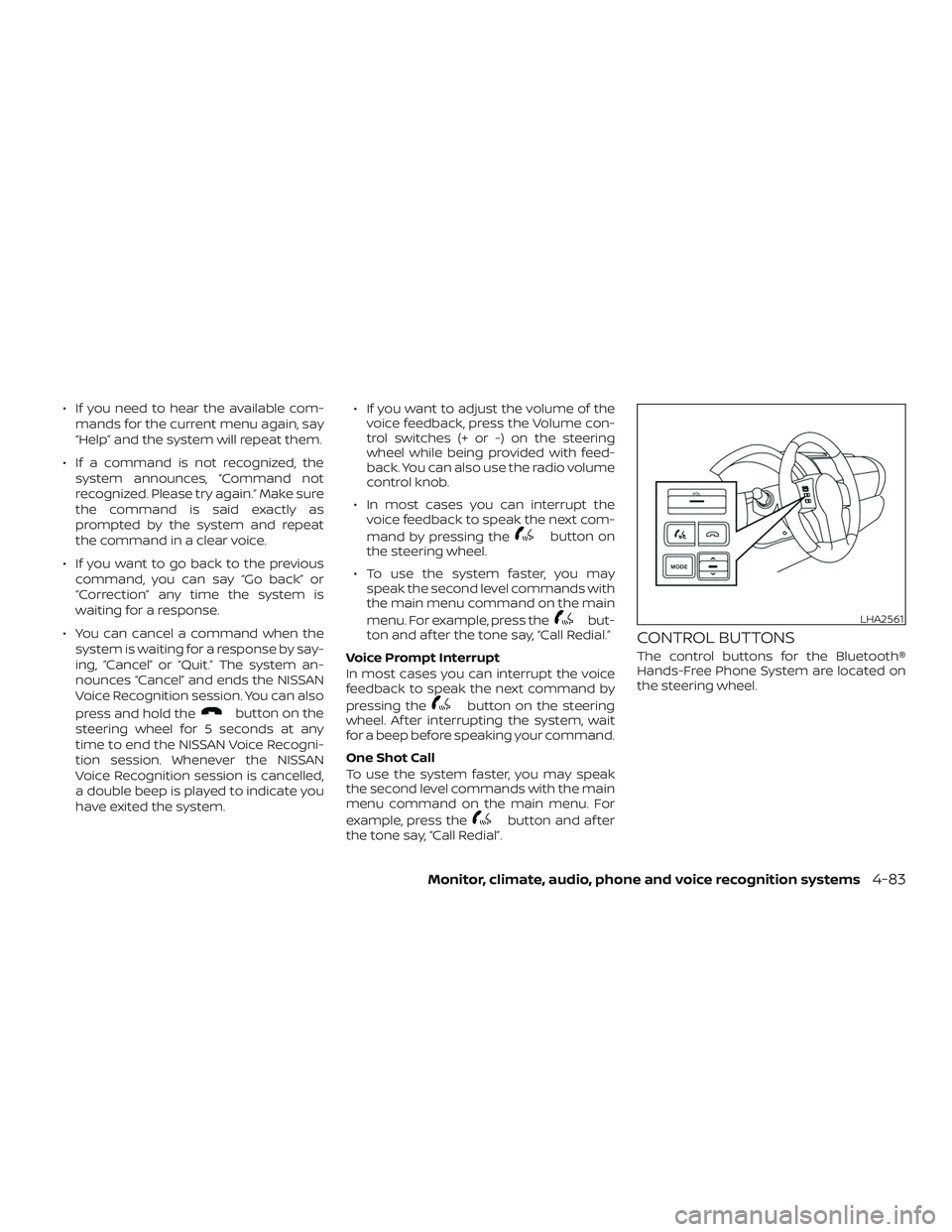
CONTROL BUTTONS
The control buttons for the Bluetooth®
Hands-Free Phone System are located on
the steering wheel.
LHA2561
Monitor, climate, audio, phone and voice recognition systems4-83
Page 288 of 502
MAKING A CALL
To make a call from a phone connected to
the vehicle’s Bluetooth® Hands-Free Phone
System:1. Press the
button on the steering
wheel.
2. The system will prompt you for a com- mand. Say “Call”.
3. Select one of the available voice com- mands to continue:
∙ “(A Name)” — Speak the name of a phonebook entry to place a call to that
entry. The system will respond with the
name it interpreted from your com-
mand and will prompt you to confirm
that the name is correct. Say “Dial” to
initiate the call or “Correction” to hear
another name from the phonebook. ∙ “Phone Number” — Speak this com-
mand to place a call by inputting num-
bers. For 7– to 10–digit phone number,
speak the numbers. Say “Correction” at
any time in the process to correct a
misspoken or misinterpreted number.
For phone numbers with more digits or
special characters, say “Special Num-
ber”, then speak the digits. Up to 24 dig-
its can be entered. Available special
characters are “start”, “pound”, “plus”,
and “pause”. When finished, say “Dial” to
initiate the call. Say “Correction” at any
time in the process to correct a misspo-
ken or misinterpreted number or char-
acter.
∙ “Redial” – Speak this command to dial the number of the last outgoing call.
The system will display “Re-dialing
phonebook entry will be displayed if it
available, otherwise the number being
re-dialed will be displayed. ∙ “Call Back” – Speak this command to
dial the number of the last incoming
call. The system will display “Calling
back
the phonebook entry will be displayed if
it available, otherwise the number be-
ing called back will be displayed.
RECEIVING A CALL
When a call is received by the phone con-
nected to the vehicle’s Bluetooth® Hands-
Free Phone System, the call information is
displayed on the control panel display.
Press the
button to accept the call.
Press the
button to reject the call.
DURING A CALL
While a call is active, press thebutton
to access additional options. Speak one of
the following commands:
∙ “Send” – Speak this command followed by the digits to enter digits during the
phone call.
∙ “Mute On” or “Mute Off ” – Speak the command to mute or unmute the sys-
tem.
Monitor, climate, audio, phone and voice recognition systems4-87
Page 291 of 502
Reading a received text message:1. Press the
button on the steering
wheel.
2. Say “Phone” af ter the tone.
3. Say “Read Text” af ter the tone.
The text message, sender and delivery
time are shown on the screen. Use the tun-
ing switch to scroll through all text mes-
sages if more than one are available. Press
the
button to exit the text message
screen. Press the
button to access
the following options for replying to the text
message:
∙ Call Back Speak this command to call the sender
of the text message using the
Bluetooth® Hands-Free Phone System.
∙ Send Text Speak this command to send a text
message response to the sender of the
text message.
∙ Read Text Speak this command to read the text
message again.
∙ Previous Text Speak this command to move to the
previous text message (if available). ∙ Next Text
Speak this command to move to the
next text message (if available).
Siri® Eyes Free (if so equipped)
If a connected phone is equipped with Siri®,
it can also be used to create custom mes-
sages that are sent through the phone. For
additional information, refer to “Siri® Eyes
Free” in this section.
NOTE:
Text messages are only displayed if the
vehicle speed is less than 5 mph
(8 km/h).
NOTE:
For Apple iPhones®, text messages can
only be sent through Siri.
BLUETOOTH® SETTINGS
To access and adjust the settings for the
Bluetooth® Hands-Free Phone System: 1. Press the ENTER/SETTING button. 2.
Use the TUNE/FOLDER or TUNE/SCROLL
knob to select “Bluetooth” and then press
the ENTER/SETTING button:
∙ Bluetooth Select “On” or “Off ” to turn the vehicle’s
Bluetooth® system on or off.
∙ Add Phone or Device For additional information, refer to
“Connecting procedure” in this section.
∙ Delete Phone or Device Select to delete a phone from the dis-
played list. The system will ask to con-
firm before deleting the phone.
∙ Replace Phone Select to replace a phone from the dis-
played list. When a selection is made,
the system will ask to confirm before
proceeding. The recorded phonebook
for the phone being deleted will be
saved as long as the new phone’s
phonebook is the same as the old
phone’s phonebook.
∙ Select Phone Select to connect to a previously con-
nected phone from the displayed list.
4-90Monitor, climate, audio, phone and voice recognition systems
Page 299 of 502
The text message, sender and delivery
time are shown on the screen. Use
the
buttons to scroll through all
text messages if more than one are avail-
able. Press the
button to exit the text
message screen. Press the
button to
access the following options for replying to
the text message:
∙ Call Back Speak this command to call the sender
of the text message using the
Bluetooth® Hands-Free Phone System.
∙ Send Text Speak this command to send a text
message response to the sender of the
text message.
∙ Read Text Speak this command to read the text
message again.
∙ Previous Text Speak this command to move to the
previous text message (if available).
∙ Next Text Speak this command to move to the
next text message (if available). Siri® Eyes Free (if so equipped)
If a connected phone is equipped with Siri®,
it can also be used to create custom mes-
sages that are sent through the phone. For
additional information, refer to “Siri® Eyes
Free” in this section.
NOTE:
Text messages are only displayed if the
vehicle speed is less than 5 mph
(8 km/h).
NOTE:
For Apple iPhones®, text messages can
only be sent through Siri.
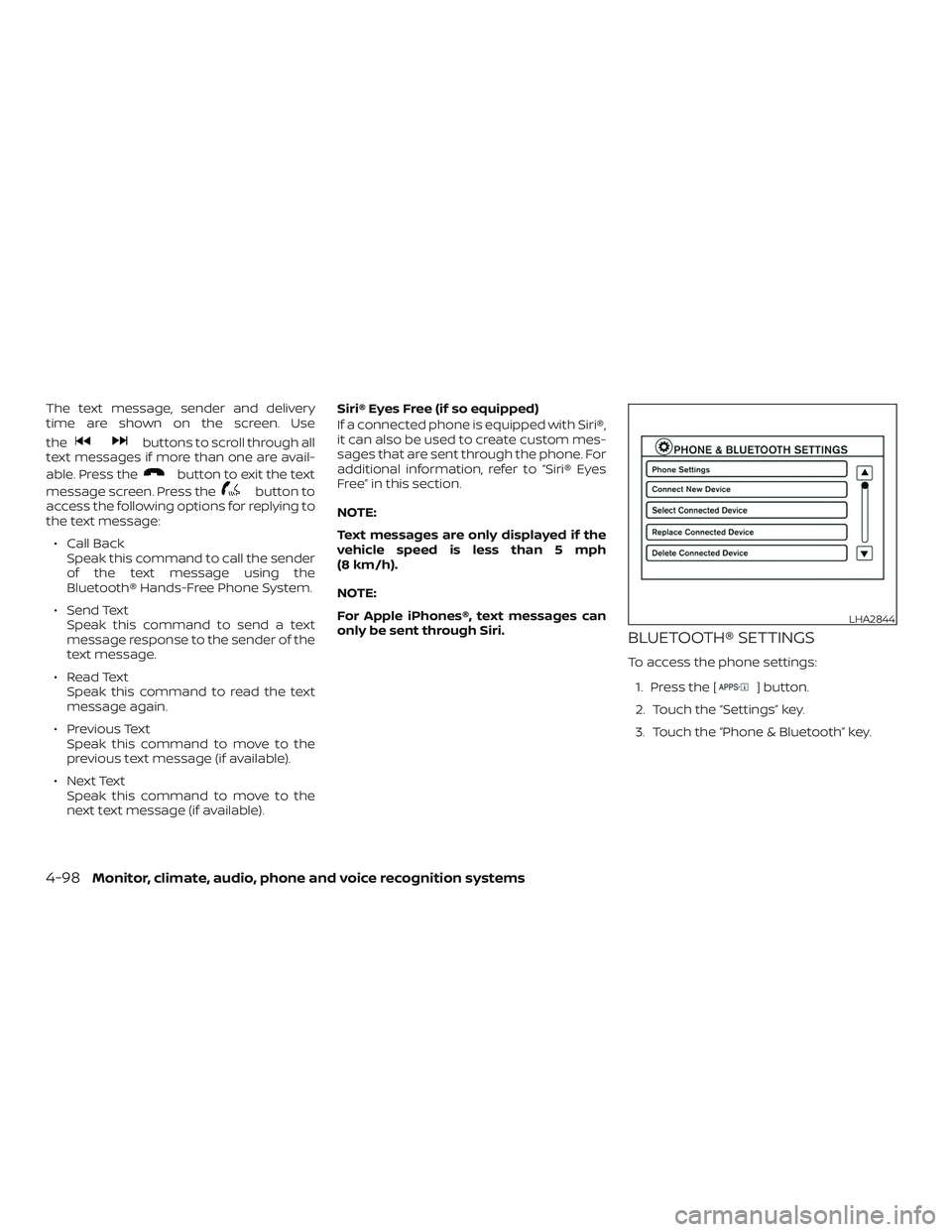
BLUETOOTH® SETTINGS
To access the phone settings:
1. Press the [
] button.
2. Touch the “Settings” key.
3. Touch the “Phone & Bluetooth” key.
LHA2844
4-98Monitor, climate, audio, phone and voice recognition systems
Page 301 of 502
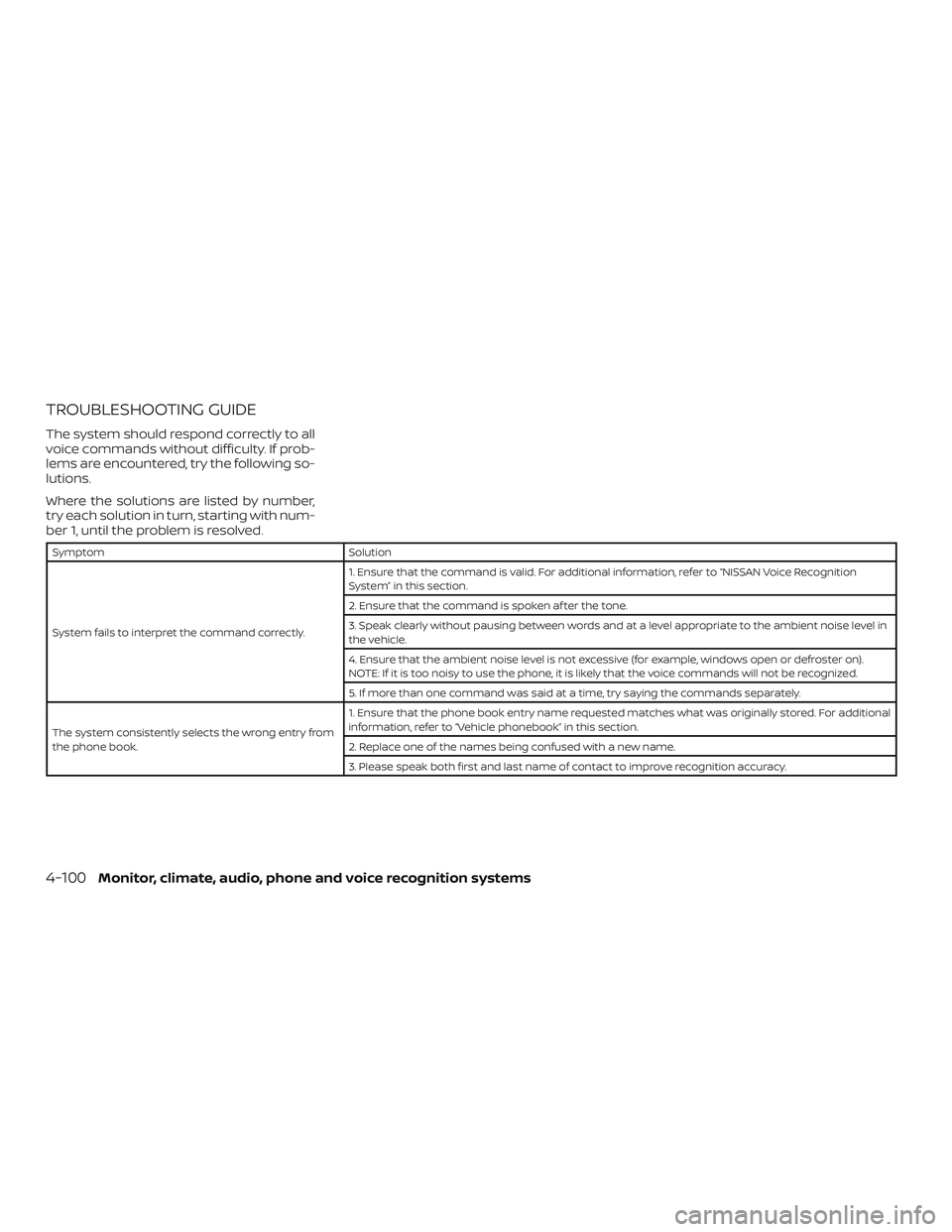
TROUBLESHOOTING GUIDE
The system should respond correctly to all
voice commands without difficulty. If prob-
lems are encountered, try the following so-
lutions.
Where the solutions are listed by number,
try each solution in turn, starting with num-
ber 1, until the problem is resolved.
SymptomSolution
System fails to interpret the command correctly. 1. Ensure that the command is valid. For additional information, refer to “NISSAN Voice Recognition
System” in this section.
2. Ensure that the command is spoken af ter the tone.
3. Speak clearly without pausing between words and at a level appropriate to the ambient noise level in
the vehicle.
4. Ensure that the ambient noise level is not excessive (for example, windows open or defroster on).
NOTE: If it is too noisy to use the phone, it is likely that the voice commands will not be recognized.
5. If more than one command was said at a time, try saying the commands separately.
The system consistently selects the wrong entry from
the phone book. 1. Ensure that the phone book entry name requested matches what was originally stored. For additional
information, refer to “Vehicle phonebook” in this section.
2. Replace one of the names being confused with a new name.
3. Please speak both first and last name of contact to improve recognition accuracy.
4-100Monitor, climate, audio, phone and voice recognition systems
Page 302 of 502
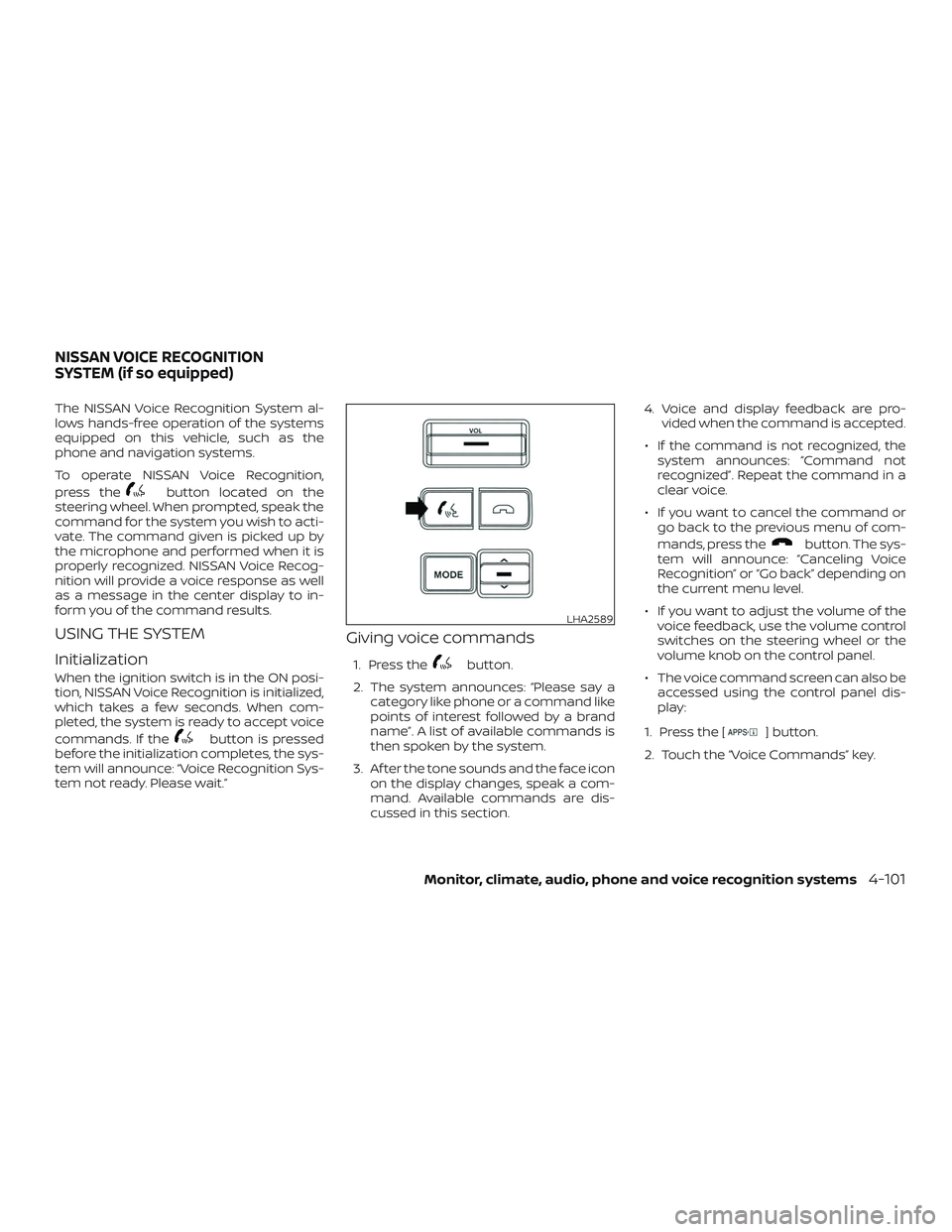
The NISSAN Voice Recognition System al-
lows hands-free operation of the systems
equipped on this vehicle, such as the
phone and navigation systems.
To operate NISSAN Voice Recognition,
press the
button located on the
steering wheel. When prompted, speak the
command for the system you wish to acti-
vate. The command given is picked up by
the microphone and performed when it is
properly recognized. NISSAN Voice Recog-
nition will provide a voice response as well
as a message in the center display to in-
form you of the command results.
USING THE SYSTEM
Initialization
When the ignition switch is in the ON posi-
tion, NISSAN Voice Recognition is initialized,
which takes a few seconds. When com-
pleted, the system is ready to accept voice
commands. If the
button is pressed
before the initialization completes, the sys-
tem will announce: “Voice Recognition Sys-
tem not ready. Please wait.”
Giving voice commands
1. Press thebutton.
2. The system announces: “Please say a category like phone or a command like
points of interest followed by a brand
name”. A list of available commands is
then spoken by the system.
3. Af ter the tone sounds and the face icon on the display changes, speak a com-
mand. Available commands are dis-
cussed in this section. 4. Voice and display feedback are pro-
vided when the command is accepted.
∙ If the command is not recognized, the system announces: “Command not
recognized”. Repeat the command in a
clear voice.
∙ If you want to cancel the command or go back to the previous menu of com-
mands, press the
button. The sys-
tem will announce: “Canceling Voice
Recognition” or “Go back” depending on
the current menu level.
∙ If you want to adjust the volume of the voice feedback, use the volume control
switches on the steering wheel or the
volume knob on the control panel.
∙ The voice command screen can also be accessed using the control panel dis-
play:
1. Press the [
] button.
2. Touch the “Voice Commands” key.
LHA2589
NISSAN VOICE RECOGNITION
SYSTEM (if so equipped)
Monitor, climate, audio, phone and voice recognition systems4-101
Page 306 of 502
HELP VOICE COMMANDS
The following voice commands can be
spoken to have the system provide in-
structions and tips for using the NISSAN
Voice Recognition System.∙ List Commands
∙ What Can I Say?
∙ General Help
∙ Go Back
∙ Quit
∙ Exit
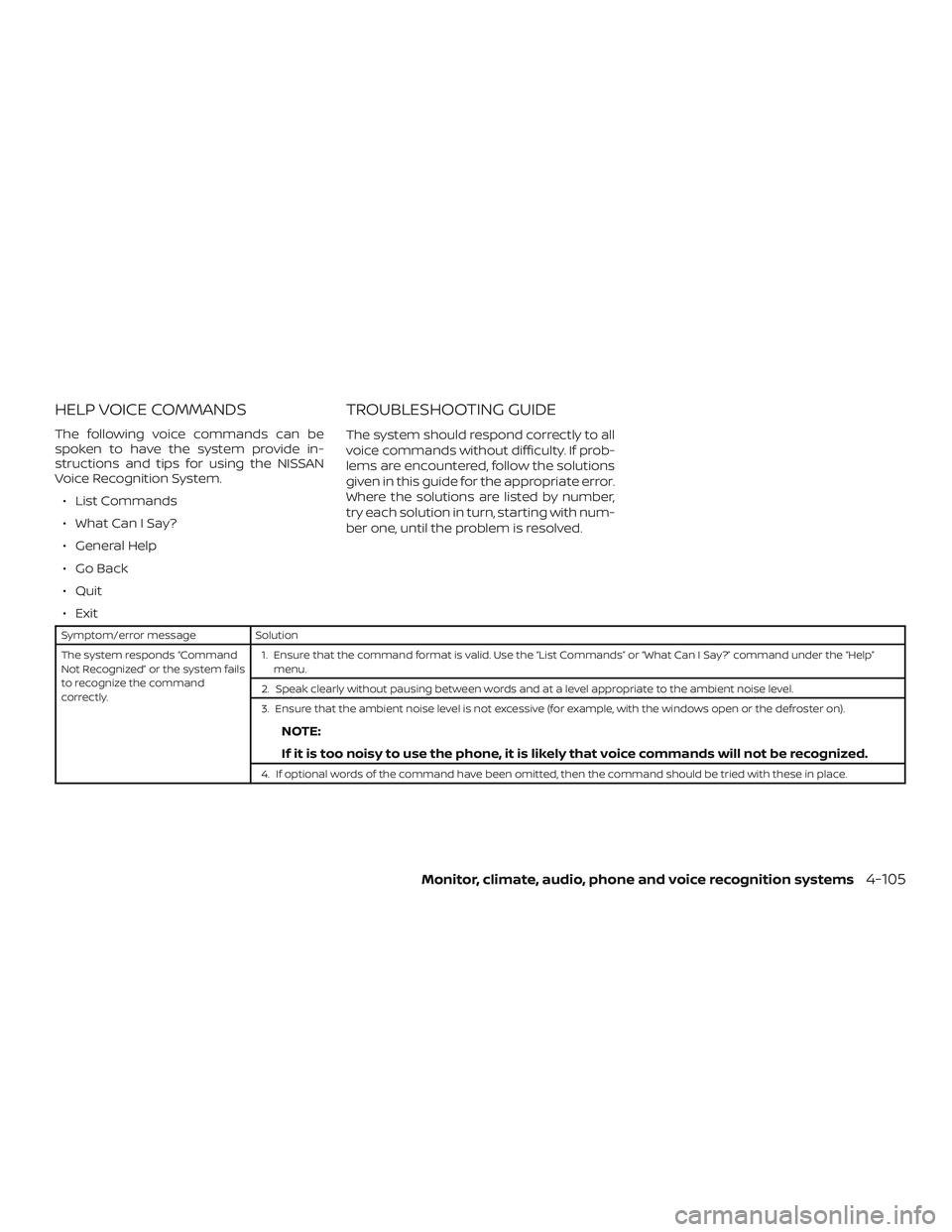
TROUBLESHOOTING GUIDE
The system should respond correctly to all
voice commands without difficulty. If prob-
lems are encountered, follow the solutions
given in this guide for the appropriate error.
Where the solutions are listed by number,
try each solution in turn, starting with num-
ber one, until the problem is resolved.
Symptom/error message Solution
The system responds “Command
Not Recognized” or the system fails
to recognize the command
correctly. 1. Ensure that the command format is valid. Use the “List Commands” or “What Can I Say?” command under the “Help”
menu.
2. Speak clearly without pausing between words and at a level appropriate to the ambient noise level.
3. Ensure that the ambient noise level is not excessive (for example, with the windows open or the defroster on).
NOTE:
If it is too noisy to use the phone, it is likely that voice commands will not be recognized.
4. If optional words of the command have been omitted, then the command should be tried with these in place.
Monitor, climate, audio, phone and voice recognition systems4-105
Page 310 of 502
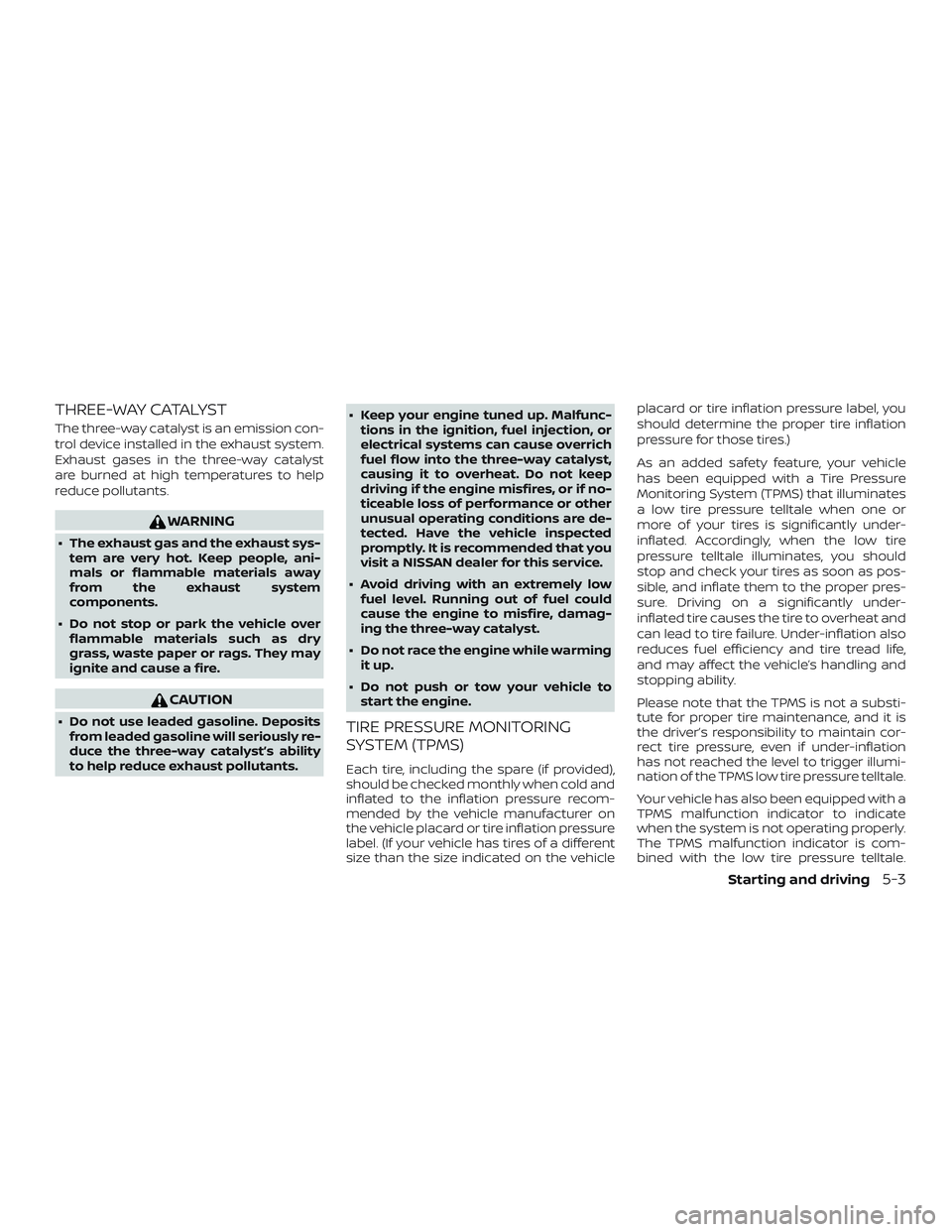
THREE-WAY CATALYST
The three-way catalyst is an emission con-
trol device installed in the exhaust system.
Exhaust gases in the three-way catalyst
are burned at high temperatures to help
reduce pollutants.
WARNING
∙ The exhaust gas and the exhaust sys-tem are very hot. Keep people, ani-
mals or flammable materials away
from the exhaust system
components.
∙ Do not stop or park the vehicle over flammable materials such as dry
grass, waste paper or rags. They may
ignite and cause a fire.
CAUTION
∙ Do not use leaded gasoline. Depositsfrom leaded gasoline will seriously re-
duce the three-way catalyst’s ability
to help reduce exhaust pollutants. ∙ Keep your engine tuned up. Malfunc-
tions in the ignition, fuel injection, or
electrical systems can cause overrich
fuel flow into the three-way catalyst,
causing it to overheat. Do not keep
driving if the engine misfires, or if no-
ticeable loss of performance or other
unusual operating conditions are de-
tected. Have the vehicle inspected
promptly. It is recommended that you
visit a NISSAN dealer for this service.
∙ Avoid driving with an extremely low fuel level. Running out of fuel could
cause the engine to misfire, damag-
ing the three-way catalyst.
∙ Do not race the engine while warming it up.
∙ Do not push or tow your vehicle to start the engine.TIRE PRESSURE MONITORING
SYSTEM (TPMS)
Each tire, including the spare (if provided),
should be checked monthly when cold and
inflated to the inflation pressure recom-
mended by the vehicle manufacturer on
the vehicle placard or tire inflation pressure
label. (If your vehicle has tires of a different
size than the size indicated on the vehicle placard or tire inflation pressure label, you
should determine the proper tire inflation
pressure for those tires.)
As an added safety feature, your vehicle
has been equipped with a Tire Pressure
Monitoring System (TPMS) that illuminates
a low tire pressure telltale when one or
more of your tires is significantly under-
inflated. Accordingly, when the low tire
pressure telltale illuminates, you should
stop and check your tires as soon as pos-
sible, and inflate them to the proper pres-
sure. Driving on a significantly under-
inflated tire causes the tire to overheat and
can lead to tire failure. Under-inflation also
reduces fuel efficiency and tire tread life,
and may affect the vehicle’s handling and
stopping ability.
Please note that the TPMS is not a substi-
tute for proper tire maintenance, and it is
the driver’s responsibility to maintain cor-
rect tire pressure, even if under-inflation
has not reached the level to trigger illumi-
nation of the TPMS low tire pressure telltale.
Your vehicle has also been equipped with a
TPMS malfunction indicator to indicate
when the system is not operating properly.
The TPMS malfunction indicator is com-
bined with the low tire pressure telltale.
Starting and driving5-3
Page 313 of 502
Some examples are:∙ Facilities or electric devices using simi- lar radio frequencies are near the ve-
hicle.
∙ If a transmitter set to similar frequen- cies is being used in or near the vehicle.
∙ If a computer (or similar equipment) or a DC/AC converter is being used in or
near the vehicle.
The low tire pressure warning light may
illuminate in the following cases: ∙ If the vehicle is equipped with a wheel and tire without TPMS.
∙ If the TPMS has been replaced and the ID has not been registered.
∙ If the wheel is not originally specified by NISSAN.
FCC Notice:
For USA:
This device complies with Part 15 of the
FCC Rules. Operation is subject to the fol-
lowing two conditions: (1) This device
may not cause harmful interference, and
(2) this device must accept any interfer-
ence received, including interference
that may cause undesired operation. NOTE:
Changes or modifications not expressly
approved by the party responsible for
compliance could void the user’s author-
ity to operate the equipment.
For Canada:
This device complies with Industry
Canada licence-exempt RSS standard(s).
Operation is subject to the following two
conditions: (1) this device may not cause
interference, and (2) this device must ac-
cept any interference, including interfer-
ence that may cause undesired opera-
tion of the device.
ON-PAVEMENT AND OFF-ROAD
DRIVING PRECAUTIONS
Utility vehicles have a significantly
higher rollover rate than other types of
vehicles.
They have higher ground clearance than
passenger cars to make them capable of
performing in a variety of on-pavement
and off-road applications. This gives them
a higher center of gravity than ordinary ve-
hicles. An advantage of higher ground
clearance is a better view of the road, allow-
ing you to anticipate problems. However,they are not designed for cornering at the
same speeds as conventional 2-wheel
drive vehicles any more than low-slung
sports cars are designed to perform satis-
factorily under off-road conditions. If at all
possible, avoid sharp turns at high speeds.
As with other vehicles of this type, failure to
operate this vehicle correctly may result in
loss of control or vehicle rollover. In a roll-
over crash, an unbelted person is signifi-
cantly more likely to die than a person
wearing a seat belt.
For additional information, refer to “Driving
safety precautions” in this section.
AVOIDING COLLISION AND
ROLLOVER
WARNING
Failure to operate this vehicle in a safe
and prudent manner may result in loss
of control or an accident.
Be alert and drive defensively at all times.
Obey all traffic regulations. Avoid excessive
speed, high speed cornering, or sudden
steering maneuvers, because these driving
practices could cause you to lose control of
your vehicle.
5-6Starting and driving
Page 314 of 502
As with any vehicle, loss of control could
result in a collision with other vehicles or
objects or cause the vehicle to roll over,
particularly if the loss of control causes
the vehicle to slide sideways.
Be attentive at all times, and avoid driving
when tired. Never drive when under the in-
fluence of alcohol or drugs (including pre-
scription or over-the-counter drugs which
may cause drowsiness). Always wear your
seat belt as outlined in the “Safety – Seats,
seat belts and supplemental restraint sys-
tem” section of this manual, and also in-
struct your passengers to do so.
Seat belts help reduce the risk of injury in
collisions and rollovers.In a rollover crash,
an unbelted or improperly belted person
is significantly more likely to be injured
or killed than a person properly wearing
a seat belt.
OFF-ROAD RECOVERY
While driving, the right side or lef t side
wheels may unintentionally leave the road
surface. If this occurs, maintain control of
the vehicle by following the procedure be-
low. Please note that this procedure is only
a general guide. The vehicle must be driven
as appropriate based on the conditions of
the vehicle, road and traffic. 1. Remain calm and do not overreact.
2. Do not apply the brakes.
3. Maintain a firm grip on the steering
wheel with both hands and try to hold a
straight course.
4. When appropriate, slowly release the accelerator pedal to gradually slow the
vehicle.
5. If there is nothing in the way, steer the vehicle to follow the road while vehicle
speed is reduced. Do not attempt to
drive the vehicle back onto the road
surface until vehicle speed is reduced.
6. When it is safe to do so, gradually turn the steering wheel until both tires re-
turn to the road surface. When all tires
are on the road surface, steer the ve-
hicle to stay in the appropriate driving
lane.
∙ If you decide that it is not safe to re- turn the vehicle to the road surface
based on vehicle, road or traffic con-
ditions, gradually slow the vehicle to a
stop in a safe place off the road.
RAPID AIR PRESSURE LOSS
Rapid air pressure loss or a “blow-out” can
occur if the tire is punctured or is damaged
due to hitting a curb or pothole. Rapid air
pressure loss can also be caused by driving
on under-inflated tires.
Rapid air pressure loss can affect the han-
dling and stability of the vehicle, especially
at highway speeds.
Help prevent rapid air pressure loss by
maintaining the correct air pressure and
visually inspecting the tires for wear and
damage. For additional information, refer
to “Wheels and tires” in the “Do-it-yourself ”
section of this manual. If a tire rapidly loses
air pressure or “blows-out” while driving,
maintain control of the vehicle by following
the procedure below. Please note that this
procedure is only a general guide. The ve-
hicle must be driven as appropriate based
on the conditions of the vehicle, road and
traffic.
Starting and driving5-7