ad blue NISSAN FRONTIER 2018 Owner´s Manual
[x] Cancel search | Manufacturer: NISSAN, Model Year: 2018, Model line: FRONTIER, Model: NISSAN FRONTIER 2018Pages: 502, PDF Size: 4.85 MB
Page 10 of 502
CALIFORNIA PERCHLORATE
ADVISORY
Some vehicle parts, such as lithium bat-
teries, may contain perchlorate material.
The following advisory is provided: “Per-
chlorate Material – special handling may
apply. For additional information, refer to
www.dtsc.ca.gov/hazardouswaste/
perchlorate/”.
BLUETOOTH® is a
trademark owned
by Bluetooth SIG,
Inc. and licensed
to Visteon and
Bosch.
SiriusXM® services
require a subscrip-
tion af ter trial pe-
riod and are sold
separately or as a
package. The
satellite service is
available only in
the 48 contiguous
USA and DC.
SiriusXM® satellite
service is also
available in
Canada; see
www.siriusxm.ca.
© 2018 NISSAN NORTH AMERICA, INC.
All rights reserved. No part of this Owner’s
Manual may be reproduced or stored in a
retrieval system, or transmitted in any
form, or by any means, electronic, me-
chanical, photocopying, recording or oth-
erwise, without the prior written permis-
sion of Nissan North America, Inc.
Page 19 of 502
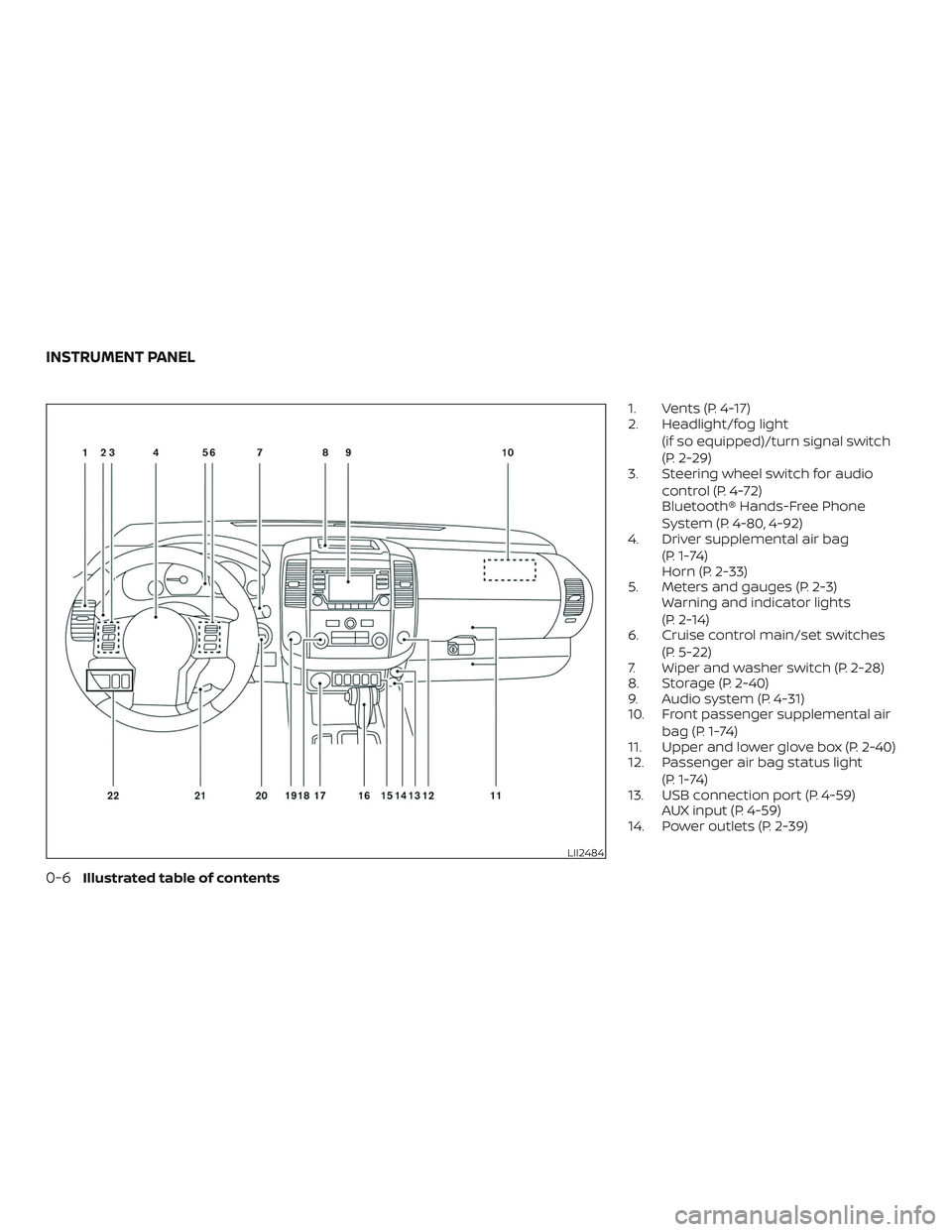
1. Vents (P. 4-17)
2. Headlight/fog light(if so equipped)/turn signal switch
(P. 2-29)
3. Steering wheel switch for audio
control (P. 4-72)
Bluetooth® Hands-Free Phone
System (P. 4-80, 4-92)
4. Driver supplemental air bag
(P. 1-74)
Horn (P. 2-33)
5. Meters and gauges (P. 2-3) Warning and indicator lights
(P. 2-14)
6. Cruise control main/set switches
(P. 5-22)
7. Wiper and washer switch (P. 2-28)
8. Storage (P. 2-40)
9. Audio system (P. 4-31)
10. Front passenger supplemental air
bag (P. 1-74)
11. Upper and lower glove box (P. 2-40)
12. Passenger air bag status light
(P. 1-74)
13. USB connection port (P. 4-59) AUX input (P. 4-59)
14. Power outlets (P. 2-39)
LII2484
INSTRUMENT PANEL
0-6Illustrated table of contents
Page 24 of 502
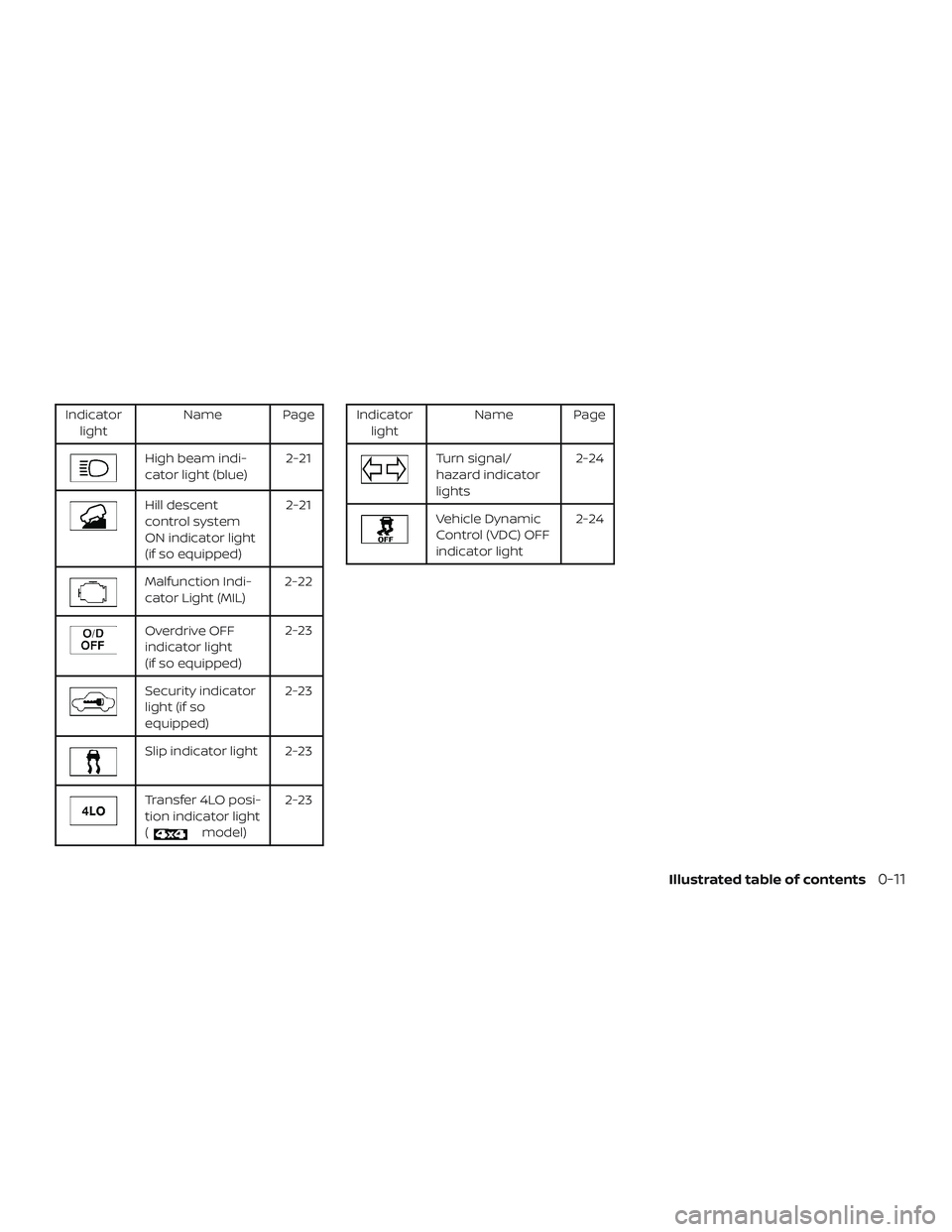
Indicatorlight Name Page
High beam indi-
cator light (blue) 2-21
Hill descent
control system
ON indicator light
(if so equipped)2-21
Malfunction Indi-
cator Light (MIL)
2-22
Overdrive OFF
indicator light
(if so equipped) 2-23
Security indicator
light (if so
equipped)2-23
Slip indicator light 2-23
Transfer 4LO posi-
tion indicator light
(
model)2-23
Indicator
light Name Page
Turn signal/
hazard indicator
lights 2-24
Vehicle Dynamic
Control (VDC) OFF
indicator light2-24
Illustrated table of contents0-11
Page 119 of 502
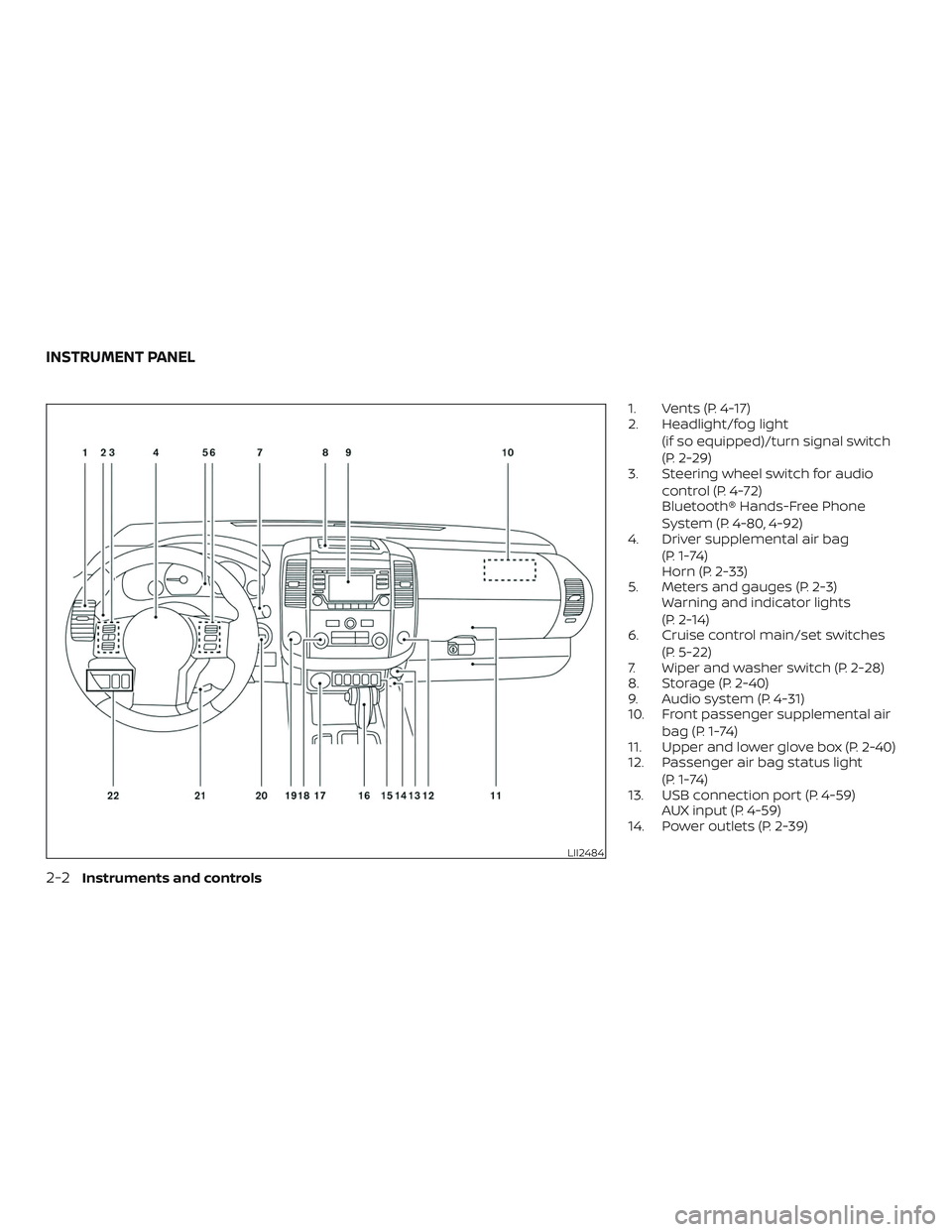
1. Vents (P. 4-17)
2. Headlight/fog light(if so equipped)/turn signal switch
(P. 2-29)
3. Steering wheel switch for audio
control (P. 4-72)
Bluetooth® Hands-Free Phone
System (P. 4-80, 4-92)
4. Driver supplemental air bag
(P. 1-74)
Horn (P. 2-33)
5. Meters and gauges (P. 2-3) Warning and indicator lights
(P. 2-14)
6. Cruise control main/set switches
(P. 5-22)
7. Wiper and washer switch (P. 2-28)
8. Storage (P. 2-40)
9. Audio system (P. 4-31)
10. Front passenger supplemental air
bag (P. 1-74)
11. Upper and lower glove box (P. 2-40)
12. Passenger air bag status light
(P. 1-74)
13. USB connection port (P. 4-59) AUX input (P. 4-59)
14. Power outlets (P. 2-39)
LII2484
INSTRUMENT PANEL
2-2Instruments and controls
Page 131 of 502
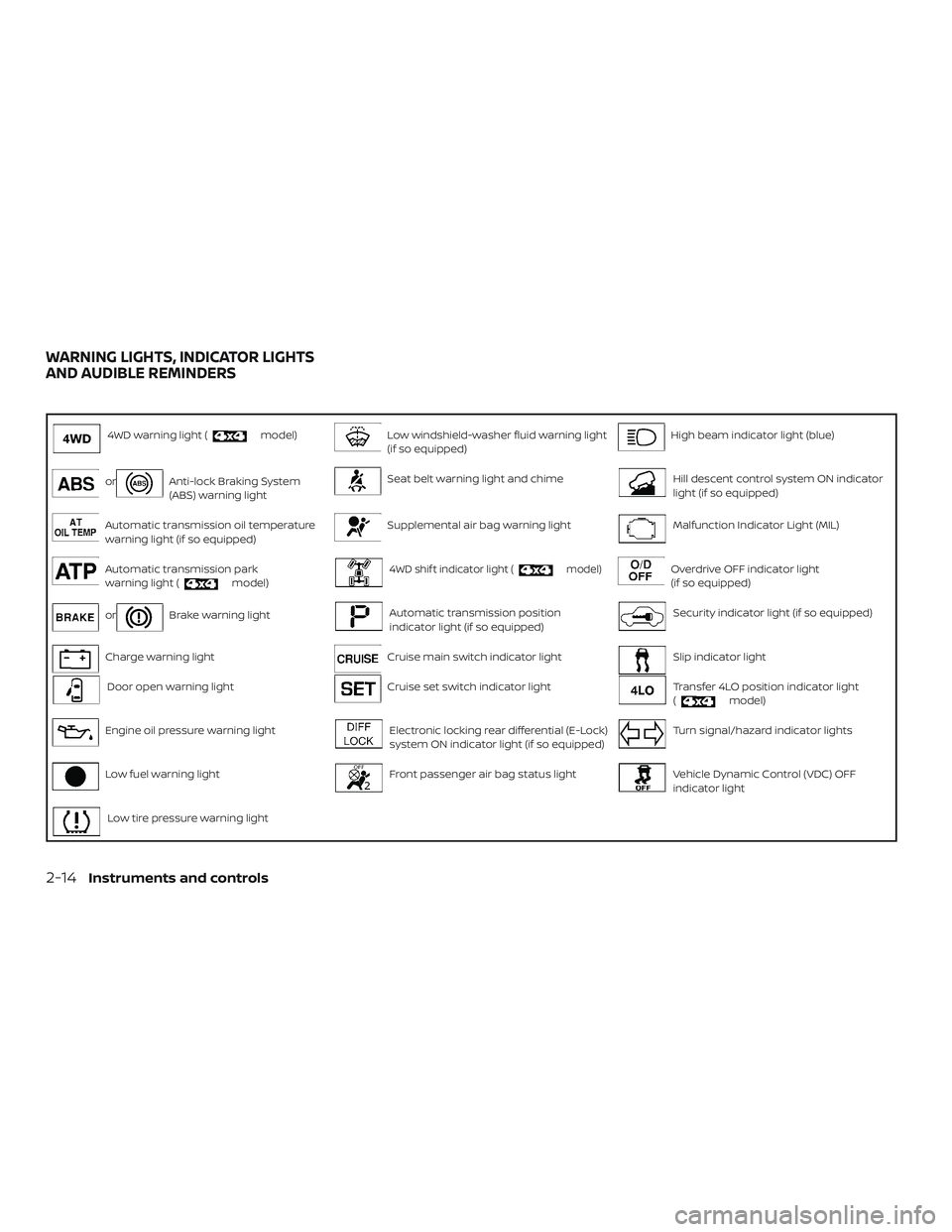
4WD warning light (model)Low windshield-washer fluid warning light
(if so equipped)High beam indicator light (blue)
orAnti-lock Braking System
(ABS) warning lightSeat belt warning light and chimeHill descent control system ON indicator
light (if so equipped)
Automatic transmission oil temperature
warning light (if so equipped)Supplemental air bag warning lightMalfunction Indicator Light (MIL)
Automatic transmission park
warning light (model)4WD shif t indicator light (model)Overdrive OFF indicator light
(if so equipped)
orBrake warning lightAutomatic transmission position
indicator light (if so equipped)Security indicator light (if so equipped)
Charge warning lightCruise main switch indicator lightSlip indicator light
Door open warning lightCruise set switch indicator lightTransfer 4LO position indicator light
(model)
Engine oil pressure warning lightElectronic locking rear differential (E-Lock)
system ON indicator light (if so equipped)Turn signal/hazard indicator lights
Low fuel warning lightFront passenger air bag status lightVehicle Dynamic Control (VDC) OFF
indicator light
Low tire pressure warning light
WARNING LIGHTS, INDICATOR LIGHTS
AND AUDIBLE REMINDERS
2-14Instruments and controls
Page 138 of 502
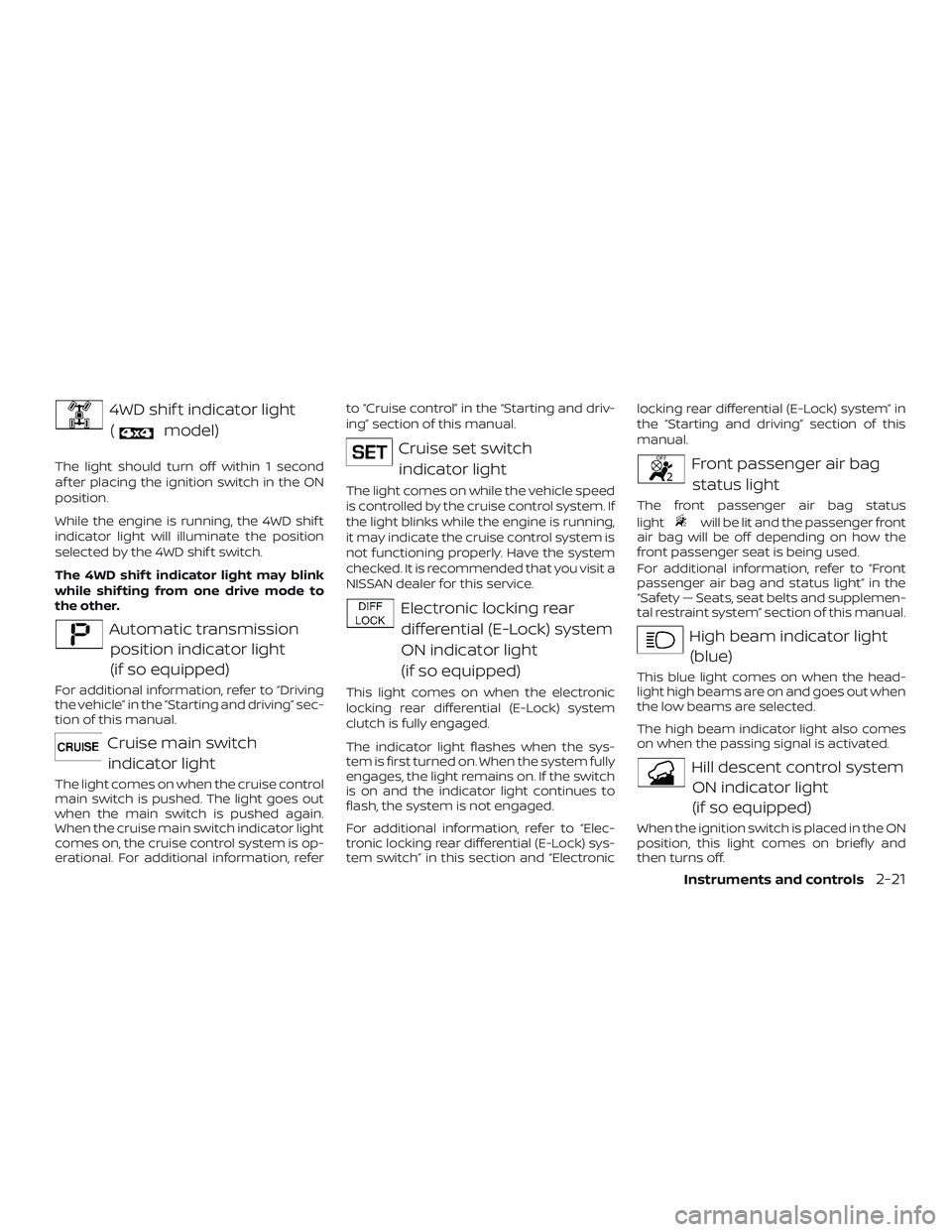
4WD shif t indicator light(
model)
The light should turn off within 1 second
af ter placing the ignition switch in the ON
position.
While the engine is running, the 4WD shif t
indicator light will illuminate the position
selected by the 4WD shif t switch.
The 4WD shif t indicator light may blink
while shif ting from one drive mode to
the other.
Automatic transmissionposition indicator light
(if so equipped)
For additional information, refer to “Driving
the vehicle” in the “Starting and driving” sec-
tion of this manual.
Cruise main switchindicator light
The light comes on when the cruise control
main switch is pushed. The light goes out
when the main switch is pushed again.
When the cruise main switch indicator light
comes on, the cruise control system is op-
erational. For additional information, refer to “Cruise control” in the “Starting and driv-
ing” section of this manual.
Cruise set switch
indicator light
The light comes on while the vehicle speed
is controlled by the cruise control system. If
the light blinks while the engine is running,
it may indicate the cruise control system is
not functioning properly. Have the system
checked. It is recommended that you visit a
NISSAN dealer for this service.
Electronic locking reardifferential (E-Lock) system
ON indicator light
(if so equipped)
This light comes on when the electronic
locking rear differential (E-Lock) system
clutch is fully engaged.
The indicator light flashes when the sys-
tem is first turned on. When the system fully
engages, the light remains on. If the switch
is on and the indicator light continues to
flash, the system is not engaged.
For additional information, refer to “Elec-
tronic locking rear differential (E-Lock) sys-
tem switch” in this section and “Electronic locking rear differential (E-Lock) system” in
the “Starting and driving” section of this
manual.
Front passenger air bag
status light
The front passenger air bag status
light
will be lit and the passenger front
air bag will be off depending on how the
front passenger seat is being used.
For additional information, refer to “Front
passenger air bag and status light” in the
“Safety — Seats, seat belts and supplemen-
tal restraint system” section of this manual.
High beam indicator light
(blue)
This blue light comes on when the head-
light high beams are on and goes out when
the low beams are selected.
The high beam indicator light also comes
on when the passing signal is activated.
Hill descent control systemON indicator light
(if so equipped)
When the ignition switch is placed in the ON
position, this light comes on briefly and
then turns off.
Instruments and controls2-21
Page 203 of 502
USB (Universal Serial Bus) Connection
Port (models with Navigation System)
(if so equipped).............................. 4-61
iPod®* player operation without
Navigation System (if so equipped) ..........4-63
iPod®* player operation with Navigation
System (if so equipped) ......................4-65
Bluetooth® streaming audio without
Navigation System (if so equipped) ..........4-69
Bluetooth® streaming audio with
Navigation System (if so equipped) ..........4-70
CD care and cleaning ........................ 4-71
Steering wheel switch for audio control ......4-72
Antenna ..................................... 4-73
NissanConnect® Mobile Apps (if so equipped). . . 4-73 Registering with NissanConnect®
Mobile Apps ................................. 4-73
Connect Phone ..............................4-74
Application Download .......................4-74
Siri® Eyes Free ..................................4-74
Requirements ............................... 4-75
Siri® Activation ............................... 4-75
Operating Siri® Eyes Free ....................4-75Changing Siri® Eyes Free settings
(models without navigation system)
.........4-76
Changing Siri® Eyes Free settings
(models with navigation system) ............4-76
Troubleshooting guide ......................4-77
Car phone or CB radio .......................... 4-79
Bluetooth® Hands-Free Phone System
without Navigation System (if so equipped) .....4-80
Regulatory information ......................4-82
Using the system ............................ 4-82
Control buttons ............................. 4-83
Connecting procedure ......................4-84
Voice commands ........................... 4-85
Making a call ................................ 4-87
Receiving a call .............................. 4-87
During a call ................................. 4-87
Ending a call ................................. 4-88
Text messaging (if so equipped) .............4-88
Bluetooth® settings ......................... 4-90
Manual control .............................. 4-91
Bluetooth®
Hands-Free Phone System with
Navigation System (if so equipped) .............4-92
Regulatory information ......................4-94
Page 204 of 502
Voice commands........................... 4-94
Connecting procedure ......................4-95
Vehicle phonebook .......................... 4-95
Making a call ................................ 4-95
Receiving a call .............................. 4-96
During a call ................................. 4-96
Ending a call ................................. 4-96
Text messaging (if so equipped) .............4-96
Bluetooth® settings ......................... 4-98
Phone settings .............................. 4-99
Troubleshooting guide .....................4-100NISSAN Voice Recognition System
(if so equipped)
................................ 4-101
Using the system ........................... 4-101
System features ............................ 4-102
Bluetooth® Hands-Free Phone System
voice commands ........................... 4-103
Navigation System voice commands .......4-104
Audio system voice commands ............4-104
Information voice commands ..............4-104
My Apps voice commands .................4-104
Help voice commands ......................4-105
Troubleshooting guide .....................4-105
Page 206 of 502
9. CAMERA button
10. NAV button*
* For additional information, refer to the
separate NissanConnect® Owner’s Manual
regarding the Navigation system control
buttons.
** For additional information, refer to the
“Bluetooth® Hands-Free Phone System
with Navigation System” in this section.
When you use this system, make sure the
engine is running.
If you use the system with the engine not
running (ignition ON or ACC) for a long
time, it will discharge the battery, and
the engine will not start.
Reference symbols:
“Example” — Words marked in quotes refer
to a key shown only on the display. These
keys can be selected by touching the
screen.HOW TO USE THE TOUCH-SCREEN
CAUTION
∙ The glass display screen may break if it is hit with a hard or sharp object. If
the glass screen breaks, do not touch
it. Doing so could result in an injury.
∙ To clean the display, never use a rough cloth, alcohol, benzine, thinner or any
kind of solvent or paper towel with a
chemical cleaning agent. They will
scratch or deteriorate the panel.
∙ Do not splash any liquid such as water or car fragrance on the display. Con-
tact with liquid will cause the system
to malfunction.
To help ensure safe driving, some functions
cannot be operated while driving.
The on-screen functions that are not avail-
able while driving will be grayed out or
muted.
Park the vehicle in a safe location and then
operate the navigation system.
WARNING
∙ ALWAYS give your full attention to driving.
∙ Avoid using vehicle features that could distract you. If distracted, you
could lose control of your vehicle and
cause an accident.
Monitor, climate, audio, phone and voice recognition systems4-5
Page 209 of 502
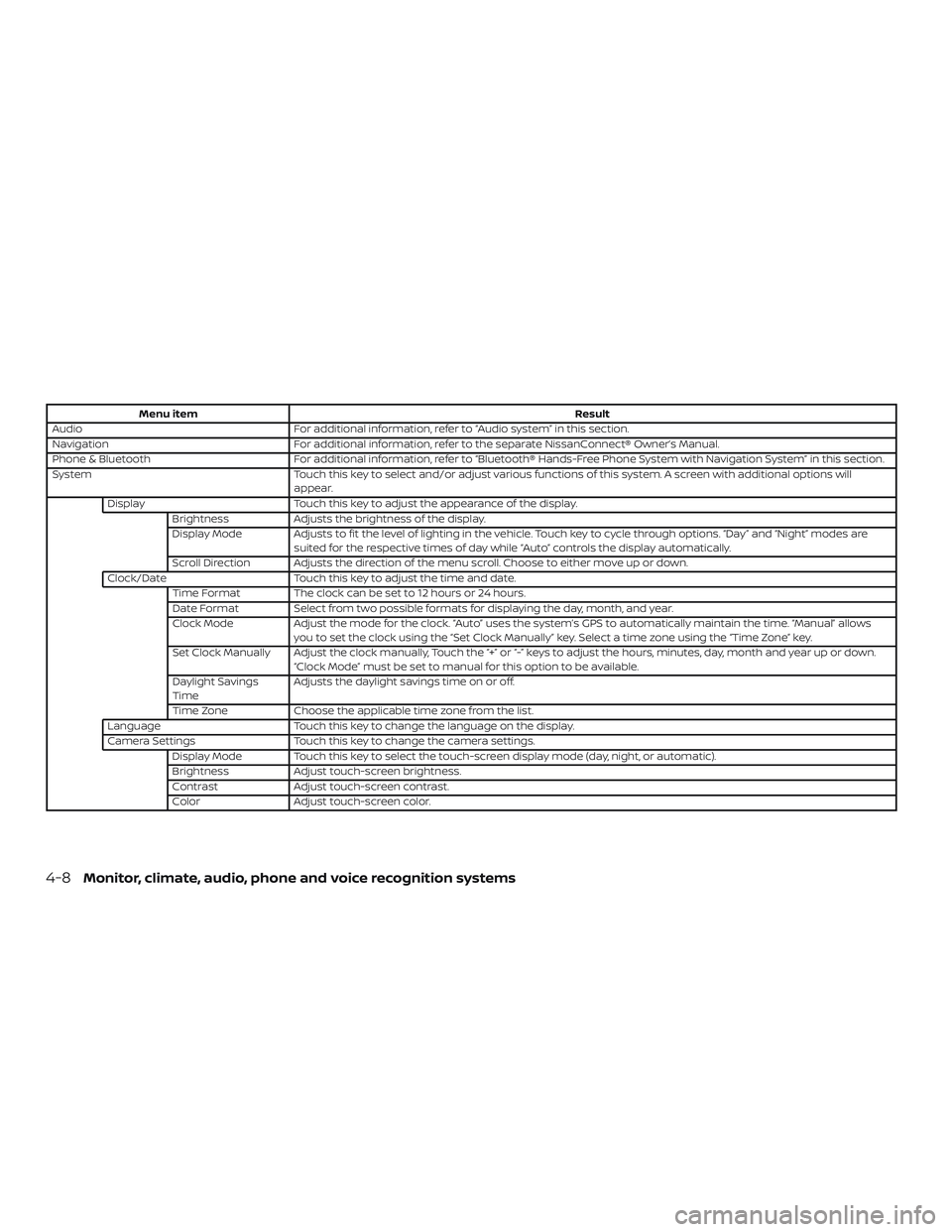
Menu itemResult
Audio For additional information, refer to “Audio system” in this section.
Navigation For additional information, refer to the separate NissanConnect® Owner’s Manual.
Phone & Bluetooth For additional information, refer to “Bluetooth® Hands-Free Phone System with Navigation System” in this section.
System Touch this key to select and/or adjust various functions of this system. A screen with additional options will
appear.
Display Touch this key to adjust the appearance of the display.
Brightness Adjusts the brightness of the display.
Display Mode Adjusts to fit the level of lighting in the vehicle. Touch key to cycle through options. “Day” and “Night” modes are suited for the respective times of day while “Auto” controls the display automatically.
Scroll Direction Adjusts the direction of the menu scroll. Choose to either move up or down.
Clock/Date Touch this key to adjust the time and date.
Time Format The clock can be set to 12 hours or 24 hours.
Date Format Select from two possible formats for displaying the day, month, and year.
Clock Mode Adjust the mode for the clock. “Auto” uses the system’s GPS to automatically maintain the time. “Manual” allows
you to set the clock using the “Set Clock Manually” key. Select a time zone using the “Time Zone” key.
Set Clock Manually Adjust the clock manually, Touch the “+” or “-” keys to adjust the hours, minutes, day, month and year up or down. “Clock Mode” must be set to manual for this option to be available.
Daylight Savings
Time Adjusts the daylight savings time on or off.
Time Zone Choose the applicable time zone from the list.
Language Touch this key to change the language on the display.
Camera Settings Touch this key to change the camera settings.
Display Mode Touch this key to select the touch-screen display mode (day, night, or automatic).
Brightness Adjust touch-screen brightness.
Contrast Adjust touch-screen contrast.
Color Adjust touch-screen color.
4-8Monitor, climate, audio, phone and voice recognition systems